
Download product images and videos directly from WizCommerce, from product pages, orders, and invoices, without screenshots or manual requests. You can download on both WizShop and WizOrder, and re-access past downloads for a limited time.
Platform: WizShop & WizOrder │ Who is this for: All Users
To get there: Product Detail Page, Order Detail, or Invoice Detail > Download media
Table of Content
| Sections | Topics |
| A | What You Can Download |
| B | Choose What to Download |
| C | Download Media on WizShop |
| D | Download Media on WizOrder |
| E | Re-access Your Downloads (WizShop) |
| F | FAQs |
Before You Begin
- Download Media must be enabled for the surface you are on. If you do not see a Download media option, ask your admin to enable it. If it is still not available, reach out to our support team at help@wizcommerce.com.
- Download media and Download (tear sheet) are two separate options. This covers Download media only, your tear sheet download is unchanged.
- For order and invoice downloads, if the product media has changed since the order was placed, the media you receive depends on the level you download from:
- Line item level: You get the latest (current) product media.
- Order or invoice level: You get the media as it was at the time the order or invoice was created, not the current product media.
A. What You Can Download
You can download media from three places on each platform:
| Surface | What downloads |
|---|---|
| Product Detail Page (PDP) | Media for that single product |
| Order Detail | Media for the whole order, or for a single line item |
| Invoice Detail | Media for the full order linked to that invoice |
On WizShop, you can also start an order-level download from the Invoices list using the 3-dot menu, until the Invoice Detail page is available.
B. Choose What to Download
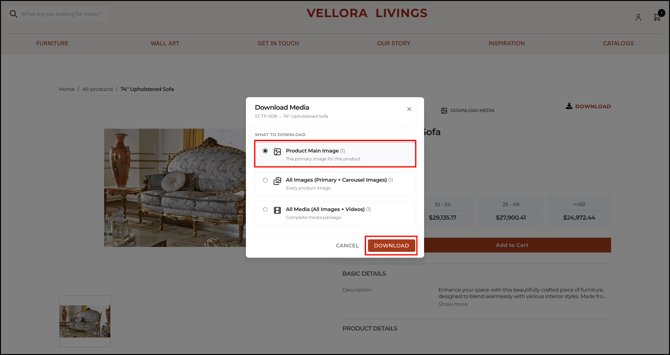
Clicking Download media on any surface opens the same modal. On desktop it appears as a centered window; on iPad and mobile it slides up from the bottom.
- Pick one of three options:
- Product Main Image: The primary image for the product only.
- All Images (Primary + Carousel Images): Every image for the product.
- All Media (All Images + Videos): The complete media package, including videos.
- Click Download.
Note: The number in brackets next to each option shows how many files you will get. If a product has no video, the All Media option is grayed out and shows "No videos available for this product."
C. Download Media on WizShop
On WizShop, downloads are prepared in the background so you can keep working while large files package.
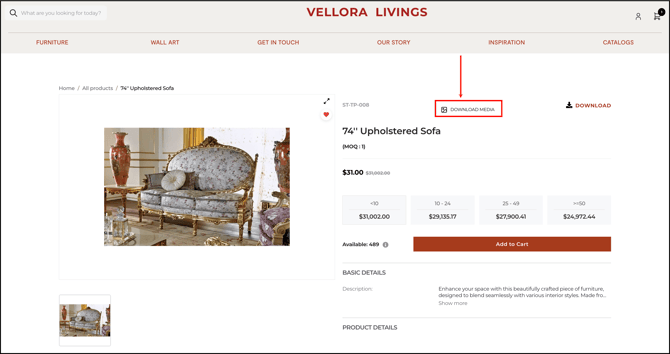
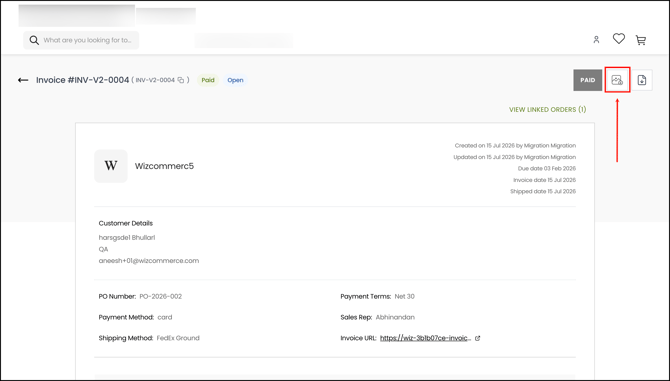
- Click Download media on a product page, order, or invoice.
- On order PDP:
- On Invoice page:
- On order PDP:
- Select an option in the modal and click Download.
- A side sheet slides in from the right with a download card showing Download in progress.
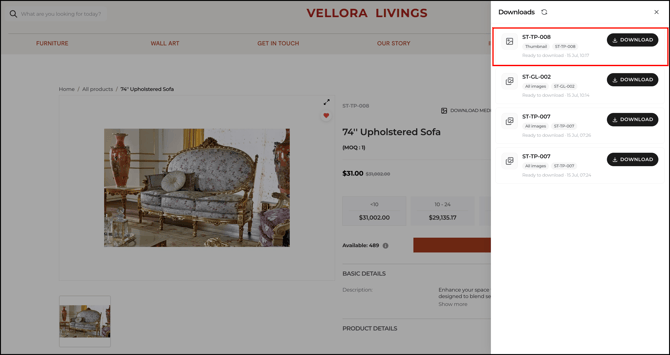
- When the file is ready, the card shows Download ready with a Download button and a completion time.
- Click Download on the card to save the file to your device.
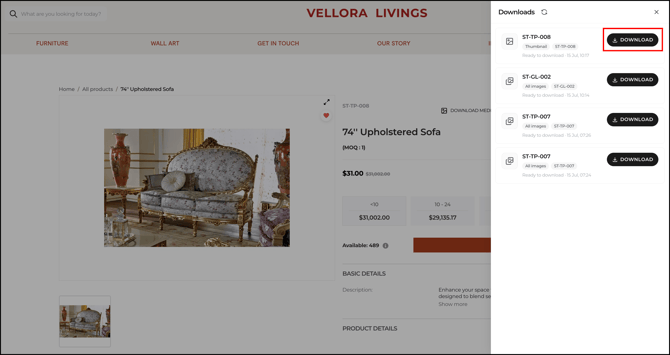
Note: WizShop downloads are not an instant browser download, wait for Download ready before saving. Single files download in their original format; multiple files download as a ZIP named after the product (product downloads) or the order (order and invoice downloads). Each download appears as its own card, newest at the top. If a download fails, the card shows Retry.
C. Download Media on WizOrder
On WizOrder, files download directly through your browser using the existing download flow.
- Click Download media on a product page, order, or invoice.
- On WizOrder this appears as an icon button on the PDP:
(On Web portal)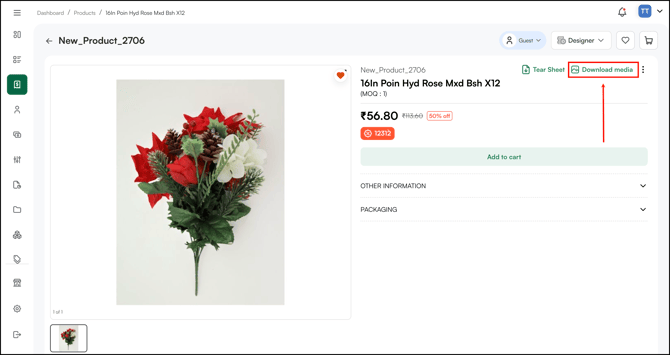
- On Confirmed order page:
→ On Mobile app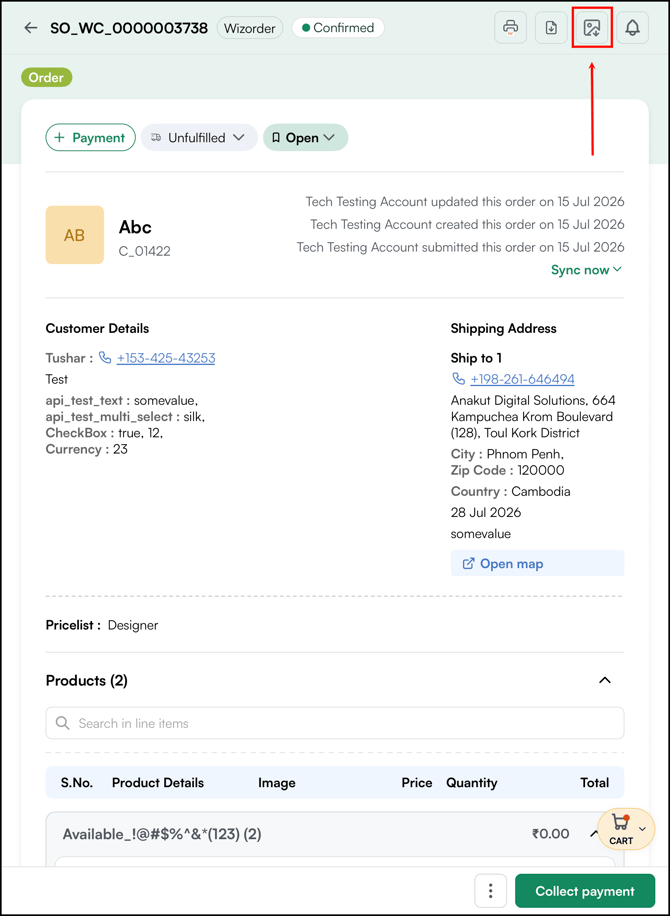
→ On Web portal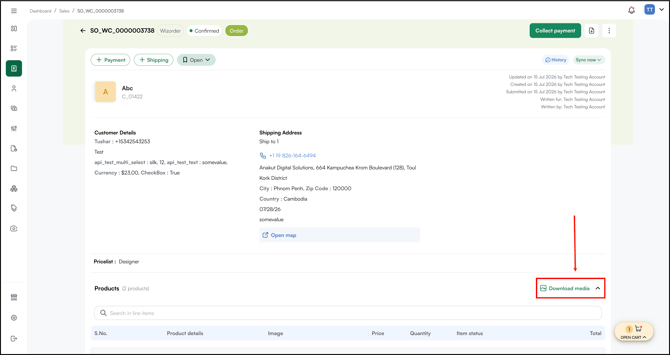
- Inside Invoice page:
→ On mobile app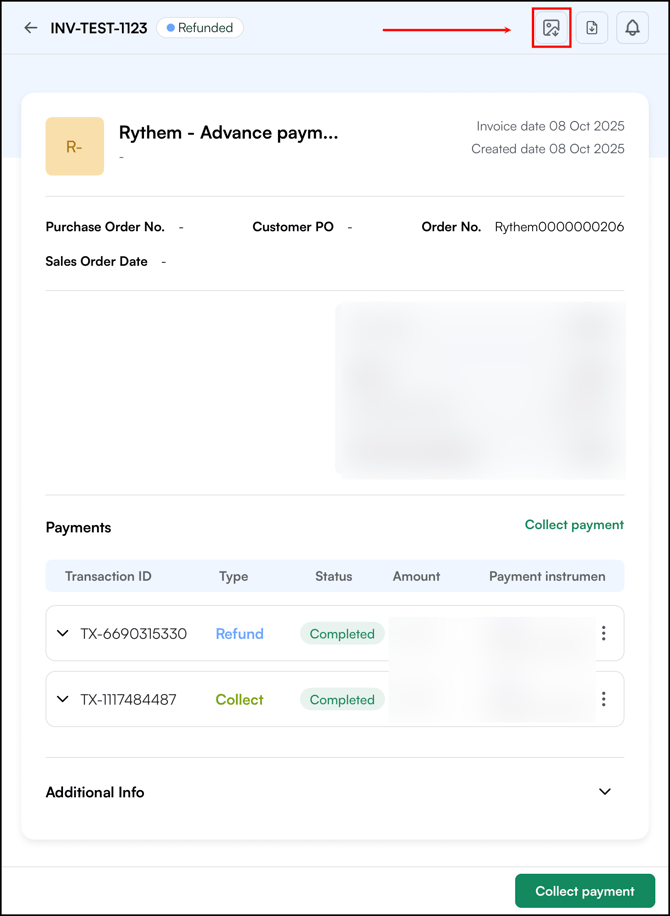
→ On web portal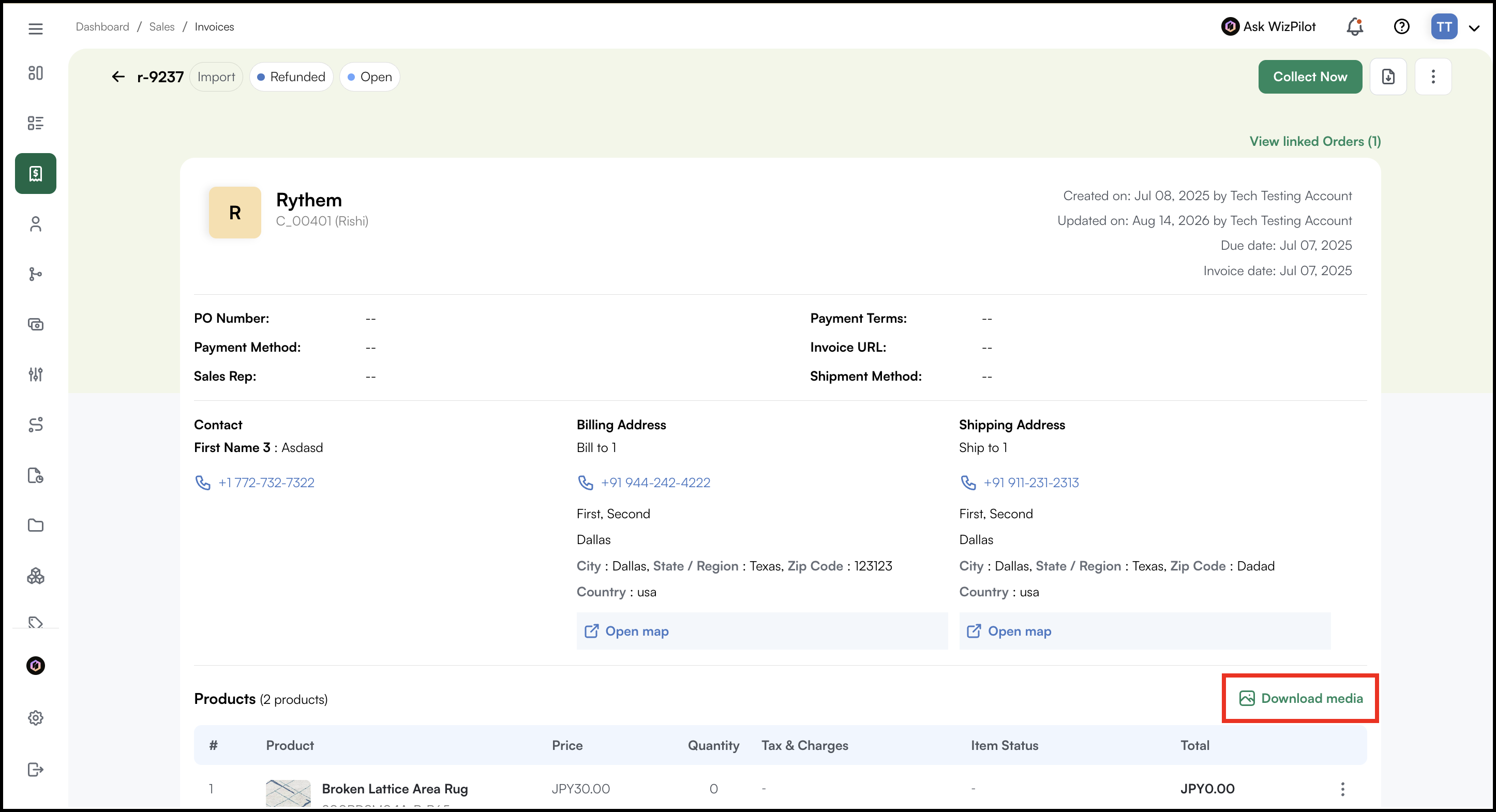
- On WizOrder this appears as an icon button on the PDP:
- Select an option and click Download.
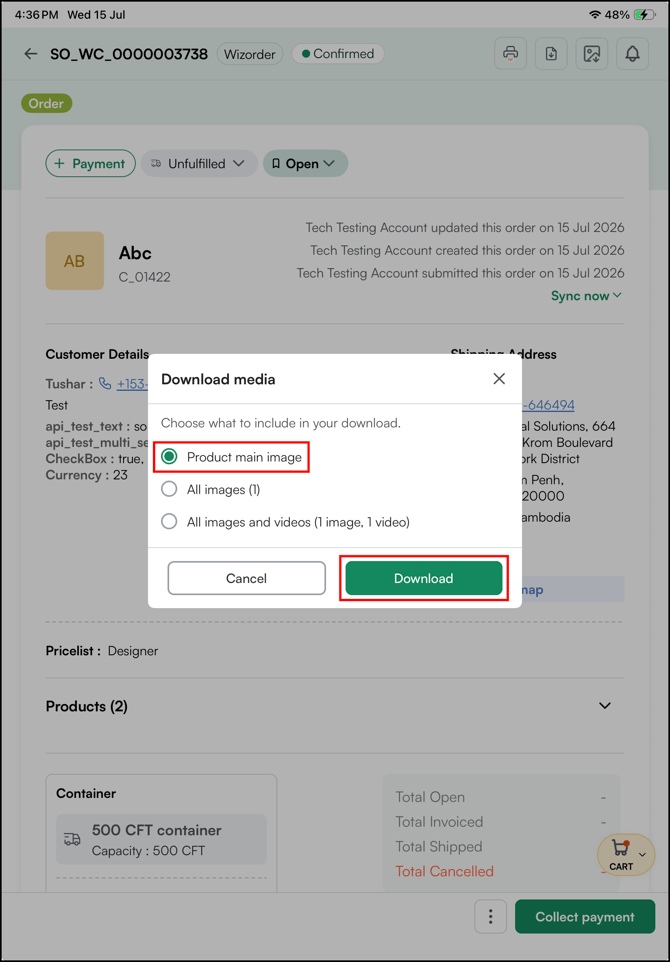
- The file downloads directly. You can view your download history in the side sheet, accessed from the notification bell in the header.
Note: Download Media on WizOrder appears on the detail pages only (Product, Order, and Invoice), not on the Orders or Invoices list views. Very large order ZIPs may fail to download; if this happens, download line items individually.
E. Re-access Your Downloads (WizShop)
On WizShop, your downloads are saved for 30 days and can be re-downloaded any time within that window.
- Click your My Profile icon
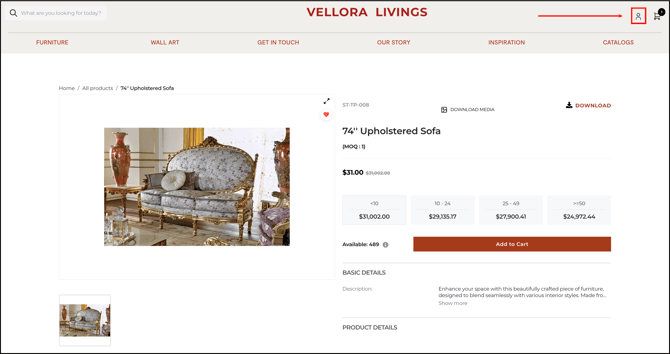
- Select Media Downloads.
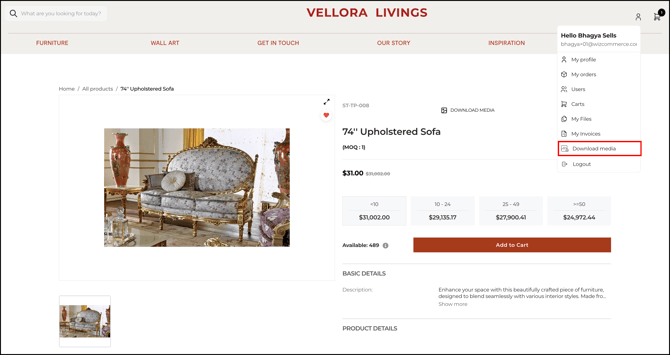
- The side sheet opens with every download you started in the last 30 days.
- Click Download on any card to save it again.
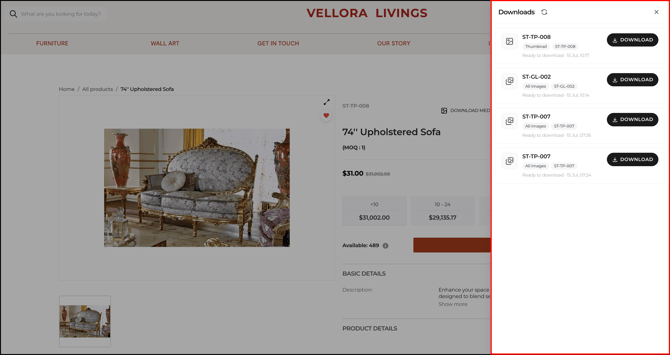
Note: Media Downloads only appears in My Profile once you have started at least one download. When all your downloads are older than 30 days, the option disappears until you start a new one. Download history is specific to your own account.
FAQs
1. What is the difference between "Download" and "Download media"?
A. Download saves the tear sheet/PDF, exactly as before. Download media saves the product images and videos. They are two separate options and do not affect each other.
2. Why does my downloaded image look different from the one I uploaded?
A. Image quality depends on how the image was originally added. Images added through Import/Export are served as a CDN variant, while images added through Product Management are served in their original form. You cannot choose which version you receive.
3. I placed an order a while ago and the product images have changed. Which images will I get?
A. For order and invoice downloads, you receive the media as it was at the time the order was placed, not the current product media.
4. How do I download product images in JPG format in WizOrder / WizShop?
A. Use Download media on the product, order, or invoice page to download product images. See B. Choose What to Download.
-
If you save an image directly from a web page instead (for example, by right-clicking it and choosing Save image as), it is usually saved in WEBP format, which some apps and tools cannot open. To convert a WEBP image to JPG, use any free online WEBP to JPG converter.
-
If you do not see the Download Media option, ask your admin to enable it. If it is still not available, reach out to our support team at help@wizcommerce.com.
Still need help? Reach out to our support team at help@wizcommerce.com.