
Find Your Sales Rep lets website visitors look up their local sales rep by ZIP code before signing up, and shows logged-in buyers their assigned rep automatically. This article covers both experiences on WizShop.
Platform: WizShop | Who is this for: Buyers & Website Visitors
Before You Begin
Keep the following in mind before using this feature:
- Availability: This is a Web-only feature and isn't turned on by default, your Implementation team enables it on request.
- Rep mapping required: The lookup only returns results for ZIP codes already mapped to a rep. If your account's ZIP-to-territory-to-rep mapping isn't set up yet, searches may come back empty.
- What you will need pre-login: Just your ZIP code, no account or login required to search.
- What you will need post-login: Nothing extra. Once you are logged in, your rep is shown automatically using the ZIP code already on your account.
A. Before Sign Up: Find A Sales Rep
If you are browsing WizShop and want to know who manages your account before you sign up, you can look up your local rep directly from the site — even if your CRM is handled through WizOrder.
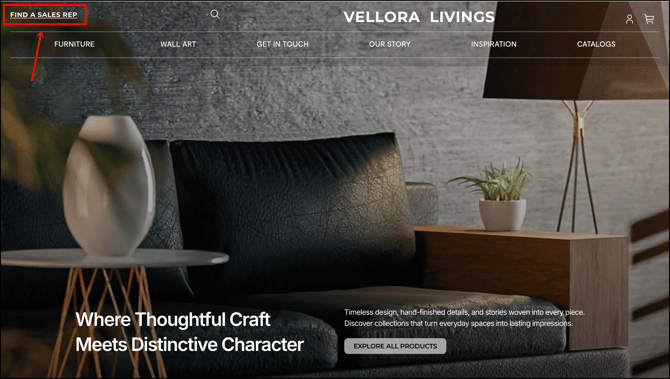
- Click Find A Sales Rep from any page on the storefront.
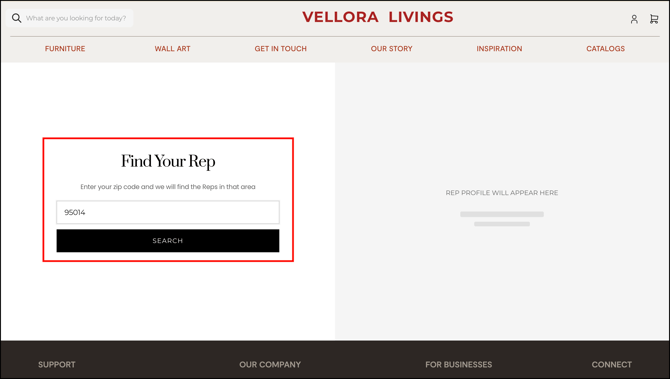
- You will land on a dedicated page with a Find Your Rep prompt.
- Enter your ZIP code and click Search.
- Available representatives in your area appear as profile cards, each showing their email, phone number, and a short description.
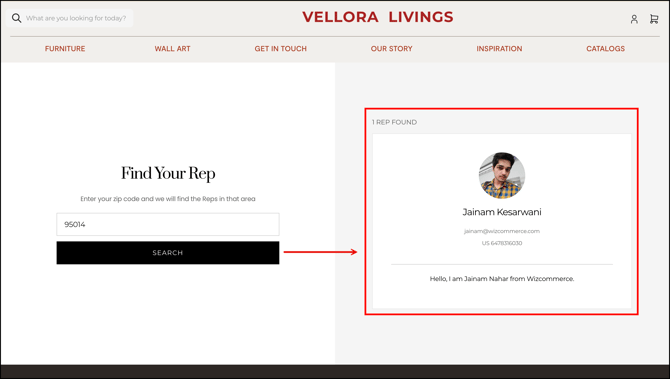
Note: If more than one rep covers your ZIP code, all matching profiles are shown. For example, searching ZIP 95014 could return two reps at once. Click any profile card to see the rep's full details, whether you are browsing as a guest or already logged in.
B. After Log In: View Your Sales Rep
Once you have signed up and logged in, the same button becomes View Your Sales Rep, and your assigned rep's details are shown automatically — no need to search by ZIP code again.
- After logging in, click View Your Sales Rep.
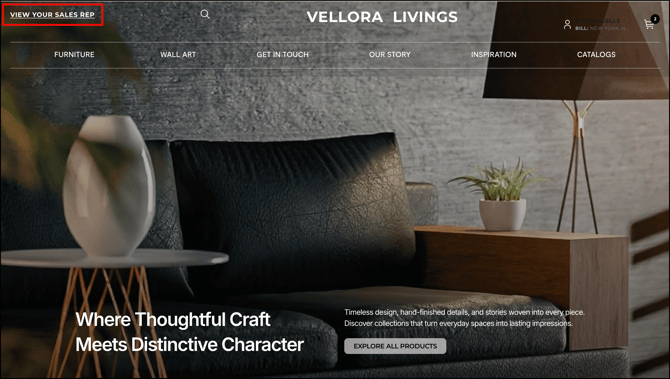
- Your assigned rep's profile appears, including their email address.
- If you have more than one sales rep, all of their profiles are listed.
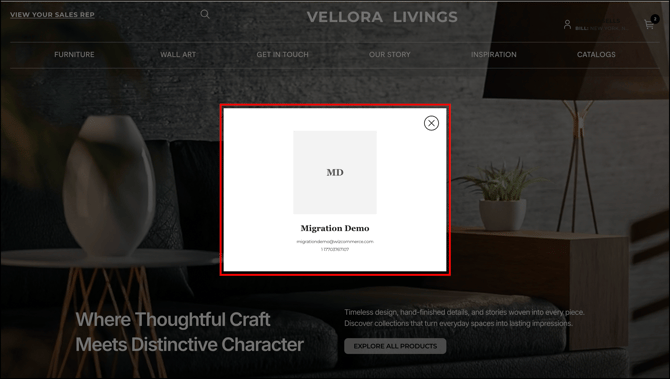
- You can also reach this view by clicking the profile icon and opening your account details.
- Clicking a rep's email address opens your default mail client with their address pre-filled, so you can reach out directly.
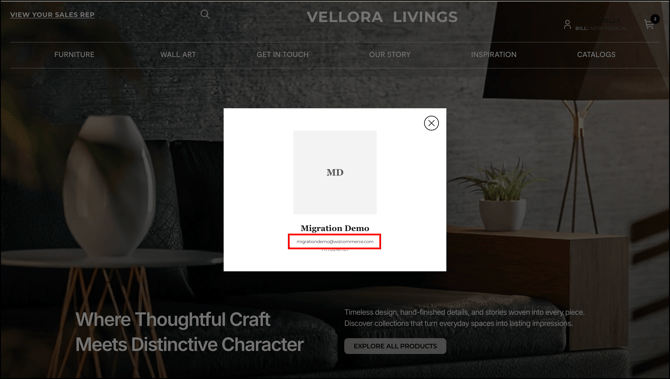
C. Configuration & Prerequisites
Rep assignment is based on a ZIP-to-territory-to-rep mapping configured for your account:
- Your Implementation team loads the initial ZIP-to-territory-to-rep mapping when the feature is turned on.
- From then on, your Admin Dashboard is used to maintain rep assignments and rep profile details (name, photo, contact info).
- No further buyer-facing setup is needed, the lookup and auto-display work as soon as the mapping is complete.
Note: This feature is enabled on request by your Implementation team and isn't on by default for new or existing accounts.
FAQs
1. What happens if my ZIP code doesn't return a rep?
A. This means your ZIP code isn't yet included in your account's rep mapping. Reach out to our support team to have the mapping updated.
2. Why do I see more than one rep for my ZIP code?
A. Some territories are covered by more than one rep. When that's the case, all matching rep profiles are shown so you can pick whoever's most relevant to you.
3. Why is the rep shown before I log in different from the one shown after I log in?
A. Pre-login results are based on the ZIP code you type in manually. Once you are logged in, WizShop uses the ZIP code already on file for your account, which may point to a different (correctly assigned) rep.
4. Can I contact my sales rep directly from their profile?
A. Yes, click their email address on the profile card, it opens your default mail client with their address filled in.
Still need help? Reach out to our support team at help@wizcommerce.com.