
The Integration Dashboard is where you monitor all data moving between your ERP and WizCommerce. Use it to check when the last sync ran, trigger a manual sync for any data type, and investigate why a specific record failed to push through.
Platform: WizOrder | Who is this for: Admin
To Get There: Integration > IX Dashboard
Table of Content
| Sections | Topics |
| A | What is the Integration Dashboard? |
| B | Sync History |
| C | Control Panel |
| D | Sync Failures |
| E | FAQs |
Before You Begin
- You must have Admin access to view the Integration Dashboard.
- The Control Panel tab is not visible by default, contact the WizCommerce support team at help@wizcommerce.com to have it enabled for your account.
A. What is the Integration Dashboard?
The Integration Dashboard gives you full visibility into how your data moves between your system and WizCommerce. It is organized into three tabs:
To open the Integration Dashboard:
- Log in to WizCommerce and click Integration in the left navigation.
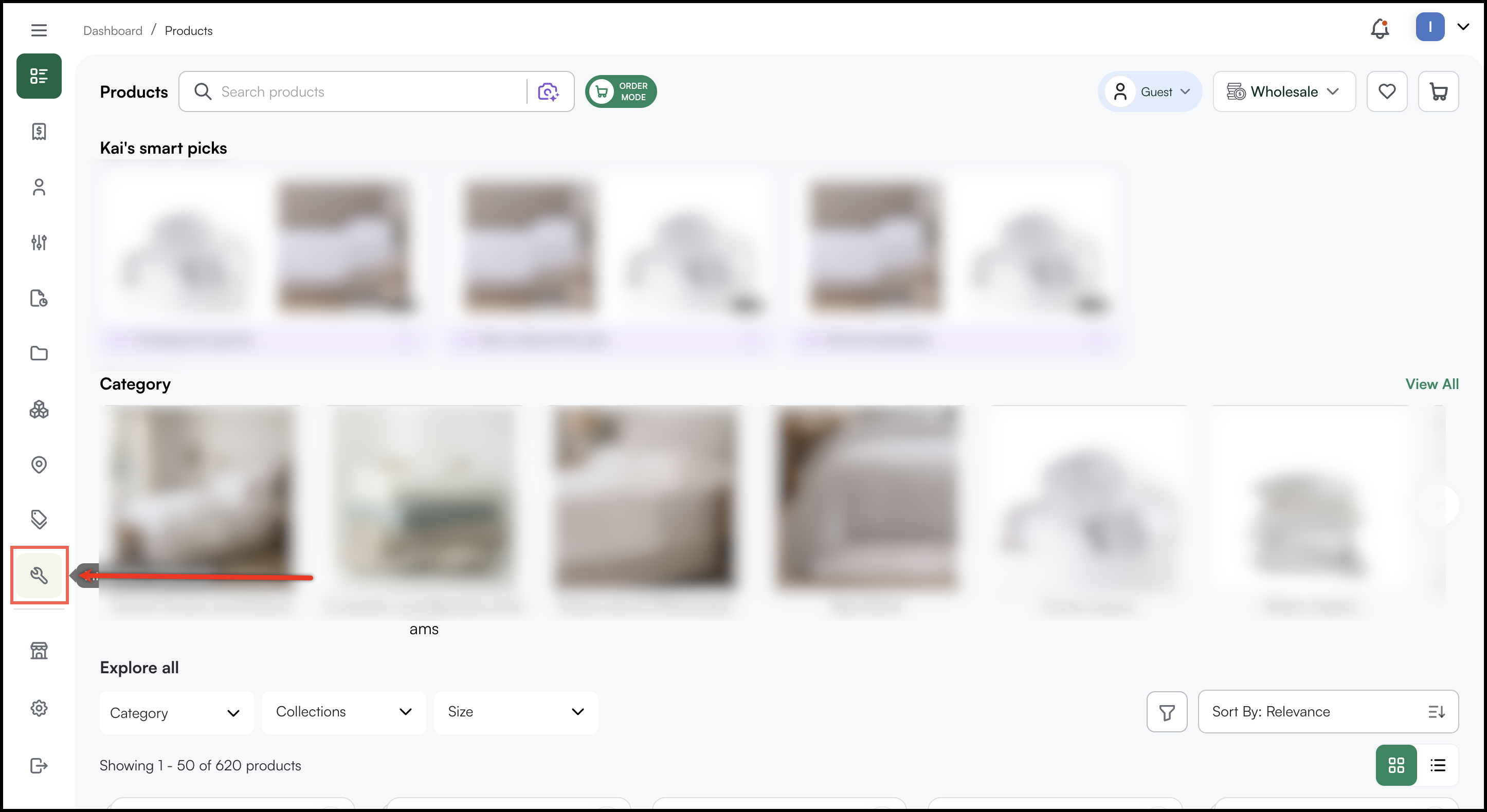
- You will land on the Sync History tab by default.
Note: If you do not see Integration in your left navigation, you may not have the required administrator permissions. Contact your admin or reach out to help@wizcommerce.com.
Before you start, here is what each page in the Integration Dashboard does.
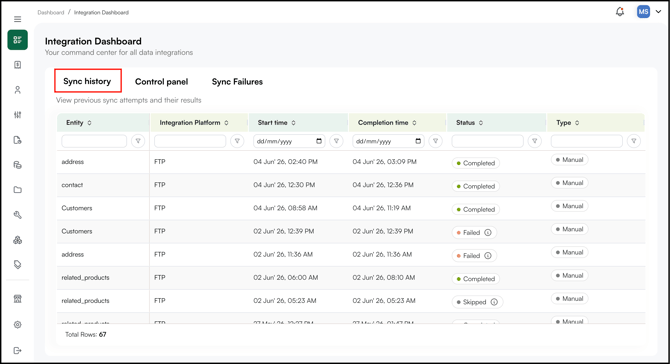
- Sync History: A log of every sync job that has run, including when it ran and what data it processed
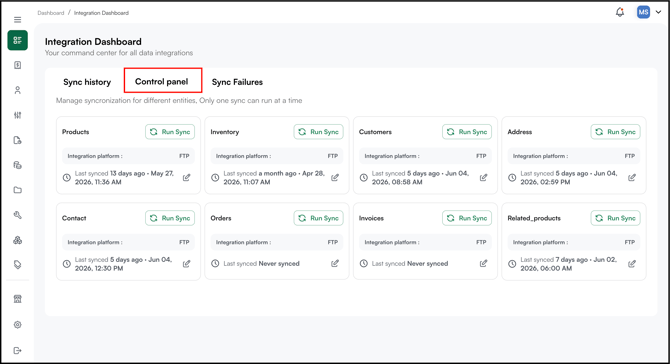
- Control Panel: Lets you manually trigger a sync for any specific data type, such as customers, orders, or products.
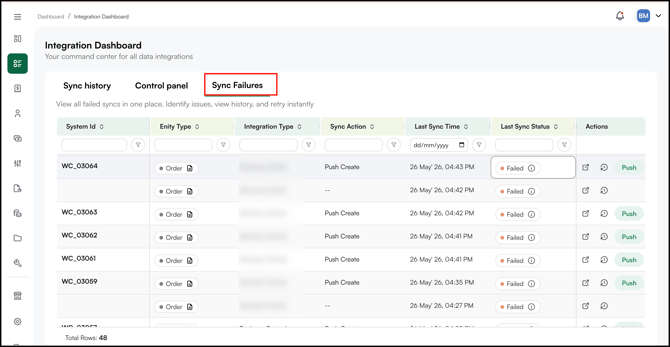
- Sync Failures: A. list of records that failed to sync, with details on why each one failed.
B. Sync History
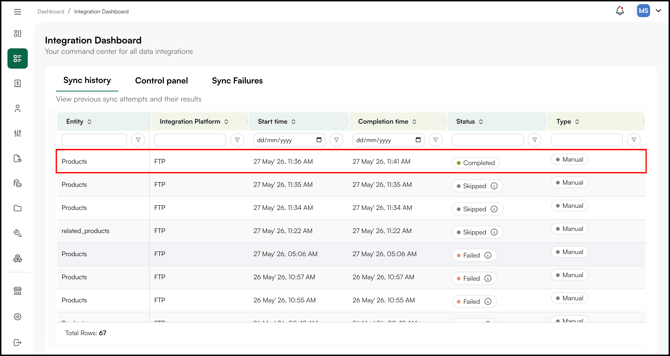
The Sync History tab shows a latest log of all sync jobs. Each row represents one sync event and displays:
- Go to the Integration Dashboard and click the Sync History tab.
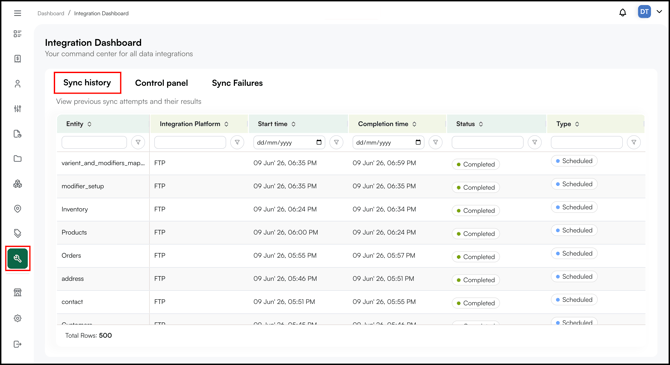
- Check the Entity Type column to identify which data type (Customer, address, etc) was synced. Use this column to quickly filter your view if you are looking for a specific type, such as Products or Customers.
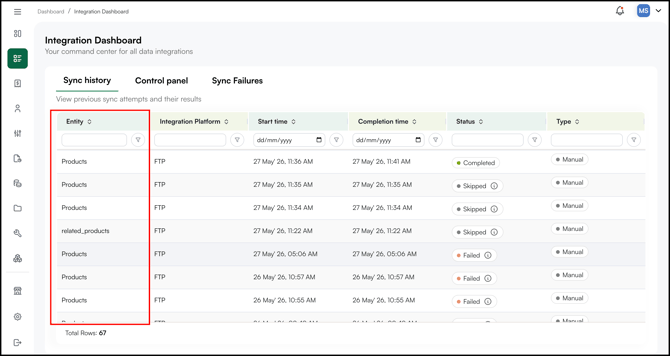
- Check the Integration Type column to confirm which method was used for the sync (FTP, Business Central, NetSuite, etc ).
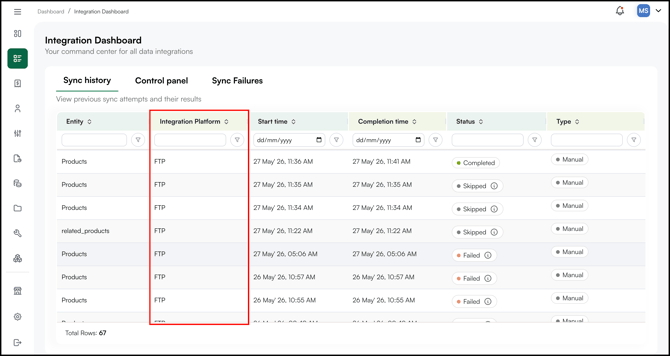
- Check the Last Start time column to see when the sync was started.
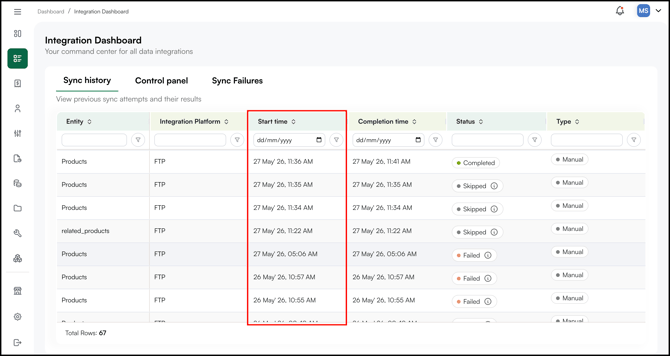
- Check the Last Completion time column to see when the sync was ended.
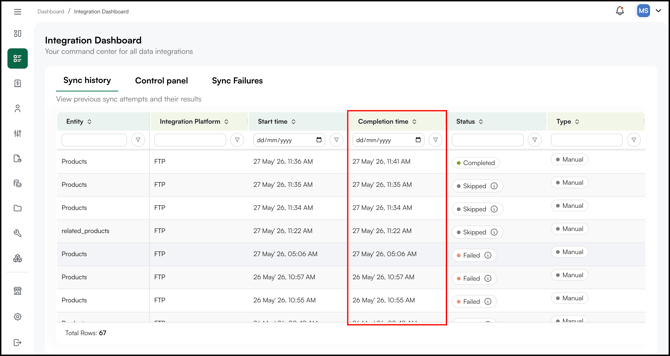
- Check the Sync Status column for the outcome of each job.
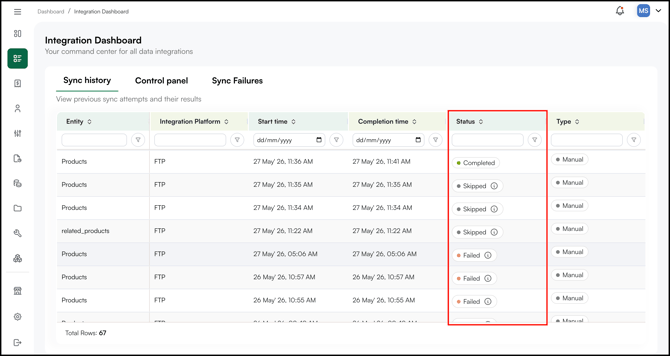
- Completed: The sync ran successfully and all data was processed without errors.
- In Progress: The sync is currently running. Wait for it to finish before triggering another sync for the same entity type.
- Skipped: No new or changed records were found at the time the sync ran. This is not an error and requires no action.
- Failed: The sync ran but could not process one or more records. Click the ⓘ icon to see the error reason, correct the source data, and trigger a new sync.
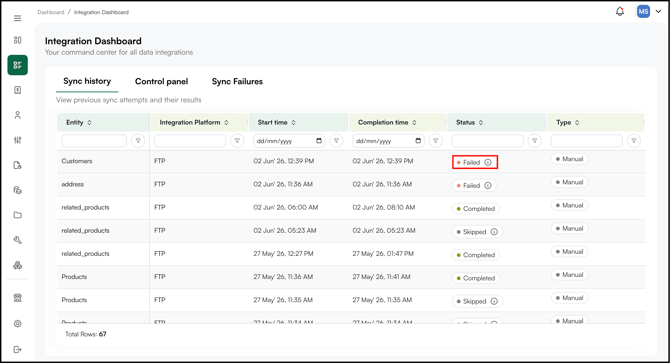
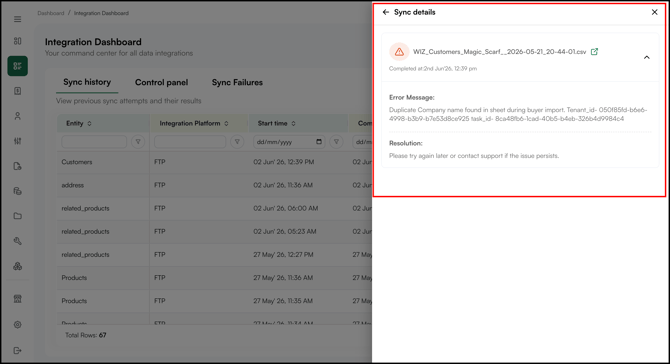
Note: A status of Skipped means WizCommerce found no new or changed records in your FTP file at the time of the scheduled sync. This is not an error and requires no action.
C. Control Panel
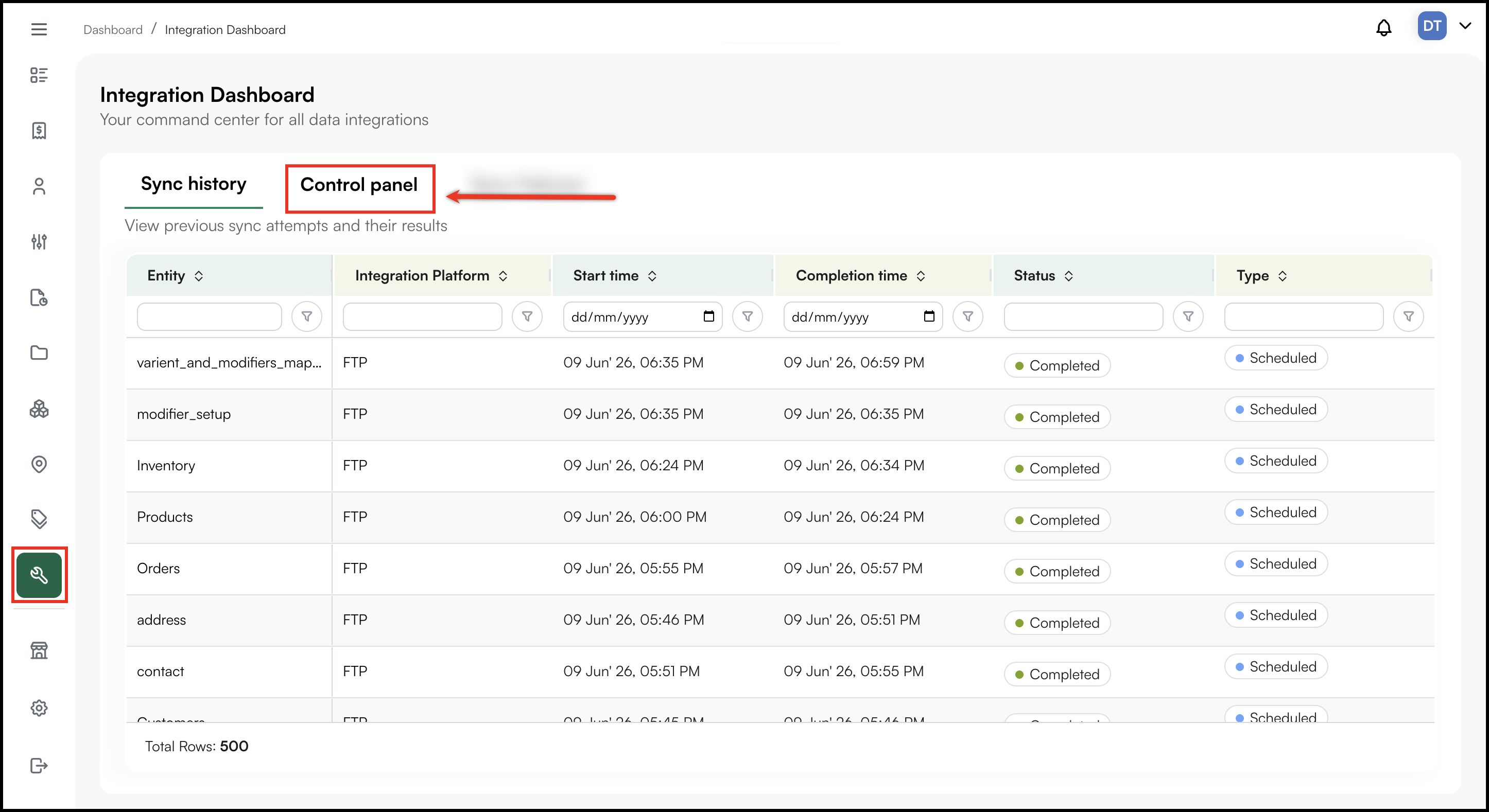
The Control Panel tab lets you manually trigger a sync for a specific data type without waiting for the next scheduled run. Use this when you have uploaded a new FTP file and want to push it through immediately.
Note: The Control Panel tab is not visible by default. If you do not see it, contact the WizCommerce support team at help@wizcommerce.com to have it enabled for your account. After it is enabled, refresh your browser.
How to trigger a manual sync
- Go to the Integration Dashboard and click the Control Panel tab.
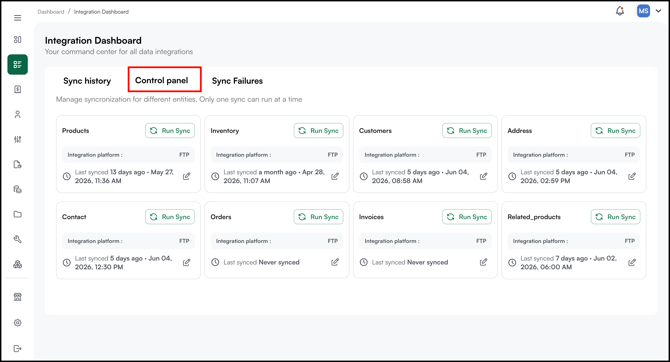
- Locate the entity type you want to sync (e.g., Products, Customers, Orders, etc).
- Click Run Sync next to that entity.
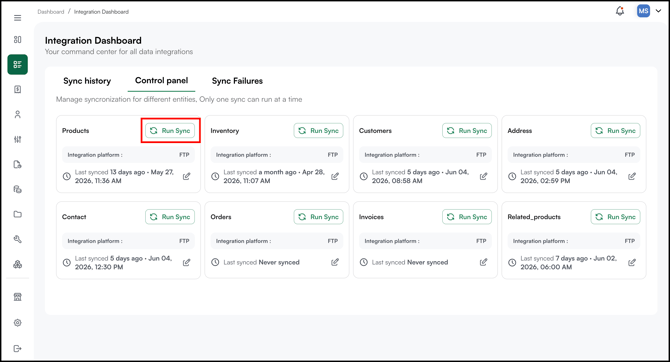
- Go to the Sync History tab to monitor the job. A new row will appear at the top and the status will update once the sync completes.
Note: You can manually sync any entity type that's been set up for your account, such as Products, Inventory, Customers, Orders, Invoices, Shipments, Pricelists, Categories, and Collections, etc.
D. Sync Failures
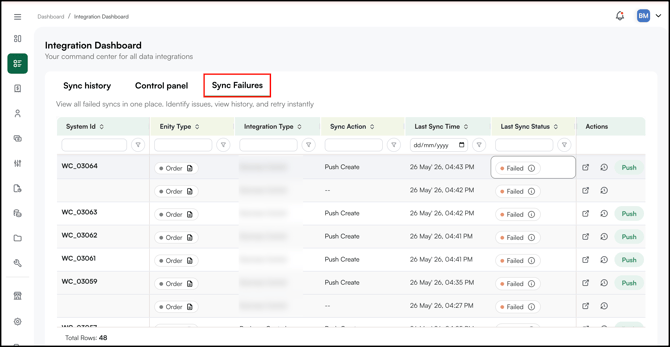
The Sync Failures tab shows specific record that failed to sync, along with details on what went wrong. Use this tab to identify and resolve data issues before they affect your orders or customer records.
- Go to the Integration Dashboard .
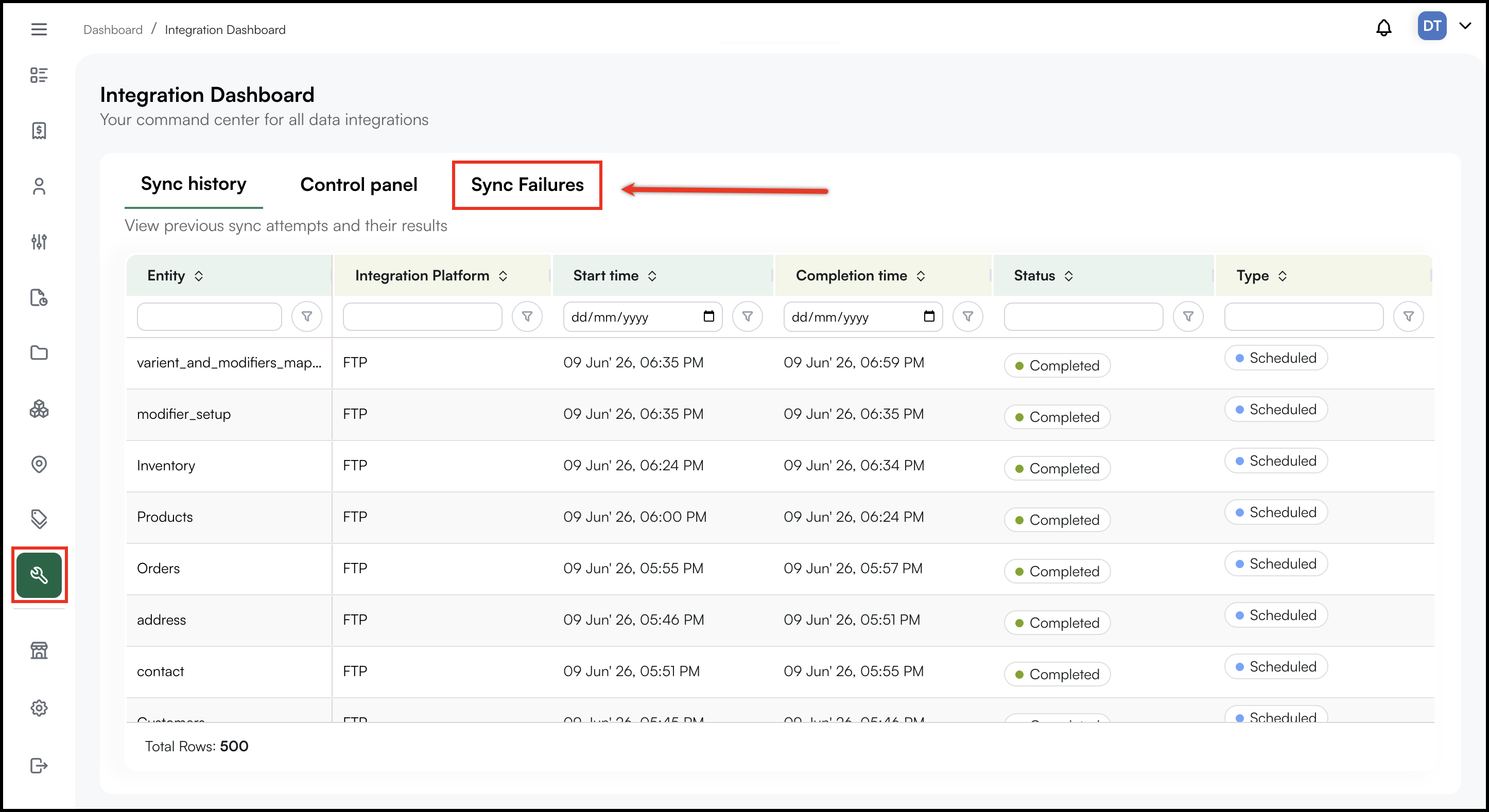
- Then click the Sync Failures tab.
-
Each row in the Sync Failures tab displays:
-
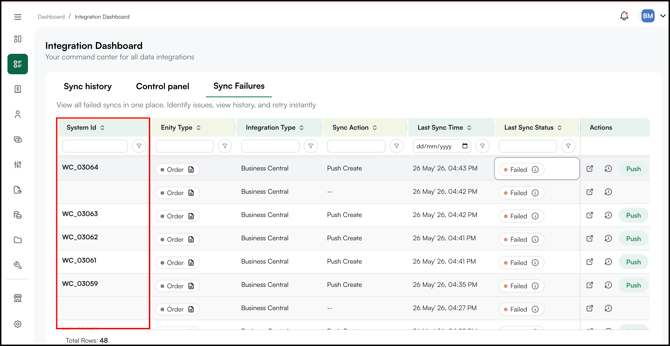
System Id: The unique identifier for the record that failed (e.g., WC_03113, WC_03065). Rows without a System Id indicate the record could not be identified at the point of failure.
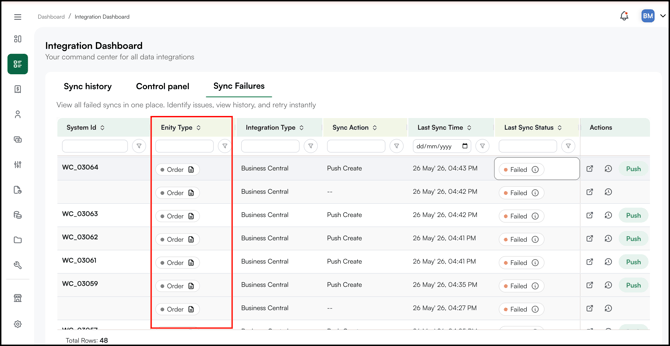
- Entity Type: The type of record that failed to sync (e.g., Order, Customer, Product)
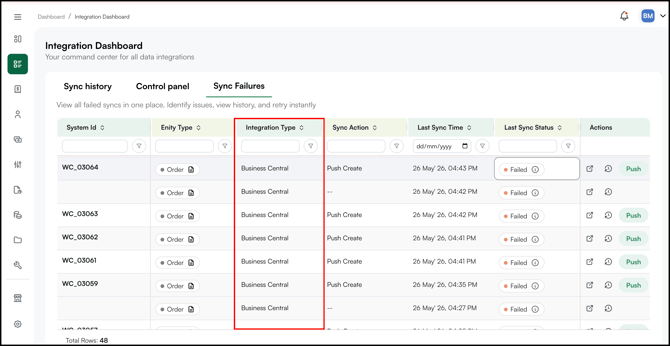
- Integration Type: The type of integration used to sync the record (e.g., FTP, Business Central)
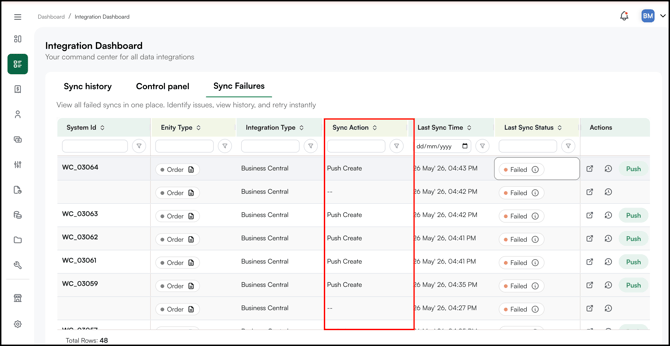
- Sync Action: Whether the record was being pushed to your ERP or pulled into WizCommerce (e.g., Push Create).
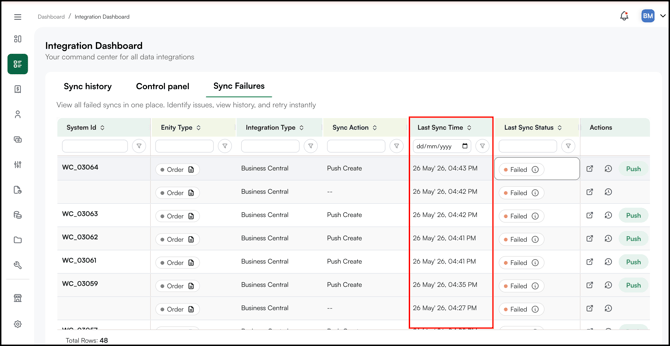
- Last Sync Time: The date and time the failure occurred
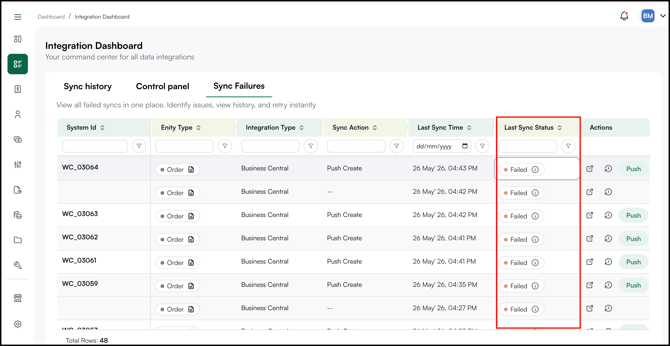
- Last Sync Status: Will always show Failed on this tab
- Actions: Three options are available for each record:
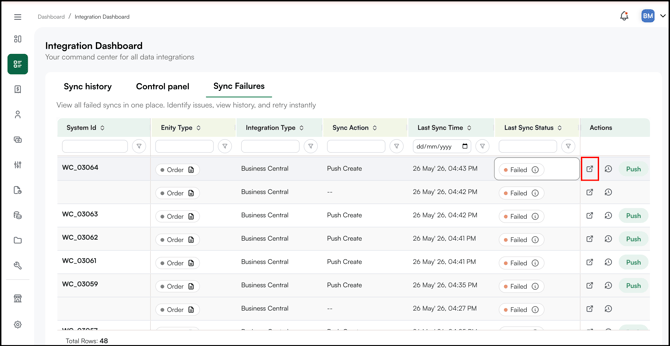
- Click the external link icon to open the record payload, which shows the data sent from WizCommerce to your ERP.
- Click the history icon to view the full sync history for that record
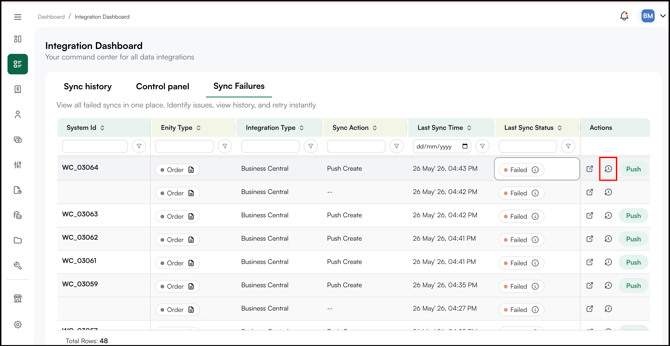
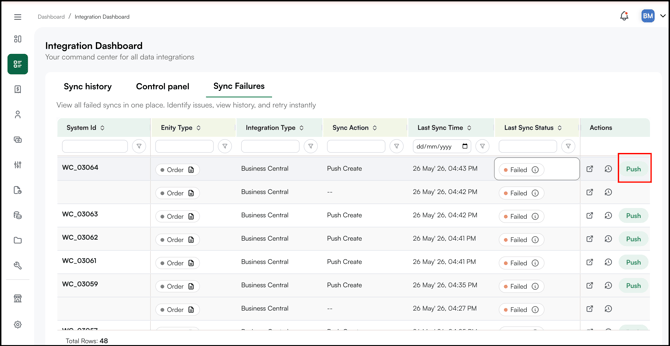
- Click Push to retry pushing the record to your ERP after you have corrected the source data
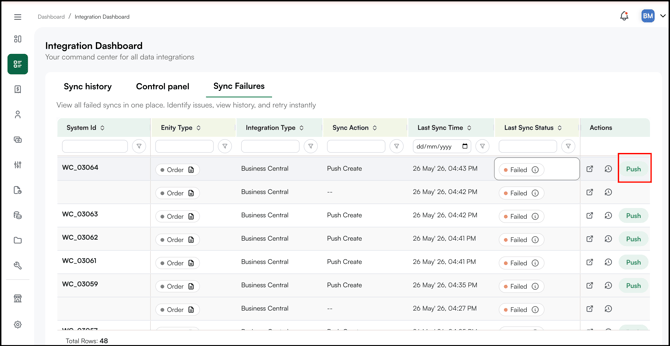
- Click the external link icon to open the record payload, which shows the data sent from WizCommerce to your ERP.
-
- Fix the error in your source data first. When you are ready, click Push again to re-try syncing (post error has been resolved) the record to your ERP.
- Monitor the sync status.
Note:
-
Sync failures do not retry automatically. You must correct the source data and trigger a new sync manually from the Control Panel.
- If you have updated any data in your system and want it reflected in WizCommerce immediately, go to the Control Panel tab and click Run Sync next to the relevant entity (products, inventory, buyers, orders, and so on).
FAQs
1. What is the difference between Failed and Skipped in Sync History?
A. Failed means the sync ran but could not process a record, something in the data prevented it from going through. Click the ⓘ icon next to the status to see the specific reason. Skipped means no new or changed records were found at the time the sync ran, so there was nothing to process. Skipped is not an error and requires no action.
2. I triggered a sync from the Control Panel, how do I know it worked?
A. Go to the Sync History tab immediately after triggering. A new row will appear at the top for the entity you synced. Once the job finishes, the Last Sync Status column will update to Completed, Failed, In Progress or Skipped. If it shows Failed, click the ⓘ icon to see the reason.
3. A record keeps appearing in Sync Failures even after I correct the data, what should I do?
A. After correcting the data in your source system, click Push in the Sync Failures tab to retry that specific record. If it continues to fail, the issue may be in your ERP or in the data mapping between your ERP and WizCommerce. Contact help@wizcommerce.com with the System Id from the Sync Failures tab so the team can investigate.
4. An order failed to sync because the customer does not exist in my ERP, what do I do?
A. This can happen when a customer is created in WizCommerce and an order is placed for them before the customer record has finished syncing to your ERP. Do not manually re-enter the order in your ERP before resolving the sync, this can create duplicate orders. Check the Sync Failures tab for the customer record first, resolve that failure, and then retry the order sync using the Push button.
Still need help? Reach out to our support team at help@wizcommerce.com.