
The AI Order Entry Assistant processes incoming purchase orders from any format, such as email, PDF, spreadsheet, scan, and maps them to your WizCommerce records automatically. This article covers how the assistant works, how to access it, and how to set up Auto Email Ingestion to connect Gmail or Outlook directly.
Platform: AI Order Entry Assistance (Ella) | Who is this for: Administrators, Sales Representatives
Table of Contents
| Sections | Topics |
| A | How AI Order Entry Assistant Works |
| B | How to Access |
| C | Auto Email Ingestion |
| D | Upload a Purchase Order Manually |
| E | FAQs |
Before You Begin
- You must have access to the AI Order Entry Assistant. Contact your admin if you don't.
- Make sure you have your dedicated AI Order Entry email address; for example, ella-demo@wizcommerce.com. Your Administrator can provide this.
- Purchase orders can be in any format; email, PDF, spreadsheet, image, or scanned document.
A. How AI Order Entry Assistant Works
The AI Order Entry Assistant monitors incoming purchase orders through two methods:
- Email Connector: Connect your existing inbox directly to the AI Order Entry Assistant. Purchase orders that arrive in your inbox are picked up and processed automatically, with no forwarding needed.
- Dedicated Email Address: Forward purchase orders manually to your dedicated AI Order Entry email address, for example, ella-demo@wizcommerce.com.
Either way, the AI extracts all key details, customer name, billing and shipping addresses, payment type, and product information, and maps them against your existing records in WizOrder. Once extraction is complete, you receive a verification email with a link to review the details before anything is submitted.
Note: Ella, your AI Order Entry Assistant, uses the information stored in WizOrder (the Sales Rep App) to process orders. This includes details like your customers' addresses, pricing, and any volume discounts.
To make sure your orders are processed correctly, please ensure all your customer and product information is up to date in WizOrder before using Ella. If any details are missing or incorrect, Ella may apply the wrong pricing, use the wrong address, or miss any discounts, which could lead to errors in your orders.
B. How to Access
- Use the link provided by your admin to open the AI Order Entry Assistant.
- Log in with your WizCommerce credentials.
Note: If you have lost your credential, please try to reset your password using the Password reset button in the login page.
C. Auto Email Ingestion
Auto Email Ingestion connects your Gmail or Outlook inbox directly to the AI Order Entry Assistant, so every purchase order that arrives is picked up and processed automatically. No manual forwarding, no copying and pasting, orders move from your inbox into AI Order Entry Assistant without any extra steps.
- In the AI Order Entry Assistant, select the Settings icon in the left sidebar.
- Select Email Settings.
- Select + Connect email in the top right corner.
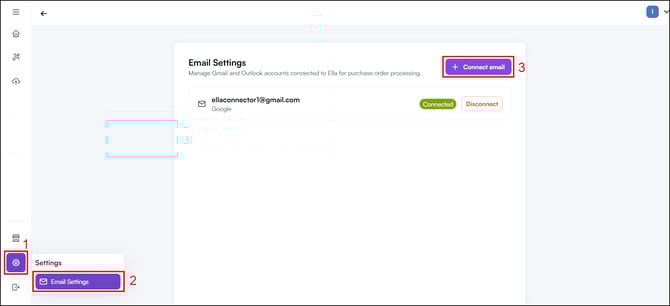
- In the Connect email account dialog, enter the Gmail or Outlook address you want to connect.
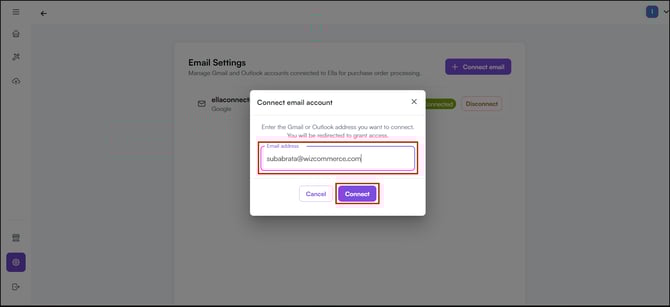
- Select Connect, you'll be redirected to grant access to your email account.
- Once connected, your email address appears in the Email Settings list with a Connected status.
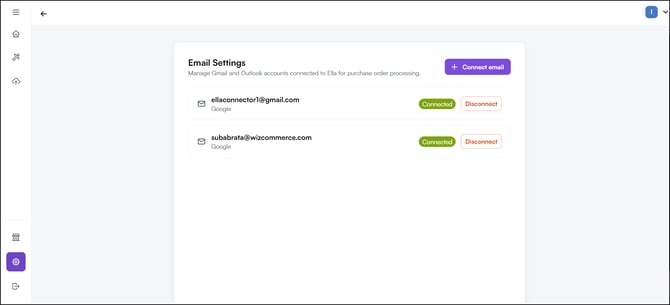
- To remove an inbox, select Disconnect next to the email address you want to remove.
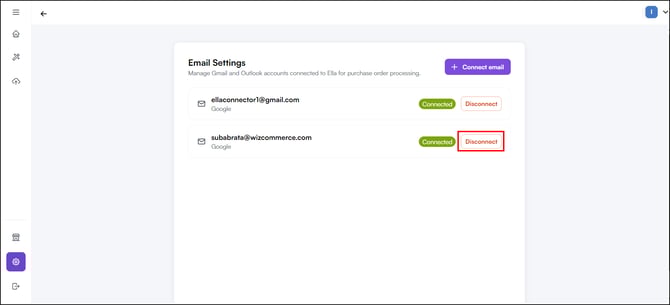
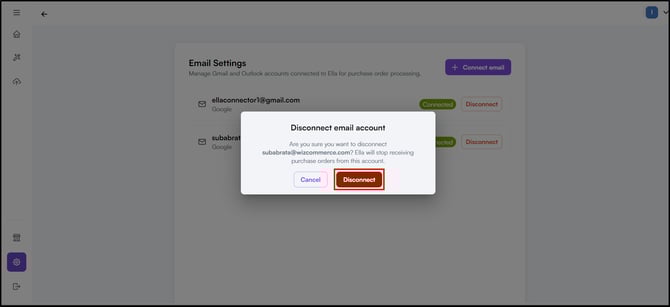
Note: You can connect multiple email addresses. Each connected inbox is monitored separately — purchase orders arriving in any of them are picked up and processed automatically.
D. Upload a Purchase Order Manually
When customers send POs over WhatsApp, text, fax, or hand them over in person, manual file upload lets you process those orders directly, no email required.
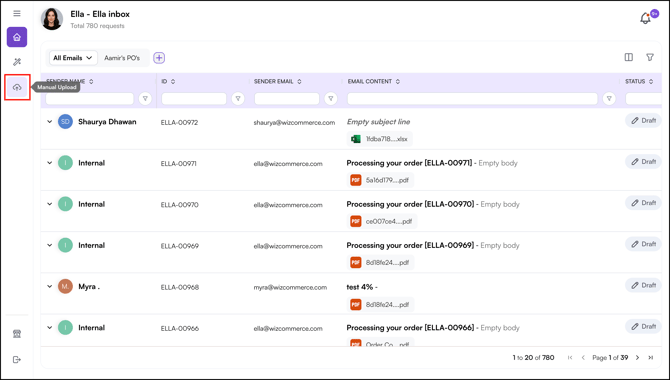
- In the AI Order Entry Assistant, open the Manual Upload tab.
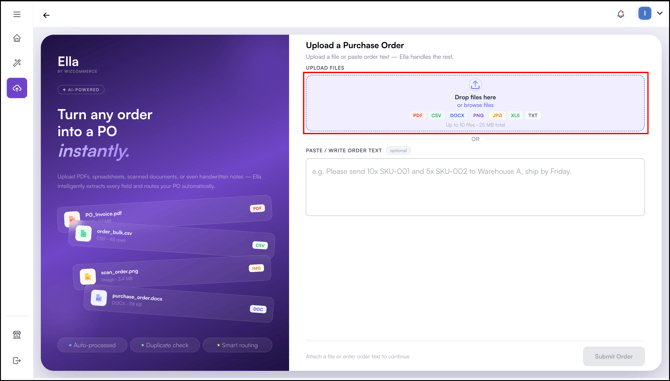
- Click Choose File and select the purchase order from your computer. Supported formats:
- Excel
- Word document
- JPEG image
- Text file
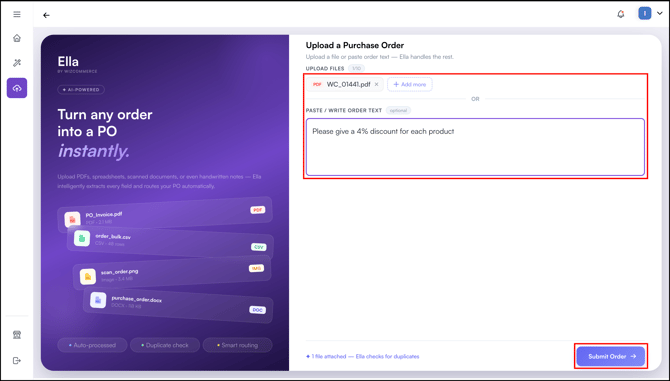
- (Optional) Add specific instructions for this order in plain English, for example, apply 10% discount or use warehouse B pricing.
- Click Submit. The assistant begins processing immediately.
- Click on the processed PO, to get redirected to the AI Order Entry dashboard. Open it to review the extracted details once processing is complete.
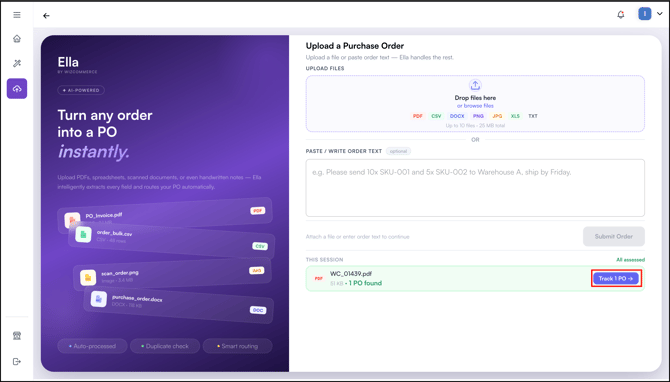
NOTE: If you upload the same file twice in one session, the assistant prevents it from being processed again. This stops duplicate orders and avoids unnecessary extraction costs.
FAQs
1. What formats can the AI Order Entry Assistant read?
A. The AI can process purchase orders arriving as emails, PDFs, spreadsheets, images, and scanned documents. You don't need to reformat anything before forwarding.
2. Who sets up the dedicated email address?
A. Your Administrator sets this up during onboarding. Reach out to your Customer Success Manager if you haven't received your email address yet.
3. Can multiple team members use the same AI Order Entry email address?
A. Yes. Multiple team members can forward purchase orders to the same AI Order Entry email address — each PO is processed individually regardless of who sends it. If you've set up an Email Connector, any purchase order arriving in that inbox is picked up automatically without any action needed from the team.
4. Is there a limit on how many pages or line items Ella can process?
A. No practical limit has been reached in production. Ella regularly processes multi-page PDFs with 300+ line items, including dense technical documents. If your orders are large or complex, the Forward Deployed Engineering team configures Ella for your specific extraction patterns during onboarding.
5. Can Ella connect to two separate systems. For example, customer data in one and orders into another?
A. Yes. Ella's architecture decouples data sources from order destinations. Ella can pull customer master data from one system and push the resulting order into a different one. This is configured during onboarding. Reach out to your implementation contact if this applies to your setup.
Still need help? Reach out to our support team at help@wizcommerce.com.