
Use Hide Price to hide product prices while you browse the website, for example when showing products to your own customers. You can also choose whether prices appear in the PDFs you download, using Show price in pdf. Both settings are on your account dashboard.
» Hide or show prices on the website
- Log in to the website.
- Click the profile icon to open your account dashboard.
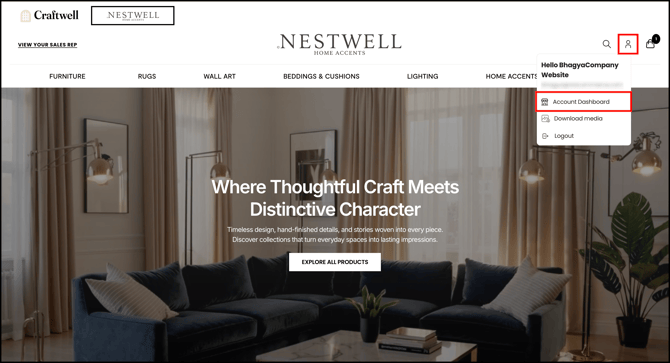
- Turn on the Hide Price toggle.
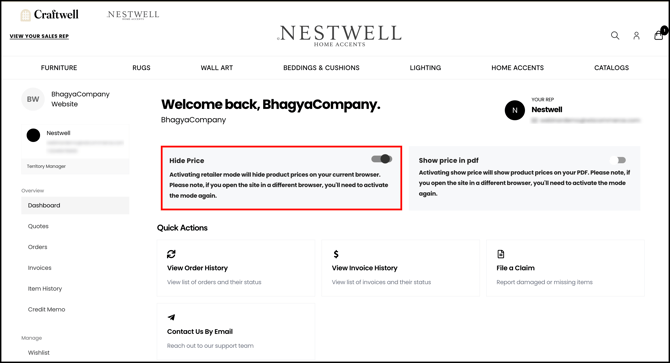
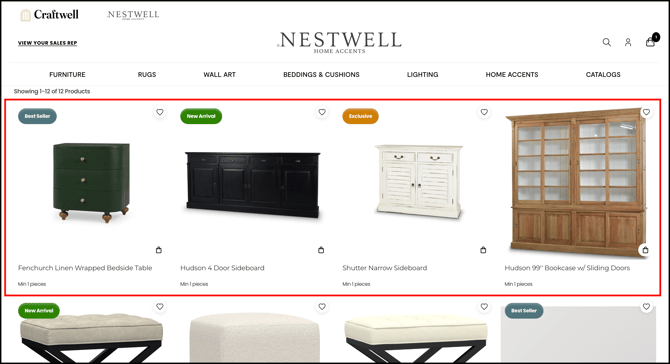
- Turning on Hide Price activates retailer mode, which hides product prices in your current browser.
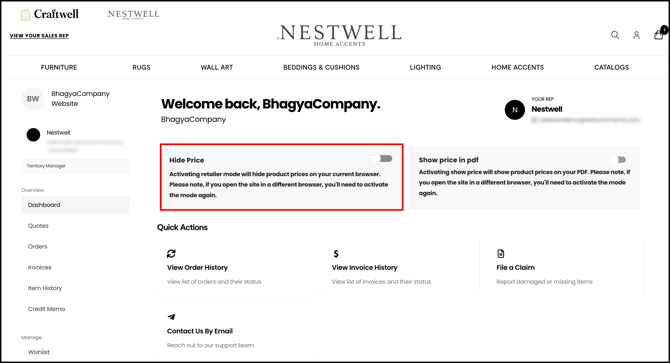
- To show prices again, turn off the Hide Price toggle.
-
Product prices are shown again in your current browser.
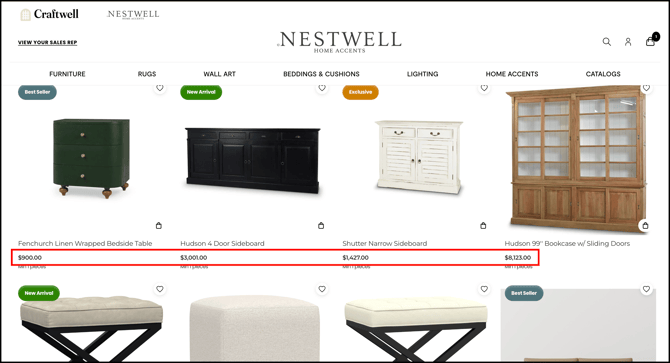
Note: Hide Price only applies to the browser you’re using. If you open the website in a different browser, you’ll need to turn it on again.
» Show or hide prices in PDFs
- On your account dashboard, turn on the Show price in pdf toggle.
- With Show price in pdf turned on, product prices appear in the PDFs you download.
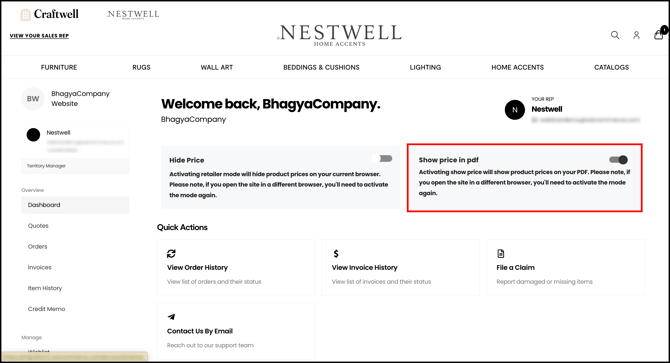
- To download PDFs without prices, turn off the Show price in pdf toggle.
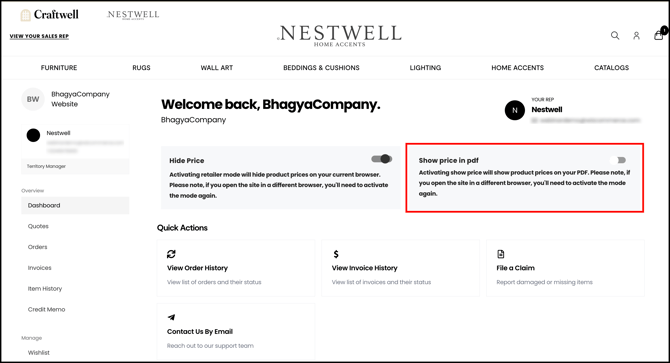
Note: Show price in pdf also applies only to your current browser. If you switch browsers, you’ll need to turn it on again.
Still need help? Reach out to our support team at help@wizcommerce.com.