
WizStudio's Reference Image feature lets you reuse a background, model, or aesthetic across multiple products without recreating the same scene each time. Upload an external image for inspiration, browse the built-in photo collection, or save a previously generated image as a theme, then apply it to any new product instantly.
This article explains how and when to upload a reference image, what the AI uses it for, and how to get consistent outputs across a product range.
Platform: WizStudio | Who is this for: Designers
Table of Contents
| Section | Topics |
| A | Use an External Reference Image |
| B | Reuse a Background From a Previously Generated Image |
| C | FAQs |
Before You Begin
- You must have access to WizStudio
- Have your product image ready to upload before starting
- To reuse a background from a previously generated image, that image must already be saved as a theme in WizStudio (see Section B)
A. Using an External Reference Image
Use this workflow when you have a specific image in mind, whether uploaded from your device or found in WizStudio's photo collection, and want to apply its background or style to your product.
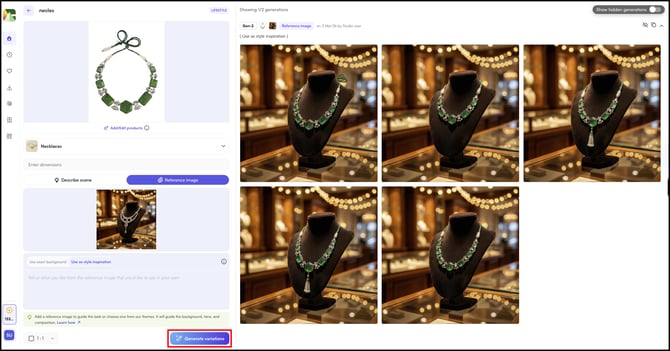
- Upload your product image in Lifestyle Generator.
- Scroll down and click Reference Image.
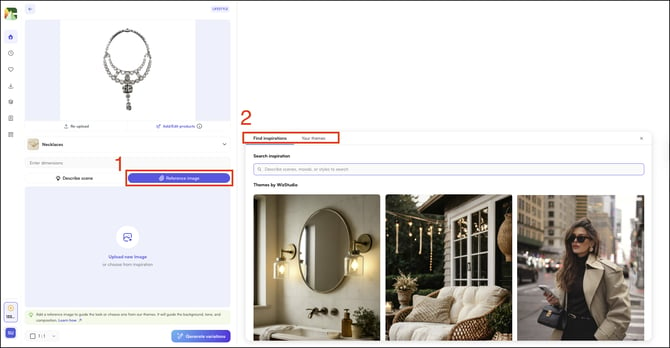
- Add your reference image using one of two options:
- Upload directly: Click Upload and select an image from your device.
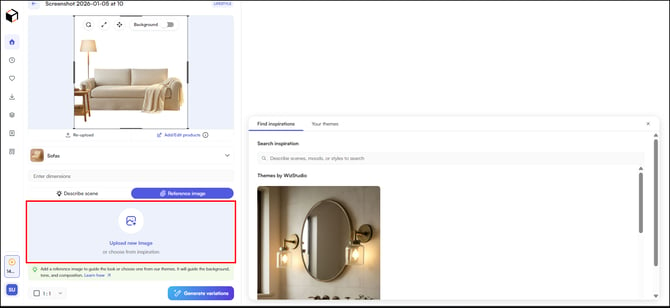
- Search the collection: Use the search bar on the right to browse available images and panel.
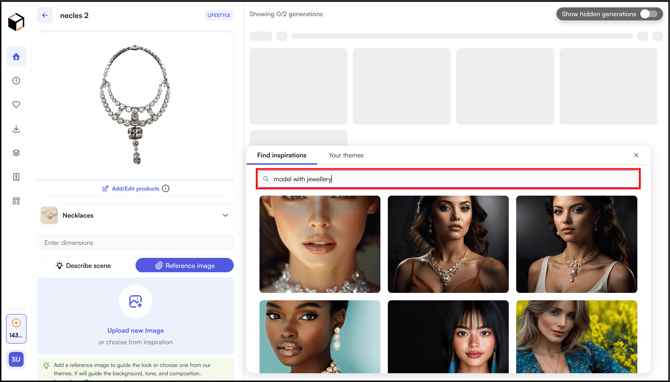
- Upload directly: Click Upload and select an image from your device.
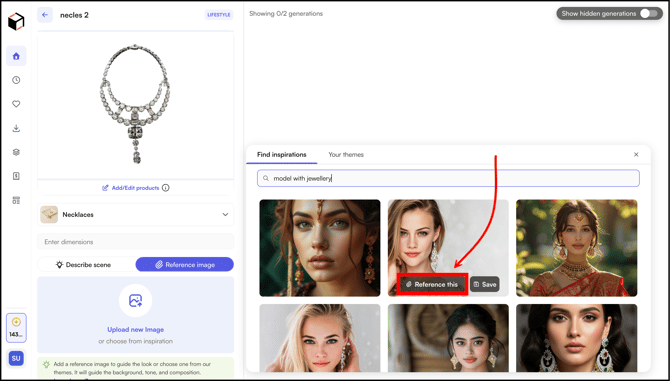
- Click Reference this on the image you want to use; it will appear in the left-hand panel.
- Choose how WizStudio should use the reference:
- Use Exact Background: Places your product directly into the reference scene without changing it. Use this when you want your product placed in a specific setting or worn by a specific model.
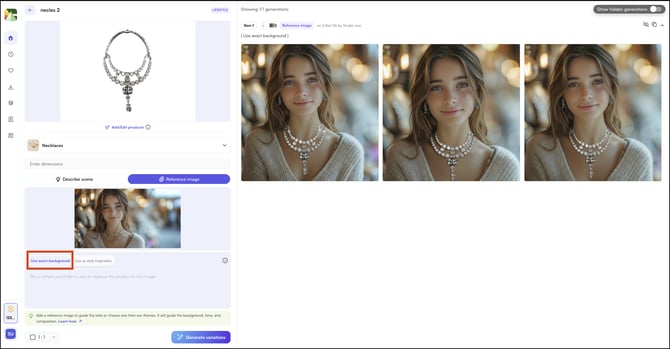
- Use as Style Inspiration: Draws from the mood and aesthetic of the reference without replicating it exactly. Use this when you want a similar vibe rather than an identical background.
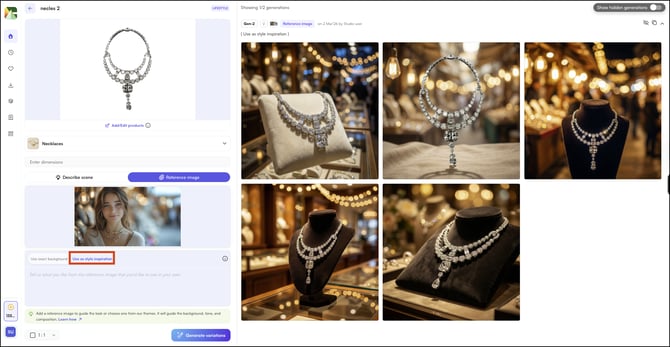
- Use Exact Background: Places your product directly into the reference scene without changing it. Use this when you want your product placed in a specific setting or worn by a specific model.
- Add a prompt describing what you want, for example, "add the product", and select your preferred aspect ratio.
- Click Generate Variations. WizStudio generates images with your product integrated into the reference scene. Once variations appear, you can edit them further using the tools inside the Lifestyle Generator.
B. Reuse a Background From a Previously Generated Image
Use this when you've already created a lifestyle image in WizStudio and want to apply the same background to a different product.
- From the homepage, open the thread containing the image whose background you want to reuse.
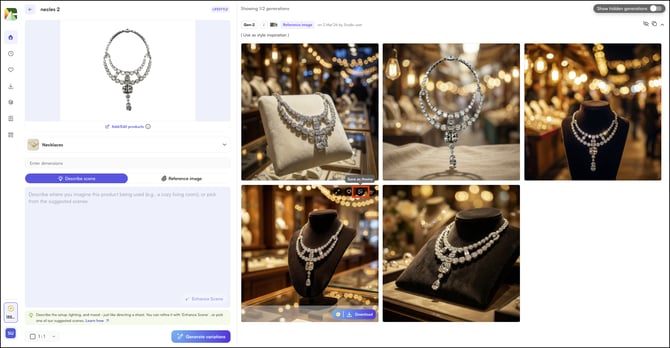
- Hover over the image and click Save as Theme. WizStudio saves it as a reusable theme.
- Return to the homepage and start a new generation thread for your next product.
- Upload your product image.
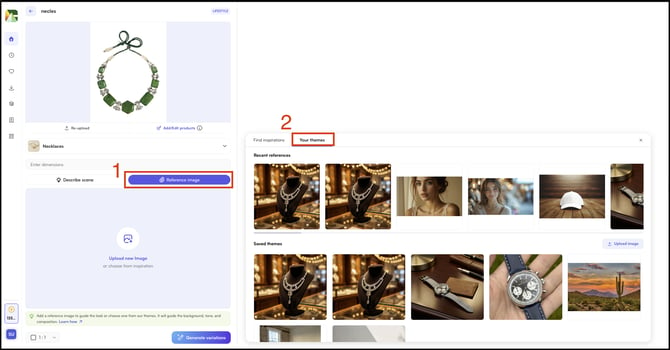
- Scroll down to Reference Image and select Your Themes. Locate the saved theme and click Reference This.
- Select Use Exact Background or Use as Style Inspiration, add a prompt if needed — for example, "replace product" — and click Generate Variations.
- WizStudio generates the new image with the same model, background, and environment as the original. Only the product changes
FAQs
1. What is the difference between Use Exact Background and Use as Style Inspiration?
A. Use Exact Background places your product directly into the reference scene, the setting, model, and environment stay the same. Use as Style Inspiration takes the mood and aesthetic of the reference and applies it loosely, without replicating it exactly.
Choose Exact Background when consistency across products matters; choose Style Inspiration when you want a similar feel with more variation.
2. Can I apply a saved theme to multiple products?
A. Yes. Once an image is saved as a theme, it is available under Your Themes in the Reference Image panel for any new generation. You can reuse it across as many products as needed without saving it again.
3. Can I use any image as a reference, or only images from WizStudio?
You can upload any image from your device as a reference, or select one from WizStudio's built-in photo collection. The image does not have to be generated in WizStudio to be used as a reference.
Not finding what you need? Browse the WizCommerce Help Center, reach out to your Customer Success Manager, or contact our support team at help@wizcommerce.com.