
Use the customer import feature to add or update customer records in bulk. If you are importing customers for the first time, follow Sections B to D in order. If your customers already exist in WizCommerce and you want to update or add more data, follow Section E.
Platform: WizOrder | Who is this for: Admins
To Get There: Customers > Import
Table of Contents
| Section | Topics |
| A | How the Customer Import Works |
| B | Add New Customers in bulk |
| C | Add Contacts to your Customers |
| D | Add Addresses to your Customers |
| E | Update Existing Customers in Bulk |
| F | FAQs |
Before You Begin
- You must have Admin access or Import permissions in WizCommerce.
- Have your customer list ready as an Excel (.xlsx) or CSV (.csv) file, with a maximum of 5,000 rows per file.
- Set up your price tiers, payment terms, and sales rep users in WizCommerce first, or leave those columns blank and fill them in later.
- Always download the latest template from the import screen. Older templates can cause column-mapping errors.
A. How the Customer Import Works
The import tool reads your file, matches each row to either a new or existing customer, and then writes the data into WizCommerce. Before any data is saved, you will see a dry-run preview showing exactly what will be created, updated, or skipped.
The four stages of every import →
- Upload your file and choose the import mode
- Map your file columns to WizCommerce fields
- Review the dry-run preview and error report
- Run the import and download the final reporT
B. Add New Customers in bulk
Use this flow the first time you load customers, or any time you are adding a batch of brand-new customers.
» Download the Customer's template
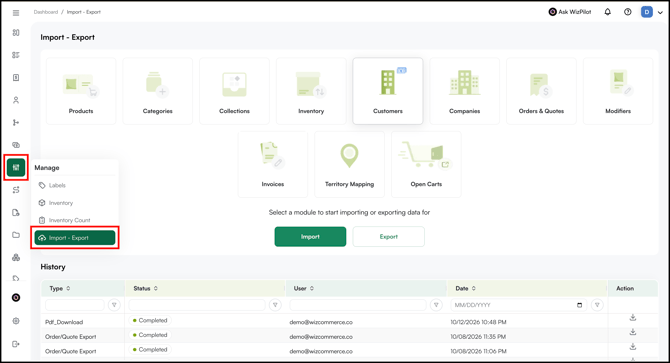
- Go to Manage → Import - Export.
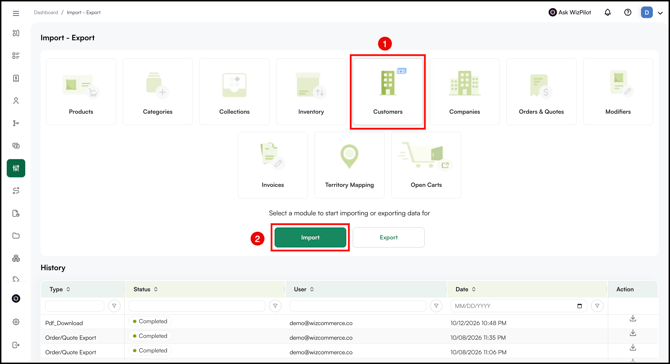
- Select the Customers tile and click Import.
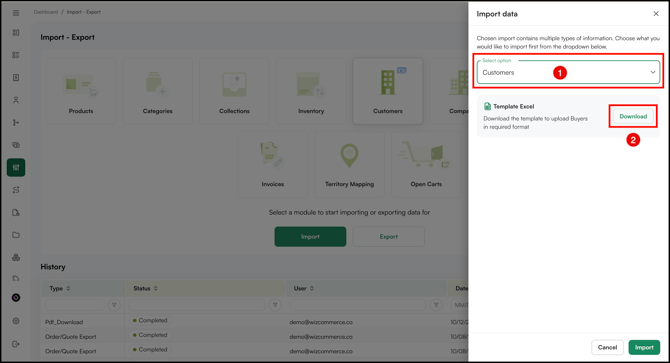
- Select Customers from the dropdown and download the Template.
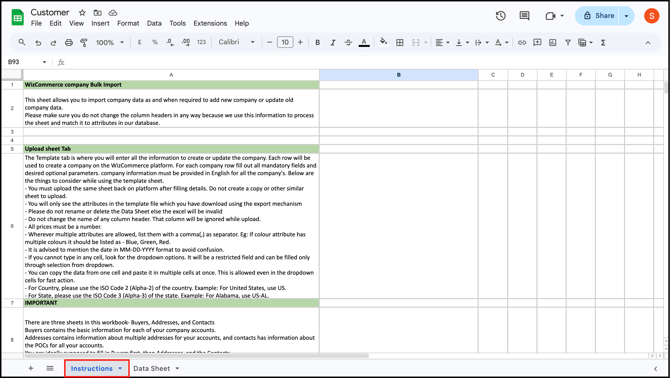
- Open the file and fill in the Customer details in Data Sheet.
- Use the Instructions tab for column-level guidance.
- Fill in the details in Customer Data Sheet.
- System ID: Leave blank for new customers. WizCommerce generates this automatically.
- Company name: The business name on the account.
- Display name: How the customer name appears across WizOrder and WizShop.
- Sales Rep: Email of the assigned WizCommerce rep. The rep must already exist in your user list.
- Pricelist: Name of the pricelist assigned to this customer. The pricelist must already exist.
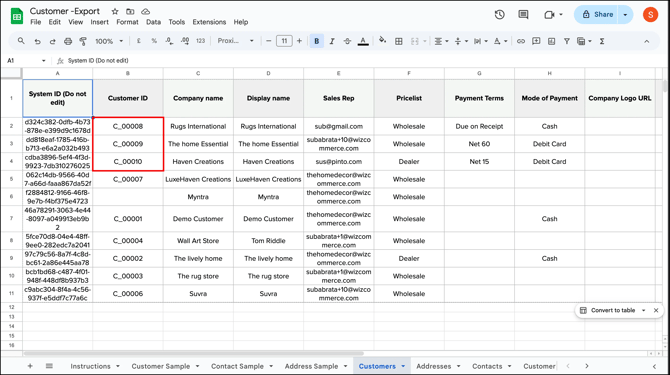
- Customer ID: Your internal customer code (for example, CO_001). This is the key that links Addresses and Contacts to this customer.
- Payment Terms: Due on Receipt, Net 15, Net 30, Net 60, and so on. Must match a configured term.
- Mode of Payment: Cash, Debit Card, Credit Card, ACH, and so on.
- Company Logo URL: Optional. A link to a hosted logo image.
- Remarks: Optional internal notes.
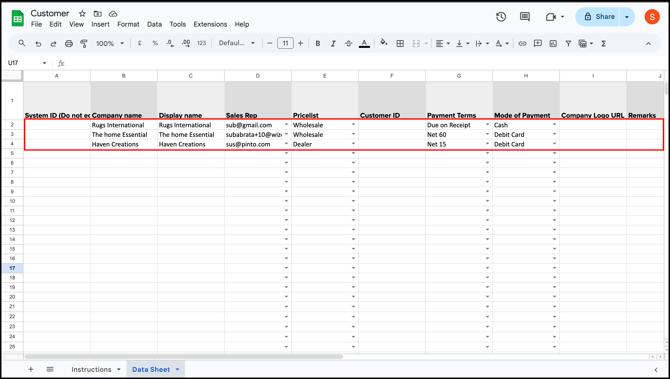
Note: Customer ID and Company name rules
- Both must be unique on every row. Duplicate Customer IDs or duplicate Company names will cause the import to fail.
- The Customer ID can be anything you choose (for example, CO_001, ACME-RETAIL, or any code that fits your internal system) and does not need to follow a specific format.
- If you leave the Customer ID blank, WizCommerce will auto-assign one.
- Reuse the exact Customer ID value in the Addresses and Contacts templates to link those records to the right customer.
» Import Customers
- Go to Manage → Import - Export.
- Select the Customers tile and click Import.
- Select Customers from the dropdown and click Import.
» Check your new customers and get their Customer IDs
- Go to CRM → Customers and confirm your new customers appear in the list. Open a few profiles to spot-check that the pricelist, sales rep, and payment terms have been applied correctly.
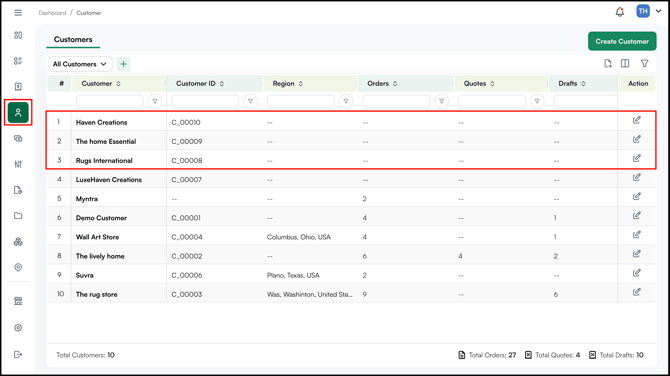
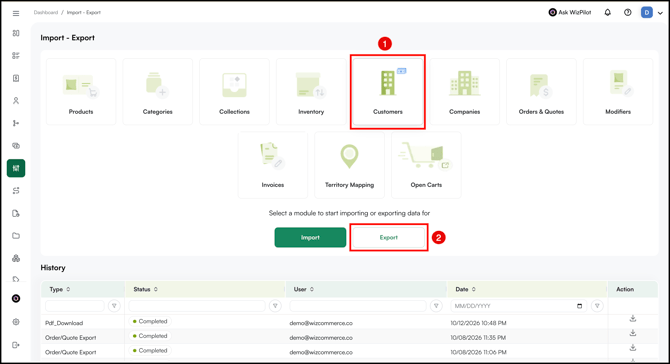
- Go back to Manage Data > Import - Export, click the Customers tile, then click Export to download an Excel file with all your customers, including the Customer IDs that WizCommerce assigned during the import.
- Open the exported Excel file and switch to the Customers tab. You will use the Customer ID values from this file when filling in the Addresses and Contacts templates. [Image: excel sheet]
Tip: For more details on exporting your customers, including what to do if the file downloads as a zip, see How to export the customers from WizOrder?
C. Add Contacts to your Customers
With your customers in place, you can now attach contacts to them. Each customer can have multiple contacts, typically one primary contact with additional contacts as needed. Contacts link to customers through the Customer ID you collected from the export in Section B.
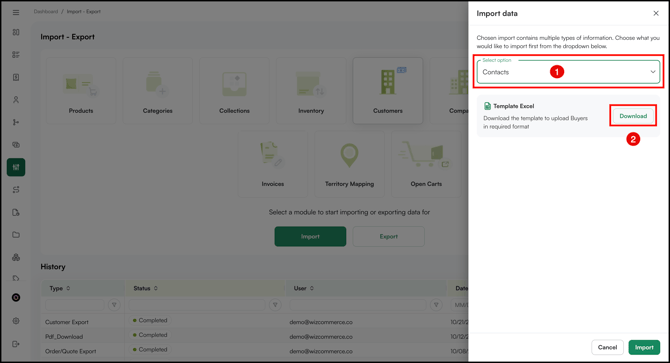
» Download the template
- Go to Manage → Import - Export.
- Select the Customers tile and click Import.
- Select Contacts from the dropdown and download the Template.
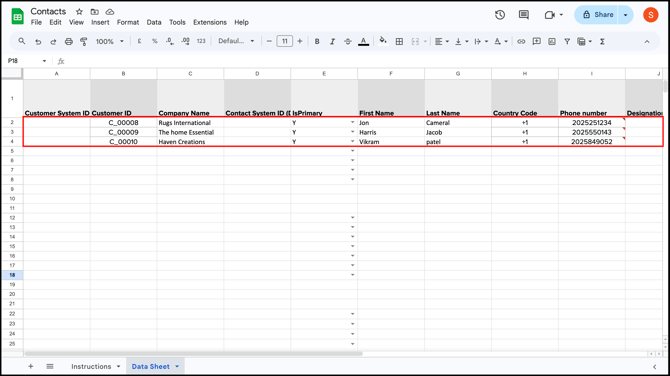
- Open the file and fill in the Customer details in Data Sheet.
- Customer System ID: Leave blank for new customers.
- Customer ID: Must exactly match the Customer ID from your Customers template.
- Company Name: The same company name used in the Customers template.
- Contact System ID: Leave blank. This is auto-generated.
- IsPrimary: Y or N. Marks this as the primary contact for the customer.
- First Name, Last Name: Contact name.
- Country Code, Phone number: Contact phone.
- Designation: Job title or role.
Note: Contacts template rules
- Every customer needs at least one primary contact. Mark exactly one row per customer with IsPrimary = Y. If a customer has only one contact, that row must still be marked Y.
- Country code cannot be empty for any row.
- Email ID must be a valid email address. Invalid or incorrectly formatted email addresses will cause that row to fail.
» Import Contacts
- Go to Manage → Import - Export.
- Select the Customers tile and click Import.
- Select Contacts from the dropdown and click Import.
D. Add Addresses to your Customers
Now that your customers exist in WizCommerce, you can attach addresses to them. Each customer can have multiple addresses, typically one Billing and one Shipping, though you can add more. Addresses link to customers through the Customer ID you collected from the export in Section B.
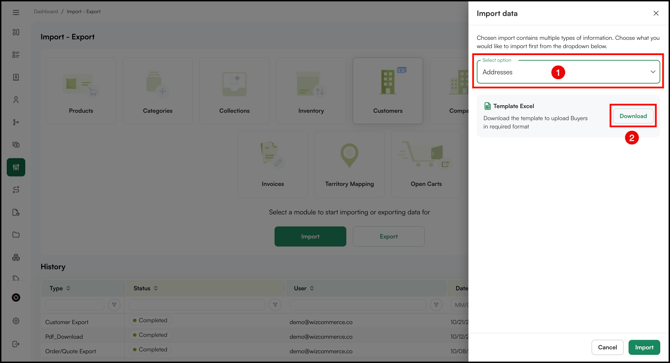
» Download the template
- Go to Manage → Import - Export.
- Select the Customers tile and click Import.
- Select Addresses from the dropdown and download the Template.
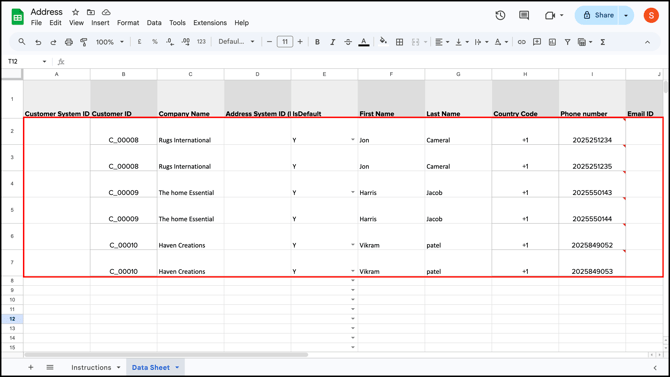
- Open the file and fill in the Customer details in Data Sheet.
- Customer System ID: Leave blank for new customers.
- Customer ID: Must exactly match the Customer ID from your Customers template (for example, CO_001).
- Company Name: The same company name used in the Customers template.
- Address System ID: Leave blank. This is auto-generated.
- IsDefault: Y or N. Marks this as the default address for the customer.
- First Name, Last Name: Contact person for this address.
- Country Code, Phone number, Email ID: Contact details for this address.
- Country, Street Address, Address Line 2, City, State / Region, Zip Code: Full address.
- Address Type: Billing or Shipping.
Note: Adding billing and shipping addresses
To add both a Billing and a Shipping address for the same customer, add two rows with the same Customer ID: one row with Address Type set to Billing and one with Shipping.
» Import Contacts
- Go to Manage → Import - Export.
- Select the Customers tile and click Import.
- Select Addresses from the dropdown and click Import.
E. Update Existing Customers in Bulk
Use this flow when WizCommerce already has your customer data and you want to update records, add new ones, or do both in the same file. Common reasons include refreshing addresses, reassigning sales reps after a territory change, updating credit limits or payment terms in bulk, or marking customers as inactive.
» Export your current customers
- Go to Manage → Import - Export.
- Select the Customers tile and click Export.
- Once the export is ready, click the notification icon at the top right and download the file.
- Open the downloaded file. If it downloaded as a zip file, extract it first and open each file inside.
-
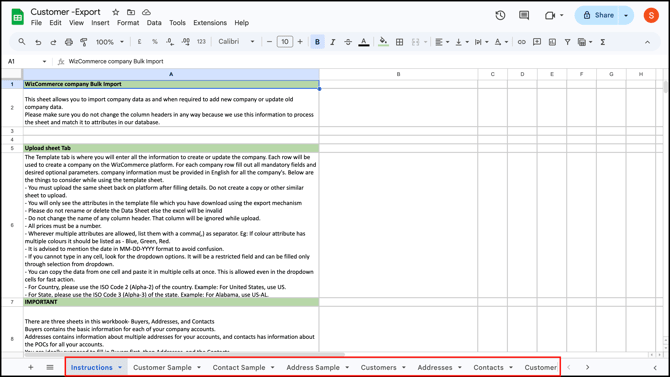
WizCommerce generates a single Excel file containing all your customer data. The file includes the following tabs:
- Instructions: Guidance on how to use the file.
- Customer Sample, Contact Sample, Address Sample: Reference rows showing the expected format.
- Customers: One row per existing customer.
- Addresses: All addresses across all customers.
- Contacts: All contacts across all customers.
- Customer Master Sheet: A combined tab where the customer, address, and contact rows for every customer appear together, identified by a Row Type column (Customer, Billing, Shipping, Contact).
Note: Any custom fields added to the Customer, Address, or Contact forms in WizCommerce appear as additional columns on their respective tabs. Fill these in the same way as the standard fields.
» Edit the export file
You can update your data by editing the relevant importable tabs in the exported file. Use the Customers, Addresses, and Contacts tabs, depending on the type of information you want to change.
Use this approach when you are making focused edits to one record type. For example, update pricelists, sales reps, or payment terms in the Customers tab. Add or revise billing and shipping details in the Addresses tab. Add or update customer contact details in the Contacts tab.
» Use the Customer Master Sheet for review only
The Customer Master Sheet is provided only to help you review all customer-related information in one place. It combines customer, address, and contact details into a single view, with a Row Type column showing whether each row is a Customer, Billing, Shipping, or Contact record.
Do not use the Customer Master Sheet for import. To make changes, update the relevant importable tab: Customers, Addresses, or Contacts.
» Rules for editing the export file
- Keep the System ID column untouched. This column is marked Do not edit and is how WizCommerce matches your row to the right record. Changing it will either create a duplicate or cause the import to fail.
- Keep the Customer ID column untouched on address and contact rows. This links them back to the right customer.
- Edit only the fields you want to change. Existing values in fields you leave alone will stay as they are.
- Add new rows at the bottom of the tab to create new customers, addresses, or contacts. Leave the System ID blank for new rows, and WizCommerce will generate one. For new addresses or contacts, fill in the Customer ID of an existing customer to attach them.
Note: Do not rename or delete any tab in the file, and do not rename column headers. The import will fail or skip columns if the structure changes.
» Import your updated file (data)
- Go to Manage → Import - Export.
- Select the Customers tile and click Import.
- Select Customers from the dropdown and click Import.
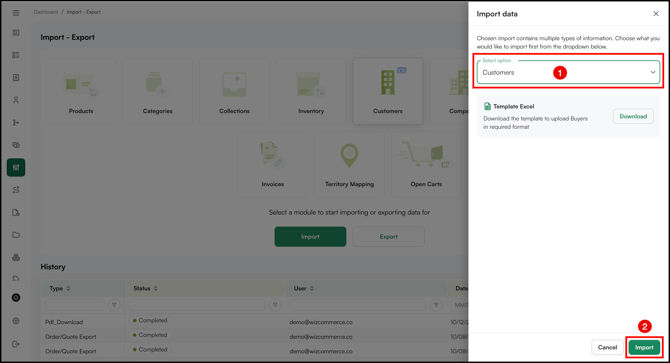
- Select the file (tab) you want to import - for example, Customers - and click Next.
- Map the columns, check for error, and click Submit.
- Choose how to handle duplicates if we encounter any in the file you uploaded
- Add Only: Changes only the columns you filled in (recommended).
- Add & Update: Overwrites every column, including blank ones.
- Update Only: Ignores matched rows and creates only the new ones.
» Assign or reassign sales reps
To assign reps to customers or update existing customer–rep assignments, follow the same steps as in Steps 1 to 4 above. When you edit the export file in Step 3:
- Go to the Customers tab.
- In the Sales Rep column, assign reps to each customer. You can assign more than one rep to a single customer.
- If the Reference ID (for Integration Accounts) field is enabled for your account, fill it in for each row. It is required when enabled. If it is not enabled, leave it blank.
» If your export downloads as a zip file
This happens when there is a large number of records. Extract the zip, open each file, and update the Customers tab in each one. Then either import each file individually, or combine all rows into a single file (Split the file into batches of 5,000 rows or fewer) and import it once.
Note: If you run into any issues, contact our support team at help@wizcommerce.com.
FAQs
1. Can I import multiple contacts for the same customer?
A. Yes. Add one row per contact in the Contacts template, using the same Customer ID for each row. Mark one contact as primary with IsPrimary = Y. Import contacts after your customers are imported. See Section C.
2. Can I import multiple shipping addresses for the same customer?
A. Yes. Add one row per address in the Addresses template, using the same Customer ID for each row and setting Address Type to Shipping. Import addresses after your customers are imported. See Section D.
3. Will importing trigger emails to my customers?
A. No. Customer creation and updates through import do not send any emails to your customers.
4. Can I import more than 5,000 customers at once?
A. No. Each file can have a maximum of 5,000 rows. Split larger lists into multiple files and import them one at a time.
5. What happens if I leave the Customer ID blank?
A. WizCommerce assigns a Customer ID automatically. To find it, export your customers after the import and check the Customers tab.
6. Can I import the Customer Master Sheet?
A. No. The Customer Master Sheet is for review only. To make changes, edit the Customers, Addresses, or Contacts tab and import that instead.
Still need help? Reach out to our support team at help@wizcommerce.com.