
Export your orders and quotes to Excel for reporting, reconciliation, or sharing with your team, and import orders in bulk instead of creating them one by one. You can export both orders and quotes, but only orders can be imported.
Platform: WizOrder | Who is this for: Admins
To Get There: Sales > Orders / Quotes | Manage > Import/Export > Orders & Quotes
Before You Begin
- You need Admin access to import-export orders and quotes.
- Exports are available only on the WizOrder web portal, not on the mobile app.
- Only orders can be imported. Quotes can be exported but not imported.
- Before importing orders, export your existing orders first. The export serves as your backup.
A. Export Orders from the Orders Page
Export all your orders at once, or use filters to export only the orders you need.
» Export all Orders
- Go to Sales → Orders.
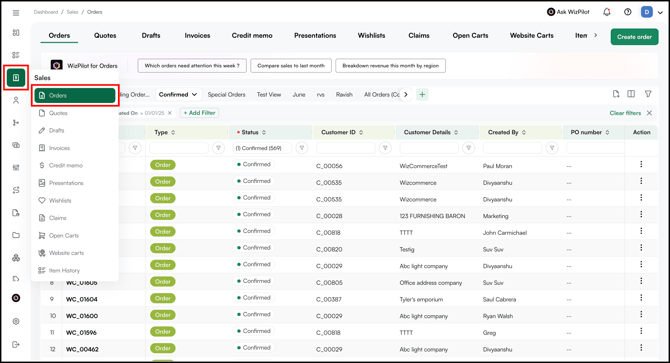
- Click Export Excel.
- Click Export to export all orders.
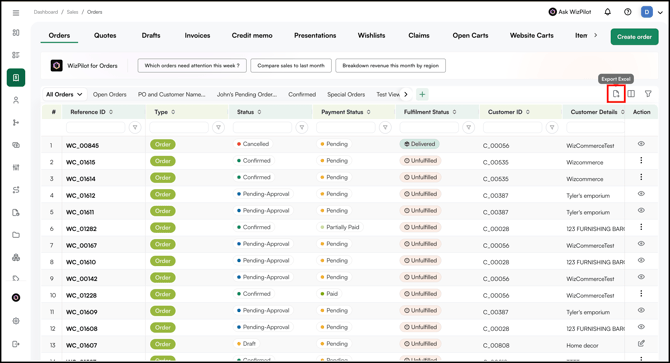
- Select Yes or No to assign an order tag to the exported orders.
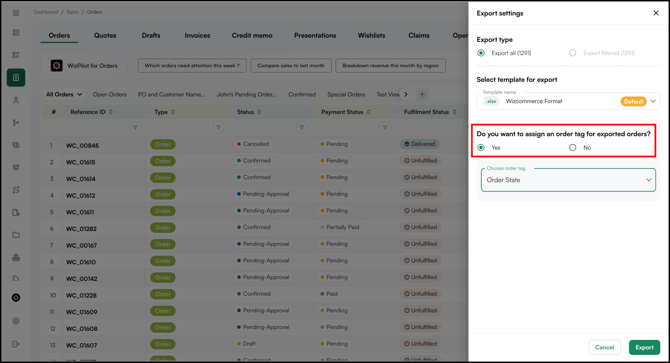
- If Yes, choose the order tag from the dropdown and click Export.
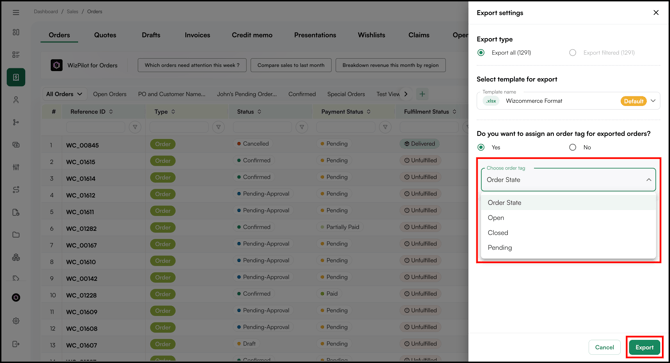
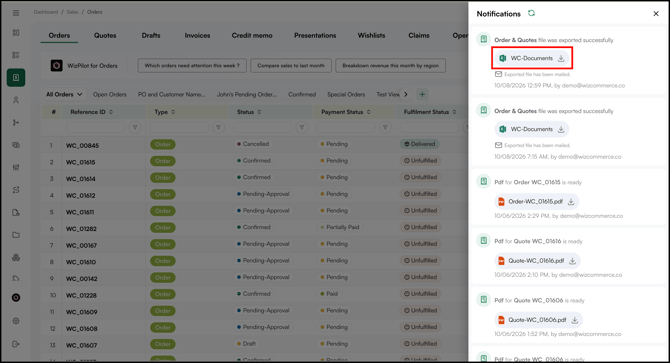
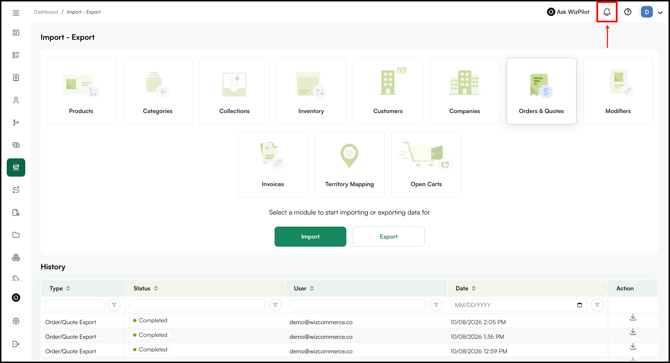
- Download the file from Notifications once it's ready.
» Export filtered Orders
- Go to Sales → Orders.
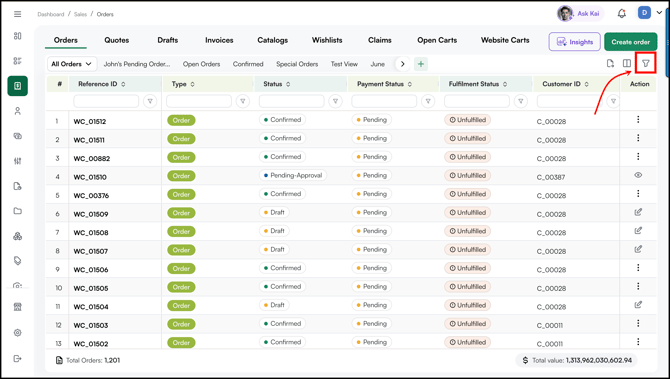
- Click Filter
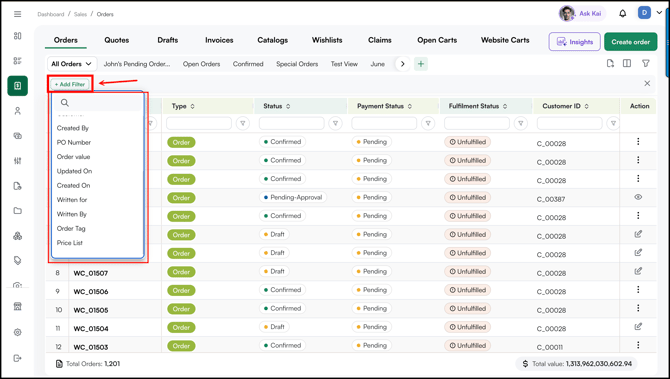
- Then click Add Filter and select the filter you want to apply. The filter options match the columns on the Orders page.
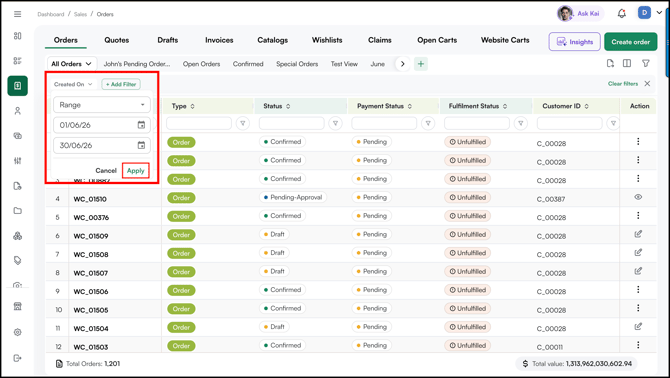
- Set your filter and click Apply. For example, click Created On, select a date range, and click Apply to see orders from that period.
- Click Export Excel, then click Export to export the filtered orders.
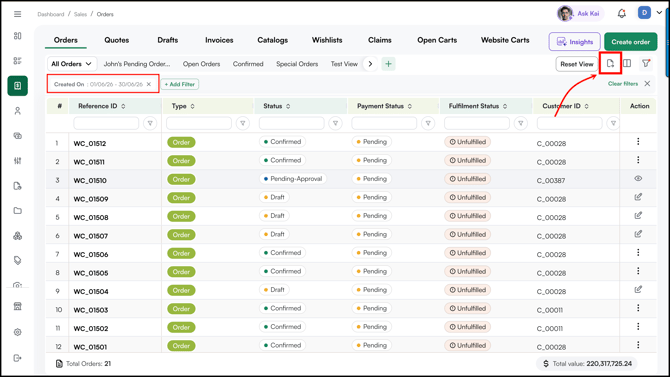
Note: Only the orders that match your filters are included in the export.
B. Export Quotes from the Quotes Page
Export all your quotes at once, or use filters to export only the quotes you need.
» Export all Quotes
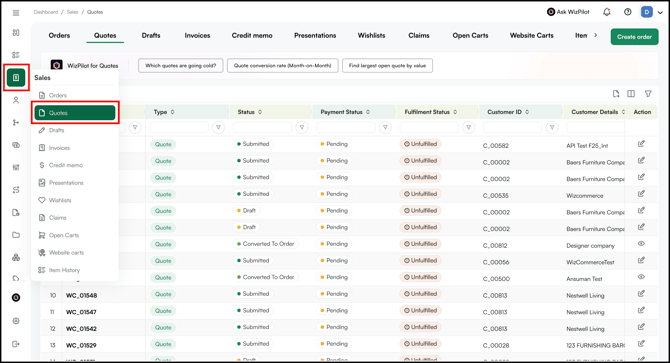
- Go to Sales → Quotes.
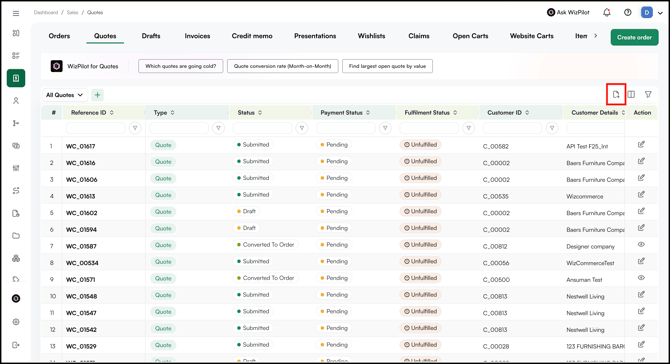
- Click Export.
- Click Export to export all quotes.
- Select Yes or No to assign an order tag to the exported orders.
- If Yes, choose the order tag from the dropdown and click Export.
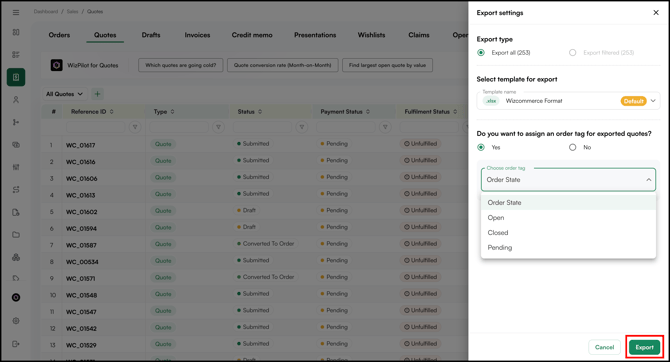
- Download the file from Notifications once it's ready.
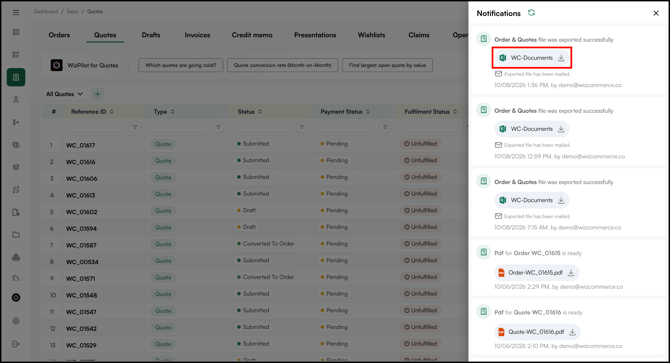
» Export filtered Quotes
- Go to Sales → Quotes.
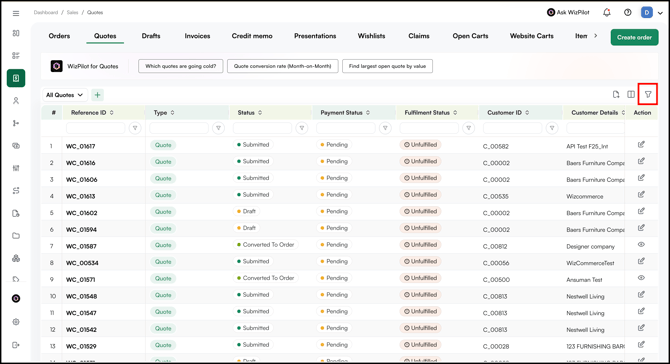
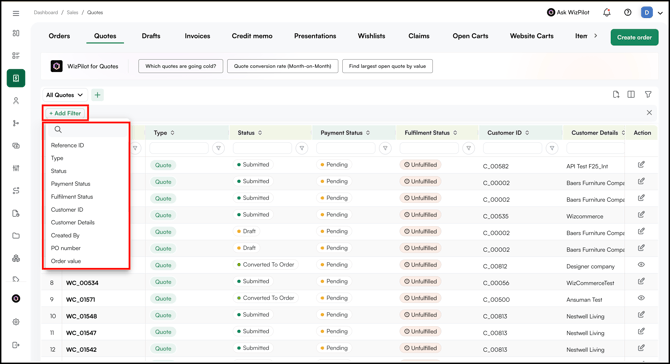
- Click Filter, then click Add Filter and select the filter you want to apply. The filter options match the columns on the Quotes page.
- Set your filter and click Apply. For example, click Status, select Submitted, and click Apply to see the submitted quotes.
- Click Export Excel, then click Export to export the filtered quotes.
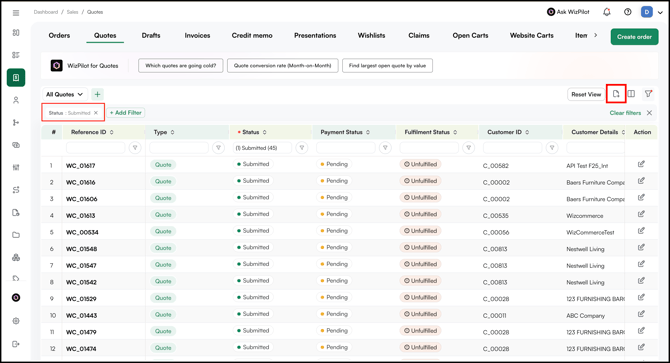
Note: Only the quotes that match your filters are included in the export.
C. Export Orders & Quotes via Import/Export
Use Import/Export to export your orders and quotes together. Both are included in a single sheet.
- Go to Manage → Import/Export.
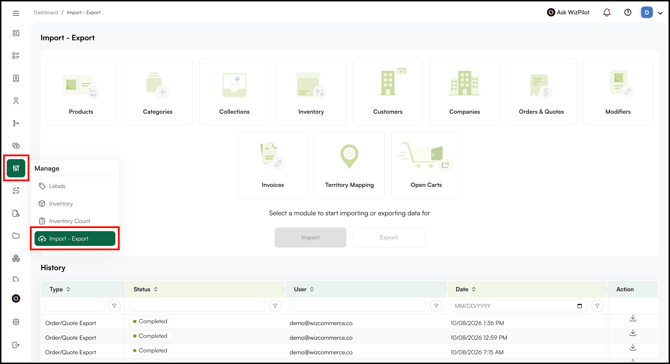
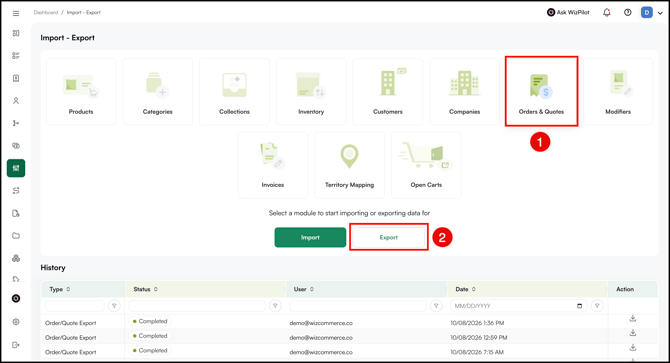
- Click the Orders & Quotes tile and click Export.
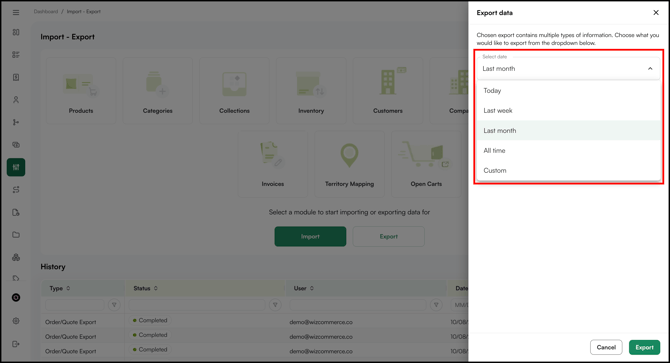
- Select the range you want to export: Today, Last week, Last month, All time, or Custom.
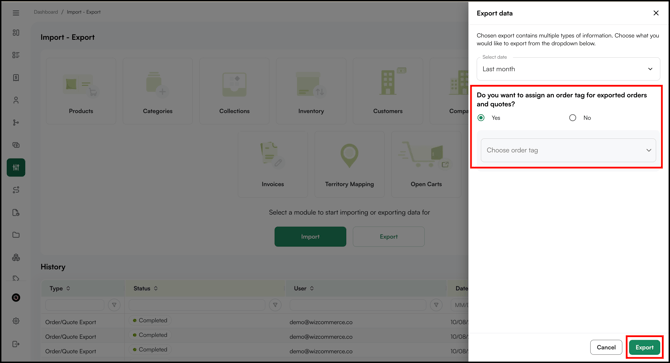
- Select Yes or No to assign an order tag to the exported orders.
- If Yes, choose the order tag from the dropdown and click Export.
- Download the file from Notifications (the bell icon at the top right) once it's ready.
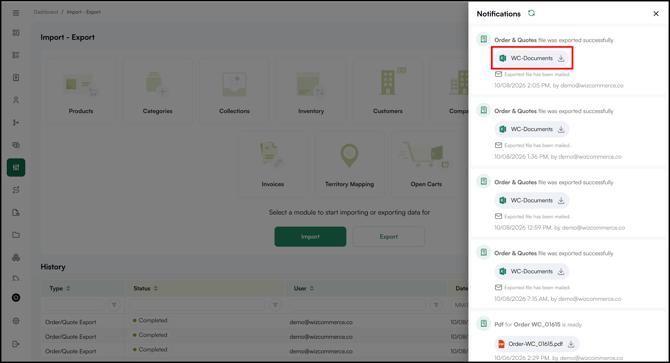
Note: Orders and quotes are exported in the same sheet.
» Understand Your Export File
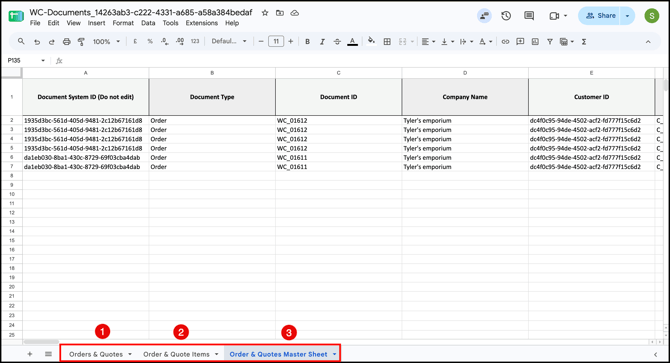
The exported Excel file has three sheets. Each one shows the same data in a different layout, so use whichever suits what you’re doing.
| Sheet | Each Row Shows | Use it For |
|---|---|---|
| Order/Quote | Order or Quote | Totals, statuses, payment details, addresses, and contact information. |
| Order/Quotes Items | Line Items | A line-by-line view of the products in each order or quote. |
| Order/Quote Master Sheet | Order or Quote details, followed by line items | Seeing both together. This is the layout used for importing orders. |
Key fields in the Order/Quote sheet:
- Document System ID: the internal ID WizCommerce uses to link records. Do not edit this field.
- Document ID: the order or quote number you see in WizOrder, for example WC_00498.
- Type: shows whether the row is an Order or a Quote.
D. Export vs Import Column Names
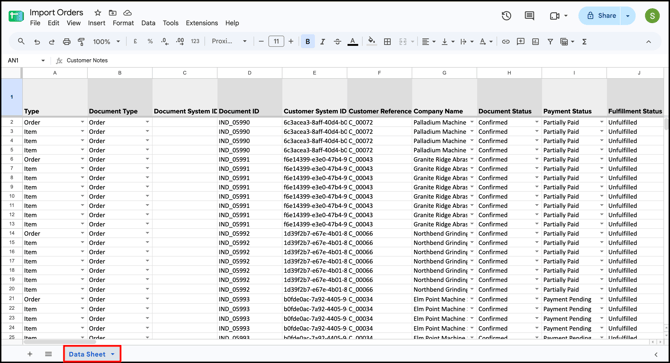
Some columns have slightly different names (attributes) in the export file and the import file, even though they hold the same information. Use the table below to match each export column to its import column before you prepare your Import file. This helps you put data in the right place and avoid import errors.
| Order & Quotes Master Sheet (Export Sheet) | Import Sheet (Data Sheet) |
| Type | Type |
| Document Type | Document Type |
| Document ID | Document ID |
| Customer ID | Customer System ID |
| Customer Customer ID | Customer Reference ID |
| Status | Document Status |
| Company Name | Company Name |
| Payment Status | Payment Status |
| Fulfillment Status | Fulfillment Status |
| Order_Order Tag | Order Tag |
| Created On | Created On |
| Updated On | Updated On |
| Created By | Created By Email ID |
| Updated By | Updated By Email ID |
| SKU ID | SKU ID |
| Name | Name |
| Price Level | Pricelist |
| Total Order Value | Order Total Value |
| Cart Total | Cart Total |
| Customer Notes | Customer Notes |
| Share Customer Notes? | Share Customer Notes |
| Share Your Notes? | Share Your Notes |
| Customer PO | Order PO Number |
| Contact_First Name | Contact_First Name |
| Contact_Last Name | Contact_Last Name |
| Contact_Phone Number Country Code | Contact_Phone Number Country Code |
| Contact_Phone Number | Contact_Phone Number |
| Contact_Designation | Contact_Designation |
| Contact_Email ID | Contact_Email ID |
| Billing_First Name | Billing_First Name |
| Billing_Last Name | Billing_Last Name |
| Billing_Phone Number Country Code | Billing_Phone Number Country Code |
| Billing_Phone Number | Billing_Phone Number |
| Billing_Email ID | Billing_Email ID |
| Billing_Street Address | Billing_Street Address |
| Billing_Address_Line_2 | Billing_Address_Line_2 |
| Billing_City | Billing_City |
| Billing_State | Billing_State |
| Billing_Zip Code | Billing_Zip Code |
| Billing_Country | Billing_Country |
| Shipping_First_Name | Shipping_First_Name |
| Shipping_Last_Name | Shipping_Last_Name |
| Shipping_Phone Number Country Code | Shipping_Phone Number Country Code |
| Shipping_Phone Number | Shipping_Phone Number |
| Shipping_Email ID | Shipping_Email ID |
| Shipping_Street Address | Shipping_Street Address |
| Shipping_Address_Line_2 | Shipping_Address_Line_2 |
| Shipping_City | Shipping_City |
| Shipping_State | Shipping_State |
| Shipping_Zip Code | Shipping_Zip Code |
| Shipping_Country | Shipping_Country |
E. Import Orders via Import/Export
Import orders in bulk using an Excel file. First, download the import template. Then fill in your order details and import the file. Follow the steps below.
Note: Quotes cannot be imported. Only orders can be imported.
Step 1: Import the file
- Go to Manage → Import/Export
- Click the Orders & Quotes tile and click Import.
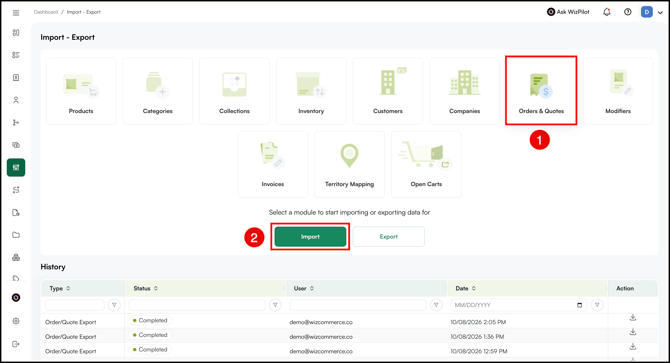
- Download the Template to import Orders.
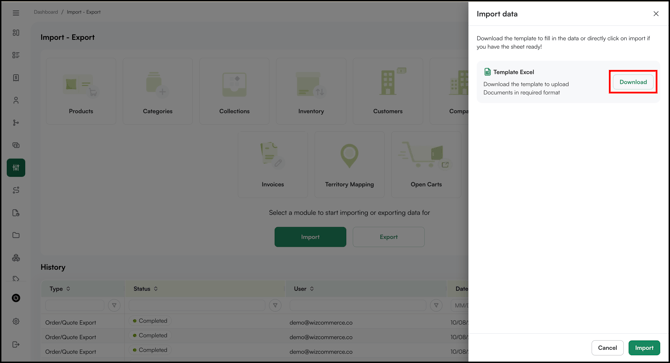
Step 2: Fill in the Details
- Open the Excel file (Data Sheet).
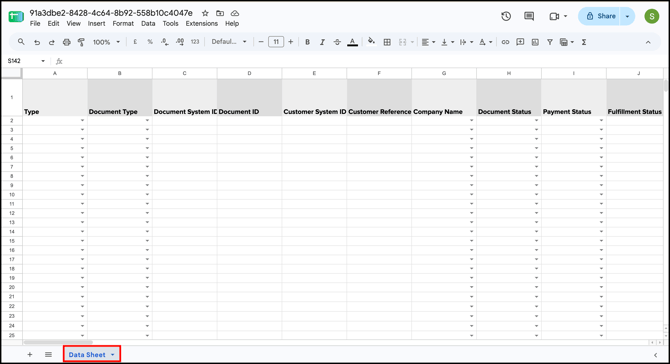
- Enter your order details.
- Save the file as an Excel file (.xlsx).
Step 3: Import the file
- Go back to Manage → Import/Export.
- Click the Orders & Quotes tile and click Import.
- Click Import and upload your saved file.
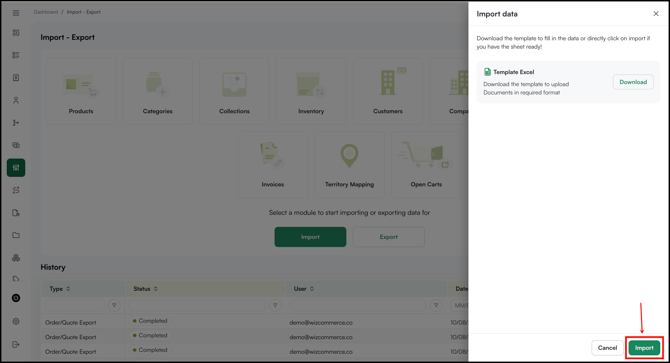
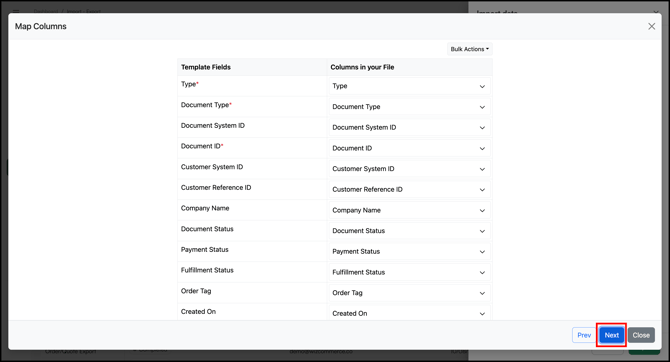
- Upload the file and click Next.
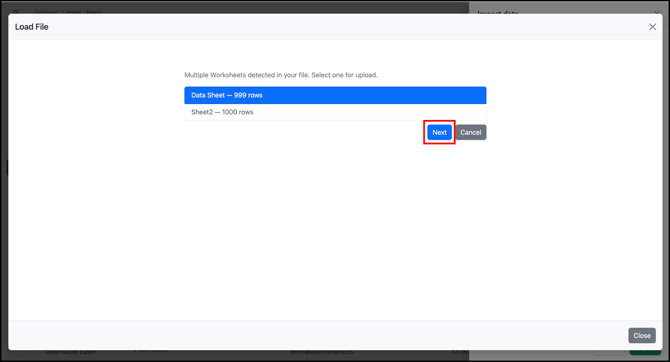
- Map columns, check for the errors, and click Submit.
- Check Notifications for the import status.
FAQs
1. Can I import quotes?
A. No. You can export both orders and quotes, but only orders can be imported.
2. Where do I find my exported file?
A. Once the export is ready, download it from Notifications (the bell icon at the top right).
3. Can I export only specific orders or quotes?
A. Yes. On the Orders or Quotes page, click Filter, add the filters you need, and click Apply. Then click Export Excel and click Export. Only the orders or quotes that match your filters are included.
4. Why are some column names different in the export and import files?
A. Some columns have slightly different names in each file even though they hold the same information. For example, Customer ID in the export is Customer System ID in the import, and Customer PO is Order PO Number. Use the export vs import column table in this article to match each column before you import, so you can avoid import errors.
5. Can I export orders or quotes from the WizOrder mobile app?
A. No. Exports are available only on the WizOrder web portal.
Still need help? Reach out to our support team at help@wizcommerce.com.