
Once your cart is built, the Sales Rep App (WizOrder) & the Online Storefront (WizShop) provides several tools to keep things organized: rename carts for easy identification, download a product presentation to share with your buyer, or delete carts you no longer need.
Platform: WizOrder | Who is this for: Sales Reps & Admins
To Get There: Select a customer > Cart icon
Table of Contents
| Section | Topics |
| A | Rename Your Cart |
| B | Download a Product Presentation |
| C | Group Products in Your Cart |
| D | Clear a Cart |
| E | Add a Custom Line Item |
| F | Open Cart |
| G | Website Cart vs. Open Cart |
| H | FAQs |
Before You Begin
- You must have access to WizOrder, on the mobile app or the web portal
- Cart management works the same way on both the mobile app and the web portal
- You must have products already added to your cart before managing it
- When adding a large number of products to your cart, split the products into multiple carts with a maximum of 200 products per cart. Keeping each cart within this range reduces the amount of data the browser has to process and gives you a more reliable, consistent cart experience.
A. Rename Your Cart
Give your cart a descriptive name to stay organized when managing multiple carts at once.
From the Mobile App
-
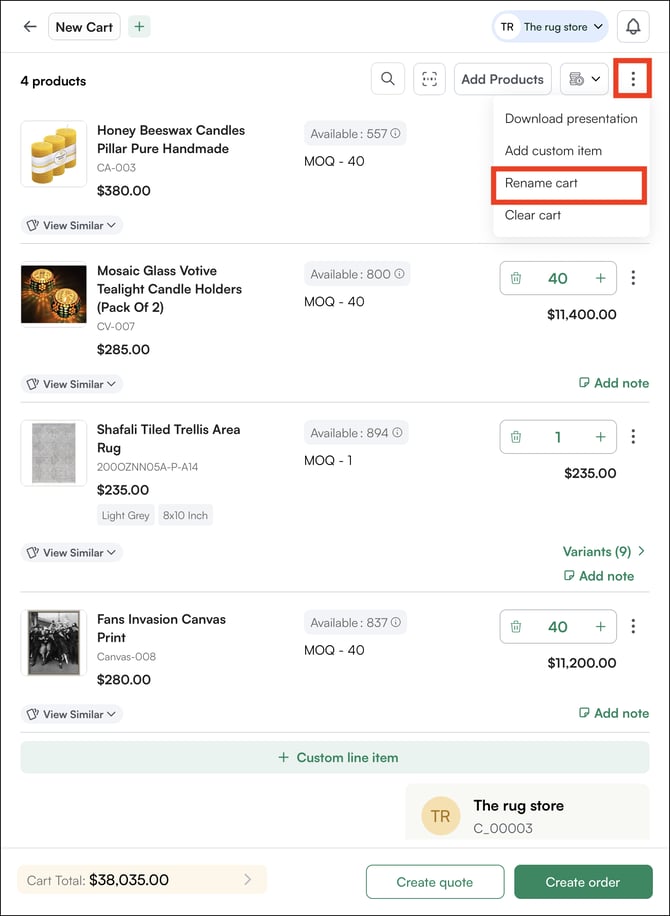
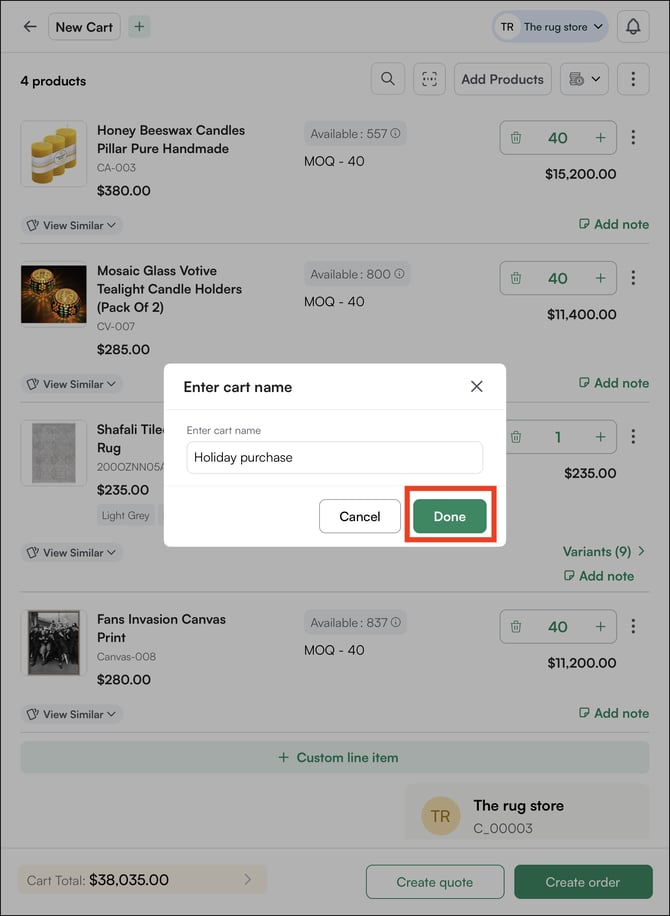
Inside the Cart, tap the three-dot menu and select Rename Cart. Type the new name and Save.
B. Download Product Presentation
From the cart, you can generate a product presentation PDF to share with your buyer before submitting the order.
On the Mobile App:
-
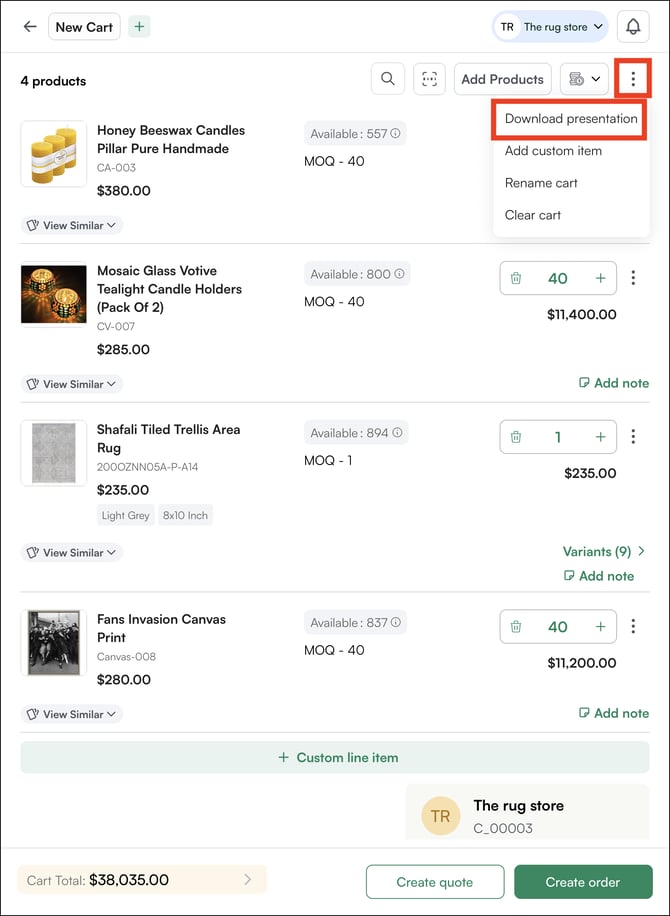
Inside the cart, tap the three-dot menu and select Download Presentation
-
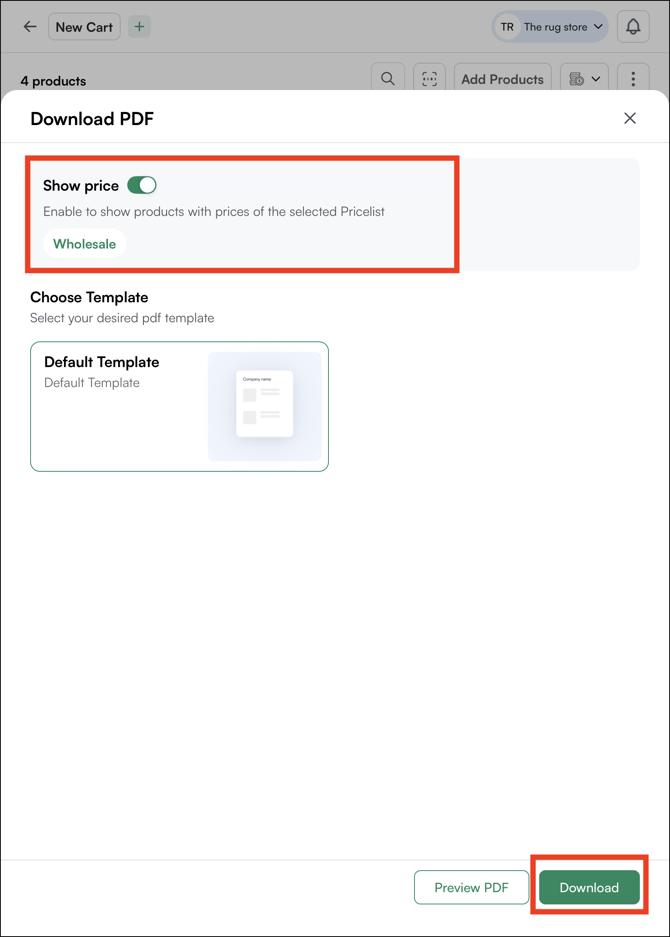
Configure your presentation:
-
Pricing visibility: choose whether to include or exclude pricing
-
Template: select from available presentation layouts
-
-
Tap Download. The PDF is generated and saved to your device
C. Group Products in Your Cart
When a cart has many items, grouping helps you organize products by attributes that matter — like inventory status, collection, or category, so it's easier to review with your buyer.
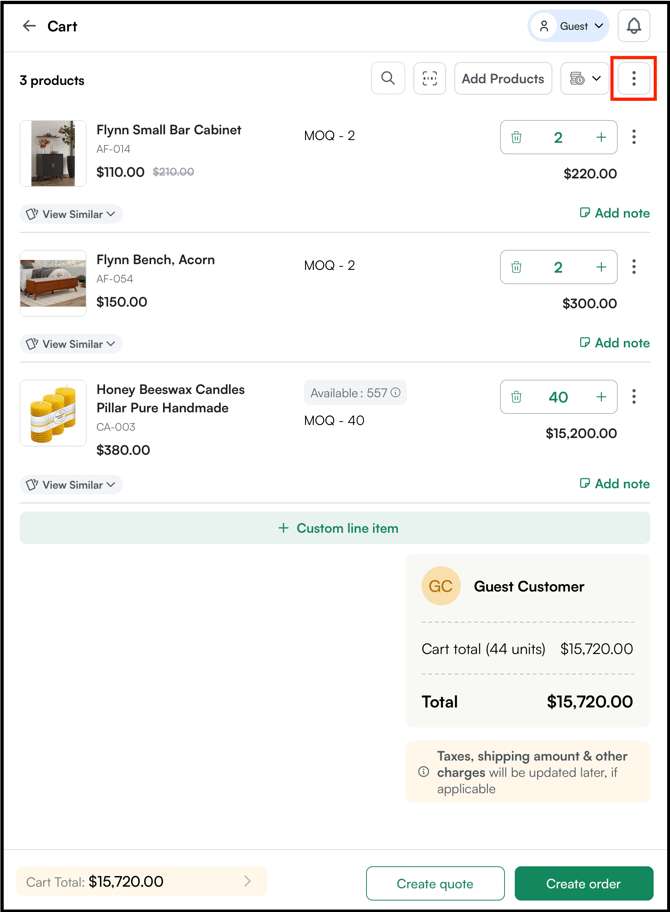
- Inside the cart, click the three-dot menu on the top right.
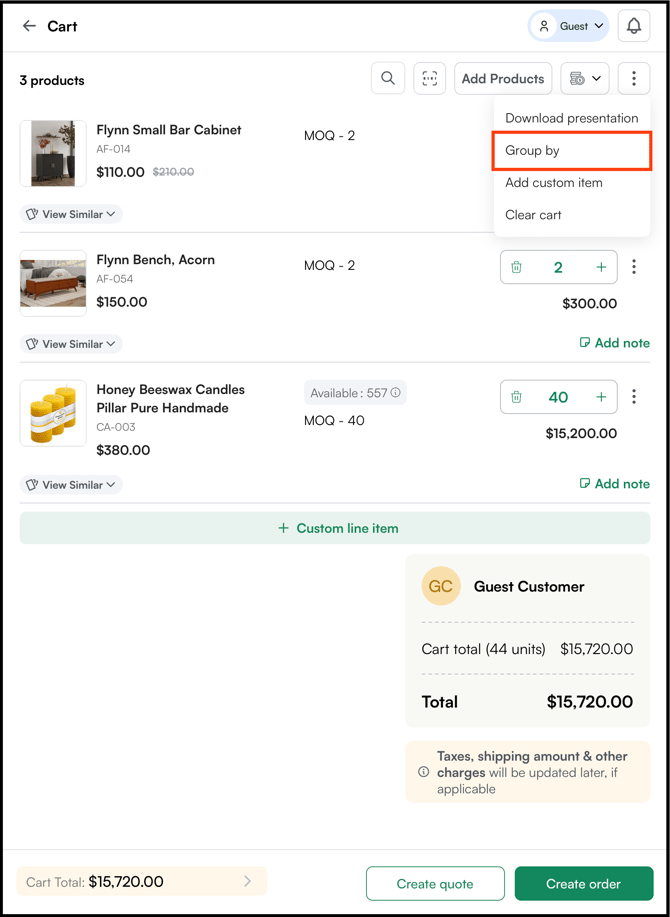
- Select Group by from the dropdown.
- Choose how you want to group the cart:
- Inventory Status: Groups products by stock availability
- Inventory Status & Arrival Date: Groups by stock plus expected arrival date
- Inventory Status & Arrival Month: Groups by stock plus expected arrival month
- Custom Grouping: Create your own grouping based on product attributes
- Group by MOQ: Groups products by their minimum order quantity
- Group by Collection: Groups products by the collection they belong to
- Group by Category: Groups products by their category
- None: Removes any active grouping and shows the default flat list
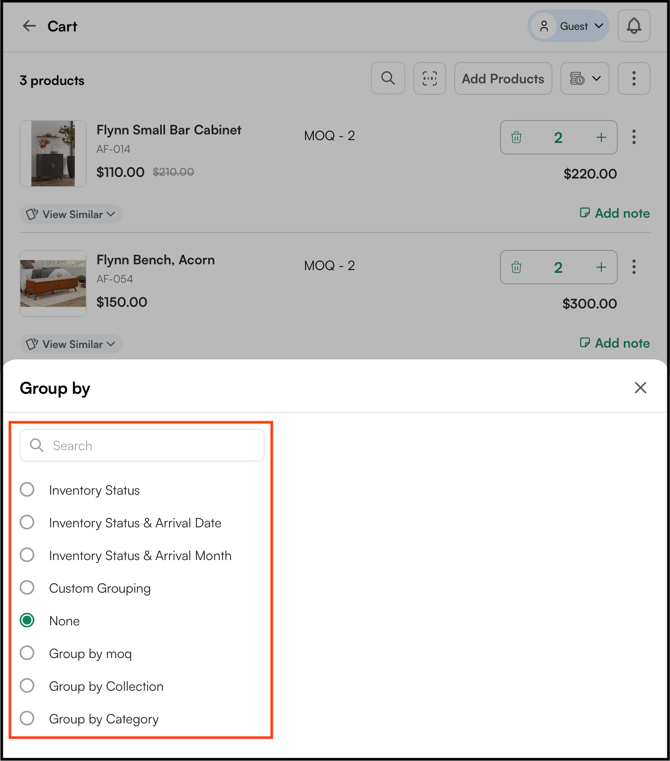
Note: Grouping is a view-only change, it only affects how products appear in the cart. It does not change pricing, quantities, or how the order is submitted.
D. Clear a Cart
-
Inside the cart, tap the three-dot menu and select Clear Cart
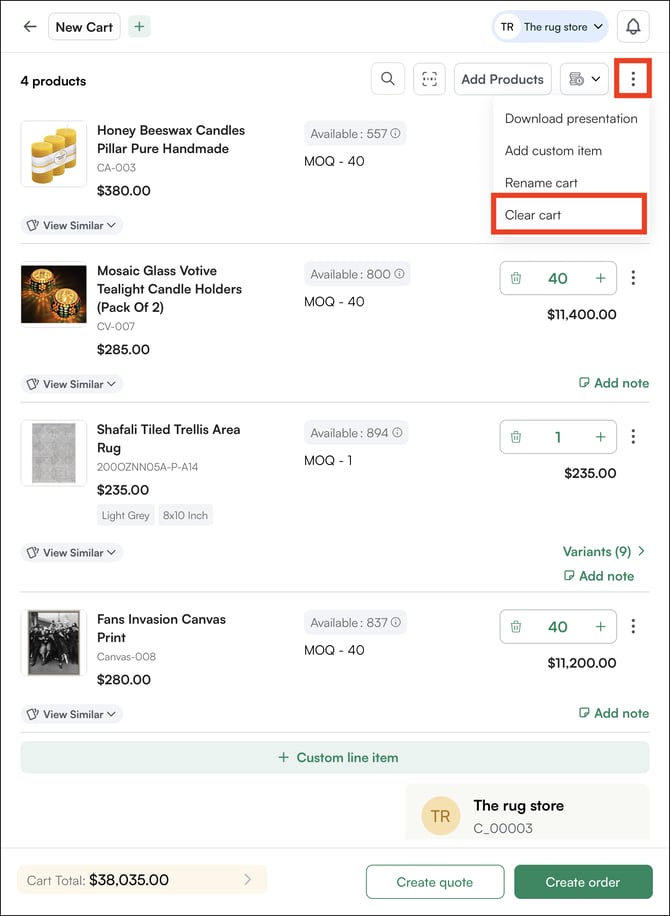
-
Confirm the action. All products are removed from the cart permanently
Note: Clearing a cart only removes the products from the cart. Any orders or quotes already created from this cart are not affected.
E. Adding Custom Line Item
A custom line item lets you add a product to the cart or order that is not in your catalog, useful for items not in your catalog, special requests, or products not yet set up in the system.
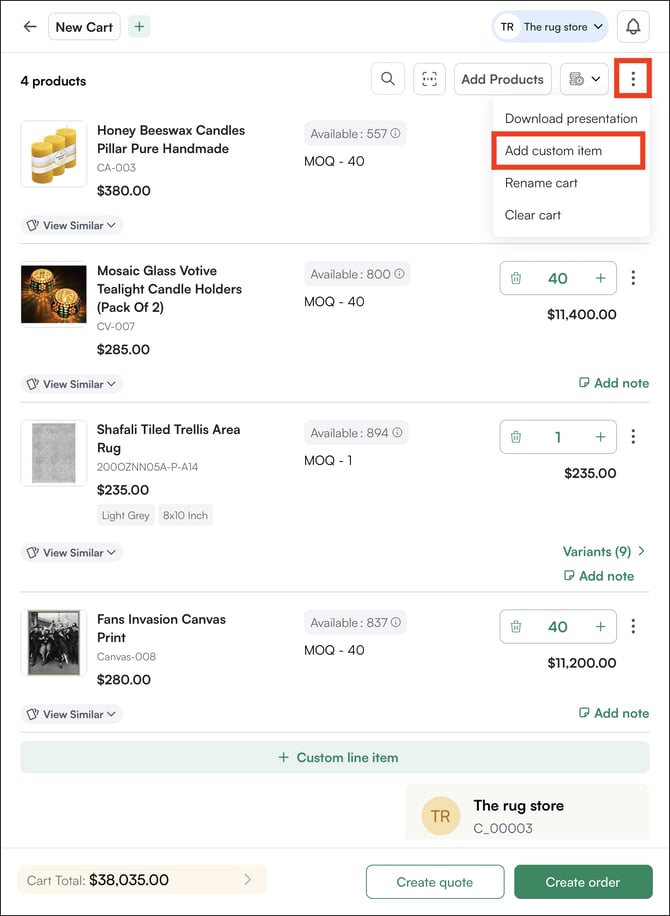
Inside the cart, tap the three-dot menu and select Add Custom Item, or tap + Custom Line Item at the bottom of the cart
-
Click + Custom Line Item
-
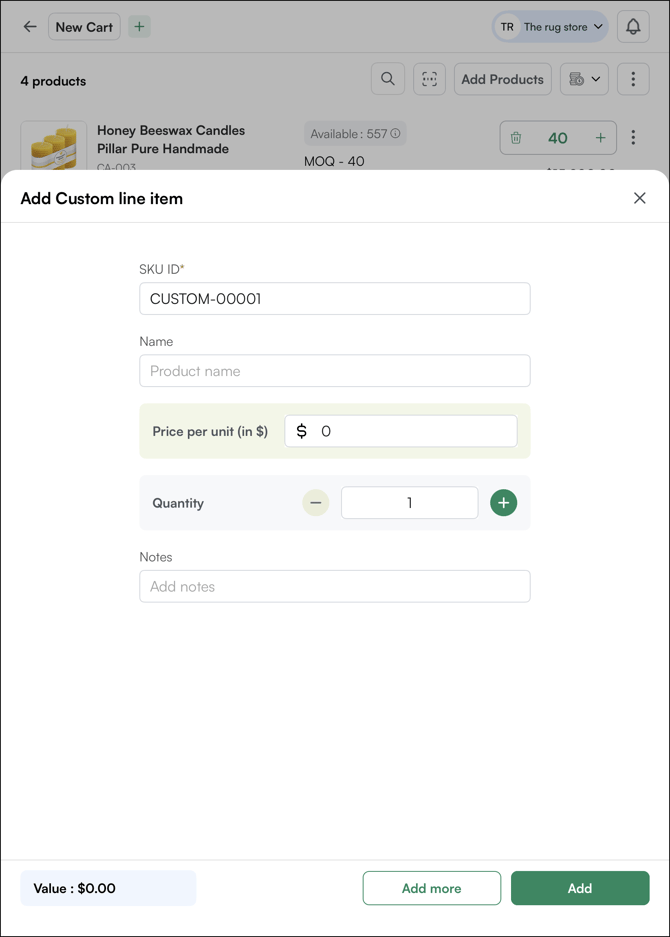
Fill in the required details:
-
SKU ID: Enter the SKU ID of the product
-
Product Name: Enter a name or description for the item
-
Price: Enter the unit price
-
Quantity: Set the quantity
-
-
Click Add. The custom line item appears in the cart alongside your catalog products
-
Click Add more to add more custom items.
F. Open Cart
Open Carts is a single view of every cart that's been created but not yet converted to a quote or order. Use it to track pending carts across your team, follow up on stalled deals, and pick up where you or a rep left off.
From the Web Portal
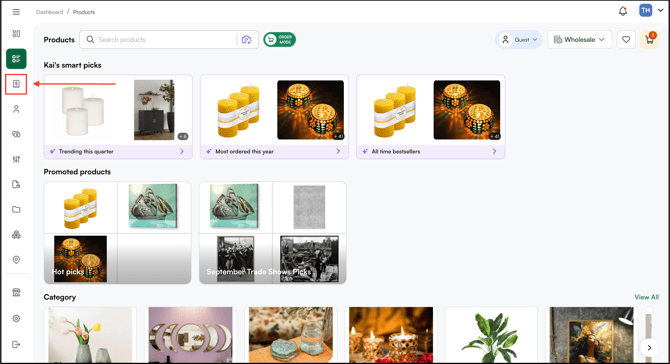
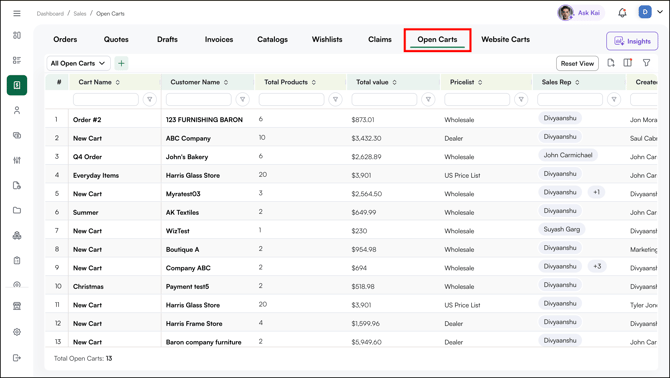
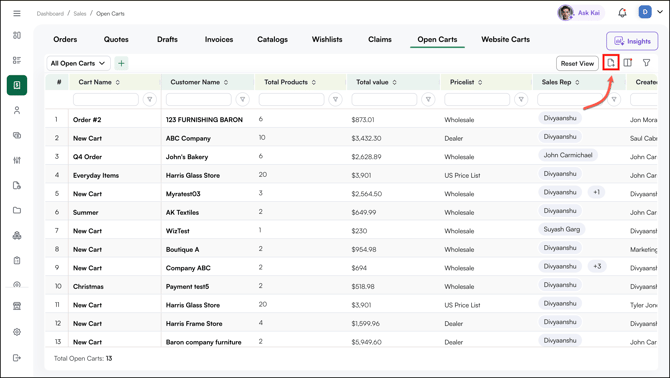
- From the dashboard, click the Sales icon in the left navigation bar.
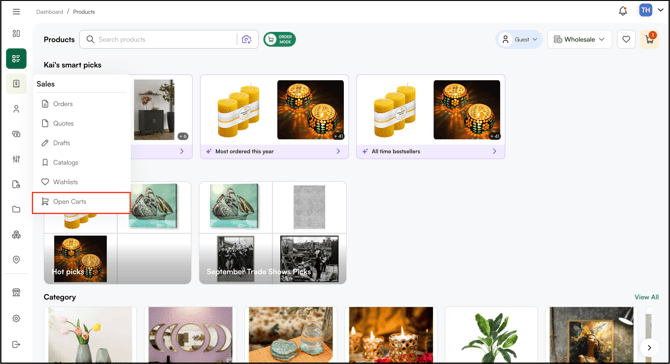
- Click Open Carts from the Sales menu.
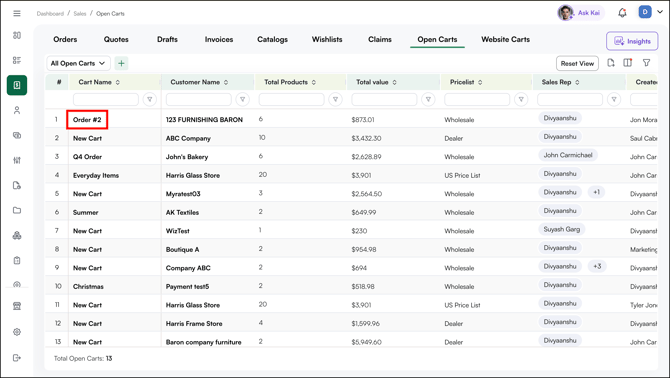
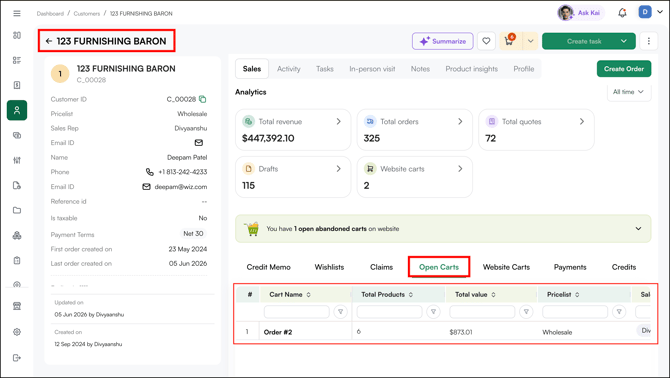
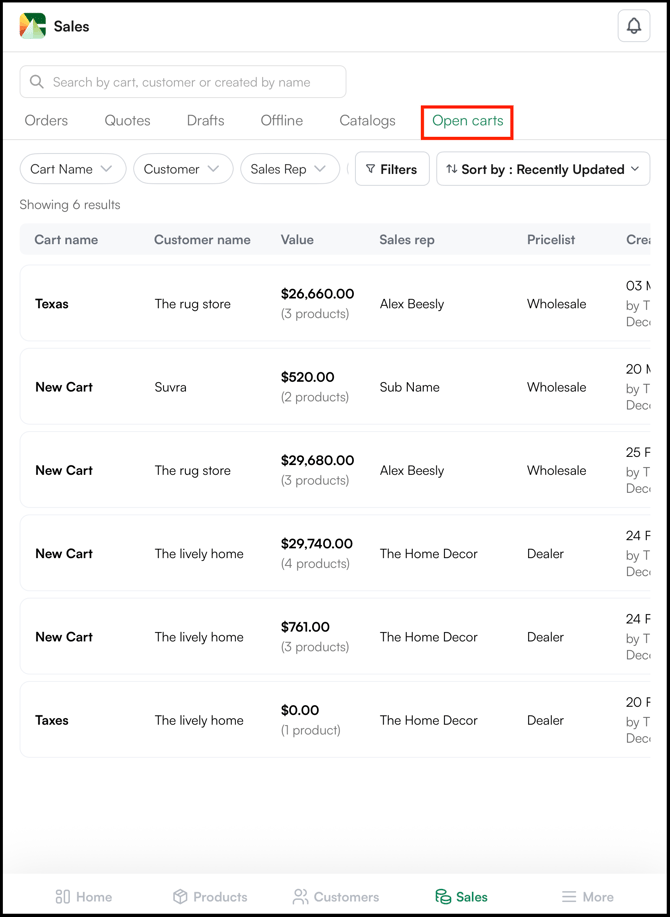
- Review your open carts in the table. Each row shows the Cart Name, Customer Name, Total Products, Total value, Sales Rep, Pricelist, and creation date.
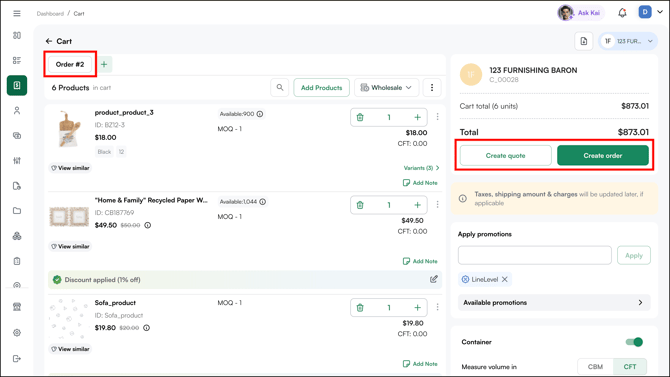
- Click the cart name to open the cart.
- From here, you can edit the cart, create a quote, or create an order.
- Click the customer name to view the details of that particular customer.
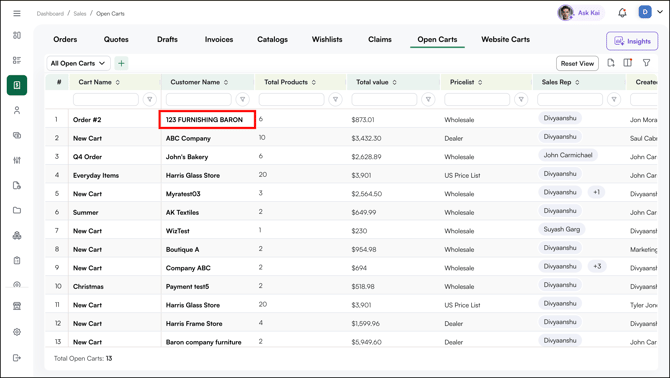
- You can also view the open carts for that customer. Click the cart name to edit the cart, create a quote, or create an order.
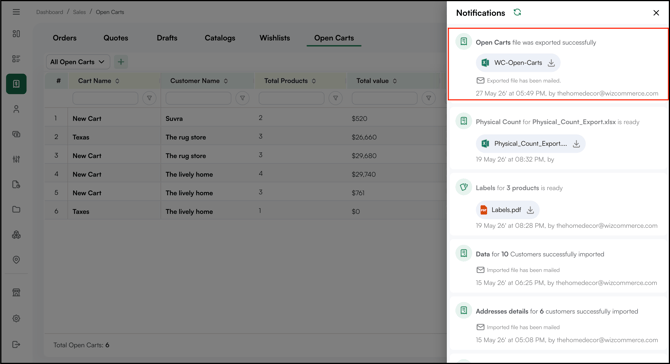
- To download all open cart data, click the Export button at the top right of the Open Cart table.
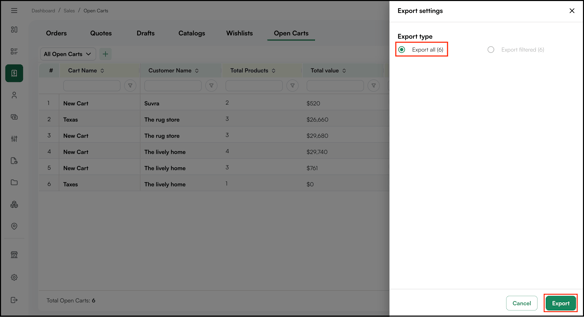
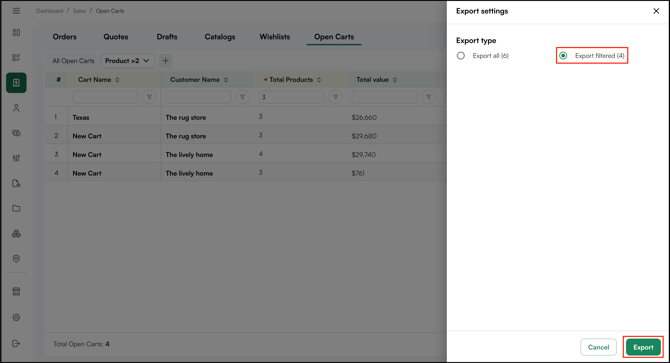
- In the Export settings panel, choose what to export:
- Export all: Downloads every open cart in the table
- Export filtered: Downloads only the carts matching your current filters
- Export all: Downloads every open cart in the table
- Open the Notifications panel from the top right to download the exported file. A copy is also emailed to your registered email address.
From the Mobile App
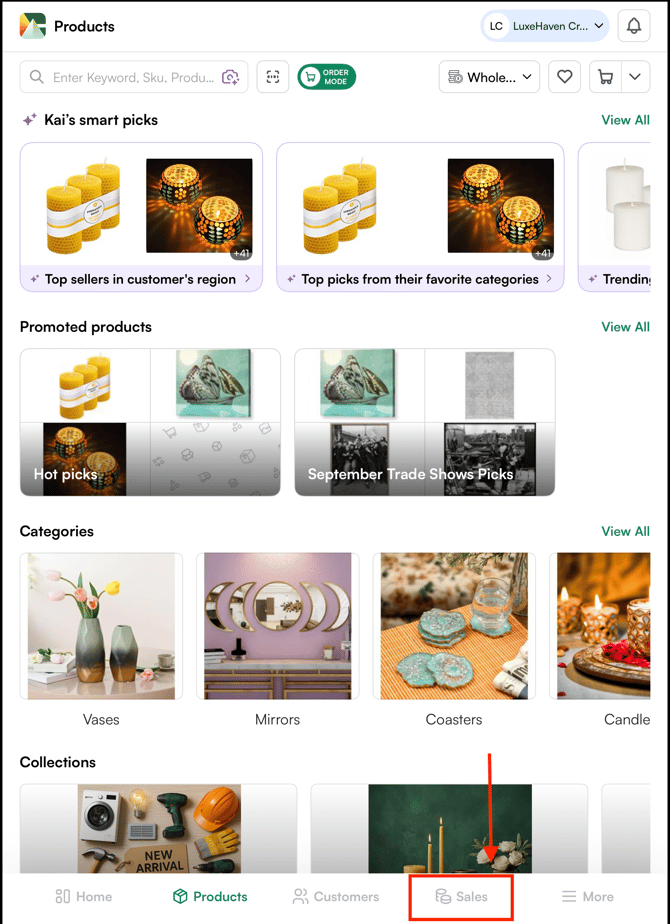
- From the bottom navigation bar, Click Sales.
- Go to the Open Cart table.
Note:
-
Open Carts shows carts from across your team based on your access permissions. Admins see all open carts; sales reps see carts tied to their assigned customers.
- Exporting the Open Carts table is only supported on the web portal. The same applies to other table exports across WizCommerce such as Customers, Orders, Drafts, Catalogs, Wishlist, Website Users, Leads, and similar tables.
G. Website Cart vs. Open Cart
WizOrder shows two types of carts, and they come from different places. Knowing the difference helps you respond to the right buyer signal at the right time.
| Website Cart | Open Cart | |
|---|---|---|
| Where it's created | By a buyer on your WizShop storefront | By a sales rep inside WizOrder |
| Who built it | The customer themselves | You or a teammate, on behalf of a customer |
| What it signals | A buyer started shopping online but hasn't checked out | A cart in progress that hasn't been converted to a quote or order yet |
| Typical next step | Reach out to the buyer, answer questions, or help them complete checkout | Pick up where the rep left off, review items, convert to a quote, or place the order |
Note: A Website Cart only becomes an Open Cart if you or a rep takes it over and continues working on it inside WizOrder. Until then, the two stay separate.
FAQs
1. Can I rename a cart after I have already added products to it?
A. Yes. You can rename a cart at any point, before or after adding products, and before or after submitting an order. The name change does not affect the products or pricing in the cart.
2. Does clearing a cart cancel any orders or quotes already created from it?
A. No. Clearing a cart only removes the products from the active cart. Any orders or quotes that were already created from that cart remain unaffected.
3. Can I share the product presentation directly from WizOrder, or do I have to download it first?
A. The presentation is downloaded as a PDF to your device. From there you can share it via email, WhatsApp, or any other channel you use to communicate with your buyer.
4. I just added products to a cart but it's not showing in Open Carts yet. Why?
A. Cart changes take roughly 30–40 seconds to appear in the Open Carts view. Updates are batched before they refresh in the table, so give it a moment and the cart will show up.
5. Why doesn't a particular cart appear in Open Carts?
A. Only carts that are attached to a customer and contain at least one product are listed. Empty carts and carts not yet linked to a customer, are excluded by design.
6. . What is the difference between Repeat Order and Copy Cart?
A. Repeat Order recreates the same order for the same customer, you cannot change the customer. Copy Cart copies the products into a new cart and lets you assign it to a different customer, with pricing updating automatically for whoever you select.
7. Can I edit or cancel a confirmed order?
A. It depends on whether the order has already synced to your ERP.
- Not yet synced: If you have permission to cancel confirmed orders, cancel the order in WizCommerce and use Copy Cart to recreate it with the correct details.
- Already pushed to ERP: Contact the WizCommerce support team at help@wizcommerce.com. Changes at this stage need to be handled on the ERP side.
- Going forward: Use Save as Draft before confirming an order so you can review and edit it before it syncs.
Still need help? Reach out to our support team at help@wizcommerce.com.