
When more people from your team need to place orders, check pricing, or manage your account on WizShop, you can invite them as users and decide exactly what each person can access. Roles control what users see and do after they log in, so everyone gets the right level of access without sharing one login.
Platform: WizShop | Who is this for: Buyer's Account Admin
To Get There: Profile icon > Users (or My Profile → Users / Roles)
Table of Contents
| Sections | Topics |
|---|---|
| A | Understand Users and Roles on WizShop |
| B | Create a Role |
| C | Add a New User |
| D | Manage an Existing User |
| E | FAQs |
Before You Begin
- You must have an Admin role on the Online Storefront (WizShop) to add users or create roles.
- Create roles before adding users, you must assign a role when inviting a new user.
- Each user you add must have a unique email address. That email becomes their login.
A. Understand Users and Roles on WizShop
WizShop is the online storefront where you place orders with your supplier. If more than one person from your team needs to log in, to place orders, check pricing, or manage your account, you can add them as users and decide what each person can access. This is managed under My Profile through two tabs:
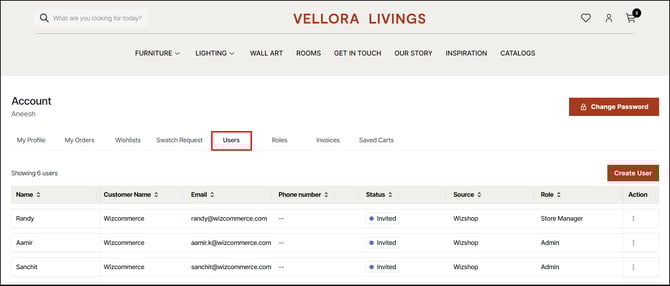
- Users: Everyone who has access to the Online Storefront (WizShop) account. Each user is listed with their name, email, phone number, status, source, and assigned role.
- Roles: Permission sets that control what each user can see and do on the storefront.
Users are scoped to your customer account. Team members from other buyer accounts are not visible to you, and your users are not visible to them.
Note: The first person to sign up for the Online Storefront (WizShop) account is granted full administrator access by default.
B. Create a Role
Set up roles before adding users so you can assign the correct access at the time of invitation.
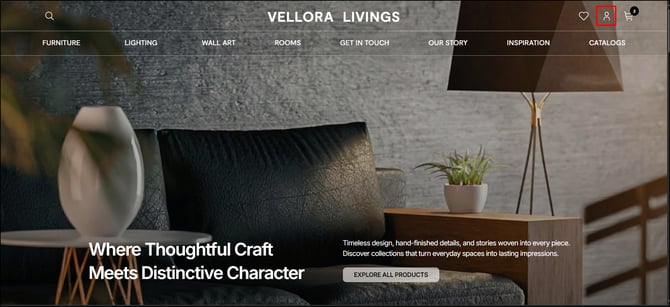
- Click the profile icon in the top right corner of the storefront.
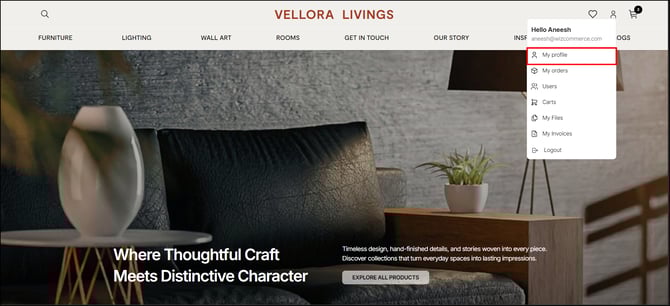
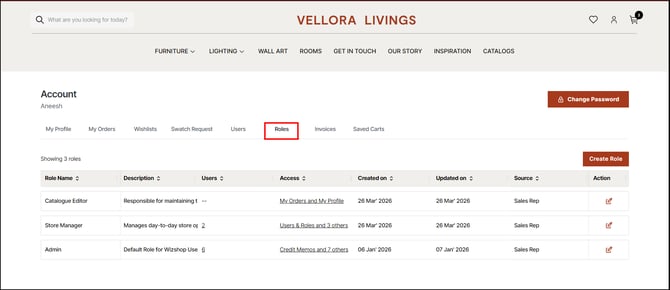
- Go to My Profile, and navigate to Roles section.
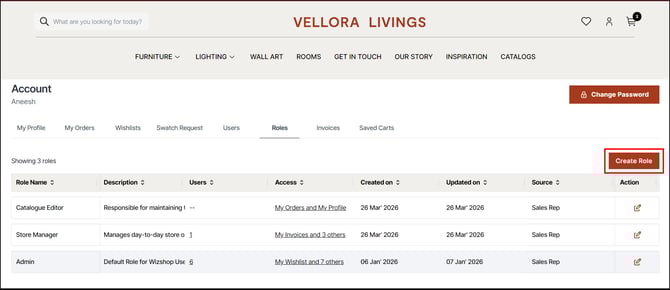
- Click Create Role.
- Under Basic Details, enter:
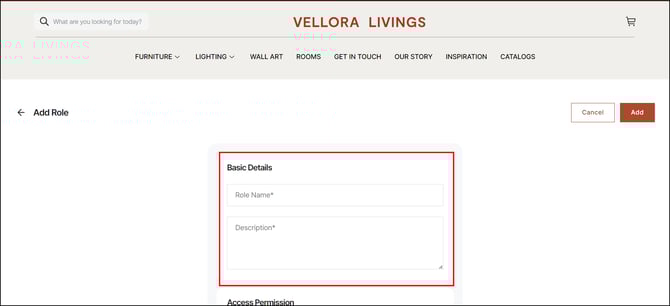
- Role Name: A clear name for the role (for example, Store Manager or Catalogue Editor)
- Description: A brief note on what this role is for.
- Under Access Permission, select the permissions for this role, for example:
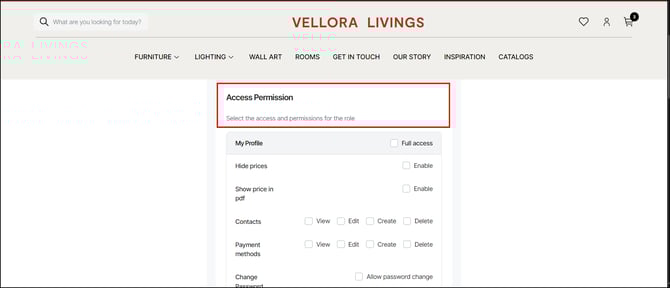
- My Profile: Toggle access that you want to enable or disable
- Contacts and Payment methods: Set granular access: View, Edit, Create, Delete
- Change Password: Toggle to allow or restrict
- Click Add in the top right corner to save the role.
The role now appears in the Roles list and can be assigned to users.
Note: Edits to a role apply immediately to all users currently assigned that role. Review the impact before changing a role with multiple users.
C. Add a New User
Invite users to access the Online Storefront (WizShop).
- From the profile window, switch to the User section.
- Click Create User.
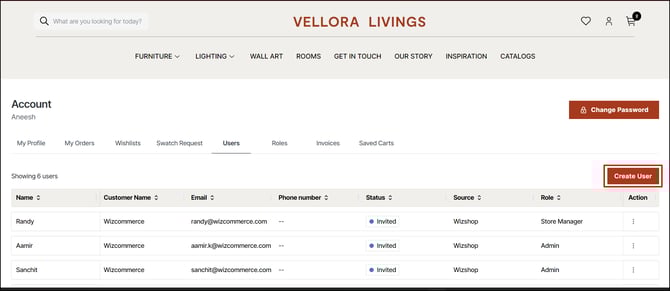
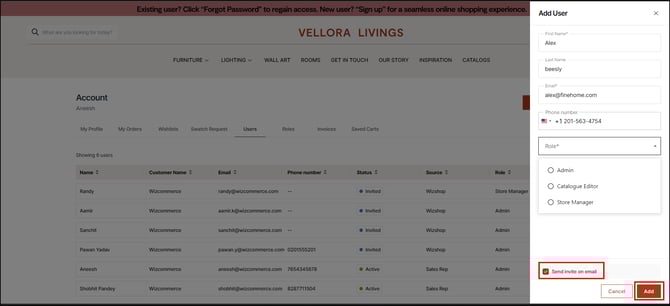
- In the Add User panel, enter the following details:
- First Name (required) & Last Name
- Email (required): This is the email the user will use to log in
- Phone Number:
- Under Role, select a role from the dropdown.
- Check the Send invite on email checkbox and then click Add.
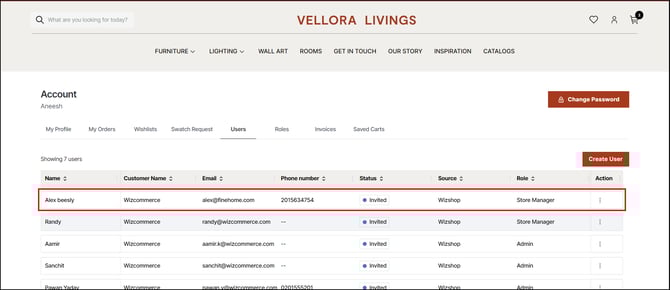
- The user is added to the list with a status of Invited. They will receive an email with a link to set their password and access the storefront.
Note: Only roles you have already created under the Roles tab will appear in this dropdown. If you do not see the role you need, create it first before adding the user
D. Manage an Existing User
For each user, you can edit their details, manage their access, or resend their invitation using the three-dot menu in the Action column.
- Locate the user you want to manage.
- Click the three-dot menu in the Action column.
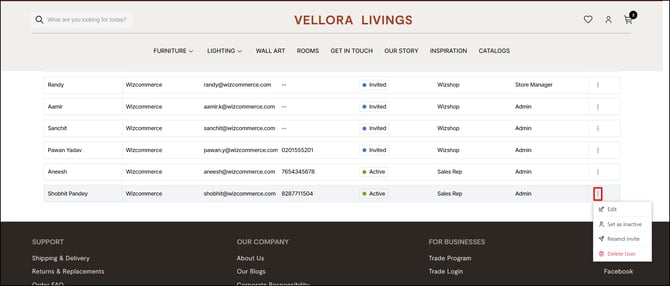
- Select the action you need:
- Edit: Update the user's details or role
- Set as inactive: Remove the user's access without deleting their account
- Set as active: Restore access for a user who was previously set as inactive
- Resend invite: Send the invitation email again if the user did not receive it or the link expired
- Delete User: Permanently remove the user from your account
- My invite link says "Token Expired": Invitation links are valid for a limited time. If the link has expired, there are two ways to get back in: an admin can resend the invite from this page or the user can go to the WizShop login screen and select Forgot Password to set their own password directly.
Note: Set as inactive and Set as active are reversible. Use this option instead of Delete User if you may need to restore access later. Deleting a user cannot be undone.
FAQs
1. What happens after I send an invite?
A. The invited user receives an email with a link to create their password. Once they complete this step, their status updates from Invited to Active and they can log in to WizShop.
2. What is the difference between setting a user as inactive and deleting them?
A. Setting a user as inactive removes their access but keeps their account in the system, so you can reactivate them later. Deleting a user permanently removes them and cannot be undone.
3. Can I see users from other buyer accounts?
A. No. Each user you add is tied to your specific customer account. Users from other buyer accounts are managed separately and are not visible to you.
Not finding what you need? Browse the WizCommerce Help Center, reach out to your Customer Success Manager, or contact our support team at help@wizcommerce.com.