
WizCommerce offers you three ways to manage inventory: automatic sync through your ERP integration, bulk updates using Import/Export for large-scale changes across multiple products, and the Product Management page for quick edits to individual products.
Platform: WizOrder & WizShop | Who is this for: Admins
To Get There: Manage > Import/Export > Inventory
Table of Contents
| Sections | Topics |
| A | Manage Inventory Using Import/Export |
| B | Manage Inventory Using Product Management |
| C | Managing Inventory on the Online Storefront (WizShop) |
| D | FAQs |
Before You Begin
- Ensure you have Admin access before making any inventory changes.
- If you are performing Import/Export for the first time, read the Instructions page and review the Sample page in the exported Excel file before making any edits.
- Use Import/Export for bulk updates across multiple products. Use Product Management for quick edits to individual products.
- Before you import, make sure Track Inventory?, Backorder Allowed, and Backorder Limit column have a value for every product.
A. Manage Inventory Using Import/Export
Import/Export lets you update inventory data in bulk — adjusting available quantities, backorder settings, stock thresholds, and on-order details for multiple products at once. This is useful when you need to make large-scale inventory updates without editing each product individually in the platform.
Instead of making changes one by one, export your inventory data as an Excel file, make your edits, and import it back. The platform automatically updates all changed records.
Note: Both Import/Export and Product Management are available on the web portal and are only accessible to admins.
Step 1: Export the File
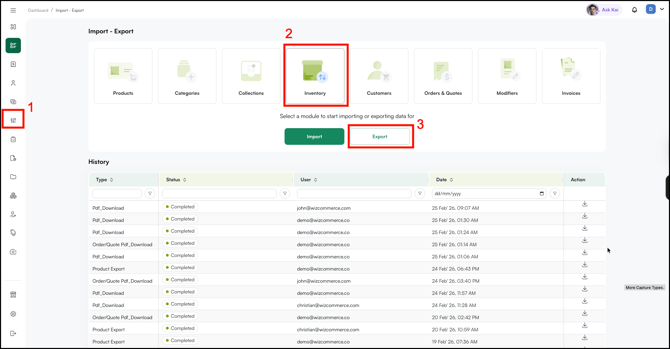
- Go to the Manage button in the left sidebar of WizOrder and click Import/Export.
- Select Inventory from the available modules.
- Click Export to download the inventory data file.
Step 2: Review the Exported File and Make Edits
- Access the downloaded file through the notification bar.
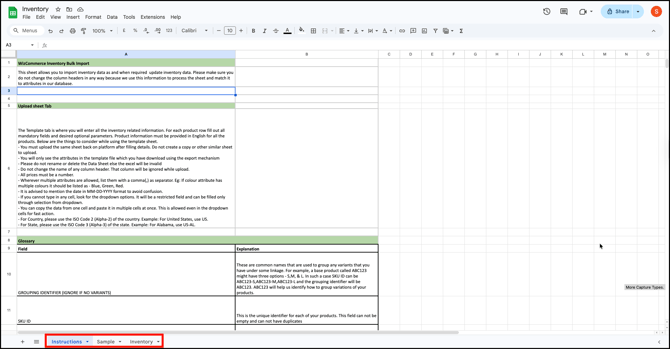
- Open the Excel file. You'll find three sheets: Instructions, Sample, and Data Sheet. If this is your first time using Import/Export, read the Instructions page and review the Sample page before making any changes.
- Go to the Inventory sheet and make your changes.
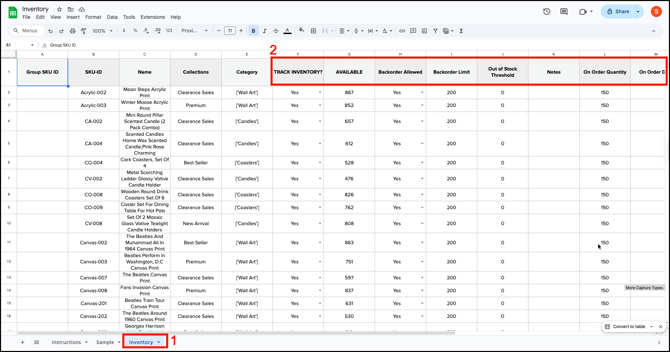
- Here is what each column in the Inventory sheet represents:
- Track Inventory?: Whether inventory is being tracked for this product (Yes/No)
- Available: The current number of units available for ordering
- Backorder Allowed: Whether buyers can place orders when stock runs out (Yes/No)
- Backorder Limit: The maximum number of units that can be ordered on backorder
- Out of Stock Threshold: The inventory level at which the product is flagged as out of stock
- Notes: Any internal notes or additional information attached to the product
- On Order Quantity: The number of units currently on order from the supplier but not yet received
- On Order Date: The expected date the on-order units will be received
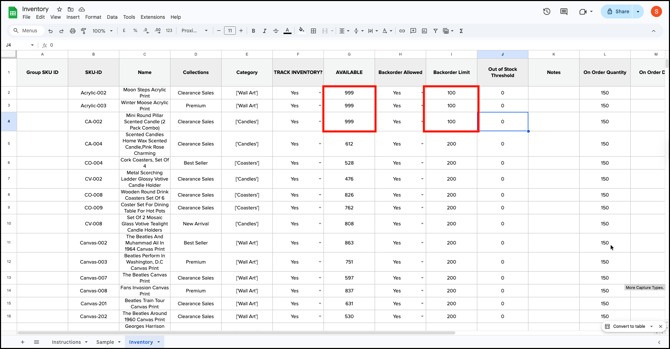
- Make your changes. For example, update the Available quantity to 999 and reduce the Backorder Limit to 100 for the relevant products. Apply the same approach to update any other column as needed.
- Save the Excel file once you've finished making all changes.
Step 3: Import the Updated File
- Go back to Import/Export in WizOrder.
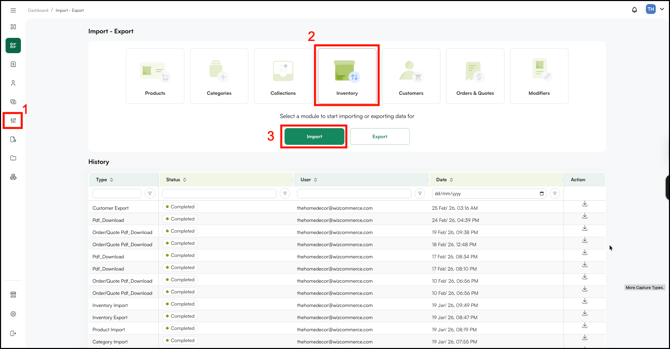
- Select Inventory, then click Import.
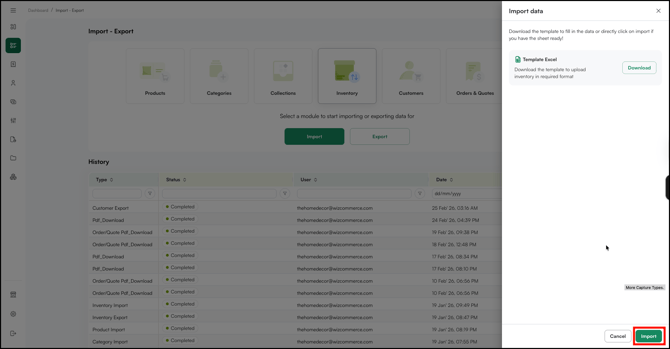
- Upload only the Inventory sheet — out of all Excel pages, only this sheet needs to be imported.
- Follow the walkthrough video to complete the import.
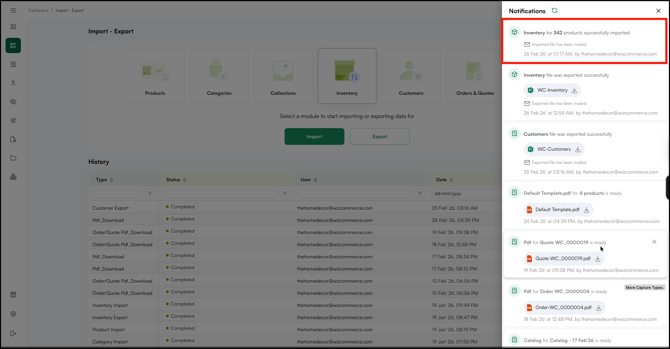
- Check the import progress in the notification bar by clicking the bell icon.
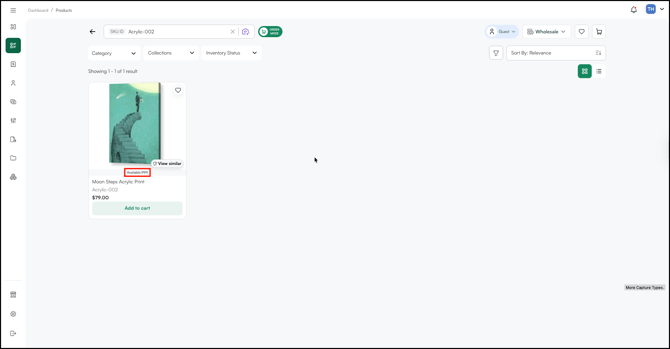
- Confirm the changes by checking the inventory status of the updated products. For example, the available quantity for SKU ID Acrylic-002 should now reflect the updated value of 999.
Mandatory Columns for Inventory Import
Always include these columns in your file — do not delete them:
- System ID (do not delete)
- Grouping Identifier (ignore if no variants)
- Reference ID
- SKU ID
- Name
Note:
-
Make sure Track Inventory?, Backorder Allowed, and Backorder Limit have a value for every product before you import.
-
The sync duration depends on the file size and the amount of data being processed. For a quicker import/export, keep the Excel file size small and limit the entries to under 5,000 rows. Once the sync is complete, the changes will be reflected instantly. If the sync is taking longer than expected, please contact our support team at help@wizcommerce.com.
B. Manage Inventory Using Product Management
Use the Product Management page in the WizOrder web portal to update inventory details for individual products.
Note: This is accessible only to admins. Use this method when updating inventory for a single product. For bulk updates across multiple products, use Import/Export instead.
Step 1: Locate the Product
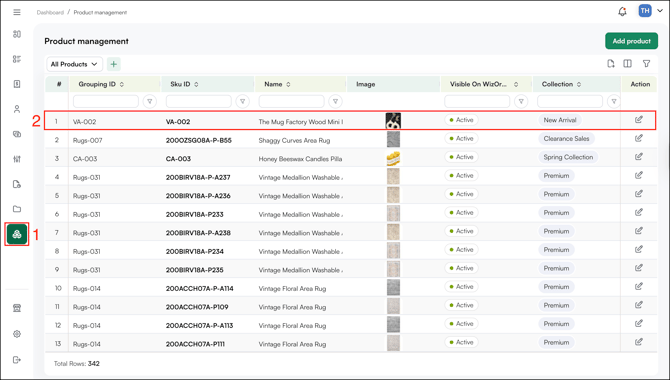
- Go to the Product Management tab.
- Find the product you want to update using the search bar or filters.
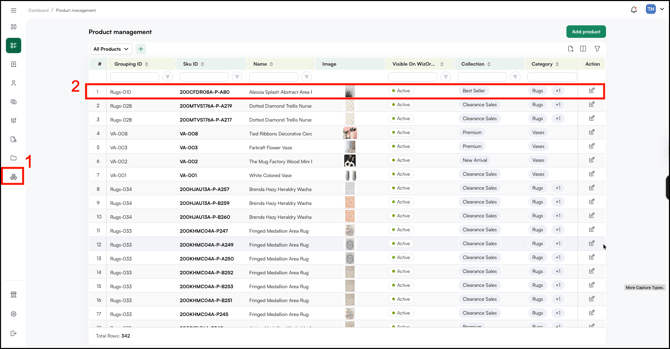
Step 2: Edit Inventory Details
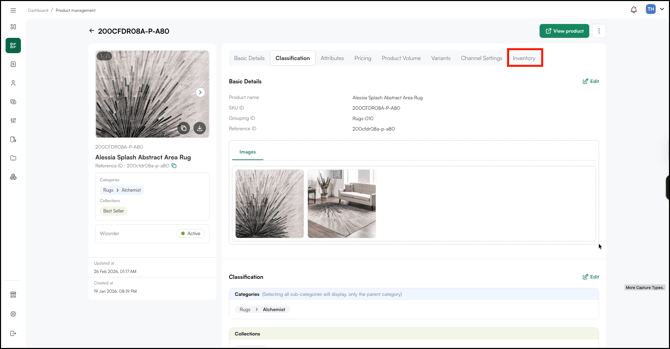
- Click the product to open its product management page.
- Select the Inventory tab from the top navigation.
- Click Edit.
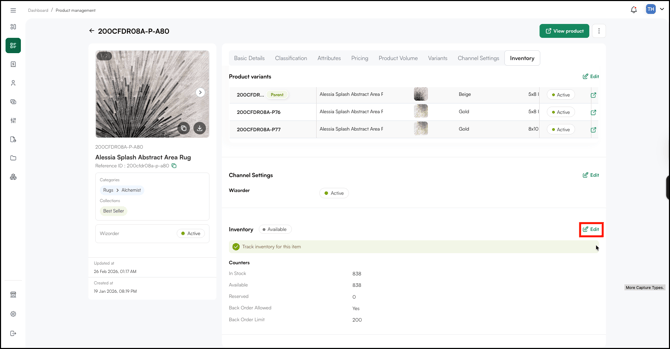
- Update the relevant fields as needed. For example, update the available quantity to 999 and reduce the backorder limit to 100.
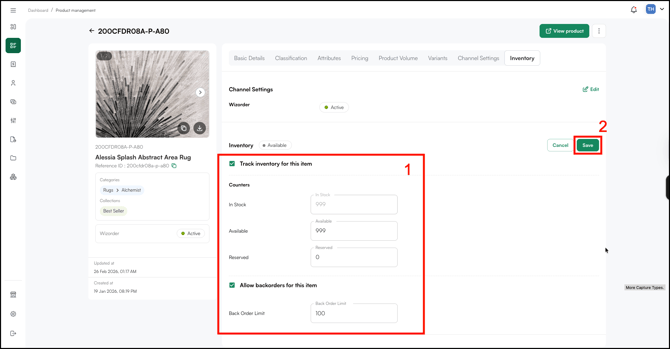
- Click Save.
C. Manage Inventory on the Online Storefront (WizShop)
To make inventory visible on the Online Storefront (WizShop), enable the WizShop channel in Channel Settings on the product management page. This controls whether the product and its stock status appear on the online storefront.
- Open the product's management page.
- Go to Channel Settings.
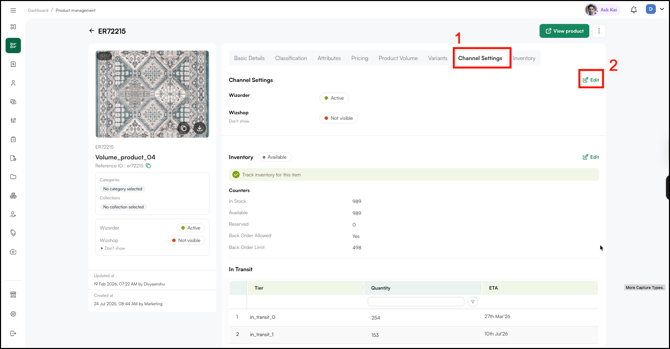
- Enable the WizShop channel.
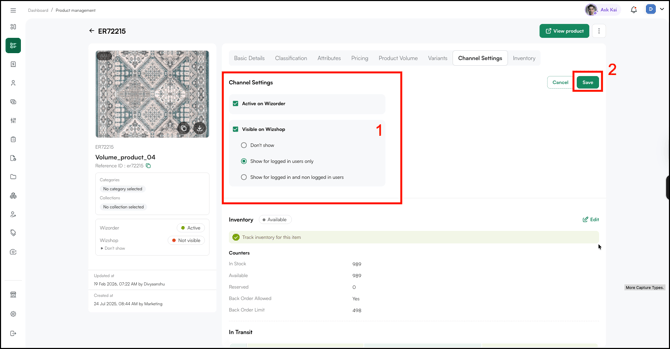
- Click Save.
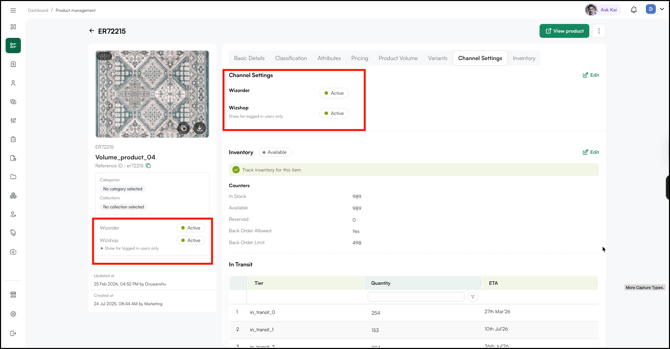
- Once saved, the product reflects the updated inventory settings across both WizOrder and WizShop.
FAQs
1. What is the difference between Import/Export and Product Management for inventory updates?4. My inventory import was successful, but stock status is not updated. What should I do?
A. Check your import file. Make sure Track Inventory?, Backorder Allowed, and Backorder Limit have a value for every product. If any of these columns are empty, fill them in and import the file again. If stock status still isn’t updated, contact our support team at help@wizcommerce.com.
For other reasons an import may not work as expected, see Why did my product or inventory Import/Export fail without showing an error?
Still need help? Reach out to our support team at help@wizcommerce.com.