---
title: Manage Buyer Access & Orders in WizShop
description: Manage buyer access on your WizShop storefront—approve customer registrations, process buyer orders, and control user access in one place.
---
[Skip to content](https://knowledge.wizcommerce.com/manage-buyer-access-orders-in-wizshop#main-content)
[](https://wizcommerce.com/)
Open main navigation
Close main navigation
- [Contact us](https://mail.google.com/mail/?view=cm&fs=1&to=help@wizcommerce.com)
[Contact us](https://mail.google.com/mail/?view=cm&fs=1&to=help@wizcommerce.com)
Hi, how can we help?
- There are no suggestions because the search field is empty.
1. [WizCommerce Help Centre](https://knowledge.wizcommerce.com/)
2. [Customers & Accounts](https://knowledge.wizcommerce.com/customers-accounts)
October 13, 2026
# Manage Buyer Access & Orders in WizShop
This article explains how to give a customer access to the WizShop online storefront, including how to create login credentials, send invitation links, reset passwords, and manage active and inactive storefront users from the admin backend.
**Platform:** WizShop & WizOrder | **Who is this for:** Admins & Buyers
**To Get There:** *Customers **\>** WizShop Leads*
---
#### Table of Contents
| **Section** | **Topics** |
| --- | --- |
| A | [Buyer Login & Approval](https://knowledge.wizcommerce.com/manage-buyer-access-orders-in-wizshop#section-a) |
| B | [Customer Approval Workflow](https://knowledge.wizcommerce.com/manage-buyer-access-orders-in-wizshop#SECTION-B) |
| C | [Delete a Website User or Mark Them as Inactive](https://knowledge.wizcommerce.com/manage-buyer-access-orders-in-wizshop#section-c) |
| D | [How to Place Order in WizShop](https://knowledge.wizcommerce.com/manage-buyer-access-orders-in-wizshop#section-d) |
| E | [FAQs](https://knowledge.wizcommerce.com/manage-buyer-access-orders-in-wizshop#faq) |
---
#### Before You Begin
- Ensure you have Admin access to approve buyers and manage access.
- No access is granted to buyers until the website admin manually reviews and approves their registration.
- If you cannot see, edit, delete, or approve something (for example, approving buyers, managing website users, or approving orders), it usually means your assigned role does not include that permission. Please reach out to your admin to enable the required permission or setting. Still facing the issue? Reach out to us at [help@wizcommerce.com](https://mail.google.com/mail/u/0/?fs=1&to=help@wizcommerce.com&tf=cm).
---
### A. Buyer Login & Approval
The *Online Storefront (WizShop)* handles two types of buyers , new buyers and existing customers accessing the website for the first time.
**Note:** Until buyers log in, they may not be able to see your products or pricing. What new users can view before login is fully customisable and depends on how much information you want to share publicly.
#### 1. New Buyers
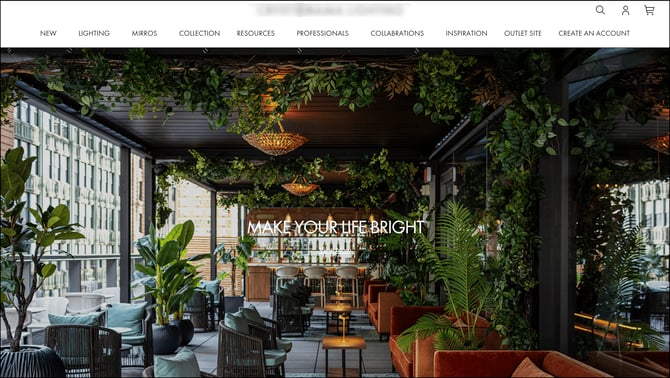
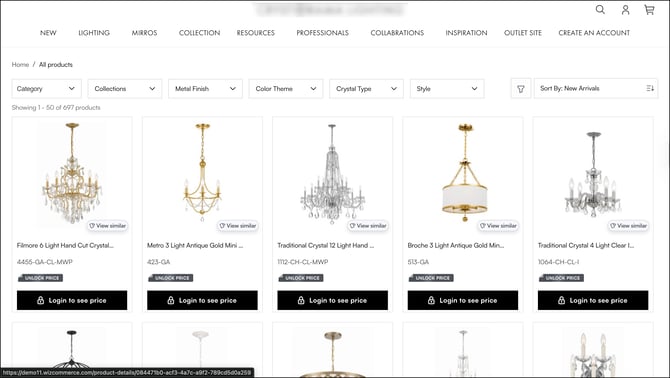
New buyers are retailers visiting your storefront for the first time. When they try to explore the Product Listing Page (PLP) or Product Detail Page (PDP), they are prompted to sign up before they can see product prices.
#### Signing Up
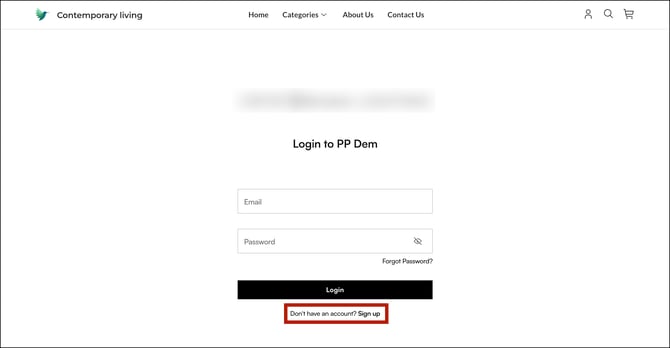
1. Click ***Sign Up*** on the login page.
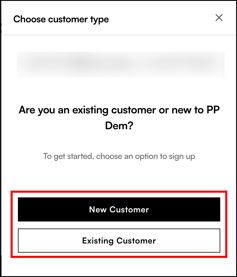
2. A pop-up appears asking whether you are a **New Customer** or an **Existing Customer**.
#### New Customer
If you are a new customer, fill in the required fields and submit your request. The website admin reviews your details and approves your account before granting access.
1. Fill in the required details.
1. Basic Details
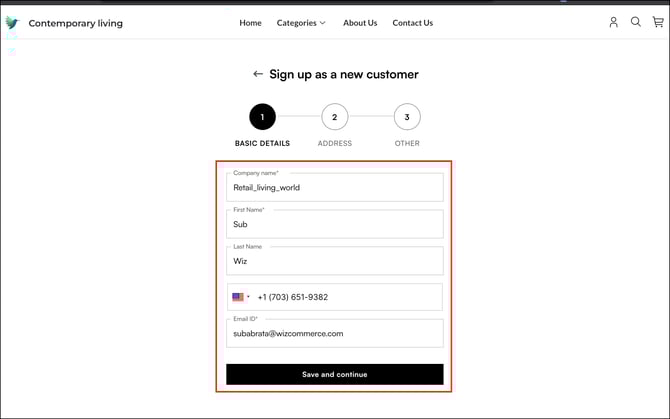
2. Billing Address
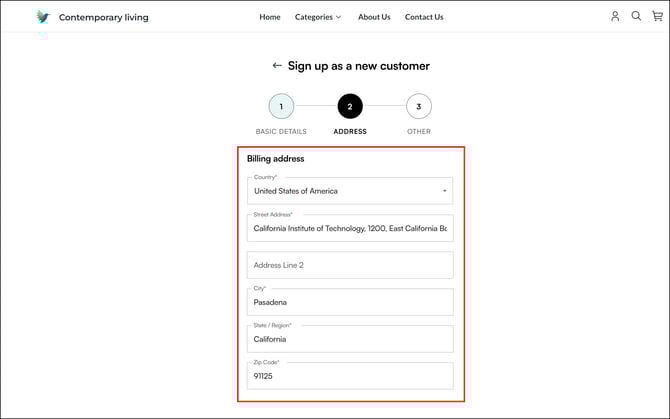
2. Click ***Submit Request***.
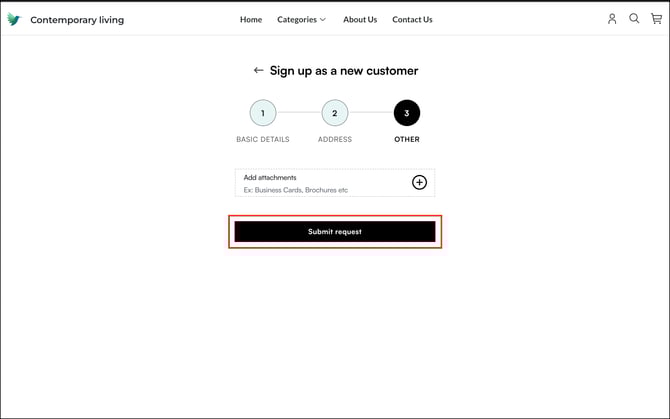
The website admin is notified and manually reviews your details before approving your account. Once approved, you receive a confirmation and gain full access to the storefront.
#### Existing Customer
- If you are an existing customer accessing the website for the first time, select **Existing Customer**, fill in the required fields, and submit your request. The website admin verifies your details and approves your access.
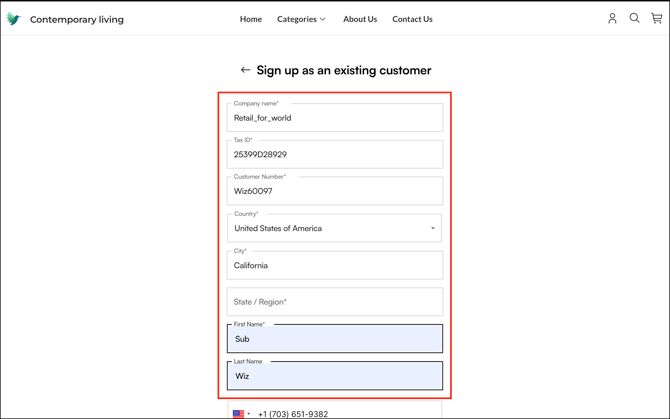
- The website admin is notified and verifies your details before approving your account.
- Once approved, you receive a confirmation and gain full access to the storefront.
**Note:** No access is granted until the website admin manually reviews and approves your registration.
---
### B. Customer Approval Workflow
When a customer registers through the *Online Storefront (WizShop)*, they appear in the Leads table.
#### Approving New Leads (Buyers)
When a buyer submits a customer form, their information appears in the **Customers** tab under the **Leads** table.
###### Approving Leads from the Customer Tab
1. Go to the ***Customers*** tab and click ***Leads***.
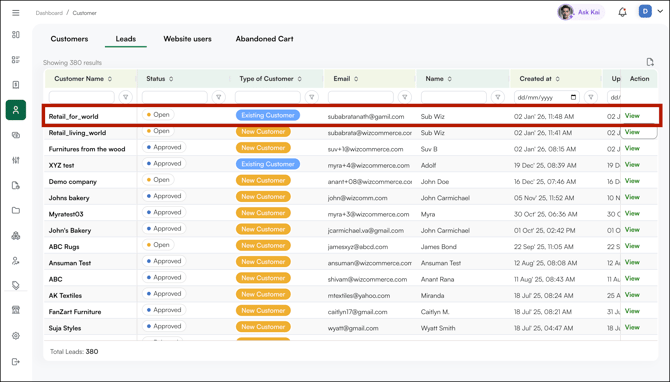
2. You see a tabular view of all buyers who have submitted a form on your website. By default, the newest leads appear first.
3. Each lead is tagged with the customer type — either **Existing Customer** or **New Customer**.
4. To review a lead, click the buyer's name under **Customer Name** or click **View** in the Action column.
###### Existing Customer
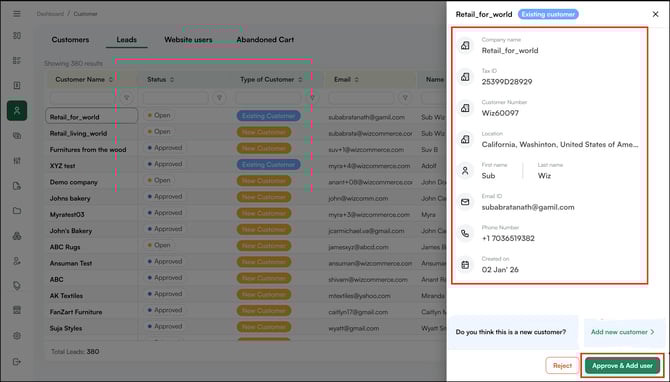
If a lead is tagged as **Existing Customer**, it means the company already has access to the WizShop account. This request is for additional user access from the same organisation.
1. Verify the details.
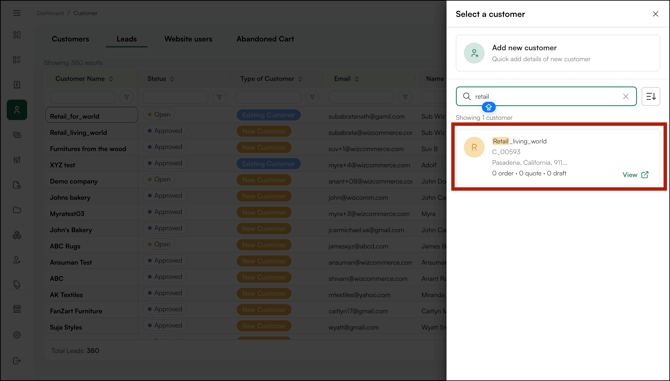
2. Click ***Approve & Add User***.
3. Select the existing customer account you want to map this buyer to.
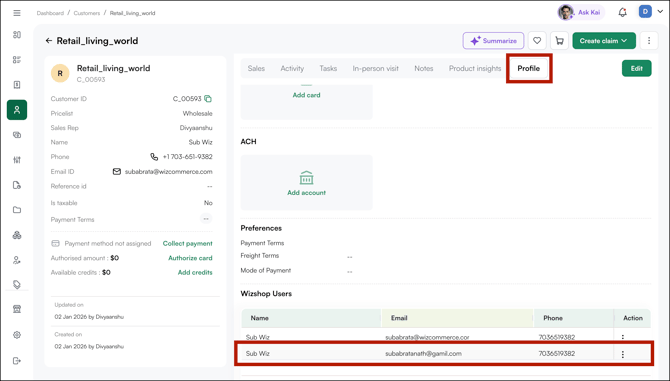
Once done, the buyer's details are added as a new row under the Profile section of the selected customer account.
###### New Customer
If a lead is tagged as **New Customer**, it means the company does not yet have access to your WizShop account. This submission represents a new company requesting initial access and account setup.
1. Open the submitted form to review the details.
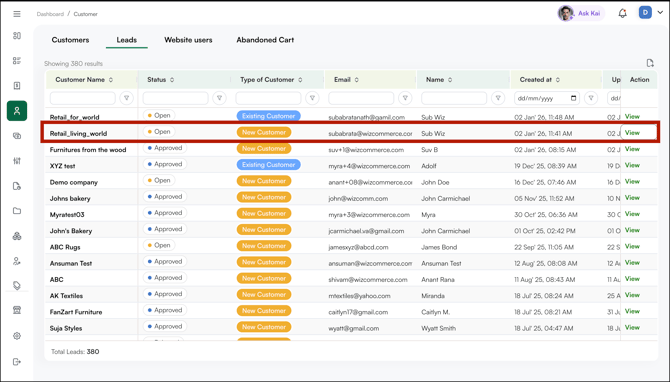
2. Verify the details and click ***Approve & Add User***.
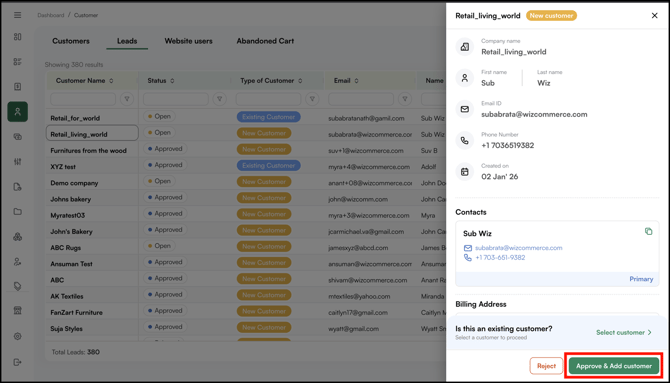
Once approved, a confirmation email is sent to the buyer notifying them that they have been granted access to the website.
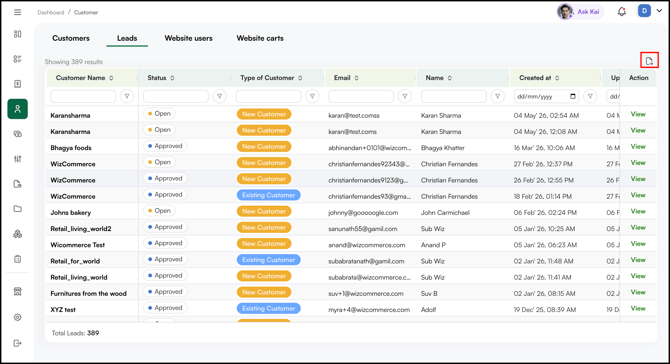
**Note:** To export lead data, click the ***Export*** button to download an Excel file.
---
### C. Delete a Website User or Mark Them as Inactive
1. Go to the ***Customers*** tab and open the ***Website Users*** section.
2. Find the user whose access you want to revoke.
3. Click the ***three-dot menu*** in the Action column.
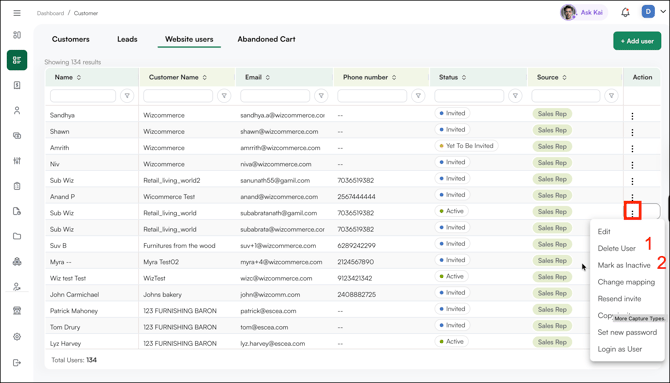
4. Select one of the following options:
- **Delete User:** Permanently removes the user from the storefront. This action cannot be undone.
- **Mark as Inactive:** Suspends the user's access without deleting their account. Their details and history are preserved, and access can be restored later.
**Note:** If a user has placed an order — including orders with a ***Pending Approval*** status — they cannot be deleted directly from the platform. To delete such users, please reach out to our [support team](mailto:help@wizcommerce.com) for assistance.
---
### D. How to Place Order in WizShop
Once approved, buyers receive an email confirming their access to the storefront along with instructions to set their account password.
###### **Placing an Order (Buyer)**
1. Log in to the storefront with your credentials.
2. Browse the catalog and add products to your cart.
3. Click the ***cart icon*** to review your selection.
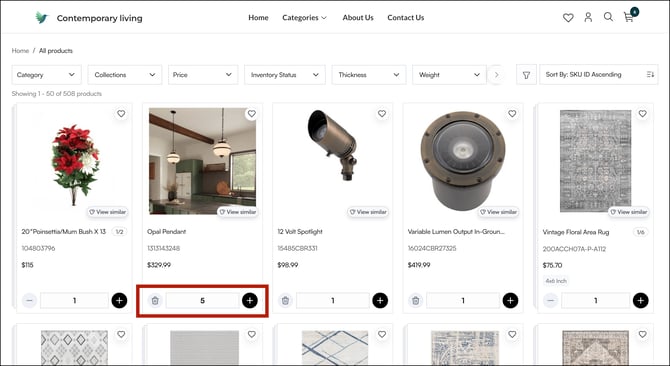
4. Download the cart as a PDF if needed, or proceed directly to checkout.
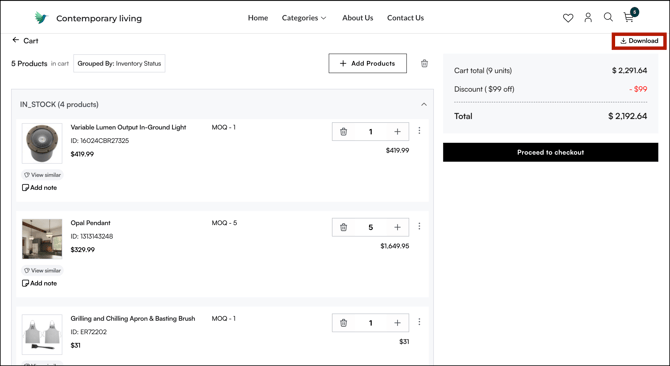
5. Review the order details and place the order.
**Note:** By default, orders placed through the Online Storefront require admin approval before they are processed for shipment. Auto-confirmation can be turned on for your account on request. See **[Can WizShop orders be confirmed automatically?](https://knowledge.wizcommerce.com/wizshop-admin-guide-leads-users-storefront#section-e)**
###### **Approving Orders (Admin)**
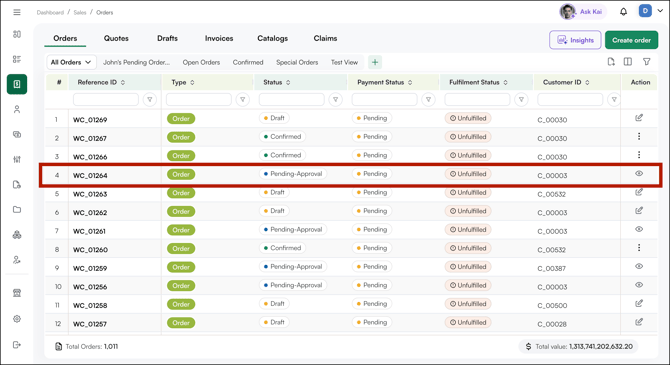
1. Go to the ***Sales*** tab in WizOrder and open the ***Orders*** tab.
2. Find the order with ***Pending Approval*** status under the Status column.
3. Click the ***Reference ID*** or the **eye icon** in the Action column to open the order.
4. Review the order details and click ***Approve***.
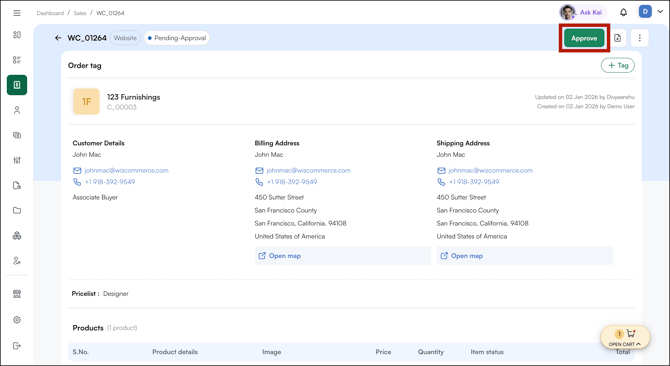
5. Add an email if you want to notify the customer, then click ***Approve***.
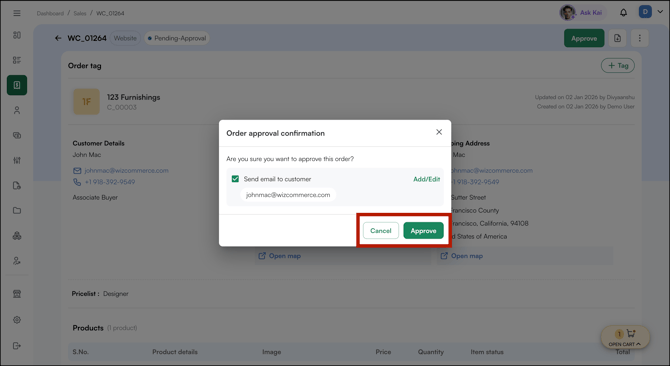
Once approved, the order is processed for shipment and the buyer receives a confirmation email.
---
#### FAQs
**1. What happens if a buyer submits a registration request but doesn't receive approval?**
**A.** No access is granted until the website admin manually reviews and approves the registration. Check the Leads table in the Customers tab to find pending requests and approve them.
**2. Can I restore access for a user I previously marked as Inactive?**
**A.** Yes. Marking a user as Inactive only suspends their access — their details and history are preserved. Go to the Website Users section and reactivate the user at any time.
**3. What is the difference between a New Customer lead and an Existing Customer lead?**
**A.** An Existing Customer lead means the company already has a WizShop account and is requesting additional user access. A New Customer lead means the company does not yet have access and is requesting initial account setup.
**4. Can storefront orders skip admin approval?**
**A.** Yes. Contact our support team at [help@wizcommerce.com](https://mail.google.com/mail/u/0/?fs=1&to=help@wizcommerce.com&tf=cm) to turn on auto-confirmation for your account. Storefront orders will then be confirmed automatically instead of going to **Pending Approval**. See **[Can WizShop orders be confirmed automatically?](https://knowledge.wizcommerce.com/wizshop-admin-guide-leads-users-storefront#section-e)**
---
**Still need help?** Reach out to our support team at [help@wizcommerce.com](https://mail.google.com/mail/u/0/?fs=1&to=help@wizcommerce.com&tf=cm).
- [Getting started](https://knowledge.wizcommerce.com/getting-started#main-content)
- [Product Overview](https://knowledge.wizcommerce.com/getting-started#product-overview)
- [Key Concepts You Should Know](https://knowledge.wizcommerce.com/getting-started#key-concepts-you-should-know)
- [Product Guides](https://knowledge.wizcommerce.com/getting-started#product-guides)
- [Trade Show Checklist](https://knowledge.wizcommerce.com/getting-started#trade-show-checklist)
- [Product Search & Discovery](https://knowledge.wizcommerce.com/product-search-discovery#main-content)
- [AI Product Recommendations](https://knowledge.wizcommerce.com/product-search-discovery#ai-product-recommendations)
- [Filter and Navigate](https://knowledge.wizcommerce.com/product-search-discovery#filter-and-navigate)
- [Catalog](https://knowledge.wizcommerce.com/product-search-discovery#catalog)
- [Product Selection & Ordering](https://knowledge.wizcommerce.com/product-selection-ordering#main-content)
- [Orders](https://knowledge.wizcommerce.com/product-selection-ordering#orders)
- [Quotes](https://knowledge.wizcommerce.com/product-selection-ordering#quotes)
- [Cart](https://knowledge.wizcommerce.com/product-selection-ordering#cart)
- [Presentations](https://knowledge.wizcommerce.com/product-selection-ordering#presentations)
- [Wishlist](https://knowledge.wizcommerce.com/product-selection-ordering#wishlist)
- [Item History](https://knowledge.wizcommerce.com/product-selection-ordering#item-history)
- [Invoices](https://knowledge.wizcommerce.com/product-selection-ordering#invoices)
- [Customers & Accounts](https://knowledge.wizcommerce.com/customers-accounts#main-content)
- [Customer Relationship Management (CRM)](https://knowledge.wizcommerce.com/customers-accounts#customer-relationship-management-crm)
- [Inventory & Warehousing](https://knowledge.wizcommerce.com/inventory-warehousing#main-content)
- [Inventory availability](https://knowledge.wizcommerce.com/inventory-warehousing#inventory-availability)
- [Payments](https://knowledge.wizcommerce.com/payments#main-content)
- [Payment Dashboard](https://knowledge.wizcommerce.com/payments#payment-dashboard)
- [Pricing & Commercials](https://knowledge.wizcommerce.com/pricing-commercials#main-content)
- [Pricelist](https://knowledge.wizcommerce.com/pricing-commercials#pricelist)
- [Discounts & Promotions](https://knowledge.wizcommerce.com/pricing-commercials#discounts-promotions)
- [Claims & Credits](https://knowledge.wizcommerce.com/pricing-commercials#claims-credits)
- [AI Co-Workers](https://knowledge.wizcommerce.com/ai-co-workers#main-content)
- [Ella - AI Order Entry Assistant](https://knowledge.wizcommerce.com/ai-co-workers#ella-ai-order-entry-assistant)
- [WizPilot - AI Assistant](https://knowledge.wizcommerce.com/ai-co-workers#wizpilot-ai-assistant)
- [WizStudio](https://knowledge.wizcommerce.com/wizstudio#main-content)
- [Creating & Editing Images](https://knowledge.wizcommerce.com/wizstudio#creating-editing-images)
- [Lifestyle Generator](https://knowledge.wizcommerce.com/wizstudio#lifestyle-generator)
- [Silo Editor](https://knowledge.wizcommerce.com/wizstudio#silo-editor)
- [Bulk Silo Editor](https://knowledge.wizcommerce.com/wizstudio#bulk-silo-editor)
- [Asset Library (Assets)](https://knowledge.wizcommerce.com/wizstudio#asset-library-assets)
- [AI Image Expander](https://knowledge.wizcommerce.com/wizstudio#ai-image-expander)
- [Reports & Analytics](https://knowledge.wizcommerce.com/reports-analytics#main-content)
- [Business Reports](https://knowledge.wizcommerce.com/reports-analytics#business-reports)
- [Manage your WizCommerce (Admin)](https://knowledge.wizcommerce.com/manage-your-wizcommerce-admin#main-content)
- [Import / Export](https://knowledge.wizcommerce.com/manage-your-wizcommerce-admin#import-export)
- [Organizational Settings](https://knowledge.wizcommerce.com/manage-your-wizcommerce-admin#organizational-settings)
- [Product Management](https://knowledge.wizcommerce.com/manage-your-wizcommerce-admin#product-management)
- [Managing Your WizShop Website](https://knowledge.wizcommerce.com/manage-your-wizcommerce-admin#managing-your-wizshop-website)
- [Integration & Apps](https://knowledge.wizcommerce.com/integration-apps#main-content)
- [Marketing Integration](https://knowledge.wizcommerce.com/integration-apps#marketing-integration)
- [Integration Dashboard](https://knowledge.wizcommerce.com/integration-apps#integration-dashboard)
- [Help & FAQs](https://knowledge.wizcommerce.com/help-faqs#main-content)
- [Help with Orders](https://knowledge.wizcommerce.com/help-faqs#help-with-orders)
- [Help with Quotes](https://knowledge.wizcommerce.com/help-faqs#help-with-quotes)
- [Help with Presentation](https://knowledge.wizcommerce.com/help-faqs#help-with-presentation)
- [Help with Inventory](https://knowledge.wizcommerce.com/help-faqs#help-with-inventory)
- [Help with User Management](https://knowledge.wizcommerce.com/help-faqs#help-with-user-management)
- [Help with Pricelist & Discounts](https://knowledge.wizcommerce.com/help-faqs#help-with-pricelist-discounts)
- [Help with WizStudio](https://knowledge.wizcommerce.com/help-faqs#help-with-wizstudio)
- [Help with Ella](https://knowledge.wizcommerce.com/help-faqs#help-with-ella)
- [Help with Org Settings (Admin)](https://knowledge.wizcommerce.com/help-faqs#help-with-org-settings-admin)
- [Help with Emails](https://knowledge.wizcommerce.com/help-faqs#help-with-emails)
- [Help with Products](https://knowledge.wizcommerce.com/help-faqs#help-with-products)
- [Help with Import/Export](https://knowledge.wizcommerce.com/help-faqs#help-with-import-export)
- [Help with WizShop](https://knowledge.wizcommerce.com/help-faqs#help-with-wizshop)
- [Help with Integration](https://knowledge.wizcommerce.com/help-faqs#help-with-integration)
- [Help with Categories and Collections](https://knowledge.wizcommerce.com/help-faqs#help-with-categories-and-collections)
- [Help With Customers](https://knowledge.wizcommerce.com/help-faqs#help-with-customers)
- [Help with Trade Show](https://knowledge.wizcommerce.com/help-faqs#help-with-trade-show)
[](https://wizcommerce.com/)
[mailto:help@wizcommerce.com](mailto:help@wizcommerce.com)
Copyright © 2025, WizCommerce
```json
{
"@context" : "https://schema.org",
"@type" : "VideoObject",
"caption" : {
"@type" : "MediaObject",
"contentUrl" : "https://knowledge.wizcommerce.com/media-transcripts/325725976260/en.vtt",
"inLanguage" : "en",
"name" : "en Captions"
},
"contentUrl" : "https://47455261.fs1.hubspotusercontent-na2.net/hubfs/47455261/buyer%20sign%20up.mp4",
"dateModified" : "2026-03-18T13:02:38.414Z",
"duration" : "PT1M43S",
"height" : 1080,
"name" : "buyer sign up",
"thumbnailUrl" : "https://47455261.fs1.hubspotusercontent-na2.net/hubfs/47455261/buyer%20sign%20up.mp4/medium.jpg",
"uploadDate" : "2026-03-18T13:01:51.510Z",
"width" : 1920
}
```
```json
{
"@context" : "https://schema.org",
"@type" : "VideoObject",
"caption" : {
"@type" : "MediaObject",
"contentUrl" : "https://knowledge.wizcommerce.com/media-transcripts/325743772405/en.vtt",
"inLanguage" : "en",
"name" : "en Captions"
},
"contentUrl" : "https://47455261.fs1.hubspotusercontent-na2.net/hubfs/47455261/Approving%20customers%20(online-video-cutter.com).mp4",
"dateModified" : "2026-03-18T16:11:52.727Z",
"duration" : "PT2M50S",
"height" : 1080,
"name" : "Approving customers (online-video-cutter.com)",
"thumbnailUrl" : "https://47455261.fs1.hubspotusercontent-na2.net/hubfs/47455261/Approving%20customers%20(online-video-cutter.com).mp4/medium.jpg",
"uploadDate" : "2026-03-18T16:11:36.339Z",
"width" : 1920
}
```
```json
{
"@context" : "https://schema.org",
"@type" : "VideoObject",
"caption" : {
"@type" : "MediaObject",
"contentUrl" : "https://knowledge.wizcommerce.com/media-transcripts/325745069780/en.vtt",
"inLanguage" : "en",
"name" : "en Captions"
},
"contentUrl" : "https://47455261.fs1.hubspotusercontent-na2.net/hubfs/47455261/Storefront%20order%20approval%20flow.mp4",
"dateModified" : "2026-03-18T17:53:53.433Z",
"duration" : "PT3M48S",
"height" : 1080,
"name" : "Storefront order approval flow",
"thumbnailUrl" : "https://47455261.fs1.hubspotusercontent-na2.net/hubfs/47455261/Storefront%20order%20approval%20flow.mp4/medium.jpg",
"uploadDate" : "2026-03-18T17:35:00.790Z",
"width" : 1920
}
```