
The CMS (Content Management System) lets admins manage the content displayed on your WizShop storefront, including banners, announcements, featured collections, and page text, without writing code. This article explains how to access the CMS and update each content type.
Platform: WizShop | Who is this for: Admins
To Get There: WordPress Dashboard > All Pages / All Posts
Table of Contents
| Sections | Topics |
| A | What You Can Update |
| B | How to Access |
| C | Editing a Page/Post with Elementor Editor |
| D | Understanding Quick Edit |
| E | Uploading Images and Files |
| F | What You Cannot Change |
| G | FAQs |
Before You Begin
- Keep WordPress login credentials shared by your Customer Success Manager (CSM) ready. These are separate from your WizCommerce account credentials.
- If you've lost your credentials or need them reset, contact your CSM before you begin.
A. What You Can Update
Here's what you can manage directly in the CMS:
| Area | What You Can Do |
|---|---|
| Pages | Edit text, headings, images, and links on existing pages |
| Media | Upload images and PDFs to use on your website |
| Blog | Add new blog posts to your site |
| Contact Forms | Update the forms customers use to reach you |
Note: Navigation menus, headers, and footers are managed by your Customer Success Manager — not through the CMS editor.
B. How to Access
- Open your browser and go to your WordPress admin panel. Enter yourcompanyname.com/wp-admin in the address bar (for example, wizcommerce.com/wp-admin). You can also use the login link shared during onboarding.
- Enter your WordPress credentials.
- Click Log In.
You land directly on your website's editing dashboard.
Note: Your WordPress login credentials are separate from your WizCommerce account. Contact your Customer Success Manager if you need them reset.
C. Editing a Page/Post with Elementor Editor
Use the Elementor editor to build and edit both standalone pages (such as About Us and Contact Us) and blog posts. The editing experience is the same for both.
- From your dashboard, go to Pages → All Pages.
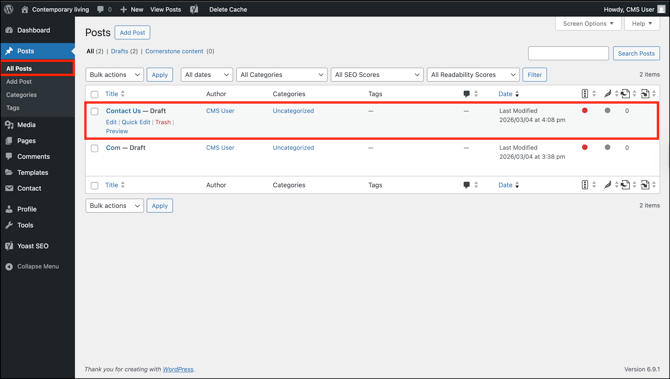
- Find the page you want to edit.
- Click Edit with Elementor.
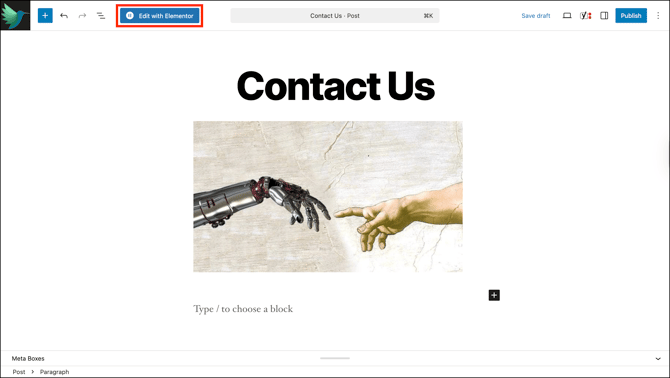
- The page opens in the editor, showing all sections and elements.
- Click on any heading, image, or text block to select it.
- Make your changes.
- Click Publish to save.
- Blog Post: A piece of content — such as an article or update — published under a category and appearing in your blog feed. It is date-stamped and can be tagged and categorized alongside other posts.
- Standalone Page: An independent page on your website, such as Contact Us or About Us. It does not appear in the blog feed, is not tied to any category or date, and is accessed directly through its URL.
D. Understanding Quick Edit
Quick Edit lets you update key page settings directly from the All Pages list — without opening the full editor.
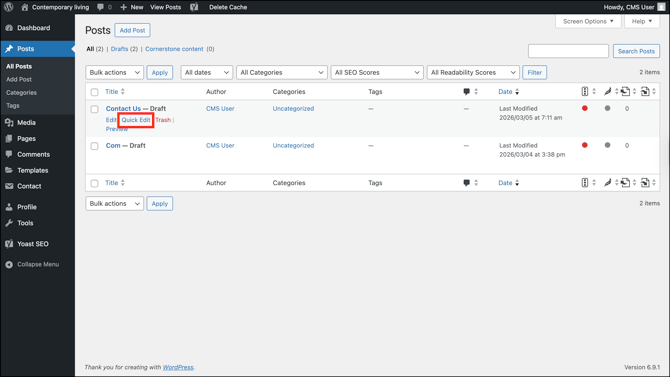
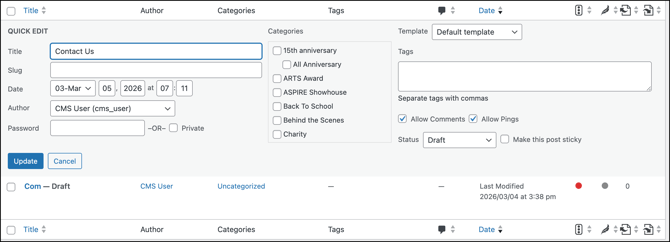
Use Quick Edit to update the following:
- Title: Update the display name of the page
- Slug: Edit the URL of the page
- Date: Change the published or scheduled date
- Author: Reassign the page to a different user
- Categories: Assign or change the category the page belongs to
- Tags: Add or update tags to describe the page's content
- Template: Switch the layout applied to the page
- Status: Switch between Draft, Published, or other states
- Make this post sticky: Pin the post to the top of your blog listing
Click Update to save your changes, or Cancel to exit without saving.
Note: Quick Edit is for page settings only. To change the actual content of a page, click Edit to open the full editor.
E. Uploading Images and Files
Upload images and PDF files directly to your media library and use them on any page.
- From your dashboard, go to Media.
- Click Add Media File.
- Select the file from your computer.
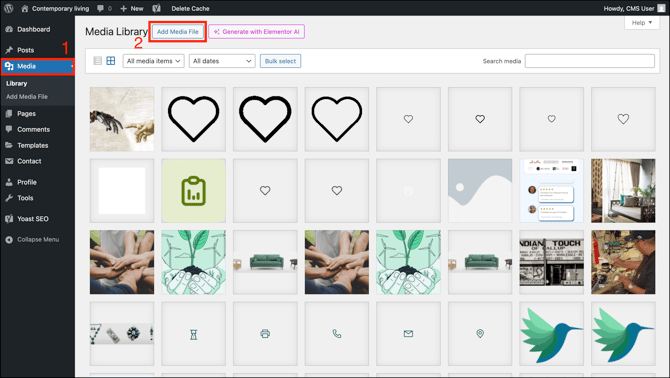
- Your file is saved to the media library once uploaded. Reuse it anytime using the Gallery block.
F. What You Cannot Change
The following areas are managed by your WizCommerce administrator only. Do not edit these through the CMS:
- Navigation Menu: the links at the top of your website
- Header and Footer: the top and bottom sections of every page
- Plugins: no new tools or extensions can be installed
- Product Pages: these pull data directly from your catalog in WizOrder and are managed through WizCommerce's import/export tools — not the CMS editor
Note: To update your access or permissions, reach out to your Customer Success Manager.
FAQs
1. Can I add a new page to my website myself?
A. New pages can be created from Pages → All Pages, but structural changes like adding them to the navigation menu need to be done by your Customer Success Manager.
2. What's the difference between a blog post and a standalone page?
A. A blog post is date-stamped, categorized, and appears in your blog feed. A standalone page like About Us or Contact Us is independent, has its own URL, and does not appear in the blog feed.
3. What should I do if I accidentally change something I shouldn't have?
A. Contact your Customer Success Manager immediately. They can help restore the previous state or fix any unintended changes.
Not finding what you need? Browse the WizCommerce Help Center, reach out to your Customer Success Manager, or contact our Support Team.