
Partial Product Import lets admins update specific fields across multiple products at once, such as pricing, inventory, or descriptions, without re-importing the full catalog. This article covers which fields can be updated this way and how to structure the import file.
Platform: WizOrder | Who is this for: Admins
To Get There: Manage > Import/Export > Product
Table of Contents
| Sections | Topics |
| A | Partial Import (Field-wise Update) |
| B | Partial Import for Products With Variants |
| C | Key Rules to Remember |
| D | FAQs |
Before You Begin
- Ensure you have access to Organizational Settings.
- Always export your product data before making changes. Never skip the export step — it serves as your backup.
- If you're performing an import for the first time, read the Instructions page and review the Sample page in the exported Excel file before making any edits.
- Test with 5–10 products before running a full catalog import.
- Split files with more than 2,000 rows into smaller batches.
A. Partial Import (Field-wise Update)
Use this when you want to update one or more specific product fields without affecting anything else.
Step 1: Access Import/Export
- Go to the Manage in the left sidebar of WizOrder.
- Click Import/Export.
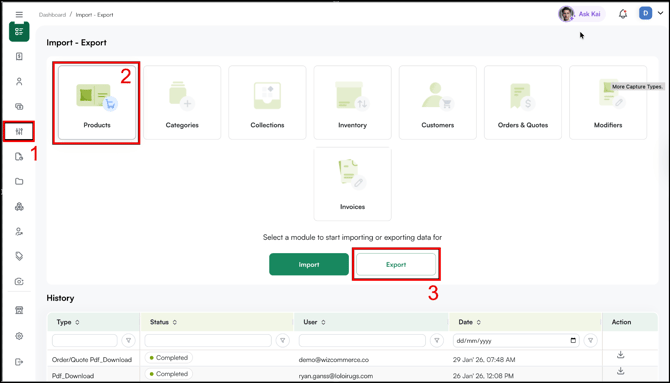
- Click on Product, then export only the fields you want to update and click Export. For this example, we'll update the Active field.
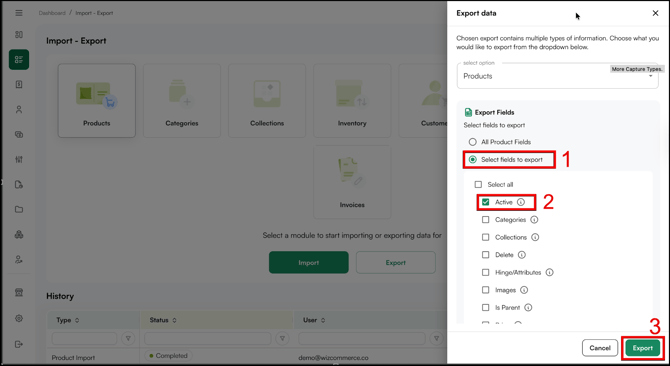
Step 2: Review the Exported File and Make Edits
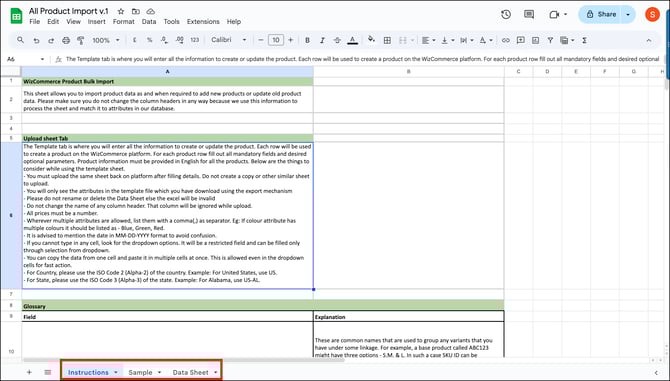
- Open the exported Excel file. You'll find three sheets: Instructions, Sample, and Data Sheet.
- Go to the Data Sheet and find the Active column.
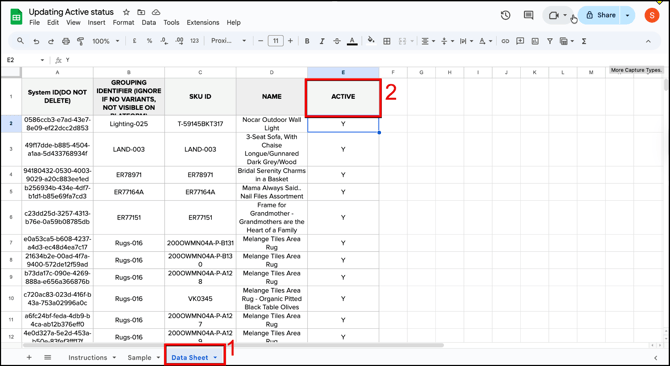
- Update the Active field for the products you want to change. For example, change the value to N for rows 3, 4, and 5.
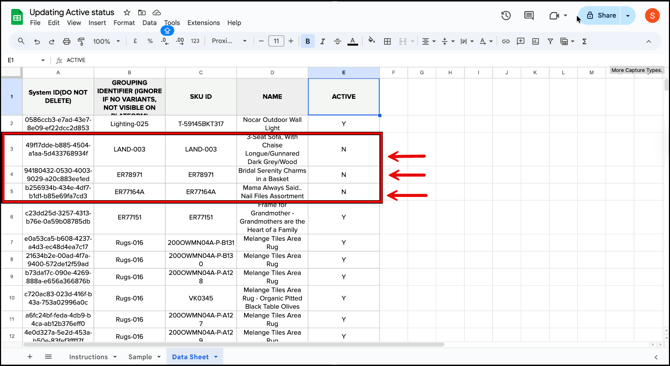
- Save the Excel file once you've finished making all changes.
Step 3: Import the Updated File
- Go back to Import/Export in WizOrder.
- Select Product, then click Import.
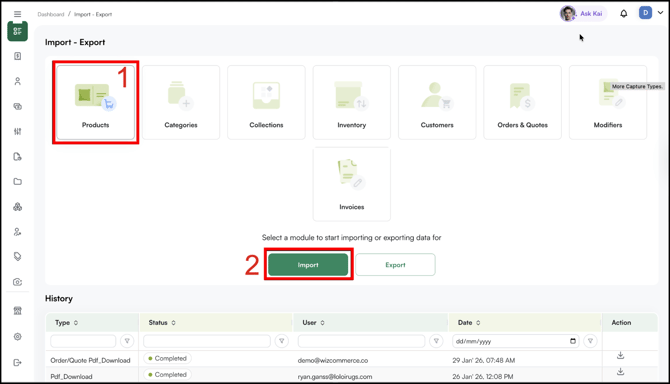
- Select only the field you updated — in this case, Active and click Import.
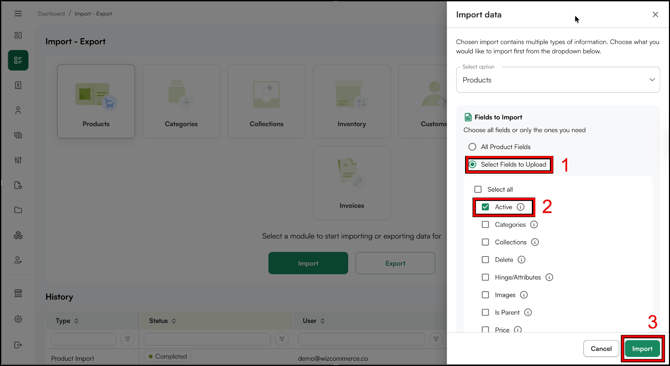
- Upload your saved Excel file to complete the import.
Note: Select only the fields you changed during import. Selecting additional fields may overwrite data you didn't intend to update.
Mandatory Columns for Partial Import
Always include these columns in your file — do not delete them:
- System ID (do not delete)
- Grouping Identifier (ignore if no variants)
- Reference ID
- SKU ID
- Name
Note: To perform a full product import/export, select all product fields during export, edit as needed in the Excel file, then import to update your entire product catalog.
B. Partial Import for Products With Variants
-
Products with variants appear differently on the product details page. Each variant is a unique combination of attributes — for example, Color: Blue + Size: Large + Weight: 100lbs.
-
Attributes with multiple values appear as a Hinge on the product details page. For example, if Color is an attribute, then Blue, Red, and Yellow are three different values.
-
The example below has three Hinges: Color (values: Alabaster, Dove, Warm White), Size (values: 87Inch, 9.35Inch), and Seat (values: 2Cushions, 3Cushions).
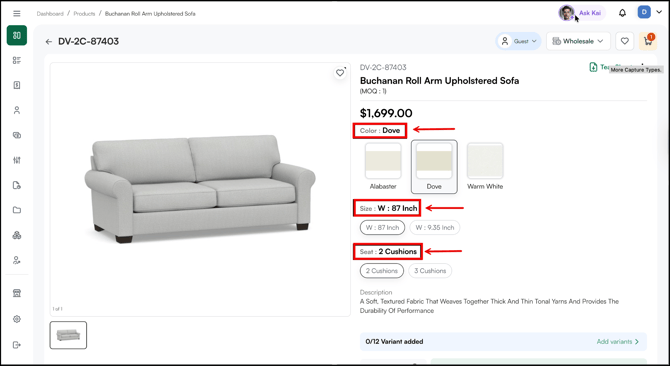
Note: Each variant is a unique product and therefore has a unique SKU ID.
Step-by-Step Guide to Import Products with Variants:
Step 1: Access Import/Export
- Go to Manage in the left sidebar of WizOrder.
- Click Import/Export, then select the Product tab.
- Export only the Hinge/Attribute field.
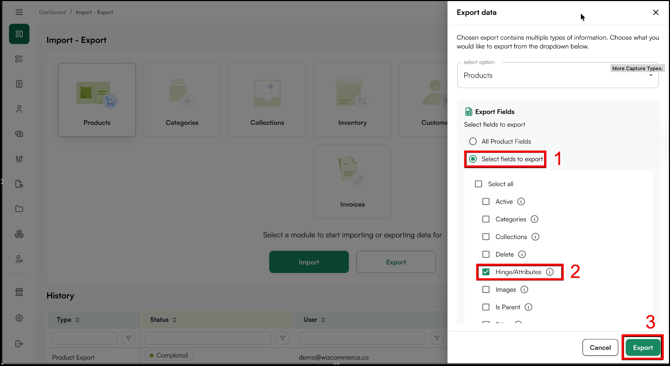
Step 2: Review the Exported File and Make Edits
- Open the exported Excel file. You'll find three sheets: Instructions, Sample, and Data Sheet. If this is your first time importing products with variants, read about the HINGE_1_NAME, HINGE_1_TYPE, and HINGE_1_VALUE columns and review the Sample sheet.
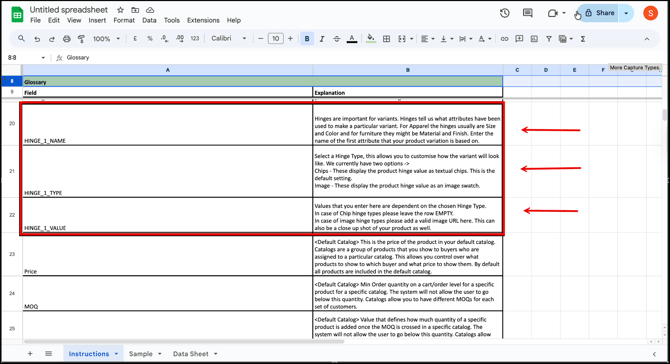
- Go to the Data Sheet and find the Hinge column.
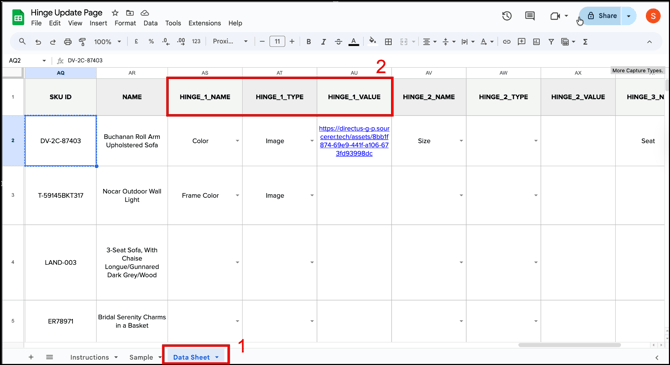
- Update each Hinge column as needed.
- Save the Excel file once you've finished updating all Hinge fields.
Note: Since HINGE_1_NAME has Color as the attribute, the Color hinge will appear at the top on the product details page. You can change this hierarchy using Organisational Settings.
Step 3: Import the Updated File
- Go back to Import/Export in WizOrder.
- Select Product, then click Import.
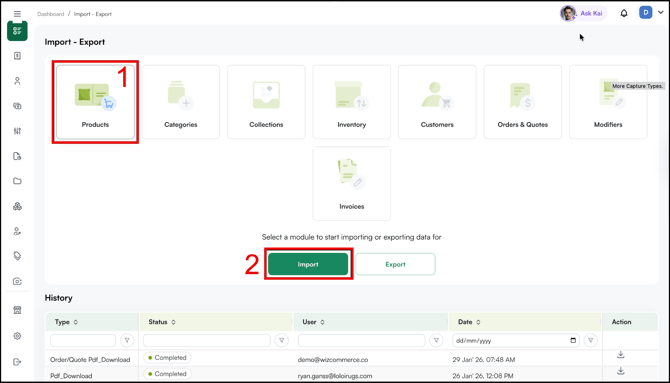
- Select only the field you updated — in this case, Hinge/Attribute.
- Upload your saved Excel file to complete the import.
- Check the import progress in the notification bar. Click the bell icon to access it.
C. Key Rules to Remember
Keep these rules in mind every time you run a partial import:
- Product field inputs must use supported data types — such as text, numbers, and dates. Refer to the Instructions page in your exported Excel file for the full list of data types and formatting rules.
- If any field is missing in your file, its value will become NULL after import.
- Always export and import using the same Product Fields option. Export and import selections must always match.
- You can select multiple fields, but the same fields must be used for both export and import.
- Partial import is recommended for small or targeted updates only.
Note: Always take a backup by exporting data before making any changes.
FAQs
1. What happens if I import a file with missing data fields in column/row?
A. Any field that is missing in your imported file will be set to NULL after the import. Always make sure your file includes all columns before importing.
2. Can I update multiple fields in one partial import?
A. Yes, you can select multiple fields during export and import, but the same fields must be selected for both. Mismatched selections can overwrite data you didn't intend to change.
A. Click the bell icon in WizOrder to open the notification bar. It shows the progress and status of your import in real time.
Not finding what you need? Reach out to our Support Team at help@wizcommerce.com.