
WizCommerce supports multiple ways to collect payment from your customers, whether you're at a trade show, closing a deal in the field, or sending a payment request remotely.
This article covers how to collect credit card payments, record offline payments, process ACH bank transfers, and send payment links, all from within WizCommerce.
Platform: WizOrder & WizPay | Who is this for: Admins & Sales Reps
To Get There: Sales > Orders > Open Order > Collect Payment
Table of Contents
| Sections | Topics |
| A | Credit Card Payment |
| B | Offline Payment |
| C | ACH (Bank Transfer) |
| D | Payment Links |
| F | FAQs |
Before You Begin
- Ensure you have the necessary access to collect payments in WizCommerce.
- Have the customer's payment details ready before starting the payment flow.
- For ACH payments, confirm the customer's bank account number and routing number in advance — ACH settlement takes 4 business days.
Available Payment Methods
- Credit Card: Charge a customer's card directly or pre-authorise and capture later
- Offline Payment: Record payments made outside WizCommerce — such as cash, check, or wire transfer
- ACH (Bank Transfer): Process a direct bank transfer from the customer's account
- Payment Links: Send a secure link so customers can pay using their preferred method
A. Credit Card Payment
» Collecting a Credit Card Payment
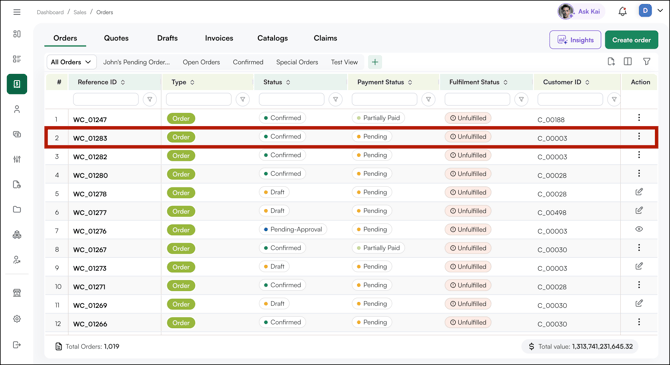
- Go to Sales → Orders and open the confirmed order.
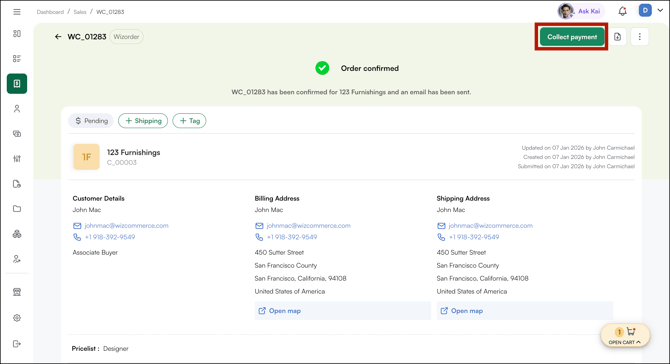
- Click Collect Payment in the top right of the order page.
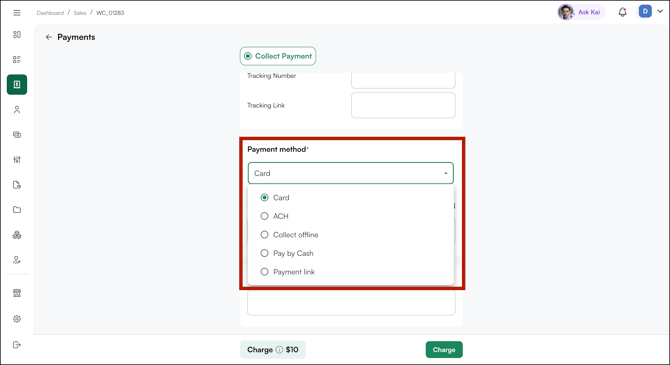
- The invoice amount auto-populates from the order total. Adjust the amount if you're collecting a partial payment, for example, a 50% deposit.
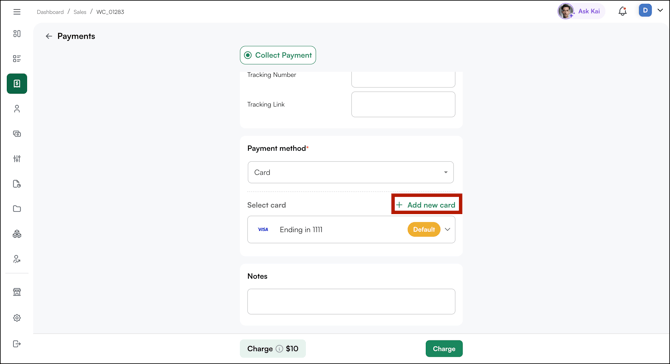
- If the customer has a saved card on file, it appears automatically showing the last 4 digits and expiry date. Select it, or click Add New Card to enter new details.
- For a new card, enter the following:
- Cardholder Name
- Card Number
- Expiration Date
- CVV
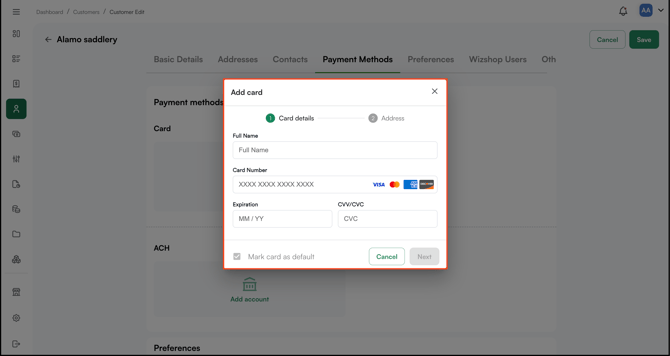
- Choose to copy the address from the customer profile or enter it manually.
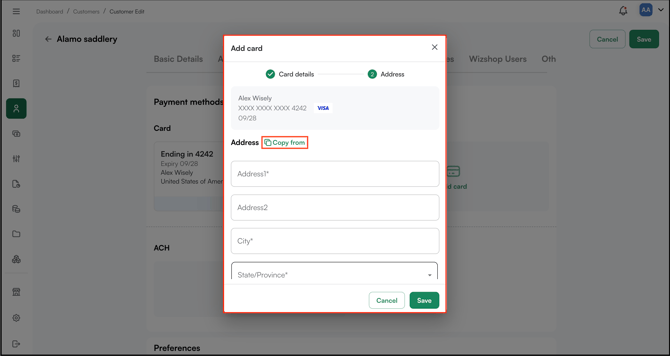
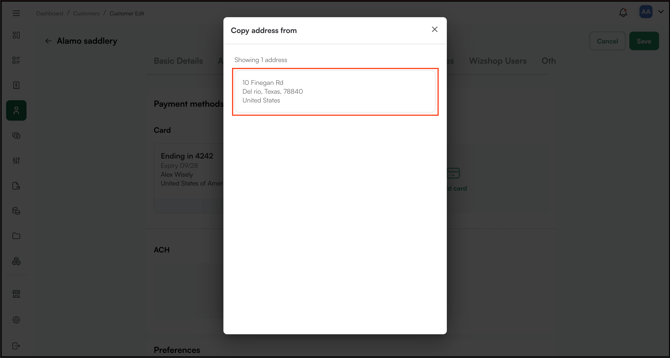
- Click Save card if you want it to auto-populate on future orders.
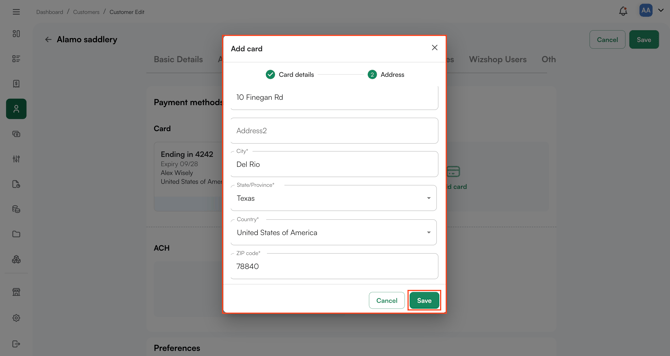
A unique Transaction ID is generated, a confirmation email is sent to the customer, and the payment appears under the order's Payments section with status Completed.
Note:
-
Settlement occurs on the next business day. Transactions processed Friday through Sunday consolidate into a single Monday settlement.
- Admins can delete a saved card (on the customer level, not the order level). This is useful if a card has an incorrect address — delete it and add a new one. When adding the new card, use the Copy From option to reuse the existing billing address instead of re-entering it.
» Saving a Card to a Customer Profile
- During any payment flow, enter the card details.
- Check Save card and optionally Mark as default.
- On future orders for this customer, the saved card appears automatically.
You can also save a card directly from the customer profile:
- Go to the CRM → Customers.
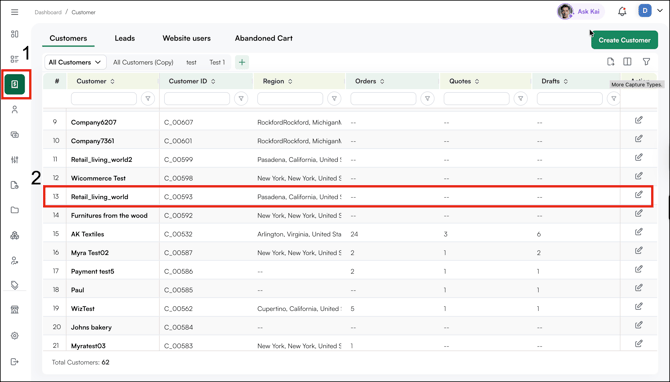
- Select the customer from the list.
- Navigate to Profile.
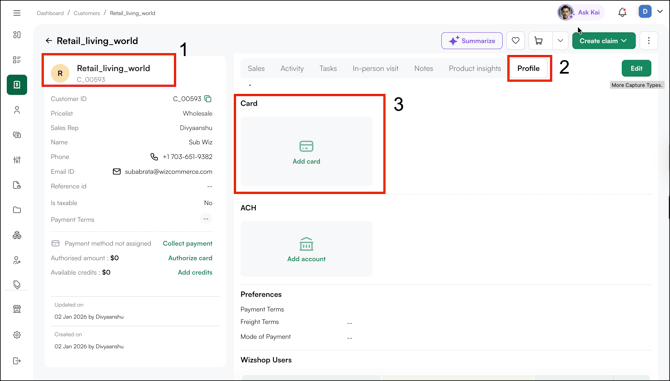
- Click Edit to add card details.
- Enter the required card details and click Save.
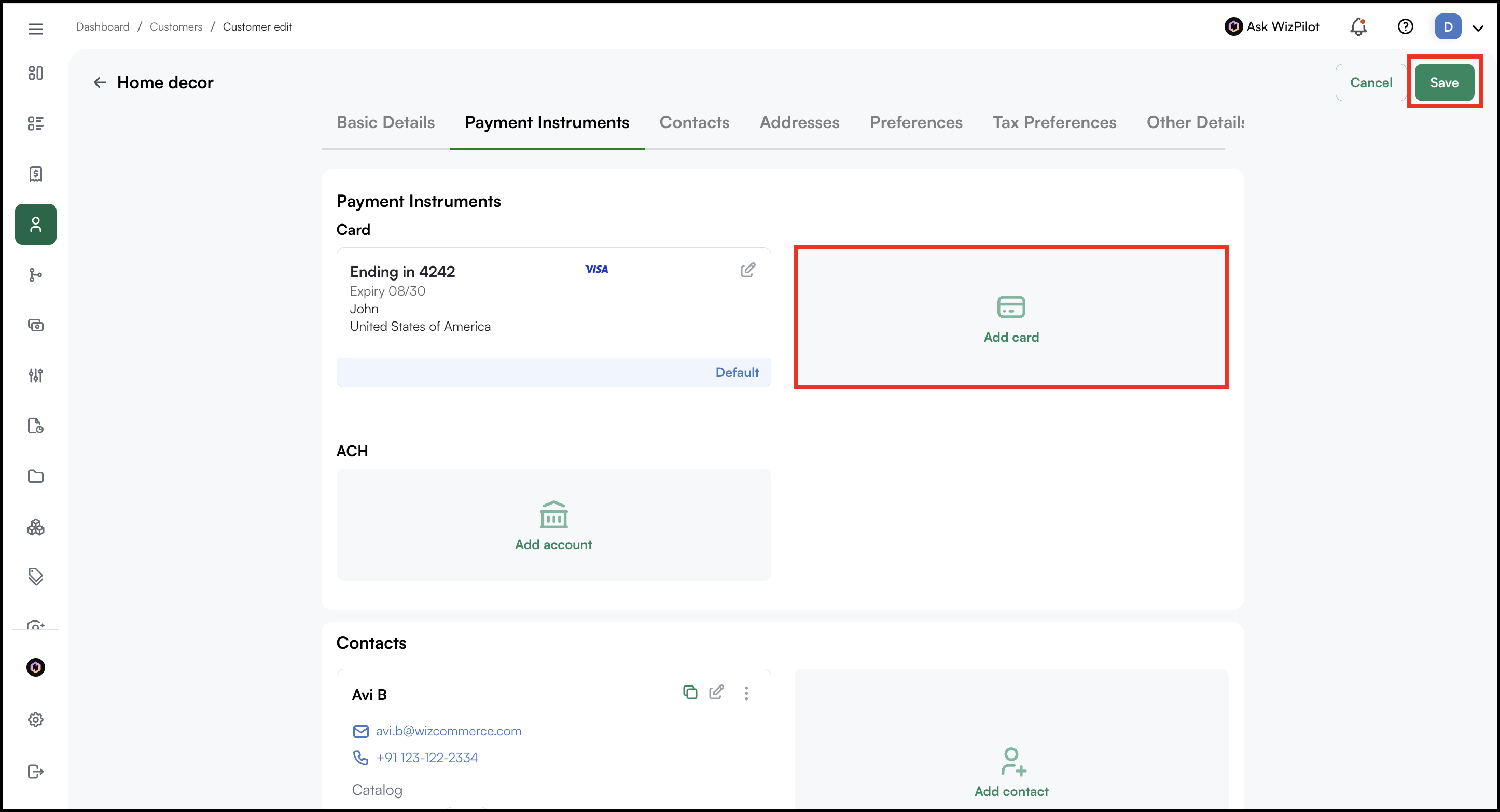
Note: Card data is tokenised and stored securely, WizCommerce never stores raw card numbers. Multiple cards can be saved per customer.
» Delete or Update Card(s)
- Go to the CRM → Customers.
- Select the customer from the list.
- Click on the Profile and navigate to Profile.
- Click Edit to update or delete card(s).
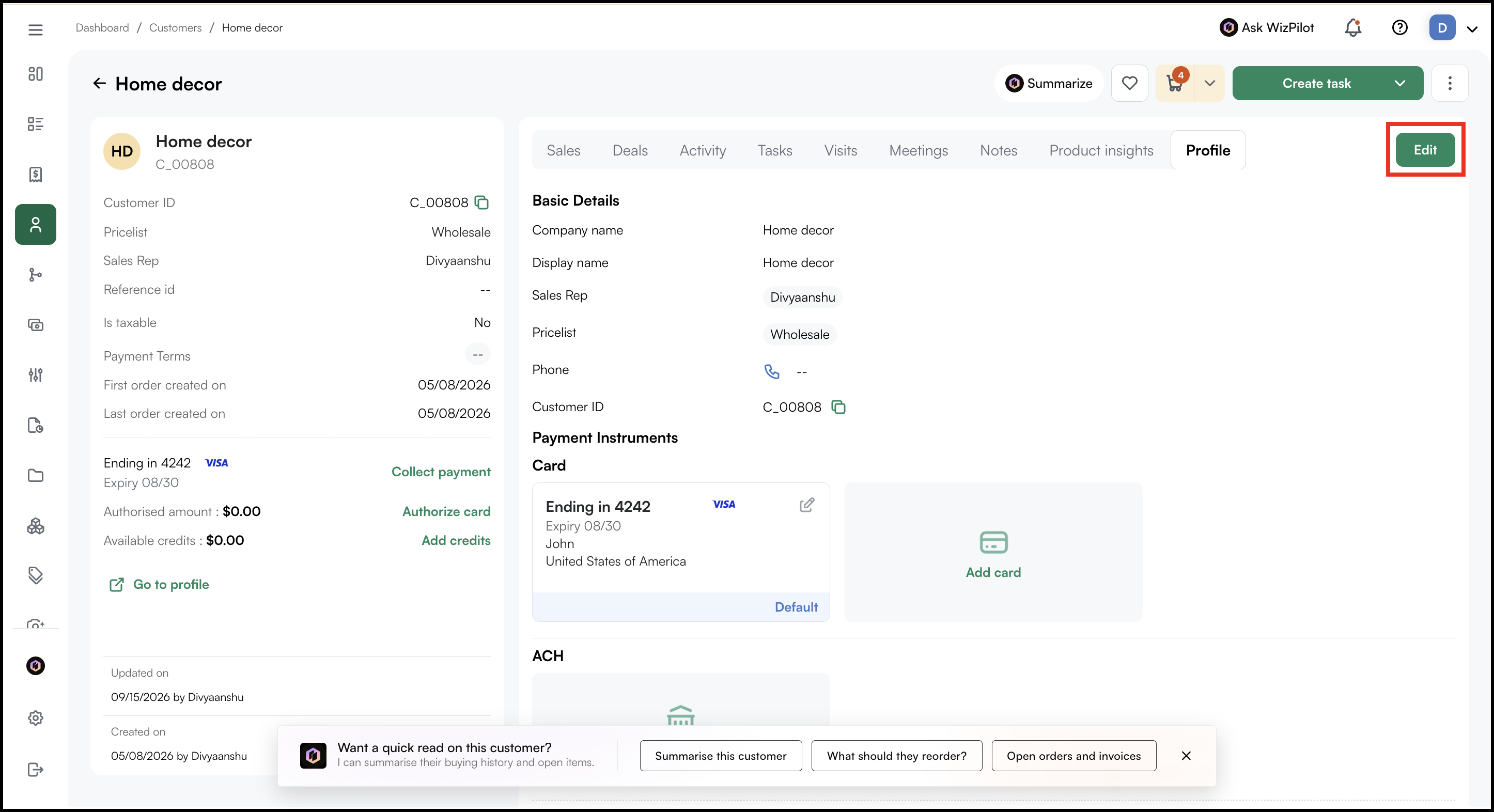
- Then go to Payment Instruments and click on the edit icon.
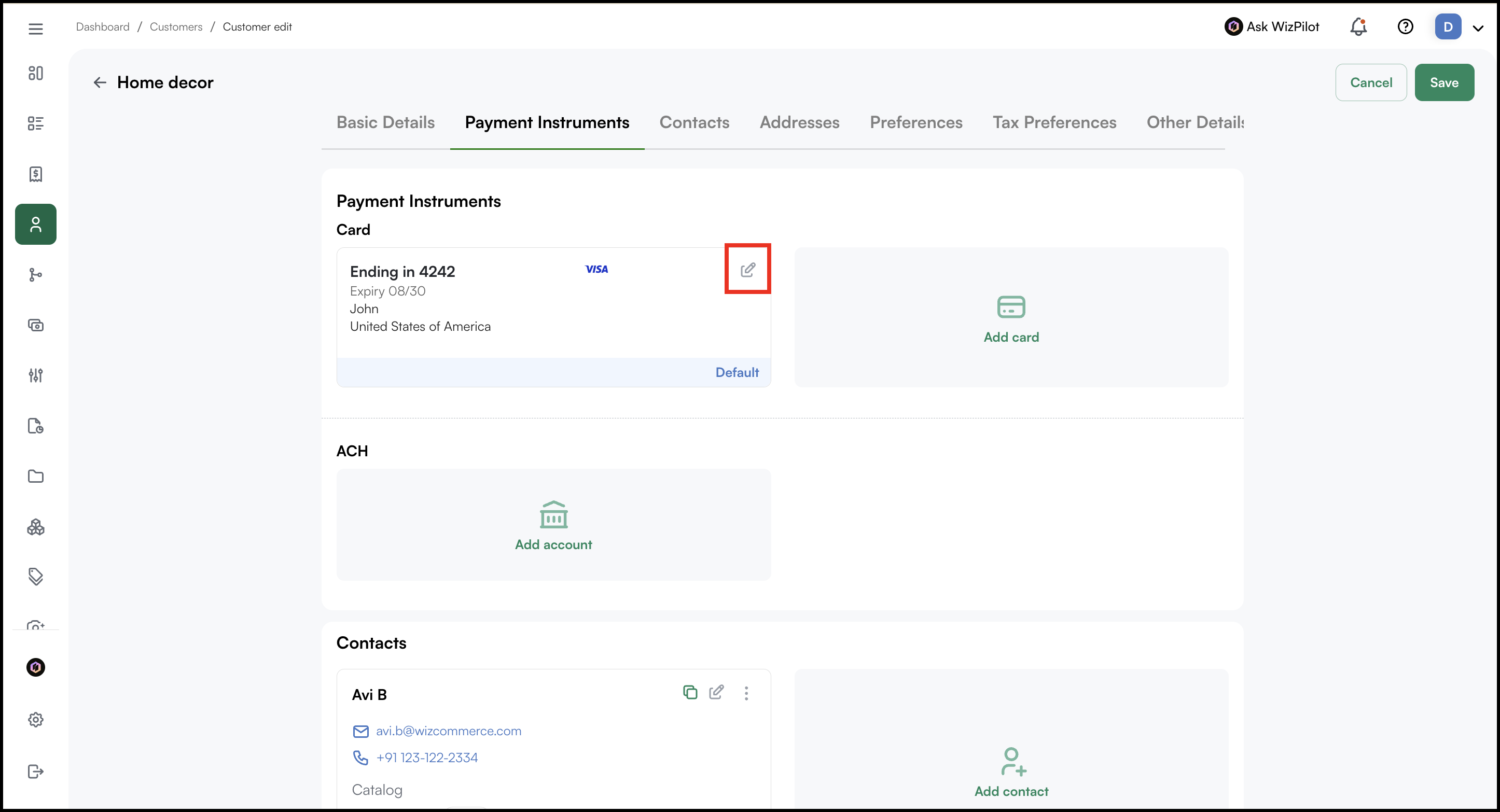
-
Click Delete to remove the card or Update to edit the card details.
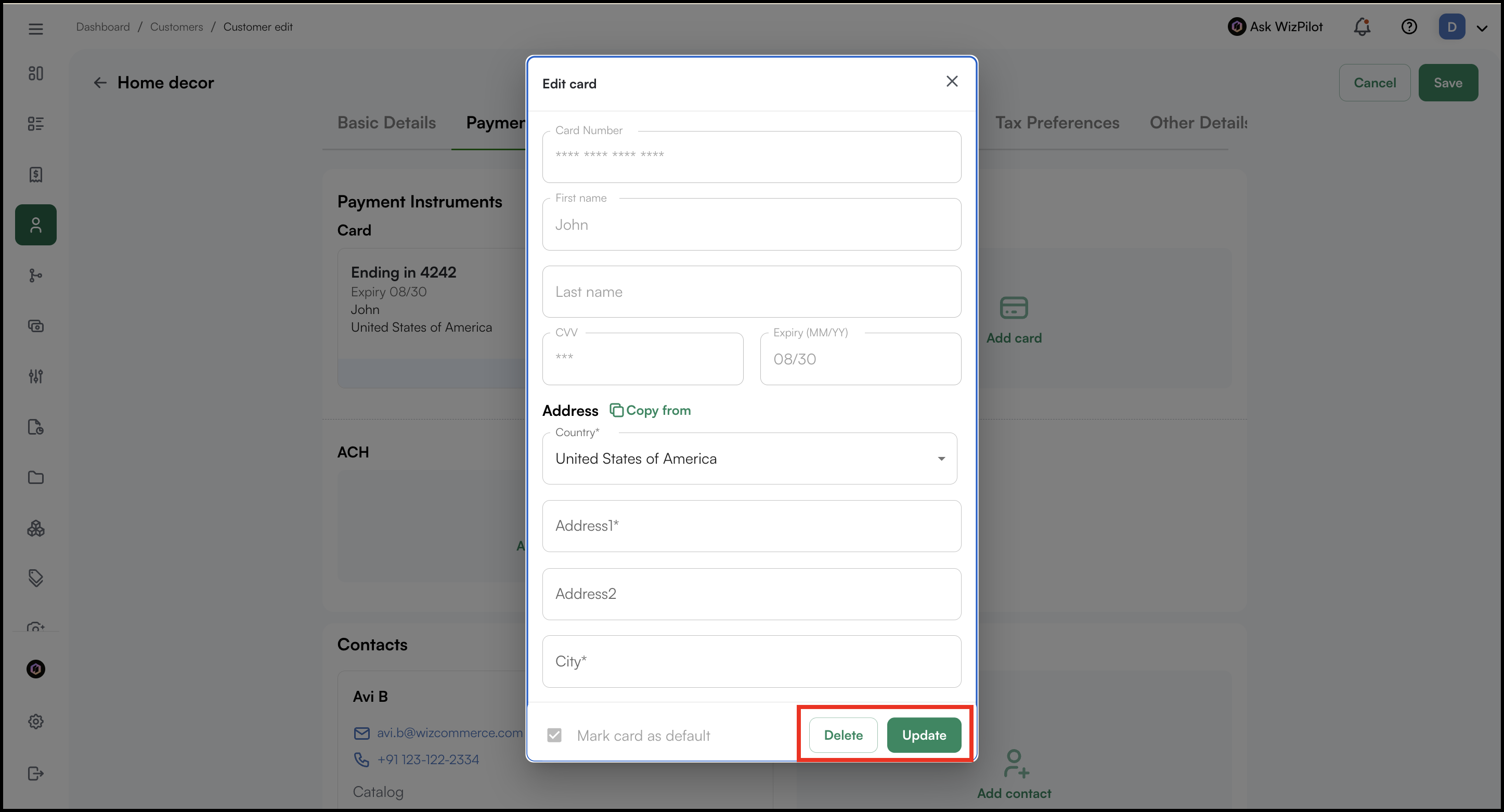
-
If you click Delete, a confirmation pop-up will appear. Click Delete again to confirm.
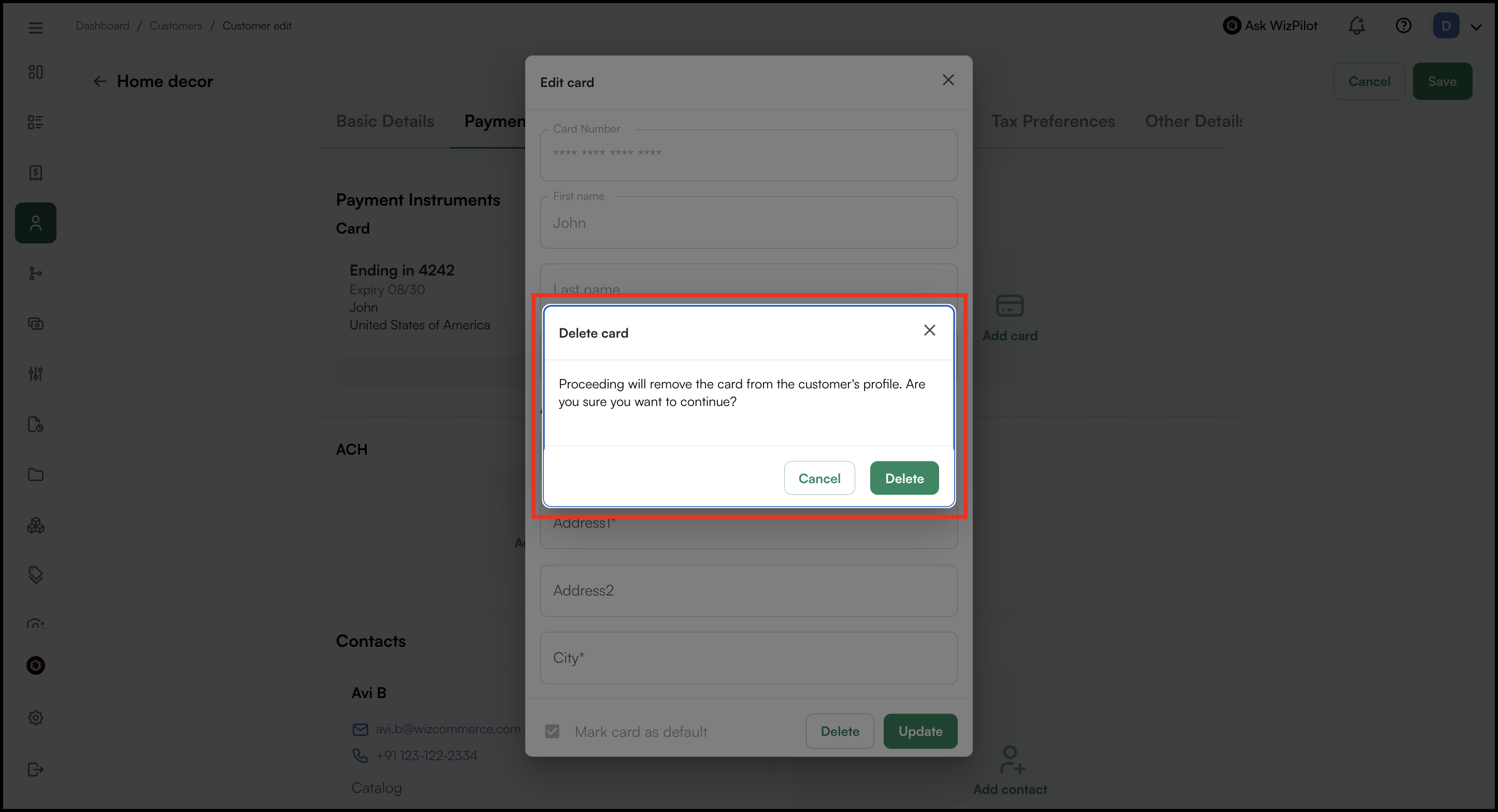
» Credit Card Surcharge
A credit card surcharge can be added to orders to offset processing costs. You can configure it as a percentage (for example, 3%) or a fixed dollar amount. Customers will see the fee before placing the order. To learn more about credit card surcharge, reach out to our support team at help@wizcommerce.com.
» Update Credit Card Address
- Go to the CRM → Customers.
- Select the customer from the list.
- Click on the Profile and navigate to Profile.
- Click Edit to update or delete card(s).
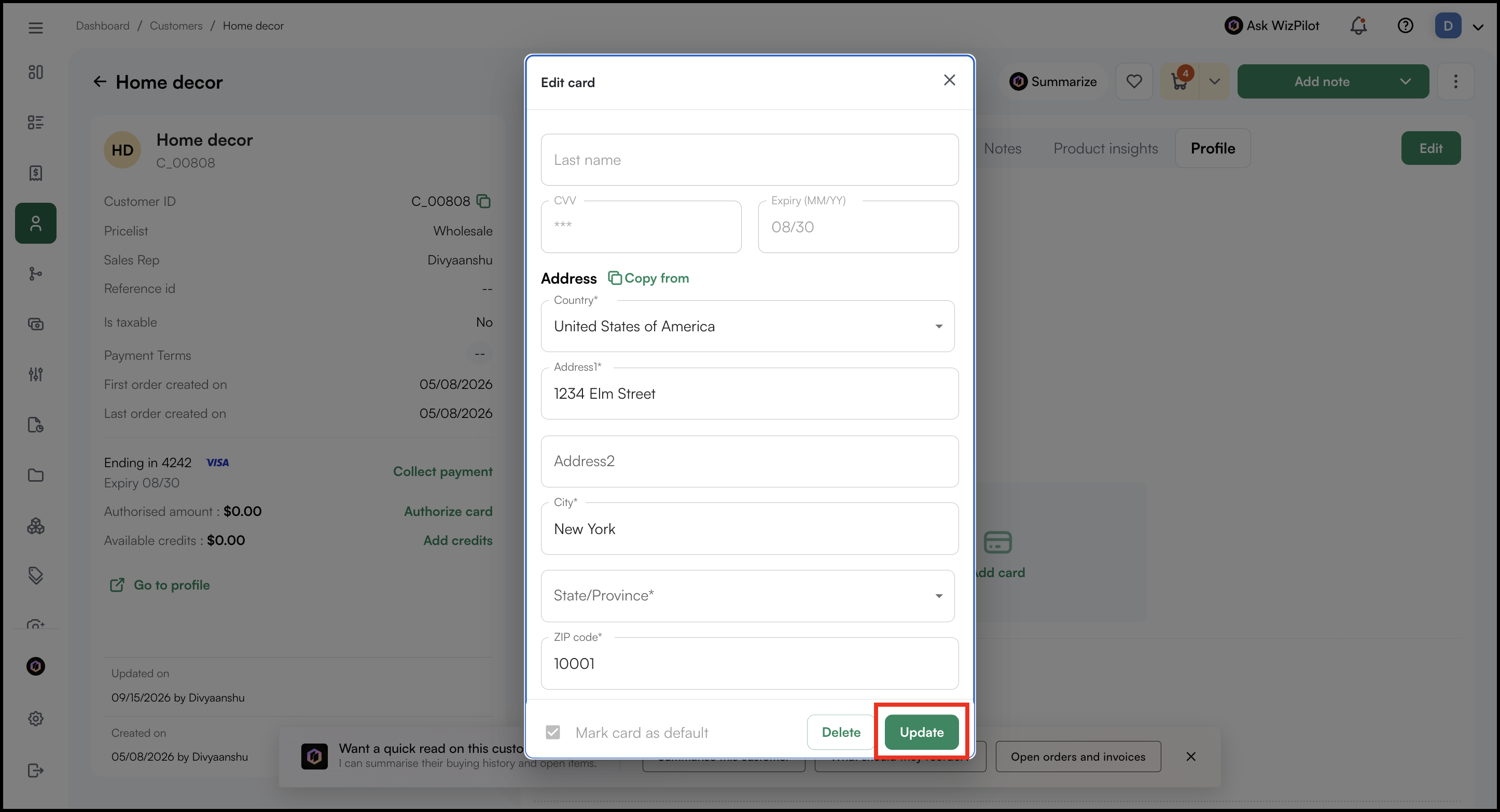
- Then go to Payment Instruments and click on the edit icon.
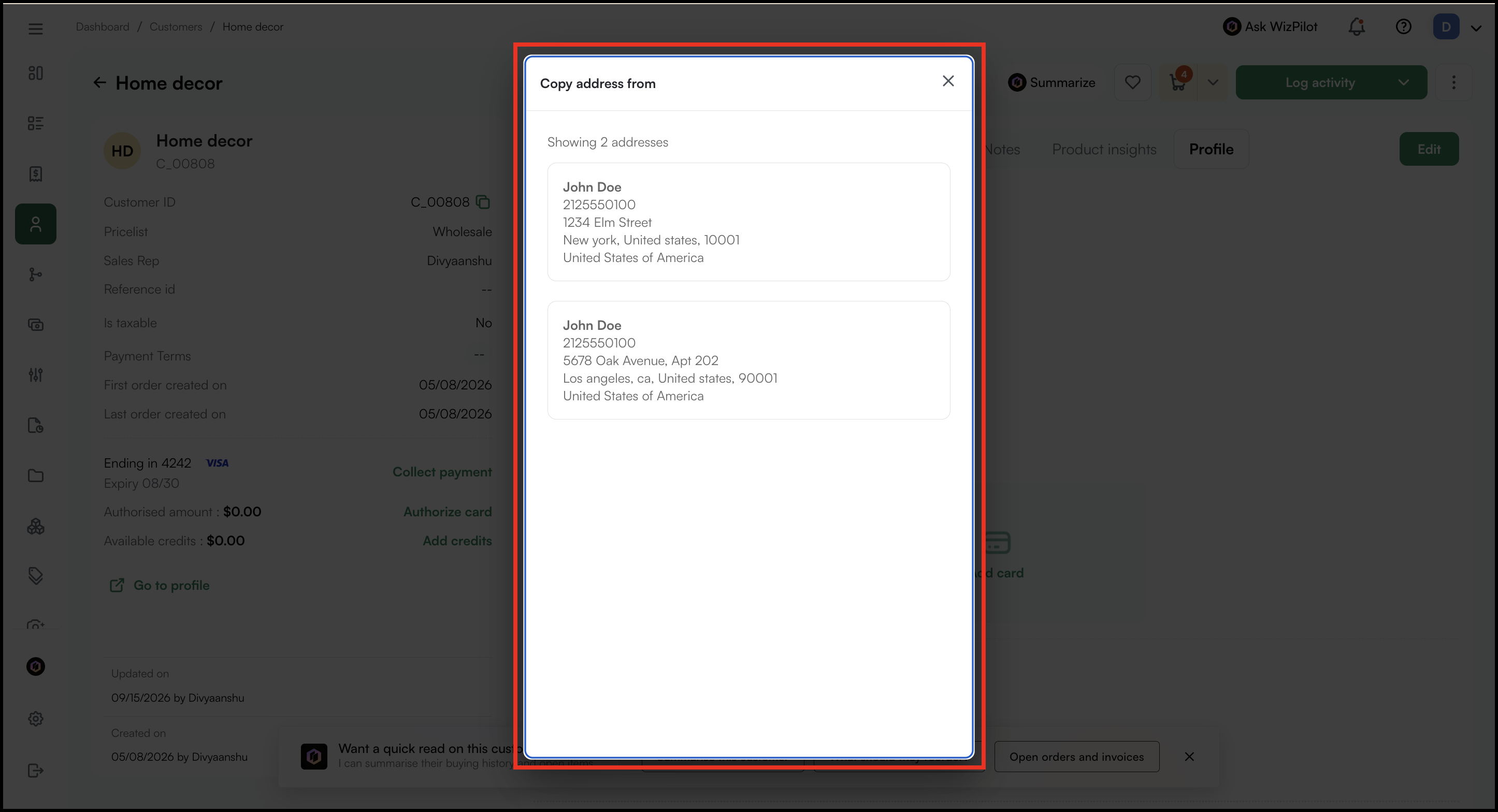
- Click Copy From to copy the address from the available addresses.
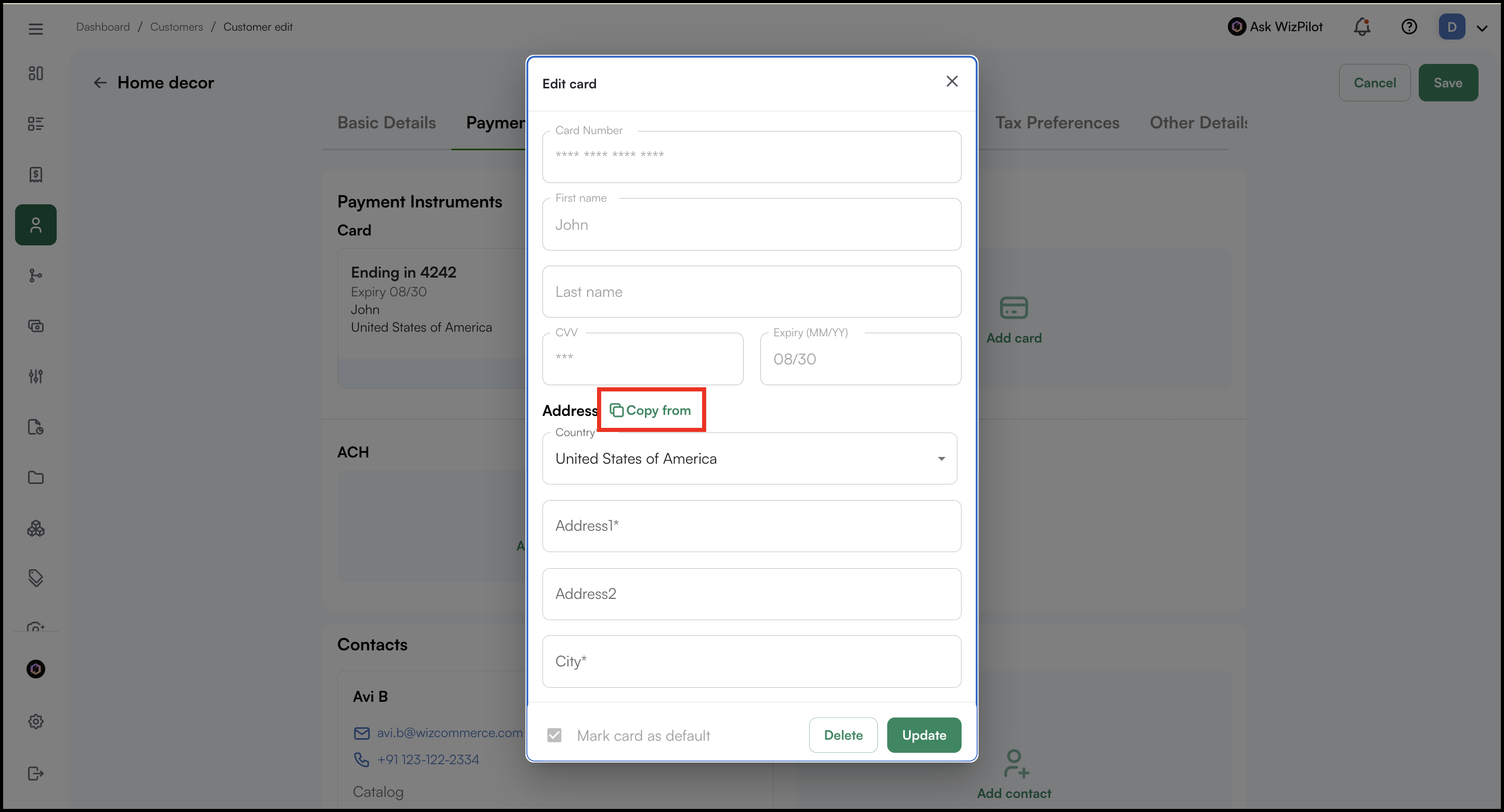
- Select the address you want.
- Click Update to save the address.
B. Offline Payment
Use offline payments to record transactions that happened outside WizCommerce — such as cash collected at a trade show, a mailed check, or a wire transfer.
» Recording an Offline Payment
- Go to Sales → Orders.
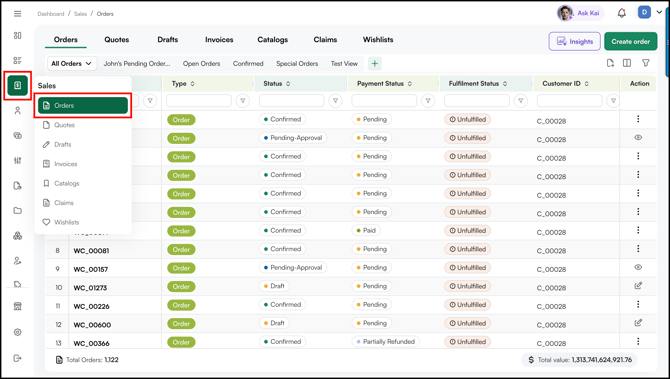
- Select the confirmed order.
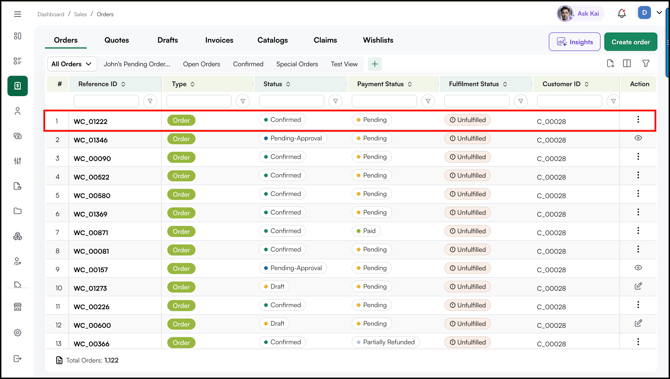
- Click Collect Payment.
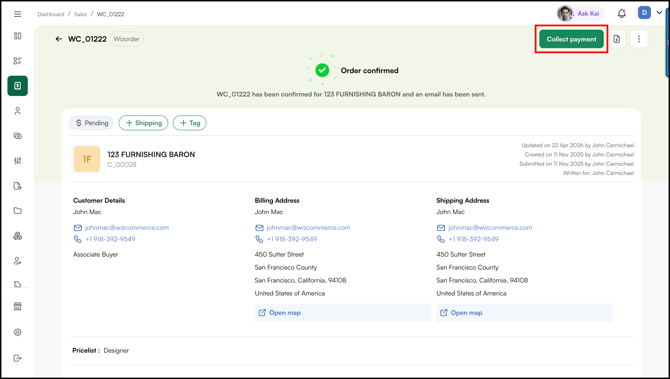
- Select Payment Method (Collect Offline) from the dropdown.
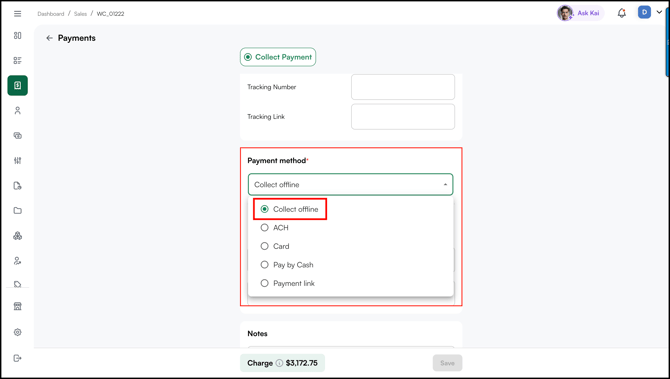
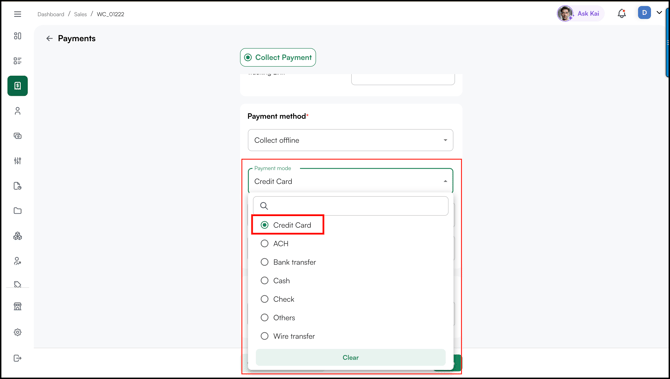
- Select Payment Mode from the dropdown. For example: Credit Card.
- Fill in the required details and click Save.
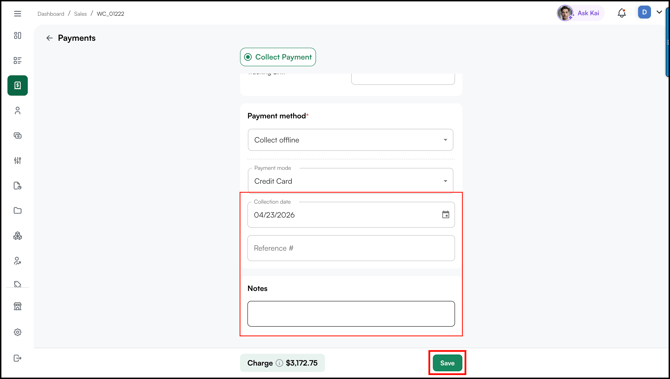
- The payment is recorded in WizPay → Transactions with status Completed and collection mode Offline.
Note: No processing fees apply to offline payments. Manual reconciliation with your accounting system is required.
C. ACH (Bank Transfer)
ACH payments are bank-to-bank transfers — the most cost-effective method for large wholesale orders since there are no processing fees.
» Collecting an ACH Payment Directly
- Open the order and click Collect Payment.
- Select ACH from the payment method dropdown.
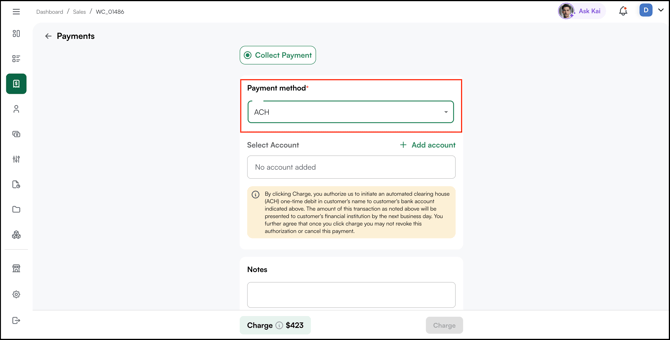
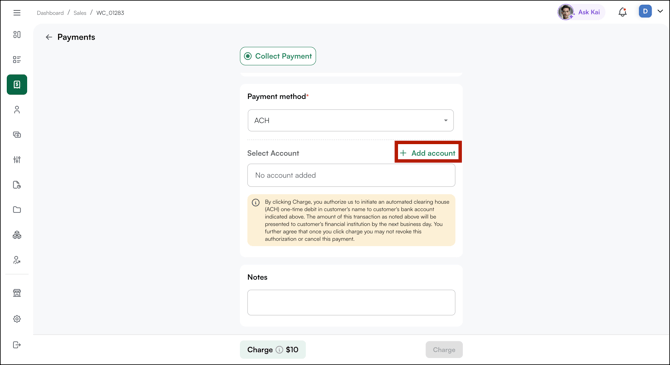
- Enter the customer's ACH information manually by typing in the routing number and account number.
- Enter manually: Type in the routing and account numbers yourself.
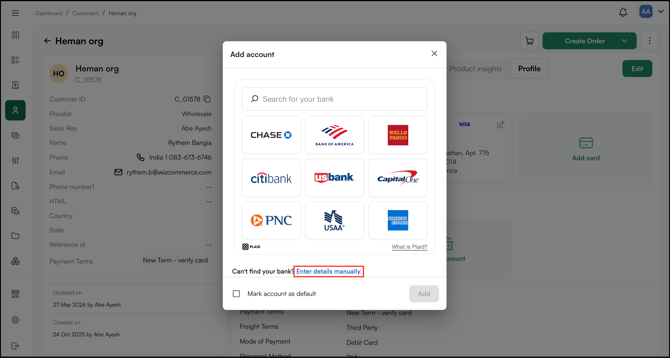
- Account Holder Name
- Bank Account Number
- Routing Number
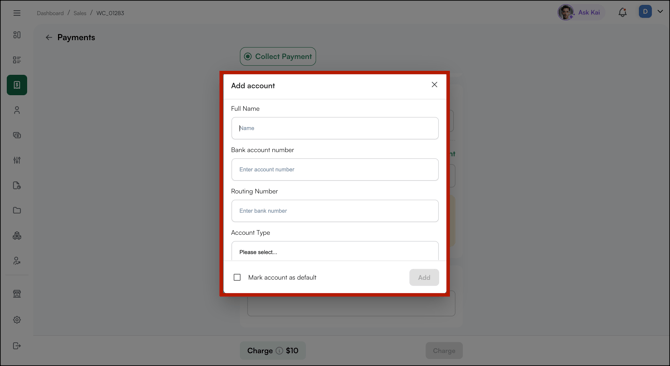
- Enter manually: Type in the routing and account numbers yourself.
- Check Save account to store it for future transactions, and optionally Mark as default.
- Click Add.
Note: Auto-fill from a connected bank (Plaid) is not currently supported. Bank details must be entered manually every time.
» Understanding ACH Settlement and Returns
- Day 1: Transaction initiated and submitted to the ACH network
- Days 2–3: The customer's bank processes the debit. If funds are insufficient, an ACH return is generated.
- Day 4: Funds are settled to your bank account
If an ACH return occurs, the transaction status changes to Failed or Returned in WizPay.
Note: ACH settlement takes 4 business days. If the customer has insufficient funds, an ACH return is generated and the transaction status updates to Failed or Returned.
D. Payment Links
Payment links let you send a secure, flexible payment request to a customer without needing them to be present. Customers can pay using their preferred method directly from their email.
» Creating a Payment Link
- Go to Sales → Orders, open the order, and click Collect Payment.
- Select Payment Link from the payment method dropdown.
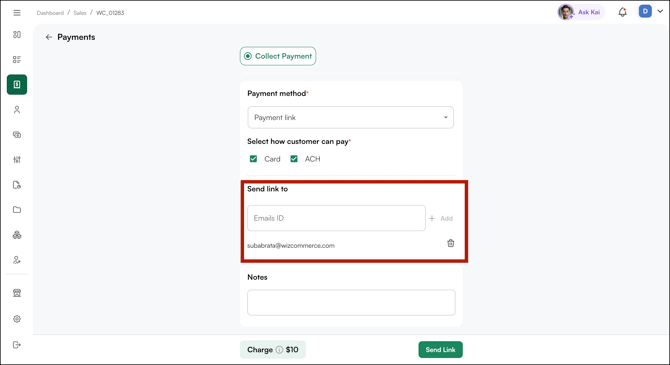
- The customer's email auto-populates. Add additional recipients if needed.
- Adjust the Payment Amount if collecting a partial payment or deposit.
- Add an optional Note for context (for example, "50% deposit for Order #4521").
- Select which payment types the customer can use: Card, ACH, or Both.
- Click Send Link.
Note: No sensitive data passes through WizCommerce — the customer submits directly to the secure payment portal.
» What the Customer Sees
- The customer receives an email with a Pay Now button.
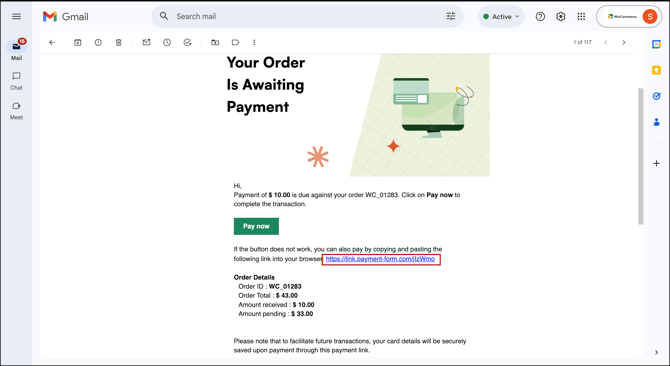
- Clicking the button opens a secure portal showing the company name, Order ID, and total order value.
- The customer selects their payment method and enters their details.
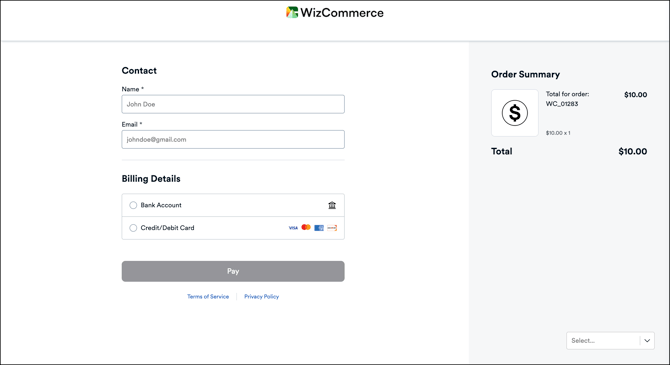
- On success, a confirmation page is shown and a receipt email is sent to both the customer and your business.
E. Processing Fees at a Glance
Here’s a quick overview of processing fees and settlement time by payment methods.
| Payment Method | Processing Fee | Settlement Time |
|---|---|---|
| Credit Card | Interchange + 0.7% | Next business day |
| ACH (Bank Transfer) | No fee | 4 business days |
| Payment Link – Card | Same as a credit card | Next business day |
| Payment Link – ACH | No fee | 4 business days |
| Offline (Cash/Check/Other) | No fee | N/A (manual deposit) |
Note: WizCommerce's processing rate of Interchange + 0.7% is significantly lower than the typical 2.9%–3.5% charged by most wholesale payment processors.
FAQs
1. Can I collect a partial payment on an order?2. How can I tell when a payment link has been completed?
A. Once a customer completes the payment, both you and the customer will receive a payment receipt email confirming the successful payment. You can also go to Sales → Orders → Order Details → Payments to view the payment history, payment method, amount collected, and remaining balance for a specific order.
3. Can I see all open or pending payment links in one place?
A. Yes. Go to WizPay → Transactions and filter by status to view all pending or completed payments across orders. This gives you a complete overview of all payment activity. Refer to Payment Workflows for more details.
4. How do I create or resend a payment link?
A. Go to Sales → Orders, open the relevant order, and click Collect Payment to create or resend a payment link. Refer to Payment Methods for more details.
7. Why can't I see the card number (eye icon) on an order?
A. The eye icon appears on an order only when a Payment Instrument is directly attached to that order. Having a card saved on the customer profile alone will not make it appear. To view the card number, make sure a Payment Instrument is added to the order.
8. Why do payment terms and payment method not match on my order PDF?
A. Payment Method and Payment Terms are two separate fields on an order. Payment Terms are automatically populated from the terms associated with the customer when the order is created. Changing or selecting a payment method — such as Credit Card — updates the payment method only; the customer's existing payment terms stay unchanged.
Still need help? Reach out to our support team at help@wizcommerce.com.