
Once a document (attachment) is received by the AI Order Entry Assistant (Ella), it reads the attachment and the mail body, decides on its own whether it is a purchase order or a quote, and presents the extracted details for review before submission.
This article walks through the full review and approval workflow; verifying extracted data, switching between a quote and an order, resolving discrepancies, and submitting to WizCommerce.
Platform: AI Order Entry Assistance (Ella) | Who is this for: Admins & Sales Reps
Table Of Contents
Before You Begin
- Your AI Order Entry Assistant must already be set up. If it isn't, see AI Order Entry Assistant, Getting Started.
- Make sure you have your dedicated AI Order Entry email address to hand, or your Email Connector is already set up.
- If a product has both a Base Price and a Sale Price configured, Ella will pick up the Sale Price during sales order creation.
A. Process a Single Purchase Order
When a purchase order comes in, the AI does the heavy lifting; it reads the details, maps them to your records, and queues the order for your review. All you need to do is verify and submit.
Note: If you are using an Email Connector; no action needed. Any purchase order arriving in your connected inbox is picked up and processed automatically.
Here's how to process a purchase order from start to finish:
-
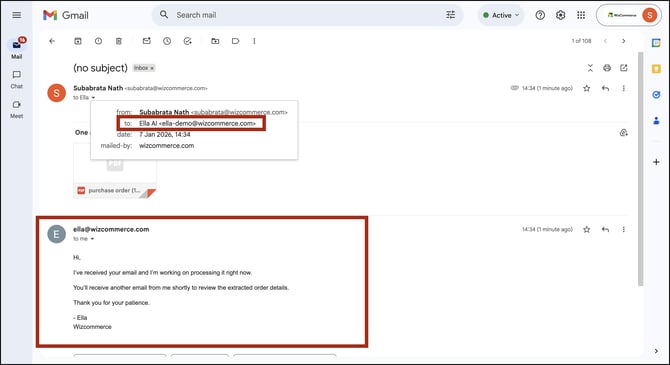
If you are using a dedicated email address; forward the purchase order from your inbox to your AI Order Entry email address.
-
Ella sends an acknowledgment email confirming it has received the purchase order and is processing it.
-
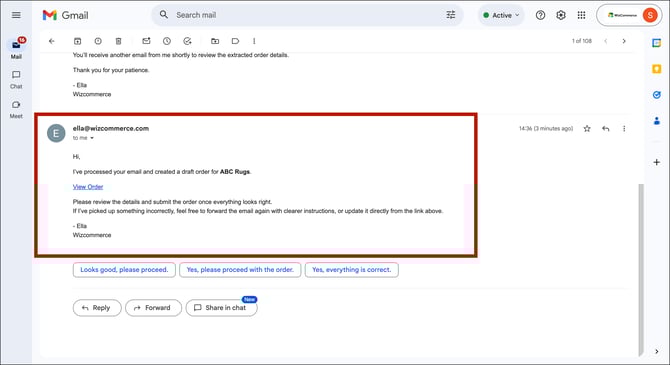
Once processing is complete, you receive a follow-up email in the same thread. Click View Order to open the review page.
-
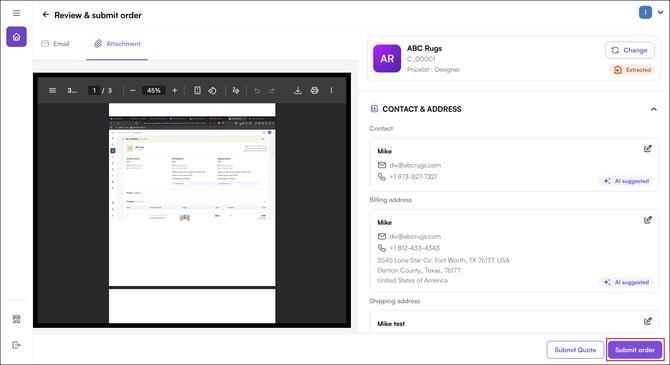
On the review page, verify all extracted details alongside the original purchase order, customer information, products, pricing, and PO number. Edit any field if needed.
-
Once all details are verified, select Submit Order. You'll land on an order summary page with full order details and an option to track the order in WizOrder.
-
Once submitted, you are redirected to the order confirmation page. If two-step verification is enabled, select Go to WizOrder to review and confirm the order, all orders are saved as Draft Orders by default.
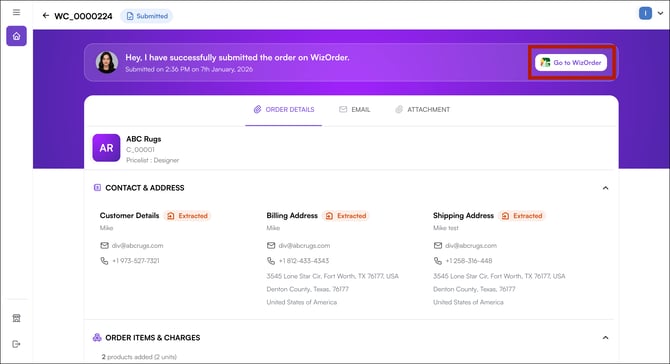
Note: All orders processed by Ella are saved as Draft Orders by default. If a two-step verification is in place; you'll need to review and submit the order again in WizOrder to make it confirmed.
B. How Ella Decides: Quote or Order
Ella handles both purchase orders (POs) and quotes. Earlier, you were given the option to submit a record as a quote or as an order, and you had to decide which one it was based on the attachment and how you read it.
Now, once Ella receives the attachment, it reads and analyses the attachment and the mail body and decides on its own whether it is a purchase order or a quote. Instead of presenting two options for you to choose between, Ella categorises the record directly as a PO or a quote, and you then make your decision from there.
On the page, you will see the details Ella has extracted, which can include the lead name, the price list tag, and pricing where it is available. From here you review the record and make your decision on it.
» Switch a Quote to an Order
If a record has come in as a quote and you want to convert it into an order:
- Click Switch to Order.
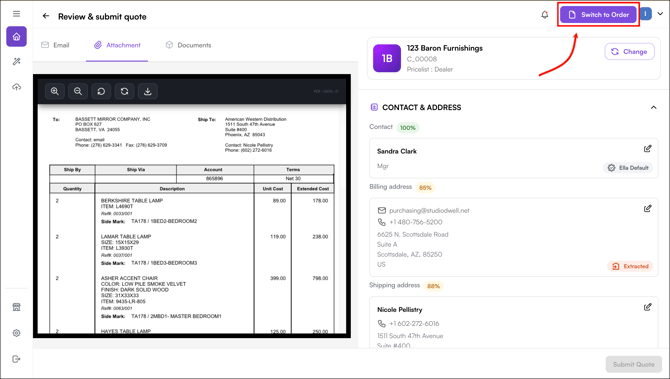
- An order can be placed for a customer, not a lead.
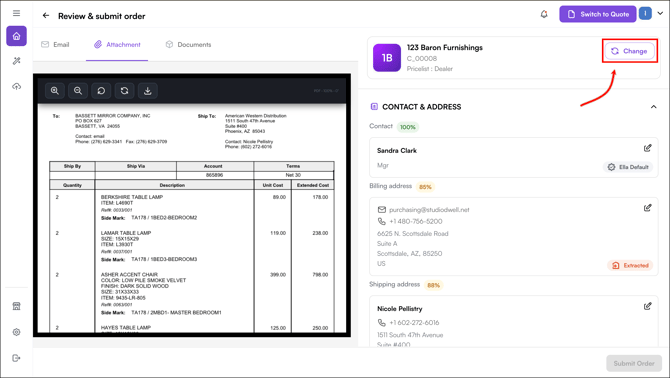
- If Ella picks a lead, change it to a customer first. If Ella picks a customer and you want to change it, click Change.
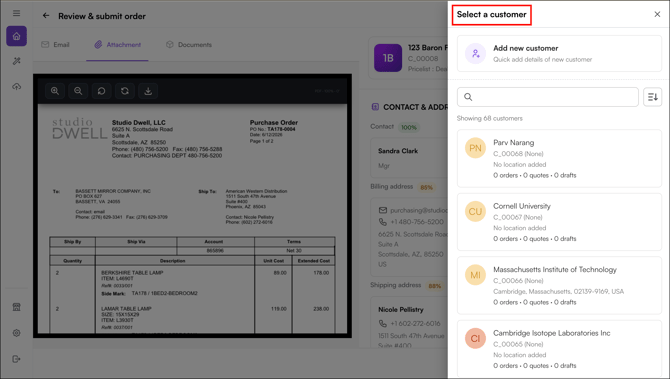
- Select a customer from the list of existing customers.
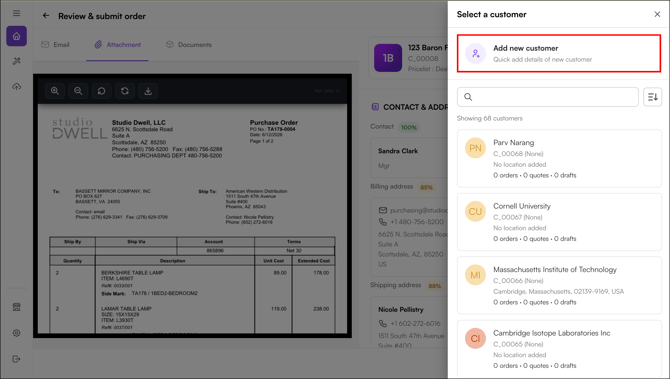
- Or add a new customer and place the order against them.
» Switch an Order to a Quote
If a record has come in as an order and you want to convert it into a quote:
- Click Switch to Quote.
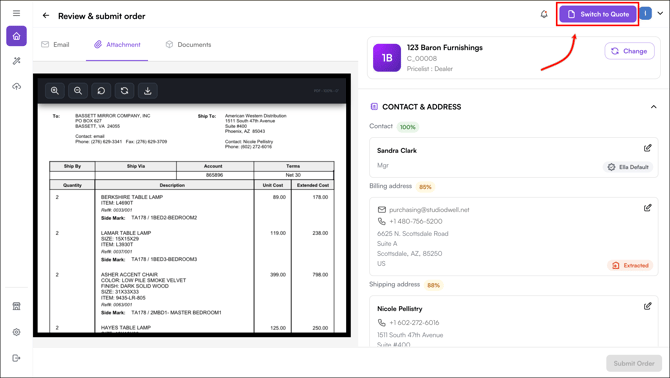
- A quote can be created for both a lead and a customer.
- Click Change if you want to change the lead or customer.
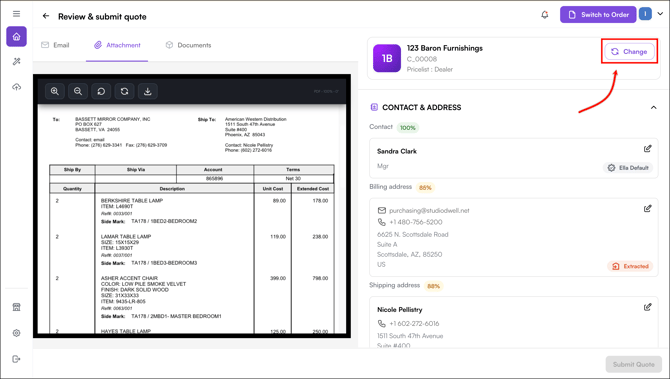
- There are two scenarios:
- For a Lead: Select a lead from the list or add a new lead.
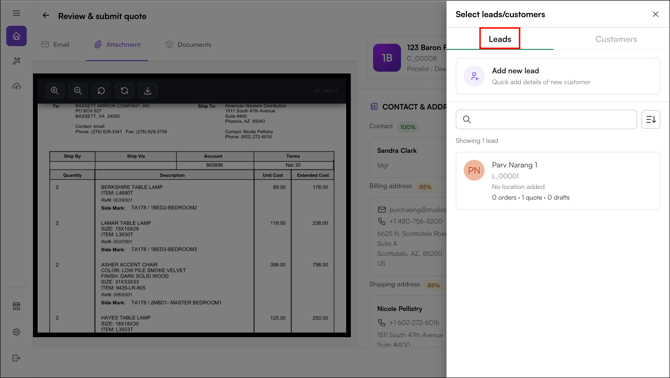
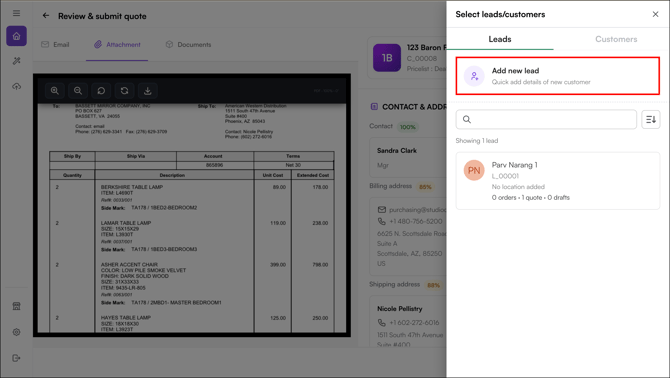
- For a Customer: Select a customer from the list or add a new customer.
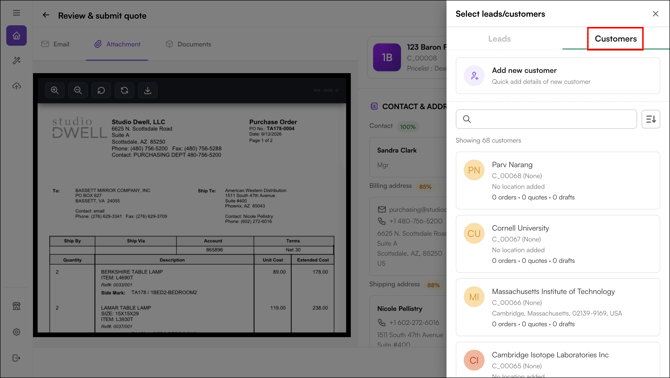
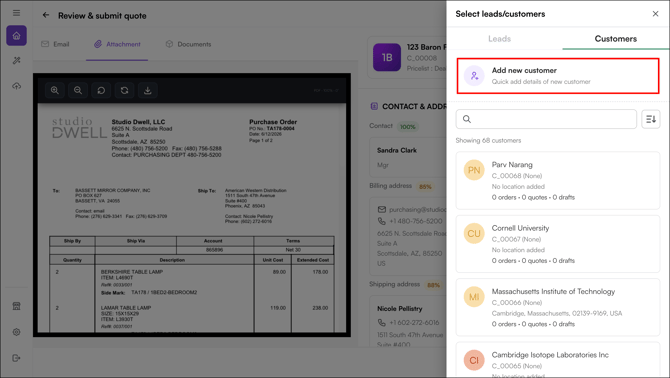
- For a Lead: Select a lead from the list or add a new lead.
Note: When you move a record to a specific customer, any pre-processing rules set up for that customer are applied at that point.
» How Customers and Leads Are Identified
Customer identification works the same way it does on a purchase order. Whenever Ella receives information related to the requester, such as the mail domain, or the zip code of the ship-to address or the bill-to address, it uses that information to work out who the customer is.
With a quote, the requester may not be your customer yet; they may be a lead. Ella searches in this order:
- Customer first. If the customer exists, Ella picks that customer directly.
- Leads next. If there is no matching customer, Ella searches your leads to see whether the requester is an existing lead.
- No match. Ella shows a "no match found" message only when there is no matching customer or lead.
In a quote, you have the option to choose a customer or a lead. You can choose from the leads you already have in your WizCommerce system, or bring them in from your existing CRM.
A quote can be created on a lead, but an order cannot. A lead is a potential customer you send a quotation to, and once the quotation is confirmed, the lead is converted into a customer and the order is placed against that customer. This is why a quote can be created on a lead, but an order cannot be placed on a lead.
| Requester is a… | Quote | Order |
|---|---|---|
| Customer | Yes | Yes |
| Lead | Yes | No, convert the lead to a customer first |
C. Understand Confidence Scores on the Review Page
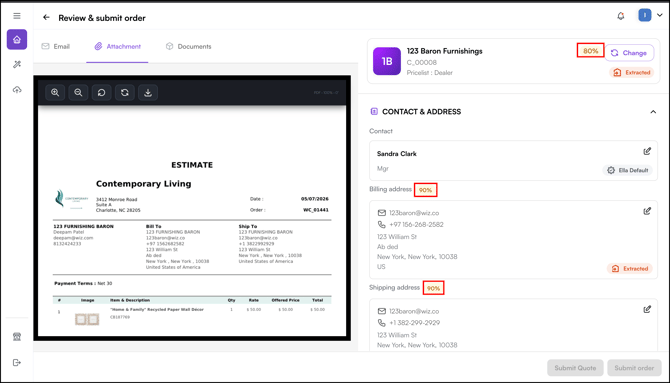
Every field the AI extracts from a purchase order, SKUs, quantities, prices, customer details, is shown on the review page with a confidence score. The score tells you how certain the AI is about that specific value, so you can spend your review time only on the fields that actually need it.
» How the Score is Calculated
The assistant combines two checks:
- AI extraction confidence: How clearly the AI was able to read the value from the source document.
- System matching: How cleanly the extracted value matches your catalog and customer data. The assistant checks SKU first, then description, then price.
The two checks are combined into a single percentage shown next to each field.
» How to Read the Score
- High score (for example, 97%): The extraction is almost certainly correct. You can trust the value as-is.
- Low score (for example, 60%): The AI is uncertain. Open the field, compare it to the original purchase order, and correct it if needed.
Fields with low confidence are highlighted in red so you can spot them at a glance.
D. Process Multiple POs from a Single Email
Ella can detect and process multiple purchase orders (POs) arriving in a single email, whether as separate attachments or as multiple pages within a single PDF. By default, each PO is processed as its own draft order. If the buyer asks for them to be treated as one order, Ella combines them into a single draft instead.
- Send or forward the email containing multiple purchase orders to your AI Order Entry email address.
- Open your inbox and select the relevant email entry.
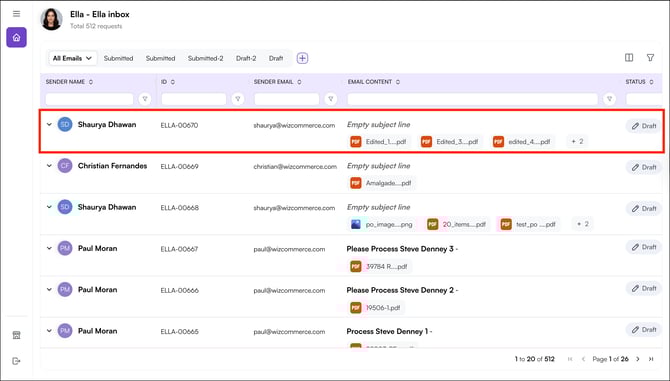
» If the buyer did not ask for a combined order:
- Open any processed PO to begin reviewing. If the email contained multiple POs, for example, five separate attachments, all five are accessible from the review page. Use the tab at the top to switch between them without losing context.
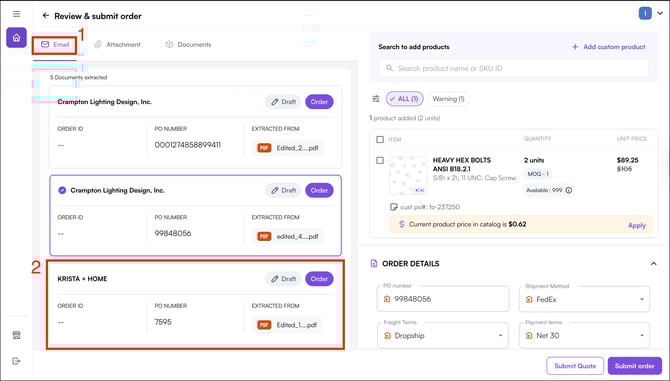
-
Review and submit each purchase order individually; open each one, make any adjustments, and click Submit Order.
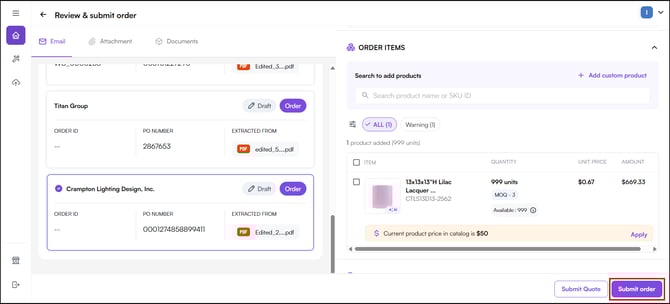
-
The order details screen appears with all the information for the submitted purchase order.
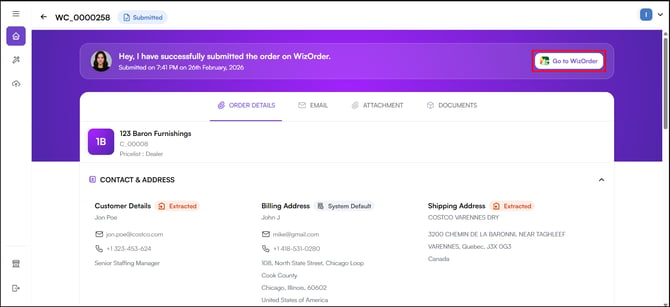
» If the buyer explicitly asks to create a single order:
- Ella merges all the purchase orders (POs) into a single draft instead of creating one per file. This works the same way for quotes, and whether the POs arrived by email or manual upload.
- A simple prompt in the email body is good enough to help Ella understand that merging is required. There's no fixed phrase to use, any plain-English instruction that makes the intent clear will work.
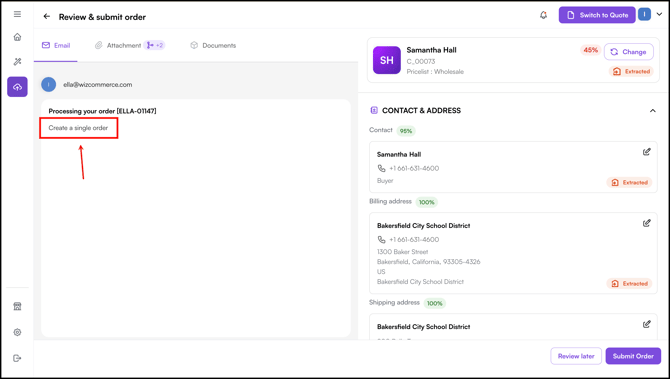
- Any mix of file types can be merged this way. For example, a PDF and a CSV together, or a spreadsheet attachment combined with a PO written directly in the email body. The single instruction in the body is what tells Ella to merge everything that came in with it; there's no fixed phrase required.
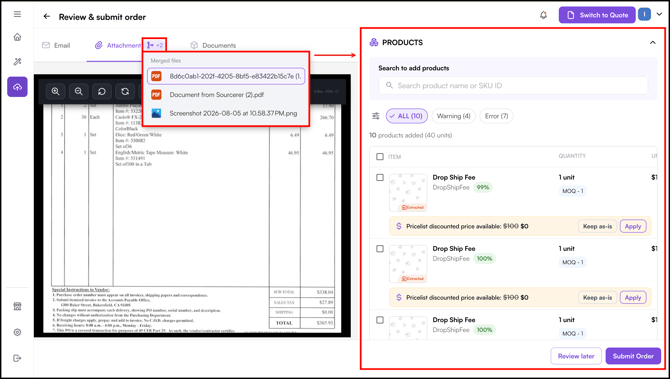
- On the review page, every line item shows which source file it came from. Click a line item to see the originating document highlighted alongside it. (Highlighting doesn't resolve to a specific region for spreadsheet or CSV sources. The line still shows its source file, only the visual highlight is unavailable.)
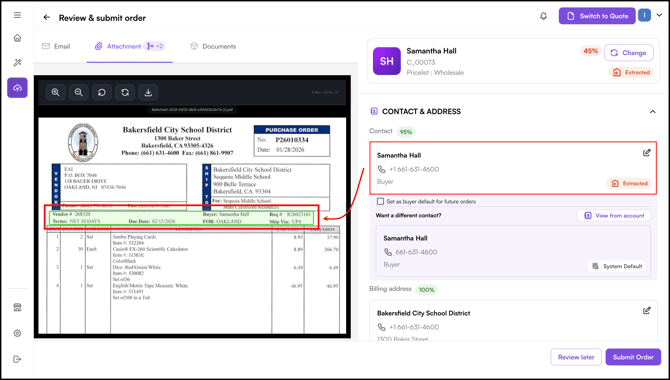
- Where two source files disagree on a header field (like ship-to address or PO number), the value from the earlier file is used. Files are ordered alphabetically by attachment name, with the email body treated as the last source. There's no on-screen flag when this happens, so it's worth cross-checking header fields against all the originals before submitting.
- Review and select Submit Order as normal. Only the combined order is pushed to ERP, the individual source records are kept behind the scenes for reference but aren't listed separately.
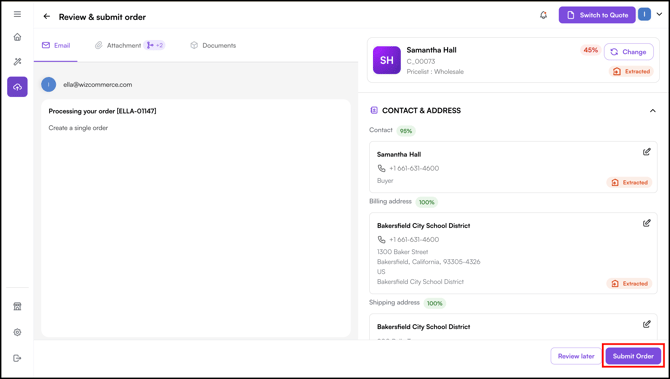
Note: Ella only combines when the email body has text that explicitly asks for it. Attachments with no message in the body (or a body that doesn't clearly ask for a combined order) are always processed as separate drafts, one per PO. There's no fixed phrase to use; any plain-English request works. Once POs are combined into one draft, they can't be split back apart.
E. Handle Products with Modifiers
Modifier products are customization options applied to a base product at the time of ordering, such as fabric selection, pillow options, leg style, or finish. On a WizCommerce purchase order, modifiers appear as labeled customization fields under each line item.
When the AI Order Entry Assistant processes a purchase order containing modifier products:
- On the preview page, locate the relevant line item in the order items section
- Cross-check each modifier against the original purchase order displayed on the left panel, confirm the label and value match exactly.
- Verify that each modifier has been captured correctly, confirm the label and value match the original purchase order.
- Edit any field if needed, then proceed to submit the order as normal.
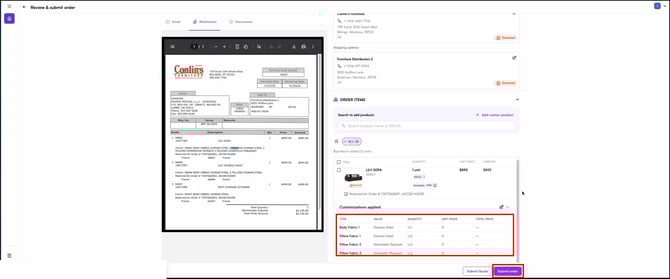
Note: Always review modifier fields before submitting. If a product has multiple customization options, verify each one individually to avoid errors downstream.
F. Bulk Actions on Line Items
Within any individual order, you can select multiple line items and act on them at once; useful for orders with many products.
- Open an order and go to the Line Items section.
- Select the items you want to update using the checkboxes.
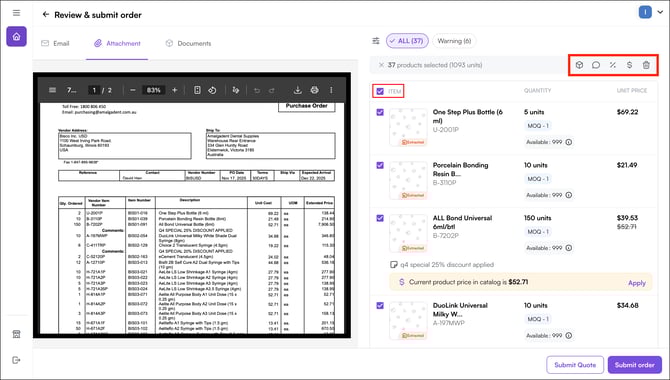
- Choose from the following bulk actions:
- Edit Quantity: Update quantities across all selected items at once
- Add a Note: Write a note against each selected line item
- Apply Discounts: Offer a discount across all selected products at once
- Edit Pricing: Update the price for all selected items in one action.
- Delete Items: Remove multiple products from the order at once.
FAQs
1. Will the order go straight into my ERP after I submit it?
A. No. All orders are saved as Draft Orders by default and require a second review and submission in WizOrder before they are confirmed. WizCommerce can turn off this two-step verification if needed.
2. What happens if the AI extracts the wrong product or quantity?
A. You can edit any field on the review page before submitting. Use the bulk actions on the line items section to update multiple items at once without editing each line individually.
3. Can I process a purchase order that arrived as a scanned image?
A. Yes. The AI Order Entry Assistant can read scanned documents and images, in addition to emails, PDFs, and spreadsheets.
4. Will Ella suggest an alternative if a product on the PO is unavailable?
A. Yes. If a requested product is unavailable, Ella surfaces similar alternatives directly on the draft order screen — matched by product family, spec attributes, and the customer's purchase history. The rep accepts the swap with one click. If back-order is enabled for that item, Ella accepts the order and marks the line as a back-order instead of blocking it.
5. Can Ella enforce Minimum Order Quantity (MOQ) and Incremental Order Quantity (IOQ) rules?
A. Yes, both. MOQ is the minimum number of units required for an item. IOQ means quantities must be in multiples of a set number. Ella reads both from the pricelist and blocks submission until the quantity is valid. For example, if an item is sold in sets of 2 and the PO requests 3 units, submission is blocked until the rep changes it to 2 or 4. Update the quantity on the flagged line and resubmit.
6. Can Ella split a single PO into multiple orders?
A. Yes, across three dimensions. All configurable per tenant:
- By Release Date: A PO with lines on different release dates becomes one ERP order per release date.
- By Warehouse: Lines are routed to separate ERP orders based on fulfilment location.
- By Customer: When a rep submits an end-of-day sheet containing orders for multiple customers in one attachment, Ella extracts each customer and creates a separate ERP order per buyer.
The rep sees a split preview on the draft page and can adjust before submitting.
7. Can Ella generate both quotes and orders?
A. Yes, Ella can generate both. Ella reads the attachment and email body and automatically categorizes the record as a quote or a purchase order. You review it and make your decision from there. If Ella has read the intent incorrectly, select Switch to Order or Switch to Quote to change it.
8. Can Ella combine multiple POs into a single order?
A. Yes, if the buyer's email body explicitly asks for it. Ella will then merge the POs into one draft instead of creating separate ones, with each line item still tied to its source file. See Process Multiple Purchase Orders from a Single Email for the full behavior.
Still need help? Reach out to our support team at help@wizcommerce.com.