---
title: Import a New Product Catalog in Bulk
description: Add products in bulk to WizCommerce using the import template, covers new catalog setup, bulk updates, and all Data Sheet fields explained.
---
[Skip to content](https://knowledge.wizcommerce.com/import-a-new-product-catalog-in-bulk#main-content)
[](https://wizcommerce.com/)
Open main navigation
Close main navigation
- [Contact us](https://mail.google.com/mail/?view=cm&fs=1&to=help@wizcommerce.com)
[Contact us](https://mail.google.com/mail/?view=cm&fs=1&to=help@wizcommerce.com)
Hi, how can we help?
- There are no suggestions because the search field is empty.
1. [WizCommerce Help Centre](https://knowledge.wizcommerce.com/)
2. [Manage your WizCommerce (Admin)](https://knowledge.wizcommerce.com/manage-your-wizcommerce-admin)
3. [Import / Export](https://knowledge.wizcommerce.com/manage-your-wizcommerce-admin#import-export)
June 11, 2026
# Import a New Product Catalog in Bulk
Admins can upload an entire product catalog or update an existing one by importing a structured spreadsheet template. This article explains how to download the import template, fill in the required fields, and run a successful bulk import.
**Platform:** WizOrder | **Who is this for:** Administrators
**To Get There:** *Manage **\>** Import - Export*
---
#### Table of Contents
| **Section** | **Topics** |
| --- | --- |
| **A** | [Understand the Import Template](https://knowledge.wizcommerce.com/import-a-new-product-catalog-in-bulk#section1) |
| **B** | [Download Product Template Sheet](https://knowledge.wizcommerce.com/import-a-new-product-catalog-in-bulk#section2) |
| **C** | [Fill In the Product Template and Import](https://knowledge.wizcommerce.com/import-a-new-product-catalog-in-bulk#section3) |
| **D** | [FAQs](https://knowledge.wizcommerce.com/import-a-new-product-catalog-in-bulk#section4) |
---
#### Before You Begin
- You must have *Admins* access to use Import / Export.
- For first-time imports, always download the template directly from the platform , do not build your own file from scratch.
- Before making bulk updates to an existing catalog, export your current data first and use that file as your working template.
**Note:** Dropbox image URLs ending with `dl=0` are currently not supported. To fix this, update each Dropbox image link by changing `?...&dl=0` to `?...&dl=1` and re-run the product import for the affected items. This will allow the images to be fetched and uploaded correctly.
Alternatively, go to ***Files*** in ***WizOrder***, upload your images, and use the generated public image URLs instead.
---
### A. Understand the Import Template
When you download the product import template, the file contains two sheets:
- **Instructions:** Field definitions, formatting rules, and mandatory column requirements. Read this before filling in data for the first time.
- **Data Sheet:** The only sheet you need to fill in and upload. All your product data goes here.
The Data Sheet is organized into the following field groups:
#### Core Product Identity
| **Column** | **Definition** |
| --- | --- |
| **System ID (DO NOT DELETE)** | Auto-generated by WizCommerce. Leave blank for new products. Never edit or delete this column. |
| **GROUPING IDENTIFIER** | Groups variant rows under the same parent product. Use the same value across all variants. Leave blank if the product has no variants. |
| **SKU ID** | Unique identifier for each product or variant. Required. The platform uses this to match rows on re-import. |
| **NAME** | Product display name as it appears on WizOrder and WizShop. Required. |
| **ACTIVE** | Controls product visibility. Enter *Y* to make the product active, *N* to deactivate it. |
| **IS\_PARENT** | Enter *Y* for the parent product row. Leave blank or enter *N* for variant rows. |
| **DELETE** | Enter *Y* to remove a product from the catalog via import. Use with caution , this cannot be undone from the import file. |
#### Media
| **Column** | **Definition** |
| --- | --- |
| **IMAGE\_1 through IMAGE\_5** | URLs for product images. IMAGE\_1 is the primary display image. Up to five images can be assigned per product. |
#### Classification
| **Column** | **Definition** |
| --- | --- |
| **CATEGORIES** | The category the product belongs to. Use *Parent Category \> Sub-Category* format for nested categories. |
| **TAGS** | Labels used for filtering and search. Separate multiple tags with a comma. |
| **COLLECTIONS** | Flexible groupings such as Best Sellers or New Arrivals. Separate multiple collections with a comma. |
#### Product Details
| **Column** | **Definition** |
| --- | --- |
| **Description** | Full product description shown on the product details page. |
| **Color** | Primary color of the product. |
| **Special Feature** | Notable product feature or selling point. |
| **Thickness** | Product thickness measurement where applicable. |
| **Size** | Product dimensions, typically Length x Width x Height in inches. |
| **Print Size** | Printable area dimensions for applicable products. |
| **Weight** | Product weight used for shipping calculations. |
| **Shape** | Product shape descriptor where applicable. |
| **Construction** | Materials and build method — for example, *Acacia Solids* or *Mahogany Solids & Veneer*. |
| **Frame Color** | Color of the product frame where applicable. |
| **Canvas Type** | Fabric or surface type for applicable products. |
| **Country Of Origin (COO)** | Country where the product was manufactured. Use ISO Alpha-2 codes — for example, *US* for United States. |
| **Material** | Primary material the product is made from. |
| **Shipment QTY** | Number of units packed per shipment. |
| **Requested Date** | Expected or requested delivery date. Use MM-DD-YYYY format. |
| **Carton Pack** | Number of units packed per carton. |
| **Carton Cube** | Total cubic volume of the carton used for freight and logistics calculations. |
#### Variant Attributes
| **Column** | **Definition** |
| --- | --- |
| **HINGE\_1\_NAME / HINGE\_2\_NAME / HINGE\_3\_NAME** | Name of the variant attribute — for example, *Size* or *Color*. |
| **HINGE\_1\_TYPE / HINGE\_2\_TYPE / HINGE\_3\_TYPE** | Type of the attribute — for example, *dropdown* or *text*. |
| **HINGE\_1\_VALUE / HINGE\_2\_VALUE / HINGE\_3\_VALUE** | The value for that attribute on this specific variant row — for example, *Large* or *Blue*. |
#### Pricing
| **Column** | **Definition** |
| --- | --- |
| **Base\_Price** | Standard list price for the default price list. |
| **Sale\_Price** | Discounted price shown to buyers when a sale is active. |
| **MOQ** | Minimum Order Quantity — the smallest number of units a buyer can order. |
| **IOQ** | Increment Order Quantity — buyers must order in multiples of this number above the MOQ. |
| **Max qty** | Maximum quantity a buyer can order per transaction. |
| **Dealer\_Include** | Enter *Y* to include this product in the Dealer price list. |
| **Dealer\_Base\_Price** | Base price for dealer-tier customers. |
| **Dealer\_Sale\_Price** | Sale price for dealer-tier customers. |
| **Dealer\_MOQ** | Minimum Order Quantity for dealer-tier customers. |
| **Dealer\_IOQ** | Increment Order Quantity for dealer-tier customers. |
| **Dealer\_Max qty** | Maximum order quantity for dealer-tier customers. |
**Note:** Only the **Data Sheet** needs to be uploaded during import. The Instructions sheet is for reference only. Do not rename or delete any column headers, the platform uses these to process and match data correctly.
---
### B. Download Product Template Sheet
Use this when updating an existing catalog. Exporting first gives you a correctly formatted file with your current data to work from.
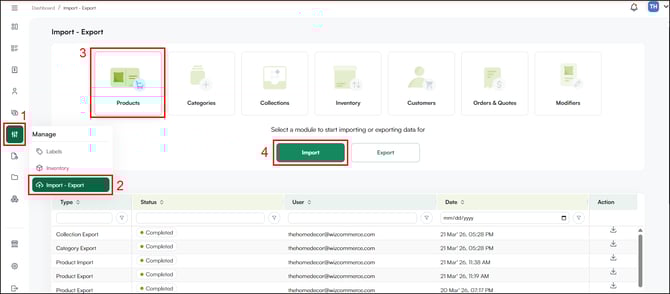
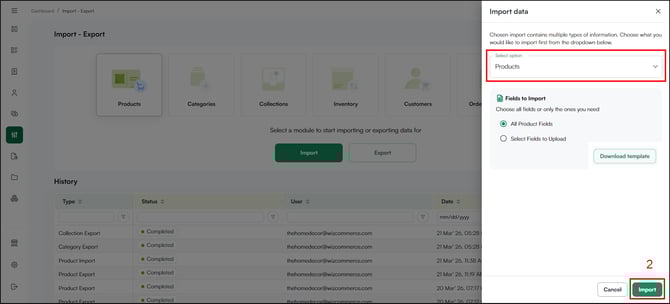
1. Go to ***Manage** → **Import - Export**,* click the ***Products*** tile, and click ***Import***.
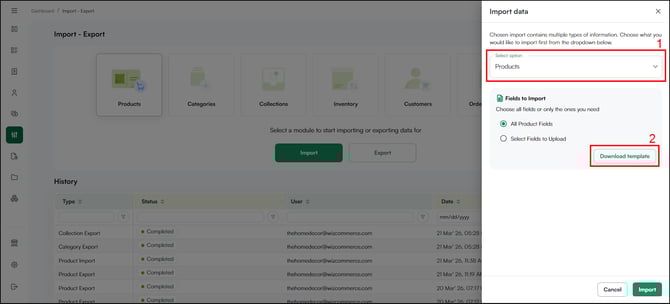
2. In the ***Import data*** panel, select ***Products*** from the select option dropdown.
3. Click***Download Template**.
*
The exported file is sent to your registered email and also appears in the *notifications* panel. Open the file and make your changes in the***Data Sheet*** only.
**Note:** Do not change the *SKU ID* column when updating existing products. SKU ID is the unique identifier the platform uses to match each row to the correct product.
---
### C. Fill In the Product Template and Import
Use this when setting up a new catalog or adding a large number of products for the first time.
1. Open the downloaded file and go to the***Data Sheet**.
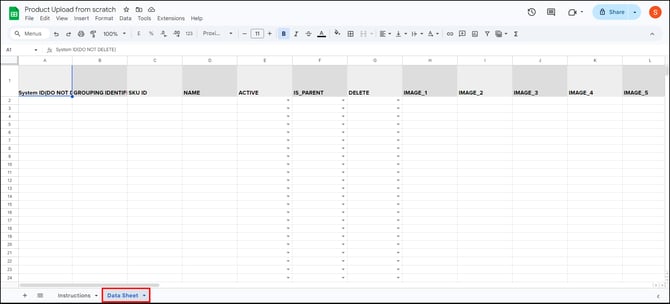*
2. Fill in one row per product. Required fields for each row:
- **SKU ID** — unique identifier for the product
- **NAME** — product name
- **ACTIVE** — enter *Y* to make the product active
- **IS\_PARENT** — enter *Y* for the parent product row
- **IMAGE\_1** — URL of the primary product image
3. Save the file once all products are entered.
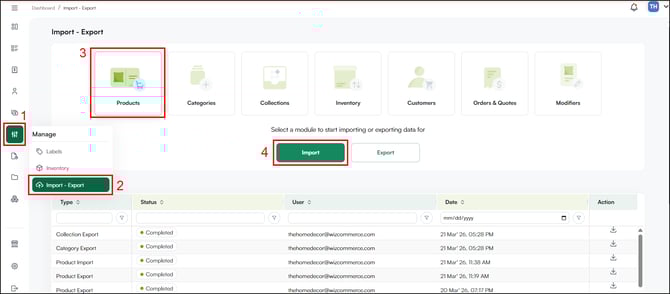
4. Go back to ***Manage** → **Import - Export** → **Products*** tile *→ **Import**.
*
5. Upload the completed file and click **Import**.
6. The platform processes the file and adds all new products to your catalog. Open the *Notifications* panel from the bell icon in the top right to check the import status. A confirmation is also sent to your registered email.
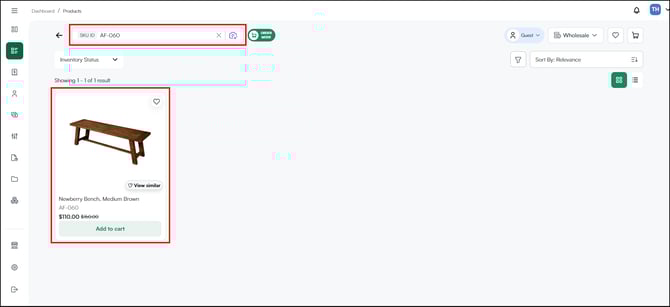
7. Once the import is complete, go to the Products page and search by SKU ID to verify that the products are live.
**Note:** The sync duration depends on the file size and the amount of data being processed. For a quicker import/export, keep the Excel file size small and limit the entries to under 5,000 rows. Once the sync is complete, the changes will be reflected instantly. If the sync is taking longer than expected, please contact our support team at [help@wizcommerce.com](https://mail.google.com/mail/u/0/?fs=1&to=help@wizcommerce.com&tf=cm).
---
#### **FAQs**
**1. What happens if a SKU ID in my import file does not exist in the system?**
**A.** The platform will create a new product for that SKU ID. If you are doing an update-only import, review your file carefully before uploading to avoid unintended new entries.
**2. How do I know if my import was successful?**
**A**. Open the **Notifications** panel from the bell icon in the top right corner. The platform shows how many products were successfully imported and sends a confirmation to your registered email.
**3. Can I import products with multiple images?**
**A.** Yes. The Data Sheet includes columns **IMAGE\_1** through **IMAGE\_5**. Enter the image URL in each column to assign up to five images per product.
---
**Still need help?** Reach out to our support team at [help@wizcommerce.com](https://mail.google.com/mail/u/0/?fs=1&to=help@wizcommerce.com&tf=cm).
- [Getting started](https://knowledge.wizcommerce.com/getting-started#main-content)
- [Product Overview](https://knowledge.wizcommerce.com/getting-started#product-overview)
- [Key Concepts You Should Know](https://knowledge.wizcommerce.com/getting-started#key-concepts-you-should-know)
- [Product Guides](https://knowledge.wizcommerce.com/getting-started#product-guides)
- [Trade Show Checklist](https://knowledge.wizcommerce.com/getting-started#trade-show-checklist)
- [Product Search & Discovery](https://knowledge.wizcommerce.com/product-search-discovery#main-content)
- [AI Product Recommendations](https://knowledge.wizcommerce.com/product-search-discovery#ai-product-recommendations)
- [Filter and Navigate](https://knowledge.wizcommerce.com/product-search-discovery#filter-and-navigate)
- [Catalog](https://knowledge.wizcommerce.com/product-search-discovery#catalog)
- [Product Selection & Ordering](https://knowledge.wizcommerce.com/product-selection-ordering#main-content)
- [Orders](https://knowledge.wizcommerce.com/product-selection-ordering#orders)
- [Quotes](https://knowledge.wizcommerce.com/product-selection-ordering#quotes)
- [Cart](https://knowledge.wizcommerce.com/product-selection-ordering#cart)
- [Presentations](https://knowledge.wizcommerce.com/product-selection-ordering#presentations)
- [Wishlist](https://knowledge.wizcommerce.com/product-selection-ordering#wishlist)
- [Item History](https://knowledge.wizcommerce.com/product-selection-ordering#item-history)
- [Invoices](https://knowledge.wizcommerce.com/product-selection-ordering#invoices)
- [Customers & Accounts](https://knowledge.wizcommerce.com/customers-accounts#main-content)
- [Customer Relationship Management (CRM)](https://knowledge.wizcommerce.com/customers-accounts#customer-relationship-management-crm)
- [Inventory & Warehousing](https://knowledge.wizcommerce.com/inventory-warehousing#main-content)
- [Inventory availability](https://knowledge.wizcommerce.com/inventory-warehousing#inventory-availability)
- [Payments](https://knowledge.wizcommerce.com/payments#main-content)
- [Payment Dashboard](https://knowledge.wizcommerce.com/payments#payment-dashboard)
- [Pricing & Commercials](https://knowledge.wizcommerce.com/pricing-commercials#main-content)
- [Pricelist](https://knowledge.wizcommerce.com/pricing-commercials#pricelist)
- [Discounts & Promotions](https://knowledge.wizcommerce.com/pricing-commercials#discounts-promotions)
- [Claims & Credits](https://knowledge.wizcommerce.com/pricing-commercials#claims-credits)
- [AI Co-Workers](https://knowledge.wizcommerce.com/ai-co-workers#main-content)
- [Ella - AI Order Entry Assistant](https://knowledge.wizcommerce.com/ai-co-workers#ella-ai-order-entry-assistant)
- [WizPilot - AI Assistant](https://knowledge.wizcommerce.com/ai-co-workers#wizpilot-ai-assistant)
- [WizStudio](https://knowledge.wizcommerce.com/wizstudio#main-content)
- [Creating & Editing Images](https://knowledge.wizcommerce.com/wizstudio#creating-editing-images)
- [Lifestyle Generator](https://knowledge.wizcommerce.com/wizstudio#lifestyle-generator)
- [Silo Editor](https://knowledge.wizcommerce.com/wizstudio#silo-editor)
- [Bulk Silo Editor](https://knowledge.wizcommerce.com/wizstudio#bulk-silo-editor)
- [Asset Library (Assets)](https://knowledge.wizcommerce.com/wizstudio#asset-library-assets)
- [AI Image Expander](https://knowledge.wizcommerce.com/wizstudio#ai-image-expander)
- [Reports & Analytics](https://knowledge.wizcommerce.com/reports-analytics#main-content)
- [Business Reports](https://knowledge.wizcommerce.com/reports-analytics#business-reports)
- [Manage your WizCommerce (Admin)](https://knowledge.wizcommerce.com/manage-your-wizcommerce-admin#main-content)
- [Import / Export](https://knowledge.wizcommerce.com/manage-your-wizcommerce-admin#import-export)
- [Organizational Settings](https://knowledge.wizcommerce.com/manage-your-wizcommerce-admin#organizational-settings)
- [Product Management](https://knowledge.wizcommerce.com/manage-your-wizcommerce-admin#product-management)
- [Managing Your WizShop Website](https://knowledge.wizcommerce.com/manage-your-wizcommerce-admin#managing-your-wizshop-website)
- [Integration & Apps](https://knowledge.wizcommerce.com/integration-apps#main-content)
- [Marketing Integration](https://knowledge.wizcommerce.com/integration-apps#marketing-integration)
- [Integration Dashboard](https://knowledge.wizcommerce.com/integration-apps#integration-dashboard)
- [Help & FAQs](https://knowledge.wizcommerce.com/help-faqs#main-content)
- [Help with Orders](https://knowledge.wizcommerce.com/help-faqs#help-with-orders)
- [Help with Quotes](https://knowledge.wizcommerce.com/help-faqs#help-with-quotes)
- [Help with Presentation](https://knowledge.wizcommerce.com/help-faqs#help-with-presentation)
- [Help with Inventory](https://knowledge.wizcommerce.com/help-faqs#help-with-inventory)
- [Help with User Management](https://knowledge.wizcommerce.com/help-faqs#help-with-user-management)
- [Help with Pricelist & Discounts](https://knowledge.wizcommerce.com/help-faqs#help-with-pricelist-discounts)
- [Help with WizStudio](https://knowledge.wizcommerce.com/help-faqs#help-with-wizstudio)
- [Help with Ella](https://knowledge.wizcommerce.com/help-faqs#help-with-ella)
- [Help with Org Settings (Admin)](https://knowledge.wizcommerce.com/help-faqs#help-with-org-settings-admin)
- [Help with Emails](https://knowledge.wizcommerce.com/help-faqs#help-with-emails)
- [Help with Products](https://knowledge.wizcommerce.com/help-faqs#help-with-products)
- [Help with Import/Export](https://knowledge.wizcommerce.com/help-faqs#help-with-import-export)
- [Help with WizShop](https://knowledge.wizcommerce.com/help-faqs#help-with-wizshop)
- [Help with Integration](https://knowledge.wizcommerce.com/help-faqs#help-with-integration)
- [Help with Categories and Collections](https://knowledge.wizcommerce.com/help-faqs#help-with-categories-and-collections)
- [Help With Customers](https://knowledge.wizcommerce.com/help-faqs#help-with-customers)
- [Help with Trade Show](https://knowledge.wizcommerce.com/help-faqs#help-with-trade-show)
[](https://wizcommerce.com/)
[mailto:help@wizcommerce.com](mailto:help@wizcommerce.com)
Copyright © 2025, WizCommerce
```json
{
"@context" : "https://schema.org",
"@type" : "VideoObject",
"contentUrl" : "https://47455261.fs1.hubspotusercontent-na2.net/hubfs/47455261/video_assets/331021383384/inherited/web_optimized.mp4",
"dateModified" : "2026-04-03T15:47:05.055Z",
"duration" : "PT1M1S",
"height" : 1556,
"name" : "Screen Recording 2026-04-03 at 8.22.41 PM",
"thumbnailUrl" : "https://47455261.fs1.hubspotusercontent-na2.net/hubfs/47455261/Screen%20Recording%202026-04-03%20at%208.22.41%20PM.mov/medium.jpg",
"uploadDate" : "2026-04-03T15:46:38.042Z",
"width" : 2880
}
```
```json
{
"@context" : "https://schema.org",
"@type" : "VideoObject",
"contentUrl" : "https://47455261.fs1.hubspotusercontent-na2.net/hubfs/47455261/video_assets/331021378289/inherited/web_optimized.mp4",
"dateModified" : "2026-04-03T15:40:05.569Z",
"duration" : "PT41S",
"height" : 1556,
"name" : "new import",
"thumbnailUrl" : "https://47455261.fs1.hubspotusercontent-na2.net/hubfs/47455261/new%20import.mp4/medium.jpg",
"uploadDate" : "2026-04-03T15:39:31.222Z",
"width" : 2880
}
```