
When buyers purchase products from your wholesale catalog, they often need labels for in-store shelf display, point-of-sale systems, or internal inventory tracking. In WizCommerce, you can generate and distribute product labels that pull directly from your catalog data, so labels always reflect your most current product information. This article explains what each label means and how they are assigned.
Platform: WizOrder | Who is this for: Admin
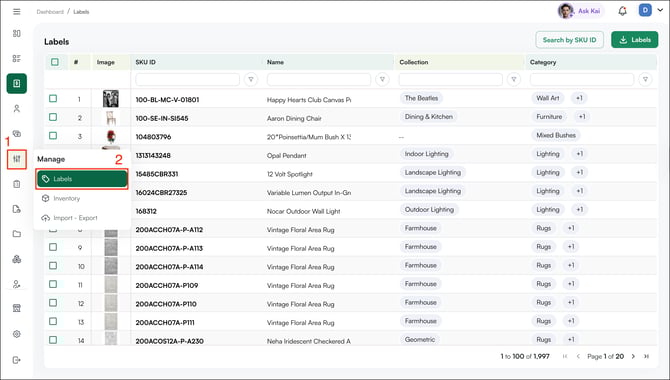
To Get There: Manage > Labels
Table of Contents
Before You Begin
- You must have Admins access in WizOrder
- The Labels feature must be enabled for your account, if you do not see Labels under Manage, contact your Customer Success Manager to have it turned on
- Label content and formatting are managed by the WizCommerce team — contact your Customer Success Manager to request changes (see Section E)
A. What Are Product Labels
Product labels are formatted, downloadable documents that contain key product information. They are primarily used by your retail customers after they purchase from you.
Common use cases:
- Retail shelf display: Retailers print and place labels on store shelves with product name, SKU, and retail price
- Point-of-sale system upload: Retailers import product data from labels into their POS system for inventory tracking
- Internal warehouse tracking: Buyers tag incoming shipments for warehouse organisation
- Website product listing: Retailers download product information to list products on their own e-commerce site
Label content can include:
- Product name and SKU
- Price (wholesale or retail, configurable)
- Product description
- Company branding (logo and brand elements)
- Custom attributes (material, dimensions, and so on)
- Barcode (UPC)
B. How Labels Differ from Tear Sheets and Catalogs
WizCommerce offers multiple product documentation formats. Here is how they compare:
| Labels | Tear Sheets | Catalogs | |
|---|---|---|---|
| Purpose | Shelf display, POS import | Detailed product spec | Multi-product showcase |
| Format | Compact, label-sized | Full-page PDF | Multi-page PDF |
| Content | Name, SKU, price, barcode | Image, description, specs | Multiple products per page |
| Primary user | Retail buyer (for store use) | Sales rep or buyer | Sales rep or buyer |
| Typical use | In-store display | Customer presentation | Trade shows, marketing |
| Products per page |
Multiple (label sheet) |
1 per page | 1, 2, 4, or 8 per page |
C. Downloading Product Labels
- Go to Manage → Labels from the left navigation panel.
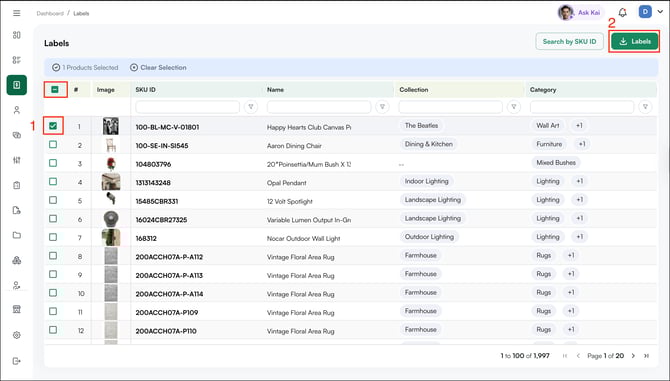
- Select the products you want to download labels for:
- To select products individually: Tick the checkbox next to each product.
- To select all products at once: Tick the checkbox at the top of the column to select all products on the page.
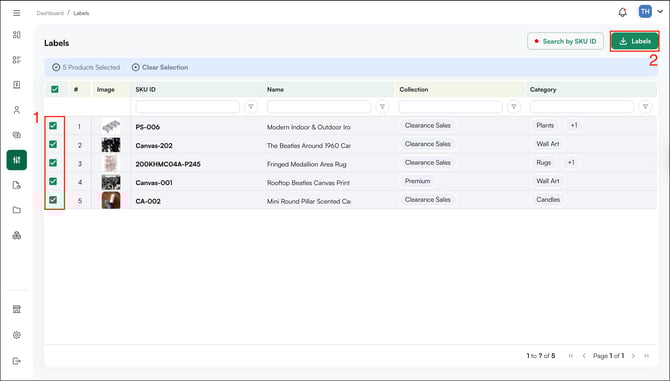
- Once your selection is complete, tap the green Labels button in the top right corner.
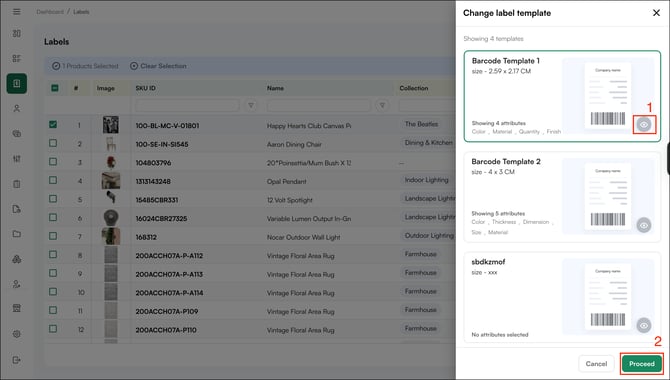
- Select a template from the available options. To preview a template before downloading, click the eye icon. Once you are happy with your selection, click Proceed. Your labels download as a formatted PDF.
- Here is an example of how your downloaded label will appear when printed.
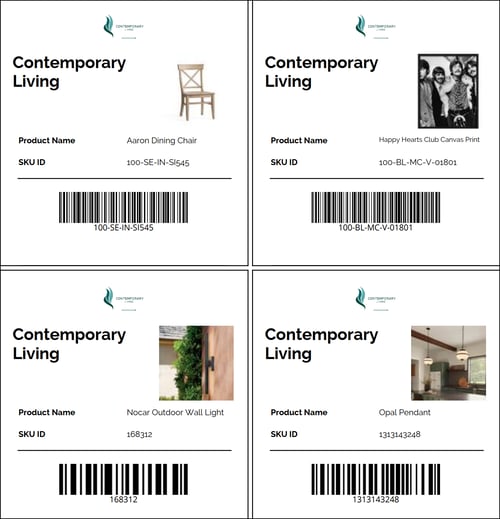
Note: If you do not see Labels under Manage, the feature may not yet be enabled for your account. Contact your Customer Success Manager to have it turned on.
D. Download Multiple Product Labels at Once
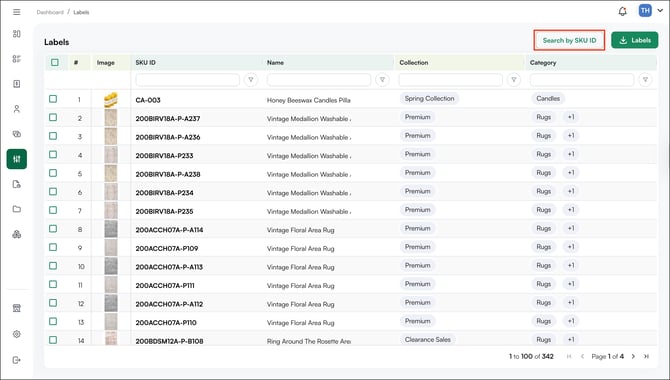
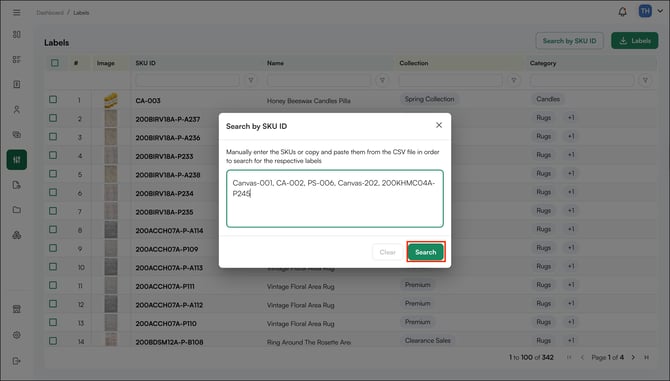
If you have a list of SKU IDs, you can use the Search with SKU ID option to find and select multiple products at once, then download all their labels in a single step.
- Inside the lables tab click Search with SKU ID to open the search panel.
- Enter the SKU IDs of the products you want to download labels for, separated by commas.
- Click Search. The matching products are automatically selected.
- Proceed to download the labels for all selected products.
Note: The label search has a limit of 100 SKUs per search. If your count includes more than 100 products, work through the exported list in batches of up to 100 until all labels are downloaded.
E. Configuring Label Content and Formatting
Label content and formatting are managed by the WizCommerce team. If you would like to make changes, customisation is available; simply reach out to your Customer Success Manager.
You can request changes to the following:
- Fields included on the label: Product Name, SKU, Price (wholesale or retail), Description, Barcode or UPC, Company Branding, and Custom Attributes
- Label layout: Number of labels per page, label size, and orientation
Note:
-
To request changes to your label content or formatting, contact your Customer Success Manager or email help@wizcommerce.com.
-
Label content updates automatically when product data changes. If you update a product name or price, the next label download reflects the change without any additional configuration.
FAQs
1. Can I download labels for products across different categories at the same time?
A. Yes. You can select any combination of products from the Labels page regardless of category and download all their labels in a single step. Use the Search with SKU ID option if you have a specific list of products ready.
2. Can I preview a label template before downloading?
A. Yes. Click the eye icon next to any template in the selection step to preview how the label will look before clicking Proceed.
3. Who do I contact if the label content is incorrect or needs to be updated?
A. Label content and formatting are managed by the WizCommerce team. Reach out to your Customer Success Manager or contact our Support Team to request changes.
Not finding what you need? Browse the WizCommerce Help Center, reach out to your Customer Success Manager, or contact our Support Team.