
In-person visit logs capture every customer interaction across mobile and web, so your team stays aligned and the customer activity timeline stays current. Log a visit from the customer profile, the CRM dashboard, or the mobile app, whichever fits your workflow.
Platform: WizOrder | For: Sales Reps and Admin
Table of Contents
| Sections | Topics |
| A | Log an In-Person Visit |
| B | Manage In- Persons Visits |
| C | FAQs |
Before You Begin
- You must have access to the Customers page or the CRM dashboard in WizOrder.
- The customer you are logging a visit for must already exist in the system.
- On mobile, confirm you are using the latest version of the WizOrder app.
A. Log an In-Person Visit
From Customer profile (Mobile App):
- Click on Customers in the bottom navigation bar
- Find the customer you want to create a task for (e.g., Dunder Mifflin)
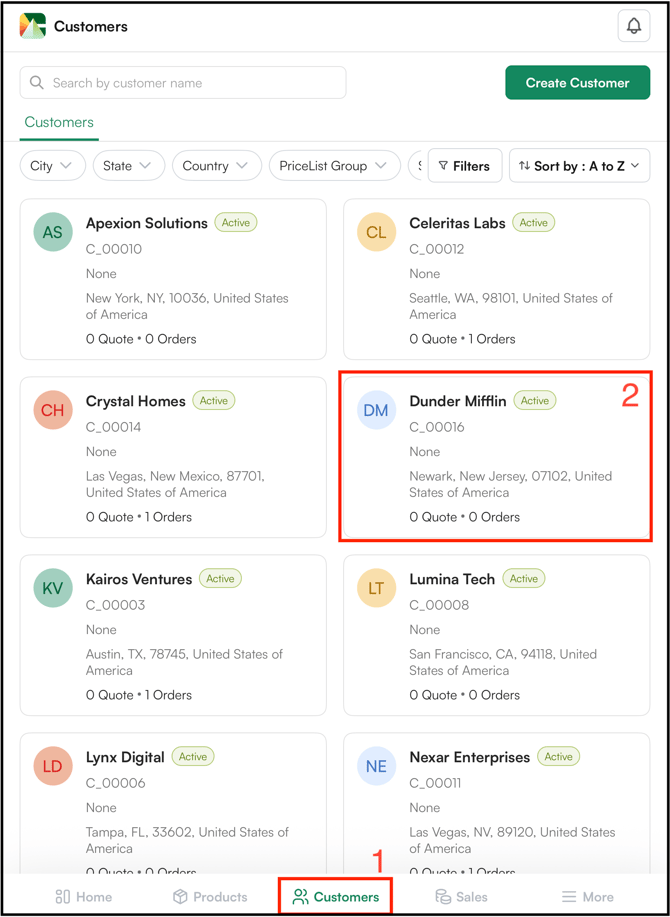
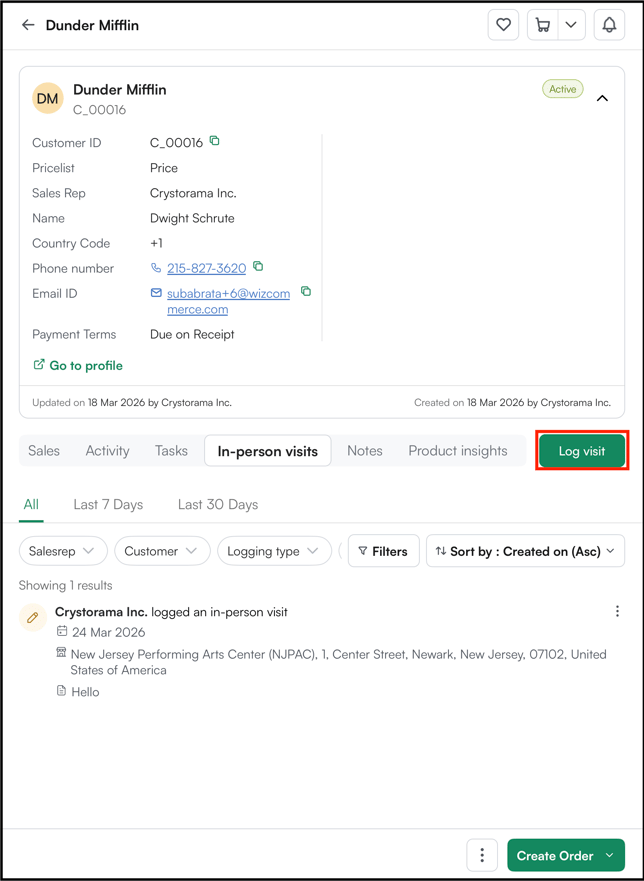
- On the customer detail page, click Log visit.
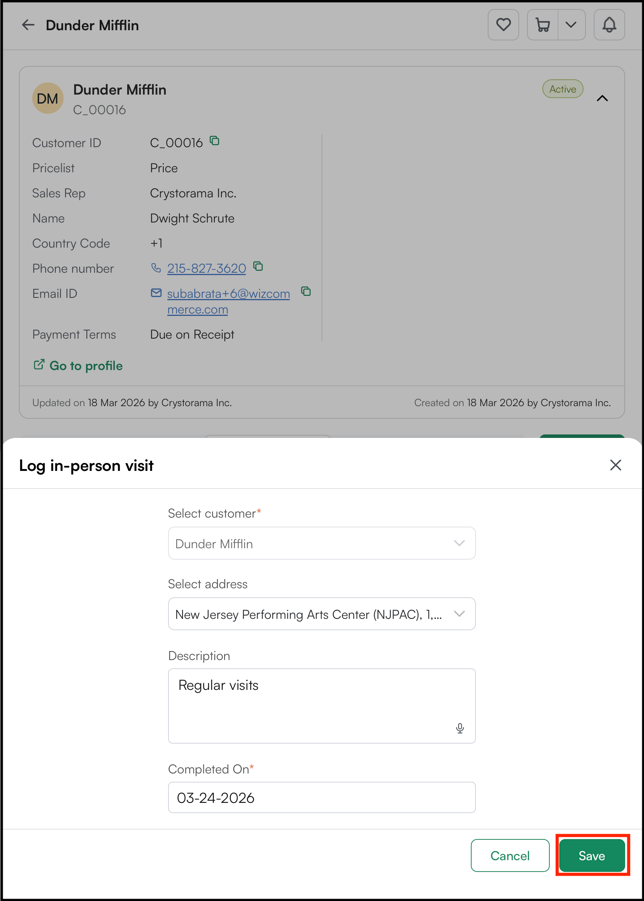
- Enter the Address, Description, and due date, then click Save.
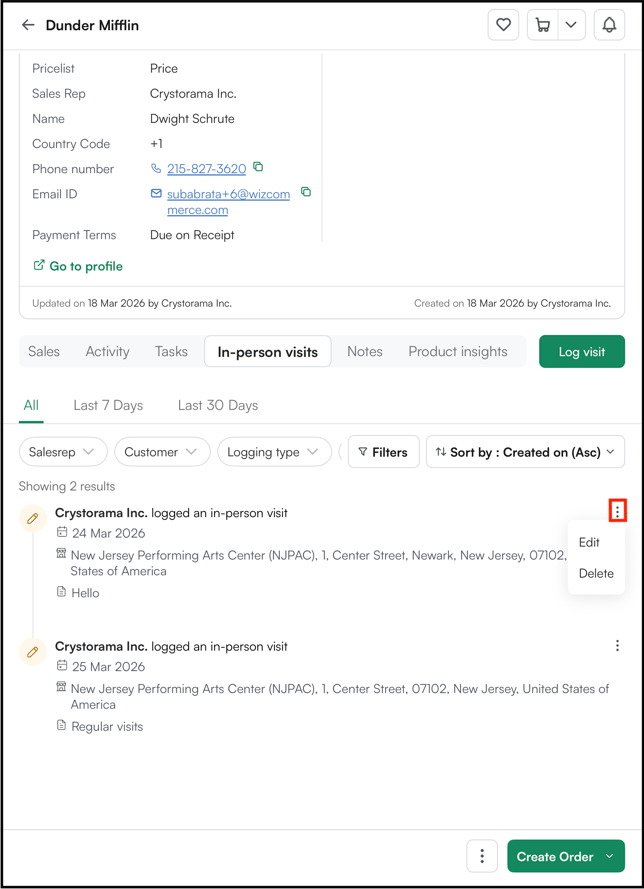
- The visit log will be saved and visible on the customer's profile. Click on the three-dot menu to edit or delete, if needed.
From a Customer profile (on WebPortal):
- From the main navigation, click Customers and open a customer profile.
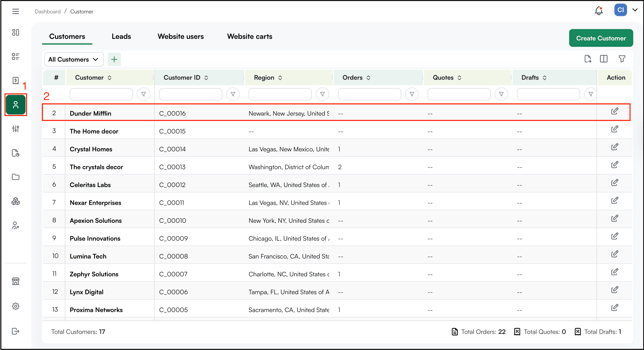
- Click In Person Visit from the tab row at the top of the profile. Then click Log Visit.
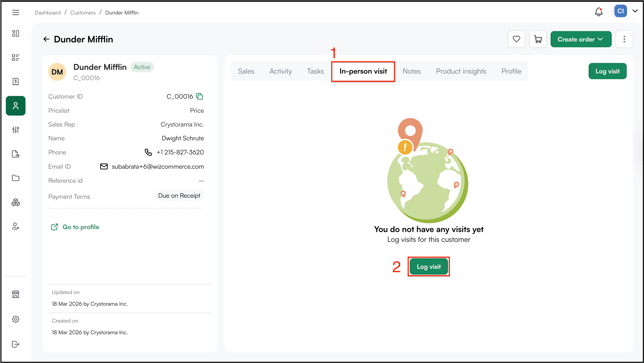
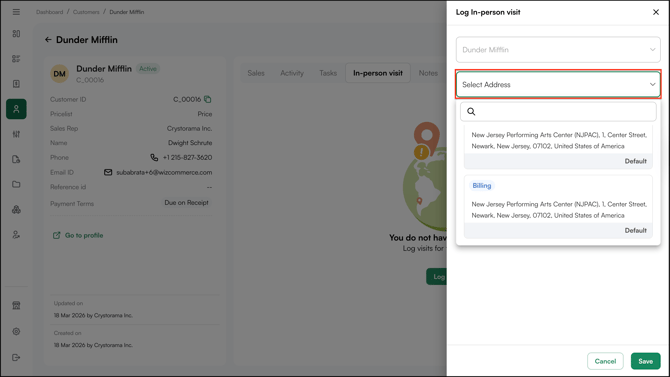
- Under Select Address, choose the address that applies to the visit.
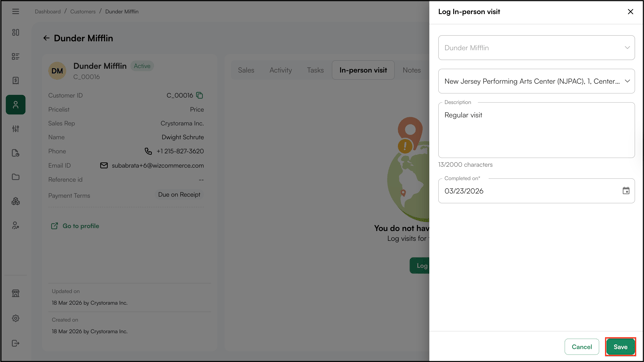
- Enter a brief description of the visit in the Description field.
- Set the visit date using the Date field.
- Click Save.
From the CRM dashboard (WebpPortal):
- From the main navigation, tap CRM.
- Click Log Visit.
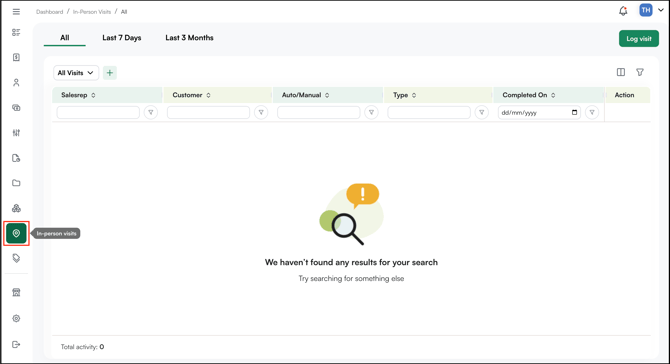
- Search for and select the customer the visit is being logged for.
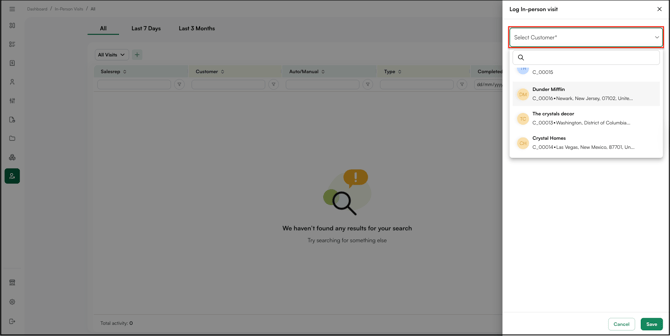
- Under Select Address, choose the customer address that applies to the visit.
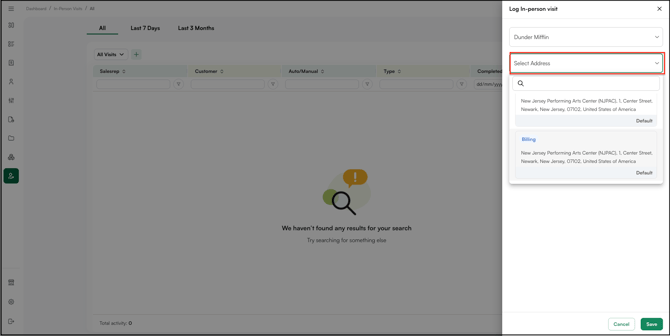
- Enter a description of the visit in the Description field.
- Set the date of the visit using the Date field.
- Click Save.
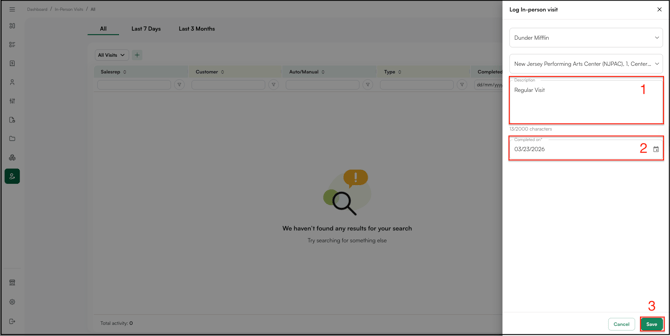
- The visit is added to the customer's activity timeline immediately and appears in the CRM dashboard.
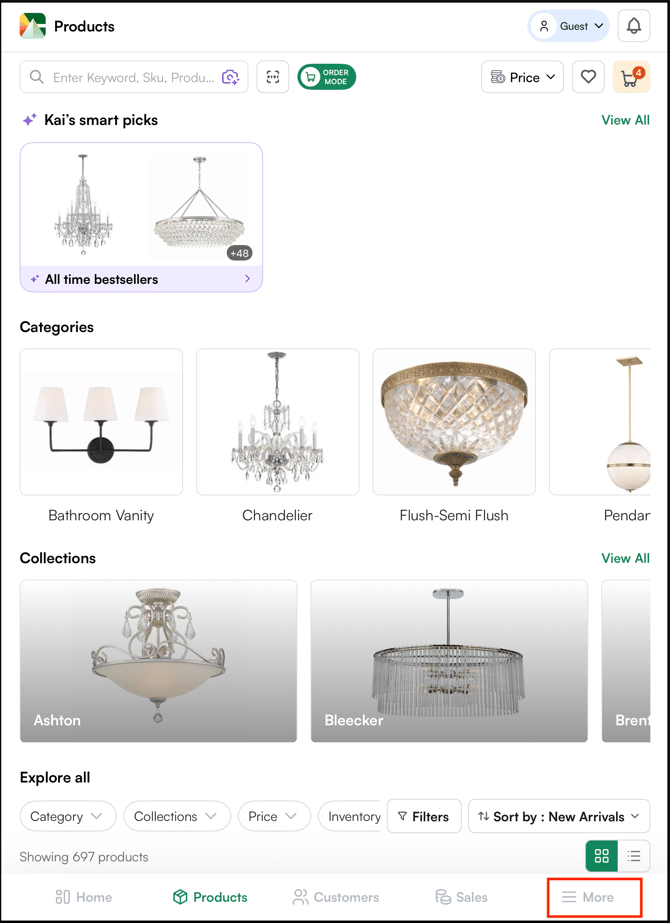
From the Mobile App More Menu
- Click More in the bottom navigation bar.
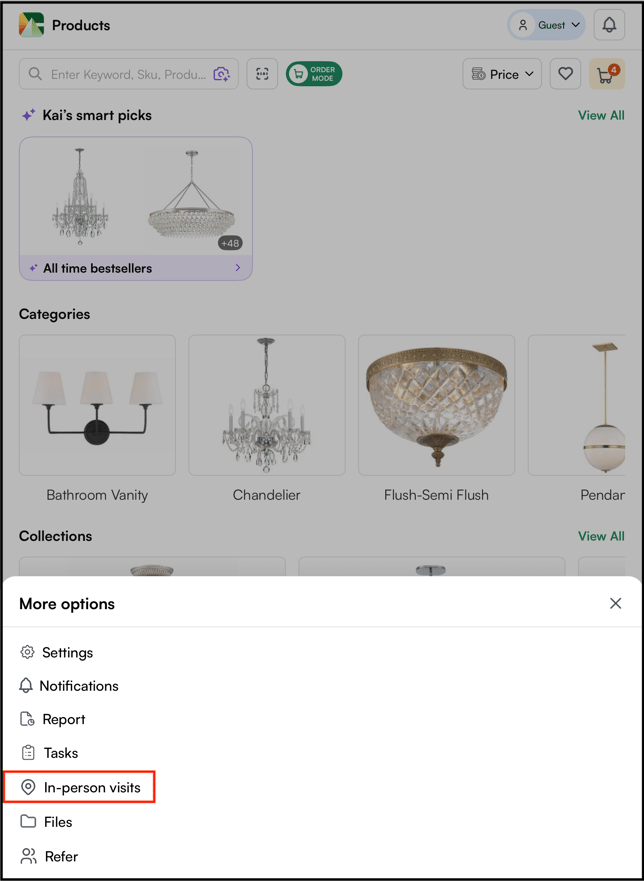
- From the More options menu, click In-person visits.
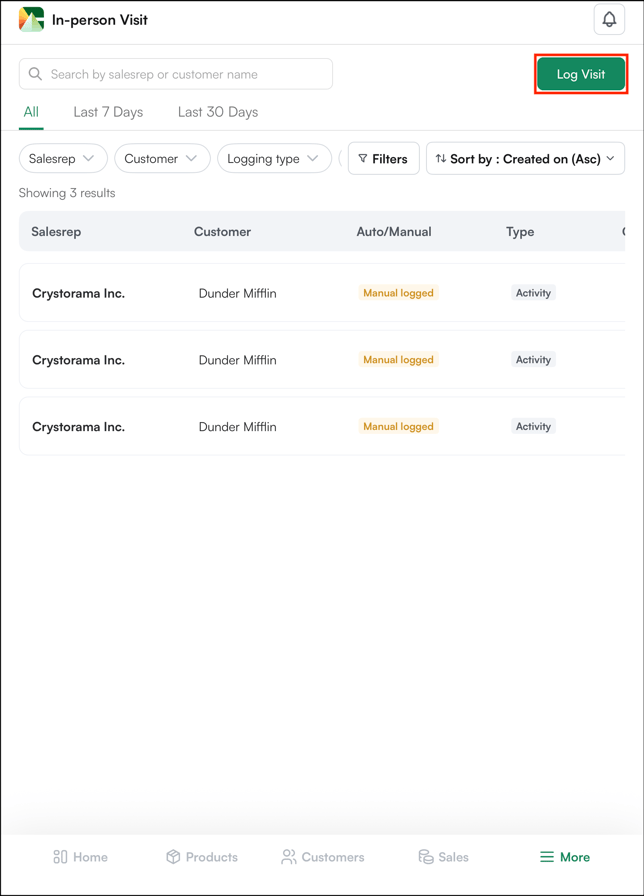
- On the In-person Visit page, tap Log Visit in the top right corner.
- In the Log in-person visit form, fill in the following fields:
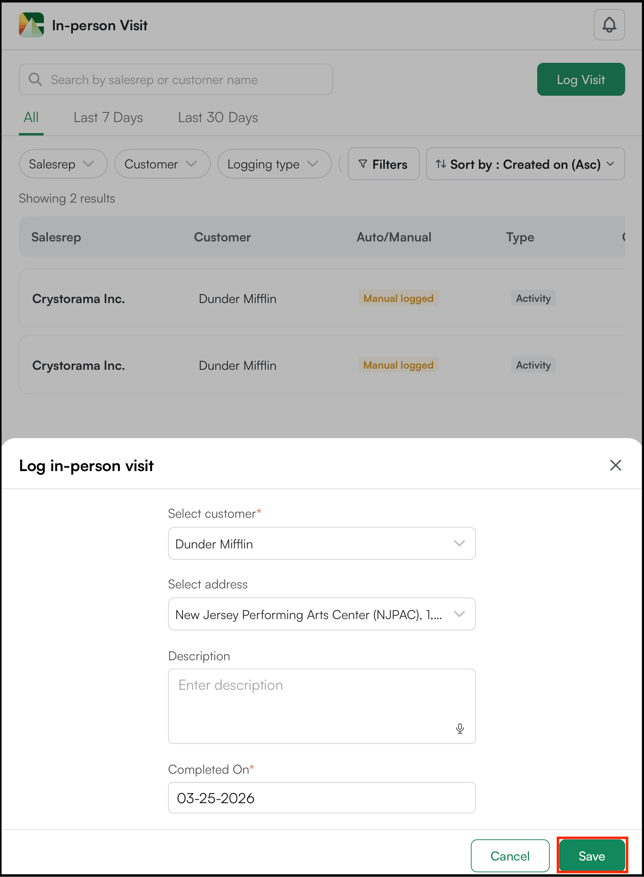
- Select customer: Search for and select the customer
- Description: Enter a brief description of the visit
- Completed On: Set the date of the visit
- Tap Save to log the visit.
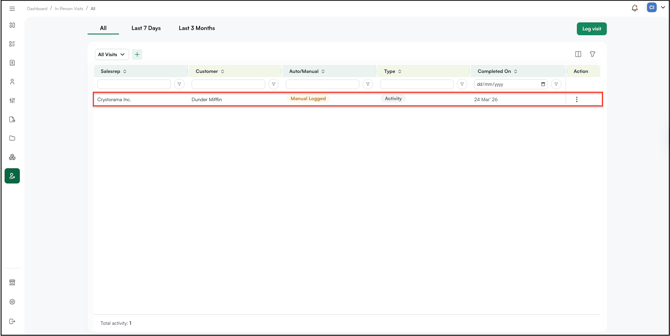
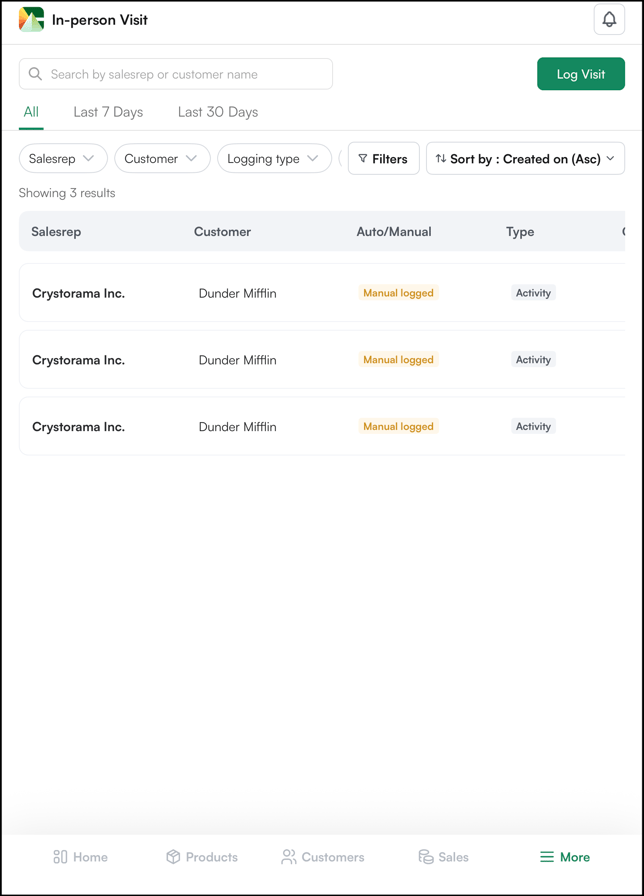
- Once saved, the visit appears in the In-person Visit list and can be filtered by Salesrep, Customer, Logging type, and date range.
B. Manage In- Persons Visits
Once a visit is logged, it appears in the In-person Visits list and on the customer's activity timeline. From either location, you can filter visits by sales rep, customer, logging type, and date range, and manage individual logs using the three-dot menu to edit or delete.
From Customer's Activity Timeline or In-person visit
- Open the customer profile and tap the Activity tab. The activity timeline displays a summary of all tasks, logged visits, and notes. Tap the three-dot menu on a visit entry to edit or delete it.
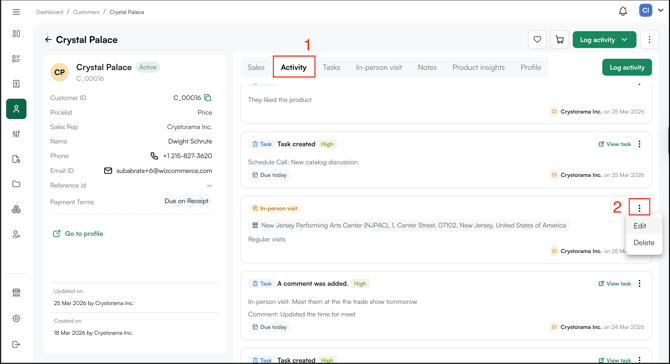
- Click Edit to modify the address, description, or completed date of the visit, then click Save to apply the changes.
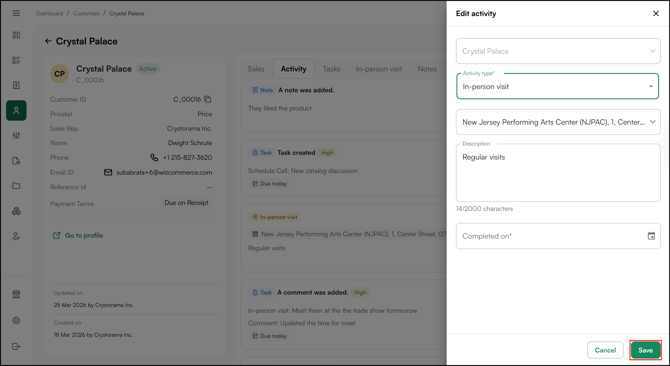
Visits can also be edited or deleted directly from the In-person visits tab on the customer profile.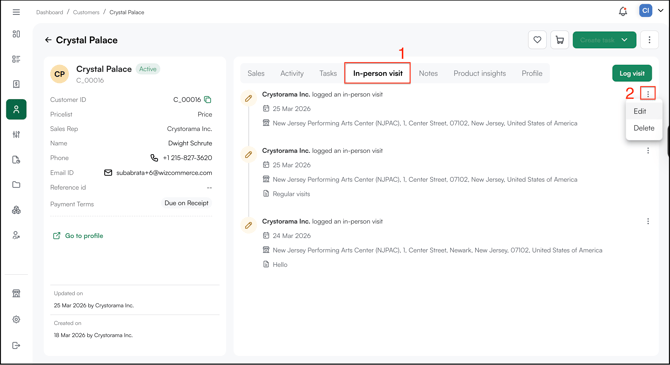
FAQs
1. Can I log a visit after it has already happened, or does it need to be in real time?
A: Yes, you can log it after the fact, just use the Date or "Completed On" field to set the actual date of the visit.
2. Can I edit or delete a visit after saving it?
A: Yes. Use the three-dot menu on any visit entry, from either the customer's activity timeline or the In-person Visits tab, to edit the address, description, or date, or to delete the log entirely.
3. Will the visit be visible to my whole team, or just me?
A: Visit logs appear on the customer's activity timeline, which is visible to your team. This keeps everyone aligned on customer interactions.
4. What's the quickest way to log a visit if I'm already on a customer's profile?
A: On mobile, tap Log Visit directly from the customer detail page. On the web portal, go to the In Person Visit tab at the top of the profile and click Log Visit, no need to go through the CRM dashboard.
Still need help? Reach out to our support team at help@wizcommerce.com.