
Territory Mapping lets you link each sales rep to the zip codes they cover, so the right rep is automatically notified whenever a new customer from their area is added, most commonly when a visitor's badge is scanned at a trade show.
Platform: WizOrder (web portal) | Who is this for: Admins
To Get There: Manage > Import/Export > Territory Mapping
Table of Contents
| Sections | Topics |
|---|---|
| A | What Territory Mapping Does |
| B | Set Up Territory Mapping |
| C | How Notifications Work |
| D | Limitations of Territory Mapping |
| E | FAQs |
Before You Begin
- You should have Admin access. Territory Mapping lives inside Import/Export, which is available on the web portal to admins only. If you still don't see it, reach out to help@wizcommerce.com for access.
- Have your rep list ready, including each rep's login email and the zip codes (or zip code ranges) they cover.
- If this is your first time using Import/Export, review the Instructions and Sample sheets in the exported file before making changes.
- Do not rename the Data Sheet tab, change column headers, or edit the System ID column, doing so will invalidate the upload.
A. What Territory Mapping Does
Territory Mapping connects a sales rep to the zip codes they are responsible for. Once set up, WizCommerce can automatically notify the assigned rep when a new customer in one of their zip codes is created, for example, when a buyer's badge is scanned at a trade show.
Without a mapping, you can still notify a rep manually at the point of scanning. Territory Mapping simply automates that step so the correct rep is alerted without anyone having to look up who owns the area.
B. Set Up Territory Mapping
Step 1: Open Territory Mapping
- Click the Manage button in the left sidebar of WizOrder and open Import/Export.
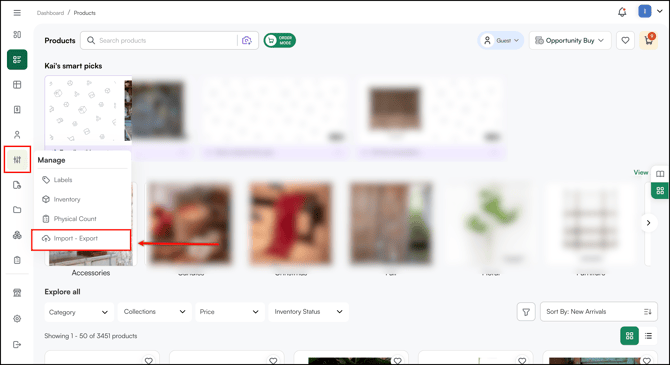
- Select Territory Mapping from the available modules.
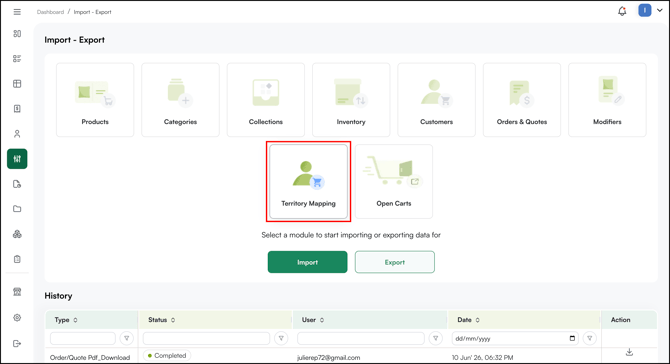
Step 2: Download the Sheet
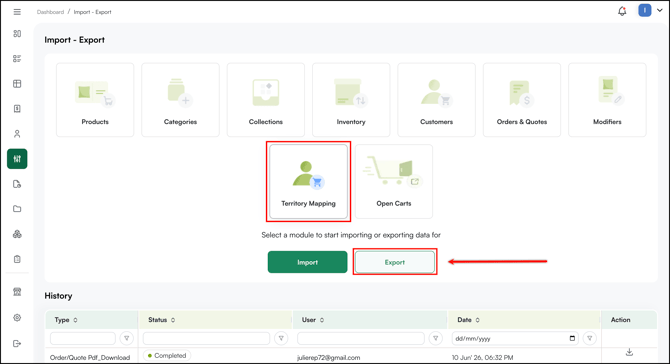
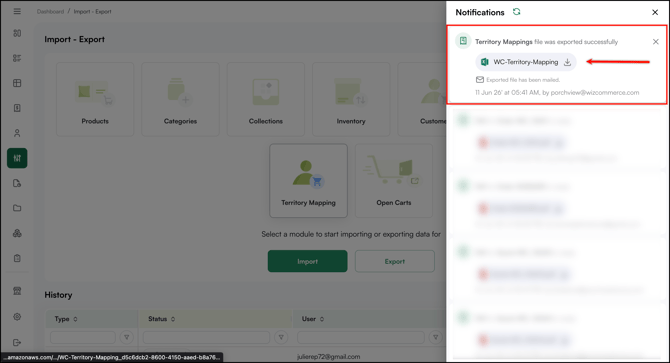
- Click Export to download the Territory Mapping sheet.
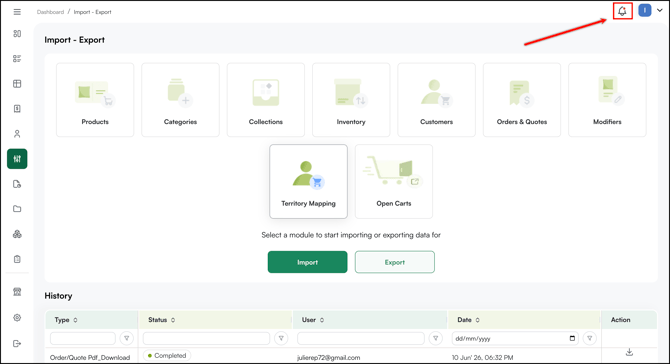
- Click the notification bar to download the sheet.
- Open the downloaded file using Google Sheet or MS Excel .
Step 3: Fill in the Sheet
Open the Data Sheet in Excel and enter the following for each sales rep: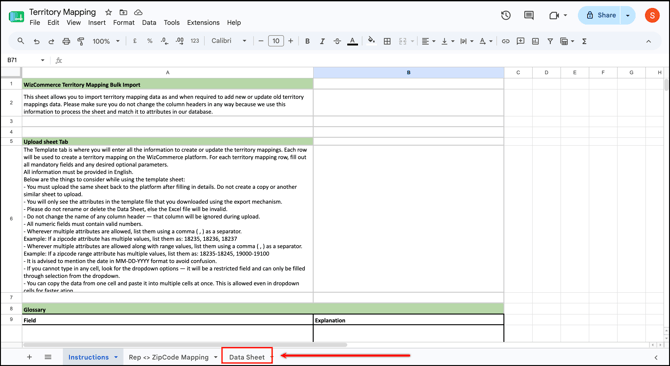
- Sales rep name: The rep's WizCommerce name.
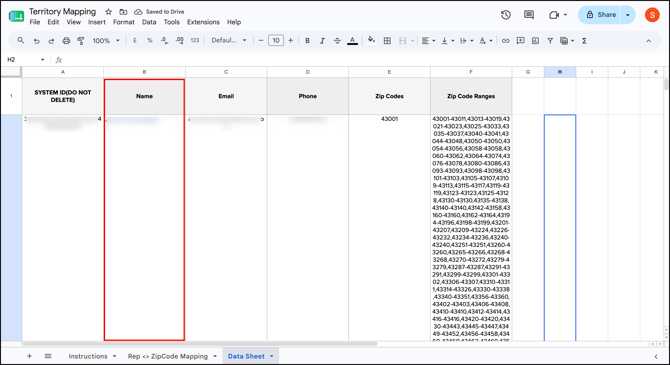
- Sales rep email: The rep's WizCommerce login email
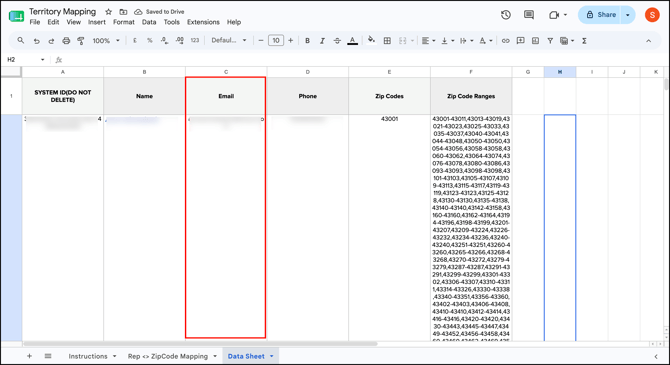
- Phone number: The number where the rep should receive notifications. Enter the country code followed by the 10-digit number, with no spaces, dashes, or brackets (for example, +14155551234).
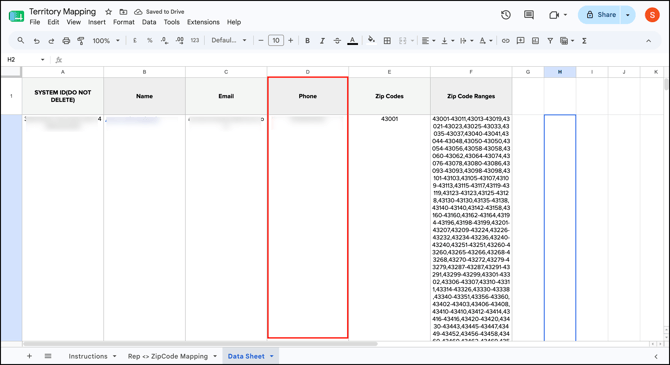
- Zip codes: The zip code(s) the rep covers.
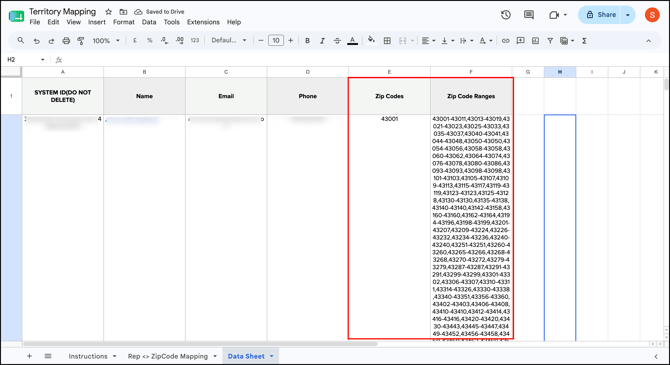
When entering zip codes:
- For a single zip code, enter it directly.
- For several zip codes, separate them with commas.
- For a continuous area, enter the range using a hyphen (for example, 10001-10005). You can combine ranges and single codes, separated by commas (for example, 18235-18245, 19000).
Step 4: Import the Sheet
- Go back to Import/Export and select Territory Mapping.
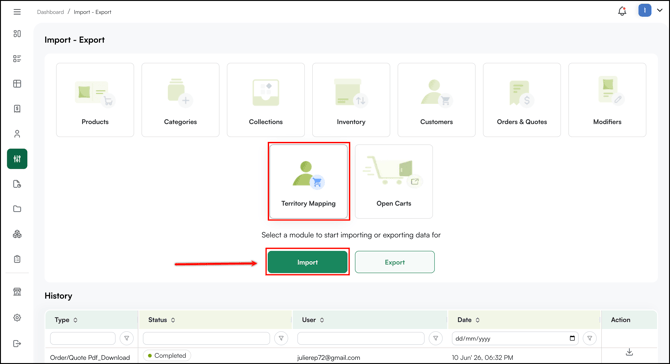
- Click Import and upload your completed sheet.
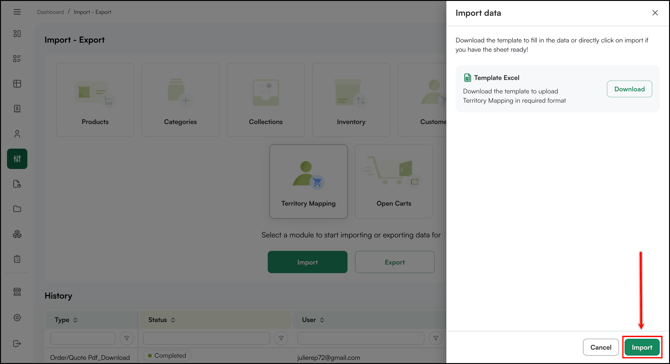
- Check the import progress in the notification bar by clicking the bell icon.
C. How Notifications Work
Once your mapping is imported, WizCommerce uses the customer's zip code to decide who to notify:
- A new customer is created, for example, a visitor's badge is scanned at a trade show.
- The system reads the customer's zip code.
- If that zip code matches a rep in your Territory Mapping sheet, the assigned rep is notified automatically.
- If no mapping matches, no automatic notification is sent, but you can still use the Notify sales rep option at the point of scanning to pick a rep manually.
D. Limitations of Territory Mapping
- US only. Automatic notifications work for US states and zip codes. International addresses (for example, Canada) are not supported automatically and need to be handled manually.
- Format. Zip codes must be entered as ranges or comma-separated values in the sheet.
- Phone numbers must include the country code and contain no spaces, dashes, or brackets.
- Multiple phone numbers can be mapped to a single rep as comma-separated values.
- Reps receive text notifications automatically; no separate SMS opt-in or consent is required.
FAQs
1. What is Territory Mapping used for?
A. It links sales reps to the zip codes they cover so the right rep is automatically notified when a new customer from their area is added, most often during trade show badge scanning.
2. What information do I need in the sheet?
A. Each rep's login email, phone number, and the zip codes they cover.
3. What if a customer's zip code isn't mapped to anyone?
A. No automatic notification goes out, but you can still notify a rep manually using the Notify sales rep option when the customer is scanned or created.
4. Does Territory Mapping work outside the US?
A. Automatic notifications currently cover US zip codes only. International locations need to be handled manually.
5. After a badge scan, a rep is getting the email but not the text message. Why?
A. Reps get text notifications of fair visitors based on the visitor's zip code. If that zip code isn't mapped to the rep in your Territory Mapping sheet, the rep won't get a text. Send us the territory zip code ranges and we will configure (map) those, so the reps start receiving the text messages.
Still need help? Reach out to our support team at help@wizcommerce.com.