
WizCommerce gives you multiple ways to organize your product lists: basic sorting (e.g., A-Z, Z-A, SKU ascending, price high-to-low) and custom sorting orders that match your workflow. This helps you and your customers find products in the order that makes the most sense for your business.
Platform: WizOrder & WizShop | Who is this for: Sales Reps & Admins
To Get There: Products > Sort
Table of Contents
| Section | Topics |
| A | Sort Your Product List (A-Z, Price, etc.) |
| B | Set a Custom Sorting by Import/Export |
| C | FAQs |
Before You Begin
- You must have access to WizOrder or WizShop
- To set a custom sort order using Import/Export, you must have Admin access in WizOrder
- Custom sorting uses the Priority field in the product import/export file — lower numbers appear first
A. Sort Your Product List (A-Z, Price, etc.)
Use the sort menu to quickly arrange products in a logical order. The sorting menu is located just beside the filters panel on your product listing page.
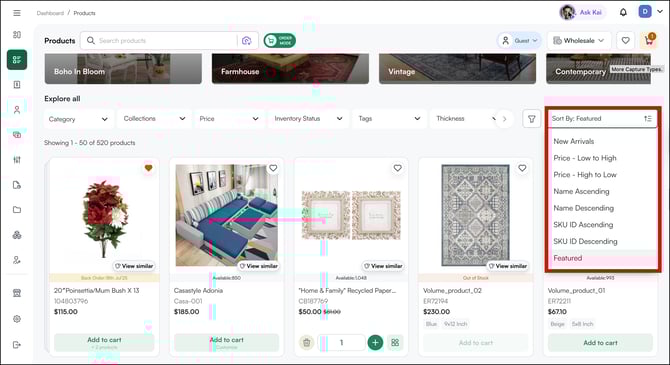
How Sorting works for the Sales Rep (WizOrder):
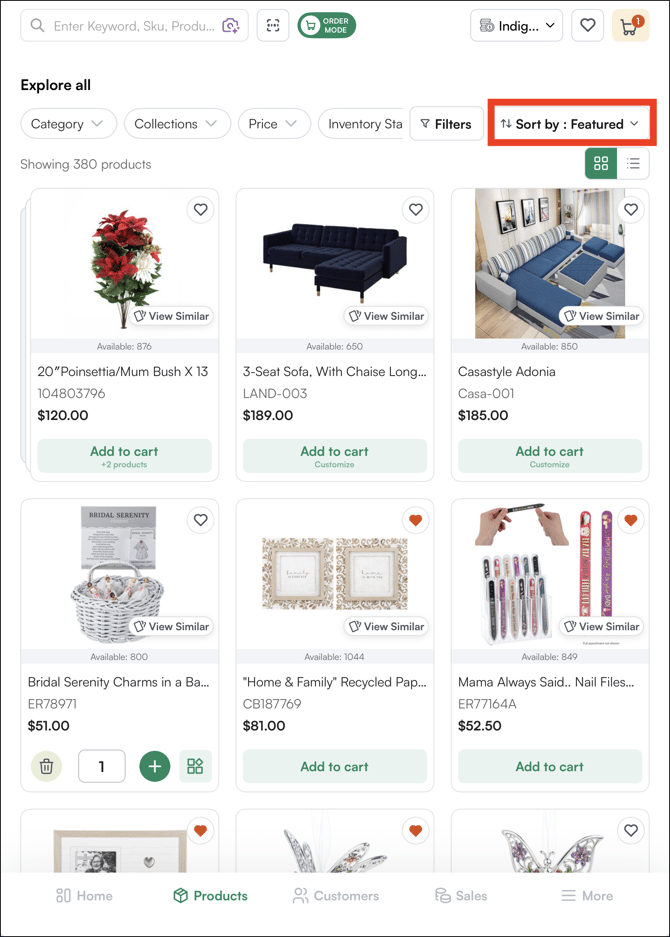
- Click the Sort dropdown on the product list page
-
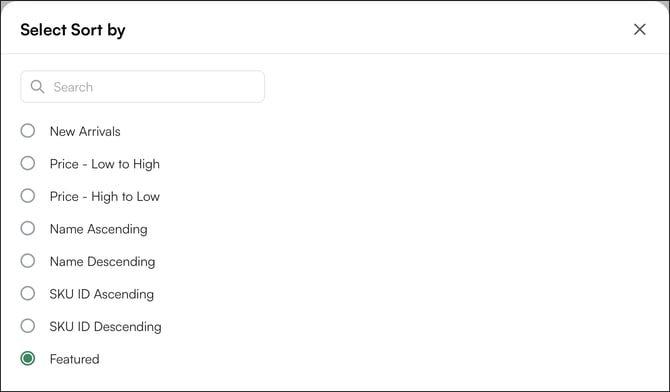
Select your preferred sort order:
-
Name Ascending: Products sorted by name, A to Z.
-
Name Descending: Products sorted by name, Z to A.
-
Price: Low to High: Sorts items by price from lowest to highest.
-
Price: High to Low: Sorts by price from highest to lowest.
-
Newest First: Shows recently added products first.
-
SKU ID Ascending: Sorts products by their SKU code from lowest to highest.
-
SKU ID Descending: Sorts products by their SKU code from highest to lowest.
-
Once selected, the product list rearranges immediately.
Note: For most accounts, products are sorted by Relevance by default. If you'd like to change your default sort order, reach out to our support team and we'll update it for you.
How Sorting works for the Online Store Front (WizShop) :
Product sorting in WizShop follows the same logic as the Sales Rep App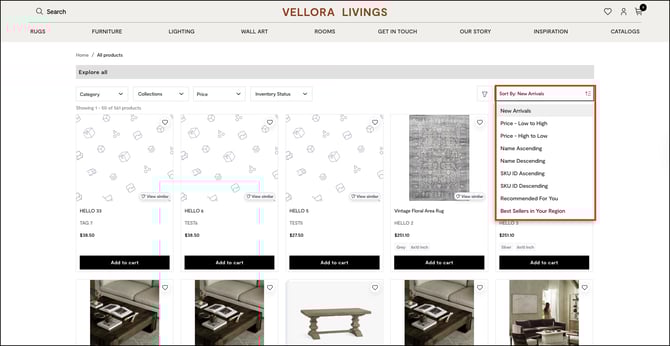
When to use it:
-
A customer asks to see items from cheapest to most expensive.
-
You're looking for a specific product and know its name (use A-Z).
-
You want to highlight New Arrivals.
B. Set a Custom Sorting by Import/Export
Create a specific product order using Import/Export. This lets you decide exactly which products appear first, second, third, and so on, perfect for featuring bestsellers, seasonal items, or promotions at the top of your list.
Step-by-Step Instruction for Custom Sorting
-
Access Import/Export:
-
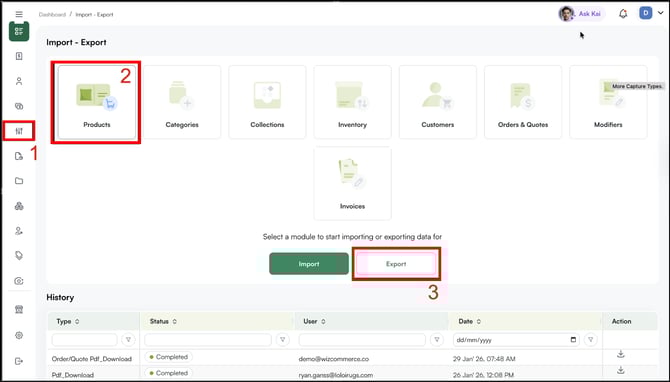
Navigate to the Manage button in the left sidebar of WizOrder, then click Import/Export.
-
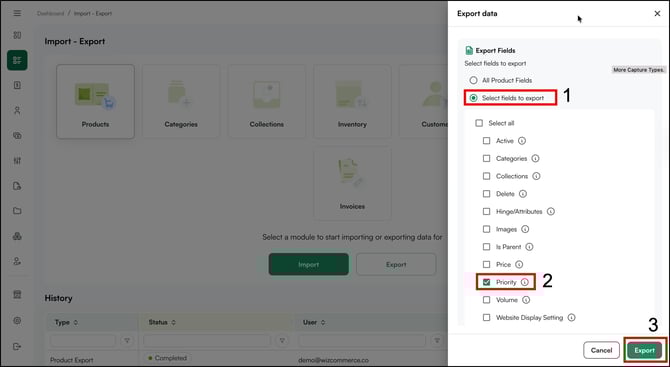
Click on the Product, then export only the fields that you want to update/change. For this article, we will update the Priority field. (Priority field is used when you want to rearrange the order of products on your product listing page)
-
Tip: Click on the 'i' beside each field to know what it means.
2. Review the Exported File and Make Edits
-
-
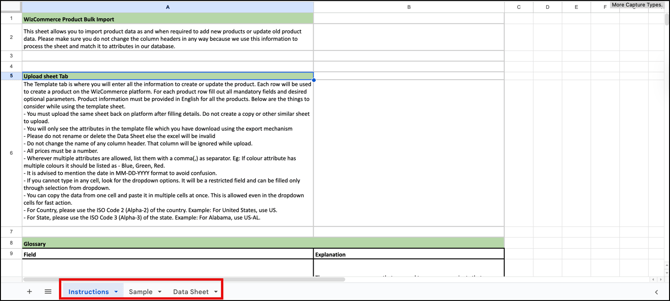
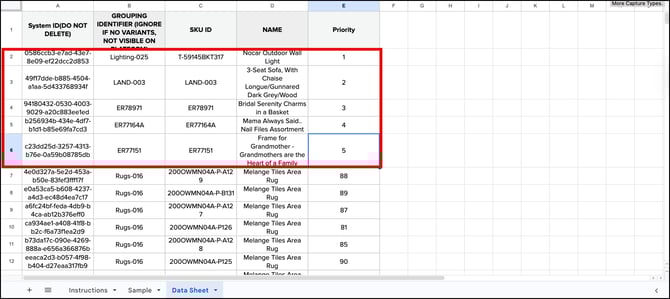
When you open the Excel file, you will find three pages: Instructions, Sample, and Data Sheet.
If you are performing Import/Export for the first time, we recommend reading the Instructions page and reviewing the Sample page.
-
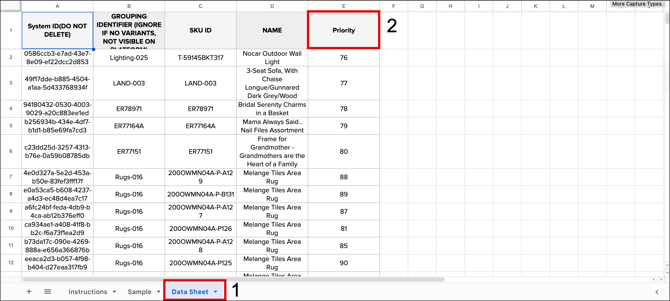
To change the Priority field, navigate to the Priority column on the Data Sheet.
-
Let’s set the priority of the first five SKU IDs in the list to 1, 2, 3, 4, and 5, respectively.
-
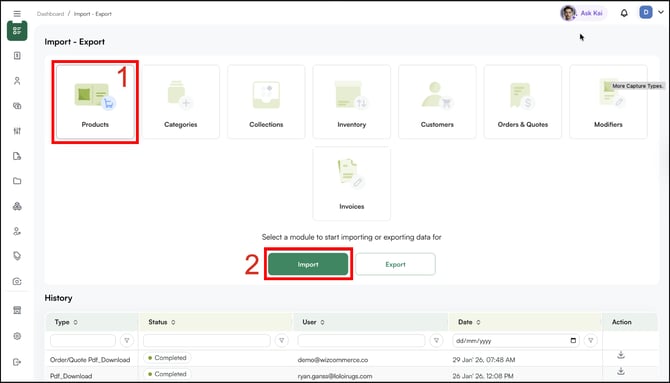
Once you're done updating all desired fields, save the Excel sheet and import it to WizOrder. To import the saved Excel sheet, navigate to Import/Export, select Product, and then Import.
-
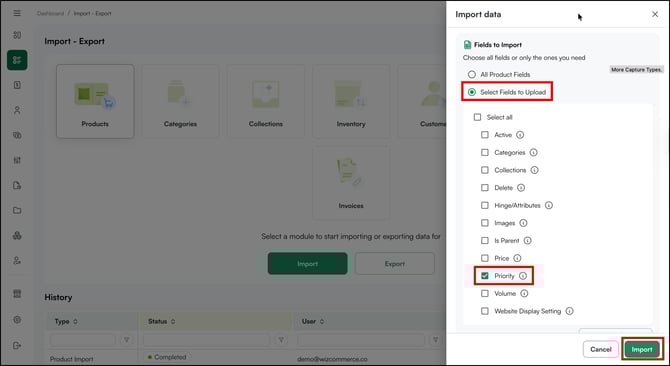
When importing, select only that field you modified, in this case, just the Priority field.
3. Import the Updated File
-
For the final steps, follow the workflow video to complete the import. (Please note that out of all Excel pages, only the Data sheet page needs to be imported.)
-
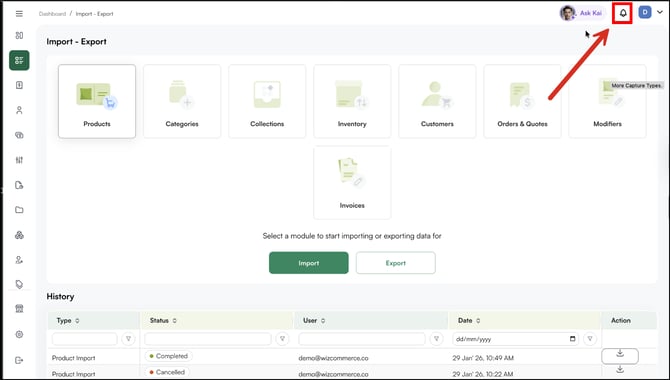
You may check the import progress in the notification bar. To access, click on the bell icon.
-
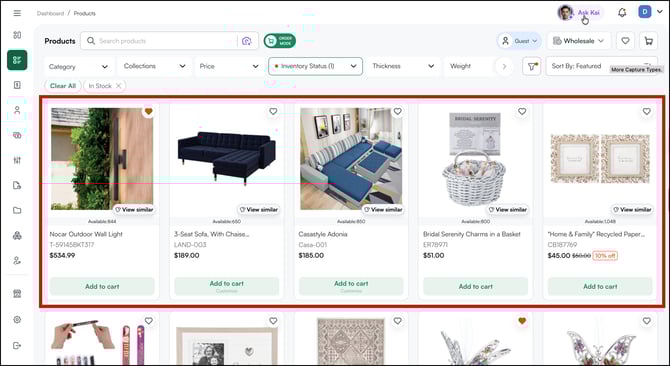
Once the import is successful, all products will appear according to their new assigned priority. The five products whose priority we changed have started appearing at the top of the page.
-
Note:
-
Leaving the Priority field empty in any row automatically sorts the product's position.
-
When assigning a new priority value to a group of products within the same category or collection, the product with the lowest numerical value appears at the top.
-
You want certain products to always appear at the top.
-
You’re running a promotion and want featured items listed first.
-
Your team has a preferred viewing order that doesn’t match A-Z or price sorting.
FAQs
1. Does sorting on WizOrder change how products appear on WizShop for buyers?
A. No. Sorting in WizOrder and WizShop are independent of each other. Changes you make to the sort order in WizOrder do not affect how products appear on WizShop, and vice versa.
2. Can I set different sort orders for different categories or collections?
A. Yes. When assigning priority values, the sort order applies within the category or collection the product belongs to. Products with lower priority numbers appear first within that group.
3. What happens to products I did not assign a priority number to?
A. Products with no priority value assigned are sorted automatically by the system's default order. Only the products you assigned numbers to will appear in the position you specified.
Still need help? Reach out to our support team at help@wizcommerce.com.