---
title: View and Manage Orders
description: Everything you need to manage orders in WizOrder — from understanding statuses and viewing order details to editing, cancelling, and repeating past orders.
---
[Skip to content](https://knowledge.wizcommerce.com/view-and-manage-orders#main-content)
[](https://wizcommerce.com/)
Open main navigation
Close main navigation
- [Contact us](https://mail.google.com/mail/?view=cm&fs=1&to=help@wizcommerce.com)
[Contact us](https://mail.google.com/mail/?view=cm&fs=1&to=help@wizcommerce.com)
Hi, how can we help?
- There are no suggestions because the search field is empty.
1. [WizCommerce Help Centre](https://knowledge.wizcommerce.com/)
2. [Product Selection & Ordering](https://knowledge.wizcommerce.com/product-selection-ordering)
3. [Orders](https://knowledge.wizcommerce.com/product-selection-ordering#orders)
October 13, 2026
# View and Manage Orders
The Orders section in WizOrder provides a full view of all confirmed, draft, and in-progress orders. This article covers how to search, filter, and take action on orders — including viewing details, tracking fulfilment status, and making edits where permitted.
**Platform:** WizOrder | **Who is this for:** Sales Reps & Admins
---
#### Table of Contents
| **Section** | **Topics** |
| --- | --- |
| **A** | [Understand Order Statuses](https://knowledge.wizcommerce.com/view-and-manage-orders#section1) |
| **B** | [View Order Details](https://knowledge.wizcommerce.com/view-and-manage-orders#section2) |
| **C** | [Filter and Sort Orders](https://knowledge.wizcommerce.com/view-and-manage-orders#section3) |
| **D** | [Save a Custom View](https://knowledge.wizcommerce.com/view-and-manage-orders#section4) |
| **E** | [Edit an Order](https://knowledge.wizcommerce.com/view-and-manage-orders#section-e) |
| **F** | [Cancel an Order](https://knowledge.wizcommerce.com/view-and-manage-orders#section_f) |
| **G** | [Repeat an Order](https://knowledge.wizcommerce.com/view-and-manage-orders#Section_g) |
| **H** | [FAQs](https://knowledge.wizcommerce.com/view-and-manage-orders#SECTION_F) |
---
#### Before You Begin
- You must have access to *WizOrder***,** on the mobile app or the web portal
- To edit a confirmed order, your admin must have enabled this permission for your role
- To cancel a confirmed order, your admin must have enabled this permission for your role
- Draft orders can be edited and cancelled freely
---
### A. Understand Order Statuses
Every order in the Sales Rep App progresses through a series of statuses that indicate its current stage in the workflow. Knowing what each status means helps you track orders and take the right action at the right time.
##### **» Order Status**
| Status | Meaning |
| --- | --- |
| **Draft** | The order is saved but not yet submitted. Can be edited freely. |
| **Confirmed** | The order has been submitted and acknowledged. Synced to your ERP. |
| **Cancelled** | The order has been cancelled |
| **Pending Approval** | The order has been submitted and is waiting for an administrator to review and approve it before it is processed. WizShop storefront orders go to Pending Approval by default, unless auto-confirmation is turned on for your account. See **[Can WizShop orders be confirmed automatically?](https://knowledge.wizcommerce.com/wizshop-admin-guide-leads-users-storefront#section-e)** |
##### **» Fulfillment Status**
| Status | Meaning |
| --- | --- |
| **Fulfilled** | All items in the order have been dispatched. |
| **Unfulfilled** | Items are yet to be dispatched. |
| **Partially Fulfilled** | The order has been partially fulfilled based on the logic set by you |
**Note:** Fulfillment statuses are mainly used in integration accounts. WizCommerce provides three fulfillment tags, with the underlying logic set up during implemetation/onboarding.
##### **» Payment Status**
| Payment Status | Definition |
| --- | --- |
| **Overpaid** | The payment received exceeds the total amount due. The difference may need to be refunded or applied as a credit to the customer's account. |
| **Paid** | The full payment has been received and confirmed. No outstanding balance remains. |
| **Partially Paid** | A payment has been received, but it does not cover the full order amount. The remaining balance is still outstanding. |
| **Partially Refunded** | A portion of the payment has been returned to the customer. The remaining amount is not subject to refund. |
| **Pending** | Payment has not yet been received or confirmed. The order is waiting for payment to be processed. |
| **Refunded** | The full payment has been returned to the customer. No outstanding balance remains. |
##### **» Order Tags**
Order tags are optional labels you can use to organize and track orders at a broader level. Unlike system-set order statuses, tags can be applied manually to group orders in a way that makes sense for your team.
| Tag | Meaning |
| --- | --- |
| Open | Order is active and in progress. Typically covers orders in Confirmed or Pending status. |
| Pending | Awaiting some action, this could relate to approval, payment, or fulfillment. |
| Closed | Order is complete or resolved. Typically covers Shipped, Delivered, or Cancelled orders. |
**Note:** Custom order tags are available in ***Organization Settings***. Contact your CSM to learn more.
---
### B. View Order Details
##### **» Understanding the Order Confirmation Page**
Click any *confirmed* order in the *Orders* page to open its detail page. This gives you a complete picture of the order in one place.
**On the order details page, you will find:**
1. **Print and Download icons**: Print or download the order as a PDF or an Excel file.
2. **View Linked Quote**: Opens the original quote this order was created from, if applicable.
3. **Order Tracking Bar**: Shows three statuses at a glance: Payment Status (Payment Pending), Fulfillment Status (Unfulfilled), and Order Tag (Open). The Order Tag has a dropdown to update it.
4. **Customer Details**: Shows the customer name, contact information, billing address, and shipping address side by side.
5. **Pricelist**: Displays which pricelist was applied to this order.
6. **Products**: A line item breakdown of all products in the order, showing SKU, product name, image, price, quantity, and line total.
7. **Order Total**: Displays the cart total, the final order total, and the amount pending payment.
8. **Order Details**: Displays the PO number associated with the order.
9. **Shipping Method**: Shows the shipping carrier selected for this order.
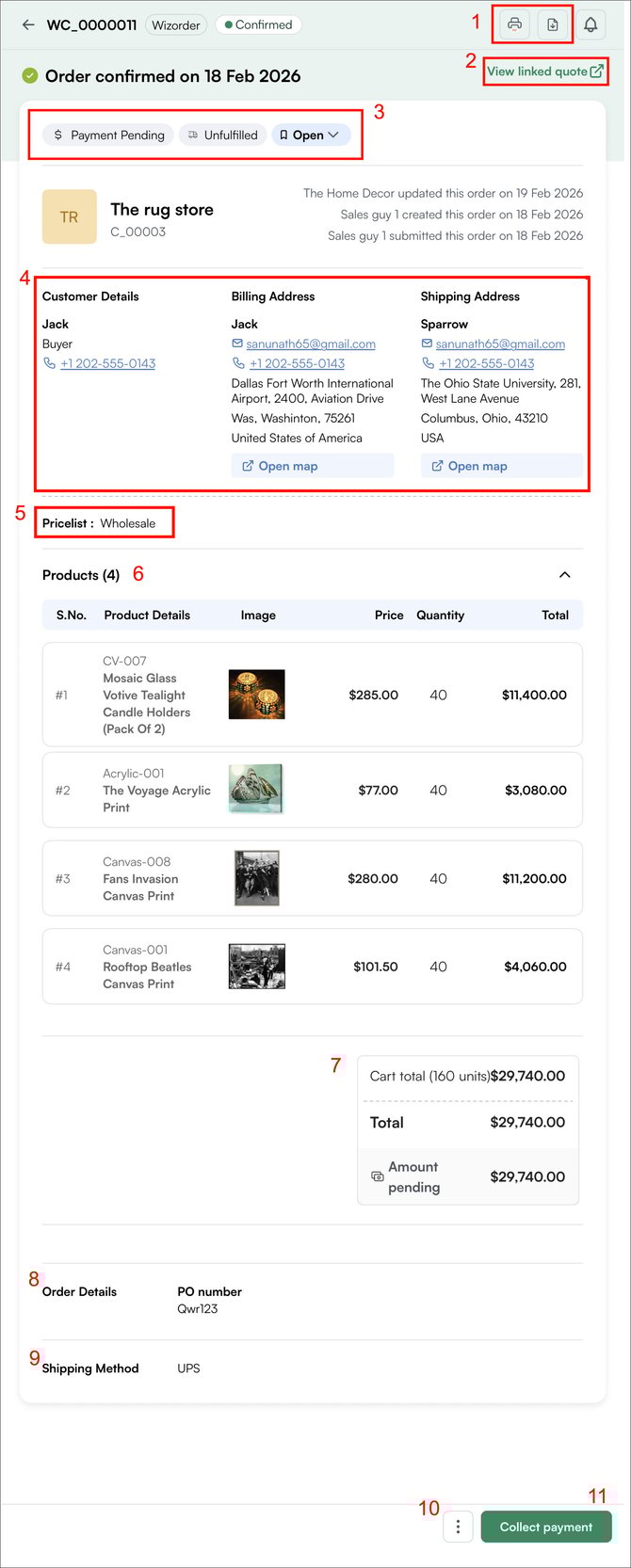
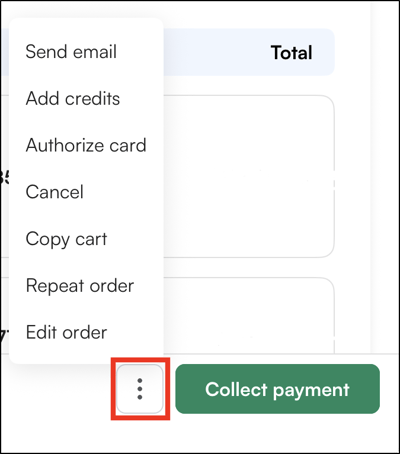
10. **Three-dot menu**: Additional actions such as editing, cancelling, or repeating the order.
- Send Email: Send a copy of the order to the customer or any other recipient via email.
- Add Credits: Apply customer credits toward this order.
- Authorize Card: Authorize a credit card for payment without collecting payment immediately.
- Cancel: Cancel the order. For confirmed orders, this is only available if your admin has granted you permission.
- Copy Cart: Create a duplicate of this order's cart with the same products and quantities.
- Repeat Order: Create a new order pre-filled with the same products, pricing, and customer details from this order.
- Edit Order: Open the order for editing. Available for draft orders freely, and for confirmed orders only if your admin has enabled this permission.
11. **Collect Payment**: Takes you directly to the payment collection flow for this order.
##### **» Viewing Order History**
The *Orders page* contains all orders created using the *Sales Rep App (*WizOrder*)*, available in both the mobile app and the web portal, with slight differences in layout and available columns.
The***mobile app*** shows: Type, Reference ID, Status, Customer, Value, Created On, and Updated On.
The **web portal** shows: Reference ID, Status, Customer ID, Value, Created By, PO Number, Order Value, Created On, and Updated On.
Sales reps can see their own orders or orders across the company, depending on the access settings configured by their admin.
---
### C. Filter and Sort Orders
You can filter and sort orders to narrow your view. The available filters differ between the mobile app and the web portal because each uses a different column layout.
##### **» Filters Available on the mobile**
1. Click the ***Filter*** icon at the top of the *Orders page.*
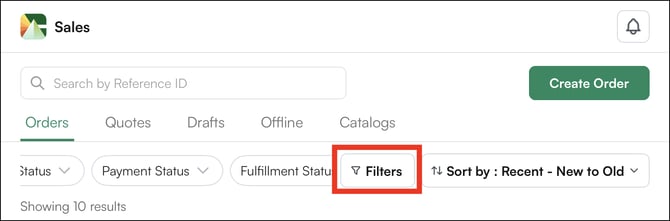
2. Select the filter criteria you want to apply. And click ***Show result*****.**
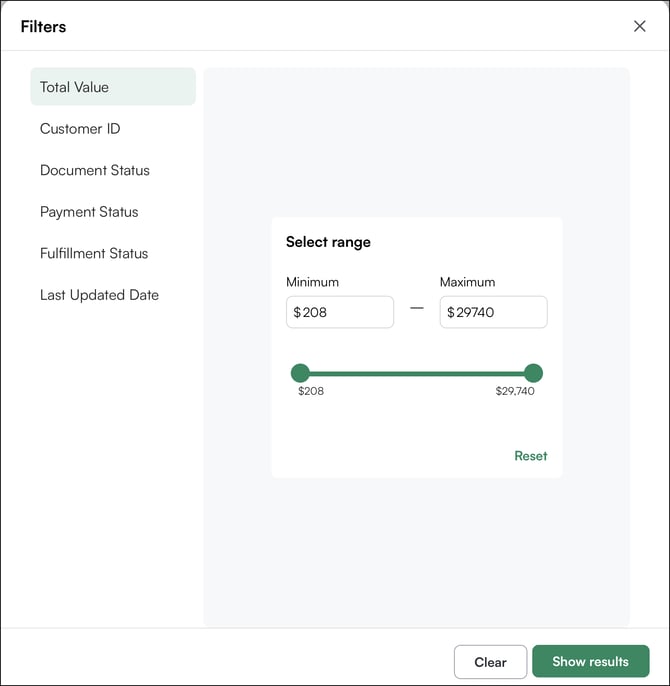
##### **» Filters available on the web portal**
1. Click the ***Filter*** icon at the top of the *Orders page.*
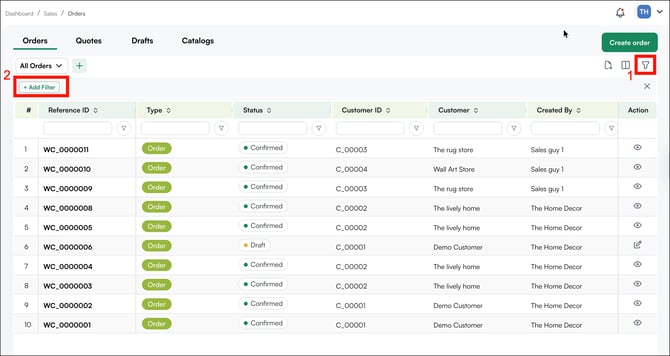
2. Select the filter criteria you want to apply, then click ***Apply***.
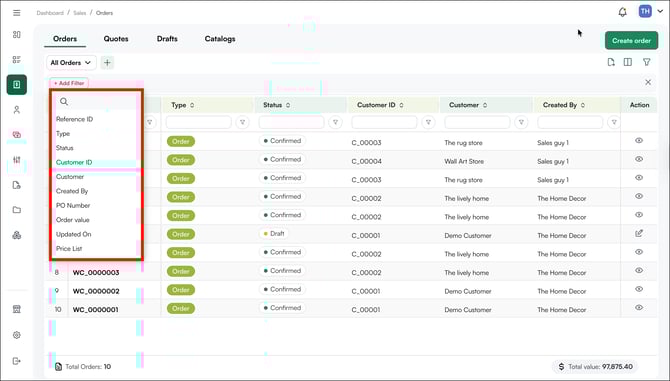
You can also filter by a single column, such as ***Fulfillment Status***, directly from the column header:
1. Click the ***filter icon*** in the column header (for example, **Fulfillment Status**).
2. Uncheck the values you don't want to see. For example, uncheck ***Fulfilled*** to see only Unfulfilled and Partially Fulfilled orders.
3. Click ***Apply***.
**Note:** Filters take effect only after you click **Apply**. Checking or unchecking a box by itself won't change the list.
##### **» Rearrange Orders Columns**
You can rearrange the columns and save the arrangement as a custom view for future use.
1. In the ***Order table***, click the ***+ icon*** to create a new view.
**
2. Enter a meaningful name for your custom view.

3. Open your new custom view and click ***Manage Columns*** in the top-right corner of the ***Order table***.

4. Drag and drop the column headers to arrange them in your preferred order.

5. Click ***Save*** to save your column arrangement.
******
6. Click ***Save*** again on the custom view page.

7. Your custom view is now saved with the rearranged columns and can be used whenever you need it.

##### **» Sorting orders**
1. On the mobile app, use the dedicated Sort By button at the top of the *Orders page
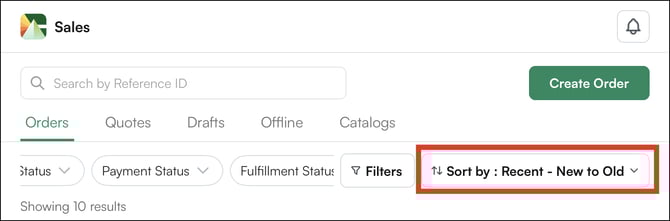*
2. On the web portal, click the arrows in any column header to sort by that column.
Note: To rearrange the columns, click the **rearrange icon**, then drag and drop a column to your preferred position. The changes apply only to the current view. For example, in the image below, the rearranged columns will only be visible in the *All Orders* view.
---
### D. Save a Custom View
The *Sales Rep App (WizOrder)* web portal lets you create and save custom views using filters. Switch between your saved views and the default Orders view to find what you need quickly.
##### **» Creating a Custom View in the Orders Page**
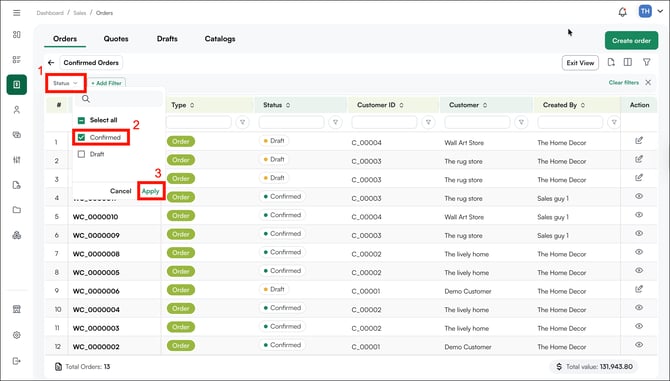
Here's how to set one up. In this example, we'll create a custom view that shows only confirmed orders. In this example, we'll create a custom view that shows only confirmed orders.
1. Click the **+** icon and name your view *Confirmed Orders*.
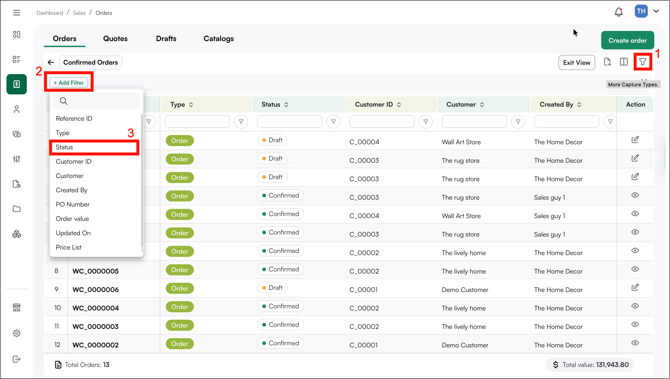
2. Click the filter icon, select *Add* *Filters*, then choose *Status*.
3. Clear all status options except *Confirmed*, then click *Apply.
*
4. Click *Save* to save your view.
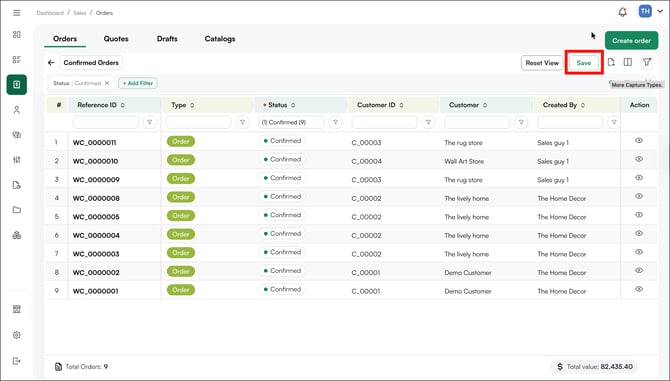
**Tip:** From the dropdown menu in the view header, you can also delete, duplicate, edit, rename, or set any custom view as your default.
---
### E. Edit an Order
The ability to edit or cancel an order depends on its current status. Draft and pending orders offer full flexibility, while confirmed orders are more restricted to maintain ERP accuracy.
As a best practice, make all adjustments while the order is still in draft or quote stage. Once confirmed, treat the order as locked unless editing has been enabled by your administrator.
##### **» Editing a Draft Order**
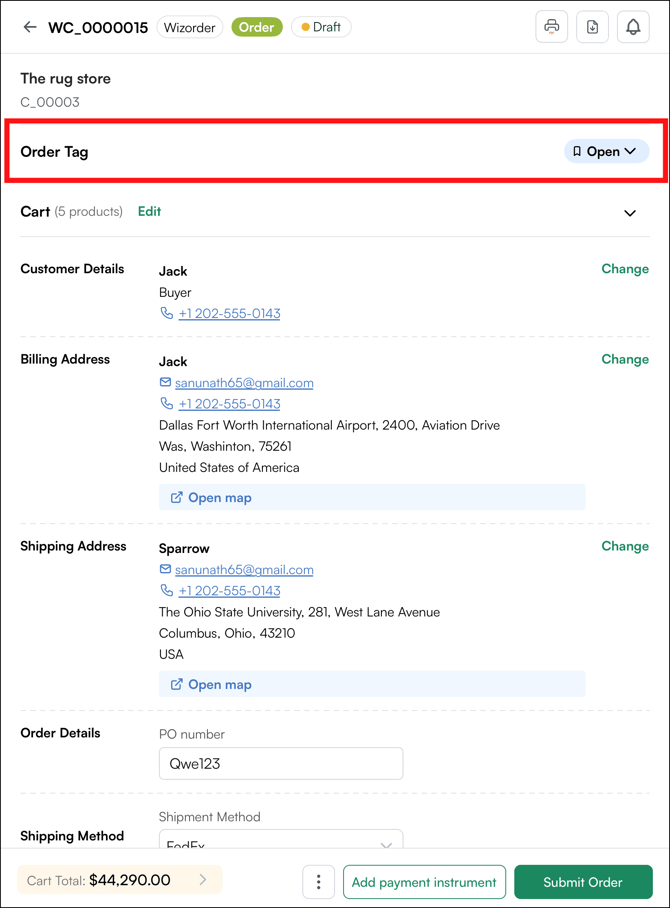
Open the draft order, you will land on the order details page where you can update any of the following:
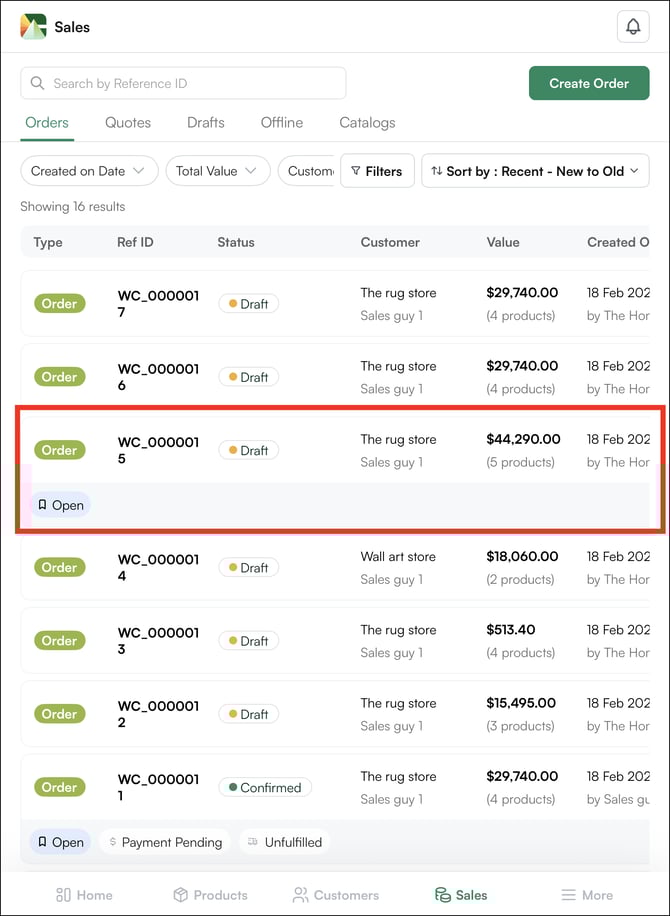
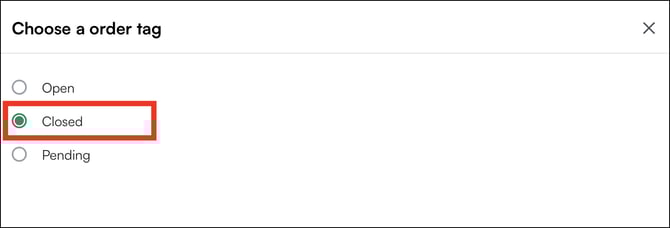
1. **Order tag:** Click the tag dropdown in the Order Tracking Bar and select a new tag.
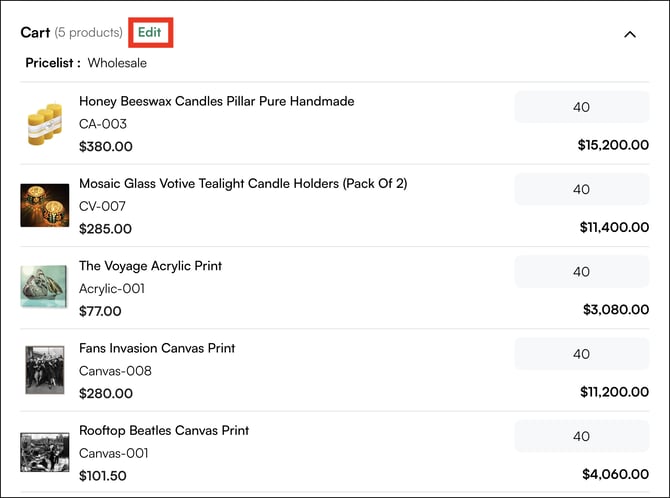
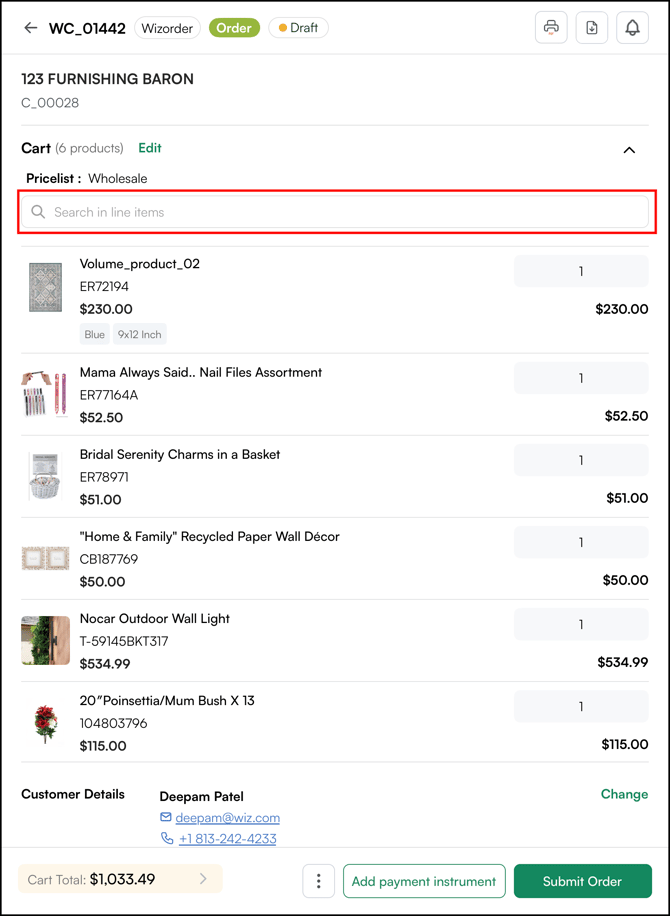
2. **Cart items:** Click ***Edit Cart*** to make changes to the products in the order:
- Search for products in your cart
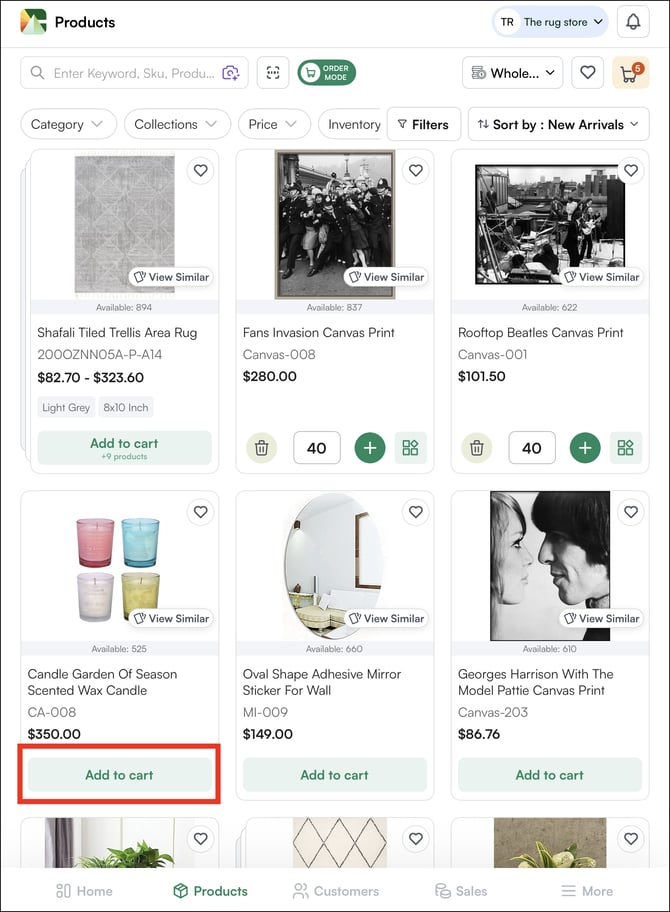
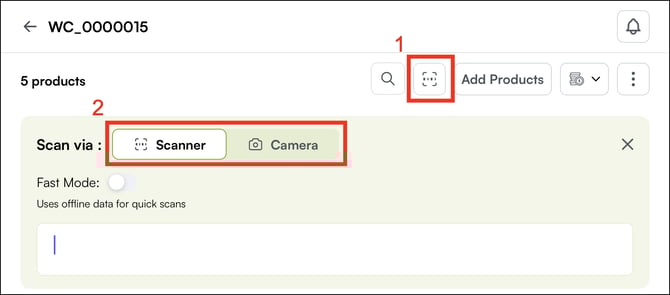
- **Adding new products:** Browse the product details page or scan a barcode to add products
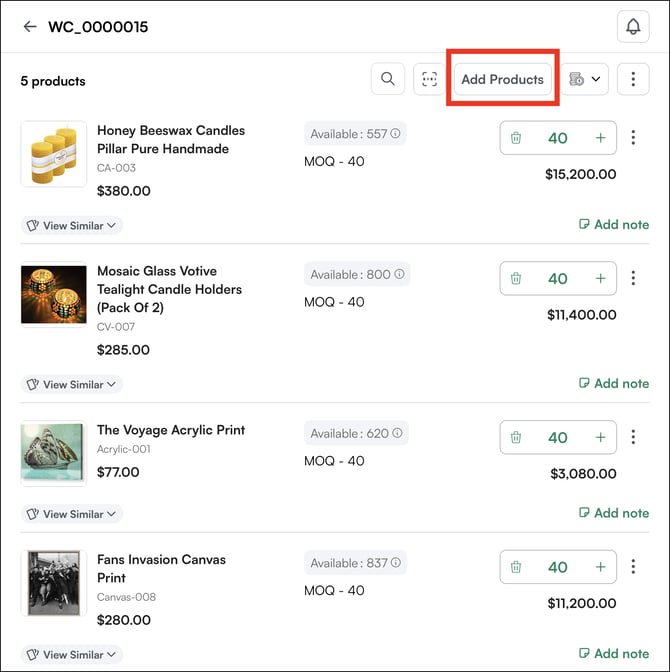
- - from PDP
- Using a barcode Scanner or your mobile camera.
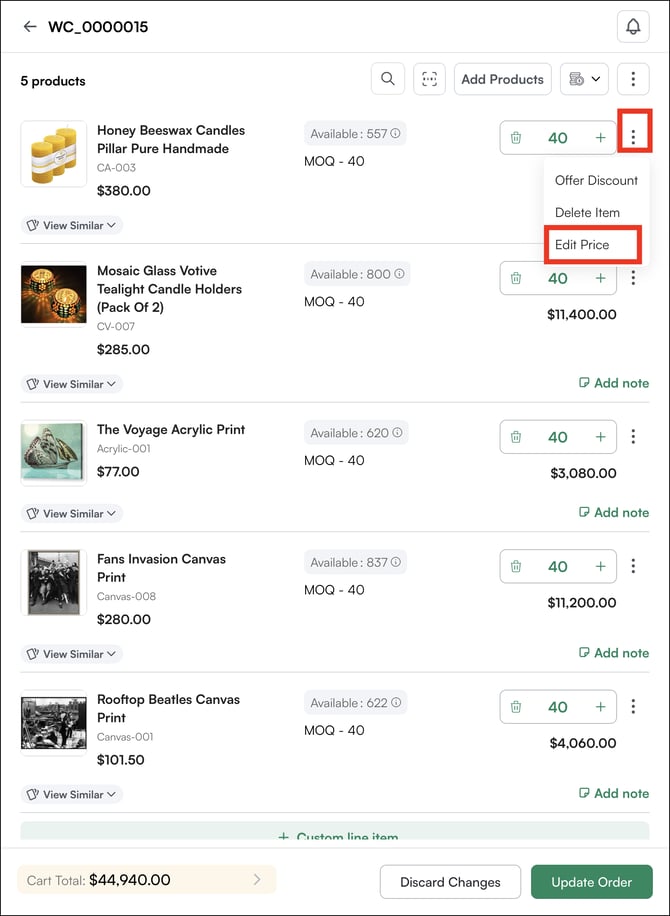
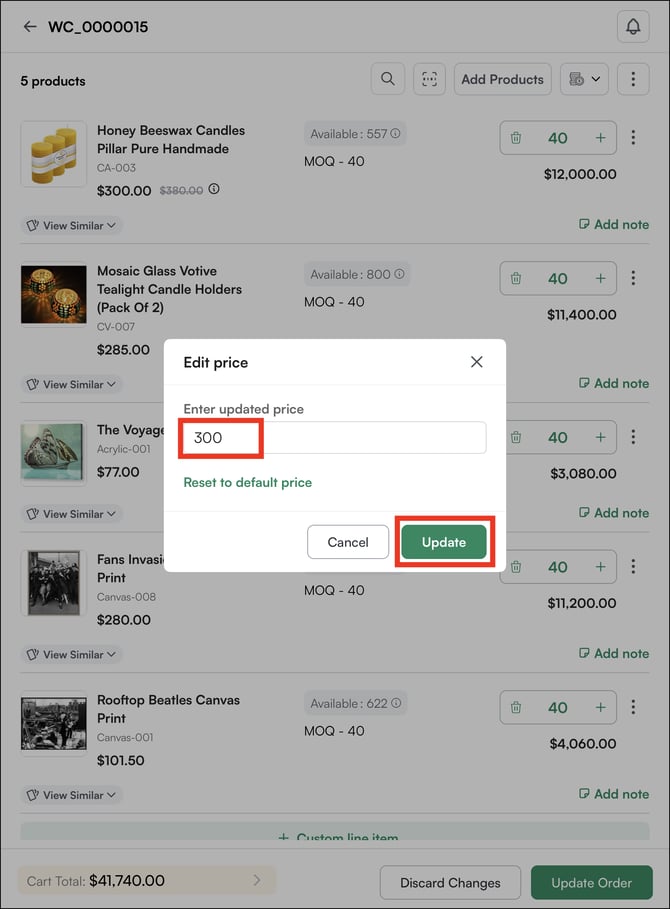
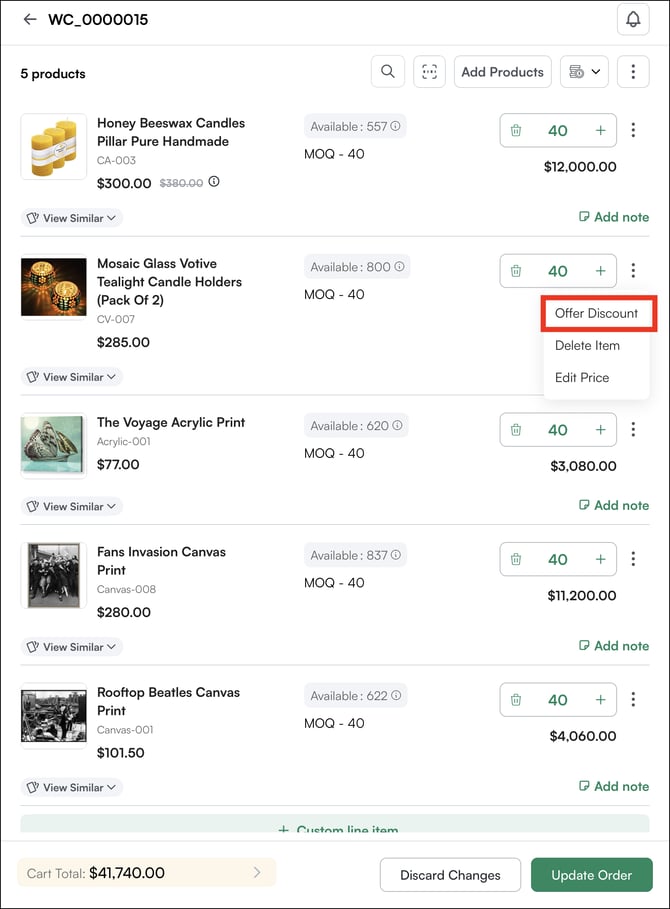
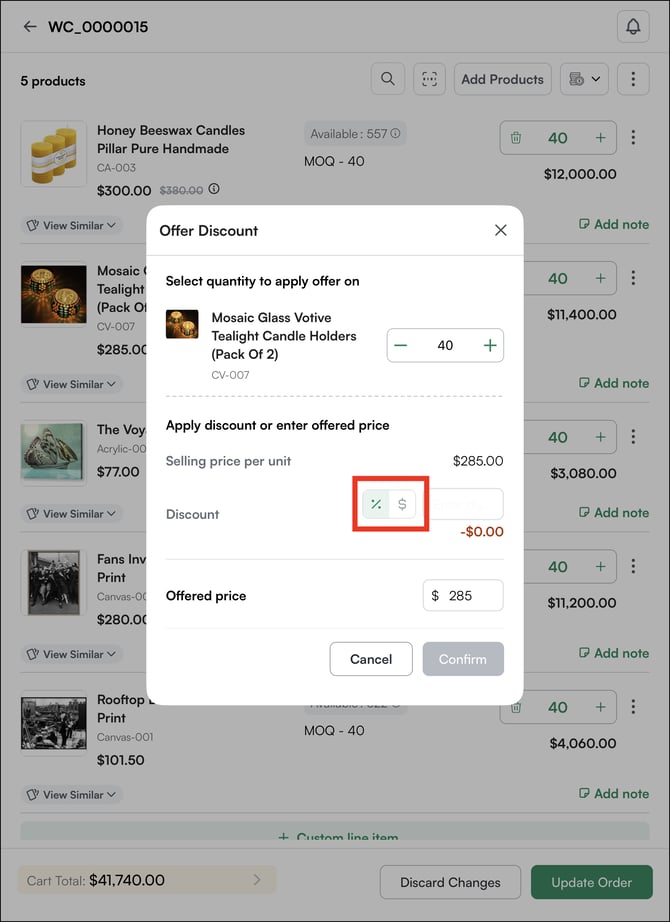
- **Edit product price**: Click on the ***three dots*** beside each product to change the pricing at product
- **Offer discount:** Click on ***the three dots*** to offer a percentage value or a dollar value discount.
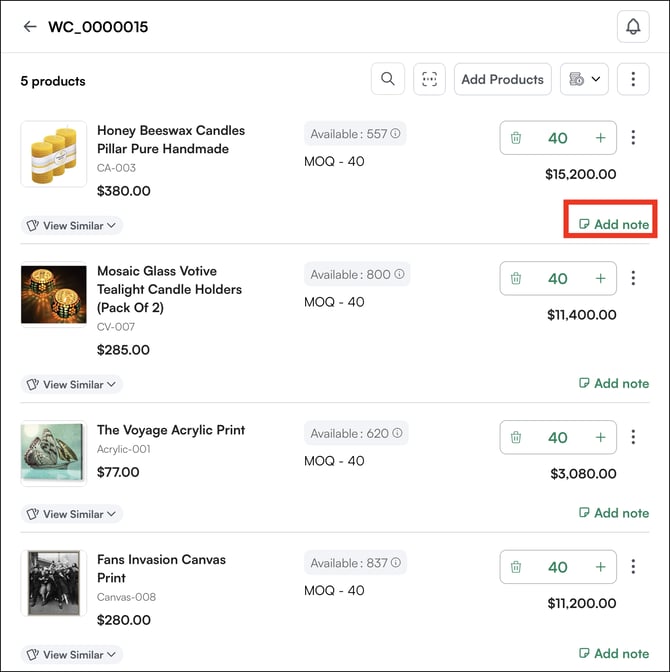
- **Add a product note**: Click ***Add note*** on any product to attach a comment or instruction specific to that line item.
****
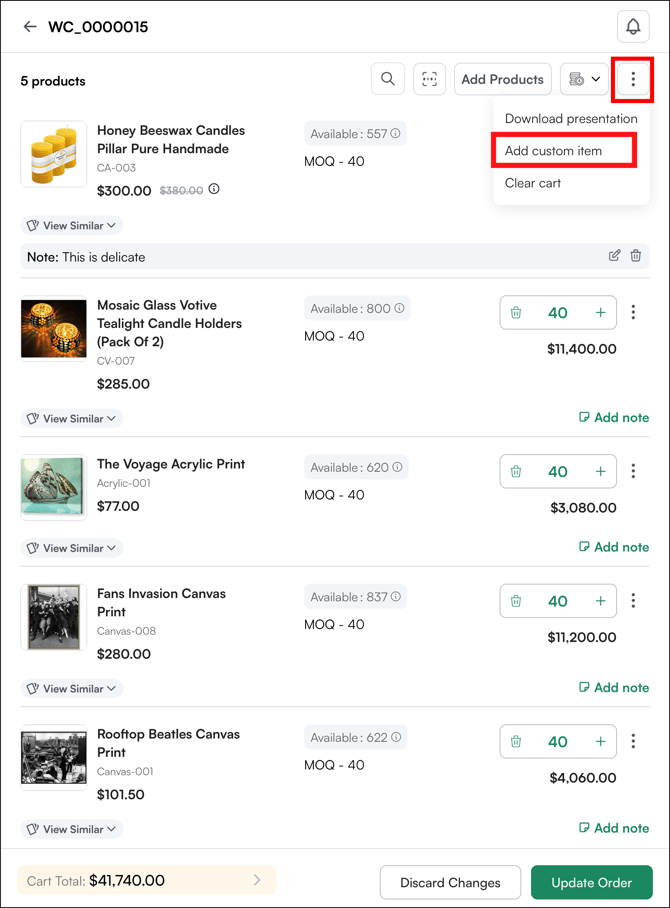
- **Add a custom product:** There are multiple ways to add a custom product to your order. Follow the screenshots below to locate each option.
or
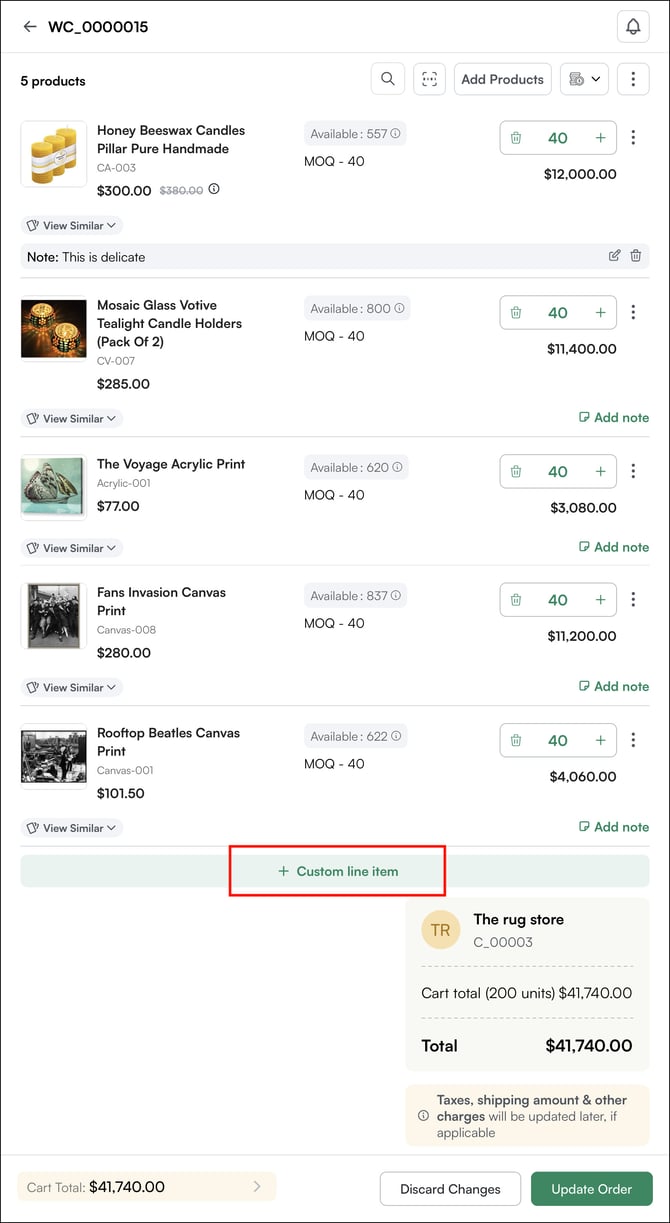
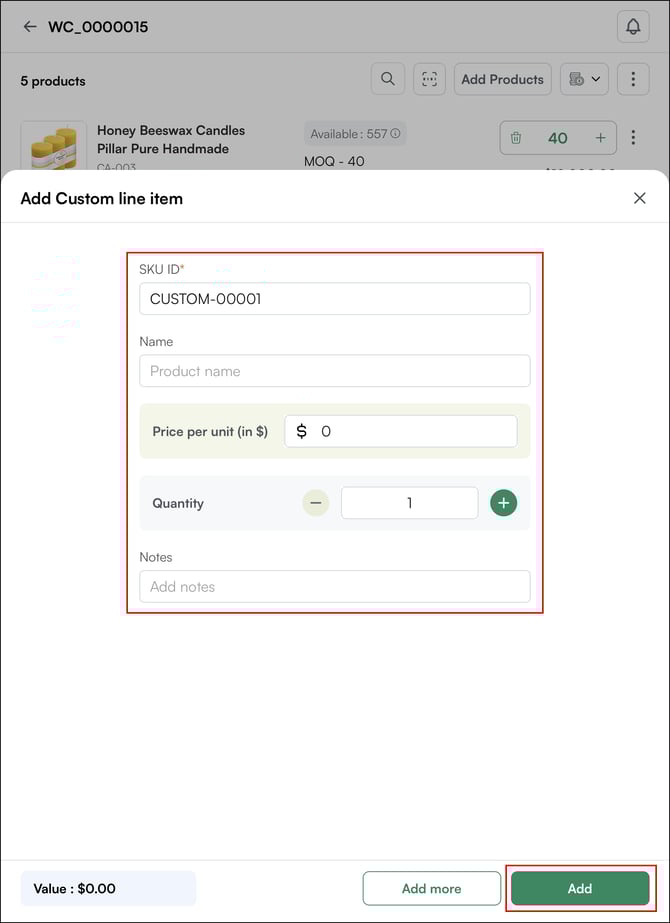
3. **Customer details**: Update existing customer information or add a new customer record.
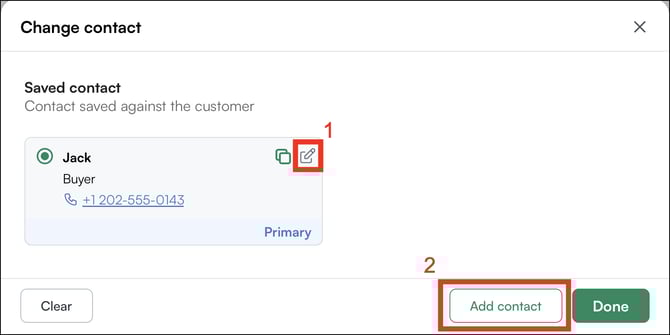
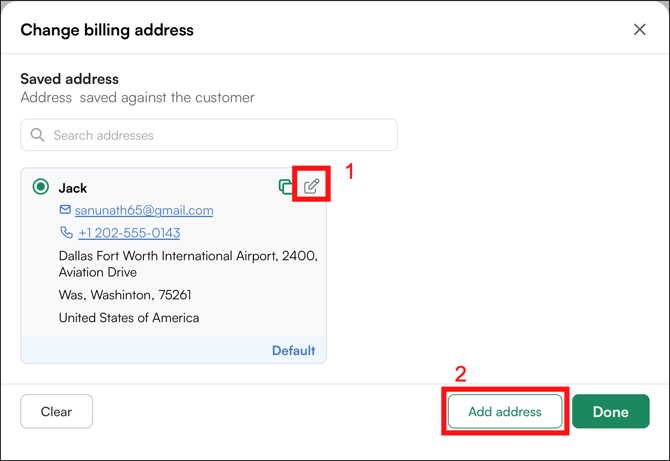
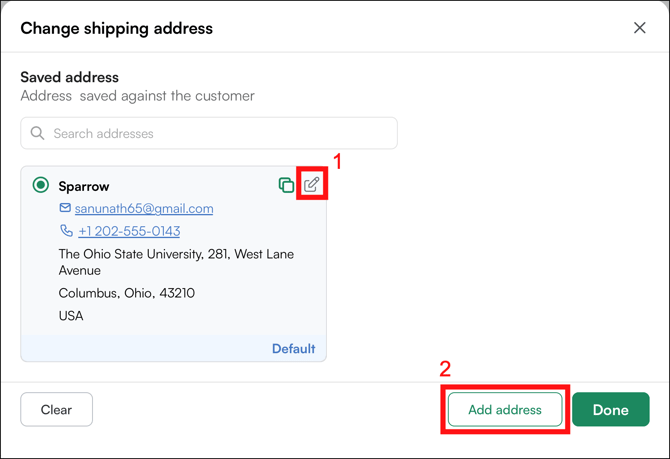
- Click the ***edit* (1)** icon to update the existing customer information.
- Click ***Add Contact*(2)** to add a new customer record. By default, this information is saved to the customer profile. To add it for this order only, uncheck *Save changes to customer profile*
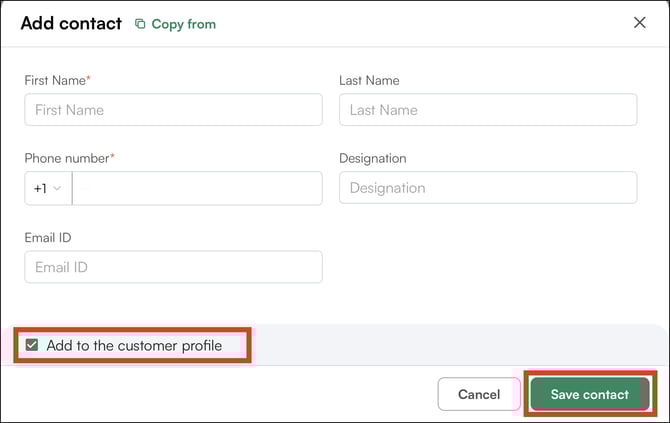
- Billing address: Click to edit the existing billing address or add a new one.
- Shipping address: Click to edit the existing shipping address or add a new one
4. **Order details:** Update the PO number if needed.
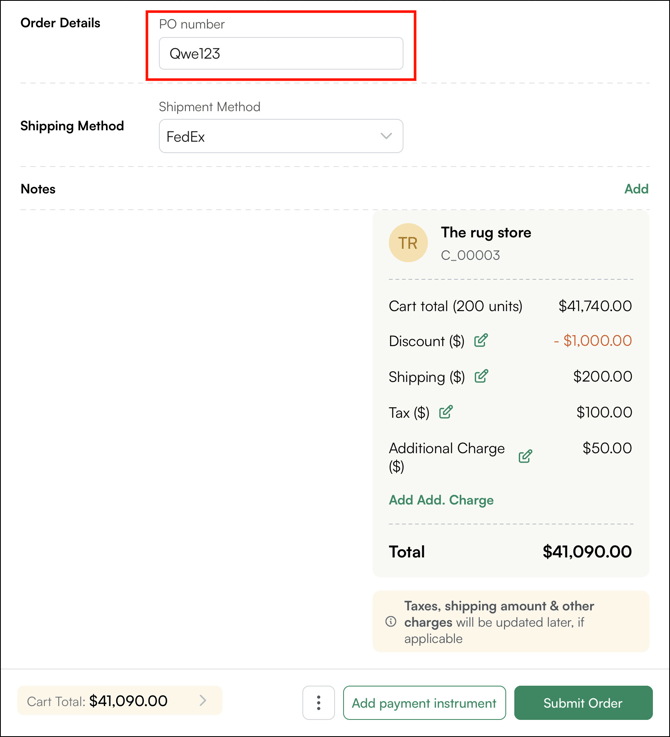
5. **Shipping method:** Update the shipping carrier if needed

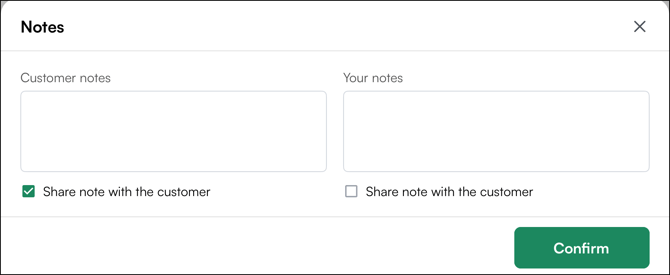
6. **Order note:** Leave a note for the entire order, either to share with the customer or to keep for your own reference.
7. **Cart-level pricing**: Adjust discounts, shipping charges, taxes, and any additional charges applied to the order.
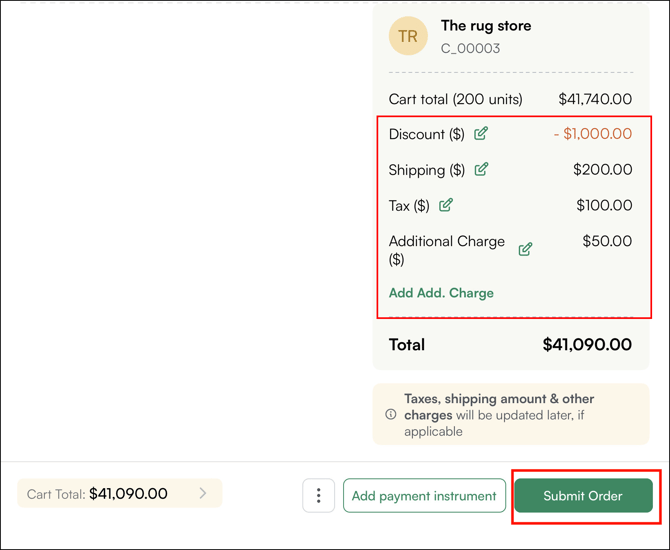
8. Click ***Submit Order***, the order will be updated with all new details
##### **» Edit a Confirmed Order**
If your admin has enabled editing for confirmed orders, you can make the same changes as on a draft order: adjust quantities, add or remove products, modify discounts, pricing, and notes.
**Note:** Editing a confirmed order is not recommended. Changes may affect data accuracy with your ERP, including QuickBooks, NetSuite, Sage, Business Central, or Epicor.
---
### F. Cancel an Order
Draft orders can be deleted from the *Orders* page before submission. Confirmed orders, however, cannot be cancelled directly (unless your admin has granted you permission) because they have already been synced with the ERP. To cancel a confirmed order, coordinate with your back-office team.
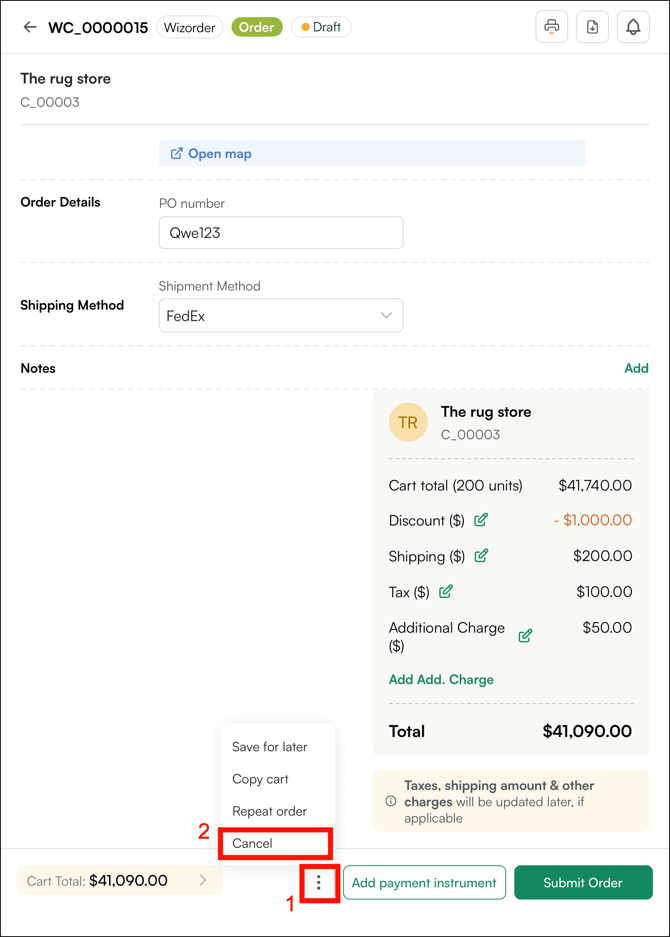
1. **Cancelling a** ***Draft*** **order:** Open the *draft order*, click the *three-dot menu* at the bottom, and select *Cancel*.
2. **Cancelling a Confirmed order:** Cancelling a confirmed order is not recommended, as it may affect data integrity with your ERP. However, if your admin has granted you permission, you can cancel a confirmed order from the order confirmation page.
**Note**:
- To delete an order, you must first cancel it. To cancel, open the ***three-dot menu*** on the order confirmation page and select ***Cancel Order***. Once the order is cancelled, open the t***hree-dot menu*** again and click ***Delete the Order***.
- Don't see the Delete option? Go to ***User Management***, find the user, and enable the ***Delete Cancelled Order*** role under ***Sales***. Still can't find it? Reach out to our support team at [help@wizcommerce.com](mailto:help@wizcommerce.com).
---
### G. Repeat an Order
Reordering lets you quickly create a new order from a previous one without rebuilding your cart from scratch. It's useful when a customer wants to repeat a previous order with few or no changes.
The reorder process pulls the same products and quantities from a past order into a new cart, which you can then adjust before submitting.
1. Go to the *Orders* *page* in the *Sales* *page*.
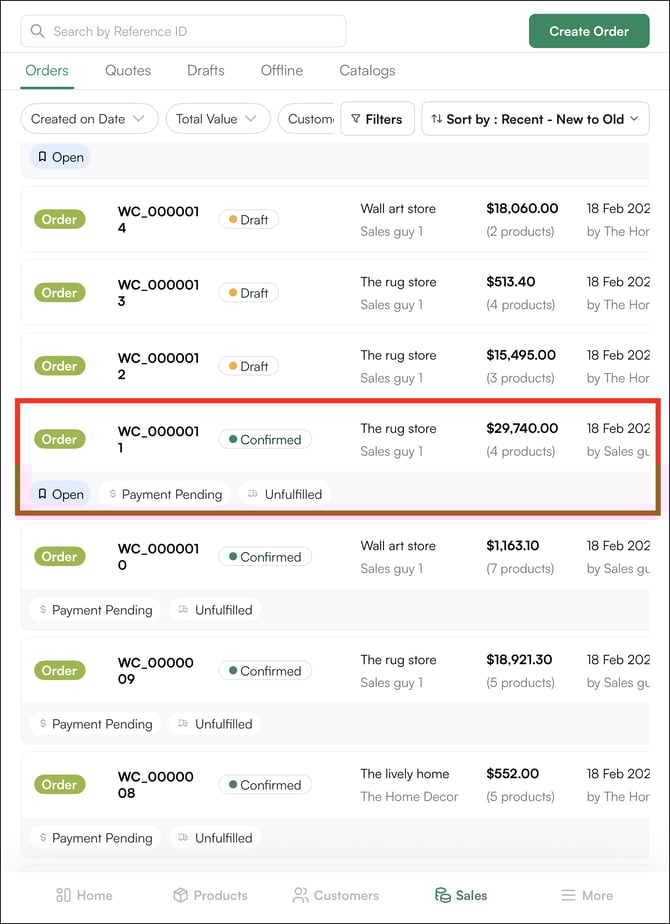
2. Find the past *Confirmed* order you want to reorder and open the order confirmation page.
3. Click the ***three-dot menu*** at the bottom of the page and select ***Repeat Order***.
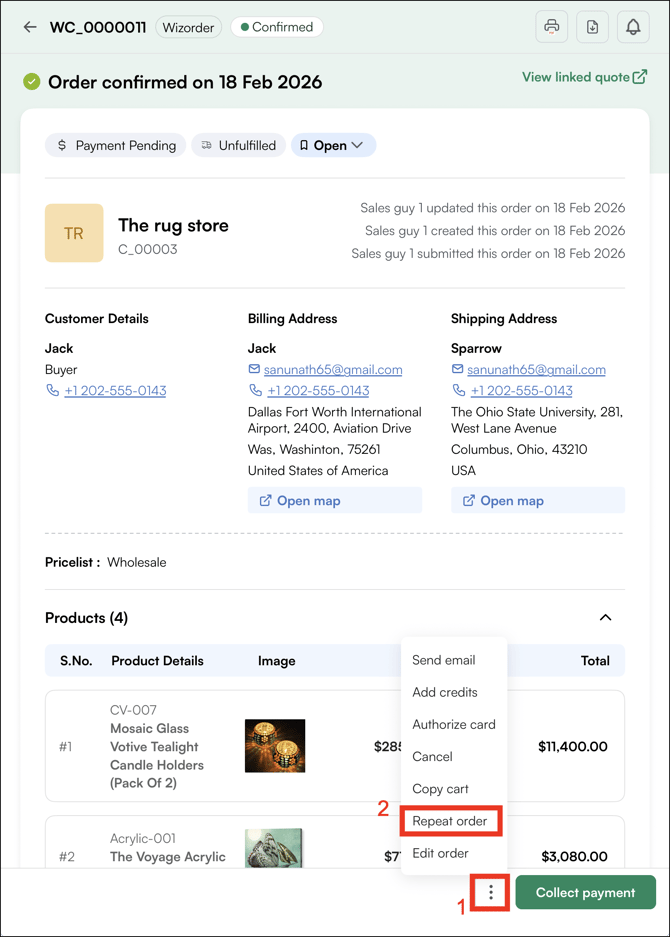
4. A new order page opens, pre-filled with the same products, pricing, and customer details, adjust quantities, pricing, or products as needed.
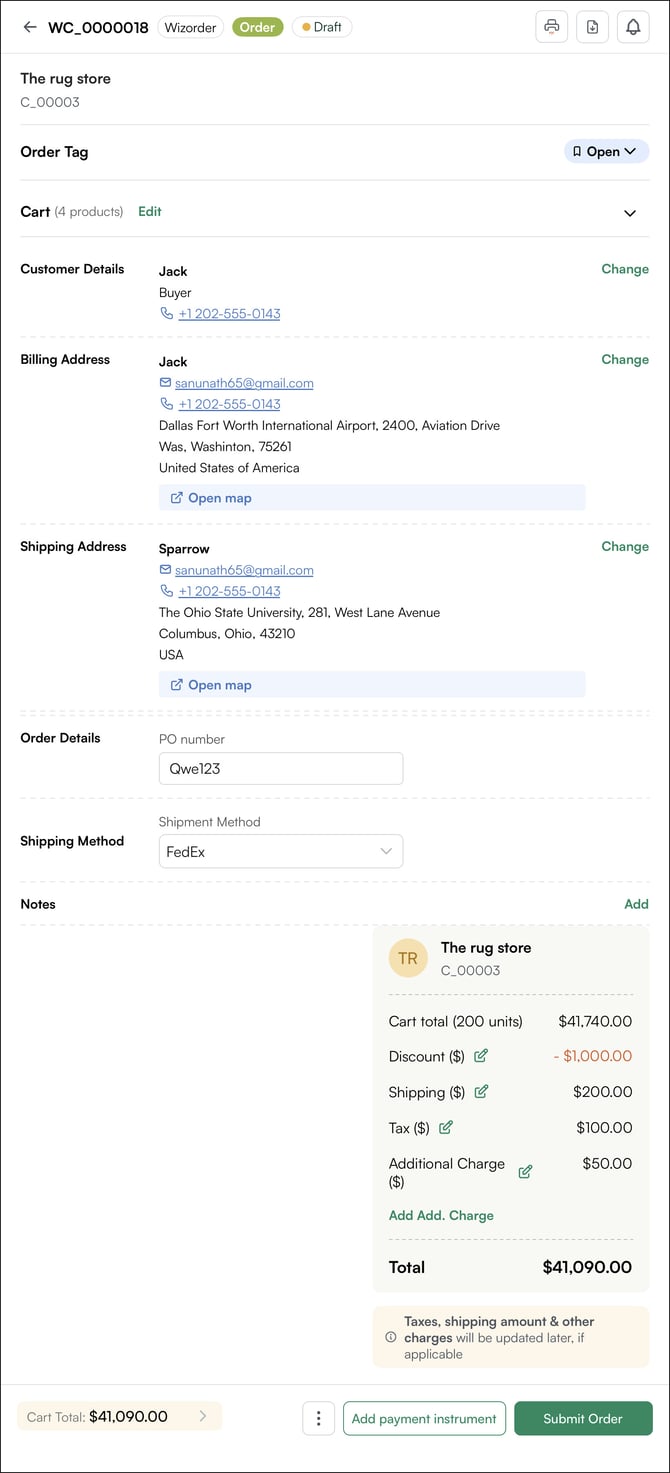
5. Click on ***Submit Order** to* create a new order.
**Note:** You can **reorder (Repeat Order)** from a past order regardless of its status — Draft, Cancelled, or Pending Approval work too, not just Confirmed.
---
#### FAQs
**1. Can I edit an order after it has been confirmed?**
**A.** This depends on the permissions set by your administrator. If editing is enabled for confirmed orders, you can make the same changes as on a draft order. If it is not enabled, coordinate with your administrator or back-office team to make changes.
**2. What is the difference between Copy Cart and Repeat Order?**
**A.** Copy Cart creates a duplicate cart with the same products and quantities — it does not pre-fill customer details. Repeat Order creates a new order pre-filled with the same products, pricing, and customer details from the original order, ready to review and submit.
**3. Why can I not see all the filter options available on the web portal in the mobile app?**
**A.** The mobile app and web portal display different columns in the Orders page, so the available filters differ accordingly. For the full set of filter options, use the web portal.
**4. Why are my notes not showing on the order PDF or email?**
**A.** Notes, including customer notes, are included in the order PDF only if the **Share note** checkbox next to them is ticked. See [**Why are my notes not showing on the order or quote PDF?**](https://knowledge.wizcommerce.com/why-are-my-notes-not-showing-on-the-order-or-quote-pdf)
**5. Why is my order taking a while to download after I click the download option?**
**A.** Order downloads take a few seconds to process in the background. After initiating the download, please allow a few seconds and then refresh the Notifications section or close and reopen it. Once the download is processed, the file will appear there and can be downloaded. Larger orders may take a little longer to process.
**6. My sales rep/customer didn't receive an order acknowledgment email, what should I do?**
**A.** Order acknowledgments are sent automatically to the buyer and the sales rep when an order is placed. If one wasn't received:
1. **Go to Sales → Orders** and open the **Order**.
2. Click the **three-dot menu** in the top right.
3. Select **Send Email**.
4. Add the **email address** you want to send it to, and click **Done**.
This sends the order details to the customer or any other recipient you choose, so they have a copy even if the original acknowledgment didn't go through.
**7. Why do payment terms and payment method not match on my order PDF?**
**A.** Payment Method and Payment Terms are two separate fields on an order. Payment Terms are automatically populated from the terms associated with the customer when the order is created. Changing or selecting a payment method — such as Credit Card — updates the payment method only; the customer's existing payment terms stay unchanged.
The Order Information PDF displays the customer's payment terms, which is why they still appear regardless of how the order was actually paid.
**8. I unchecked a filter, but the orders list didn't change. Why?**
**A.** On the web portal, filters update the list only after you click **Apply**. Unchecking a box by itself won't change the results. Make your selections, then click **Apply**. See [C. Filter and Sort Orders](https://knowledge.wizcommerce.com/view-and-manage-orders#section_c).
---
**Still need help?** Reach out to our support team at [help@wizcommerce.com](https://mail.google.com/mail/u/0/?fs=1&to=help@wizcommerce.com&tf=cm).
- [Getting started](https://knowledge.wizcommerce.com/getting-started#main-content)
- [Product Overview](https://knowledge.wizcommerce.com/getting-started#product-overview)
- [Key Concepts You Should Know](https://knowledge.wizcommerce.com/getting-started#key-concepts-you-should-know)
- [Product Guides](https://knowledge.wizcommerce.com/getting-started#product-guides)
- [Trade Show Checklist](https://knowledge.wizcommerce.com/getting-started#trade-show-checklist)
- [Product Search & Discovery](https://knowledge.wizcommerce.com/product-search-discovery#main-content)
- [AI Product Recommendations](https://knowledge.wizcommerce.com/product-search-discovery#ai-product-recommendations)
- [Filter and Navigate](https://knowledge.wizcommerce.com/product-search-discovery#filter-and-navigate)
- [Catalog](https://knowledge.wizcommerce.com/product-search-discovery#catalog)
- [Product Selection & Ordering](https://knowledge.wizcommerce.com/product-selection-ordering#main-content)
- [Orders](https://knowledge.wizcommerce.com/product-selection-ordering#orders)
- [Quotes](https://knowledge.wizcommerce.com/product-selection-ordering#quotes)
- [Cart](https://knowledge.wizcommerce.com/product-selection-ordering#cart)
- [Presentations](https://knowledge.wizcommerce.com/product-selection-ordering#presentations)
- [Wishlist](https://knowledge.wizcommerce.com/product-selection-ordering#wishlist)
- [Item History](https://knowledge.wizcommerce.com/product-selection-ordering#item-history)
- [Invoices](https://knowledge.wizcommerce.com/product-selection-ordering#invoices)
- [Customers & Accounts](https://knowledge.wizcommerce.com/customers-accounts#main-content)
- [Customer Relationship Management (CRM)](https://knowledge.wizcommerce.com/customers-accounts#customer-relationship-management-crm)
- [Inventory & Warehousing](https://knowledge.wizcommerce.com/inventory-warehousing#main-content)
- [Inventory availability](https://knowledge.wizcommerce.com/inventory-warehousing#inventory-availability)
- [Payments](https://knowledge.wizcommerce.com/payments#main-content)
- [Payment Dashboard](https://knowledge.wizcommerce.com/payments#payment-dashboard)
- [Pricing & Commercials](https://knowledge.wizcommerce.com/pricing-commercials#main-content)
- [Pricelist](https://knowledge.wizcommerce.com/pricing-commercials#pricelist)
- [Discounts & Promotions](https://knowledge.wizcommerce.com/pricing-commercials#discounts-promotions)
- [Claims & Credits](https://knowledge.wizcommerce.com/pricing-commercials#claims-credits)
- [AI Co-Workers](https://knowledge.wizcommerce.com/ai-co-workers#main-content)
- [Ella - AI Order Entry Assistant](https://knowledge.wizcommerce.com/ai-co-workers#ella-ai-order-entry-assistant)
- [WizPilot - AI Assistant](https://knowledge.wizcommerce.com/ai-co-workers#wizpilot-ai-assistant)
- [WizStudio](https://knowledge.wizcommerce.com/wizstudio#main-content)
- [Creating & Editing Images](https://knowledge.wizcommerce.com/wizstudio#creating-editing-images)
- [Lifestyle Generator](https://knowledge.wizcommerce.com/wizstudio#lifestyle-generator)
- [Silo Editor](https://knowledge.wizcommerce.com/wizstudio#silo-editor)
- [Bulk Silo Editor](https://knowledge.wizcommerce.com/wizstudio#bulk-silo-editor)
- [Asset Library (Assets)](https://knowledge.wizcommerce.com/wizstudio#asset-library-assets)
- [AI Image Expander](https://knowledge.wizcommerce.com/wizstudio#ai-image-expander)
- [Reports & Analytics](https://knowledge.wizcommerce.com/reports-analytics#main-content)
- [Business Reports](https://knowledge.wizcommerce.com/reports-analytics#business-reports)
- [Manage your WizCommerce (Admin)](https://knowledge.wizcommerce.com/manage-your-wizcommerce-admin#main-content)
- [Import / Export](https://knowledge.wizcommerce.com/manage-your-wizcommerce-admin#import-export)
- [Organizational Settings](https://knowledge.wizcommerce.com/manage-your-wizcommerce-admin#organizational-settings)
- [Product Management](https://knowledge.wizcommerce.com/manage-your-wizcommerce-admin#product-management)
- [Managing Your WizShop Website](https://knowledge.wizcommerce.com/manage-your-wizcommerce-admin#managing-your-wizshop-website)
- [Integration & Apps](https://knowledge.wizcommerce.com/integration-apps#main-content)
- [Marketing Integration](https://knowledge.wizcommerce.com/integration-apps#marketing-integration)
- [Integration Dashboard](https://knowledge.wizcommerce.com/integration-apps#integration-dashboard)
- [Help & FAQs](https://knowledge.wizcommerce.com/help-faqs#main-content)
- [Help with Orders](https://knowledge.wizcommerce.com/help-faqs#help-with-orders)
- [Help with Quotes](https://knowledge.wizcommerce.com/help-faqs#help-with-quotes)
- [Help with Presentation](https://knowledge.wizcommerce.com/help-faqs#help-with-presentation)
- [Help with Inventory](https://knowledge.wizcommerce.com/help-faqs#help-with-inventory)
- [Help with User Management](https://knowledge.wizcommerce.com/help-faqs#help-with-user-management)
- [Help with Pricelist & Discounts](https://knowledge.wizcommerce.com/help-faqs#help-with-pricelist-discounts)
- [Help with WizStudio](https://knowledge.wizcommerce.com/help-faqs#help-with-wizstudio)
- [Help with Ella](https://knowledge.wizcommerce.com/help-faqs#help-with-ella)
- [Help with Org Settings (Admin)](https://knowledge.wizcommerce.com/help-faqs#help-with-org-settings-admin)
- [Help with Emails](https://knowledge.wizcommerce.com/help-faqs#help-with-emails)
- [Help with Products](https://knowledge.wizcommerce.com/help-faqs#help-with-products)
- [Help with Import/Export](https://knowledge.wizcommerce.com/help-faqs#help-with-import-export)
- [Help with WizShop](https://knowledge.wizcommerce.com/help-faqs#help-with-wizshop)
- [Help with Integration](https://knowledge.wizcommerce.com/help-faqs#help-with-integration)
- [Help with Categories and Collections](https://knowledge.wizcommerce.com/help-faqs#help-with-categories-and-collections)
- [Help With Customers](https://knowledge.wizcommerce.com/help-faqs#help-with-customers)
- [Help with Trade Show](https://knowledge.wizcommerce.com/help-faqs#help-with-trade-show)
[](https://wizcommerce.com/)
[mailto:help@wizcommerce.com](mailto:help@wizcommerce.com)
Copyright © 2025, WizCommerce
```json
{
"@context" : "https://schema.org",
"@type" : "VideoObject",
"contentUrl" : "https://47455261.fs1.hubspotusercontent-na2.net/hubfs/47455261/manage%20order%2049.mp4",
"dateModified" : "2026-03-02T06:48:10.803Z",
"duration" : "PT5S",
"height" : 1122,
"name" : "manage order 49",
"thumbnailUrl" : "https://47455261.fs1.hubspotusercontent-na2.net/hubfs/47455261/manage%20order%2049.mp4/medium.jpg",
"uploadDate" : "2026-03-02T06:48:01.071Z",
"width" : 1640
}
```
```json
{
"@context" : "https://schema.org",
"@type" : "VideoObject",
"contentUrl" : "https://47455261.fs1.hubspotusercontent-na2.net/hubfs/47455261/manage%20order%2050.mp4",
"dateModified" : "2026-03-02T06:48:24.051Z",
"duration" : "PT7S",
"height" : 490,
"name" : "manage order 50",
"thumbnailUrl" : "https://47455261.fs1.hubspotusercontent-na2.net/hubfs/47455261/manage%20order%2050.mp4/medium.jpg",
"uploadDate" : "2026-03-02T06:48:01.537Z",
"width" : 1358
}
```
```json
{
"@context" : "https://schema.org",
"@type" : "VideoObject",
"contentUrl" : "https://47455261.fs1.hubspotusercontent-na2.net/hubfs/47455261/sorting%20in%20web%20portal.mp4",
"dateModified" : "2026-03-11T18:00:09.941Z",
"duration" : "PT16S",
"height" : 818,
"name" : "sorting in web portal",
"thumbnailUrl" : "https://47455261.fs1.hubspotusercontent-na2.net/hubfs/47455261/sorting%20in%20web%20portal.mp4/medium.jpg",
"uploadDate" : "2026-03-11T17:59:57.473Z",
"width" : 1440
}
```
```json
{
"@context" : "https://schema.org",
"@type" : "VideoObject",
"contentUrl" : "https://47455261.fs1.hubspotusercontent-na2.net/hubfs/47455261/video_assets/389824586483/inherited/web_optimized.mp4",
"dateModified" : "2026-09-01T17:54:00.893Z",
"duration" : "PT29S",
"height" : 1570,
"name" : "Screen Recording 2026-09-01 at 11.22.08 PM",
"thumbnailUrl" : "https://47455261.fs1.hubspotusercontent-na2.net/hubfs/47455261/Screen%20Recording%202026-09-01%20at%2011.22.08%20PM.mov/medium.jpg",
"uploadDate" : "2026-09-01T17:54:00.891Z",
"width" : 2880
}
```
```json
{
"@context" : "https://schema.org",
"@type" : "VideoObject",
"contentUrl" : "https://47455261.fs1.hubspotusercontent-na2.net/hubfs/47455261/additional%20thinsg.mp4",
"dateModified" : "2026-03-02T07:01:06.407Z",
"duration" : "PT5S",
"height" : 818,
"name" : "additional thinsg",
"thumbnailUrl" : "https://47455261.fs1.hubspotusercontent-na2.net/hubfs/47455261/additional%20thinsg.mp4/medium.jpg",
"uploadDate" : "2026-03-02T06:59:04.702Z",
"width" : 1440
}
```