---
title: Volume Pricing
description: Learn how volume pricing works in WizCommerce—set quantity-based tiers per SKU, MOQ and IOQ rules, and manage bulk pricing via import/export.
---
[Skip to content](https://knowledge.wizcommerce.com/volume-pricing#main-content)
[](https://wizcommerce.com/)
Open main navigation
Close main navigation
- [Contact us](https://mail.google.com/mail/?view=cm&fs=1&to=help@wizcommerce.com)
[Contact us](https://mail.google.com/mail/?view=cm&fs=1&to=help@wizcommerce.com)
Hi, how can we help?
- There are no suggestions because the search field is empty.
1. [WizCommerce Help Centre](https://knowledge.wizcommerce.com/)
2. [Pricing & Commercials](https://knowledge.wizcommerce.com/pricing-commercials)
June 5, 2026
# Volume Pricing
Volume pricing reduces the unit price of a product as the ordered quantity increases, when a buyer adjusts their cart quantity, the price updates automatically to reflect the applicable tier, with no manual calculation required.
This article covers how volume pricing works, how it interacts with MOQ and IOQ settings, where it appears across the order flow, and how to set it up using Import and Export.
**Platform:** WizOrder & WizShop | **Who is this for:** Admins
**To Get There:** *Manage **\>** Import - Export **\>** Product **\>** Volume Pricing*
---
#### Table of Contents
| **Section** | **Topics** |
| --- | --- |
| A | [How Volume Pricing Works](https://knowledge.wizcommerce.com/volume-pricing#A) |
| B | [Related Quantity Controls](https://knowledge.wizcommerce.com/volume-pricing#b) |
| C | [Where Volume Pricing Appears](https://knowledge.wizcommerce.com/volume-pricing#c) |
| D | [Setting Up Volume Pricing via Import/Export](https://knowledge.wizcommerce.com/volume-pricing#d) |
| E | [How Volume Pricing Fits Into the Broader Pricing Structure](https://knowledge.wizcommerce.com/volume-pricing#e) |
| F | [FAQs](https://knowledge.wizcommerce.com/volume-pricing#faq) |
---
#### Before You Begin
- Ensure you have Admin access before setting up volume pricing.
- If this is your first time using Import and Export, read the Instructions sheet in the exported file before making any changes.
- If your pricing is managed through an ERP such as QuickBooks, NetSuite, Sage, Business Central, or Epicor, volume pricing tiers may sync automatically depending on your integration setup. Contact your Customer Success Manager to confirm how pricing data flows into WizCommerce.
---
### A. How Volume Pricing Works
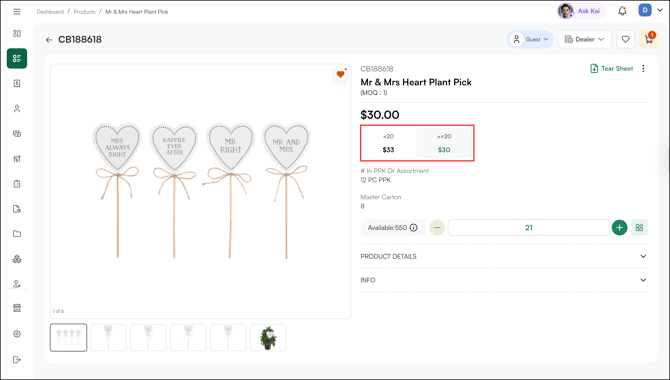
Volume pricing is configured per product as a set of quantity tiers. Each tier defines a minimum quantity and a corresponding unit price. When a buyer's quantity meets or exceeds a tier threshold, the product price updates automatically in the cart.
Buyers can see the full tier breakdown on the Product Detail Page (PDP) before adding anything to the cart — so they know exactly what they will pay at each quantity level.
**Example:**
| **Quantity** | **Unit Price** |
| --- | --- |
| 1–5 | $10.00 |
| 6–9 | $9.50 |
| 10+ | $9.30 |
If a buyer adds 6 units to their cart, the price per unit adjusts automatically to $9.50. If they increase to 10 units, it drops to $9.30.
---
### B. Related Quantity Controls
Volume pricing works alongside two additional quantity settings that can be configured per product:
- **MOQ (Minimum Order Quantity):** The smallest number of units a buyer can order for a product. If the MOQ is 12, the buyer cannot add fewer than 12 units. The cart enforces this automatically.
- **IOQ (Incremental Order Quantity):** The increment in which quantities must be ordered. If the IOQ is 12, valid quantities are 12, 24, 36, and so on. Quantities outside this increment cannot be added to the cart. This is common for products sold in cases or packs.
**Note:** Volume pricing, MOQ, and IOQ can all be active on the same product at the same time. For example, a product may have an MOQ of 12, an IOQ of 12, and a volume pricing tier that offers a better rate at 48 units — encouraging buyers to order a full case rather than a smaller quantity.
---
### C. Where Volume Pricing Appears
The table below outlines where volume pricing is displayed throughout the order flow.
| **Location** | **What the Buyer or Rep Sees** |
| --- | --- |
| Product Detail Page (PDP) | Full tier table showing quantity ranges and unit prices |
| Cart | Unit price updates automatically when the quantity meets a tier |
| Order confirmation | Unit price reflects the tier applied at the time of order |
---
### D. Setting Up Volume Pricing via Import/ Export
Import and Export lets you configure volume pricing across multiple SKUs at once — setting quantity thresholds and price breaks in bulk. Use this when you are launching a new catalog or updating pricing across a large number of products.
#### Step 1: Download the Volume Pricing Template
1. Go to ***Manage → Import / Export***.
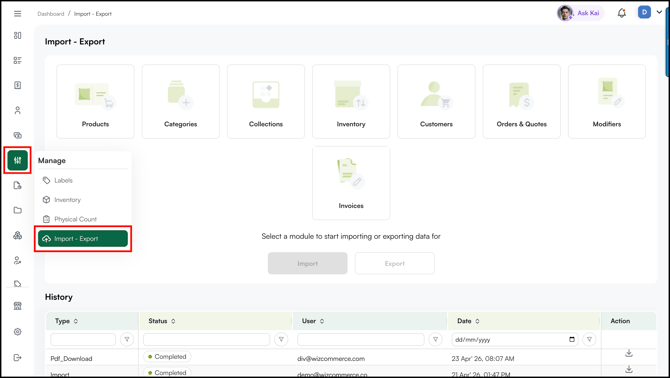
2. Select **Product**, then click ***Export***.
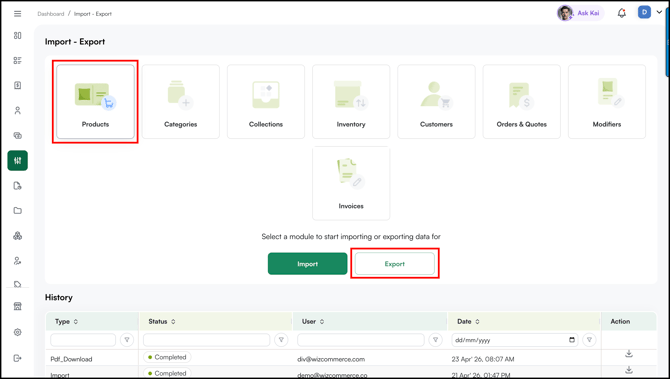
3. Select the ***Volume Pricing*** from the dropdown*.*
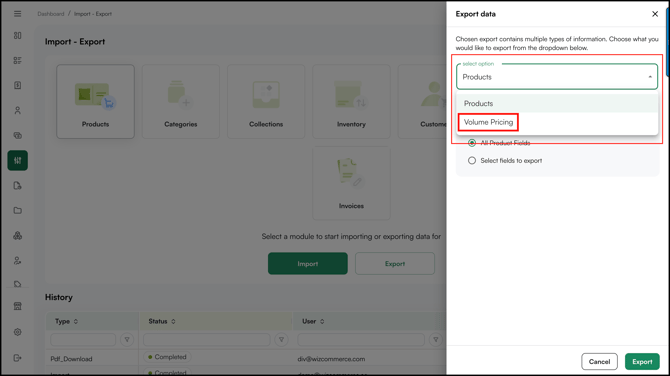
4. Click ***Export.***
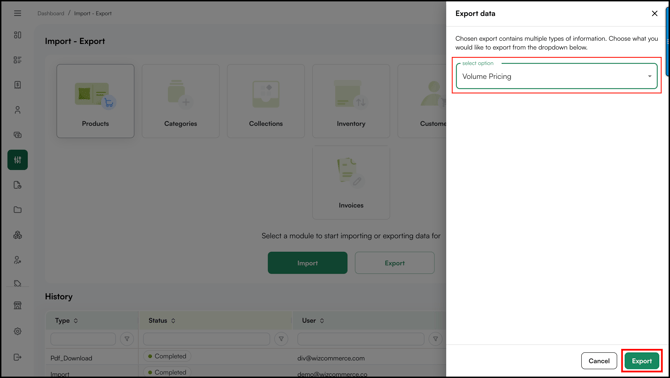
#### Step 2: Fill In the Data Sheet
1. Open the downloaded file in Microsoft Excel or Google Sheets.
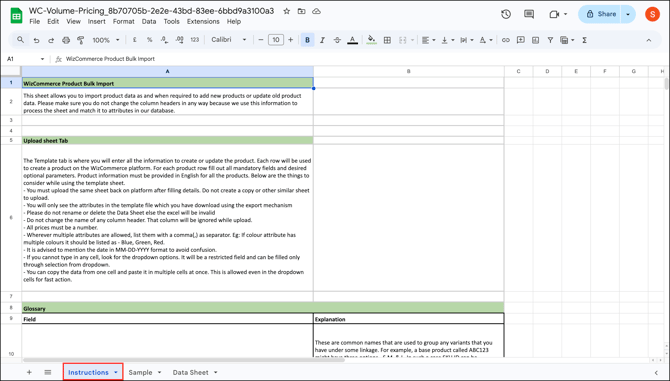
2. If this is your first time using Import and Export, go through the **Instructions** sheet before making any changes. It explains what each column does.
3. Go to the **Data Sheet**. In the **Price Tier\_Qty Break 1** column (e.g., *Dealer\_Qty Break 1*), enter the quantity at which volume pricing should activate. For example, if volume pricing for SKU *CB188618* should apply once the buyer orders more than 20 units, enter 20. Set the **Price Tier\_IOQ Break 1** column to the same IOQ value used for the base price.
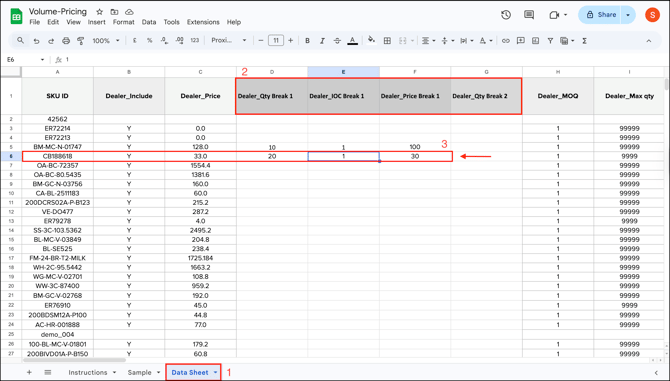
4. In the **Price Tier\_Price Break 1** column (e.g., *Dealer\_Price Break 1*), enter the discounted price that applies once the quantity in Qty Break 1 is reached (e.g., $30).
5. If you need a second price break for the same SKU, repeat the same process using the **Price Tier\_Qty Break 2** and **Price Tier\_Price Break 2** columns.
6. **Save** the file once all tiers are set up.
7. The changes reflect on the Product Detail Page immediately after a successful import.
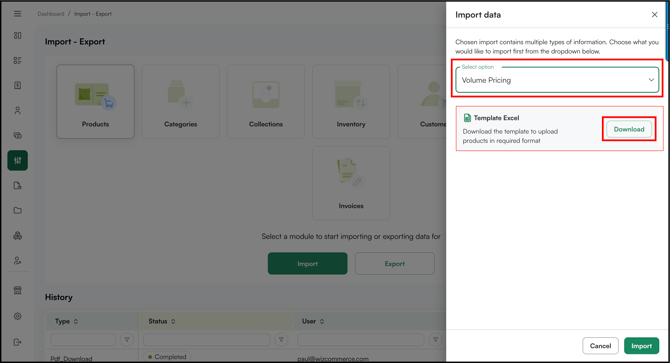
**Note:** If volume pricing has never been set up for the catalog before, the exported file may not include columns such as **Price Tier\_Qty Break 1**, **Price Tier\_Price Break 1**, or **Price Tier\_Qty Break 2**. In that case, add these columns manually to the Data Sheet before importing.
---
### E. How Volume Pricing Fits Into the Broader Pricing Structure
When a buyer adds products to their cart, pricing is applied in this order:
1. **Price list** determines the base price the buyer sees.
2. **Volume pricing** adjusts the unit price as quantity increases.
3. **Discount Engine** applies any eligible discounts on top.
The buyer sees the final price reflecting all applicable adjustments.
**Note:** If your pricing is managed through an ERP such as QuickBooks, NetSuite, Sage, Business Central, or Epicor, volume pricing tiers may sync automatically depending on your integration setup. Contact your Customer Success Manager to confirm how pricing data flows into WizCommerce.
---
#### FAQs
**1. Can volume pricing, MOQ, and IOQ all be active on the same product?**
**A.** Yes. All three can be active at the same time. For example, a product can have an MOQ of 12, an IOQ of 12, and a volume pricing tier that kicks in at 48 units — encouraging buyers to order a full case quantity.
**2. Where can buyers see the volume pricing tiers before placing an order?**
**A.** Buyers can see the full tier breakdown on the Product Detail Page (PDP) before adding anything to the cart. The price then updates automatically in the cart as the quantity changes.
**3. What do I do if the volume pricing columns are missing from the exported file?**
**A.** If volume pricing has never been set up for your catalog before, the exported file may not include the Qty Break and Price Break columns. To add these columns -- go to ***Import Section,*** select ***Volume Pricing*** from the dropdown, and download the ***Template***.
---
Not finding what you need? Browse the [WizCommerce Help Center](https://knowledge.wizcommerce.com/), reach out to your Customer Success Manager, or contact our [support team](mailto:help@wizcommerce.com) at help@wizcommerce.com.
- [Getting started](https://knowledge.wizcommerce.com/getting-started#main-content)
- [Product Overview](https://knowledge.wizcommerce.com/getting-started#product-overview)
- [Key Concepts You Should Know](https://knowledge.wizcommerce.com/getting-started#key-concepts-you-should-know)
- [Product Guides](https://knowledge.wizcommerce.com/getting-started#product-guides)
- [Trade Show Checklist](https://knowledge.wizcommerce.com/getting-started#trade-show-checklist)
- [Product Search & Discovery](https://knowledge.wizcommerce.com/product-search-discovery#main-content)
- [AI Product Recommendations](https://knowledge.wizcommerce.com/product-search-discovery#ai-product-recommendations)
- [Filter and Navigate](https://knowledge.wizcommerce.com/product-search-discovery#filter-and-navigate)
- [Catalog](https://knowledge.wizcommerce.com/product-search-discovery#catalog)
- [Product Selection & Ordering](https://knowledge.wizcommerce.com/product-selection-ordering#main-content)
- [Orders](https://knowledge.wizcommerce.com/product-selection-ordering#orders)
- [Quotes](https://knowledge.wizcommerce.com/product-selection-ordering#quotes)
- [Cart](https://knowledge.wizcommerce.com/product-selection-ordering#cart)
- [Presentations](https://knowledge.wizcommerce.com/product-selection-ordering#presentations)
- [Wishlist](https://knowledge.wizcommerce.com/product-selection-ordering#wishlist)
- [Item History](https://knowledge.wizcommerce.com/product-selection-ordering#item-history)
- [Invoices](https://knowledge.wizcommerce.com/product-selection-ordering#invoices)
- [Customers & Accounts](https://knowledge.wizcommerce.com/customers-accounts#main-content)
- [Customer Relationship Management (CRM)](https://knowledge.wizcommerce.com/customers-accounts#customer-relationship-management-crm)
- [Inventory & Warehousing](https://knowledge.wizcommerce.com/inventory-warehousing#main-content)
- [Inventory availability](https://knowledge.wizcommerce.com/inventory-warehousing#inventory-availability)
- [Payments](https://knowledge.wizcommerce.com/payments#main-content)
- [Payment Dashboard](https://knowledge.wizcommerce.com/payments#payment-dashboard)
- [Pricing & Commercials](https://knowledge.wizcommerce.com/pricing-commercials#main-content)
- [Pricelist](https://knowledge.wizcommerce.com/pricing-commercials#pricelist)
- [Discounts & Promotions](https://knowledge.wizcommerce.com/pricing-commercials#discounts-promotions)
- [Claims & Credits](https://knowledge.wizcommerce.com/pricing-commercials#claims-credits)
- [AI Co-Workers](https://knowledge.wizcommerce.com/ai-co-workers#main-content)
- [Ella - AI Order Entry Assistant](https://knowledge.wizcommerce.com/ai-co-workers#ella-ai-order-entry-assistant)
- [WizPilot - AI Assistant](https://knowledge.wizcommerce.com/ai-co-workers#wizpilot-ai-assistant)
- [WizStudio](https://knowledge.wizcommerce.com/wizstudio#main-content)
- [Creating & Editing Images](https://knowledge.wizcommerce.com/wizstudio#creating-editing-images)
- [Lifestyle Generator](https://knowledge.wizcommerce.com/wizstudio#lifestyle-generator)
- [Silo Editor](https://knowledge.wizcommerce.com/wizstudio#silo-editor)
- [Bulk Silo Editor](https://knowledge.wizcommerce.com/wizstudio#bulk-silo-editor)
- [Asset Library (Assets)](https://knowledge.wizcommerce.com/wizstudio#asset-library-assets)
- [AI Image Expander](https://knowledge.wizcommerce.com/wizstudio#ai-image-expander)
- [Reports & Analytics](https://knowledge.wizcommerce.com/reports-analytics#main-content)
- [Business Reports](https://knowledge.wizcommerce.com/reports-analytics#business-reports)
- [Manage your WizCommerce (Admin)](https://knowledge.wizcommerce.com/manage-your-wizcommerce-admin#main-content)
- [Import / Export](https://knowledge.wizcommerce.com/manage-your-wizcommerce-admin#import-export)
- [Organizational Settings](https://knowledge.wizcommerce.com/manage-your-wizcommerce-admin#organizational-settings)
- [Product Management](https://knowledge.wizcommerce.com/manage-your-wizcommerce-admin#product-management)
- [Managing Your WizShop Website](https://knowledge.wizcommerce.com/manage-your-wizcommerce-admin#managing-your-wizshop-website)
- [Integration & Apps](https://knowledge.wizcommerce.com/integration-apps#main-content)
- [Marketing Integration](https://knowledge.wizcommerce.com/integration-apps#marketing-integration)
- [Integration Dashboard](https://knowledge.wizcommerce.com/integration-apps#integration-dashboard)
- [Help & FAQs](https://knowledge.wizcommerce.com/help-faqs#main-content)
- [Help with Orders](https://knowledge.wizcommerce.com/help-faqs#help-with-orders)
- [Help with Quotes](https://knowledge.wizcommerce.com/help-faqs#help-with-quotes)
- [Help with Presentation](https://knowledge.wizcommerce.com/help-faqs#help-with-presentation)
- [Help with Inventory](https://knowledge.wizcommerce.com/help-faqs#help-with-inventory)
- [Help with User Management](https://knowledge.wizcommerce.com/help-faqs#help-with-user-management)
- [Help with Pricelist & Discounts](https://knowledge.wizcommerce.com/help-faqs#help-with-pricelist-discounts)
- [Help with WizStudio](https://knowledge.wizcommerce.com/help-faqs#help-with-wizstudio)
- [Help with Ella](https://knowledge.wizcommerce.com/help-faqs#help-with-ella)
- [Help with Org Settings (Admin)](https://knowledge.wizcommerce.com/help-faqs#help-with-org-settings-admin)
- [Help with Emails](https://knowledge.wizcommerce.com/help-faqs#help-with-emails)
- [Help with Products](https://knowledge.wizcommerce.com/help-faqs#help-with-products)
- [Help with Import/Export](https://knowledge.wizcommerce.com/help-faqs#help-with-import-export)
- [Help with WizShop](https://knowledge.wizcommerce.com/help-faqs#help-with-wizshop)
- [Help with Integration](https://knowledge.wizcommerce.com/help-faqs#help-with-integration)
- [Help with Categories and Collections](https://knowledge.wizcommerce.com/help-faqs#help-with-categories-and-collections)
- [Help With Customers](https://knowledge.wizcommerce.com/help-faqs#help-with-customers)
- [Help with Trade Show](https://knowledge.wizcommerce.com/help-faqs#help-with-trade-show)
[](https://wizcommerce.com/)
[mailto:help@wizcommerce.com](mailto:help@wizcommerce.com)
Copyright © 2025, WizCommerce
```json
{
"@context" : "https://schema.org",
"@type" : "VideoObject",
"contentUrl" : "https://47455261.fs1.hubspotusercontent-na2.net/hubfs/47455261/Screen%20Recording%202026-03-12%20at%209.48.11%20PM.mov",
"dateModified" : "2026-03-12T16:23:01.114Z",
"duration" : "PT57S",
"height" : 1638,
"name" : "Screen Recording 2026-03-12 at 9.48.11 PM",
"thumbnailUrl" : "https://47455261.fs1.hubspotusercontent-na2.net/hubfs/47455261/Screen%20Recording%202026-03-12%20at%209.48.11%20PM.mov/medium.jpg",
"uploadDate" : "2026-03-12T16:22:06.568Z",
"width" : 2880
}
```