
Artifacts & Dashboards is where every report and dashboard you build by asking WizPilot gets saved. Artifacts are singular charts (like a line, bar, or table) while a dashboard is a combination of artifacts. Once saved, nothing disappears when you close the chat, and a saved dashboard keeps re-running its query, so it stays live rather than becoming a one-time snapshot.
This article covers how to build a report, where to find what you've saved, and how sharing works.
Platform: WizOrder | Who is this for: Sales Reps & Admins
To get there: WizOrder → Ask WizPilot
Table of Contents
| Sections | Topics |
| A | What are Artifacts & Dashboards? |
| B | Where to Find Artifacts & Dashboards |
| C | Build a Report or Dashboard |
| D | View and Filter Your Dashboards |
| E | Share or Delete a Dashboard |
| F | FAQs |
A. What are Artifacts & Dashboards?
Ask WizPilot for a report (across sales, customers, team performance, or products) in plain language, and it comes back as a real chart or table: a metric card, a line, bar, or pie chart, with period comparisons and highlights like top or dormant accounts.
Save that report and it becomes a dashboard. The underlying query is saved and re-runs every time you open it, along with any filters or sorting you applied, so the numbers you see are always current, not a snapshot from when you first asked.
B. Where to Find Artifacts & Dashboards
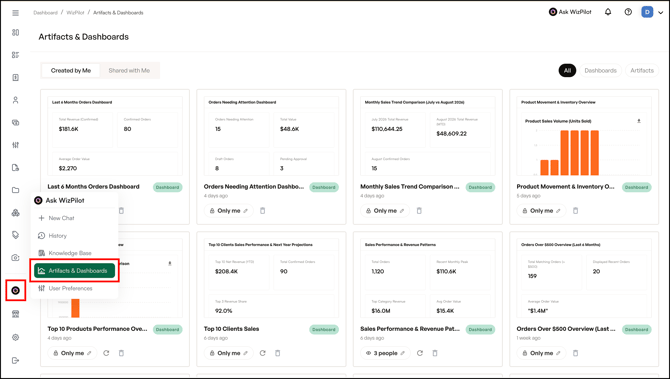
- Open the WizPilot side menu and select Artifacts & Dashboards.
C. Build a Report or Dashboard
To create a new dashboard:
- Open WizPilot and ask for the report you want in plain language. For example, “Can you find me all customers that haven't placed an order in the last 6 months?”
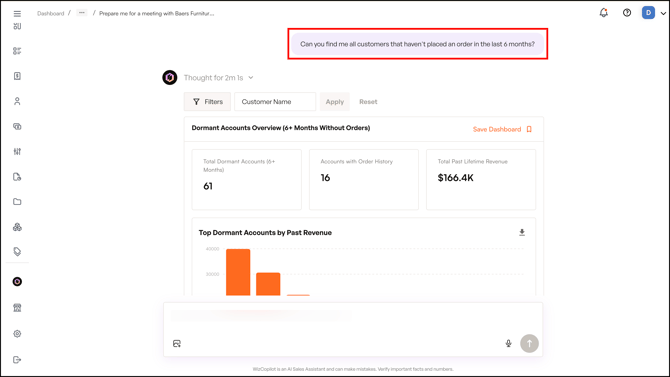
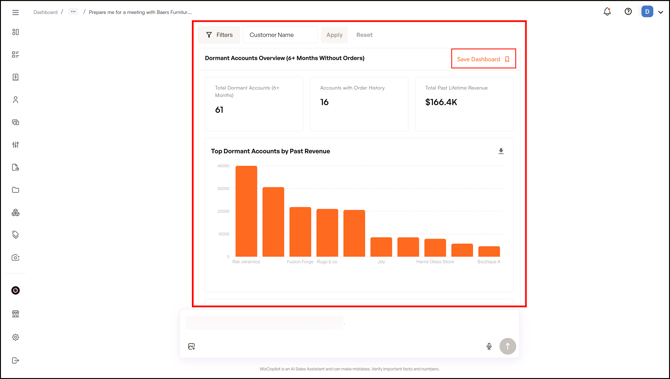
- WizPilot returns the result as a chart or set of metric cards.
- Save it, and it appears under Created by Me in Artifacts & Dashboards, with the query saved so it keeps re-running.
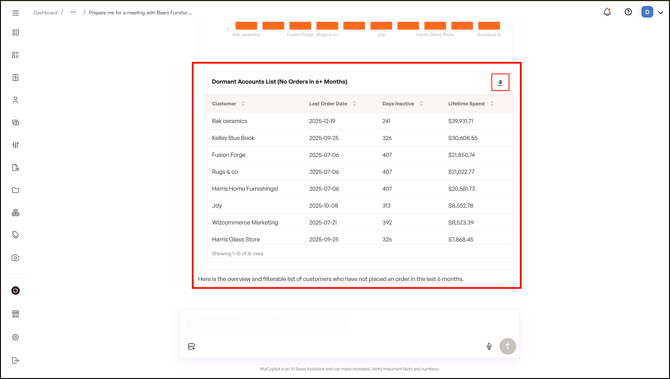
- Click on Download icon to download your dashboard.
Note: WizPilot also remembers preferences you set for how numbers should be measured (For example, whether your performance is tracked by order value or invoice value) and applies that consistently across every dashboard.
D. View and Filter Your Dashboards
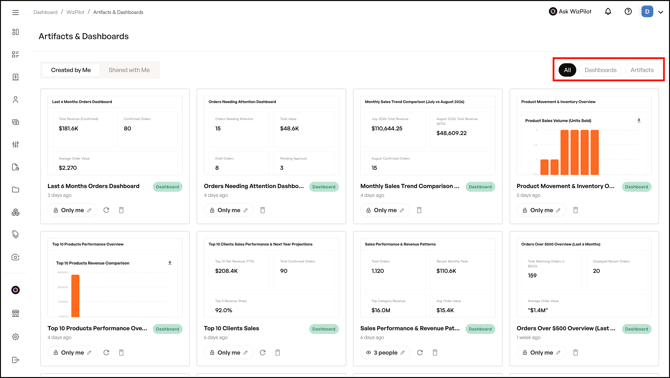
Each dashboard card shows a title, when it was last updated, its sharing status, and quick-access edit and delete controls.
- Use the All / Dashboards / Artifacts filter to narrow what you are looking at.
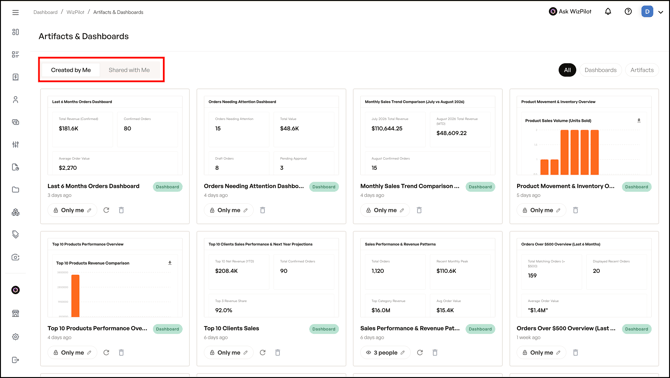
- Switch between Created by Me and Shared with Me to see your own work versus what's been shared with you.
E. Share or Delete a Dashboard
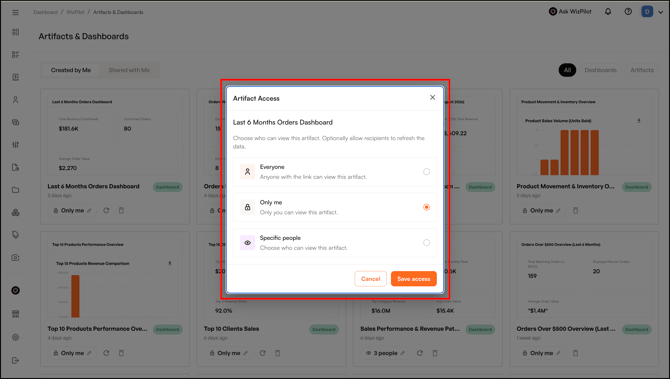
Every dashboard and artifact has its own access control, so you decide exactly who can see it.
To change who can view a dashboard:
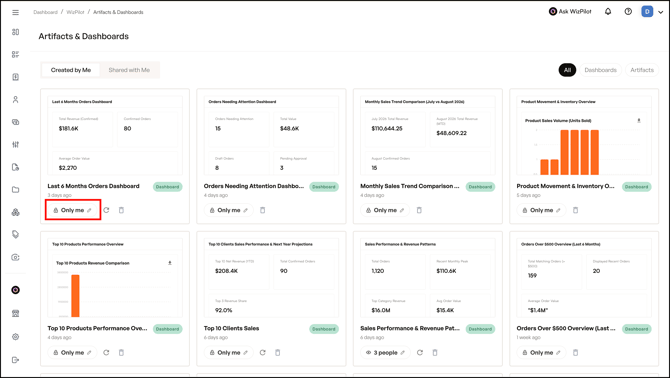
- Find the dashboard card in Artifacts & Dashboards and select its sharing label (for example, Only me).
- In the Artifact Access window, choose who can view it:
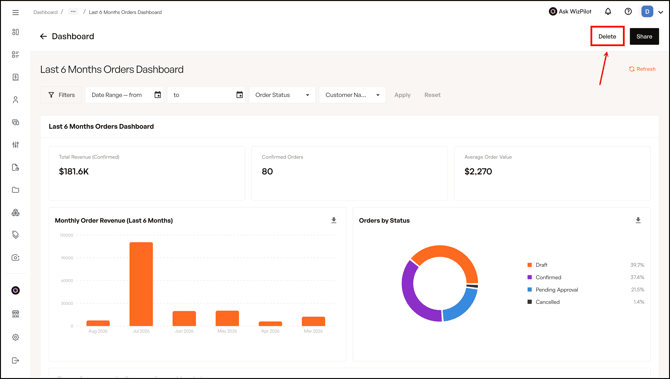
- You can also delete a dashboard.
FAQs
1. What's the difference between an Artifact and a Dashboard?
A. Artifacts are singular charts (like a line, bar, or table) while a dashboard is a combination of artifacts.
2. Do my reports disappear when I close the WizPilot chat?
A. No. Once saved, a report becomes a dashboard under Artifacts & Dashboards, and its query keeps re-running every time you open it.
3. Can I share a dashboard with my whole team?
A. Admins can share a dashboard with selected reps or the entire organization, and can view every dashboard created across the org from their own view, filtered by rep name.
4. Can I filter my saved reports by name or time period?
A. No, you can not filter saved reports by name or time period.
Still need help? Reach out to our support team at help@wizcommerce.com.