
Prompt Library lets you save the prompts that work well for you in WizPilot, so you can reuse them anytime instead of rewriting them from memory. You can save a prompt straight from a chat, create one from scratch, turn it into a reusable template with variables, and share it with your team.
This article covers how to save, create, use, share, and delete prompts in the Prompt Library.
Platform: WizOrder | Who is this for: Sales Reps & Admins
To get there: WizOrder → Ask WizPilot → Prompt Library icon (in the message box)
Table of Contents
|
Sections |
Topics |
|---|---|
|
A |
|
|
B |
|
|
C |
|
|
D |
|
|
E |
|
|
F |
|
|
G |
|
|
H |
|
|
I |
Before You Begin
- Prompt Library must be enabled for your organization. If you don't see the Prompt Library icon in the WizPilot message box, contact your Customer Success Manager (CSM).
- What you can do depends on your role. Sales Reps can create, view, and delete prompts and share them with admins. Admins can do the same and also share prompts with sales reps and other admins.
A. What is the Prompt Library?
When you ask WizPilot something often, you probably refine the wording until it gives you exactly the result you want. The Prompt Library lets you keep that prompt, so next time you can pick it from a list instead of typing it again.
Prompts can also be turned into templates. For example, a prompt like "Fetch me the revenue details of ABC Corp" can be saved with the customer name as a variable, so you can run the same prompt for any customer.
The library is organized into two sections:
|
Section |
Sales Reps see |
Admins see |
|---|---|---|
|
Created by me |
Prompts you saved or created |
Prompts you saved or created |
|
Shared with me |
Created by Admin: prompts admins have shared with you |
Prompts sales reps and other admins have shared with you |
Each section is a scrollable list showing each prompt's name and description, with a search bar to find a prompt by its name or description.
B. Where to Find the Prompt Library
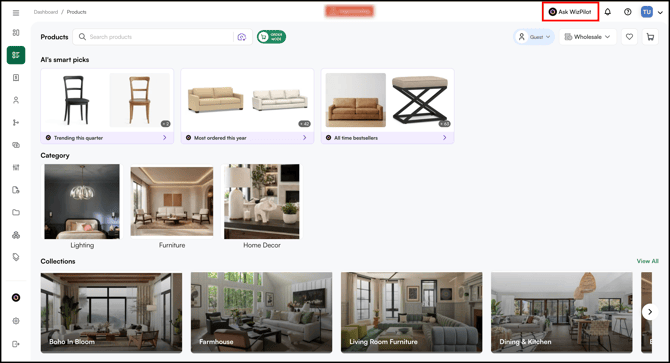
- Open WizPilot from Ask WizPilot in the top navigation.
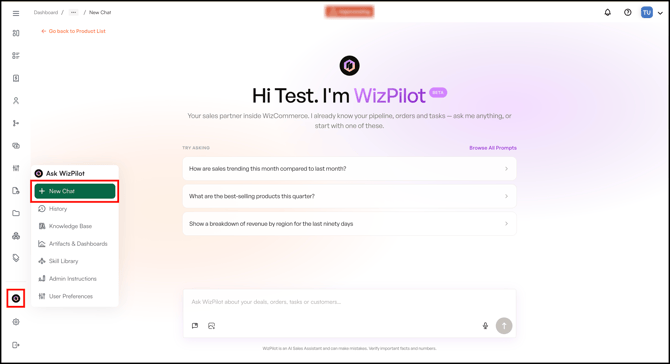
- or from the WizPilot side menu → New Chat.
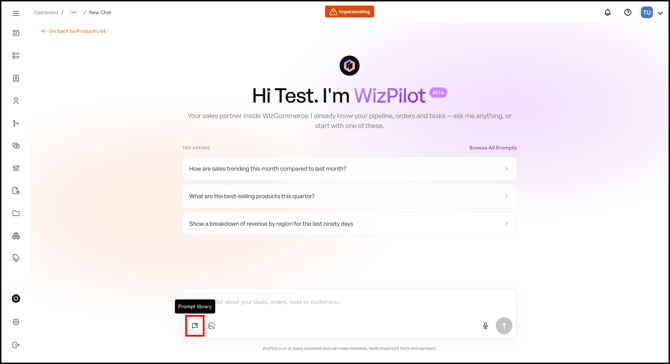
- Click the Prompt Library icon in the message box.
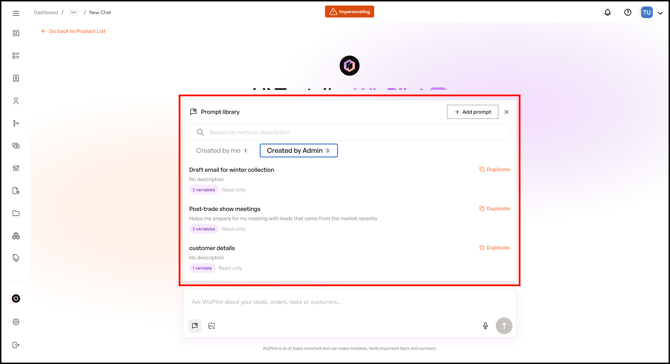
- The library opens as a drawer next to the message box.
C. Save a Prompt From a Chat
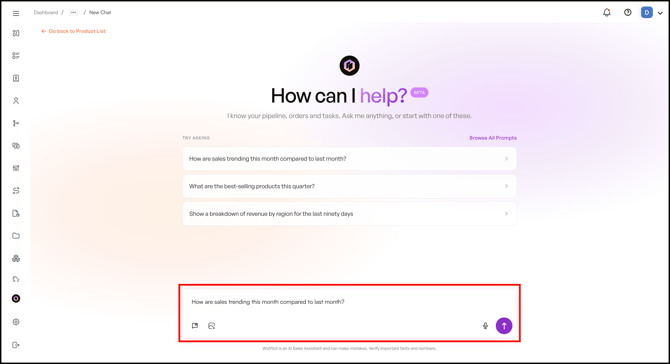
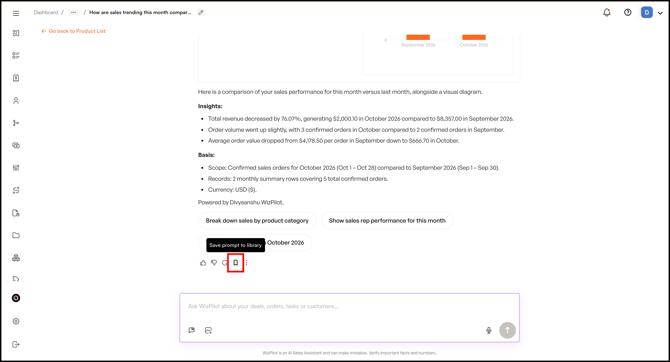
Every WizPilot response has a Save Prompt to Library button, so you can save the prompt that produced that response.
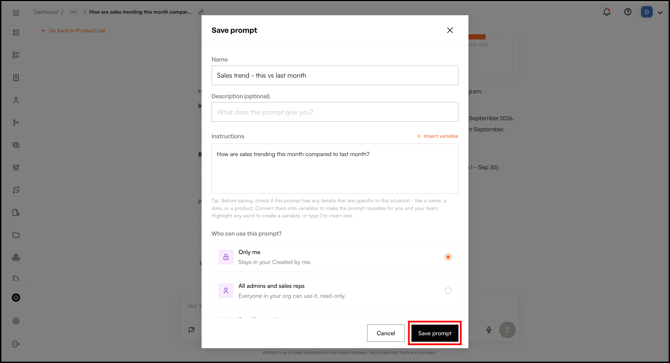
- Start a chat and run the prompt. For example, “How are sales trending this month compared to last month?”
- In the chat, click Save Prompt to Library on the response.
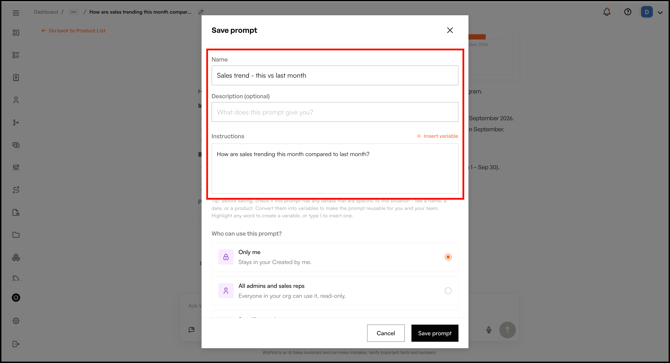
- In the pop-up, enter a Name for the prompt.
- Add a Description (optional) so you and others know what the prompt does.
- Review the Instructions field. This holds the prompt text, and you can edit it or turn parts of it into variables here (see Section E).
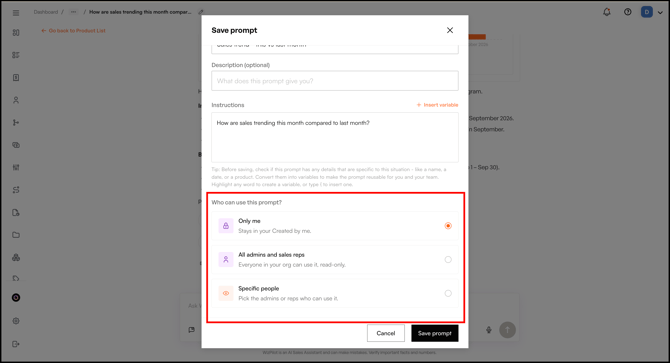
- Choose who to share the prompt with, or keep it to yourself (see Section G).
- Click Save Prompt. The prompt appears under Created by me.
Field rules:
|
Field |
Required |
Limit |
Notes |
|---|---|---|---|
|
Name |
Yes |
50 characters |
Letters, numbers, spaces, and these characters only: ? - , ; ( ). Must be unique in your Created by me list (not case-sensitive, so "Revenue Report" and "revenue report" count as the same name). |
|
Description |
Optional |
150 characters |
Shown under the name in the library. |
|
Instructions |
Yes |
No limit |
The prompt itself. Not shown on the library card. |
Note: Long names are shortened with "..." in the library. Hover over or tap the name to see it in full.
D. Add a Prompt From the Prompt Library
You can also create a prompt from scratch without starting from a chat.
- Click the Prompt Library icon in the message box.
- Click + Add Prompt.
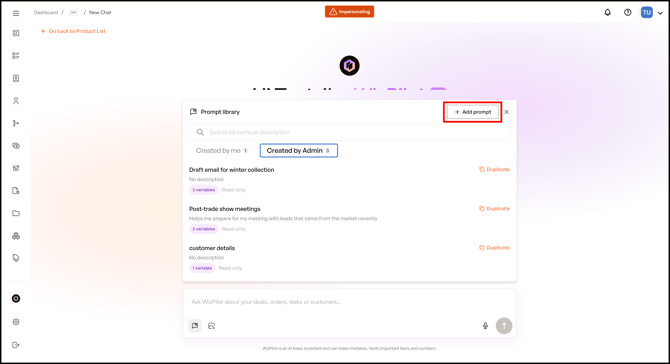
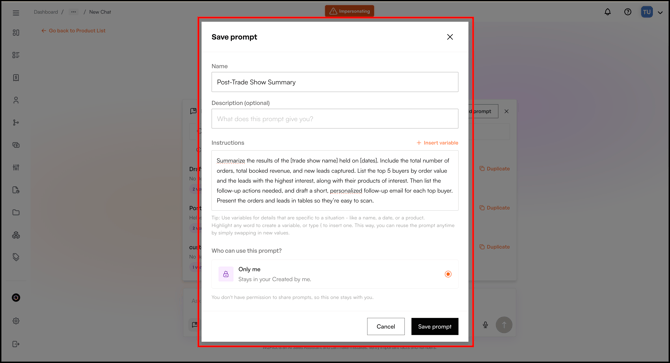
- Enter the prompt Name, Description (optional), and Instructions.
- Choose who to share it with, or keep it to yourself.
- Click Save.
E. Turn a Prompt Into a Template With Variables
Variables let one prompt work across different customers, sales reps, time periods, or product lines. You add them in the Instructions field when you create or save a prompt.
- Click the Prompt Library icon, then click + Add Prompt.
- Enter the prompt Name, Description (optional), and Instructions.
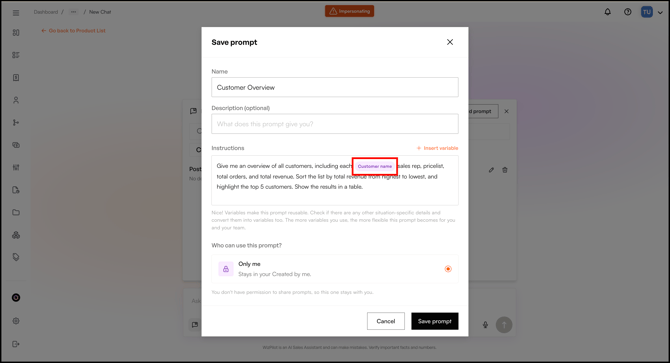
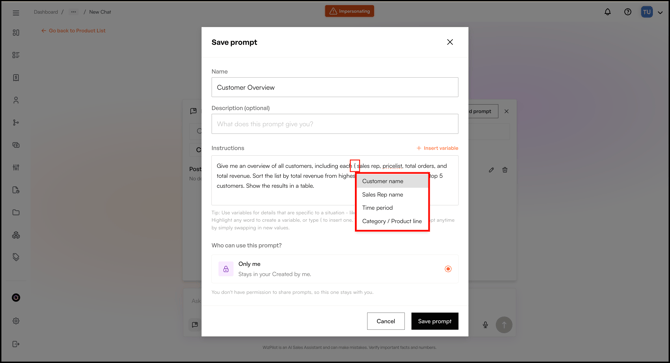
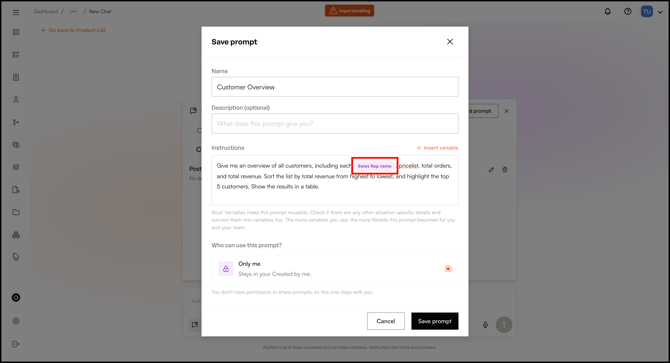
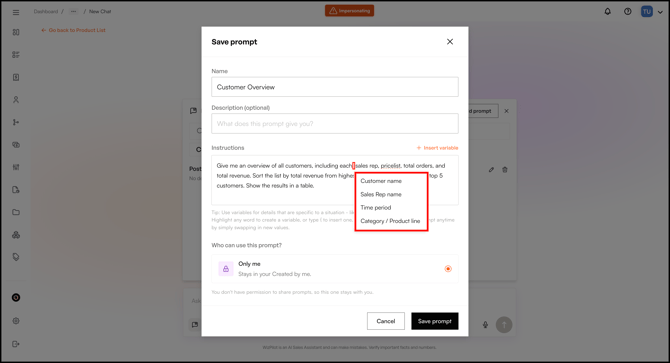
- In the Instructions field, add a variable in any of these ways:
- Highlight text: Select the text and choose a variable, such as Customer name.
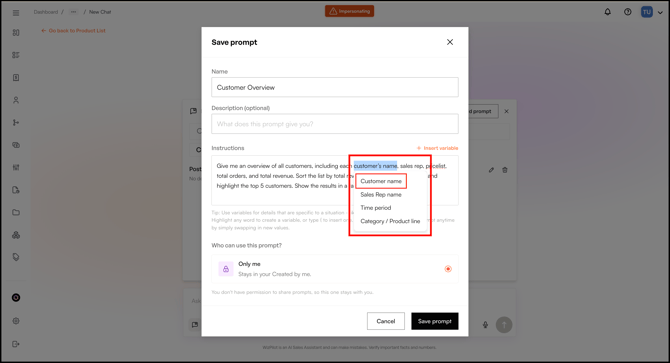
- Type a curly bracket: Type { where you want the variable to go and choose a variable, such as Sales Rep name.
- Insert Variable: Place your cursor where you want the variable to go, click + Insert Variable, and choose a variable, such as Customer name.
- Highlight text: Select the text and choose a variable, such as Customer name.
- Repeat for any other text you want to make reusable, then click Save. The prompt is saved as a template.
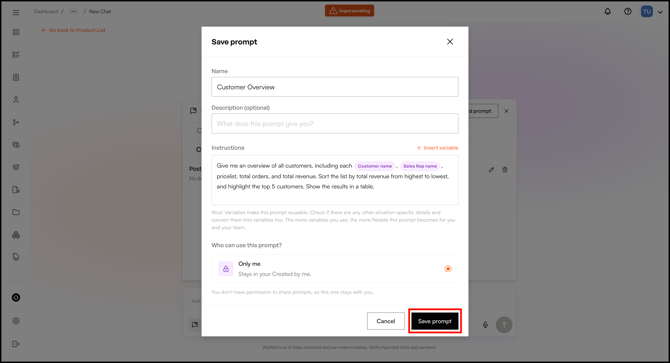
Note: A variable only applies to the exact text you highlighted. If the same value appears more than once in the prompt, highlight and tag each one separately. This keeps WizPilot from changing text you didn't select, for example the word "Apple" in a customer name versus "Apple" used as a color.
F. Use a Saved Prompt
- Click the Prompt Library icon in the message box.
- Browse or search Created by me, or the shared section (Created by Admin for Sales Reps, Shared with me for Admins).
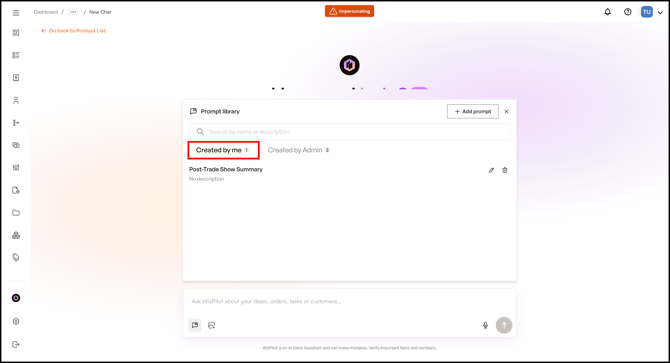
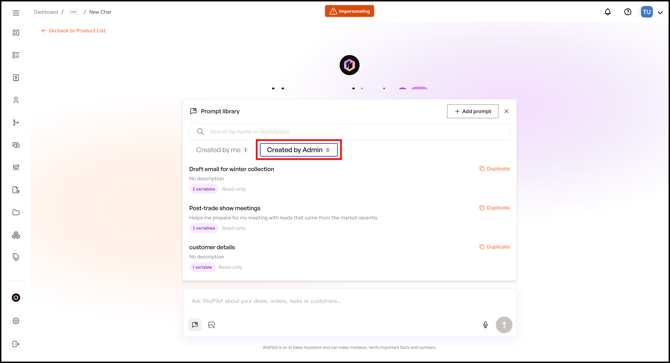
- Select a prompt:
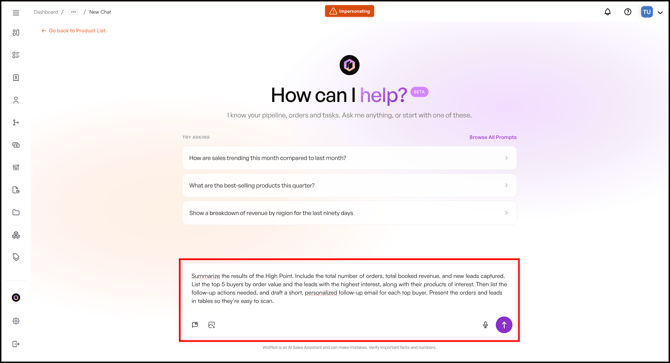
- No variables: The prompt loads straight into the message box, ready to send.
- Template with variables: Fill in the values and confirm. The completed prompt is placed in the message box, ready to send.
- Review the prompt, edit it if needed, and then use it.
G. Share & Duplicate Prompts
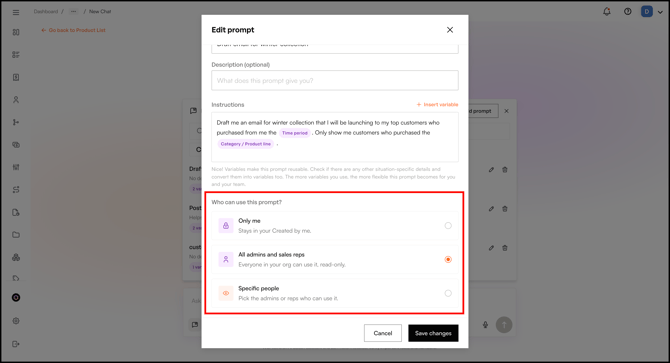
When you create or save a prompt, choose who can use it under Who can use this prompt?
| Option | What it means |
|---|---|
| Only me | The prompt stays in your Created by me section. No one else can see it. |
| All admins and sales reps | Everyone in your organization can use it, read-only. |
| Specific people | Choose the admins or sales reps who can use it. |
Here's how shared prompts work:
- They appear automatically. Shared prompts show up in each recipient’s library with no need to accept them. Sales reps see them under Created by Admin, and admins see them under Shared with me. Admin-shared prompts show the admin’s full name.
- They are read-only. Anyone a prompt is shared with can use it but can’t change it, so the original stays intact.
- Admin prompts are labelled. If an admin’s prompt has the same name as one of your own, it shows an Admin tag so you can tell them apart.
» Duplicate a shared prompt to edit it
To adjust a shared prompt for your own work, duplicate it.
- Open the shared prompt in the Prompt Library.
- Click Duplicate.
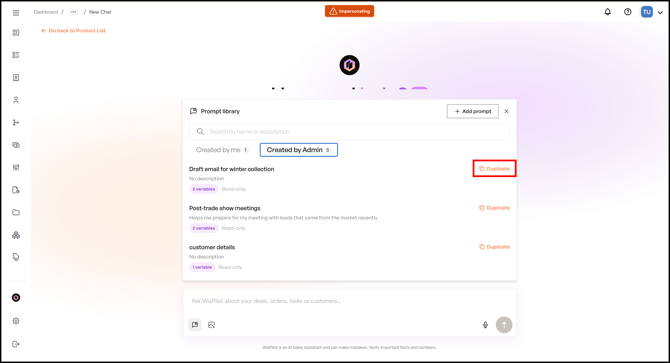
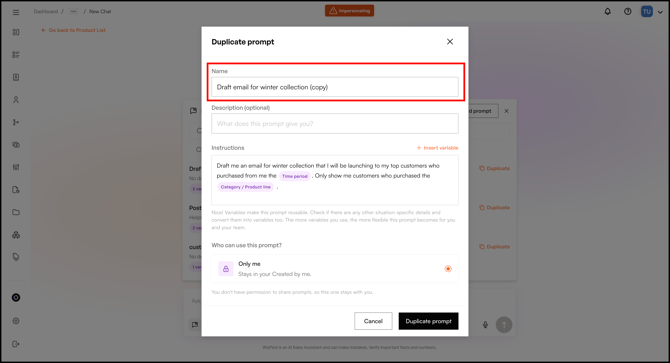
- The copy appears in Created by me as your own editable prompt, named "[prompt name] (copy)". If that name is already taken, it is named "(copy 2)", "(copy 3)", and so on.
- Update the name and instructions if needed. For example, change Draft email for winter collection to Draft email for summer collection, and adjust the instructions to match.
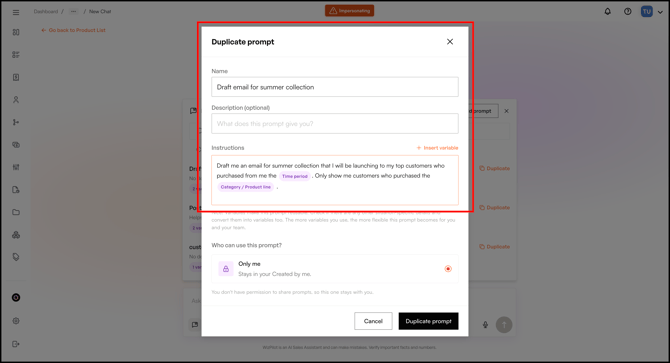
- Click Duplicate Prompt. The prompt stays in Crated by me if you don't have permission to share prompts.
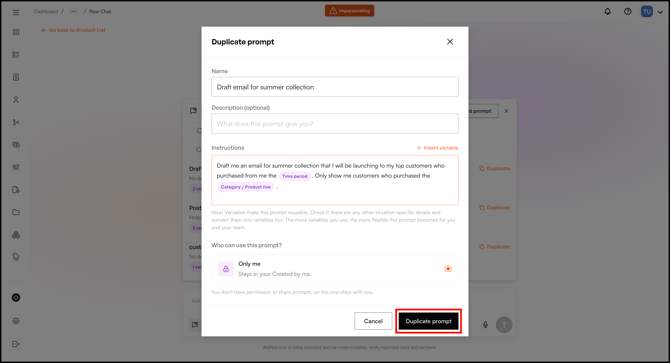
Note: Admins can use this to pass along a prompt a sales rep shared with them. Duplicate it, then share the copy with any sales reps or admins.
H. Edit or Delete a Prompt
You can edit or delete any prompt in your Created by me section. Prompts shared with you are read-only, so to change one, duplicate it first (see Section G).
» Edit a prompt
- Open the Prompt Library and find the prompt under Created by me.
- Click Edit.
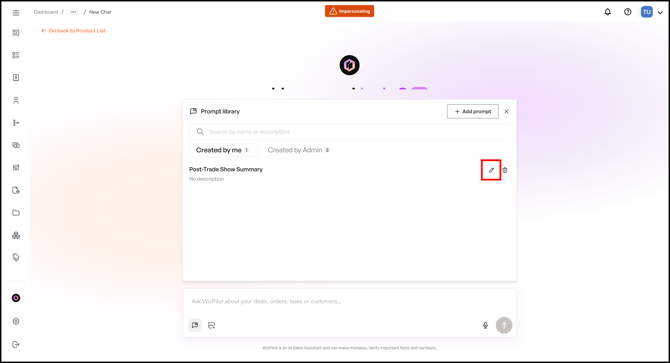
- Update the Name, Description, Instructions, variables, or sharing settings.
- Click Save Changes.
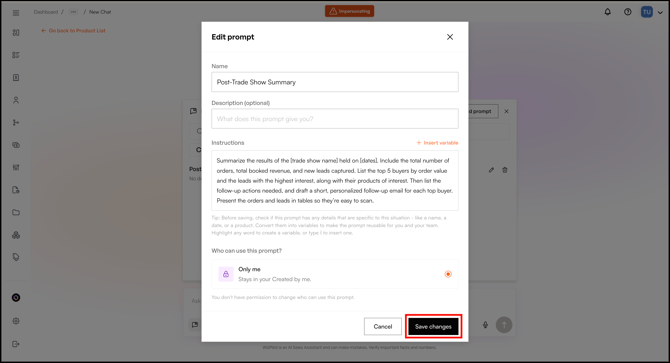
» Delete a prompt
- Open the Prompt Library and find the prompt under Created by me.
- Click Delete.
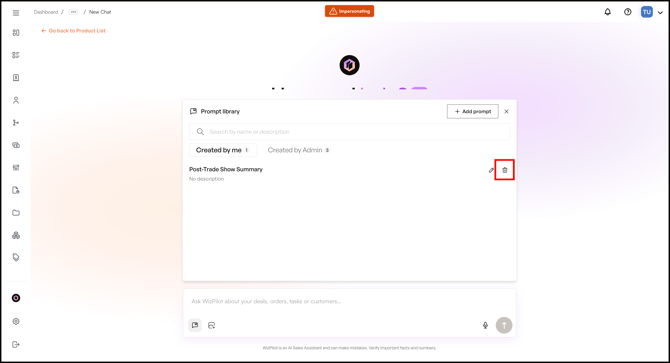
- Click Delete to confirm, or click Cancel to keep it.
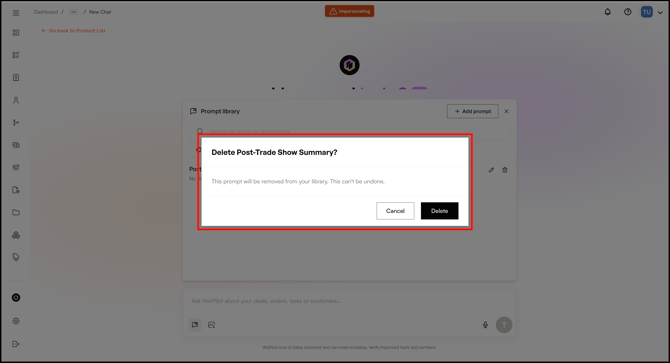
Note: If an admin deletes a prompt they shared, it is removed for everyone it was shared with. Copies someone made using Duplicate are separate prompts and stay in their library.
FAQs
1. Why can't I save my prompt? It says the name already exists.
A. Prompt names must be unique within your Created by me list, and the check ignores capital letters. For example, "Weekly Revenue" and "weekly revenue" count as the same name. Choose a different name and save again.
2. Why doesn't my prompt name accept certain characters?
A. Names can include letters, numbers, spaces, and only these characters: ? - , ; ( ). Names can be up to 50 characters. Descriptions and instructions have no character restrictions.
3. A prompt my admin shared disappeared from my library. Why?
A. The admin who created it has deleted it. When an admin deletes a shared prompt, it is removed for everyone it was shared with. If you had duplicated it earlier, your copy is still in Created by me.
4. Can I edit a prompt someone shared with me?
A. Not directly. Shared prompts are read-only. Click Duplicate to make your own editable copy in Created by me.
5. I used the same customer name twice in my prompt but only one changed when I used the template. Why?
A. A variable only applies to the exact text you highlighted. To make every mention reusable, highlight and tag each one separately when you save the prompt.
6. Which variables can I use?
A. Customer name, Sales Rep name, Time period, and Category / Product line.
7. As a sales rep, can I share a prompt with other sales reps?
A. No. Sales reps can share prompts with admins. If your admin finds it useful, they can duplicate it and share the copy with the sales team.
8. I don't see the Prompt Library icon. What should I do?
A. Prompt Library may not be enabled for your organization. Contact your WizCommerce Customer Success Manager.
Still need help? Reach out to our support team at help@wizcommerce.com.