
Approval & Comments lets your team review, discuss and approve images and videos directly inside WizStudio. Creators send assets for approval, approvers review and respond, and everyone involved is notified as the conversation moves forward.
This keeps the full creative review in one place, so you no longer need to collect feedback through email threads, chat messages or screenshots.
Platform: WizStudio | Who is this for: Creators, Approvers, Admins
To get there: WizStudio → [image or generation] → Send for Approval
Table of Contents
Before You Begin
- You need access to a WizStudio workspace to send assets for approval.
- At least one approver must be added to the workspace before you can send an asset to them. You can also add a new approver while sending (see Section B).
- You can add as many approvers to your workspace as you need.
A. Creator and Approver Roles
Every person in your workspace has one of two account types. Use this reference to decide which to assign.
|
Role |
What They Can Do |
|---|---|
|
Creator |
Full access to WizStudio, including all creation tools, Projects and Collections. Can send images and videos for approval and comment on them. |
|
Approver |
View, comment on and approve or reject images and videos sent to them. Does not have access to creation tools, Projects or Collections. |
Note: The Creator experience is unchanged. Creators keep all existing creation capabilities and simply gain the option to send assets for approval.
B. Add an Approver to Your Workspace
You can add approvers from Organization Settings, or directly while sending an asset for approval.
» From Organization Settings
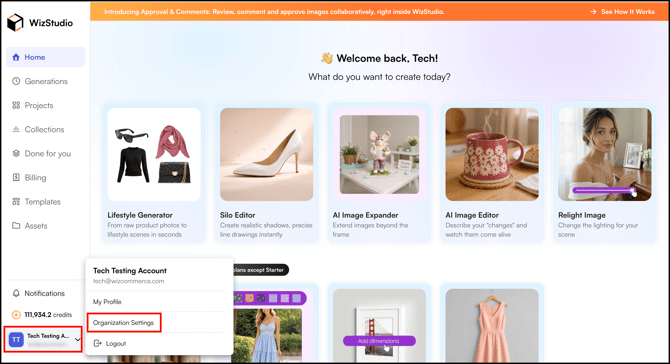
- Go to Profile → Organization Settings.
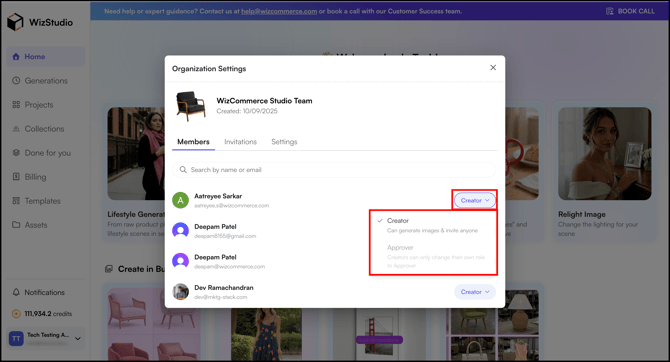
- Invite the new person and select Approver as their account type.
- To change an existing team member from Creator to Approver, find them in the members list and change their account type to Approver. You can change this at any time.
C. Send an Image for Approval
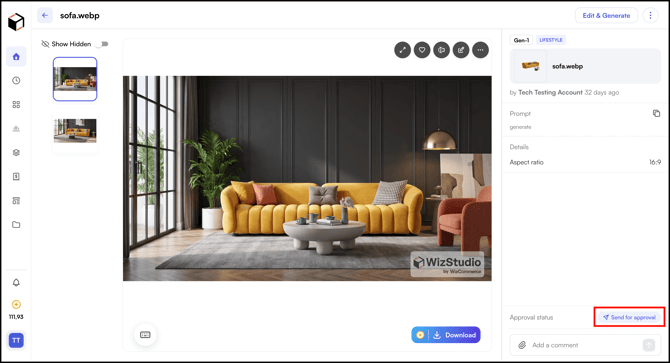
- Open the image you want approved.
- Click Send for Approval.
- To add an approver, you can:
- Select an approver from the list of approvers in your workspace.
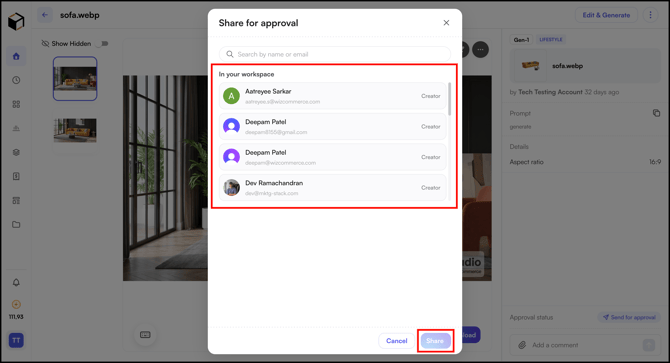
- Or enter the person's name or email, select their role (Creator or Approver), and send the request to add them to your workspace.
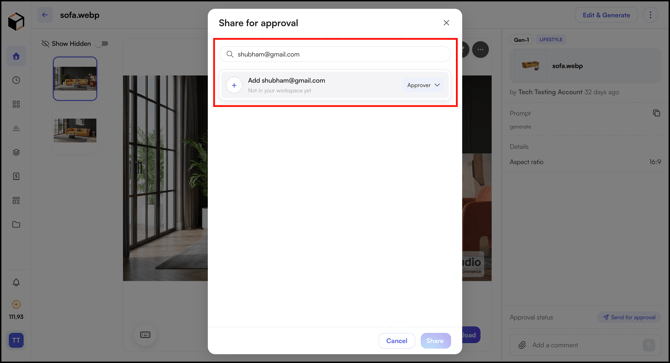
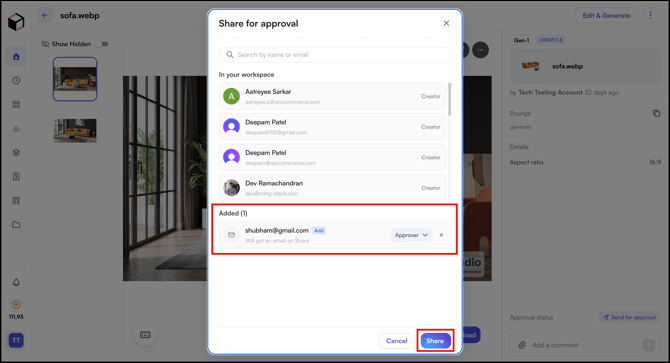
- Select an approver from the list of approvers in your workspace.
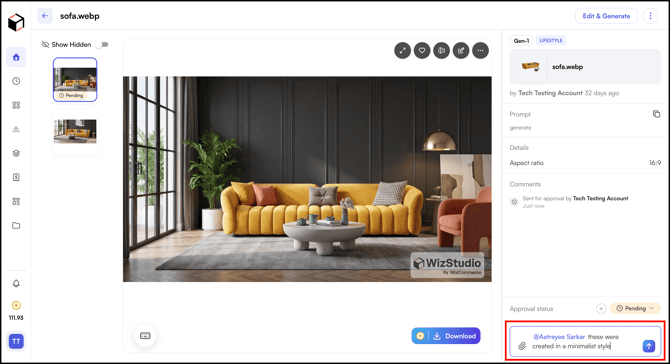
- (Optional) Add context for the approver by tagging them with @ followed by their name and writing a comment. For example: @Aatreyee these were created in a minimalist style.
- Send the request. The approver is notified and receives your comment as a mention.
D. Send Multiple Images for Approval
To get an entire project or set of variations approved, send the images together instead of one at a time.
- Go to Generations.
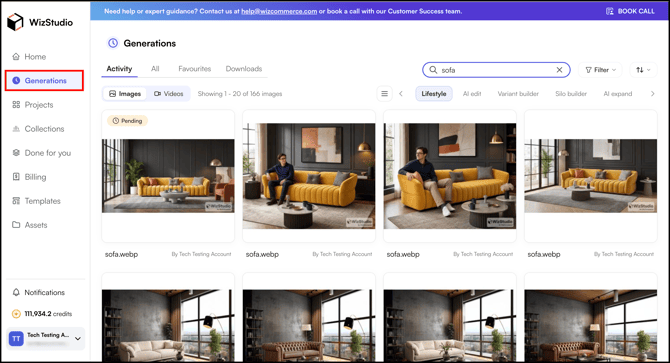
- Select all the images you want approved.
- Click Send for Approval.
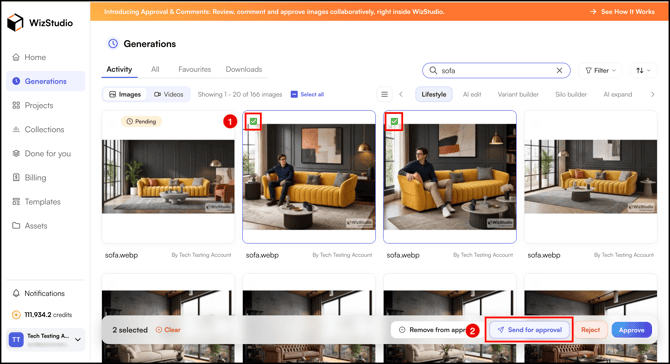
- Select an existing approver
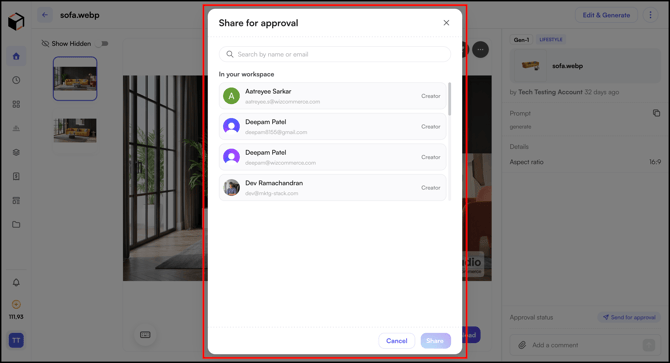
- Or add a new one (see Section B).
- Send the request.
E. Review and Approve as an Approver
Approvers see a simplified view of WizStudio with only the Generations tab. There are two ways to review an approval request.
» From the Generations Tab
- Go to Generations.
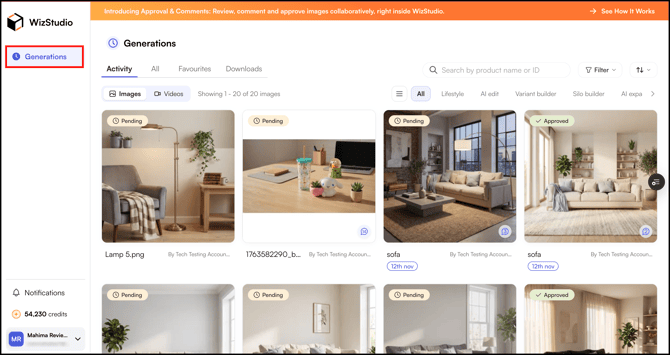
- Select the image or images you want to review.
- Review the image and any comments the creator added.
- Approve or reject the image.
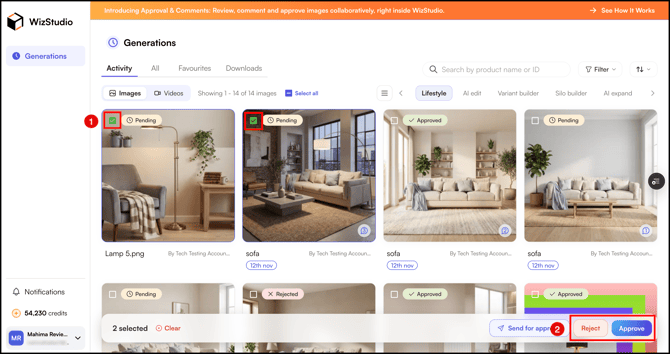
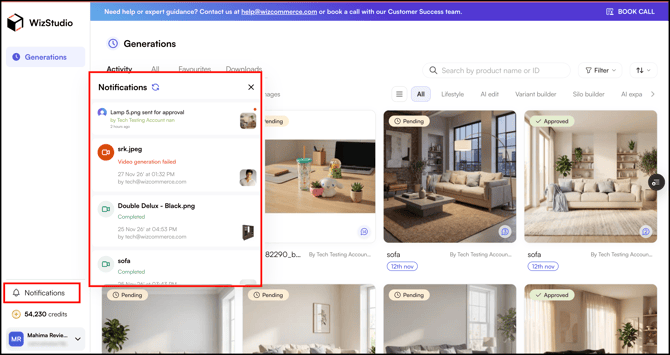
» From a Notification
- Open the notification for the approval request.
- Review the image and any comments the creator added.
- Approve or reject the image.
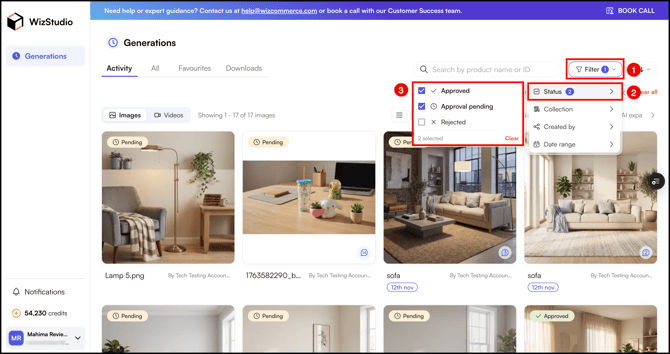
» Filter by Approval Status
When several assets have been sent to you, filter them by status to see what still needs your attention.
- Go to Filter → Status.
- Filter by Approved, Approval Pending or Rejected. Select Approval Pending to see everything waiting for your review.
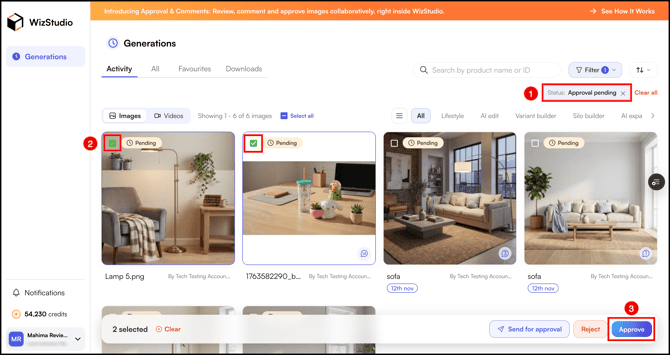
» Approve in Bulk
- Filter by Approval Pending.
- Select the images you want to approve.
- Approve them together in one step.
Note: Approvers can review, comment on and approve assets, but cannot create or edit images or videos.
F. Notifications
Everyone actively involved in a review thread is notified when there is new activity, so no feedback is missed.
- In WizStudio: Notifications appear in the platform for new approval requests, comments and mentions.
- By email: The same updates are also sent to your email.
FAQs
1. Is there a limit to how many approvers I can add?
A. No. You can add as many approvers to your workspace as you need.
2. Can I send an asset for approval to someone who isn't on WizStudio yet?
A. Yes. Click Send for Approval, enter the person's details and choose Approver as their account type. They are added to your workspace and receive the request. See Section B.
3. Why can't the approver see Projects, Collections or the creation tools?
A. This is expected. The Approver role is designed only for reviewing. Approvers can view, comment on and approve assets, but cannot create or edit them. If someone needs to create images too, change their account type to Creator.
4. Can I change someone from Creator to Approver later?
A. Yes. Go to Organization Settings, find the team member and change their account type. You can do this at any time.
5. How do I add context or instructions for the approver?
A. Tag the approver in a comment using @ followed by their name, then write your note. The approver receives it as a mention along with the approval request.
6. Who gets notified when someone comments?
A. Everyone actively involved in that review thread receives an in-platform notification and an email about new comments and activity.
7. As an approver, how do I find everything still waiting for my review?
A. Use the status filter and select Approval Pending. From there you can review items one by one or approve several at once.
8. Is this the same as accepting images in Projects?
A. No. Accepting images in Projects is the review flow for images created by the WizStudio Done-For-You team. Approval & Comments is for your own team: creators send assets they made to approvers in your workspace for sign-off.
9. Does this work for videos as well as images?
A. Yes. Images and videos can both be sent for approval and commented on in WizStudio.
Still need help? Reach out to our support team at help@wizcommerce.com.