
Once a Variant Builder batch has been generated, you can’t add, remove, or edit swatches in that batch. You can still create additional product variants without losing your existing results. Choose the option that best fits your needs:
- One additional variant: Use AI Image Editor to edit the original product image or an existing generated variant.
- Multiple additional swatches: Start a new Variant Builder batch using the same product image and add the required swatches.
» Add one swatch using AI Image Editor
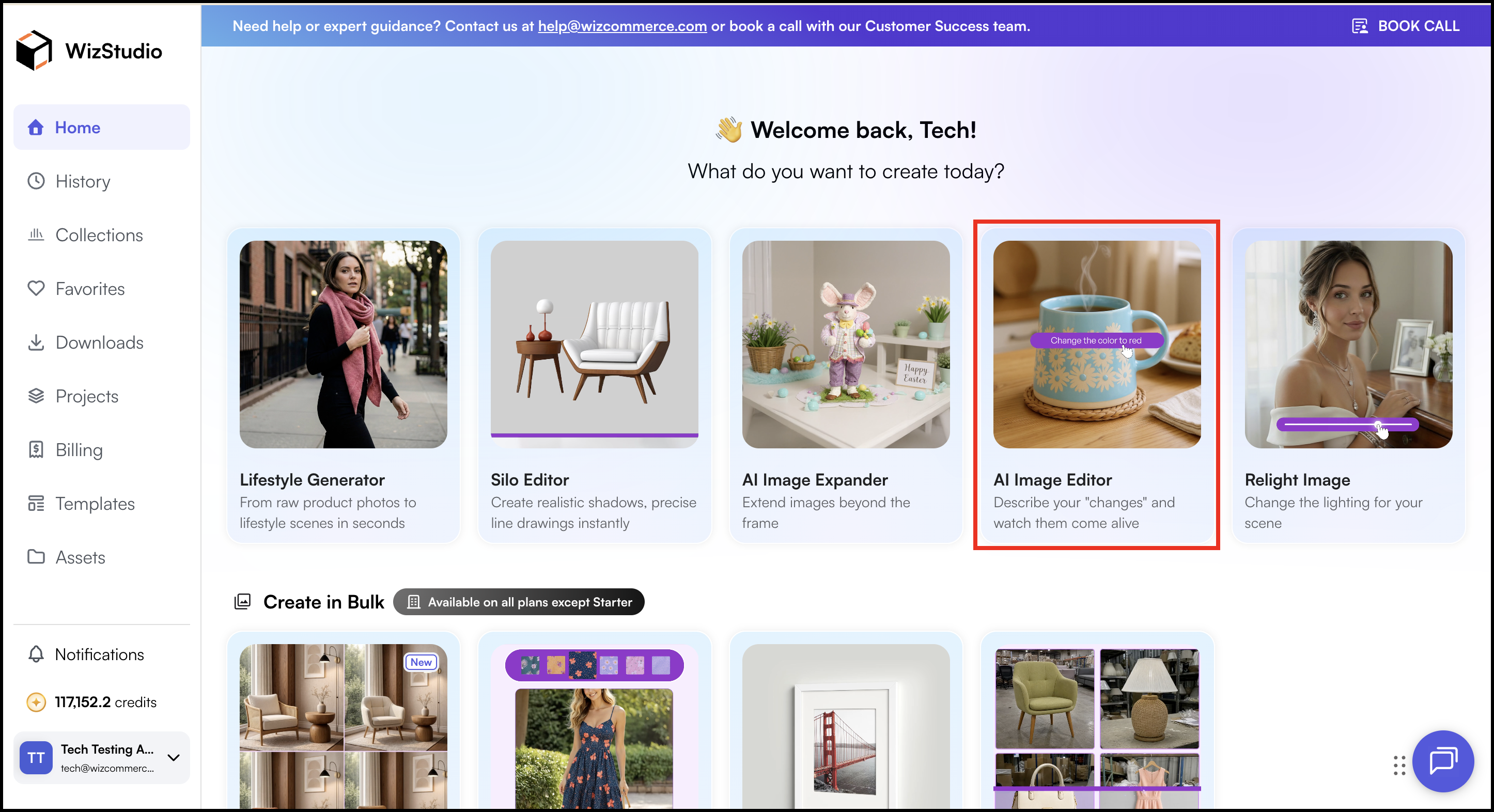
If you are looking to add just one additional swatch, you can use AI Image Editor from the WizStudio Home dashboard. AI Image Editor lets you create the extra variant on its own, without regenerating the entire batch.
- Go to the WizStudio Home dashboard.
- Open AI Image Editor.
- Upload the product image or a generated variant.
- Describe the change you want in the prompt, for example, “Change the fabric to navy velvet.”
- Generate and review the result.
» Add multiple swatches in a new batch
AI Image Editor works best for a single additional variant. To add multiple swatches, or to keep the structured swatch-based process, start a new Variant Builder batch. Your original batch stays as it is.
→ For step-by-step instructions, see Variant Builder
Tip: Add all the swatches you need before you click Generate Images. This saves you from having to run a second batch later.
» Why can’t I add a swatch to a generated batch?
A Variant Builder batch is locked once it’s generated. The product image, swatches, and prompt you used make up that batch, so you can’t add new swatches to it afterwards. This also applies if you want to change a color, a Pantone shade, or a material in a batch that is already complete.
Still need help? Reach out to our support team at help@wizcommerce.com.