
Create professional presentations directly from the WizOrder, select products manually or use filters to build a curated view, customize the layout, and share with customers in minutes.
Platform: WizOrder | Who is this for: Sales Reps & Admins
To Get There: Sales > Presentation
Table of Content
| Sections | Topics |
| A | How to Access Presentations |
| B | Create a Presentation |
| C | Create a View with Filters |
| D | FAQs |
Before You Begin
- You must have access to WizOrder through the mobile app or web portal.
- Custom filter views (Section B) are available only on the web portal and are not supported on the mobile app.
A. How to Access Presentations
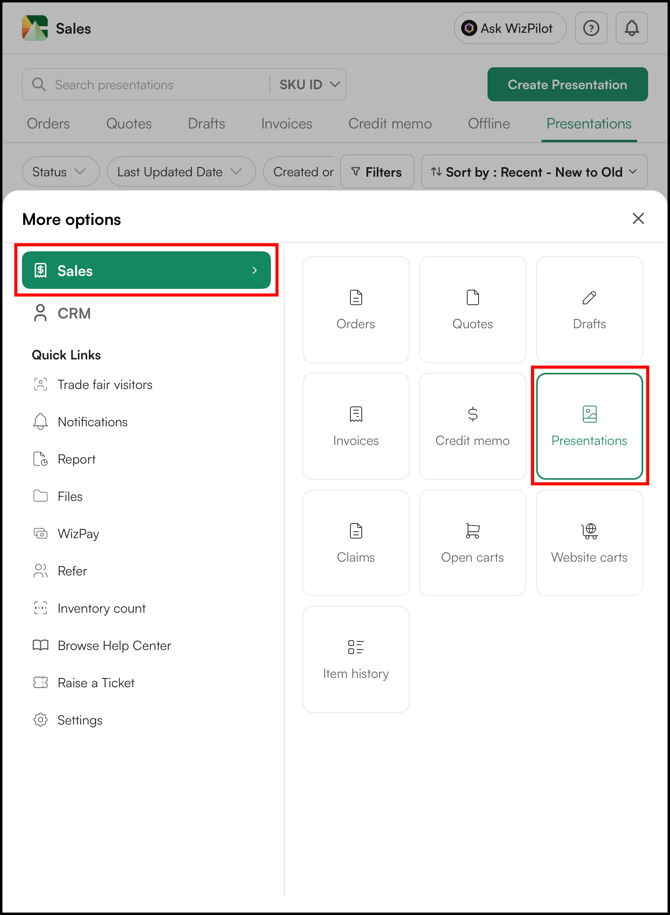
Generated presentations are stored under the Sales tab. Click Presentations to view, manage, download, or share all previously created presentations.
- Go to Sales → Presentations.
B. Create a Presentation
Manually select the products and variants you want to include and generate a custom Presentations in a few steps.
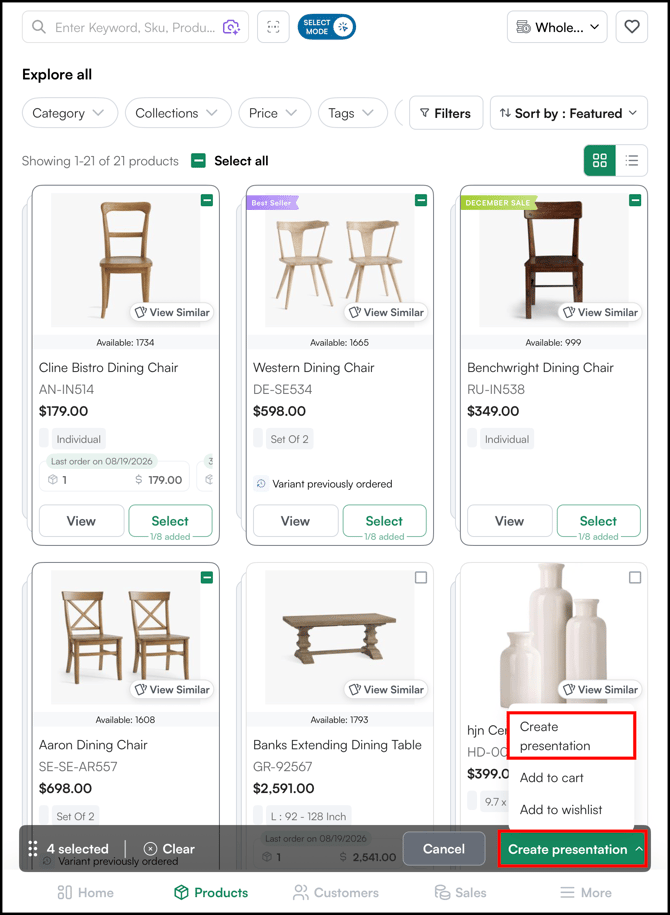
- Go to Products page, click Order Mode button to switch to Select Mode.
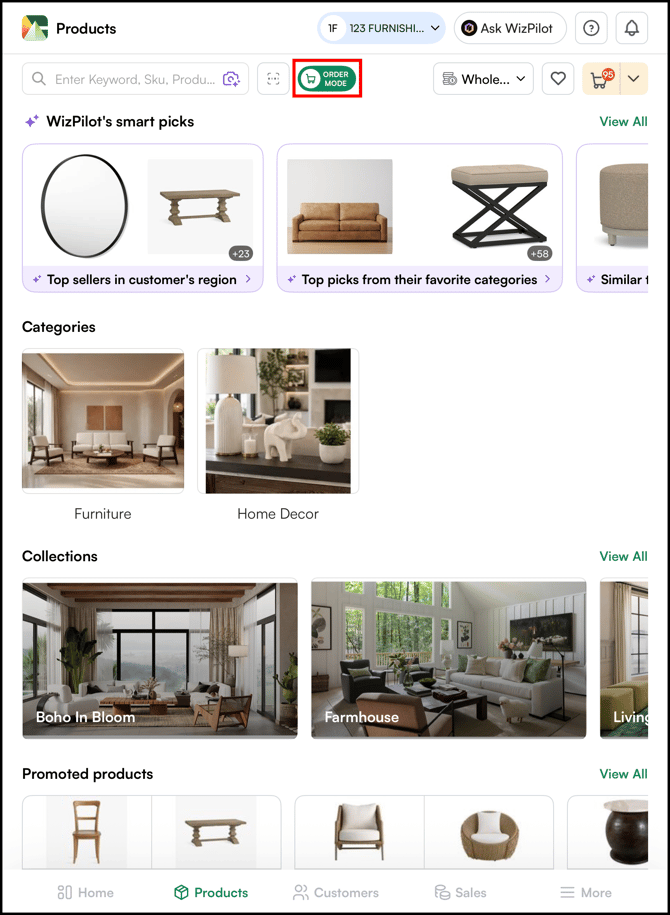
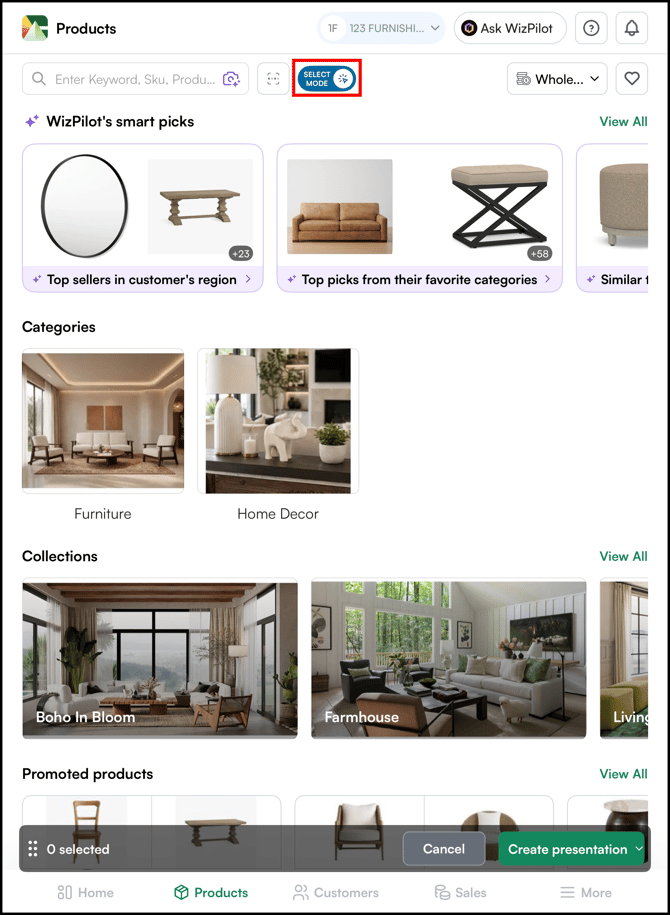
- Select Mode. Each product card will now show a selection checkbox.
- Select the products you want to include by clicking their cards. Click Select All to select everything displayed on the current page.
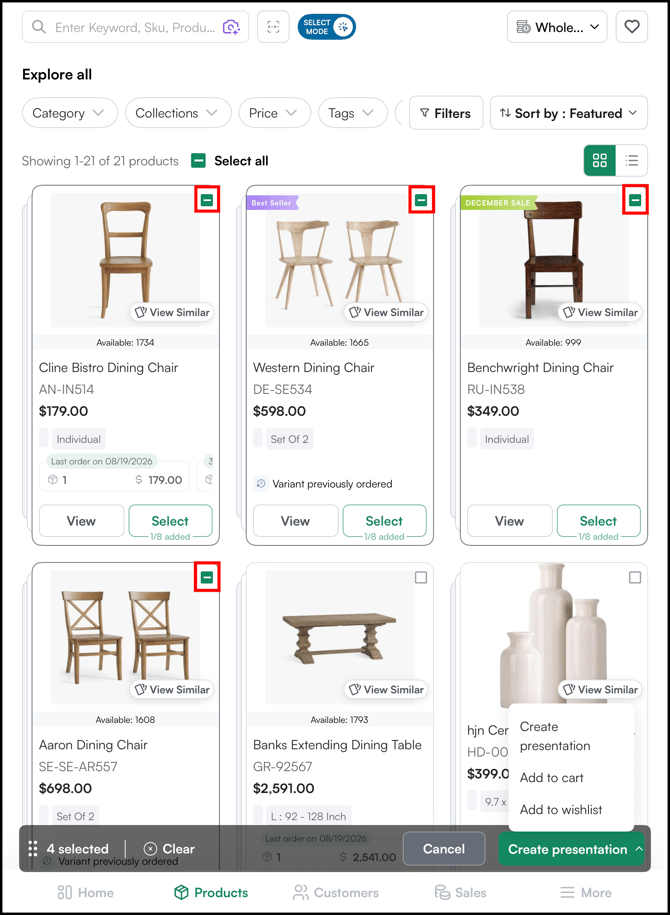
- Click Create Presentations in the bottom toolbar.
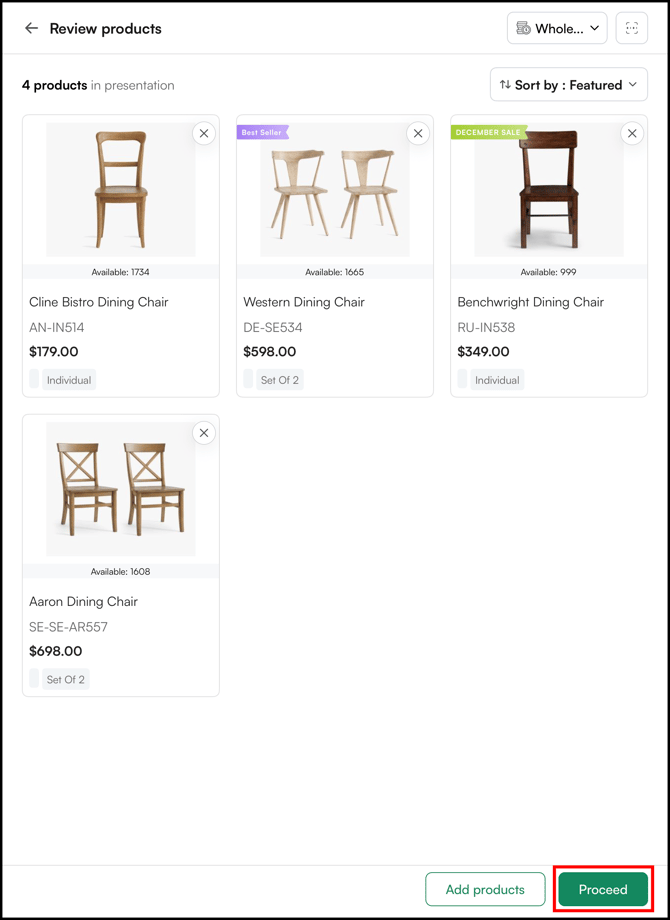
- Click Add Products to add more products or click Proceed.
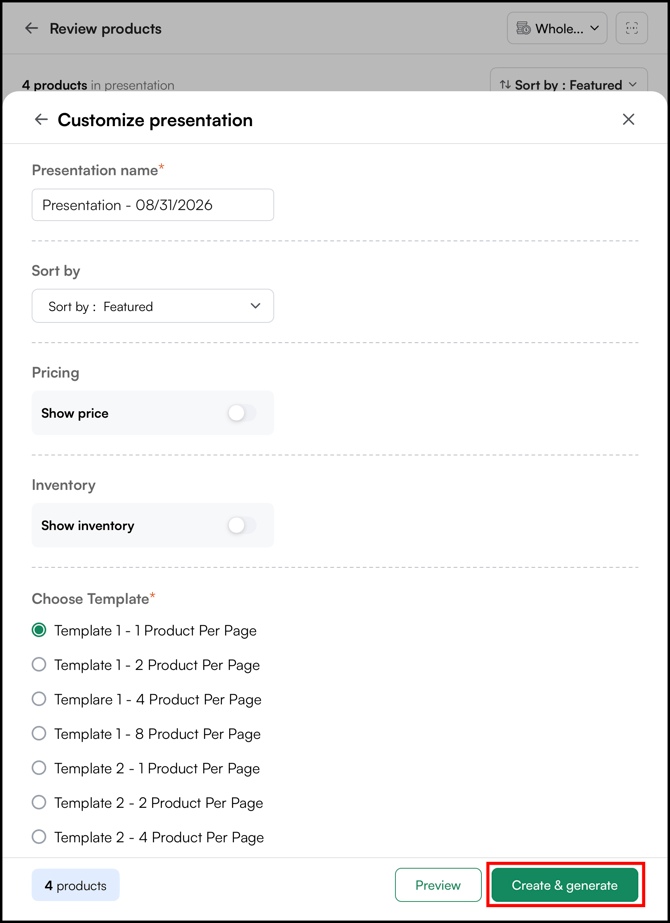
- Customize your presentations if needed. You can
- Presentation Name: Enter a name to identify the presentation (for example, Chairs). By default, the name is set to Presentation – [Date of creation].
- Sort By: Choose how products are arranged (for example, New Arrivals).
- Pricing: Turn on or off to show or hide product prices.
- Inventory: Turn on or off to show or hide product availability.
- Choose Template: Select your preferred layout with 1, 2, 4, or 8 products per page.
- Preview: Review how the presentation will look before generating it.
- The template options shown here may vary, and you might not see every available template. If you need a specific template or layout that isn't listed, contact our support team and we'll help set it up for you.
- Click Create & Generate to create the presentations PDF.
-
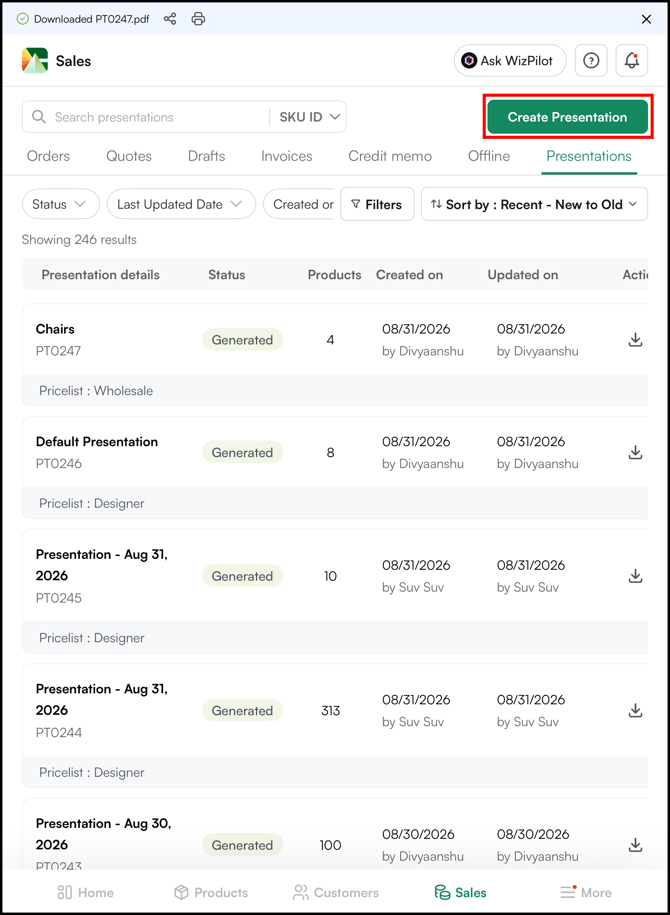
Once generated, you will be taken to the Presentations page under the Sales tab, where the new presentation will appear alongside your previously created presentations.
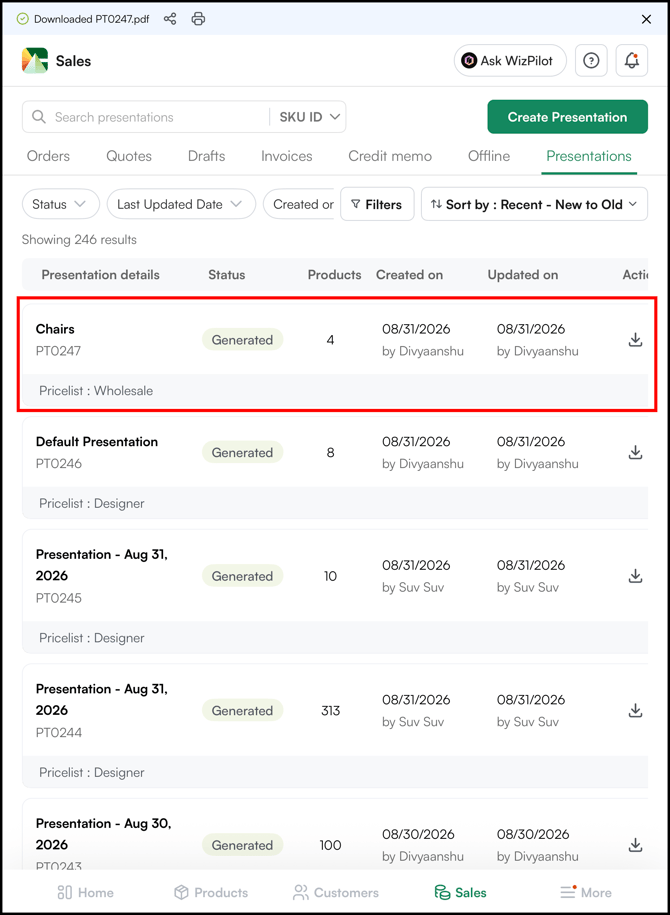
- You can also create a new presentation directly from the Presentations page. Click Create Presentation, select your products, and click Create Presentation.
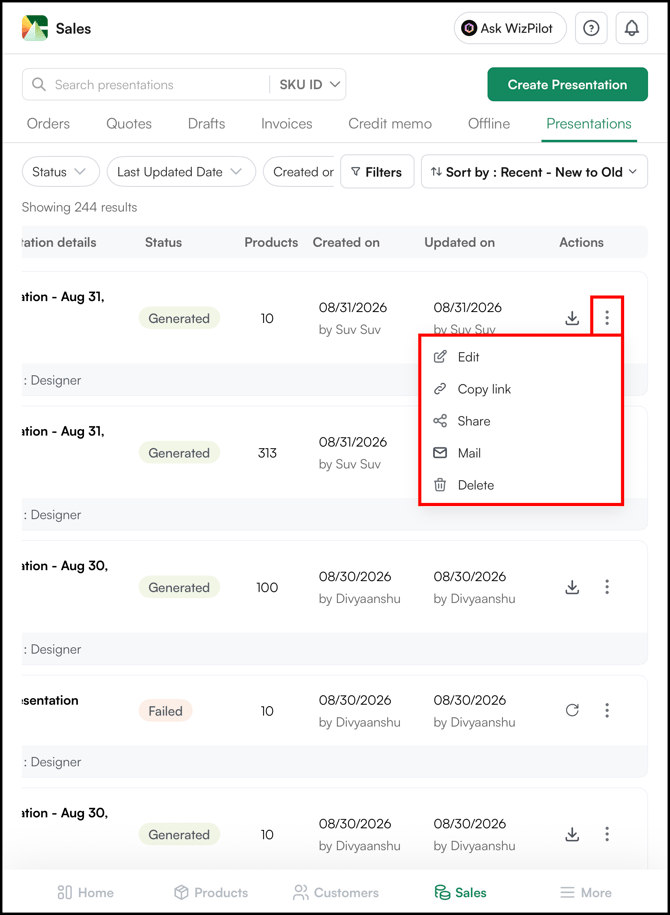
- Click the three-dot menu to Edit, Share, or Delete presentation. Click on the Download icon to download the presentation.
Note: If a product has variants and you want to include specific ones, click Select on the product to open the variants page. From there, select the variants you want to include individually. For example, you can choose only the Matte Black and Antique Brass finishes of a lamp instead of all available options.
C. Create a View with Filters
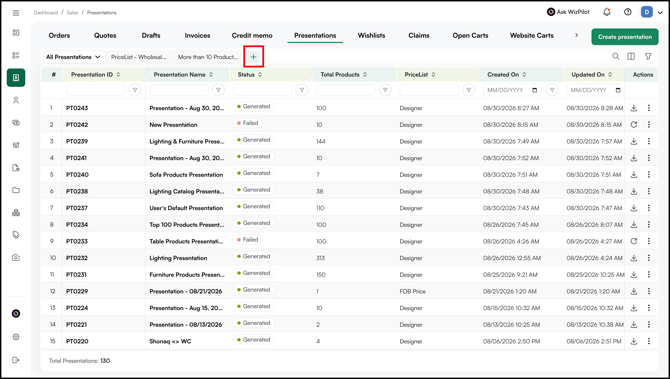
A custom view lets you save a specific filter configuration on the Presentations page. Instead of applying the same filters each time, you can save them as a view and access them whenever needed. This is useful when you regularly create presentations for a specific category, collection, or customer type and want a consistent starting point.
- On the Presentations page, click the + icon and enter a name that describes the view (for example, Pricelist - Only Designer).
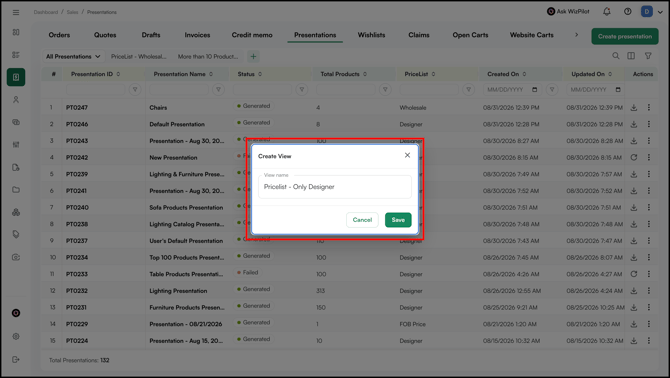
- Enter the View Name and click Save.
- Click the Filter icon and select the filters you want to apply, such as Designer Pricelist.
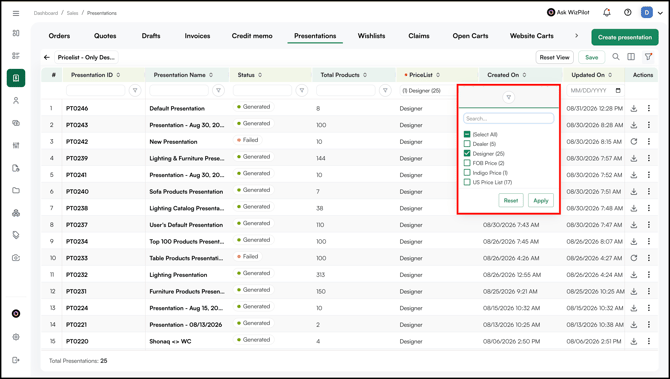
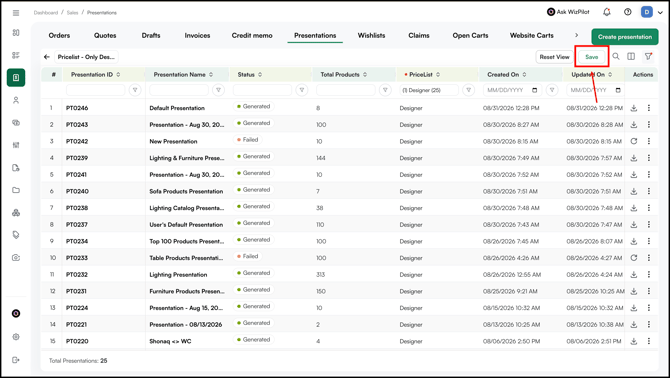
- Click Save to create the view.
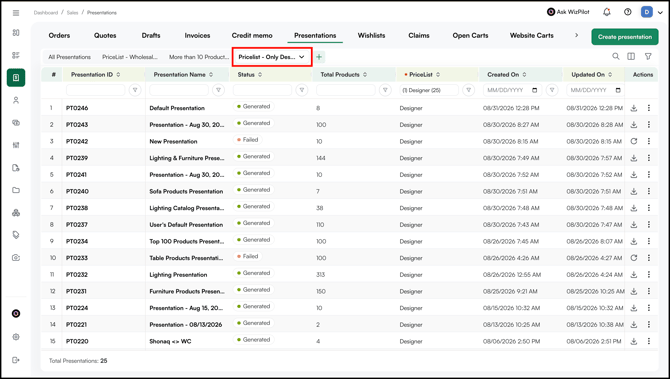
- Your saved view is now available on the Presentations page. Select it anytime to load the saved filters without applying them again.
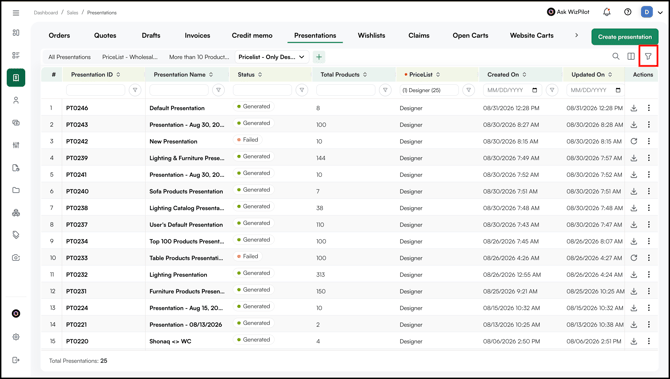
- To create a new view or apply available filters, click the Filter icon.
Note: Create View option is only available on the Web Portal, not the mobile app. The same process applies across Orders, Quotes, Customers, Inventory, and Product pages
FAQs
1. Can I include specific variants of a product rather than all variants?
A. Yes. When selecting products in Select Mode, click Select on any product that has variants to open the variants page. From there, choose only the specific variants you want in the presentation — for example, selected colors or finishes only.
2. Where do I find a presentation after I generate it?
A. All generated presentations are stored under Sales → presentations. From there you can download, manage, or share any previously created presentations.
3. Can I show or hide pricing when sharing a presentation with a customer?
A. Yes. During the customization step before generating, use the Pricing toggle to show or hide product prices. This lets you share the same presentation with different customers while controlling what pricing each one sees.
4. Why can't I see all the template options?
A. The templates under Choose Template depend on your account configuration, so not every template may appear in the list. If you need a template that suits your presentation needs but isn't available, reach out to our support team and we will help enable or set it up for you.
Still need help? Reach out to our support team at help@wizcommerce.com.