
All previously generated presentations are stored in one place, the presentations page under the Sales tab. Each entry displays the presentation name, creation date, number of products, and current status. From here you can edit, share, download, or delete any presentation.
Platform: WizOrder | Who is this for: Sales Reps & Admins
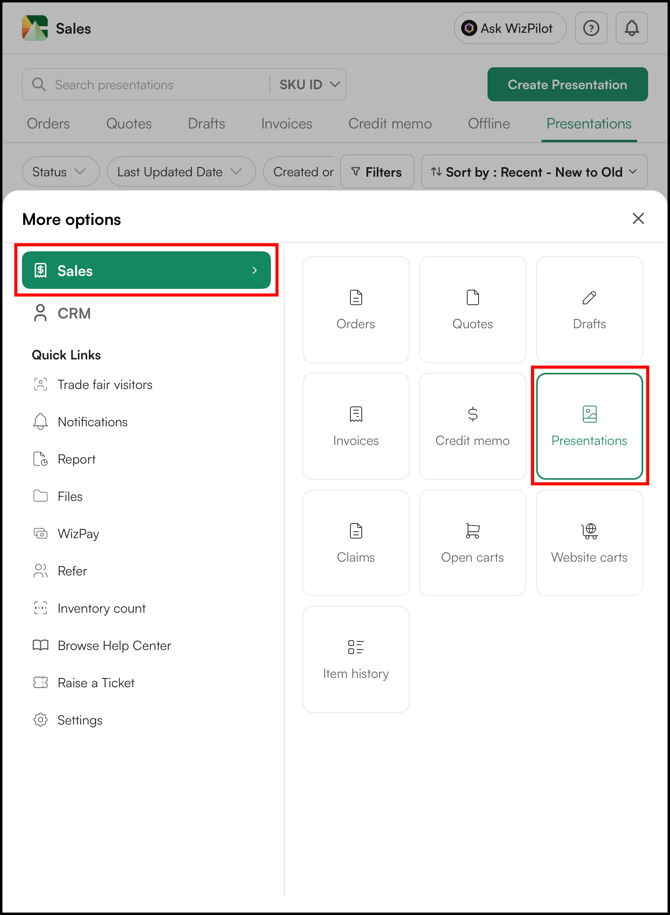
To Get There: Sales > Presentations
Table of Contents
| Section | Topics |
| A | Manage a Presentations |
| B | FAQs |
Before You Begin
- You must have access to WizOrder through the mobile app or web portal.
- Presentations must have been generated previously to appear here. If you need to create one, see Create and Share Presentations.
A. Manage a Presentations
- Go to Sales → Presentations.
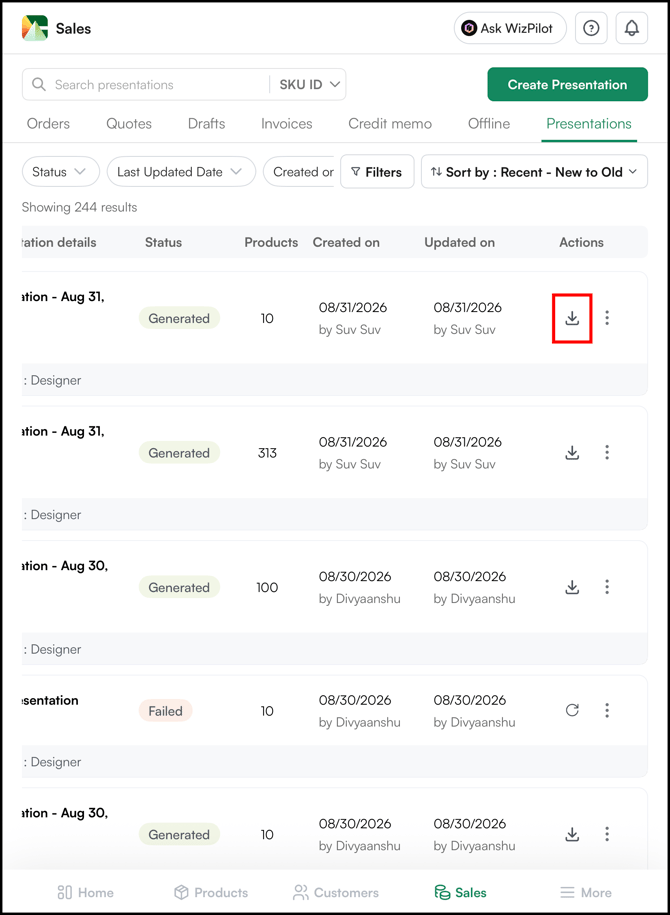
- Click in the Download Icon to download the presentation.
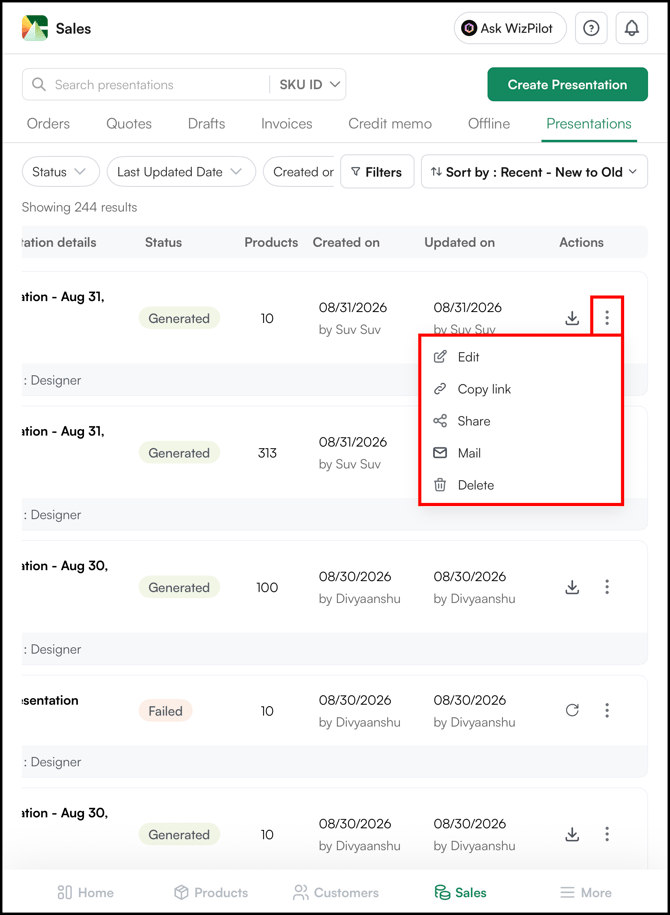
- Click the three-dot menu to
- Edit: Modify the presentation by adding or removing products, updating pricing visibility, adjusting inventory display, or changing other settings.
- Copy Link: Generate a direct PDF link for quick sharing.
- Share: Share the presentation through email, AirDrop, and other available options.
- Email: Send the presentation directly to a customer from WizOrder.
- Delete: Permanently remove a presentation you no longer need.
FAQs
1. Can I share a presentation with someone who does not have access to WizOrder?
A. Yes. Use Copy Link or Share to generate a direct PDF link or send via email or WhatsApp. The recipient does not need a WizOrder account to view the presentation.
2. What happens to a shared link if I delete the presentation?
A. The link stops working immediately. If customers have bookmarked or saved the link, they will no longer be able to access the presentation. Download and share the PDF directly if you need a permanent copy.
3. Can I edit a presentation after it has been shared?
A. Yes. Click Edit from the three-dot menu to modify the presentation at any time. Note that existing shared links point to the PDF generated at the time of sharing — if you need recipients to see the updated version, generate and share a new link after editing.
Still need help? Reach out to our support team at help@wizcommerce.com.