
Use the editor in AI Image Editor to make manual changes to your image, such as adjusting colours, removing the background, or adding shadows.
Platform: WizStudio | Who is this for: Designers & Admins
» Before You Begin
- You need access to WizStudio.
- Upload the image you want to edit to AI Image Editor first. See Edit an Image with a Prompt in AI Image Editor.
- To add a shadow, remove the background first.
- Saving your changes replaces the uploaded image. Keep a copy of the original if you might need it later.
» Edit an Uploaded Image
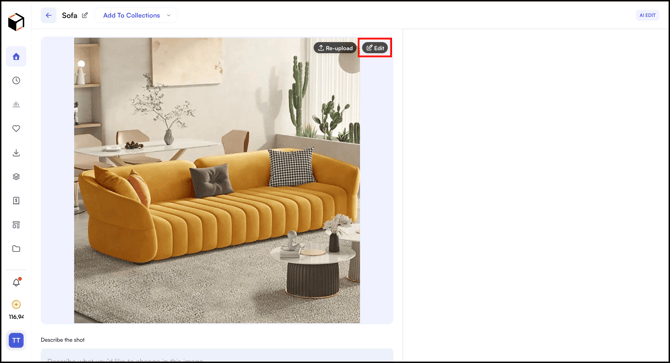
- Click Edit to open the image in the editor.
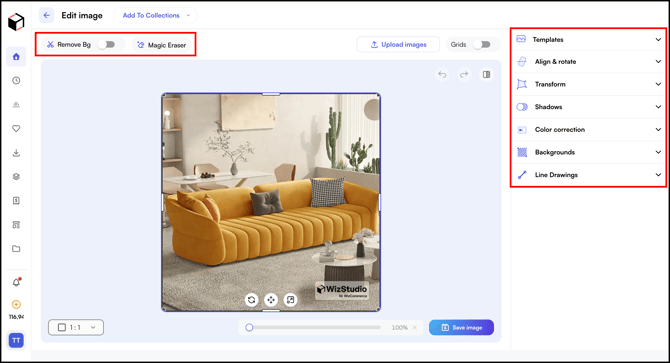
- Make the required changes →
- Template: Apply pre-designed templates to your image quickly.
- Align & Rotate: Adjust the position and angle of your image.
- Transform: Resize, flip, or reshape your image as needed.
- Shadows: Add or adjust shadows to give your image more depth. Note: Background needs to be removed first to apply a shadow.
- Color Correction: Fine-tune the colors, brightness, and contrast of your image.
- Backgrounds: Change or replace the background of your image.
- Line Drawings: Convert your image into a line drawing or sketch style.
- Remove Bg: Automatically remove the background from your image.
- Magic Eraser: Erase unwanted elements from your image with a single click.
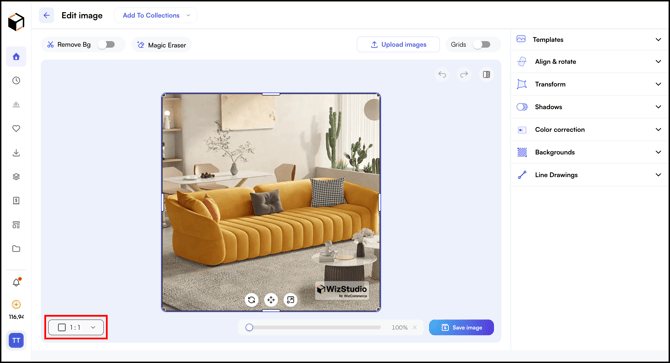
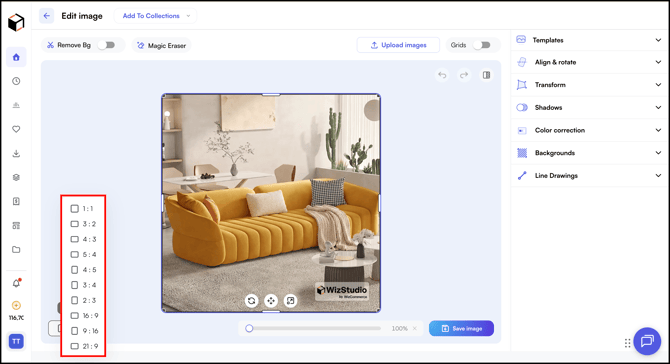
- You can also change the aspect ratio, if needed.
- Click Save Image. It replaces the existing image/uploaded image.
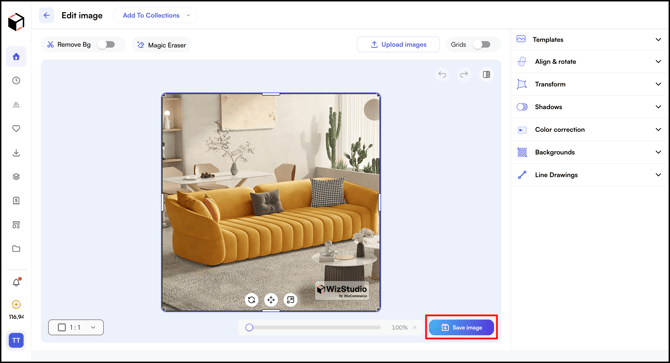
Note: To add a shadow, remove the background first.
» Related Articles →
- What is AI Image Editor?
- Edit an Image with a Prompt in AI Image Editor
- Download an Image from AI Image Editor
- FAQs: AI Image Editor
Still need help? Reach out to our support team at help@wizcommerce.com.