---
title: "Explore WizOrder: The Sales Rep App"
description: A complete overview of WizOrder, who uses it, how to access it, and where to find key features across the mobile app and web portal.
---
[Skip to content](https://knowledge.wizcommerce.com/explore-wizorder-the-sales-rep-app#main-content)
[](https://wizcommerce.com/)
Open main navigation
Close main navigation
- [Contact us](https://mail.google.com/mail/?view=cm&fs=1&to=help@wizcommerce.com)
[Contact us](https://mail.google.com/mail/?view=cm&fs=1&to=help@wizcommerce.com)
Hi, how can we help?
- There are no suggestions because the search field is empty.
1. [WizCommerce Help Centre](https://knowledge.wizcommerce.com/)
2. [Getting started](https://knowledge.wizcommerce.com/getting-started)
3. [Product Overview](https://knowledge.wizcommerce.com/getting-started#product-overview)
August 27, 2026
# Explore WizOrder: The Sales Rep App
WizOrder (also called the *Sales Rep App*) is the AI-first mobile and web app for sales reps to take orders, manage customers, and track sales activity. This article walks through the Products, Home, Customers, Sales, and More pages, covering what each section shows and how to navigate them on both the app and web portal.
**Platform:** WizOrder | **Who is this for:** Admins & Sales Reps
---
#### Table of Contents
| **Section** | **Topics** |
| --- | --- |
| **A** | [What is WizOrder?](https://knowledge.wizcommerce.com/explore-wizorder-the-sales-rep-app#section-a) |
| **B** | [Who uses WizOrder?](https://knowledge.wizcommerce.com/explore-wizorder-the-sales-rep-app#section-b) |
| **C** | [Access WizOrder on Mobile and Web](https://knowledge.wizcommerce.com/explore-wizorder-the-sales-rep-app#section-c) |
| **D** | [Finding Your Way Around WizOrder](https://knowledge.wizcommerce.com/explore-wizorder-the-sales-rep-app#section-d) |
| **E** | [Exploring the Home page](https://knowledge.wizcommerce.com/explore-wizorder-the-sales-rep-app#section-e) |
| **F** | [Exploring the Customers page](https://knowledge.wizcommerce.com/explore-wizorder-the-sales-rep-app#section-f) |
| **G** | [Exploring the Sales page](https://knowledge.wizcommerce.com/explore-wizorder-the-sales-rep-app#section-g) |
| **H** | [Exploring the More page](https://knowledge.wizcommerce.com/explore-wizorder-the-sales-rep-app#section-h) |
| **I** | [FAQs](https://knowledge.wizcommerce.com/explore-wizorder-the-sales-rep-app#faq) |
---
A. What is WizOrder?
WizOrder is designed from the rep's point of view, built to support how reps actually sell — on the road, at trade shows, in showrooms, and during fast-moving customer conversations. Workflows are intuitive and flexible, and AI handles repetitive work so reps can focus on selling.
---
### B. Who Uses WizOrder?
WizOrder serves two primary user types:
- **Sales Reps:** Take orders quickly and accurately while in the field, at trade shows, or during customer visits.
- **Admins:** Manage product catalogs, set pricing, monitor team performance, and keep data flowing cleanly into backend systems.
**Note:** WizOrder also supports additional roles, including finance, managers, and warehouse staff. Admins control all user creation, role assignments, and access permissions.
→ Learn more about [***User Roles and Management.***](https://knowledge.wizcommerce.com/user-management)
---
### C. Access WizOrder on Mobile and Web
WizOrder runs as a mobile app (iOS and Android) and as a browser-based web portal. Both support the same core workflows, with minor layout differences depending on the device.
- **Mobile App:** Built for reps selling on the go
- **Web Portal:** Better suited for back-office work on larger screens
**⇓** *Download the WizOrder app **([iOS](https://apps.apple.com/in/app/wizcommerce/id6450258057) | [Android](https://play.google.com/store/apps/details?id=com.sourcewiz.ultron))***
**⇓** *Access WizOrder on the web **([Desktop](https://admin.wizcommerce.com/))***
---
### D. Finding Your Way Around WizOrder
WizOrder opens on the **Products** page by default when you log in. Navigation is consistent across all pages — here's how it's laid out on the mobile app and web portal.
#### The WizOrder App Layout
The mobile app is built around five key pages accessible from the bottom navigation bar. Each page serves a distinct purpose.
#### Exploring the Products Page
The Products page is your full product catalog. Use it to search for products, check inventory, filter results, and add items to the cart.
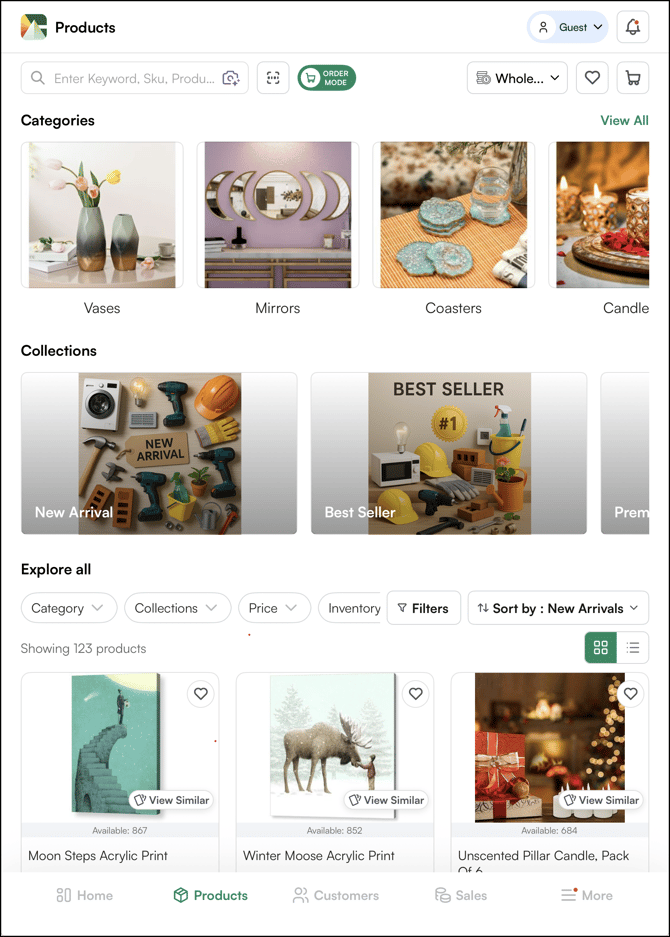
Here's what you'll find on the products page:
#### **» Top Section**
**Here's a quick overview of the top section of the Products page.**
1. **Customer Profile:** Select or switch between the customers you are currently serving.
2. **Ask WizPilot:** Access WizPilot to get instant AI-powered assistance.
3. **Need Help:** Access help resources and support options. **Browse Help Center** to explore articles and guides, or **Raise a Ticket** to describe your issue to our support team.
4. **Notification:** View alerts, updates, and downloads.
5. **AI Search Bar:** Find products by name, SKU, image, and more.
6. **Barcode Scanner:** Scan product barcodes to find items instantly.
7. **Order Mode:** Turn on to add multiple products to the catalog, cart, and wishlist at once.
8. **Price List**: Switch between available pricing options.
9. **Wishlist:** Access your saved product lists.
10. **Cart:** View items in your current order.
****
#### **» Main Content Area**
**Here's a quick overview of the Product Listing page.**
1. **AI-Recommended Products (WizPilot's Smart Pick):** Shows products based on the customer's order history and overall platform trends
2. **Previously Purchased:** View items the selected customer has ordered before
3. **Categories:** Browse products by category (e.g., Vases, Mirrors, Coasters, Candles)
4. **Promoted Products:** Shows products that have been highlighted or featured for the customer.
5. **Collections:** Shows curated product groups (e.g., New Arrivals, Best Sellers, Premium)
6. **Explore All:** Browse the complete product catalog without any filters applied.
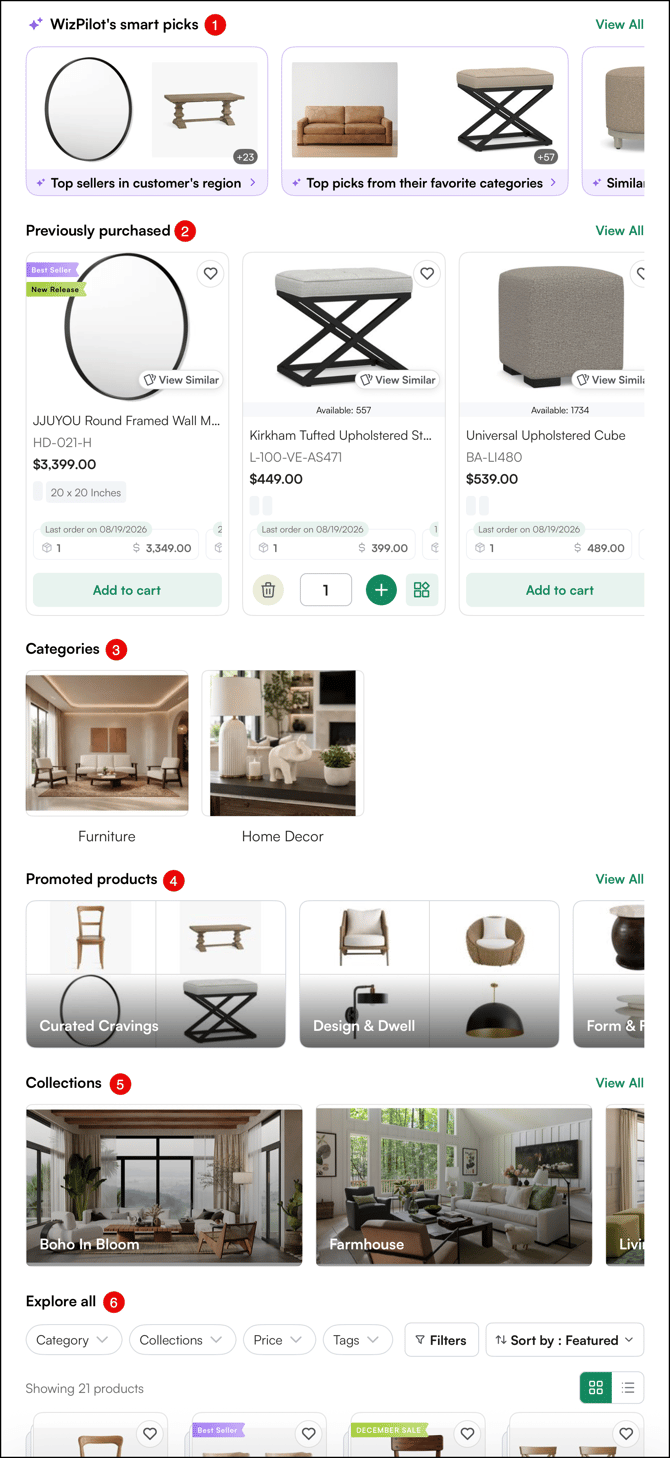
**Note:** The Previously Purchased section appears when you select a customer. AI-recommended products (Kai's Smart Picks) update automatically to reflect the selected customer's buying patterns.
#### **» Bottom Section**
Here's a quick overview of the top section of the Product Listing page.
The navigation bar stays consistent across all pages. Use it to switch between:
1. **Home:** Dashboard and overview
2. **Products:** Product catalog and browsing
3. **Customers:** Customer management
4. **Sales:** Orders, quotes, catalogs, and cart management
5. **More:** Settings and additional features

**Note:** When you log in, the ***Products Page*** opens by default. It also has a consistent layout across all user roles, regardless of permissions.
---
### E. Exploring the Home Page
The Home page gives you a quick snapshot of your sales activity — recent orders, quotes, and key performance metrics. Sales reps see their own data. Admins can view data across all reps and customers.
Here's what the sales rep will find on the home page:
#### A. Top Section
**Here's a quick overview of the top section of the home page.**
1. **New Dashboard Toggle:** Switch between the classic and new dashboard layout
2. **Notifications:** View alerts and updates
3. **User Profile:** Access your account settings and login information
****
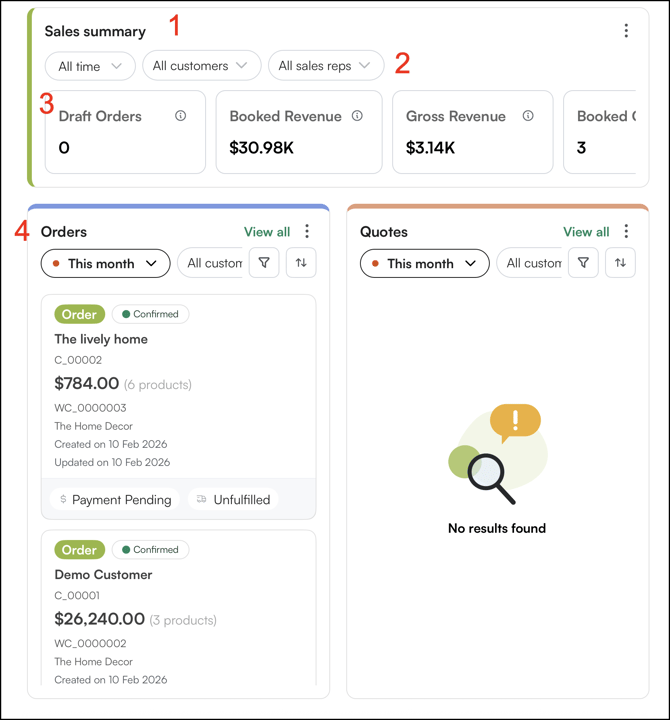
#### B. Main Content Area
**Here's a quick overview of the home page.**
1. **Sales Summary:** A high-level snapshot of business performance filtered by the selected criteria
2. **Quick Filters:** Filter metrics by time period, customer, and sales rep
3. **Metric Cards:** View key numbers at a glance — Draft Orders, Booked Revenue, Gross Revenue, and Booked Orders
4. **Orders and Quotes Panel:** A summarised view of your recent orders and quotes
---
### F. Exploring the Customers Page
The Customers page lets you view and manage your assigned customer accounts. Search for customers, review order and quote history, check account details, and track activity — all from one place.
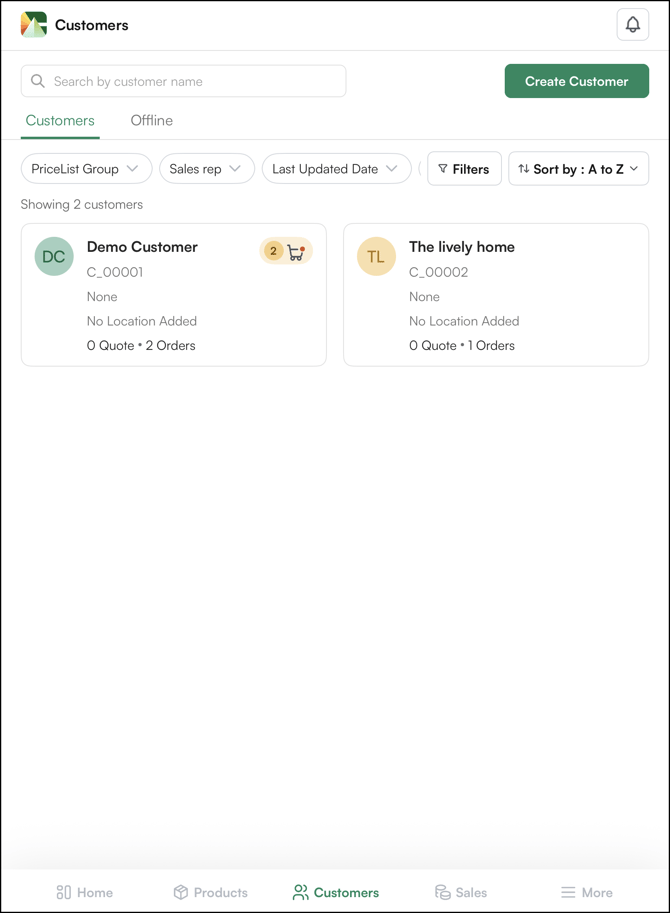
Here's what the sales rep will find on thecustomer page:
#### A. Top Section
**Here's a quick overview of the top section of the customer page.**
1. **Search Bar:** Find customers by name
2. **Create Customer:** Add a new customer account

#### B. Main Content Area
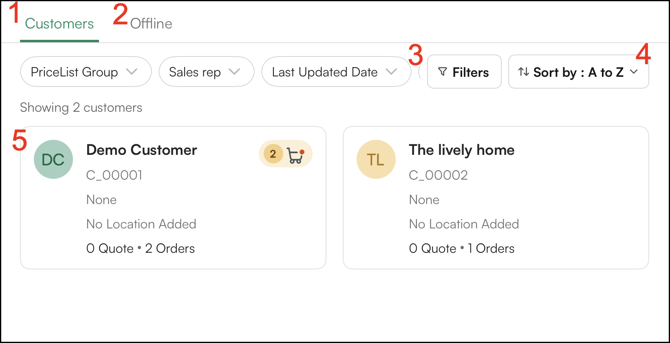
**Here's a quick overview of the customers page.**
1. **Customers:** View and manage all your customer accounts in one place
2. **Offline:** Create and access customers without an internet connection. Changes sync automatically when you're back online.
3. **Filters:** Narrow the customer list by price list group, sales rep, or last updated date
4. **Sort By:** Organise customers by recently updated or alphabetically (A–Z or Z–A)
5. **Customer Card:** A quick summary of each customer showing key account details and recent activity
---
### G. Exploring the Sales Page
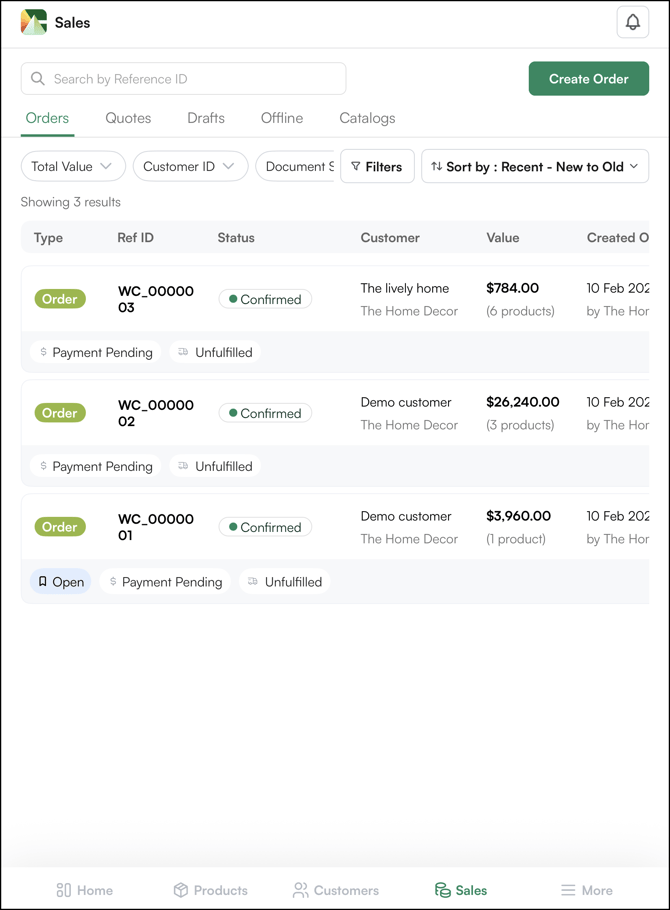
The Sales page is where you manage orders, quotes, drafts, and catalogs in one place. Search transactions, track order status, monitor payment and fulfilment progress, and create new orders — all from one view.
Here’s what the sales rep will find on the sales page:
#### A. Top Section
Here's a quick overview of the top section of the sales page.
1. **Search Bar:** Search by Reference ID to locate a specific order or quote
2. **Create Order:** Start a new order for a customer

#### B. Main Content Area
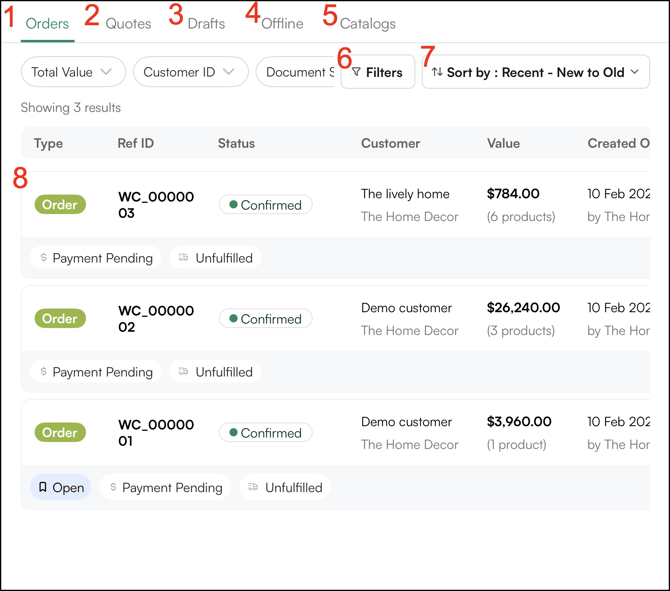
**Here's a quick overview of the sales page.**
1. **Orders:** View all confirmed and processed orders
2. **Quotes:** View and manage customer quotes
3. **Drafts:** Access orders created but not yet confirmed
4. **Offline:** Create and manage transactions without an internet connection. Changes sync once you're back online.
5. **Catalogs:** Access and manage saved catalogs (if enabled)
6. **Filters:** Narrow results by total value, customer ID, document status, and more
7. **Sort By:** Organise transactions by most recent, oldest, or other sorting criteria
8. **Order Entry:** A structured list of your orders showing key details — status, customer, value, and fulfilment progress — at a glance
---
### H. Exploring the *More* Options
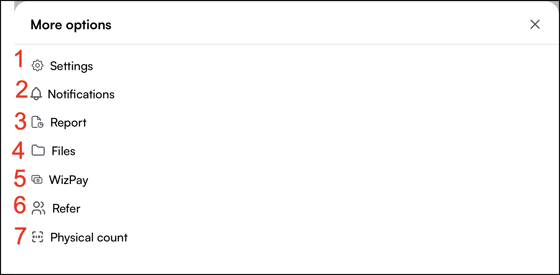
The *More* page gives you access to additional tools and settings beyond core sales and product workflows.
Here’s what the sales rep will find on the more page:
1. **Settings:** Access account and system configuration options
2. **Notifications:** View system alerts and updates
3. **Report:** Open the reports and analytics section
4. **Files:** Access uploaded documents and organised folders
5. **WizPay:** Manage payment collection and payment-related activity
6. **Refer:** Access referral options
7. **Physical Count:** Record or manage physical inventory counts
---
#### FAQs
**1. Is WizOrder available on both mobile and desktop?**
**A.** Yes. WizOrder runs as a mobile app on iOS and Android, and as a browser-based web portal at admin.wizcommerce.com. Both support the same core workflows — the layout differs slightly depending on the device.
**2. Which page opens first when I log in to WizOrder?**
**A.** The Products page opens by default when you log in. It also has the same layout across all user roles, regardless of permissions.
**3. Can I use WizOrder without an internet connection?**
**A.** Yes. WizOrder supports offline mode for creating and accessing customers and transactions. Any changes you make offline sync automatically as soon as you're back online.
---
**Still need help?** Reach out to our support team at [help@wizcommerce.com](https://mail.google.com/mail/u/0/?fs=1&to=help@wizcommerce.com&tf=cm).
- [Getting started](https://knowledge.wizcommerce.com/getting-started#main-content)
- [Product Overview](https://knowledge.wizcommerce.com/getting-started#product-overview)
- [Key Concepts You Should Know](https://knowledge.wizcommerce.com/getting-started#key-concepts-you-should-know)
- [Product Guides](https://knowledge.wizcommerce.com/getting-started#product-guides)
- [Trade Show Checklist](https://knowledge.wizcommerce.com/getting-started#trade-show-checklist)
- [Product Search & Discovery](https://knowledge.wizcommerce.com/product-search-discovery#main-content)
- [AI Product Recommendations](https://knowledge.wizcommerce.com/product-search-discovery#ai-product-recommendations)
- [Filter and Navigate](https://knowledge.wizcommerce.com/product-search-discovery#filter-and-navigate)
- [Catalog](https://knowledge.wizcommerce.com/product-search-discovery#catalog)
- [Product Selection & Ordering](https://knowledge.wizcommerce.com/product-selection-ordering#main-content)
- [Orders](https://knowledge.wizcommerce.com/product-selection-ordering#orders)
- [Quotes](https://knowledge.wizcommerce.com/product-selection-ordering#quotes)
- [Cart](https://knowledge.wizcommerce.com/product-selection-ordering#cart)
- [Presentations](https://knowledge.wizcommerce.com/product-selection-ordering#presentations)
- [Wishlist](https://knowledge.wizcommerce.com/product-selection-ordering#wishlist)
- [Item History](https://knowledge.wizcommerce.com/product-selection-ordering#item-history)
- [Invoices](https://knowledge.wizcommerce.com/product-selection-ordering#invoices)
- [Customers & Accounts](https://knowledge.wizcommerce.com/customers-accounts#main-content)
- [Customer Relationship Management (CRM)](https://knowledge.wizcommerce.com/customers-accounts#customer-relationship-management-crm)
- [Inventory & Warehousing](https://knowledge.wizcommerce.com/inventory-warehousing#main-content)
- [Inventory availability](https://knowledge.wizcommerce.com/inventory-warehousing#inventory-availability)
- [Payments](https://knowledge.wizcommerce.com/payments#main-content)
- [Payment Dashboard](https://knowledge.wizcommerce.com/payments#payment-dashboard)
- [Pricing & Commercials](https://knowledge.wizcommerce.com/pricing-commercials#main-content)
- [Pricelist](https://knowledge.wizcommerce.com/pricing-commercials#pricelist)
- [Discounts & Promotions](https://knowledge.wizcommerce.com/pricing-commercials#discounts-promotions)
- [Claims & Credits](https://knowledge.wizcommerce.com/pricing-commercials#claims-credits)
- [AI Co-Workers](https://knowledge.wizcommerce.com/ai-co-workers#main-content)
- [Ella - AI Order Entry Assistant](https://knowledge.wizcommerce.com/ai-co-workers#ella-ai-order-entry-assistant)
- [WizPilot - AI Assistant](https://knowledge.wizcommerce.com/ai-co-workers#wizpilot-ai-assistant)
- [WizStudio](https://knowledge.wizcommerce.com/wizstudio#main-content)
- [Creating & Editing Images](https://knowledge.wizcommerce.com/wizstudio#creating-editing-images)
- [Lifestyle Generator](https://knowledge.wizcommerce.com/wizstudio#lifestyle-generator)
- [Silo Editor](https://knowledge.wizcommerce.com/wizstudio#silo-editor)
- [Bulk Silo Editor](https://knowledge.wizcommerce.com/wizstudio#bulk-silo-editor)
- [Asset Library (Assets)](https://knowledge.wizcommerce.com/wizstudio#asset-library-assets)
- [AI Image Expander](https://knowledge.wizcommerce.com/wizstudio#ai-image-expander)
- [Reports & Analytics](https://knowledge.wizcommerce.com/reports-analytics#main-content)
- [Business Reports](https://knowledge.wizcommerce.com/reports-analytics#business-reports)
- [Manage your WizCommerce (Admin)](https://knowledge.wizcommerce.com/manage-your-wizcommerce-admin#main-content)
- [Import / Export](https://knowledge.wizcommerce.com/manage-your-wizcommerce-admin#import-export)
- [Organizational Settings](https://knowledge.wizcommerce.com/manage-your-wizcommerce-admin#organizational-settings)
- [Product Management](https://knowledge.wizcommerce.com/manage-your-wizcommerce-admin#product-management)
- [Managing Your WizShop Website](https://knowledge.wizcommerce.com/manage-your-wizcommerce-admin#managing-your-wizshop-website)
- [Integration & Apps](https://knowledge.wizcommerce.com/integration-apps#main-content)
- [Marketing Integration](https://knowledge.wizcommerce.com/integration-apps#marketing-integration)
- [Integration Dashboard](https://knowledge.wizcommerce.com/integration-apps#integration-dashboard)
- [Help & FAQs](https://knowledge.wizcommerce.com/help-faqs#main-content)
- [Help with Orders](https://knowledge.wizcommerce.com/help-faqs#help-with-orders)
- [Help with Quotes](https://knowledge.wizcommerce.com/help-faqs#help-with-quotes)
- [Help with Presentation](https://knowledge.wizcommerce.com/help-faqs#help-with-presentation)
- [Help with Inventory](https://knowledge.wizcommerce.com/help-faqs#help-with-inventory)
- [Help with User Management](https://knowledge.wizcommerce.com/help-faqs#help-with-user-management)
- [Help with Pricelist & Discounts](https://knowledge.wizcommerce.com/help-faqs#help-with-pricelist-discounts)
- [Help with WizStudio](https://knowledge.wizcommerce.com/help-faqs#help-with-wizstudio)
- [Help with Ella](https://knowledge.wizcommerce.com/help-faqs#help-with-ella)
- [Help with Org Settings (Admin)](https://knowledge.wizcommerce.com/help-faqs#help-with-org-settings-admin)
- [Help with Emails](https://knowledge.wizcommerce.com/help-faqs#help-with-emails)
- [Help with Products](https://knowledge.wizcommerce.com/help-faqs#help-with-products)
- [Help with Import/Export](https://knowledge.wizcommerce.com/help-faqs#help-with-import-export)
- [Help with WizShop](https://knowledge.wizcommerce.com/help-faqs#help-with-wizshop)
- [Help with Integration](https://knowledge.wizcommerce.com/help-faqs#help-with-integration)
- [Help with Categories and Collections](https://knowledge.wizcommerce.com/help-faqs#help-with-categories-and-collections)
- [Help With Customers](https://knowledge.wizcommerce.com/help-faqs#help-with-customers)
- [Help with Trade Show](https://knowledge.wizcommerce.com/help-faqs#help-with-trade-show)
[](https://wizcommerce.com/)
[mailto:help@wizcommerce.com](mailto:help@wizcommerce.com)
Copyright © 2025, WizCommerce