
WizStudio can generate short product videos from a still image, without any filming or editing. This article explains how to create a product video, the formats and durations available, and how to download and use the output.
WizStudio's video generator lets you create lifestyle scenes, close-up clips, and 360° spins directly from your existing product images, no shoot required.
Platform: WizStudio | Who is this for: Designers, Admins
To Get There: WizStudio> Video Generation > Lifestyle/Product Close Up/ 360° Spin
Table of Contents
| Section | Topic |
| A | Generate a Lifestyle Video |
| B | Generate a Product Close-Up |
| C | Generate a 360° Spin |
| D | Generate Videos from the Lifestyle Image Generator |
| E | FAQs |
Before You Begin
- Ensure to have access to WizStudio.
- Have multiple product images ready, preferably from different angles. Use WizStudio's Lifestyle Image Generator if you need them.
- Credits are charged at the time of video generation, not download. Make sure your account is topped up before you begin.
A. Generate a Lifestyle Video
Lifestyle videos place your product in a real-world scene, giving buyers a more natural sense of how it looks in use.
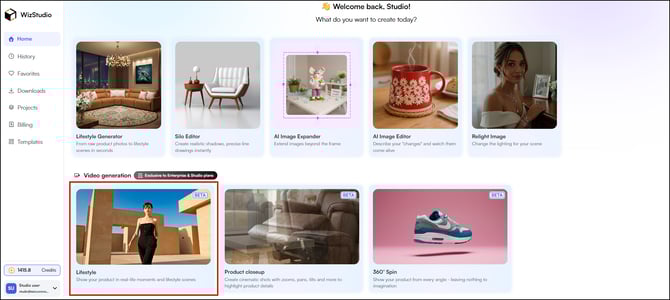
- In WizStudio, navigate to Video Generation at the middle of the page.
- Select Lifestyle.
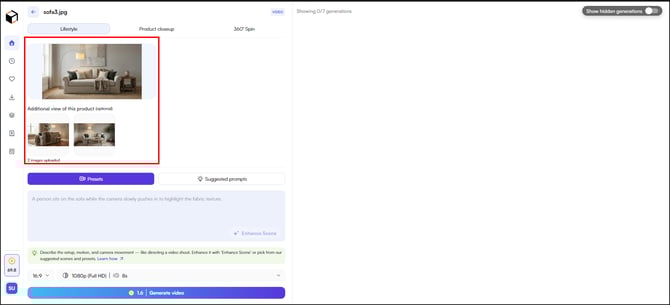
- Upload your main product image. Under Additional view of this product, you can add more angles (optional).
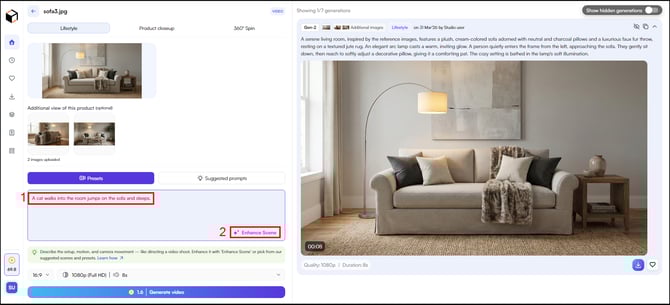
- Describe your scene in the Describe your scene here box. Think of your scene description like directing a camera operator, describe the setting, lighting, and movement you want. The more specific you are, the more accurate the result. Use one of these options:
- Type a custom description, then select + Enhance Scene to let AI expand your prompt with more detail.
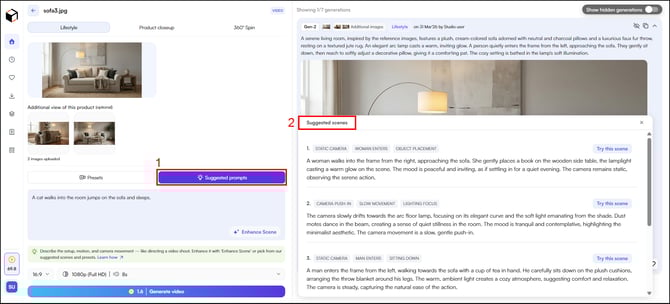
- Choose from the Suggested Prompts list to use a ready-written scene description based on your product category.
- Select Presets and choose a ready-made scene from WizStudio's library, then add your own description.
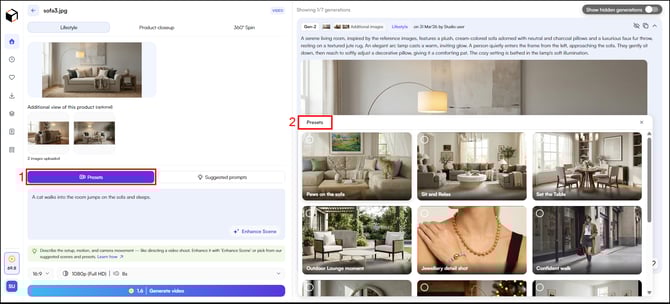
- Type a custom description, then select + Enhance Scene to let AI expand your prompt with more detail.
- Set your Aspect Ratio (16:9 or 9:16), Quality (720p, 1080p, or 4K Ultra HD), and Duration (4s, 6s, 8s).
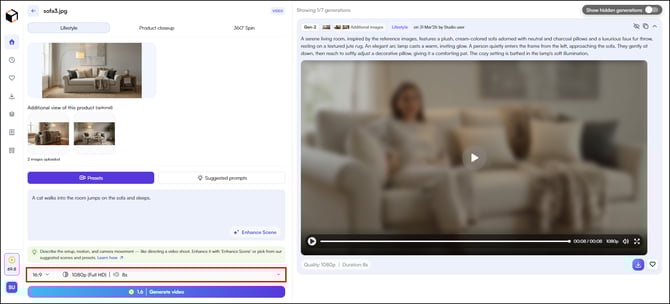
- Select Generate Video.
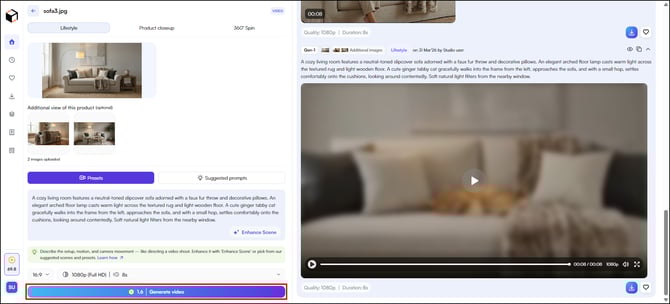
- Once the video is ready, you can:
- Click the download icon to download the video.
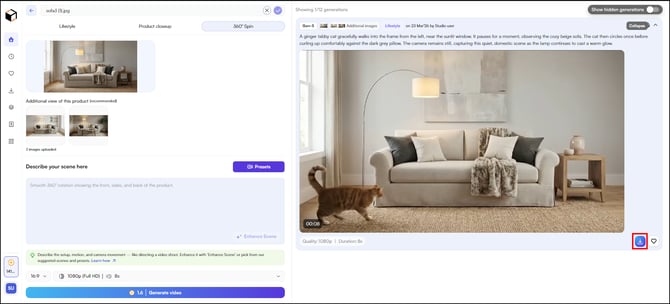
- Click the heart icon to save it to Favorites.
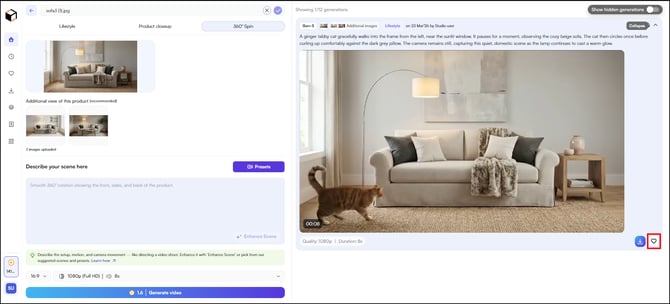
- Click the download icon to download the video.
-
- Edit your prompt and select Generate Video again to create a new version using the same images.
Sample Lifestyle video generated with WizStudio
Prompt Used: A ginger tabby cat gracefully walks into the frame from the left, near the sunlit window. It pauses for a moment, observing the cozy beige sofa. The cat then circles once before curling up comfortably against the dark grey pillow. The camera remains still, capturing this quiet, domestic scene as the lamp continues to cast a warm glow.
Note: WizStudio charges credits when the video is created (not when you download it), based on length: 0.8 credits for 4 seconds, 1.2 credits for 6 seconds, and 1.6 credits for 8 seconds.
B. Generate a Product Close-Up
Product close-up videos keep the focus entirely on your product, using controlled camera movements to highlight texture, detail, and form, without placing it in a scene.
- Select the Product closeup tab at the top of the video generator. Or from the WizStudio Home page
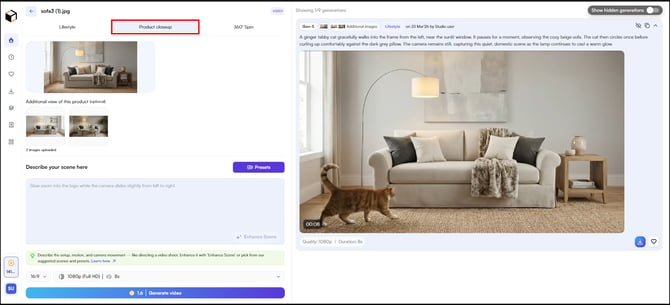
- Upload your main product image. Under Additional view of this product, add more angles if available (optional).
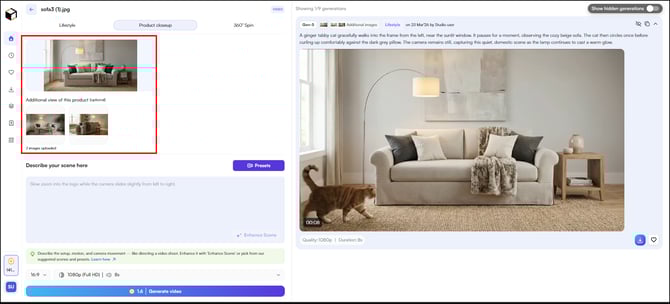
- Describe the camera movement in the Describe your scene here box. For example: "Slow zoom into the product while the camera slides slightly from left to right."
- Select + Enhance Scene to let AI expand your description automatically.
- Or select Presets and choose a camera movement. For example, select Truck right to slide the camera horizontally across your product.
- Set your Aspect Ratio (16:9), Quality, and Duration.
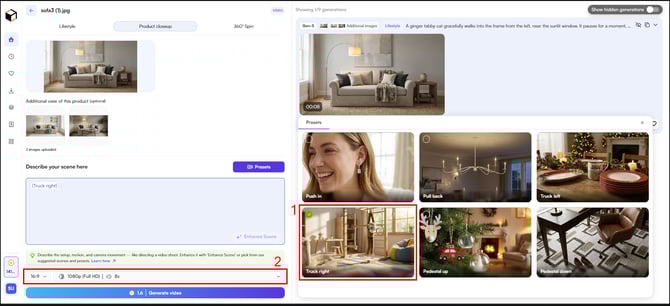
- Click Generate Video.
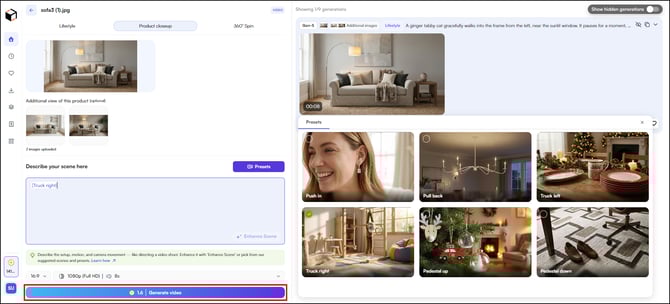
- Once the video is ready, download it, save it to Favorites, or adjust your prompt and regenerate.
Sample Product Close-Up generated with WizStudio
Tip: Product close-up works best when your prompt focuses on motion, not setting. Describe the direction, speed, and what the camera should emphasize.
C. Generate a 360° Spin
A 360° Spin rotates the camera around your product so buyers can see it from every angle, front, sides, and back, in a single video. It works especially well for furniture, apparel, and products where shape and form matter.
- Select the 360° Spin tab at the top of the video generator.
- Upload your main product image. Under Additional view of this product, add images from different angles, this is recommended for 360° Spin.
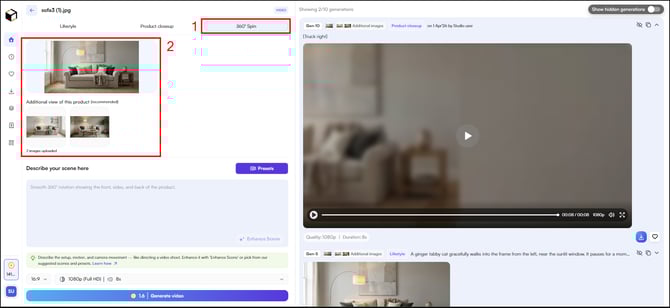
- Describe the rotation in the Describe your scene here box. For example: "Smooth 360° rotation showing the front, sides, and back of the product."
- Select + Enhance Scene to let AI expand your description.
- Or select Presets and choose a spin style. For example, select Spin & Reveal
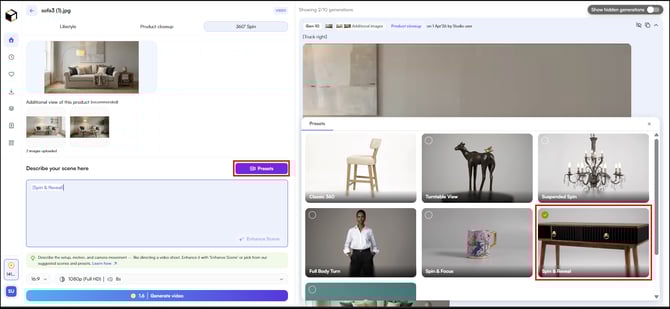
- Set your Aspect Ratio, Quality, and Duration.
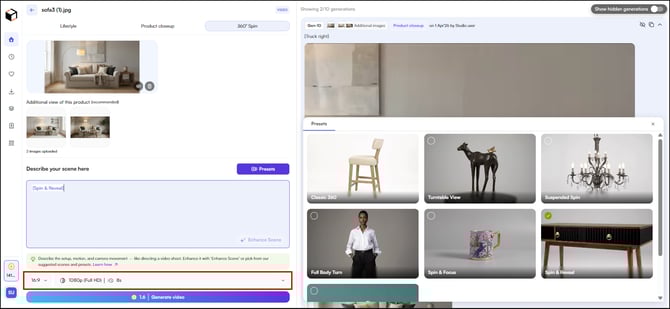
- Select Generate Video.
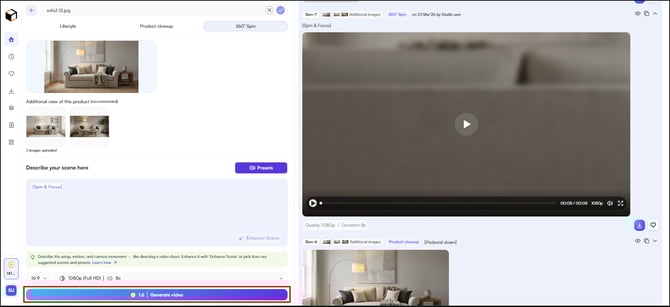
- Once the video is ready, download it, save it to Favorites, or adjust your prompt and regenerate.
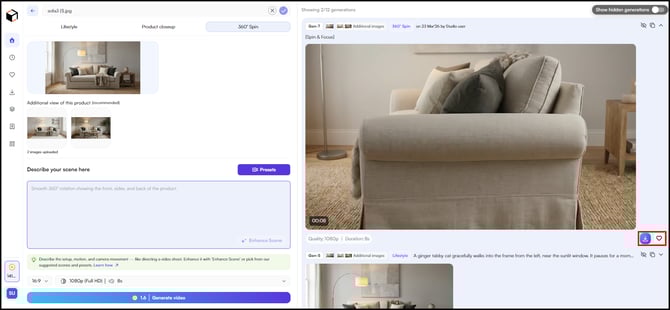
Sample 360° Spin generated with WizStudio
Tip: For best results, upload images from at least two or three different angles. The more angles AI has to work from, the more accurate the rotation will look.
You can move directly from generating a product image to creating a video, without starting over.
-
In the Lifestyle Image Generator, select Edit Video on your generated image, you'll be taken directly to the video generation workflow.
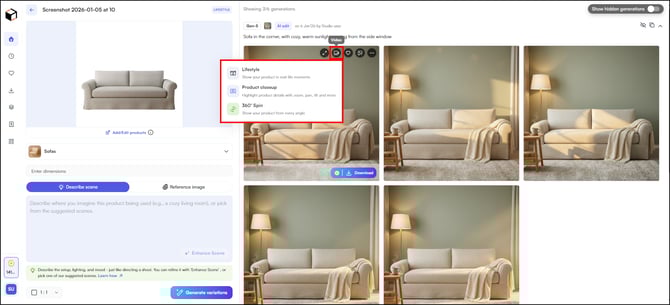
- Continue from Step 4 in Section A to describe your scene and generate your video.
FAQs
1. Can I use the same product images for all three video types?
A. Yes. Switch between the Lifestyle, Product closeup, and 360° Spin tabs to generate different video types using the same uploaded images within the same session.
2. How many images do I need to upload?
A. One image is enough for Lifestyle and Product Close-Up, though additional angles are optional. For 360° Spin, uploading multiple angles is strongly recommended, it gives AI enough information to complete the rotation accurately.
3. Can I use AI-generated images from WizStudio to create videos?
A.Yes. Any image generated in WizStudio's Lifestyle Image Generator can be taken directly into the video workflow. Open the image and select Edit Video, you'll be taken straight to the video generator without needing to re-upload anything.
4. How are credits charged for video generation?
A. Credits are charged based on the duration of the video you generate, 0.8 credits for 4 seconds, 1.2 credits for 6 seconds, and 1.6 credits for 8 seconds. Select your duration before generating to make sure you are using credits as intended.
Not finding what you need? Browse the WizCommerce Help Center, reach out to your Customer Success Manager, or contact our Support Team.