
To stop products from showing on your WizShop website without deleting them, change their Website Display Setting to Don’t show. The products stay in your system with all their data, and you can show them again at any time. You can do this for many products at once through a product export and import, or for one product at a time from its Channel Settings.
» Before you start: two different visibility columns
The product import file has two columns that control visibility, and they are easy to mix up:
- Website Display Setting: controls whether the product appears on WizShop, your B2B website. This is the column to use for hiding products from your website.
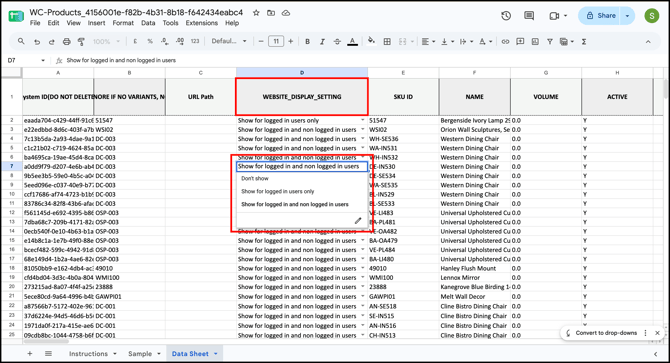
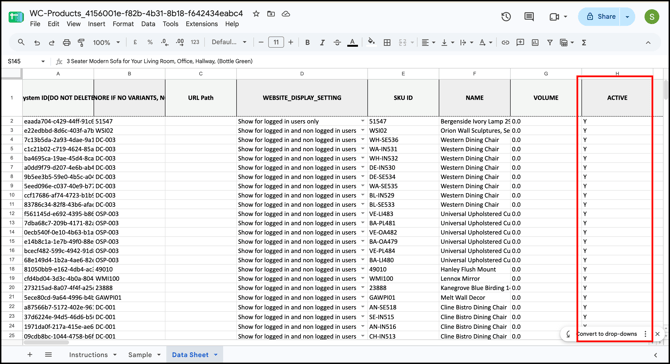
- ACTIVE: hides the product from WizOrder, the sales rep app. Setting it to N does not hide the product from your website.
» Hide many products at once
- In the WizOrder, go to Manage → Import/Export.
- Click the Products tile, then click Export, and choose All Product Fields.
- Download the file from Notifications (the bell icon at the top right) once it’s ready.
- Open the file and go to the Data Sheet tab.
- In the Website Display Setting column, change the value to Don’t show for each product you want to hide.
- Save the file.
- Go back to Manage → Import/Export → Products, click Import, and upload your file. When asked which fields to import, choose All Product Fields, the same as your export.
- Once the import is complete, check Notifications to confirm it was successful. Then visit your WizShop website to check that the products no longer appear.
Tip: Always start from an export. Don’t build the import file from scratch.
For more on importing and exporting products, see -
- Import a New Product Catalog in Bulk
- Partial Product Import/Export
- Bulk Manage Product Display Settings on WizShop.
» Hide a single product
To hide just one product
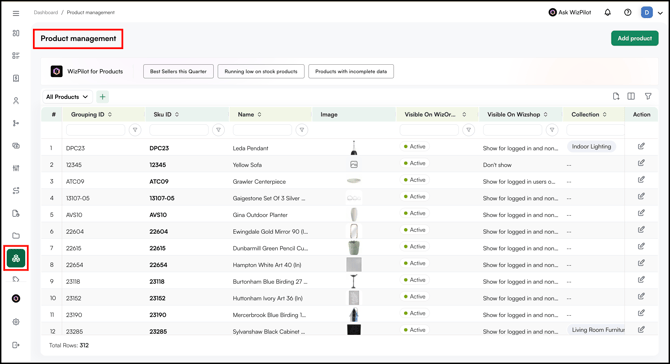
- Open it in Product Tool → Product Management.
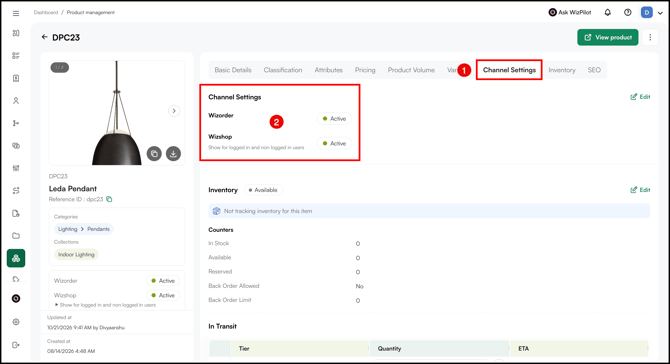
- Go to the Channel Settings tab, and set Visible on WizShop to Don’t show.
» Show hidden products again
Repeat the same steps, and change the Website Display Setting to one of these:
- Show for logged in users only: only logged-in buyers can see the product.
- Show for logged in and non logged in users: everyone can see the product.
» Things to keep in mind
- Hidden products are not deleted. All their data, pricing, and history stay as they are.
- If you are updating more than 2,000 products, split the file into smaller batches before importing.
Still need help? Reach out to our support team at help@wizcommerce.com.