
You can send a quote to your customer in three ways: by email when you submit it, by email later from the quote, or by publishing it to their WizShop account.
» Send the quote when you submit it
- On the draft quote page, click Submit Quote.
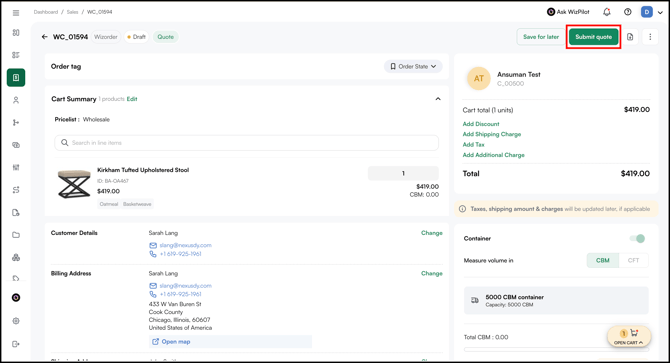
- Enter your customer’s email address. You can add or edit recipient addresses as needed.
- Click Submit to send the quote.
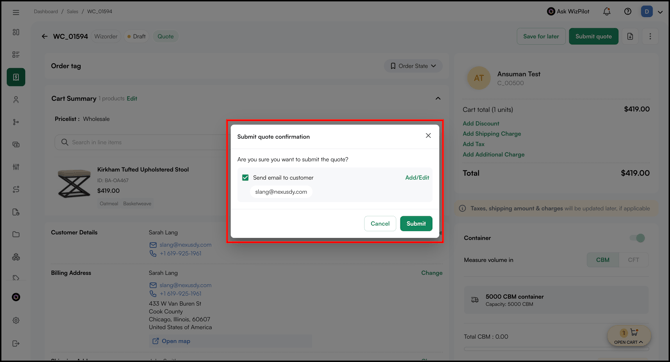
- The quote is emailed to your customer and appears on the Quotes page with the status Submitted.
» Send a quote you’ve already submitted
- Go to Sales → Quotes.
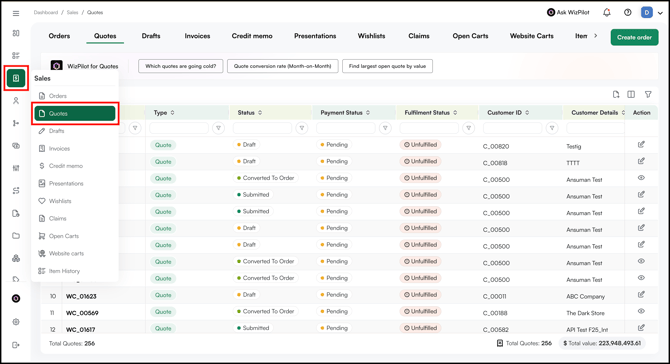
- Open the submitted quote.
- Click the three-dot menu and select Send Email.
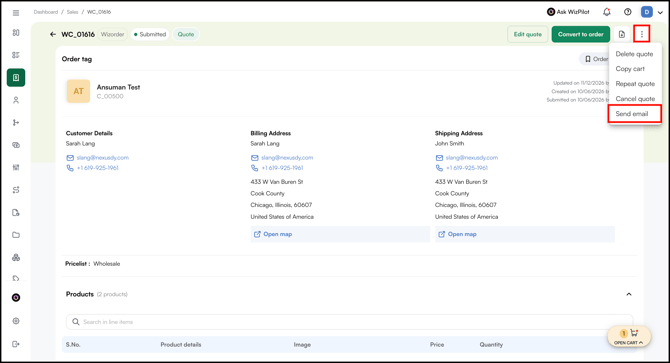
- The quote is emailed to your customer.
» Publish the quote to your customer’s WizShop account
If your customer orders through your WizShop website, you can publish the quote directly to their account. Their buyers can then review, edit, and convert it into an order themselves.
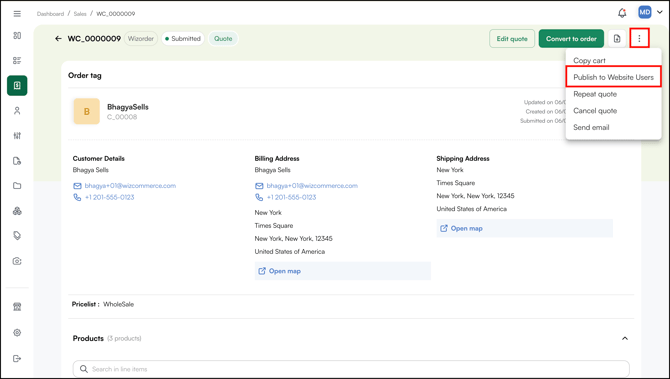
- Go to Sales → Quotes and open the submitted quote.
- Click the three-dot menu and select Publish to Website Users.
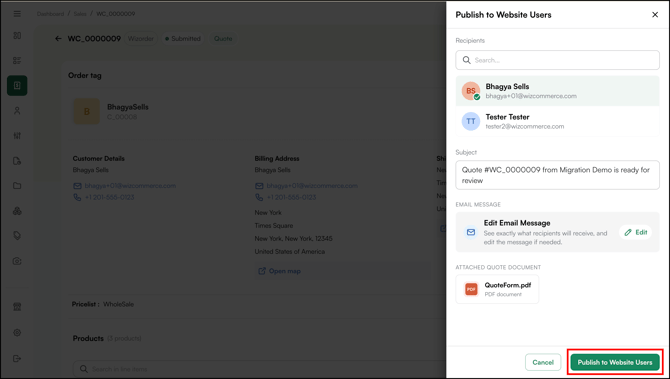
- Select the user you want to send the quote to, and review the preview.
- Click Publish to Website Users.
Note: This option needs an active subscription. If you don’t see it, check with your Customer Success Manager. See Publish a Quote and Create an Order.
Tip: To include notes in the quote PDF, tick the Share note checkbox next to each note before you send the quote. See Why are my notes not showing on the order or quote PDF?
Still need help? Reach out to our support team at help@wizcommerce.com.