---
title: Manage Categories and Collections
description: Create and manage categories and collections in WizOrder; set up forms, SEO, channel visibility, and hierarchy for your product catalog.
---
[Skip to content](https://knowledge.wizcommerce.com/manage-categories-and-collections#main-content)
[](https://wizcommerce.com/)
Open main navigation
Close main navigation
- [Contact us](https://mail.google.com/mail/?view=cm&fs=1&to=help@wizcommerce.com)
[Contact us](https://mail.google.com/mail/?view=cm&fs=1&to=help@wizcommerce.com)
Hi, how can we help?
- There are no suggestions because the search field is empty.
1. [WizCommerce Help Centre](https://knowledge.wizcommerce.com/)
2. [Manage your WizCommerce (Admin)](https://knowledge.wizcommerce.com/manage-your-wizcommerce-admin)
August 25, 2026
# Manage Categories and Collections
Categories are the permanent navigation structure of your product catalog, while collections are flexible merchandising groups for seasonal or promotional use. Both are now fully self-serve; create, edit, and organize them directly in WizOrder, configure exactly which fields show up on the creation form, manage SEO in one place, and control visibility per channel.
**Platform:** WizOrder & WizShop | **Who is this for:** Admins
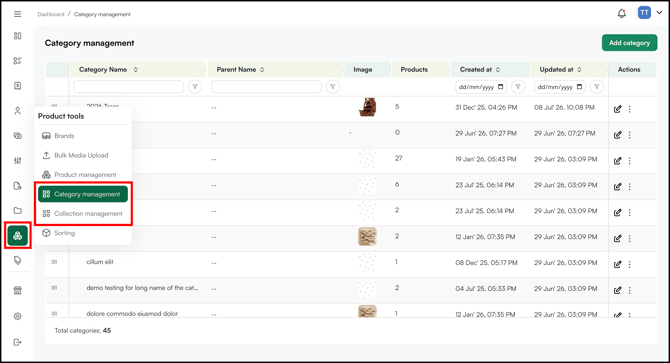
**To Get There:** *Product Tools \> Manage Categories / Manage Collections (to create and manage)*
---
#### Table of Contents
| **Sections** | **Topics** |
| --- | --- |
| **A** | [Create and Manage a Category](https://knowledge.wizcommerce.com/manage-categories-and-collections#section-a) |
| **B** | [Create and Manage a Collection](https://knowledge.wizcommerce.com/manage-categories-and-collections#section-b) |
| **C** | [Import and Export](https://knowledge.wizcommerce.com/manage-categories-and-collections#section-c) |
| **D** | [Delete a Category or Collection](https://knowledge.wizcommerce.com/manage-categories-and-collections#section-d) |
| **E** | [FAqs](https://knowledge.wizcommerce.com/manage-categories-and-collections#faqs) |
---
#### Before You Begin
- Make sure you have **Admin** access before making any changes.
- A newly created category or collection will not appear on the Product Listing Page until at least one product has been assigned to it.
- If your account previously managed categories, collections, or SEO through Elementor/WordPress, that data has been migrated into this new admin-side module, you no longer need page-builder access to make changes.
---
### A. Create and Manage a Category
**Categories support a three-level hierarchy: L1 → L2 → L3.**
###### **» Basic Details**
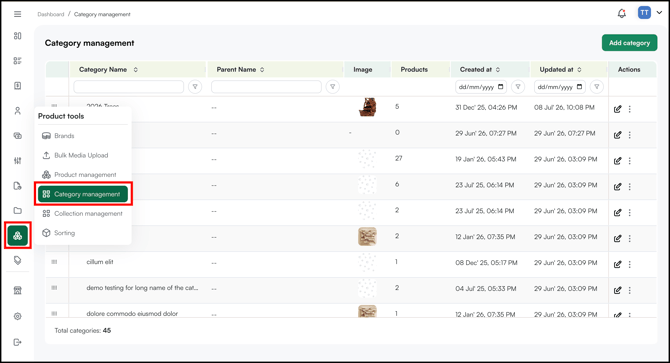
1. Go to ***Product Tools → Category Management***.
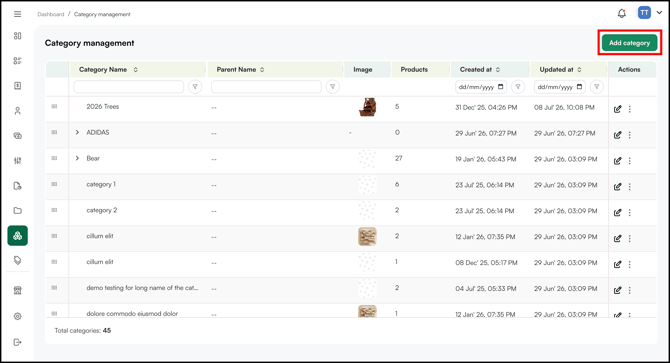
2. Click ***Add Category***.
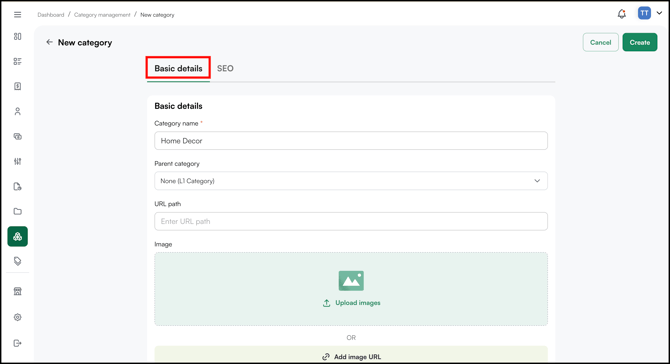
3. Fill in the ***Basic Details***.
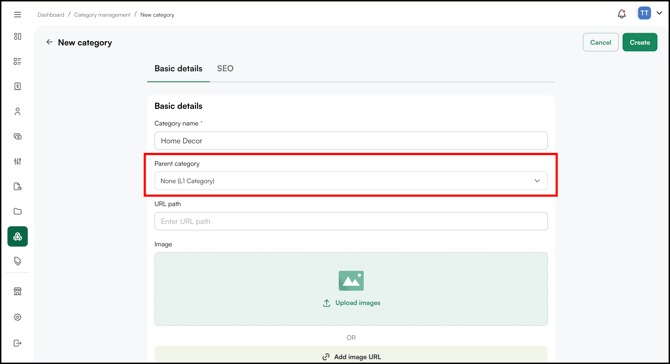
4. To nest a category under a parent, select the parent from the **Hierarchy** field. Repeat to add a third level (L3). Hierarchy is limited to L3 only.
5. Set a **priority** value to control display order. Lower numbers appear first. Priority can be set independently at every level.
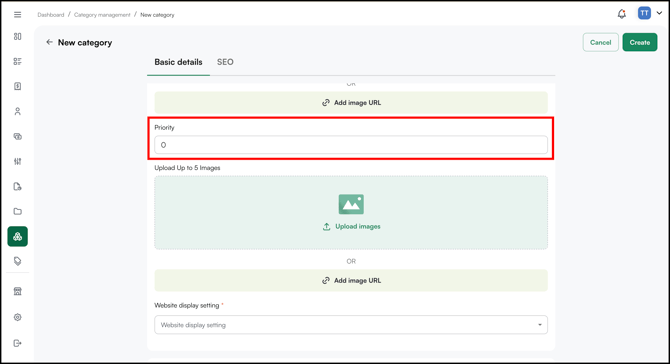
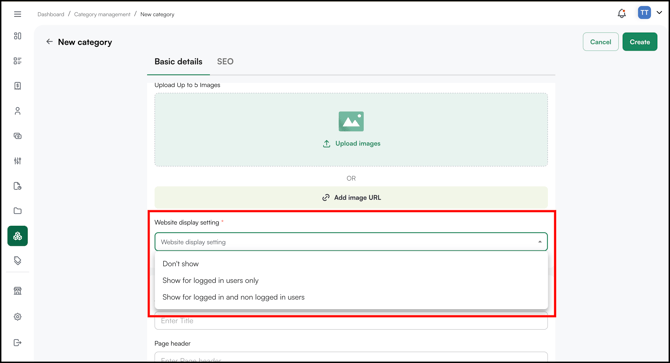
6. Set ***Website Display Setting***. Select from the dropdown.
###### **» SEO Details**
**Note:** SEO fields are only applicable if you have an online storefront (WizShop). If you don't use WizShop, you can skip the SEO section. Just fill in the **Basic Details** and click **Create** to create your category.
1. Go to the **SEO** section.
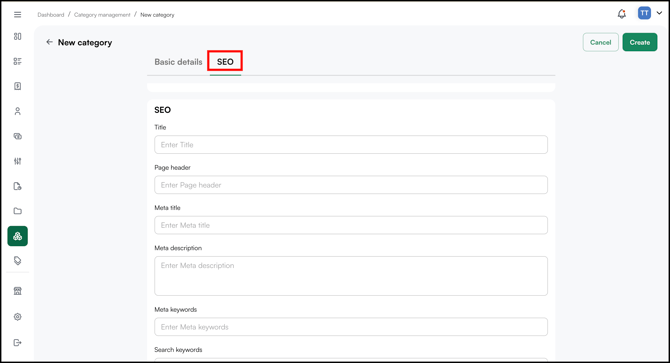
2. Fill in **meta title**, **meta description**, **keywords**, **search keywords**, and any **redirects** you need.
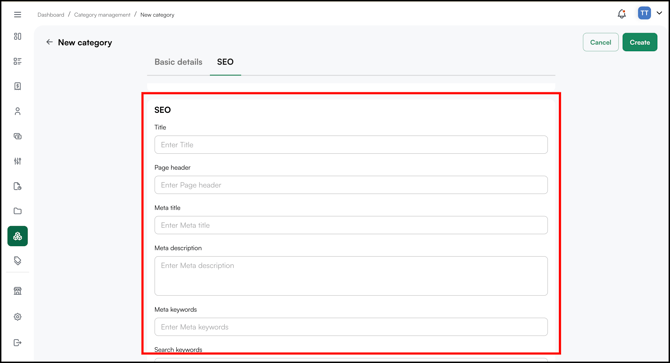
3. Click ***Create.***
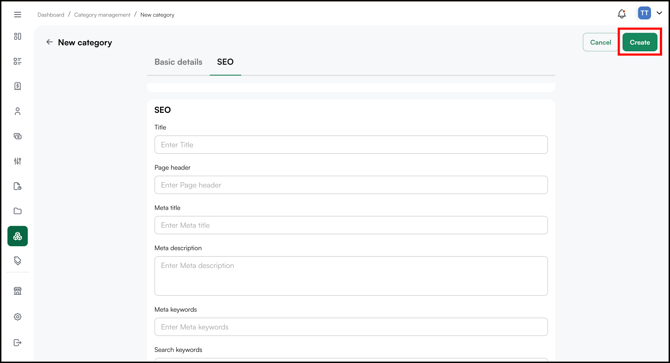
Once at least one product is assigned to the category, it becomes visible on the **Product Listing Page** in the **Sales Rep App (WizOrder)** and the **Online Storefront (WizShop)**.
**Note:** Check this to see how to [Add Products to a Category or Collection](https://knowledge.wizcommerce.com/manage-categories-collections-via-import-export#section-b:~:text=B.%20Add%C2%A0Products%20to%20a%20Category%20or%20Collection).
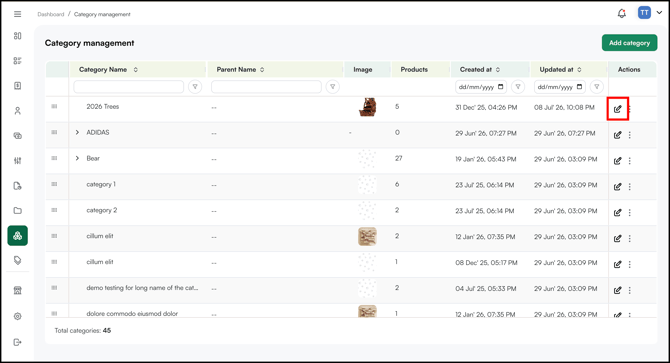
- Click the ***Edit icon*** to edit an existing category. Update the details as needed and click ***Update***.
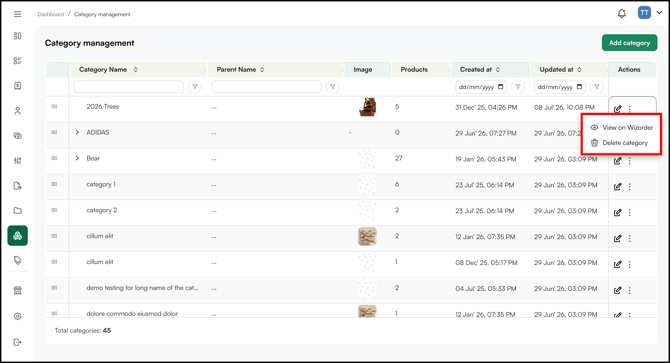
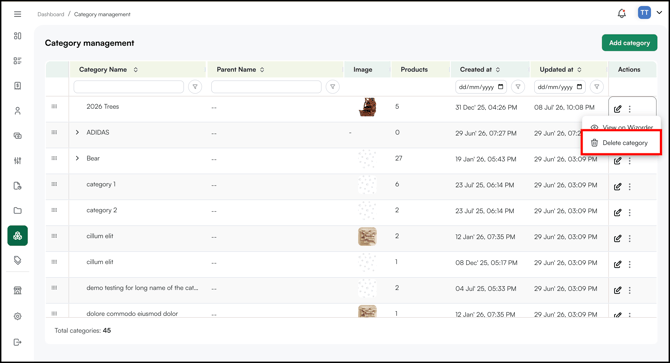
- Click on **three dot menu** to ***View Category on WizOrder*** or ***Delete Category***.
**Tip:** Drag and drop your categories and collections to set the order they show up on the product display page.
---
### B. Create and Manage a Collection
Collections are single-layer. They don't support the L1/L2/L3 nesting used by categories.
###### **» Basic Details**
1. Go to ***Product Tools → Collection Management***.
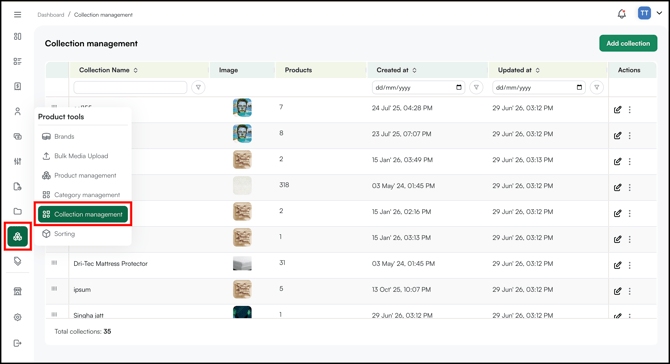
2. Click ***Add Collection***.
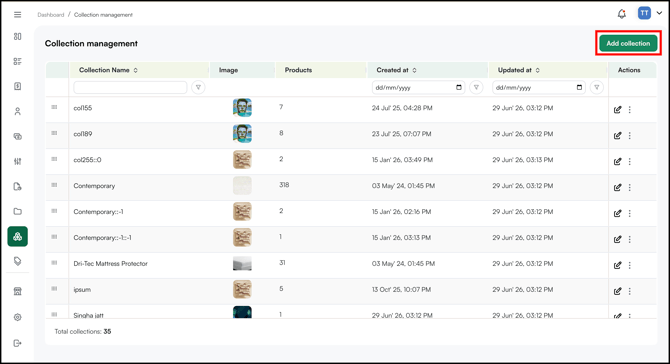
3. Fill in the ***Basic Details***.
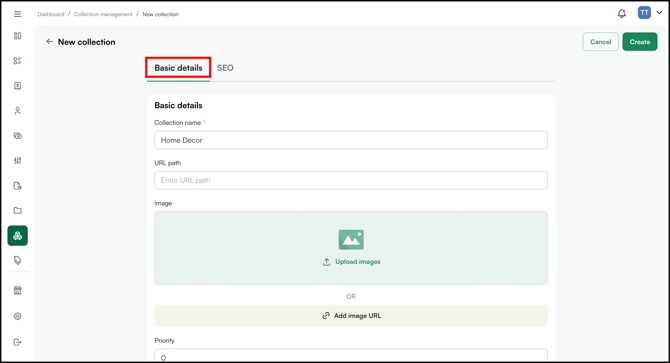
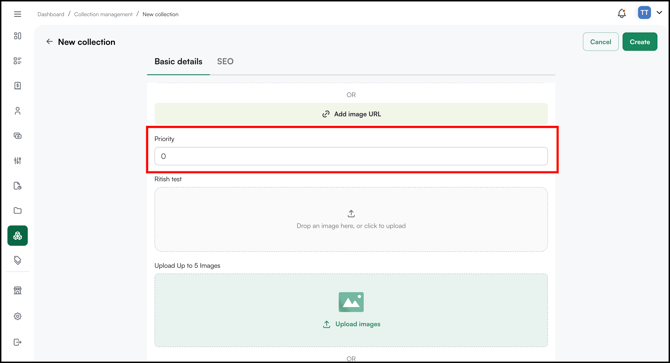
4. Set a **priority** value to control display order. Lower numbers appear first. Priority can be set independently at every level.
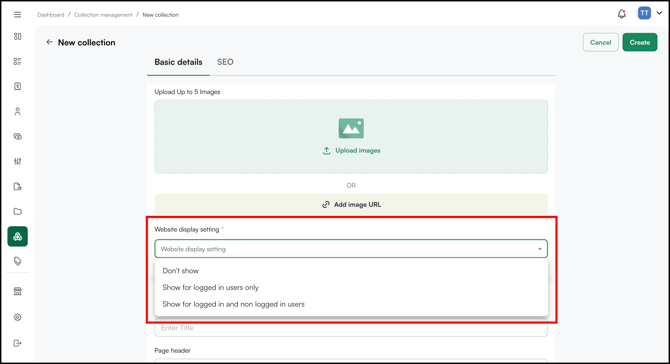
5. Set ***Website Display Setting***.
###### **» SEO Details**
**Note:** SEO fields are only applicable if you have an online storefront (WizShop). If you don't use WizShop, you can skip the SEO section. Just fill in the **Basic Details** and click **Create** to create your collection.
1. Go to the **SEO** section.
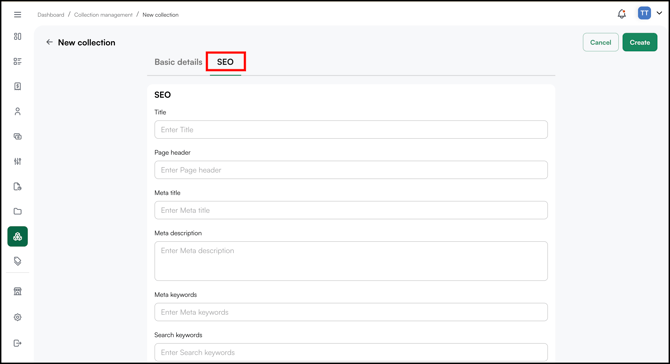
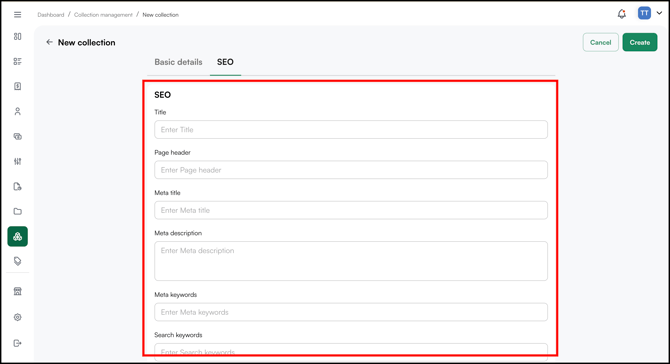
2. Fill in **meta title**, **meta description**, **keywords**, **search keywords**, and any **redirects** you need.
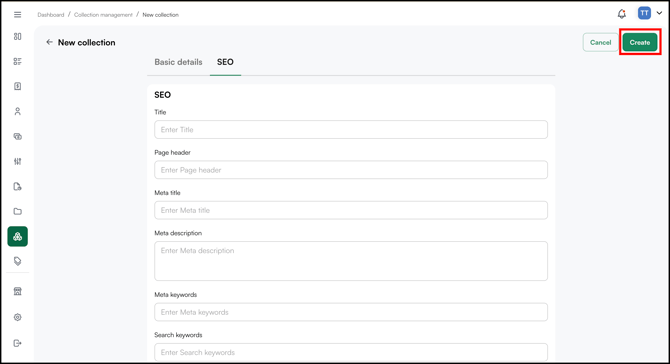
3. Click ***Create***.
As with categories, a collection appears on the **Product Listing Page** only after at least one product has been assigned to it.
- Click the ***Edit icon*** to edit an existing collection. Update the details as needed and click ***Update***.

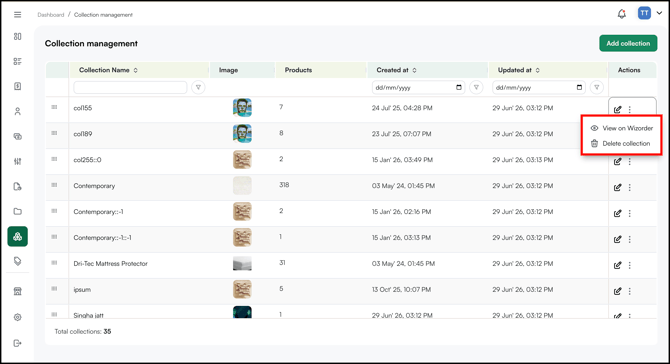
- Click on **three dot menu** to ***View Collection on WizOrder*** or ***Delete Collection***.
---
### C. Import and Export
Use Import and Export when you need to make bulk changes across multiple categories, collections, or their SEO data at once. For step-by-step instructions,
**»** Refer to [***Manage Categories & Collections via Import Export***](https://knowledge.wizcommerce.com/manage-categories-collections-via-import-export).
**Note:** Import/Export is faster than the native UI when updating a large number of categories or collections at once, but for one-off changes, use ***Category or****Collection Management***
---
### D. Delete a Category or Collection
1. Open the Category or Collection from ***Category Management*** / ***Collection** **Management***.
2. Click ***Delete Category*** **/** ***Delete Collection.***
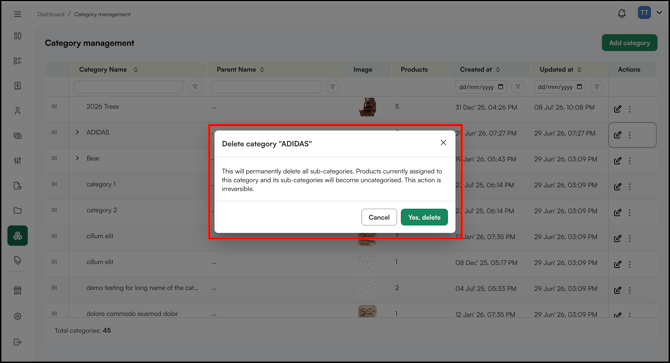
3. If the category has sub-categories or products assigned to it, you will see a prompt to reassign affected products before the deletion is confirmed.
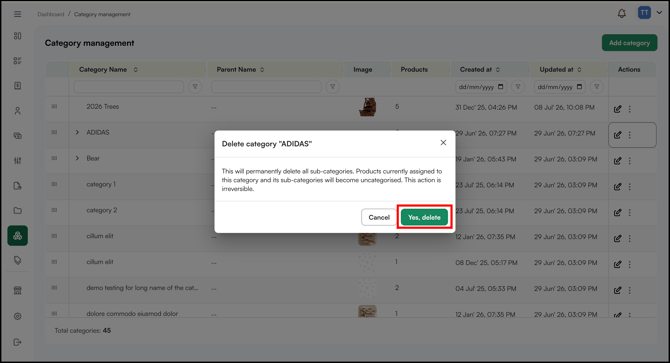
4. Click ***Yes, Delete***.
---
#### **FAQs**
**1. Why isn't my new category or collection showing up on the Product Listing Page?**
**A.** A newly created category or collection only appears on the Product Listing Page once at least one product has been assigned to it. Assign a product first and it will become visible.
**2. Can a product belong to more than one category or collection?**
**A.** Yes. You can assign multiple categories or collections to a product from the Classification tab on the product page, or via Import and Export by entering multiple names separated by a comma. For example, Spring Collection, New Arrivals.
**3. How do I control the order in which categories appear on the Product Listing Page?**
**A.** Use the priority field when creating or editing a category (or the priority column in Import/Export). Lower numbers appear first, and priority can be set independently at every level of the hierarchy.
**4. Why isn't my category showing on the platform?**
**A.** Check if its parent category is hidden. If a parent category is hidden, all its child categories will be hidden too, even if you have marked the child as visible.
**5. Do I still need Elementor or WordPress to manage categories, collections, or SEO?**
**A.** No. Category, collection, and SEO management, including redirects, are now handled natively in WizOrder. If you notice a redirect that isn't working after the migration, recreate it in the SEO section of the category or collection form.
---
**Still need help?** Reach out to our support team at [help@wizcommerce.com](https://mail.google.com/mail/u/0/?fs=1&to=help@wizcommerce.com&tf=cm).
- [Getting started](https://knowledge.wizcommerce.com/getting-started#main-content)
- [Product Overview](https://knowledge.wizcommerce.com/getting-started#product-overview)
- [Key Concepts You Should Know](https://knowledge.wizcommerce.com/getting-started#key-concepts-you-should-know)
- [Product Guides](https://knowledge.wizcommerce.com/getting-started#product-guides)
- [Trade Show Checklist](https://knowledge.wizcommerce.com/getting-started#trade-show-checklist)
- [Product Search & Discovery](https://knowledge.wizcommerce.com/product-search-discovery#main-content)
- [AI Product Recommendations](https://knowledge.wizcommerce.com/product-search-discovery#ai-product-recommendations)
- [Filter and Navigate](https://knowledge.wizcommerce.com/product-search-discovery#filter-and-navigate)
- [Catalog](https://knowledge.wizcommerce.com/product-search-discovery#catalog)
- [Product Selection & Ordering](https://knowledge.wizcommerce.com/product-selection-ordering#main-content)
- [Orders](https://knowledge.wizcommerce.com/product-selection-ordering#orders)
- [Quotes](https://knowledge.wizcommerce.com/product-selection-ordering#quotes)
- [Cart](https://knowledge.wizcommerce.com/product-selection-ordering#cart)
- [Presentations](https://knowledge.wizcommerce.com/product-selection-ordering#presentations)
- [Wishlist](https://knowledge.wizcommerce.com/product-selection-ordering#wishlist)
- [Item History](https://knowledge.wizcommerce.com/product-selection-ordering#item-history)
- [Invoices](https://knowledge.wizcommerce.com/product-selection-ordering#invoices)
- [Customers & Accounts](https://knowledge.wizcommerce.com/customers-accounts#main-content)
- [Customer Relationship Management (CRM)](https://knowledge.wizcommerce.com/customers-accounts#customer-relationship-management-crm)
- [Inventory & Warehousing](https://knowledge.wizcommerce.com/inventory-warehousing#main-content)
- [Inventory availability](https://knowledge.wizcommerce.com/inventory-warehousing#inventory-availability)
- [Payments](https://knowledge.wizcommerce.com/payments#main-content)
- [Payment Dashboard](https://knowledge.wizcommerce.com/payments#payment-dashboard)
- [Pricing & Commercials](https://knowledge.wizcommerce.com/pricing-commercials#main-content)
- [Pricelist](https://knowledge.wizcommerce.com/pricing-commercials#pricelist)
- [Discounts & Promotions](https://knowledge.wizcommerce.com/pricing-commercials#discounts-promotions)
- [Claims & Credits](https://knowledge.wizcommerce.com/pricing-commercials#claims-credits)
- [AI Co-Workers](https://knowledge.wizcommerce.com/ai-co-workers#main-content)
- [Ella - AI Order Entry Assistant](https://knowledge.wizcommerce.com/ai-co-workers#ella-ai-order-entry-assistant)
- [WizPilot - AI Assistant](https://knowledge.wizcommerce.com/ai-co-workers#wizpilot-ai-assistant)
- [WizStudio](https://knowledge.wizcommerce.com/wizstudio#main-content)
- [Creating & Editing Images](https://knowledge.wizcommerce.com/wizstudio#creating-editing-images)
- [Lifestyle Generator](https://knowledge.wizcommerce.com/wizstudio#lifestyle-generator)
- [Silo Editor](https://knowledge.wizcommerce.com/wizstudio#silo-editor)
- [Bulk Silo Editor](https://knowledge.wizcommerce.com/wizstudio#bulk-silo-editor)
- [Asset Library (Assets)](https://knowledge.wizcommerce.com/wizstudio#asset-library-assets)
- [AI Image Expander](https://knowledge.wizcommerce.com/wizstudio#ai-image-expander)
- [Reports & Analytics](https://knowledge.wizcommerce.com/reports-analytics#main-content)
- [Business Reports](https://knowledge.wizcommerce.com/reports-analytics#business-reports)
- [Manage your WizCommerce (Admin)](https://knowledge.wizcommerce.com/manage-your-wizcommerce-admin#main-content)
- [Import / Export](https://knowledge.wizcommerce.com/manage-your-wizcommerce-admin#import-export)
- [Organizational Settings](https://knowledge.wizcommerce.com/manage-your-wizcommerce-admin#organizational-settings)
- [Product Management](https://knowledge.wizcommerce.com/manage-your-wizcommerce-admin#product-management)
- [Managing Your WizShop Website](https://knowledge.wizcommerce.com/manage-your-wizcommerce-admin#managing-your-wizshop-website)
- [Integration & Apps](https://knowledge.wizcommerce.com/integration-apps#main-content)
- [Marketing Integration](https://knowledge.wizcommerce.com/integration-apps#marketing-integration)
- [Integration Dashboard](https://knowledge.wizcommerce.com/integration-apps#integration-dashboard)
- [Help & FAQs](https://knowledge.wizcommerce.com/help-faqs#main-content)
- [Help with Orders](https://knowledge.wizcommerce.com/help-faqs#help-with-orders)
- [Help with Quotes](https://knowledge.wizcommerce.com/help-faqs#help-with-quotes)
- [Help with Presentation](https://knowledge.wizcommerce.com/help-faqs#help-with-presentation)
- [Help with Inventory](https://knowledge.wizcommerce.com/help-faqs#help-with-inventory)
- [Help with User Management](https://knowledge.wizcommerce.com/help-faqs#help-with-user-management)
- [Help with Pricelist & Discounts](https://knowledge.wizcommerce.com/help-faqs#help-with-pricelist-discounts)
- [Help with WizStudio](https://knowledge.wizcommerce.com/help-faqs#help-with-wizstudio)
- [Help with Ella](https://knowledge.wizcommerce.com/help-faqs#help-with-ella)
- [Help with Org Settings (Admin)](https://knowledge.wizcommerce.com/help-faqs#help-with-org-settings-admin)
- [Help with Emails](https://knowledge.wizcommerce.com/help-faqs#help-with-emails)
- [Help with Products](https://knowledge.wizcommerce.com/help-faqs#help-with-products)
- [Help with Import/Export](https://knowledge.wizcommerce.com/help-faqs#help-with-import-export)
- [Help with WizShop](https://knowledge.wizcommerce.com/help-faqs#help-with-wizshop)
- [Help with Integration](https://knowledge.wizcommerce.com/help-faqs#help-with-integration)
- [Help with Categories and Collections](https://knowledge.wizcommerce.com/help-faqs#help-with-categories-and-collections)
- [Help With Customers](https://knowledge.wizcommerce.com/help-faqs#help-with-customers)
- [Help with Trade Show](https://knowledge.wizcommerce.com/help-faqs#help-with-trade-show)
[](https://wizcommerce.com/)
[mailto:help@wizcommerce.com](mailto:help@wizcommerce.com)
Copyright © 2025, WizCommerce
```json
{
"@context" : "https://schema.org",
"@type" : "VideoObject",
"contentUrl" : "https://47455261.fs1.hubspotusercontent-na2.net/hubfs/47455261/video_assets/386412182243/inherited/web_optimized.mp4",
"dateModified" : "2026-08-25T08:33:40.936Z",
"duration" : "PT21S",
"height" : 1636,
"name" : "Screen Recording 2026-08-25 at 2.02.38 PM",
"thumbnailUrl" : "https://47455261.fs1.hubspotusercontent-na2.net/hubfs/47455261/Screen%20Recording%202026-08-25%20at%202.02.38%20PM.mov/medium.jpg",
"uploadDate" : "2026-08-25T08:33:40.934Z",
"width" : 2880
}
```