
Showroom Mode lets reps present the product catalog to buyers in a clean, price-hidden view; ideal for trade shows or meetings where you want to show products without revealing pricing. This article covers how to enable and exit Showroom Mode.
Platform: WizOrder | Who is this for: Admins
To Get There: Settings > Organisational Setting > User Management > Showroom Mode
Table of Contents
Before You Begin
- Ensure you have access to Organizational Settings.
- Remember to turn Showroom Mode off once your trade show or event is over. This restores each rep's standard access settings automatically.
A. How to Access Showroom Mode
- Go to Settings from the left navigation.
- Under Organisational Settings, click Showroom Mode.
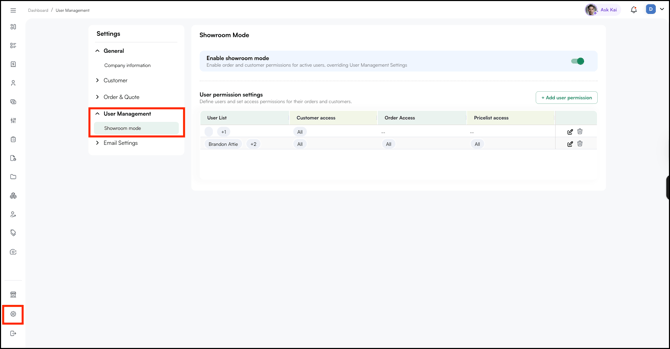
B. How to Enable Showroom Mode
- On the Showroom Mode page, click the Enable Showroom Mode toggle to turn it on.
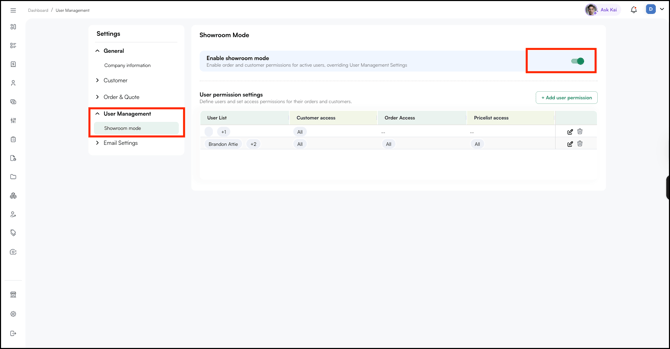
- Showroom Mode is now active. All sales reps immediately get access to orders and customers, regardless of their individual permission settings.
- To turn it off, click the same toggle to disable it. Each rep's original permissions are restored automatically.
Note: Remember to turn Showroom Mode off once your trade show or event is over to restore your team's standard access settings.
C. User Permission Settings
Below the toggle, the User Permission Settings table lets you define and manage custom access for individual users. Use it to control exactly what customers, orders, and pricelists each user can see — independently of their default role settings.
For each entry in the table, you can control:
- Customer Access: Which customers this user can see
- Order Access: Which orders this user can view and manage
- Pricelist Access: Which pricelists are available to them
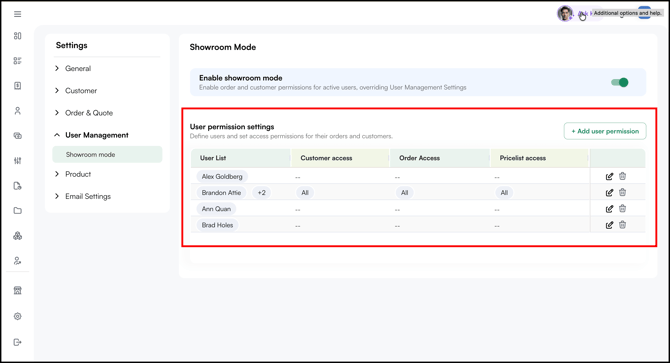
D. How to Add a User Permission
- Click + Add User Permission in the top right corner of the table.
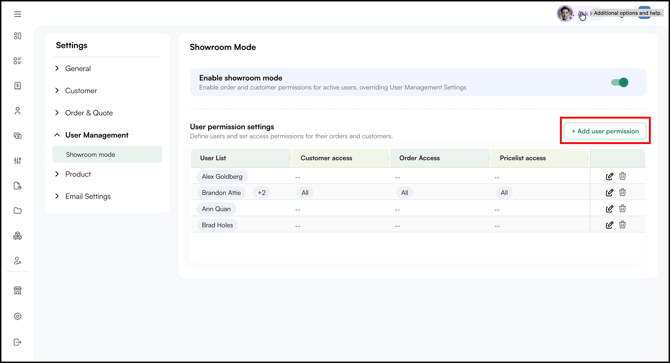
- In the Select User dropdown, search for and select the user you want to configure. This field is mandatory.
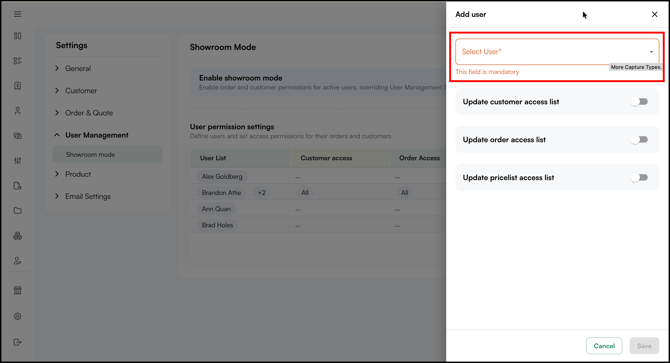
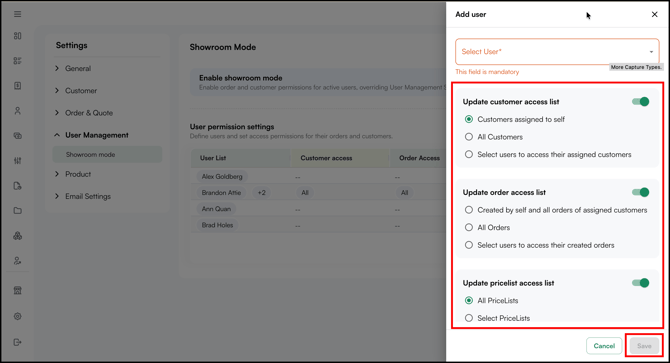
- Toggle on the access types you want to update for this user:
- Update Customer Access List: Toggle on to define which customers this user can see. Once toggled, choose from:
- Customers assigned to self: Only their own assigned customers.
- All Customers: Every customer in the system
- Select users to access their assigned customers: Customers assigned to specific other user.
-
Update Order Access List: Toggle on to define which orders this user can view and manage
-
Update Pricelist Access List: Toggle on to define which pricelists are available to this user
- Update Customer Access List: Toggle on to define which customers this user can see. Once toggled, choose from:
-
Click Save to apply the permissions. The user will appear as a new row in the table.
E. How to Edit an Existing User Permission
- In the User Permission Settings table, find the user you want to update.
- Click the Edit icon on the right side of their row.
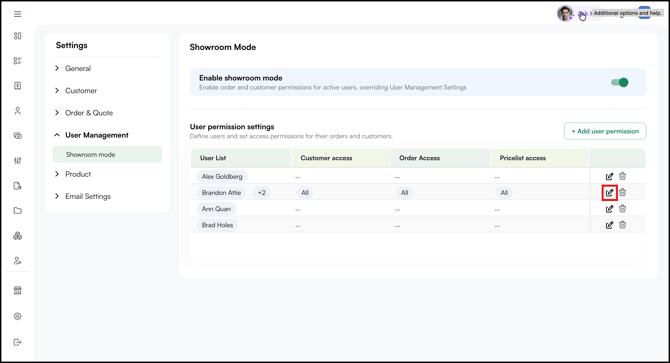
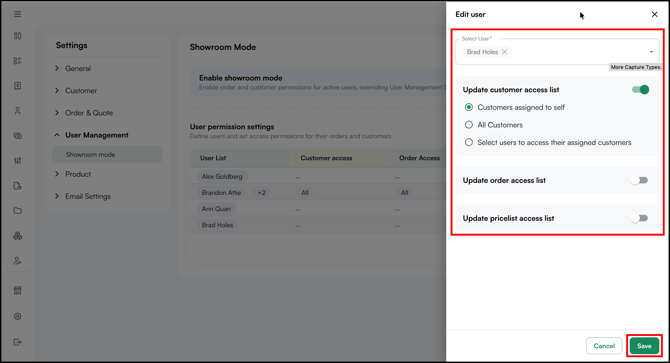
- The Edit User side panel opens, showing their current access settings.
- Toggle access types on or off and update the selections as needed.
- Click Save.
F. How to Remove a User Permission
- In the User Permission Settings table, find the user you want to remove.
- Click the Delete icon on the right side of their row.
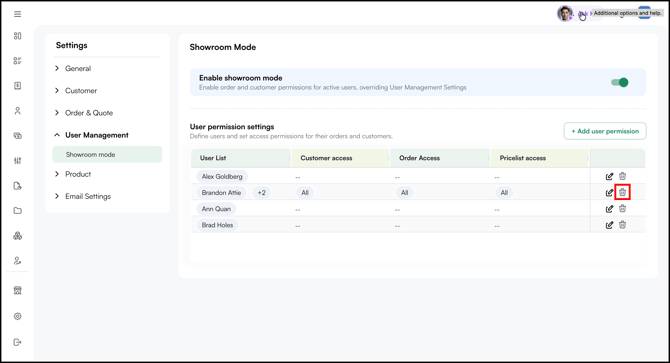
- The user's custom permission entry is removed from the table.
Note: Removing a user from this table does not delete them from WizOrder. It only removes their custom permission override. Their default access settings, defined in User Management, will apply again.
G. What Reps See While Showroom Mode Is Active
While Showroom Mode is on, a rep may not be able to see some orders, or may see an order count without being able to open the details. This is expected behaviour, not missing data. It happens when the rep has a custom entry in the User Permission Settings table that controls what they can see during the show. Once you turn Showroom Mode off after the event, their standard access is restored automatically.
Here's what a rep might notice during the show:
- They see only their own and assigned orders. Instead of every order in their rep group, the rep sees the orders they created and the orders for the customers assigned to them. This is expected for the duration of the show.
- The Customer Dashboard shows a count without details. A customer may show a count such as "15 orders, 1 quote," but the rep cannot open the individual orders or quotes. This happens when the customer is visible to the rep, but those orders fall outside their current access.
- Full access returns after the show. These limits apply only during the event. Once you turn Showroom Mode off, each rep regains visibility of all orders for the reps and customers mapped to them.
Note: If a rep reports they cannot see certain orders or open order details during a show, check their entry in the User Permission Settings table first. This is a temporary access setting, not missing data. Full visibility is restored once Showroom Mode is turned off.
FAQs
1. Can a sales rep enable Showroom Mode, or does it have to be an Admin?
A. Only an Admin can enable or disable Showroom Mode. Sales reps cannot toggle it themselves. The setting lives underSettings > Organisational Settings > User Management > Showroom Mode in WizOrder, which is restricted to Admin access.
2. Does enabling Showroom Mode permanently change my reps' permissions?
A. No. Showroom Mode is a temporary override. When you turn it off, each rep's original permissions are restored automatically — nothing in User Management is changed.
3. Can I set custom permissions for specific reps while Showroom Mode is on?
A. Yes. Use the User Permission Settings table to define custom access for individual users. These settings work independently of the Showroom Mode toggle.
4. What happens to a rep's access if I remove them from the User Permission Settings table?
A. Removing a rep from the table only removes their custom permission override. Their default access settings from User Management apply again immediately.
5. Does Showroom Mode work on both the iPad app and the web portal?
A. Yes. Once an Admin enables Showroom Mode, the permission override applies to every sales rep (added in Showroom Mode) across WizOrder, both the iPad/mobile app and the web portal. Any rep signing in during the show gets the expanded access until Showroom Mode is turned off.
6. Does Showroom Mode change what customers see on the B2B website?
A. Showroom Mode is not a customer-facing setting. It controls what sales reps can see and do in WizOrder during a trade show. When enabled, all sales reps added in Showroom Mode get access to all orders and customers in WizOrder, regardless of their individual permissions. It does not affect prices, inventory, products, or anything displayed on the B2B website. To control how information appears to customers, contact your Customer Success Manager.
7. While Showroom Mode is on, why can a rep only see their own and assigned orders?
A. This happens when the rep has a custom entry in the User Permission Settings table that limits what they can see. During the show, they only see the orders they made and the orders for their own customers. This is only for the show. Once you turn Showroom Mode off, they can see all their orders and customers again.
8. Why does the Customer Dashboard show an order or quote count that a rep can't open?
A. A rep may see a count (for example, "15 orders and 1 quote") against a customer but be unable to view the individual details. This is the same temporary access override at work: the customer is visible to them, but those specific orders sit outside their current order access. Full access to the details returns once the fair ends and the system reverts to standard mode.
Still need help? Reach out to our Support Team at help@wizcommerce.com.