
The Sales Rep App (WizOrder) gives you real-time visibility into your inventory, synced directly from your ERP or warehouse management system so the numbers you see always match your back-office records.
This article covers how to view and track inventory, create filtered views, export inventory data, and control how inventory behaves across your platform.
Platform: WizOrder | Who is this for: Admins & Sales Reps
To Get There: Products > Product Listing Page
Table of Contents
Before You Begin
- Ensure you have access to WizOrder before tracking inventory.
- Inventory data syncs directly from your connected ERP or warehouse management system. WizCommerce does not store inventory independently — your ERP is the source of truth.
A. Track All Inventory in One Place
Inventory information appears in several places across WizOrder, all pulling from the same real-time data source.
1. On Product Cards (Product Listing Page)
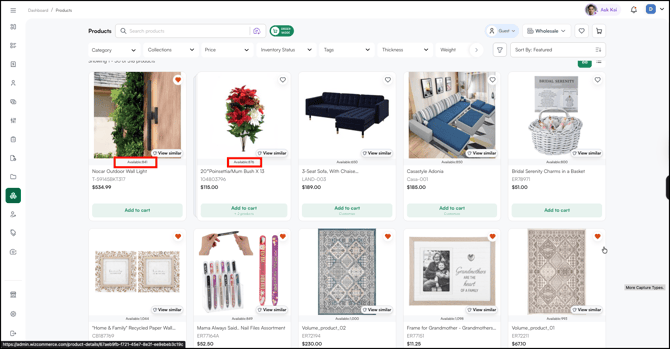
Every product card on the Products page shows the available quantity. You can see at a glance which products are in stock, which are out of stock, and which have limited availability. Each card displays the product image, name, SKU, price, and availability count (e.g., "Available: 622").
On the Mobile App
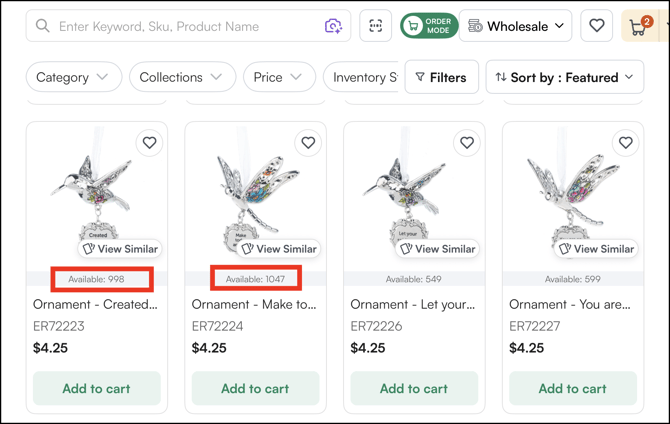
On the Web Portal
2. On the Product Detail Page (PDP)
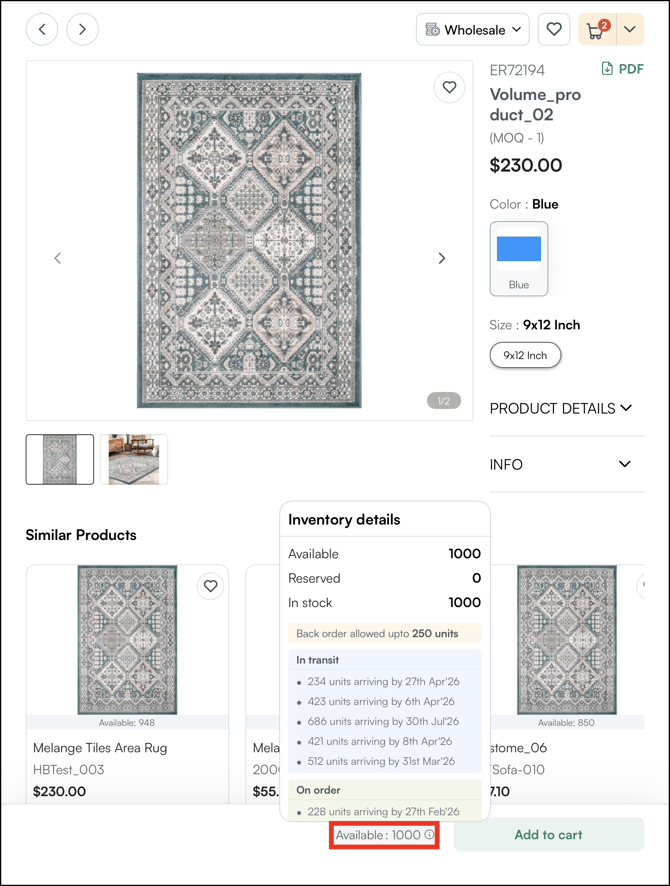
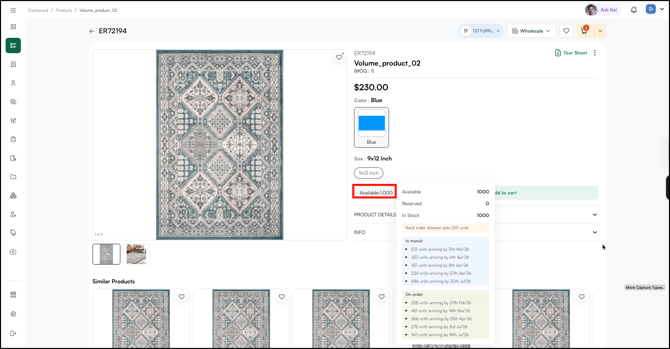
Open any product to see its available quantity and full inventory details. Click i to view the complete inventory breakdown.
- Available Quantity: Units currently in stock and ready to ship
- On Order: Units ordered from the supplier and their expected delivery date. Accessible via the i icon on product cards, giving reps visibility into incoming supply.
- In Transit: Units yet to be manufactured by the supplier, along with their expected dates of moving into On Order status.
- Back Order: Allows buyers to place orders even when current inventory is at zero. Fulfilment occurs once new stock arrives.
On the Mobile App
On the Web Portal
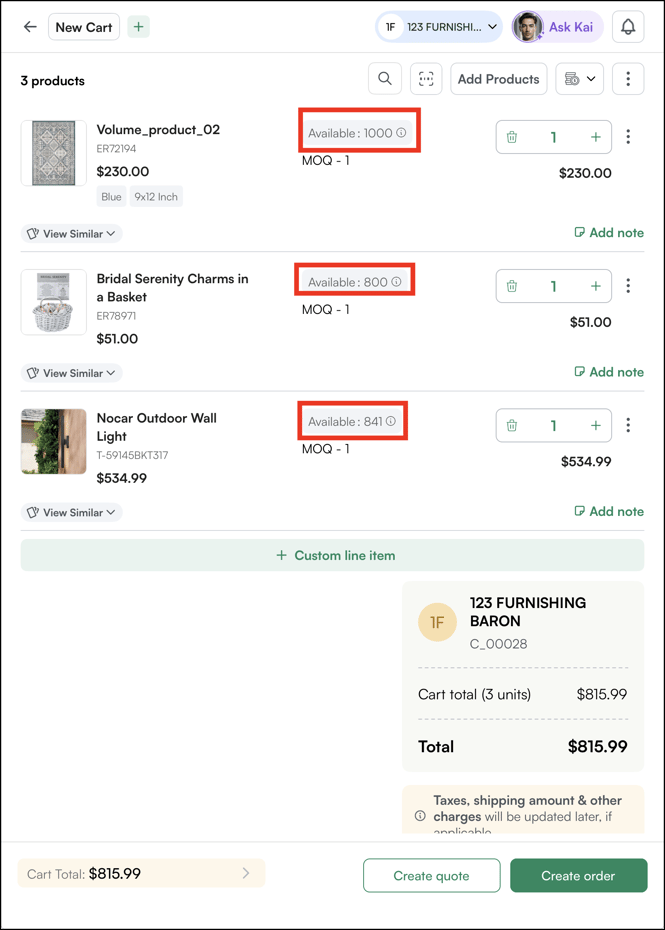
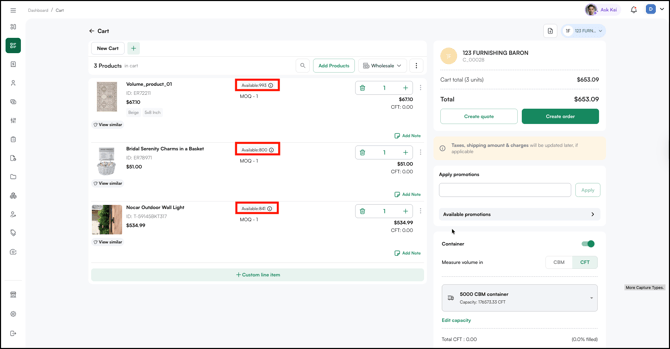
3. In the Cart
When you add products to a cart, each line item shows its current availability status. Stock levels update in real time as orders are placed across the platform — so if another rep just sold the last 50 units, your cart reflects that immediately.
On the Mobile App
On the Web Portal
B. Real-Time Sync
Inventory in WizOrder is not a static snapshot. It syncs in real time from your connected ERP or warehouse management system:
- When stock levels change in your ERP, WizOrder reflects the update automatically.
- When orders are placed through WizOrder or WizShop, inventory counts adjust immediately.
- The ERP remains the source of truth for all inventory data.
This means your sales reps, your buyers on WizShop, and your back-office team are all looking at the same numbers.
C. Create Inventory Views Using Filters
Filtering Inventory on the Product Listing Page
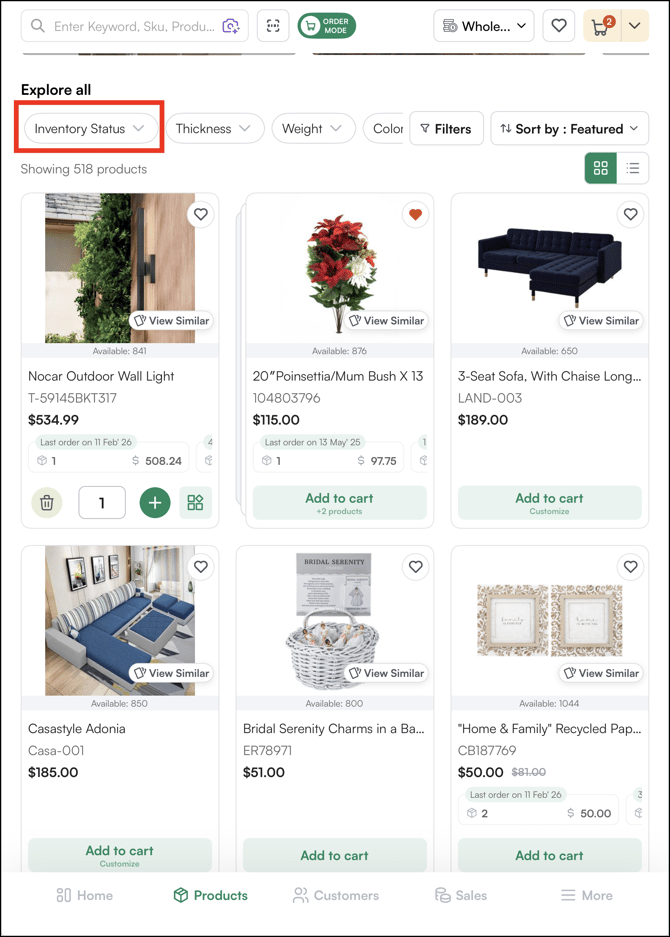
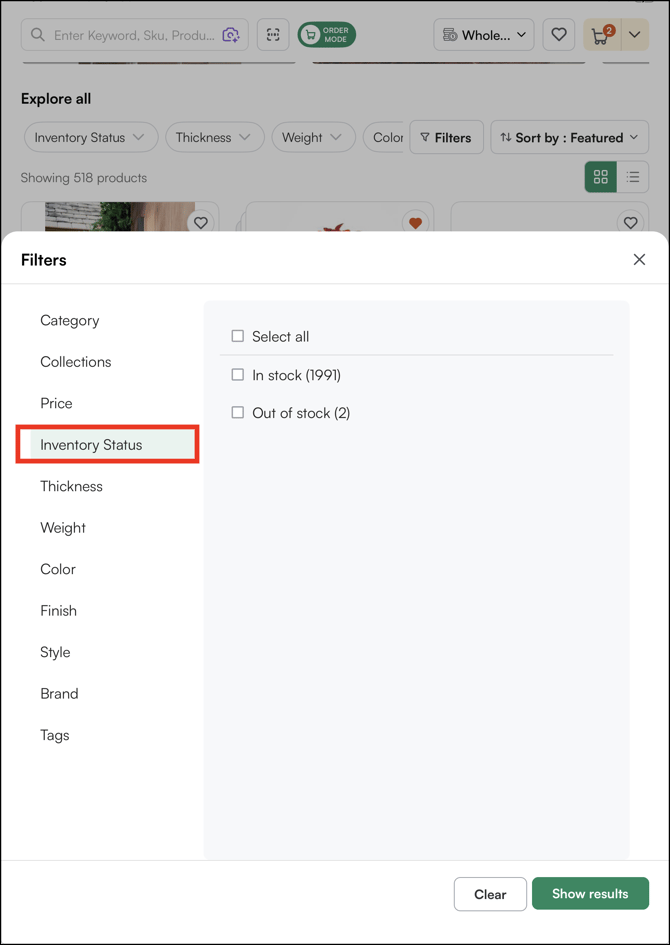
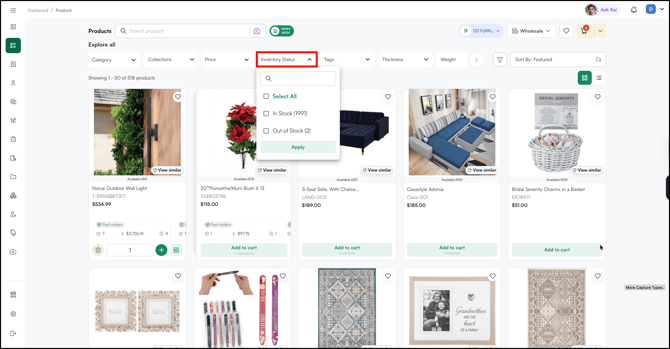
The Products page includes inventory-specific filters that let you quickly narrow down to the products you need.
Inventory Status Filters:
- In Stock: Show only products with available inventory
- Out of Stock: Show only products with zero availability
- Back Order: Show products that are currently unavailable but can still be ordered. Fulfilment occurs once new inventory arrives.
Additional Filters You Can Combine:
- Category: Filter by product category (e.g., Lighting, Rugs, Furniture)
- Collection: Filter by product collection
- Price Range: Narrow by price
- Custom Attributes: Filter by Color, Material, Style, or any other custom attribute configured for your catalog
Filters are additive — each additional filter narrows the results further. The product count updates in real time as you apply filters (e.g., "Showing 23 of 450 products").
On the Mobile App
On the Web Portal
D. Practical Filter Combination Tips
Here are useful filter combinations for common scenarios:
- Trade show prep: Filter by In Stock + specific collection to show buyers only what is ready to ship right now.
- Restock planning: Filter by Out of Stock to identify products that need replenishment.
- Category review: Filter by category + In Stock to see your available assortment in a specific product line.
E. Control Your Inventory in WizCommerce
Where Inventory Data Comes From
Your ERP or warehouse management system is the source of truth for inventory. WizCommerce syncs with your connected system to keep stock levels up to date.
Supported ERP Systems:
-
QuickBooks (Desktop and Online)
-
NetSuite
-
Sage 100
-
Microsoft Dynamics 365 Business Central
-
Epicor
Inventory syncs automatically on a scheduled basis. Changes in your ERP are reflected in WizOrder and WizShop without manual intervention.
F. Bulk Inventory Updates
If you need to update inventory outside of your ERP, or if you manage inventory manually, WizCommerce supports bulk updates through Import/export:
- Export your current inventory as an Excel file.
- Update the quantities, ETAs, and back-order settings in the spreadsheet.
- Import the updated file back into WizCommerce.
This is the same workflow used for other bulk operations in the platform, such as products, pricing, and customer data, so the process is familiar.
Note: To know the exact workflow, please read Manage Inventory Using Import/Export.
FAQs
1. How often does inventory sync from my ERP to WizOrder?
A. Inventory syncs automatically on a scheduled basis. When stock levels change in your ERP, WizOrder reflects the update without any manual intervention. When orders are placed through WizOrder or WizShop, inventory counts adjust immediately.
2. Can a sales rep place an order for a product that is out of stock?
A. Yes, if Back Order is enabled for that product. Buyers can place orders even when current inventory is at zero — fulfilment occurs once new stock arrives.
3. What is the difference between On Order and In Transit?
A. On Order refers to units ordered from the supplier and not yet received, along with their expected delivery date. In Transit refers to units that are yet to be manufactured by the supplier, along with their expected dates of moving into On Order status.
Not finding what you need? Browse the WizCommerce Help Center, reach out to your Customer Success Manager, or contact our Support Team.