
Sync Lookbooks from Publitas, push new products for tagging, edit existing Lookbooks, and manage pages, all without re-uploading the entire catalog.
Platform: WizOrder │ Who is this for: Admin
To Get There: Lookbook Management (WizOrder web portal) and Publitas dashboard
Table of Contents
| Sections | Topics |
| A | Manage a Lookbook from Lookbook Management |
| B | Push New Products From WizCommerce to Publitas |
| C | Edit and Manage a Published Lookbook |
| D | Manage Pages with Page Manager |
| E | FAQs |
| F |
Before You Begin
- You must have Admin access to WizCommerce.
- Your WizCommerce account must be connected to Publitas.
- The Lookbook must already exist in Publitas or WizCommerce.
A. Manage a Lookbook from Lookbook Management
The three-dot menu on the Lookbook Management page gives you quick access to every Lookbook action, editing, visibility, downloads, reports, and access control, without leaving WizCommerce.
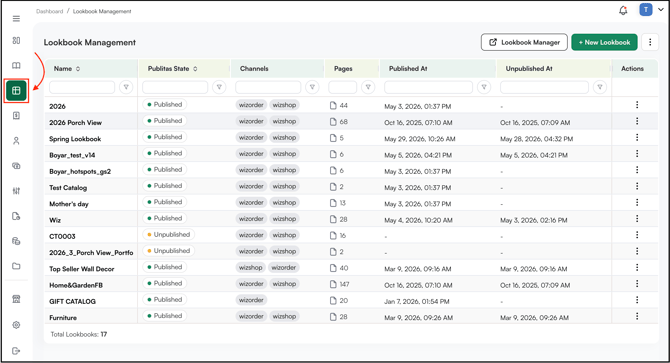
- Go to Lookbook Management in WizCommerce.
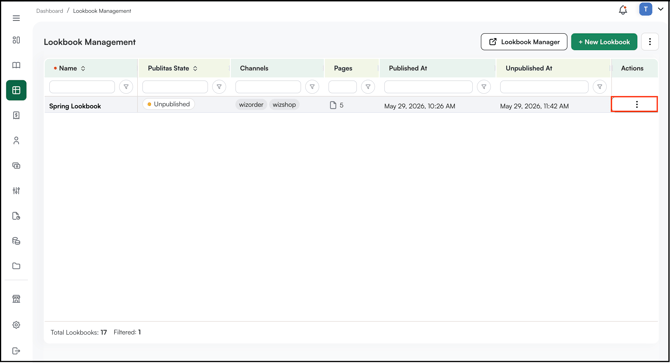
- Click the three-dot menu next to the Lookbook you want to manage.
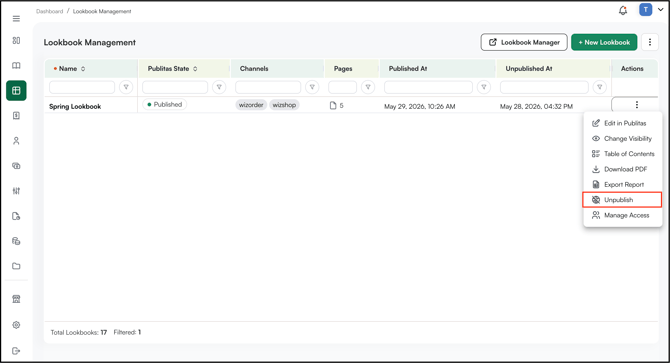
- Choose the action you need:
- Edit in Publitas: Opens the Lookbook in the Publitas editor in a new tab. Use this to add hotspots, edit content, or update pages. See the Edit a Lookbook in Publitas article.
- Change Visibility: Set the Lookbook as Published or Unpublished for sales representatives in WizOrder.
- Table of Contents: Add or update the index for the Lookbook so reps and buyers can jump to a specific page or section.
- Download PDF: Download the original catalog PDF used to create the Lookbook. Useful when you need to share the static version or archive it.
- Export Report: Export a report showing how the Lookbook has been used, views, clicks, and product interactions.
- Unpublish: Take the Lookbook offline in WizCommerce. It is hidden from sales representatives but remains in your library and can be republished later.
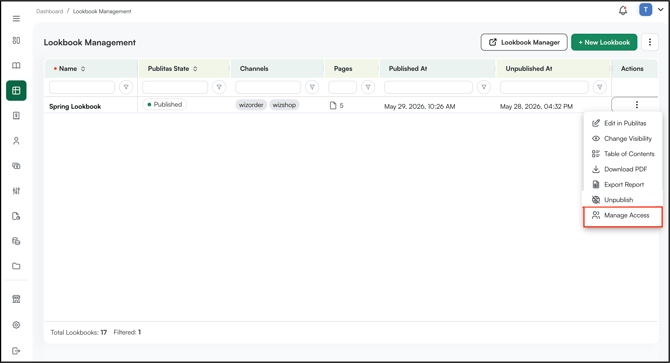
- Manage Access: Control which user roles can view the Lookbook. Use this to restrict a Lookbook to specific teams or regions before making it visible.
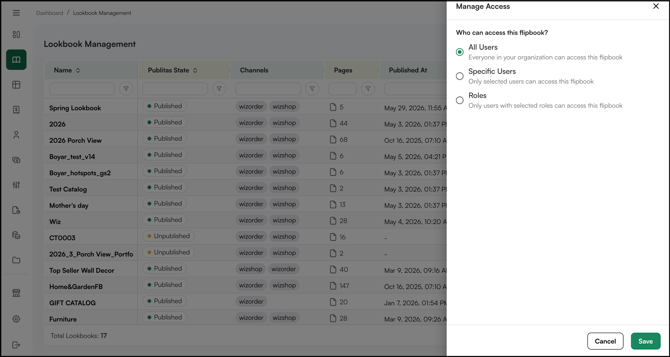
- All Users: Everyone in your organization can access this Lookbook.
- Specific Users: Only users you select can access this Lookbook.
- Roles: Only users with the roles you select can access this Lookbook.
B. Push New Products to Publitas
If newly added SKUs do not show up when tagging hotspots in Publitas, push them across so they become available for tagging.
- Go to Lookbook Management in WizCommerce.
- Click the three-dot menu at the top of the page.
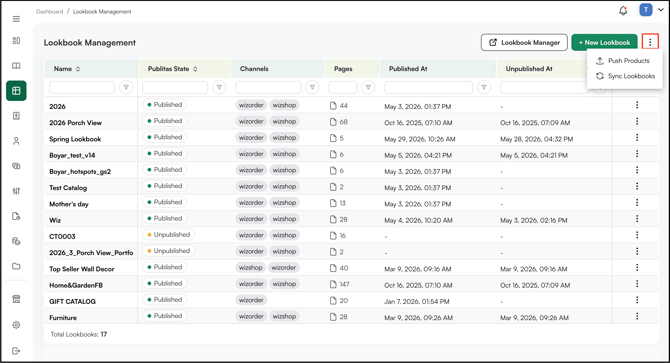
- Click Push Products at the top of the page.
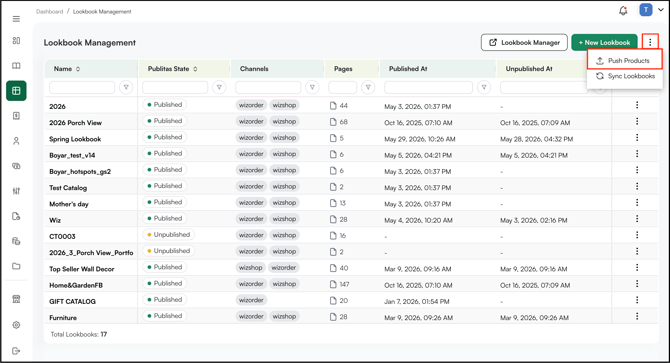
- Wait for the sync to complete. The Lookbook is now visible in WizCommerce and on the iPad.
Note: Products sync to Publitas at set intervals. Click Push Products any time SKUs are missing from Publitas search after a recent product upload, instead of waiting for the next automatic sync.
B. Edit and Manage a Published Lookbook
Add, remove, or rearrange pages in a Lookbook without re-uploading the entire catalog.
- Open the Lookbook in Publitas using Edit in Publitas.
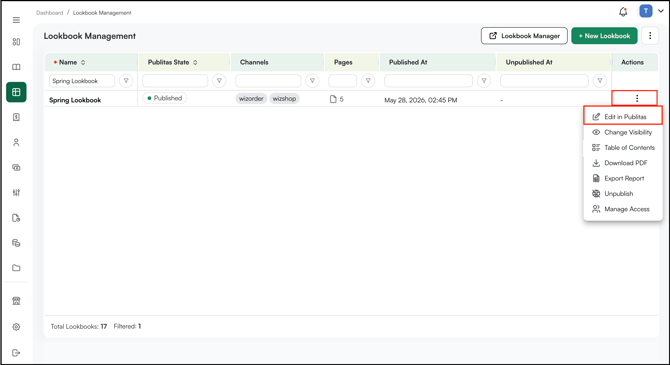
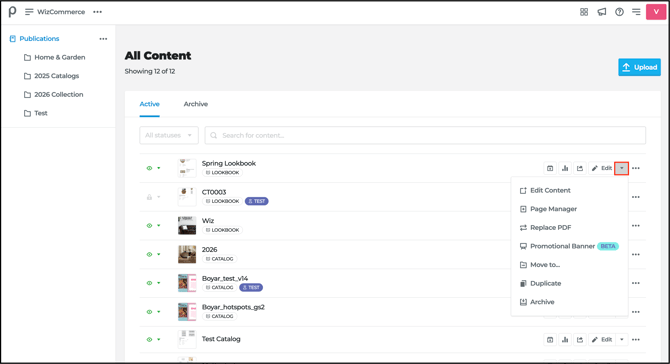
- Click the dropdown arrow next to the Edit button on the right.
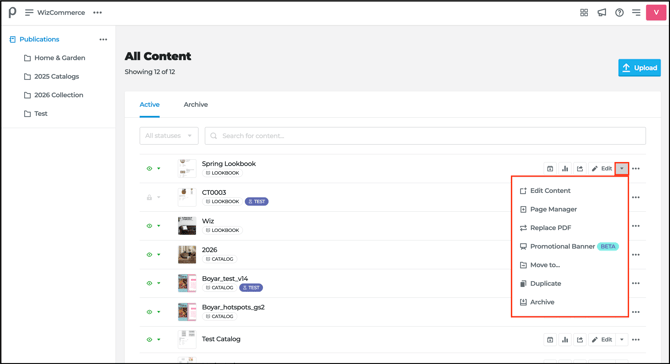
- Choose the action you need:
- Edit Content: Opens the Lookbook in the main Publitas editor where you can add hotspots, edit text and images, and preview changes.
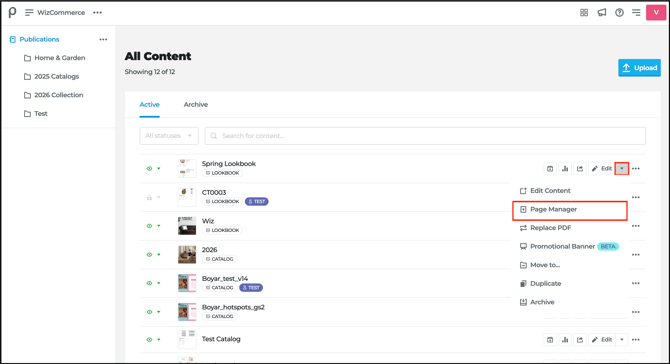
- Page Manager: Add new pages from another file, remove pages you no longer need, or rearrange the page order, all without re-uploading the catalog PDF.
- Replace PDF: Swap the underlying catalog PDF without losing your hotspots and settings. Useful when you have an updated version of the same catalog.
- Upload the new PDF to replace the existing one.
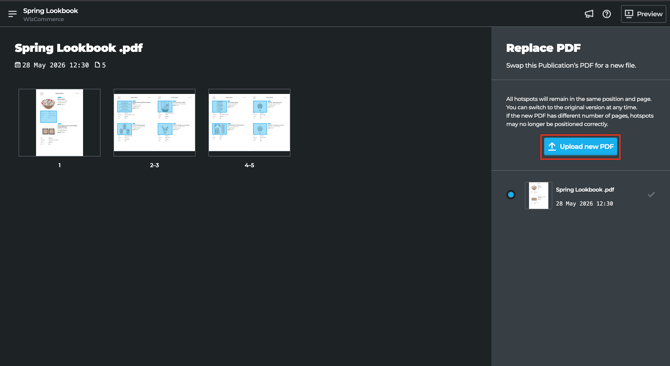
- Upload the new PDF to replace the existing one.
-
-
- Swap this publication's PDF for a new file. You can upload a fresh version or choose from a previously uploaded PDF below.
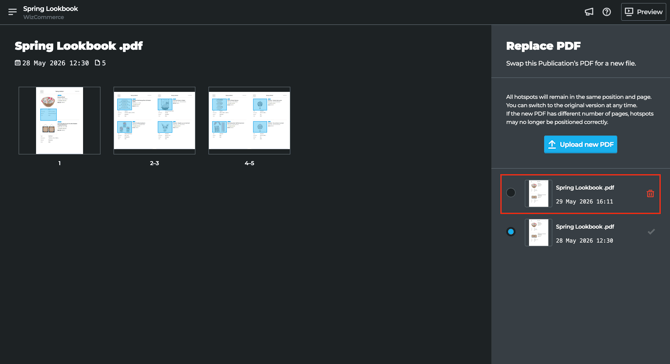
- Swap this publication's PDF for a new file. You can upload a fresh version or choose from a previously uploaded PDF below.
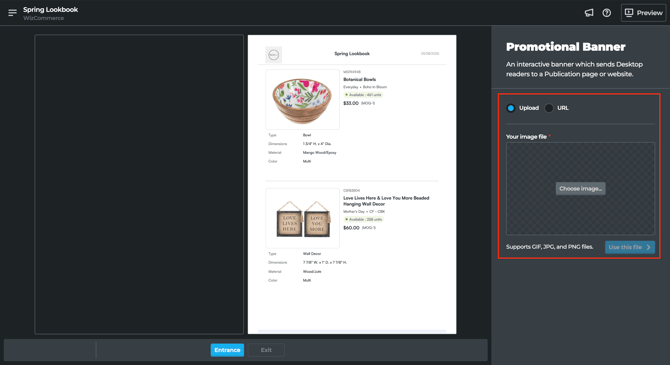
- Promotional Banner (Beta): Add a promotional banner panel where you can upload an image (or enter a URL) that links Desktop readers to a publication page or website..
- Move to…: Move the Lookbook into a different folder (for example, 2026 Collection or Test) to keep your content organized.
- Duplicate: Create a copy of the Lookbook. Use this when building a new Lookbook based on an existing one.
- Archive: Move the Lookbook to the Archive tab. Archived Lookbooks are hidden from the Active list but remain in Publitas and can be restored later.
-
Note: Replace PDF preserves hotspots only if the new PDF has the same page structure as the original. If page layouts shift, you may need to redraw some hotspots after replacing the file.
C. Manage Pages with Page Manager
Page Manager lets you add, remove, replace, or rearrange pages in a Lookbook without re-uploading the entire catalog PDF.
- Go to All Content in the Publitas dashboard.
- Find your Lookbook and click the dropdown arrow next to the Edit button.
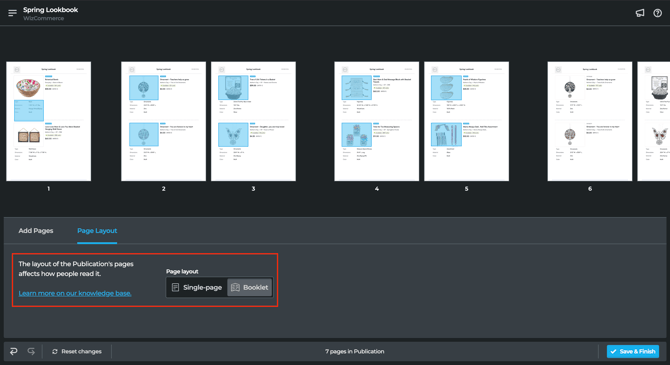
- Select Page Manager. The page thumbnails open in a new view.
- Choose the action you need:
- Rearrange pages: Drag any page thumbnail to a new position. The page order updates immediately.
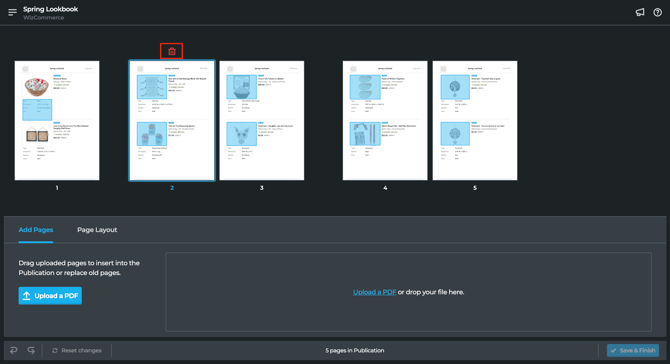
- Delete a page: Click the page thumbnail, then click the trash icon at the top to remove it.
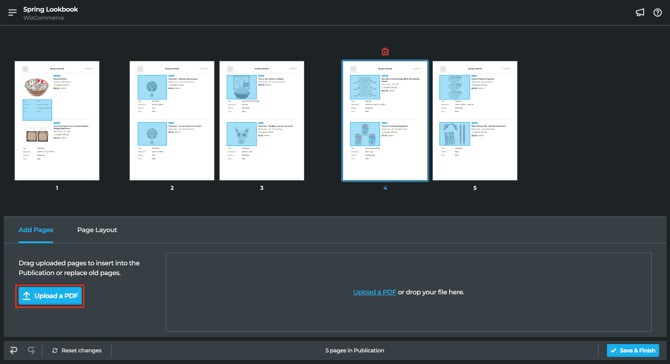
- Add new pages: Under the Add Pages tab at the bottom, click Upload a PDF or drag a file into the upload area. The new pages appear in the panel and can be dragged into the Lookbook at the position you want.
- Rearrange pages: Drag any page thumbnail to a new position. The page order updates immediately.
- Replace a page: Drag an uploaded page on top of an existing page to swap it out without changing the page order.
- Switch to the Page Layout tab at the bottom to adjust how pages display in the Lookbook, for example, changing single-page sections inside a Booklet layout.
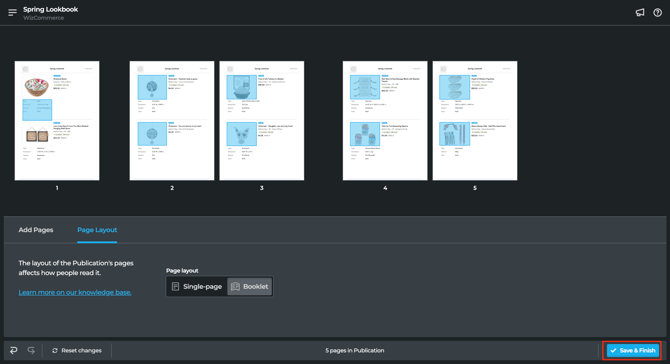
- Click Save & Finish in the bottom right to apply your changes.
FAQs
1. I added new products in WizCommerce but they are not showing up in Publitas. What do I do?
A. Products sync to Publitas at set intervals. To make new SKUs available immediately, go to Lookbook Management in WizCommerce and click Push Products at the top of the page.
2. I need to update the catalog PDF for an existing Lookbook. Do I need to start over?
A. No. Use the Replace PDF option from the Edit dropdown in Publitas to swap the underlying PDF without losing your hotspots and settings. If the new PDF has a different page structure, you may need to redraw some hotspots.
3. I archived a Lookbook by mistake. Can I get it back?
A. Yes. Archived Lookbooks are hidden from the Active list but remain in Publitas. Go to the Archive tab in the Publitas dashboard to find and restore the Lookbook.
Not finding what you need? Contact our support team at help@wizcommerce.com