
Upload two or more product images, describe your own scene or pick a suggested one, and generate variations with all your products staged together. WizStudio removes the background from each product and arranges them in a single scene, and you can use Enhance Scene to build a full scene from a few keywords. WizStudio then creates five variations for each scene to choose from.
Platform: WizStudio | Who is this for: Designers & Admins
Table of Content
| Sections | Topics |
| A | Upload Product Images |
| B | Add Product Dimensions |
| C | Describe or Select a Scene |
| D | Enhance Scene |
| E | Explore Actions on Generated Images |
» Before You Begin
- You must have access to WizStudio.
- Have at least one product image ready to upload. A good-quality mobile photo works fine.
- Adding product dimensions before generating is optional, but improves accuracy.
» Upload Product Images
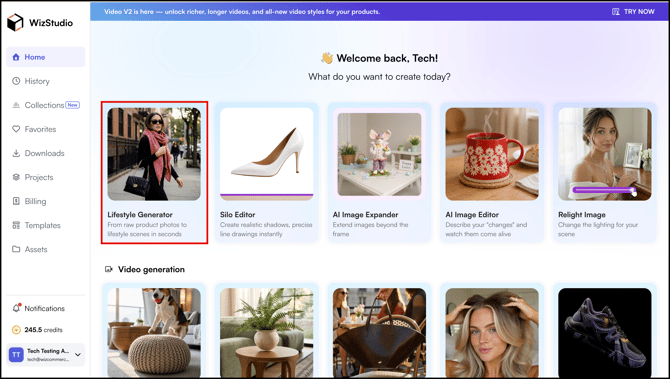
- Go to WizStudio → Lifestyle Generator.
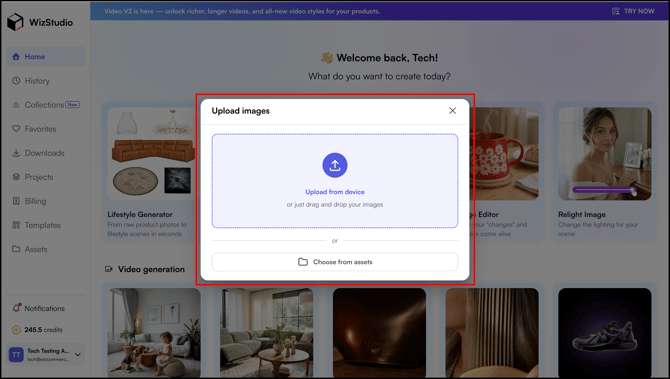
- Upload two or more product images from device or choose from assets.
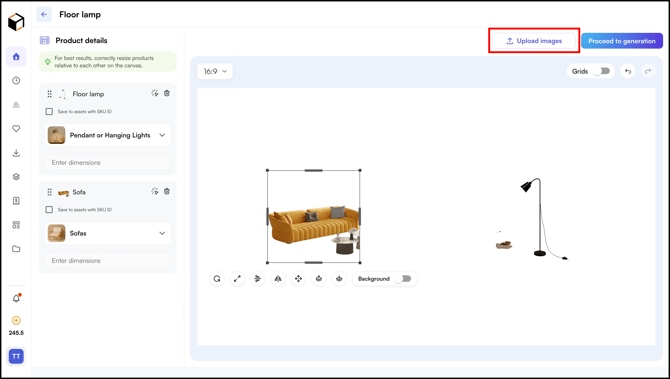
- WizStudio automatically removes the background and assigns the product a category. If the category is incorrect, you can change it manually.
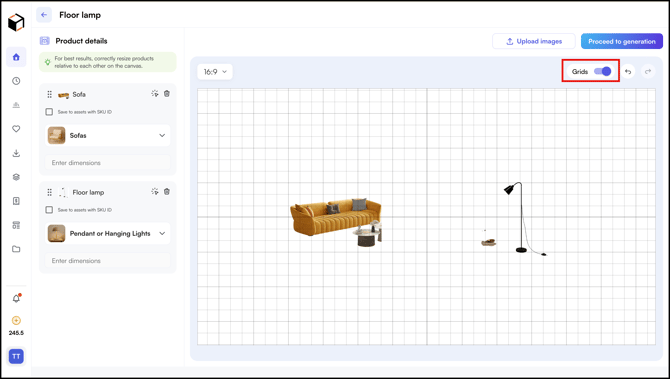
- Click Upload Images to upload one or more images.
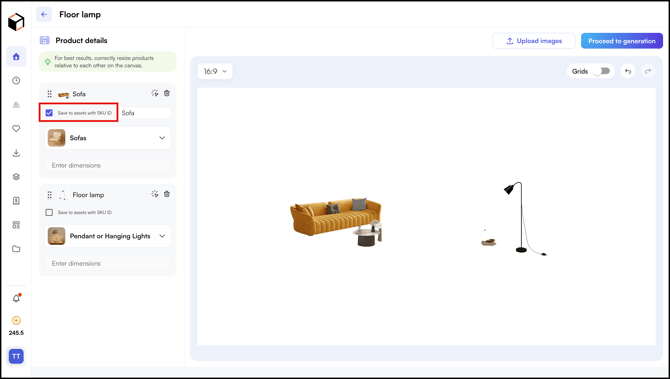
- Tick the Checkbox to save the product to assets using its SKU ID.
- Toggle the Grid button on to enable the grid view, and off to disable it.
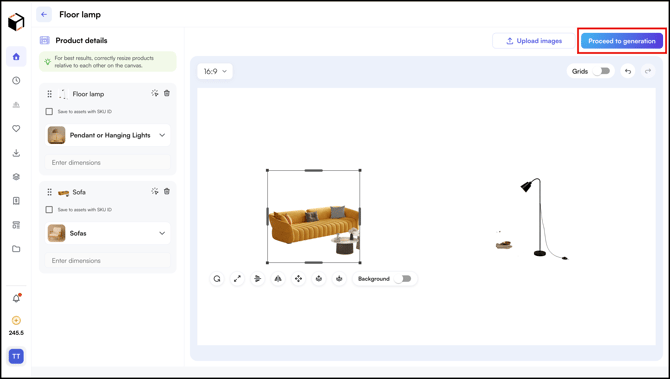
- Once everything is set, click Proceed to Generation to continue.
» Add Product Dimensions
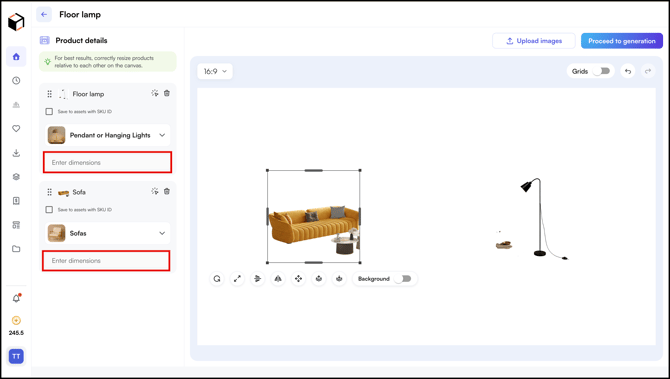
Adding product dimensions is optional, but it helps WizStudio show each product at the right size relative to the others in the scene.
- After uploading your product images, enter the dimensions for each product in the format Length × Width × Height. For example, 10" L × 8" W × 4" H.
- You can also enter dimensions in centimeters (cm) instead of inches.
Tip: Enter the dimensions in your prompt to get the scale and proportions right. For example: "a 30-inch tall floor lamp next to a 72-inch wide sofa."
» Describe or Select a Scene
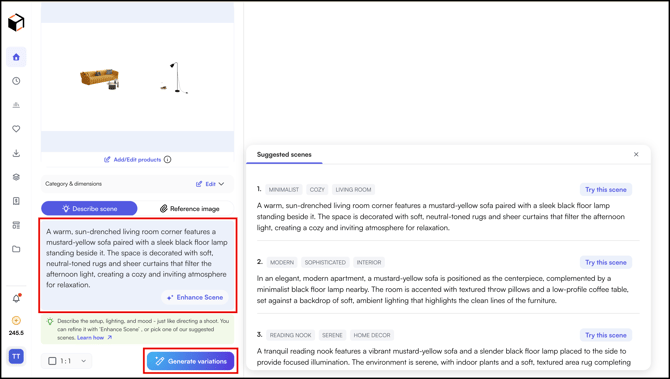
- Type a custom scene (as per your requirements) in the Describe Scene box.
- Or select from the AI-suggested scenes (Try this Scene) based on your product category.
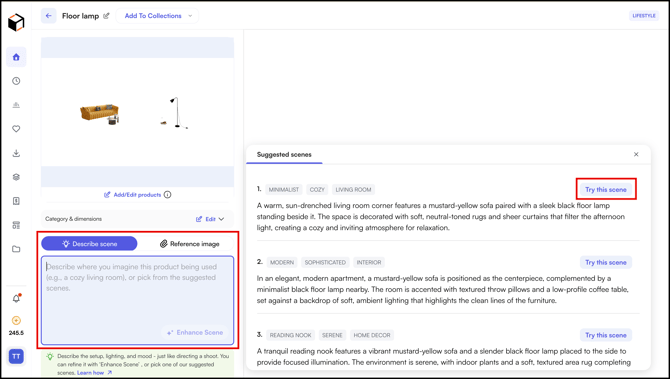
- Click Generate Variations to generate multiple product variations.
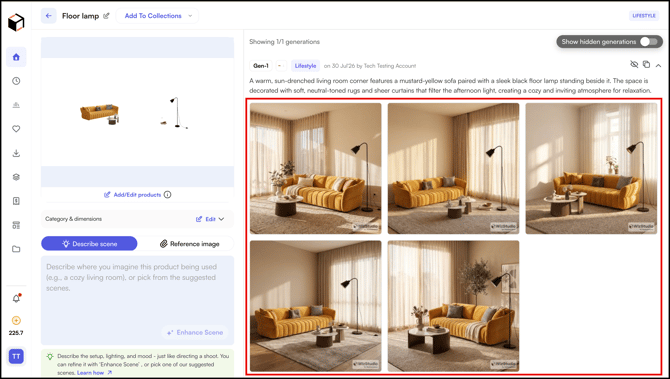
- WizStudio generates five variations for each scene. From here, you can select a different scene or proceed to edit a variation.
Tip: To combine your products into one arranged piece, such as a sectional sofa, arrange the products on the canvas in the order you want, then name them in your prompt and describe how they should be arranged. If you only have one product image, upload it and describe how many pieces the sectional should have. For example: “Create a sectional using [product names]. Arrange the products together as a cohesive sectional. No room or additional setting, just a clean white background.”
» Enhance Scene
If you have a specific idea in mind, describe the scene and WizStudio will generate a full scene based on your inputs.
- Describe the key elements you want in the prompt box.
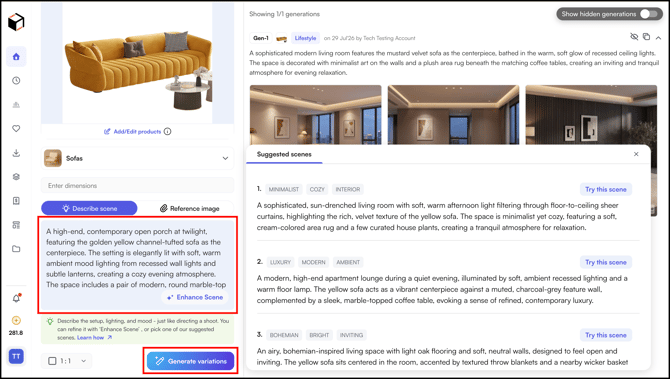
- Then click Enhance Scene. WizStudio generates a complete scene description based on your inputs.
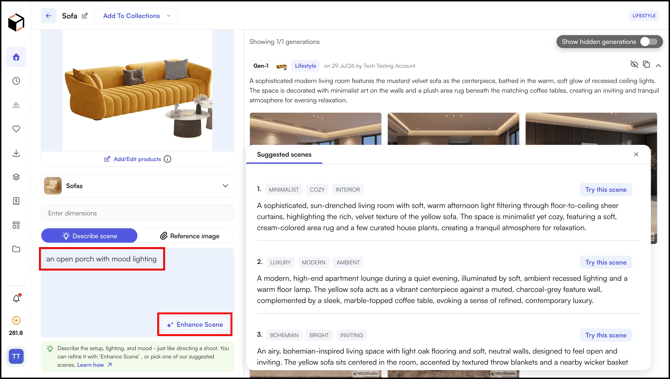
- Review the prompt, make any necessary adjustments, and click Generate Variations.
» Explore Actions on Generated Images
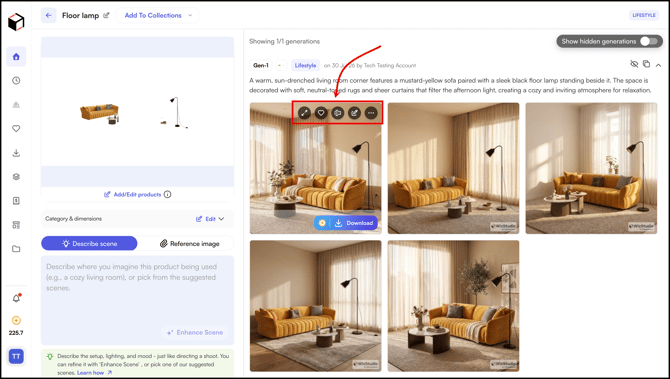
- Hover on any generated image (variation).
- Choose your next action:
- Expand: View the image in full size
- Favorite (Heart Icon): Add your image to favorites
- AI Edit: Edit or refine your image with a prompt
- Edit Image: Edit a generated image
- Actions Menu: Turn image into a video, hide image, or save it as a theme
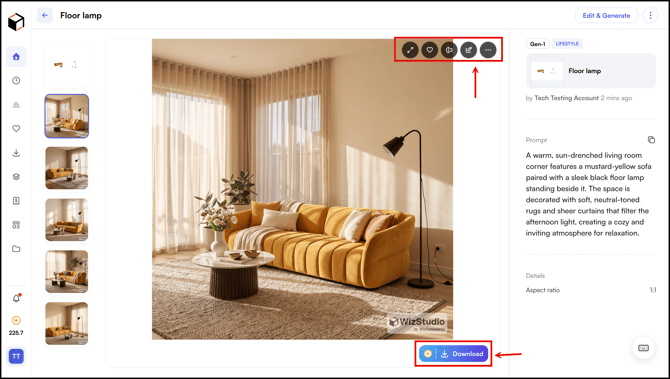
- Click on the specific image (variation) to open it. You can access the same actions menu here and Download the image (variation).
» Related Article:
- Generate Lifestyle Images
- Edit Lifestyle Images
- Save Lifestyle as Favorites or Theme
- Turn a Lifestyle Image into a Video
- FAQs
Still need help? Reach out to our support team at help@wizcommerce.com.