
Editing and deleting an order in WizOrder depends on its current status. This article covers what you can change on a draft or confirmed order, and the steps to cancel or delete an order when needed.
» Important things to check before you begin
- Confirm the order's status first. Draft orders can be edited or cancelled freely; confirmed orders need admin-granted permission for both.
- Confirm the order’s status first. Draft orders can be edited or cancelled freely. Confirmed orders need admin-granted permission for both, and they can’t be edited at all if your account is integrated with an ERP. See Why can’t I edit a confirmed order?
- You can't delete a confirmed order directly; deleting a confirmed order requires cancelling it first.
- Editing or deleting confirmed orders can create ERP sync discrepancies. As best practice, make changes while the order is still in draft or quote stage.
- If a button is missing, an option is greyed out, or an entire section is hidden, it usually means your role does not have the required permission for that action.
- To enable permission, contact your Admin or reach out to our Support Team at help@wizcommerce.com.
» Edit a Draft Order
-
To edit draft orders, refer to Edit Draft Orders.
» Edit a Confirmed Order
You can edit a confirmed order if:
- Your account is not integrated with an ERP and your role has permission to edit confirmed orders, or
- Your account is integrated with an ERP and the order failed to sync, for example because of an incorrect billing address.
If your account is integrated with an ERP and the order has already synced, it can’t be edited in WizOrder. See Why can’t I edit a confirmed order?
To edit a confirmed order:
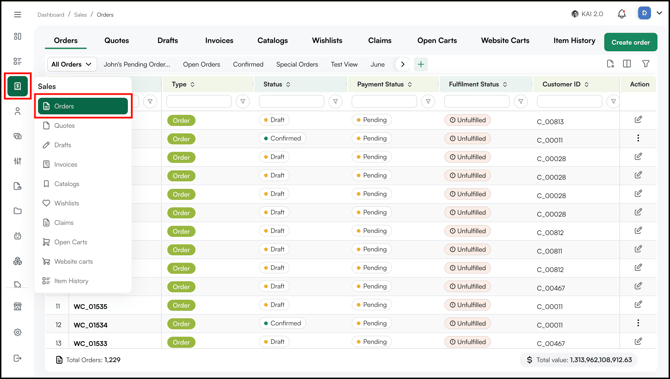
- Go to Sales → Orders.
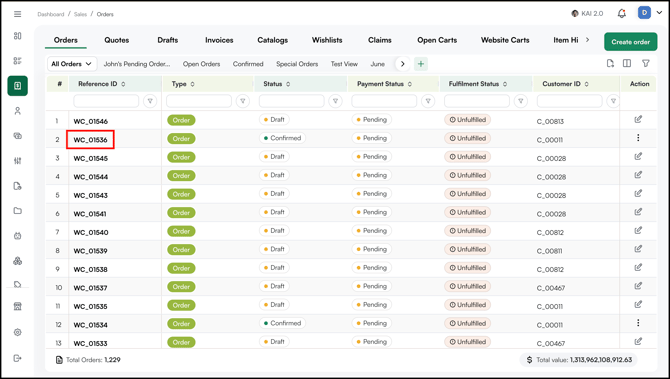
- Open the confirmed order from the Orders page.
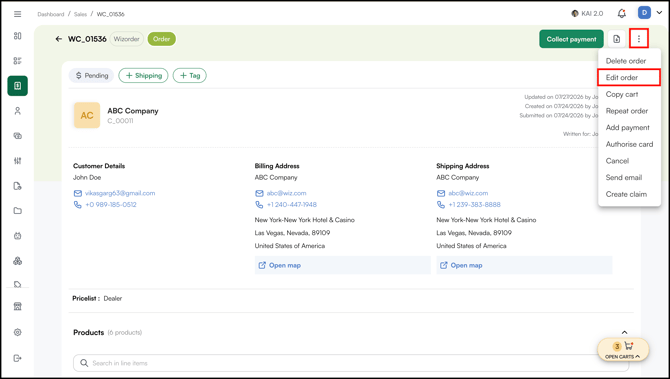
- Click the three-dot menu and select Edit Order.
- You can edit both Cart Details and Customer Details.
- To Edit Cart Details →
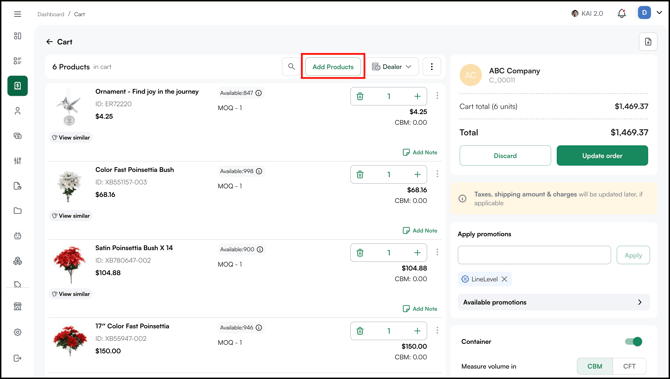
- Click Edit if you want to Add New Products or Update Existing Products.
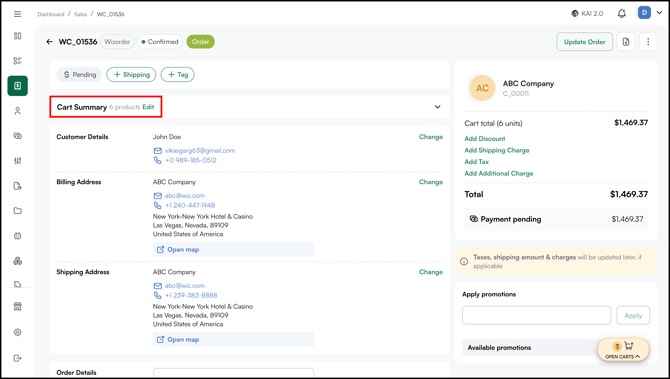
- Click Add Products to add new products.
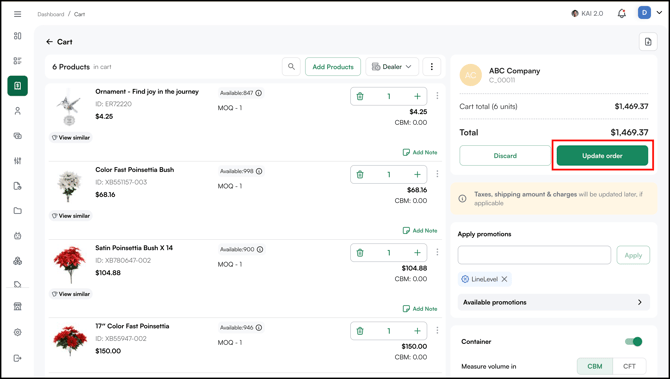
- Then click Update Order once all changes are done.
- Click Edit if you want to Add New Products or Update Existing Products.
- To Edit Customer Details →
- You can Edit Customer Details such as Name, Contact Number, Billing Address, Shipping Address, Payment Methods, Payment Terms, and Other Details.
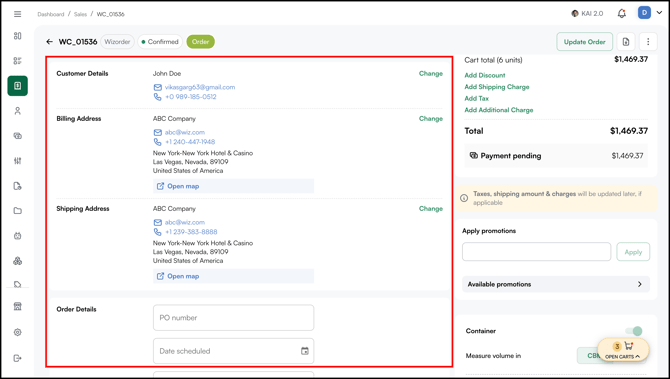
- You can Edit Customer Details such as Name, Contact Number, Billing Address, Shipping Address, Payment Methods, Payment Terms, and Other Details.
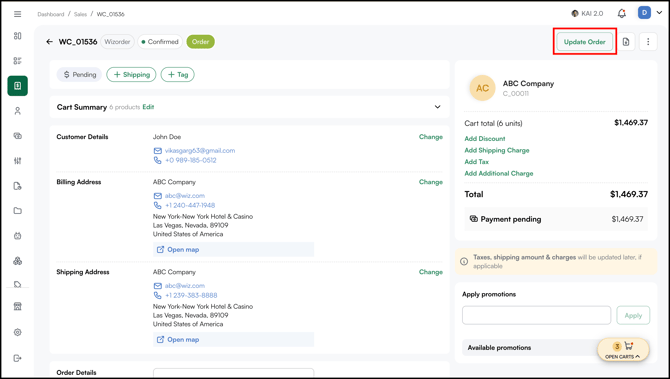
- Click Update Order once all changes are done.
→ Can’t see the Edit Order option? See Why can’t I edit a confirmed order?
» Delete an Order
Note: Only users with the required permission can cancel or delete a confirmed order. Don’t see the Delete option? Your role may not have the Delete Cancelled Order permission. Ask your admin to enable it under Settings → User Management → Roles, in the Sales permissions of your role.
To Delete/Cancel Draft Orders →
- Open the Draft Order.
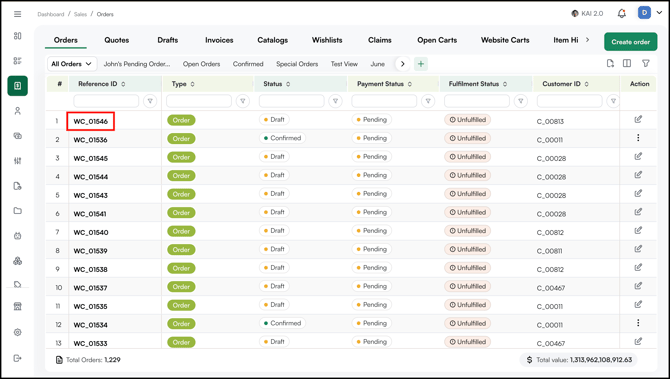
- Click the three-dot menu and select Cancel Order.
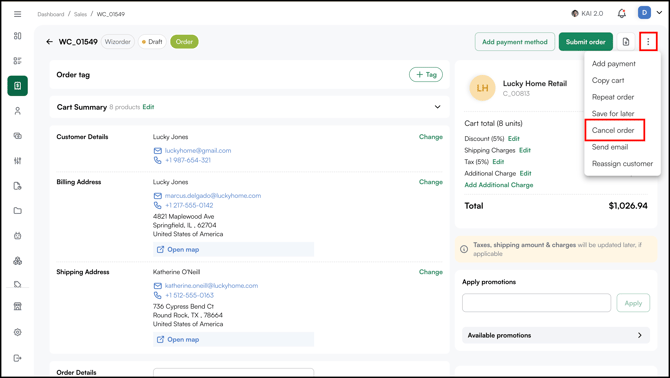
- Click Cancel Order.
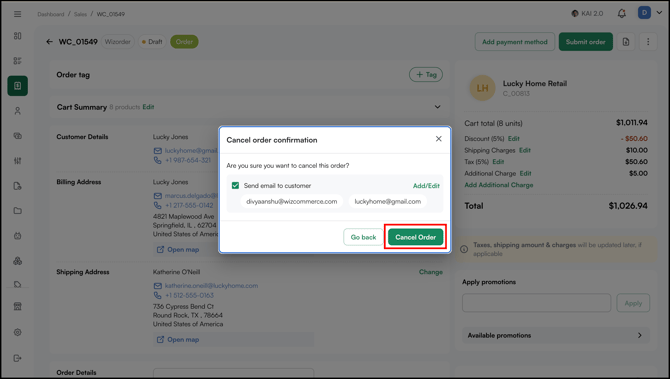
To Delete/Cancel Confirmed Orders →
- Open the Confirmed Order.
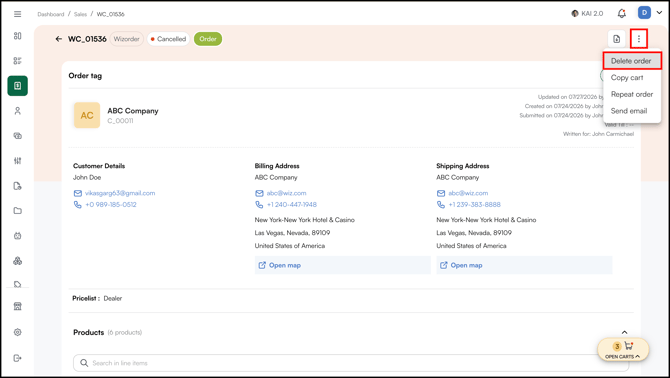
- Click the three-dot menu and select Cancel Order. An order can only be deleted after it is cancelled.
- Click Cancel Order.
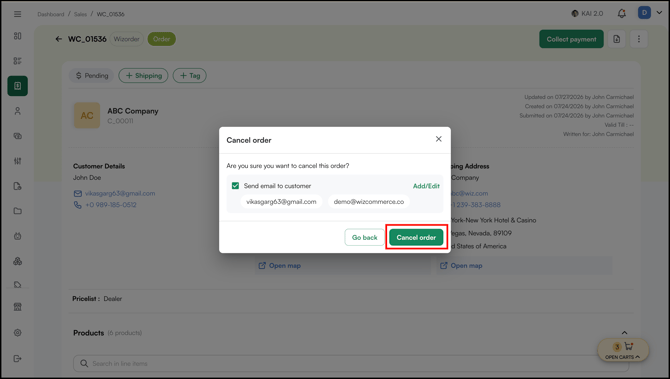
- Once the order is cancelled, open the three-dot menu again and click Delete Order.
Still need help? Reach out to our support team at help@wizcommerce.com.