
Platform: WizOrder | Who is this for: Sales Reps & Admins
To Get There: More > Settings > Sync Data
Table of Contents
Before You Begin
- You must have the WizOrder app installed on your device
- Complete at least one full data sync before going offline, without this, no catalog or customer data is available on your device
- Enable Incremental Sync and Offline Mode from Settings before leaving a connected area (see Section D)
- Before heading to a trade show or customer visit, open WizOrder while connected to ensure the latest catalog, pricing, and customer data are fully cached on your device
A. What Is Available in Offline Mode?
When the Sales Rep App (WizOrder) is offline, all previously downloaded data remains accessible.
Data available offline:
- Full product catalog: Images, descriptions, and SKUs
- Customer-specific pricing, pre-cached from assigned price lists
- Customer information: Name, contact details, and order history
- Inventory status as of the last sync
- Product attributes and specifications
- Previously purchased product history and customer wishlists
- Categories, collections, and barcode scanning
What you can do offline:
- Browse products by category, collection, or search
- View full product detail pages with attributes, images, and pricing
- Add products to cart
- Apply line-item and cart-level discounts
- Create, manage, and switch between multiple carts
- Create new customers using the streamlined form
- Submit orders and quotes, queued for sync on reconnection
- MOQ and IOQ enforcement
- Barcode scanning for rapid product lookup
Tip: Before heading to a trade show or customer visit, open the Sales Rep App (WizOrder) while connected to the internet to ensure the latest catalog, pricing, and customer data are synced and available on your device.
Note: Products with modifiers cannot be added to the cart in Offline Mode.
B. How Data Syncs When You Reconnect
When internet connectivity is restored, the Sales Rep App (WizOrder) syncs automatically (since Incremental sync is on); no action needed from you.
- New customers created offline, sync to the customer database.
- Orders push to your ERP, QuickBooks, NetSuite, Sage, Business Central, or Epicor.
- Confirmation emails are sent to customers and internal teams.
- Orders appear in the Orders tab with a Confirmed status.
- Updated inventory and pricing data pulled back into the app.
Everything captured offline, line items, quantities, pricing, discounts, customer selections, and notes; syncs exactly as entered.
Note: Offline carts do not sync automatically when you go back online. If your cart looks missing after switching to Online Mode, it still exists on your device, switch back to Offline Mode to find it. To move a cart to the online system, convert it to a Quote or Order first. Once created, it syncs automatically when the device reconnects.
C. Limitations in Offline Mode
While offline mode covers the vast majority of sales workflows, some features require an active internet connection.
| Feature | Offline | Requires Internet Connection |
|---|---|---|
| Browse products | Yes | — |
| Create orders | Yes | — |
| Apply discounts | Yes | — |
| Barcode scanning | Yes | — |
| Create new customers | Yes | — |
| Real-time inventory check | — | Yes |
| Send confirmation emails | — | Yes (sent on reconnect) |
| Sync orders to ERP | — | Yes (queued until reconnect) |
| Process payments | — | Yes |
| Update price lists | — | Yes |
Note:
-
Offline inventory data reflects the last sync. For high-demand products, verify availability once you reconnect before committing to delivery timelines.
- If you created a cart without selecting a customer, it is saved as a Guest Cart on your device. Switch back to Offline Mode on the same device to find it.
D. Set Up Offline Mode
Before using the Sales Rep App (WizOrder) offline, you need to sync your data and enable offline mode from within the app. This is a one-time setup; once complete, the app keeps your data up to date automatically.
To set up offline mode:
- Open the Sales Rep App (WizOrder) on your device.
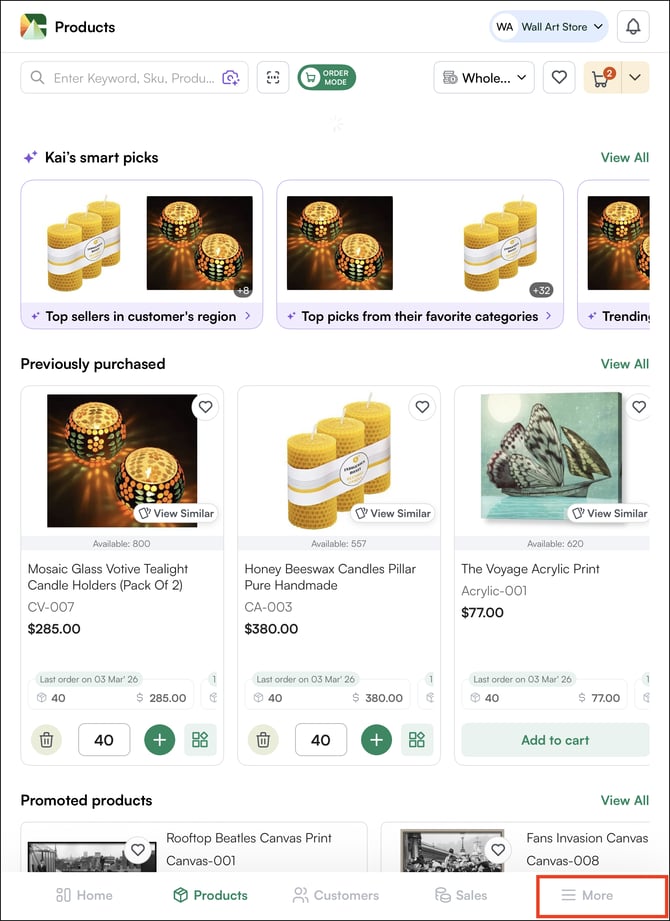
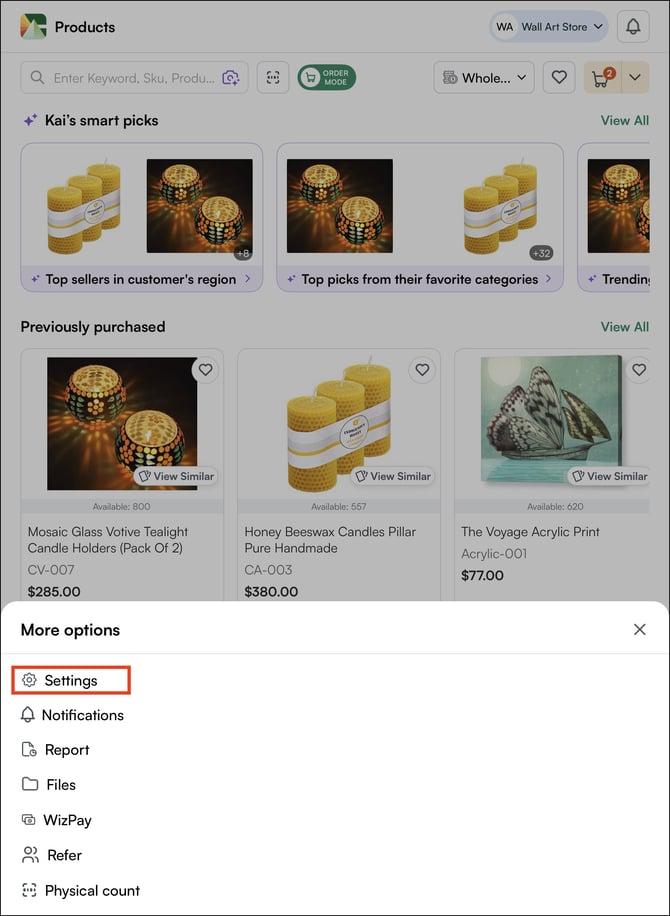
- Go to the More tab and click on Settings.
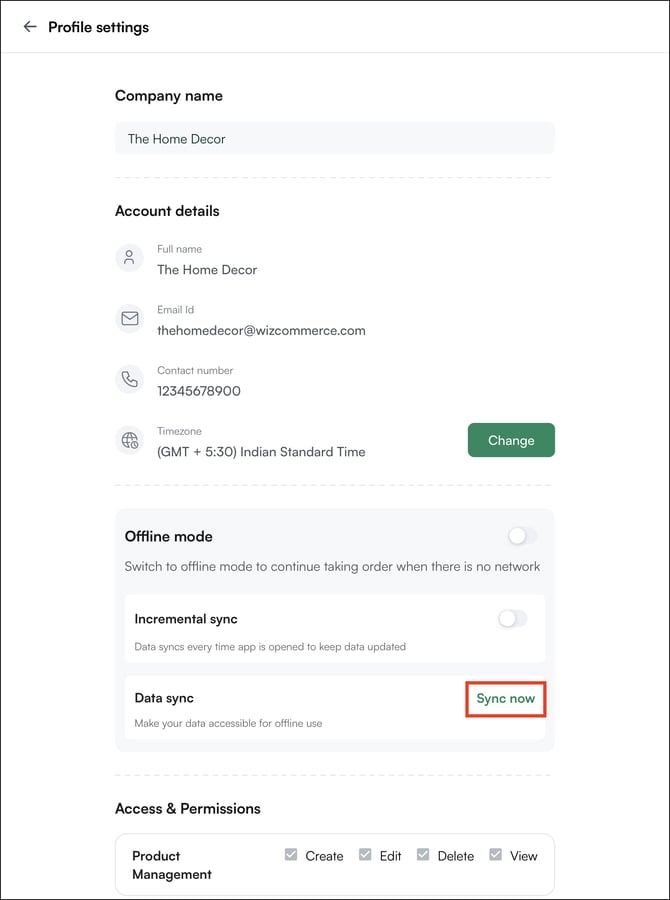
- Click Sync Data and wait for the sync to complete. This downloads your catalog, pricing, and customer data to your device.
- Once the sync is complete, turn on Incremental Sync. This keeps your data up to date by syncing automatically each time you open the app.
- Turn on Offline Mode. The app is now ready to use without an internet connection.
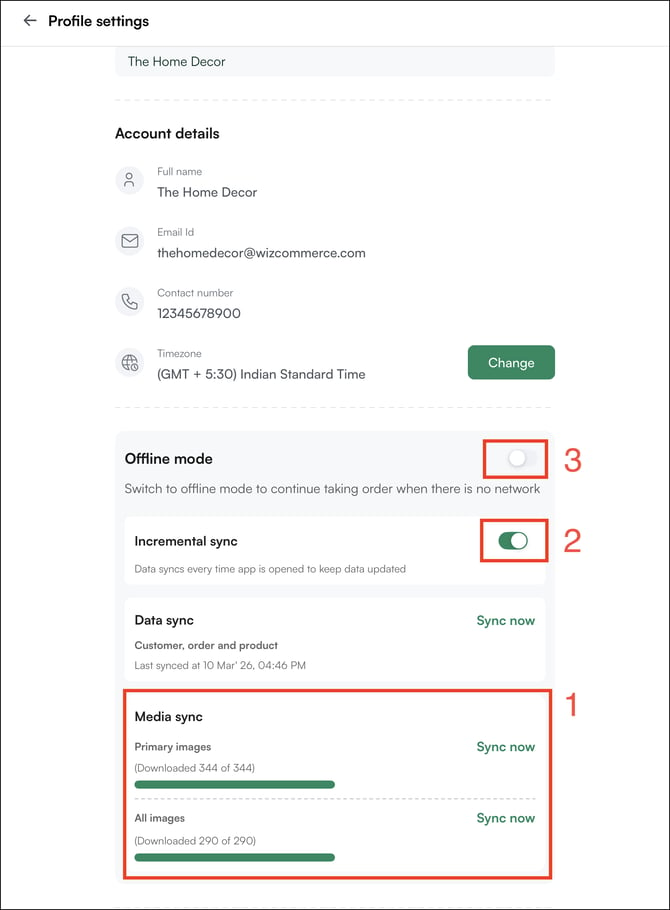
Note: At least one completed sync is required before offline mode can be activated. Without it, no catalog or customer data is available on your device.
Tip: Keep Incremental Sync turned on at all times. Each time you open the app while connected, your data refreshes automatically, so you always have the most current catalog, pricing, and customer information before heading offline.
E. Take Orders in Offline Mode
Taking orders offline works the same way as taking orders when you are connected to the internet.
The Standard Order-Taking Workflow
- Go to Customers and select the customer you are ordering for
- Browse or search for products and click Add to Cart
- Review line items, quantities, and pricing in the cart
- Apply any discounts at the line or cart level, if applicable
- Click Create Order to submit
What Is Different Offline
When offline, you can only search for products using a product name or SKU ID. Search methods that rely on live data, such as image search and attribute-based filtering, are not available without a connection.
Tip: If you know you will be working offline, take note of the product names or SKU IDs for the items you are likely to order. You can also browse by category or collection, which works fully offline.
F. Create a New Customer in Offline Mode
Adding a new customer offline works the same way as adding a customer when you are connected to the internet.
- Go to the Customers tab and click + Add Customer.
- Fill in the customer details: Company Name, Contact Person, Email, Phone, Billing Address, Shipping Address, Sales Rep Assignment, Price List, and Payment Terms.
- Click Save. The customer is immediately available for ordering.
G. Quick Reference
Here’s a quick overview of key tasks, how to perform them, and their offline availability.
| Tasks | How | Offline |
|---|---|---|
| Browse products | Categories, search, barcode scan | Yes |
| View product details | Click product card for full PDP | Yes |
| Create a cart | Add to Cart from PDP or PLP | Yes |
| Apply discounts | Three-dot menu on line item | Yes |
| Submit an order | Create Order from cart review | Yes (queued) |
| Submit a quote | Create a quote from the cart review | Yes (queued) |
| Create new customer | Customers → + Add Customer | Yes |
| Sync orders | Automatic on reconnection | Automatic |
| Process payments | WizPay payment flow | Online only |
|
Send confirmation emails |
Automatic after sync | Online only |
FAQs
1. What happens to orders I submitted while offline, will they be lost if I close the app?A. No. Orders submitted offline are saved on your device and queued for sync. They will not be lost if you close the app. Once you reconnect, WizOrder automatically pushes all queued orders to your ERP and sends confirmation emails.
7. How long can I use Offline Mode?
A. There is no fixed time limit for using Offline Mode. Queued orders, quotes, and new customers remain saved on the device until you reconnect, they do not expire automatically. Once back online, verify that queued orders, quotes, and customer records have synced successfully.
Still need help? Reach out to our support team at help@wizcommerce.com.