
The Physical Count feature in WizOrder lets your team scan and record product inventory directly from a mobile device. Once a count is submitted and exported, you can use the SKU data to download updated price labels from the WizCommerce web platform without having to search for products manually.
This article explains how to run a physical count on the WizOrder app, export the data, and use it to download labels by SKU from the web platform.
Platform: WizOrder | Who is this for: Admins & Operations team
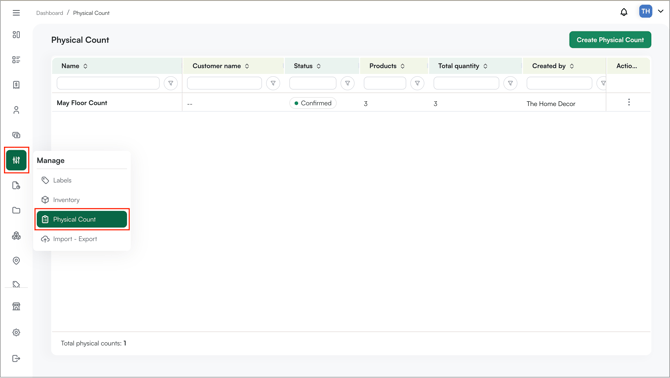
To Get There: More > Physical Count
Table of Contents
| Sections | Topics |
| A | What is Physical Count? |
| B | Run a Physical Count |
| C | Export Your Count Data |
| D | Download Labels by SKU |
| E | FAQs |
Before You Begin
- Physical Count must be enabled on your account before it appears in the app. If you do not see it in the More Options menu, contact WizCommerce Support to have it activated.
- You will need access to the WizCommerce web platform to download labels.
- The Labels section supports up to 100 SKUs per search. If your count is larger, you will need to download labels in batches.
A. What is Physical Count?
Physical Count is a built-in inventory scanning tool on the WizOrder mobile app. It gives your team a structured way to record what is physically in stock using a barcode scanner, and then export that data for downstream tasks like label printing.
Once a count is complete, the exported SKU list can be used directly in the Labels section of the WizCommerce web platform to download updated price tags for every product in the count.
B. Run a Physical Count
On the WizOrder Mobile App:
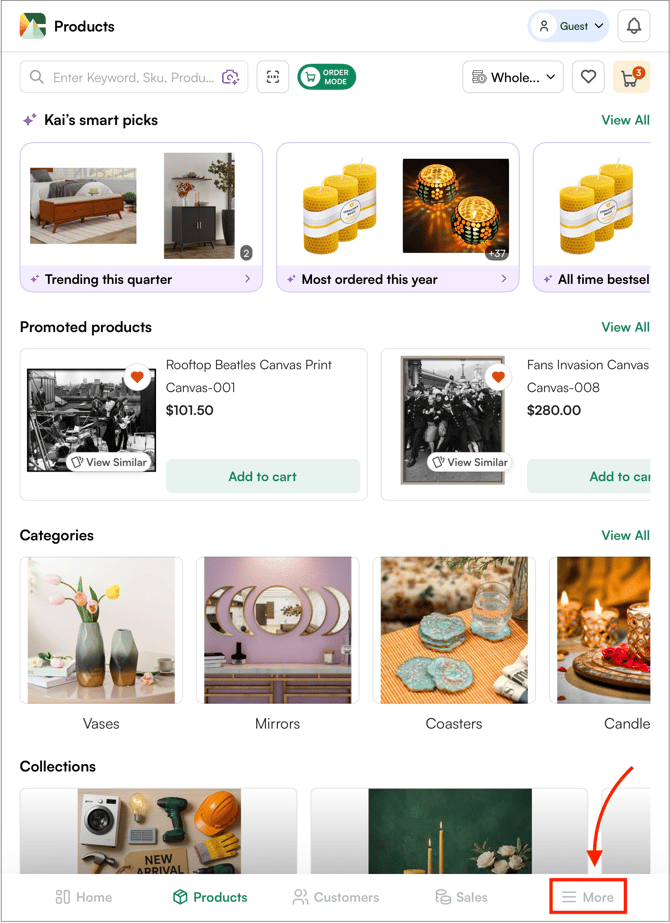
- Open the WizOrder app and tap More in the bottom right corner of the screen.
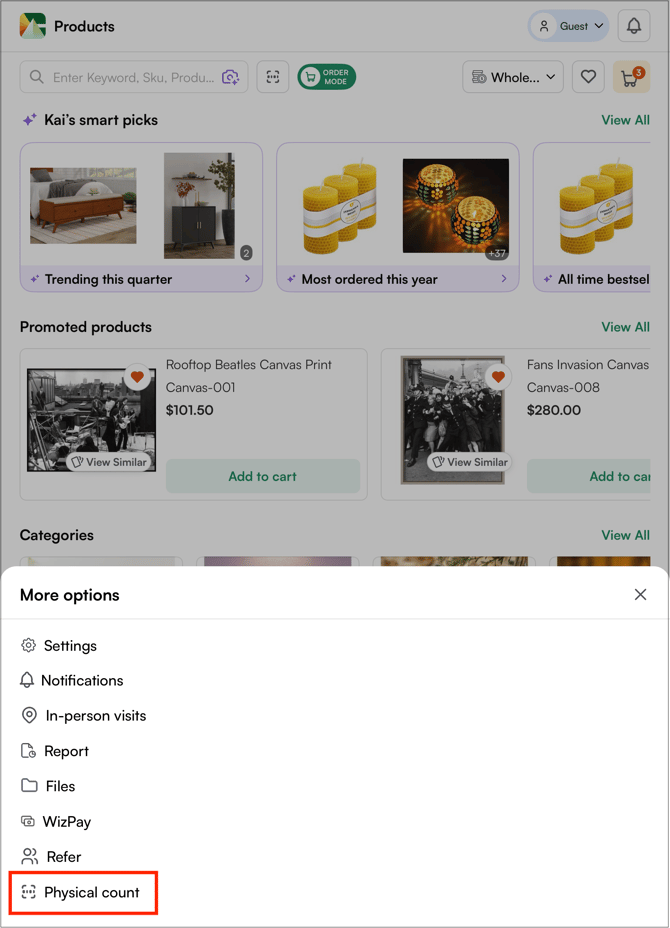
- Click Physical Count.
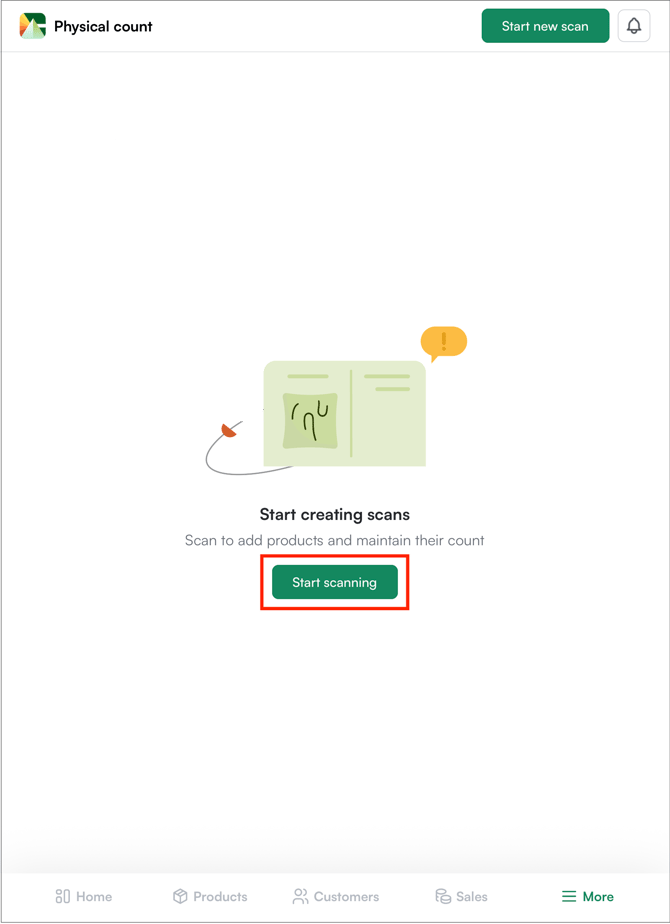
- Click Start Scanning if you are using Physical Count for the first time.
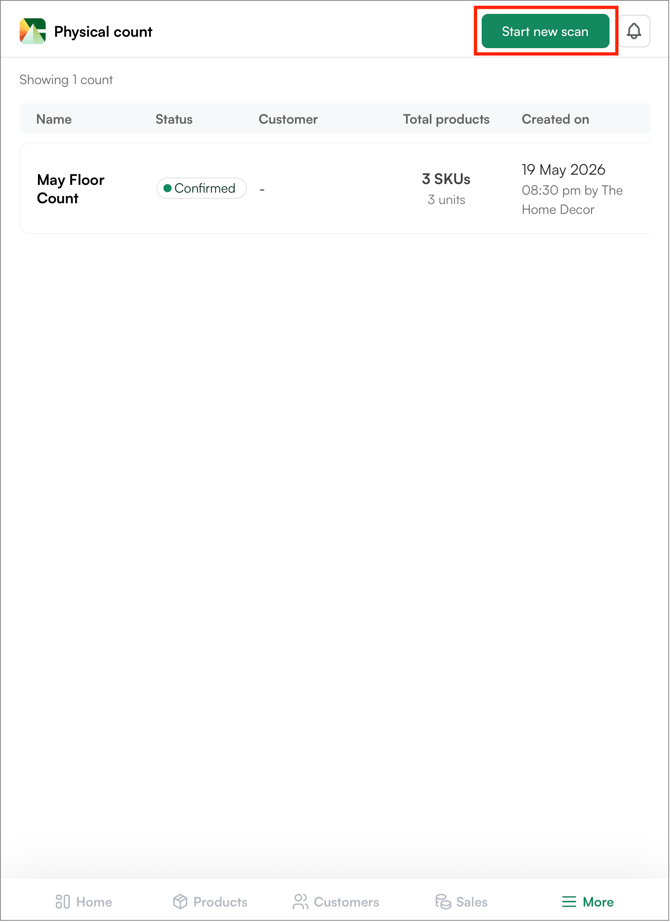
- For subsequent scans, click Start New Scan.
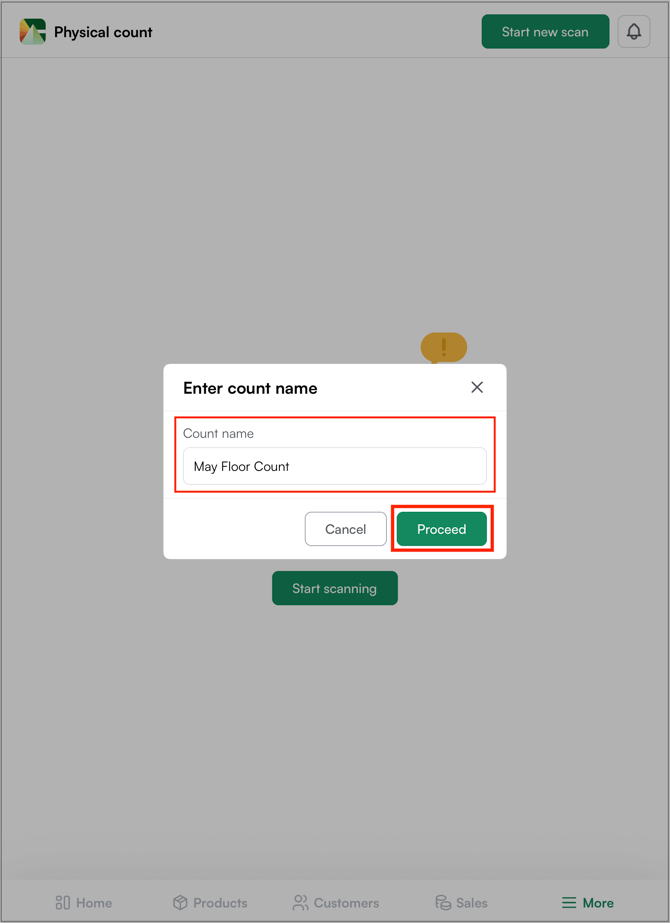
- Enter the Count Name of your choice (for example, May Floor Count) and click Proceed.
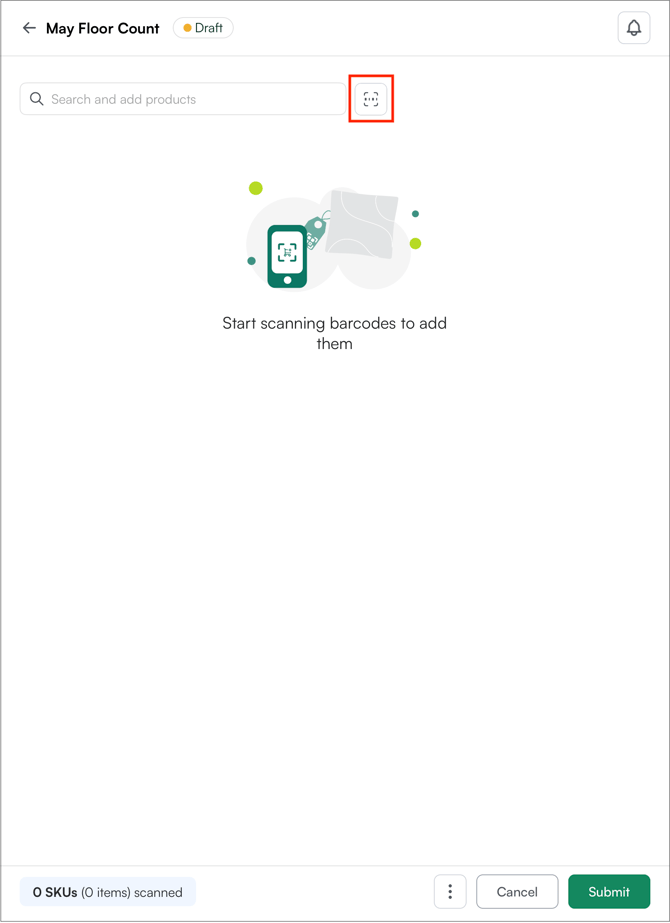
- Tap the Scan Icon to scan product barcodes.
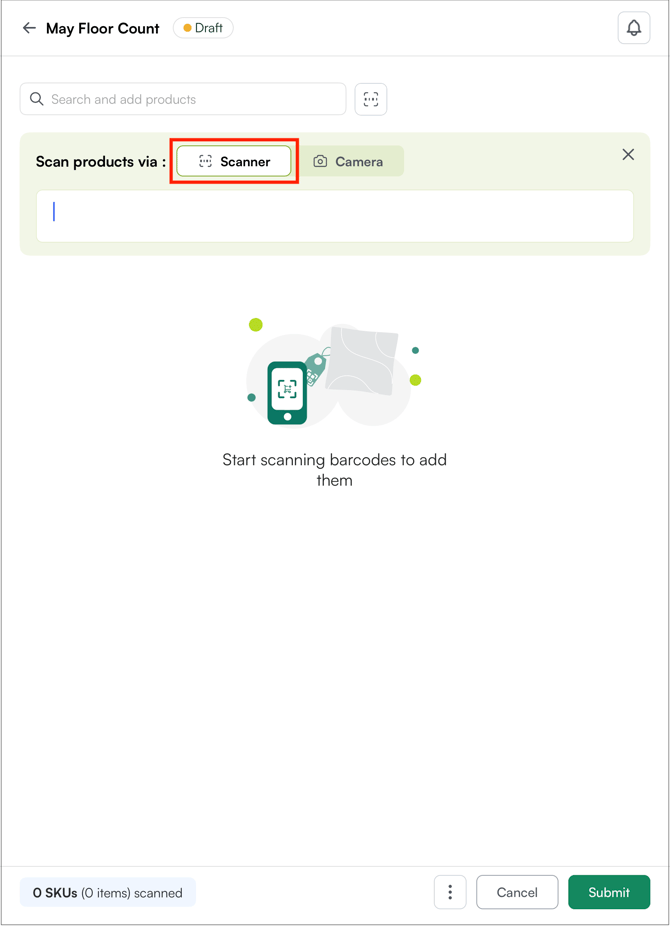
- Use the Scanner to scan product barcodes and add items to the count.
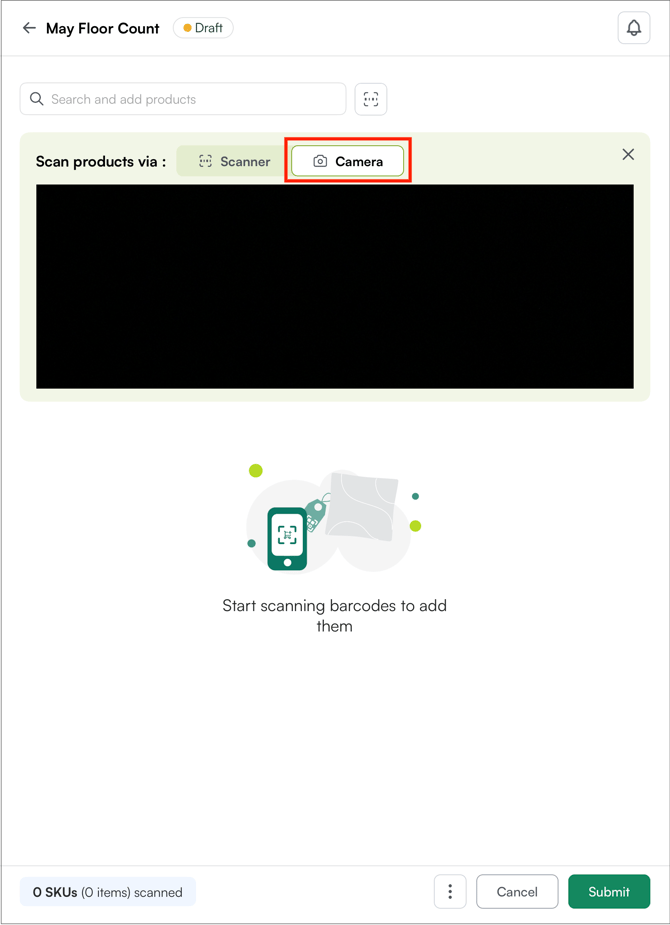
- You can also use the Camera to scan product barcodes and add items to the count.
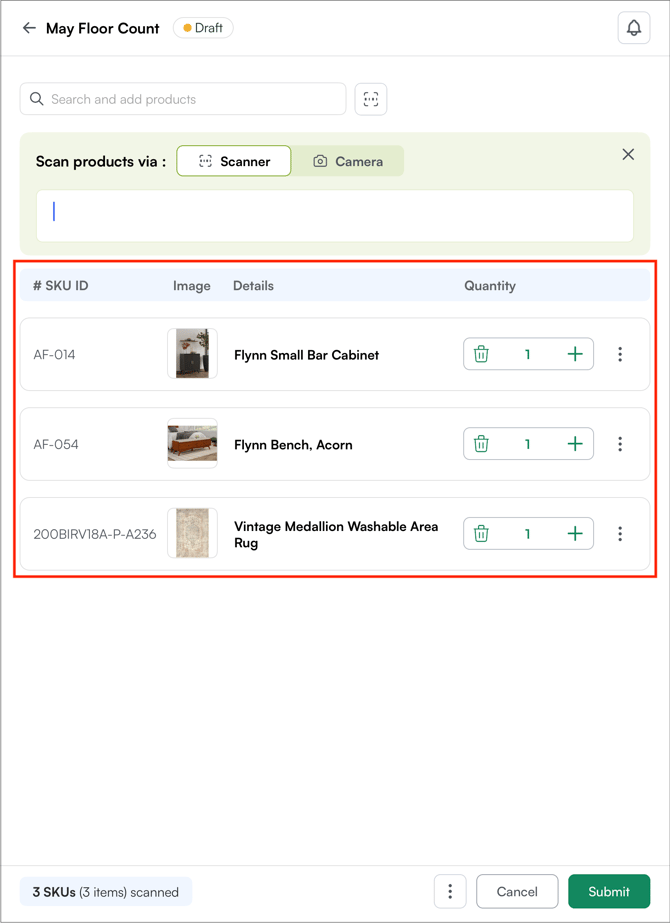
- Scanned products will appear here. To increase the quantity, scan the barcode again or click the + icon. To remove a scanned product, go to three-dot menu and click Delete.
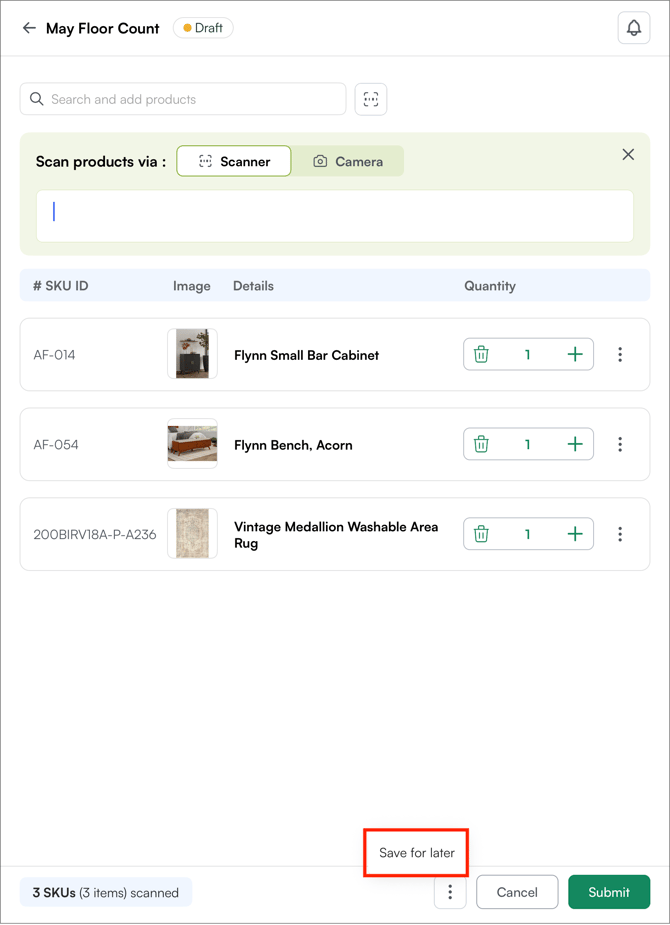
- Click Save for Later to resume the process later.
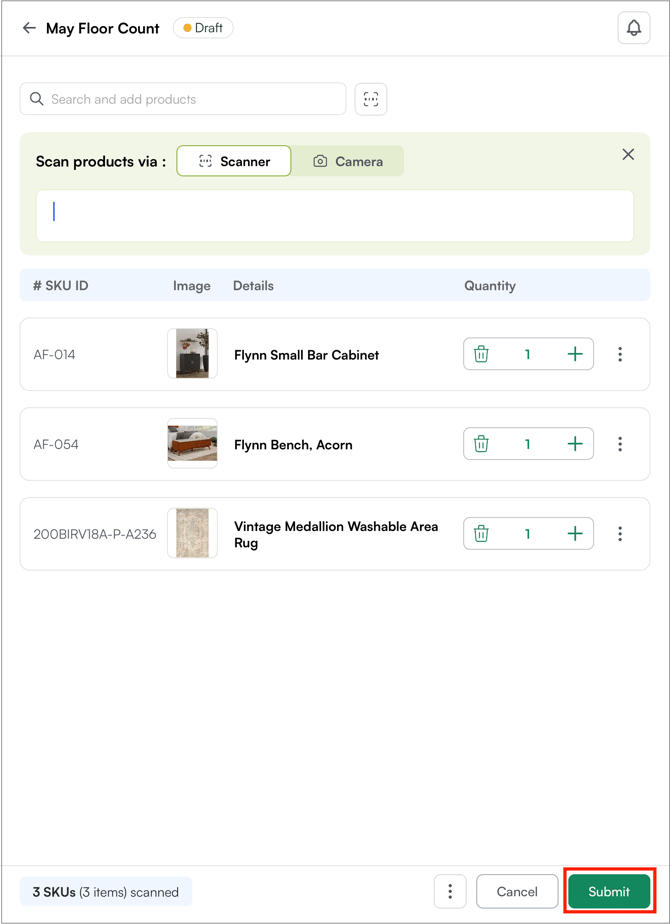
- Once all products are added, click Submit to save the count.
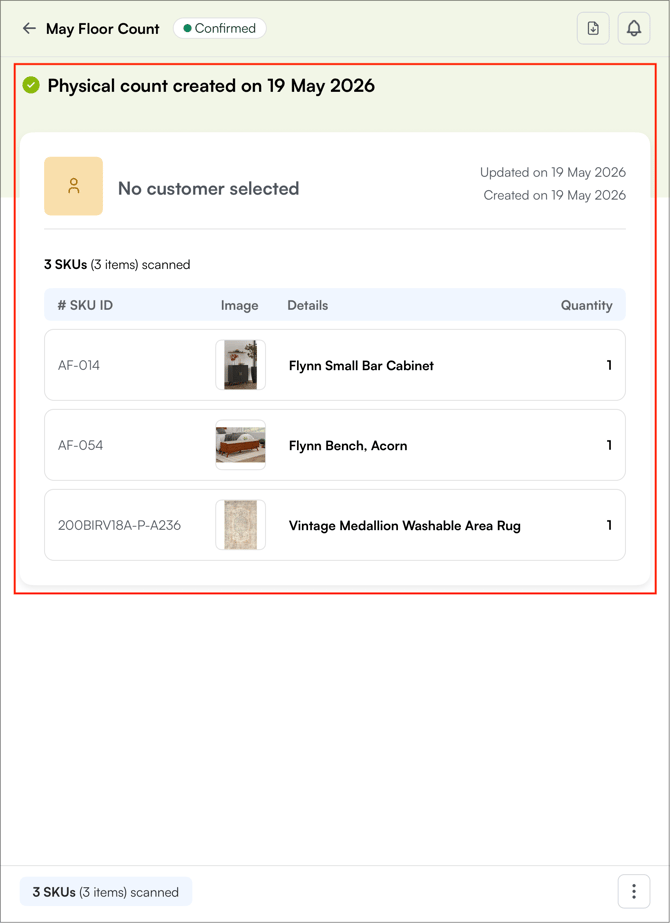
- Here you will see the list of products you added (count you submitted).
Note: The Physical Count feature is also available on the WizOrder web portal. You can follow the same steps to submit your count.
C. Export Your Count Data
- Go to the Physical Count section in the WizOrder app and find the count you submitted.
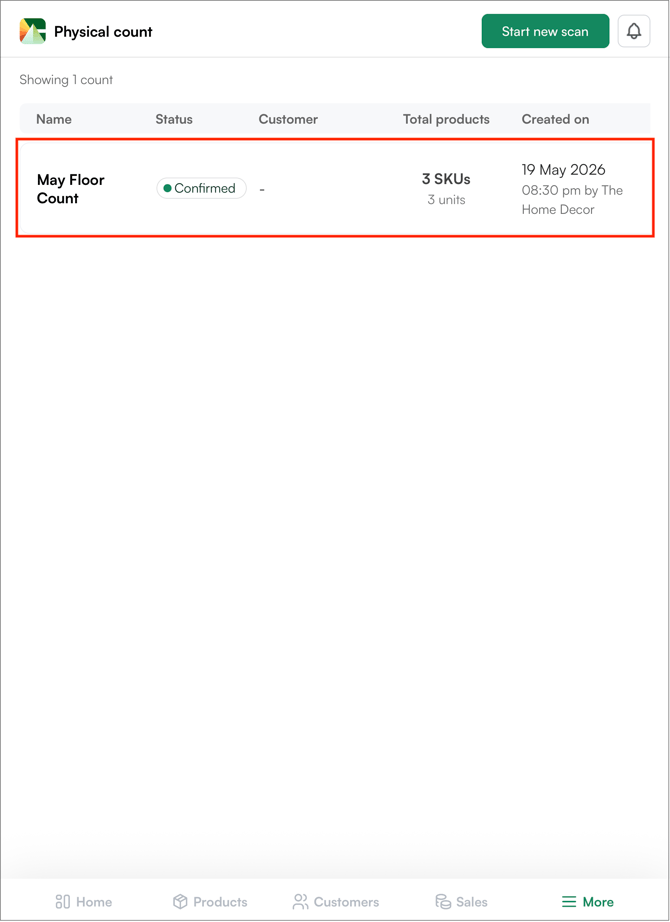
- Click on the submitted count to see the list of products you added.
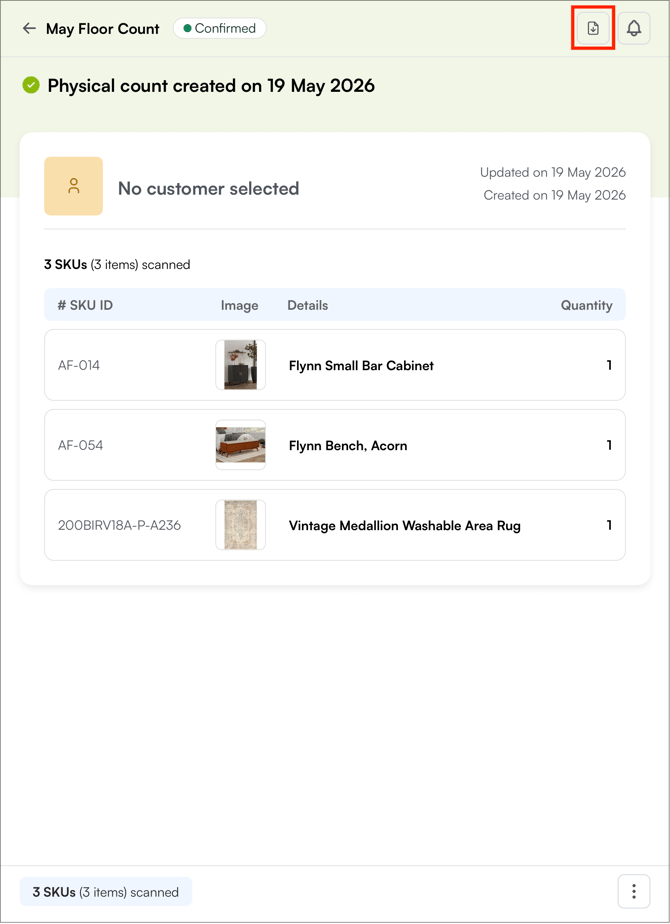
- Click the ↓ icon to export the physical count data.
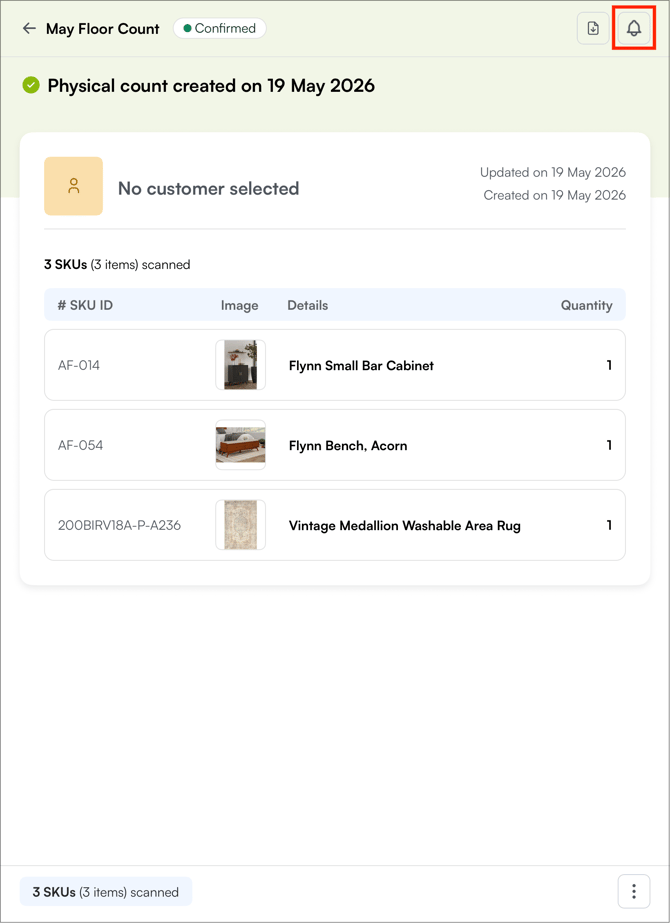
- Go to Notifications to download the file.
- Click Download to download the file.
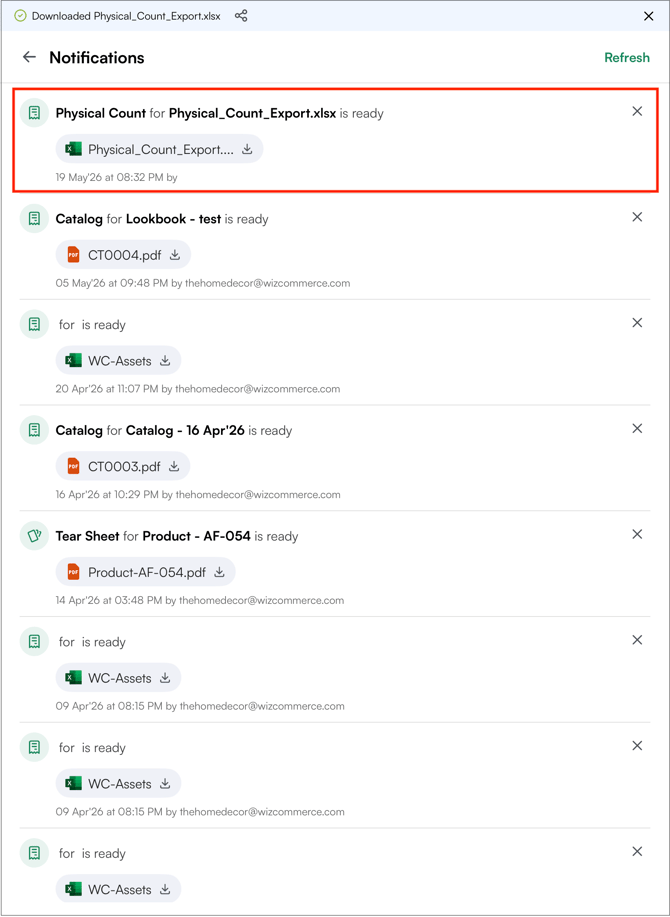
The exported file contains the SKUs for all products included in your count. Use these SKUs in the next step to download the corresponding price labels from the web platform.
D. Download Labels by SKU
Once you have exported the physical count data, download the labels for your products. Refer to Product Labels for step-by-step instructions.
Note: The label search has a limit of 100 SKUs per search. If your count includes more than 100 products, work through the exported list in batches of up to 100 until all labels are downloaded.
FAQs
1. I don't see Physical Count in my More Options menu - what should I do?
A. Physical Count is a feature that must be enabled by WizCommerce on your account. If it does not appear even after restarting the app, contact WizCommerce Support and ask for the Physical Count feature to be activated. It will appear immediately once enabled, no app update is required.
2. Is there a limit on how many SKUs I can search for labels at one time?
A. Yes, the Labels section supports a maximum of 100 SKUs per search. If your physical count includes more than 100 products, repeat the search and download process in batches until all labels have been retrieved.
3. Where can I find counts I have already submitted?
A. All submitted counts are saved in the Physical Count section, accessible via More Options in the WizOrder app. You can view and export any previous count from there.
4. What if the scanner is unable to scan a product?
A. Make sure the product exists in your catalog. If it does not, you can add a new product or import products in bulk and then try scanning again.
Still need help? Reach out to our support team at help@wizcommerce.com.