
Many sales teams don't work one rep to one territory. You may have two partners who share a territory, a principal with sub reps under them, or an assistant who helps a rep take orders. This article explains how to set up each type of team in User Management so every person sees the right customers and orders in their own WizOrder app.
Platform: WizOrder │ Who is this for: Admins
To get there: Settings > User Management > Users
Table of Contents
Before You Begin
- Only admins can change what an user can see. Sales reps cannot change their own access.
- Every team member needs their own login with a unique email address. Do not share one login between two people.
- Customers are assigned to a sales rep, usually from your ERP. Team visibility is set on top of that assignment in User Management. Changing who is assigned to a customer and changing who can see a customer are two separate steps.
- For the basics of adding users and roles, see Manage Users and Roles.
A. How Customer Visibility Works
Each user has three access settings. Together they decide what that person sees in the app.
Customer Access sets which customers the user can see:
| Option | What the user sees |
|---|---|
| Customers assigned to self | Only the customers assigned to them |
| All Customers | Every customer in your WizCommerce account |
| Select users to access their assigned customers | Their own customers, plus the customers assigned to the users you select |
Order Access sets which orders the user can see for those customers:
| Option | What the user sees |
|---|---|
| Created by self and all orders of assigned customers | Orders they created, plus every order for the customers assigned to them |
| All Orders | Every order for the customers they can see |
| Select users to access their created orders | Orders they created, plus the orders created by the users you select |
Pricelist Access sets which pricelists the user can use when creating orders:
| Option | What the user can use |
|---|---|
| All PriceLists | Every pricelist in your WizCommerce account |
| Select PriceLists | Only the pricelists you choose |
B. Which Team Setup Do You Need?
Start by deciding how your team actually works. Most visibility problems come from using one setup for a team that works a different way.
| How your team works | Example | Setup to use |
|---|---|---|
| Two people work the territory together and need to see exactly the same thing | Two partners who share the same customers | C. Partners Who Share Everything |
| One person leads and others work under them. The lead sees everyone's accounts, but each sub rep sees only their own | A rep group principal with five reps | D. Principal with Sub Reps |
| Someone helps a rep but has no customers of their own | An assistant, inside sales rep, or customer service rep | E. Assistants and Inside Sales |
C. Partners Who Share Everything
Use this when two people work as equal partners and both need to see the same thing, every customer and every order, including orders the other person placed.
How it works: In WizCommerce, every customer is assigned to one rep. So you don’t assign the customers to both partners. You keep them with one partner and give the other partner access to them.
Example: Say Ashley and Mike are partners who share all their customers.
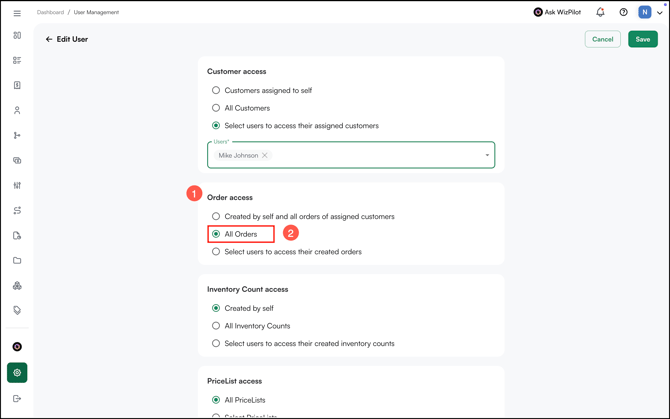
This is how we see set up Mike's access under User Management
- Go to Settings > User Management, then open the Users tab.
- Find Mike and click the Edit icon in his row.
- Under Customer Access, select Select users to access their assigned customers.
- Choose Ashley from the list.
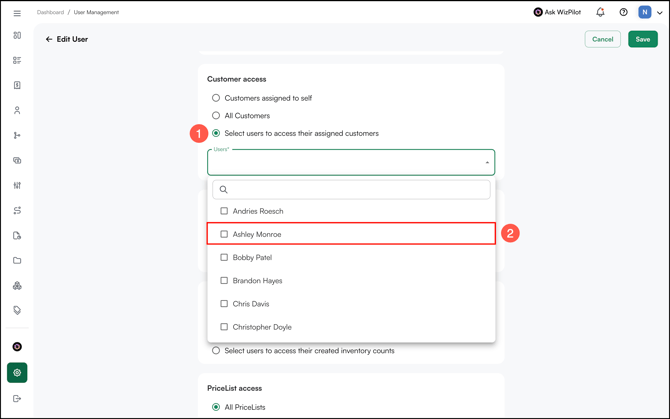
- Under Order Access, select All Orders.
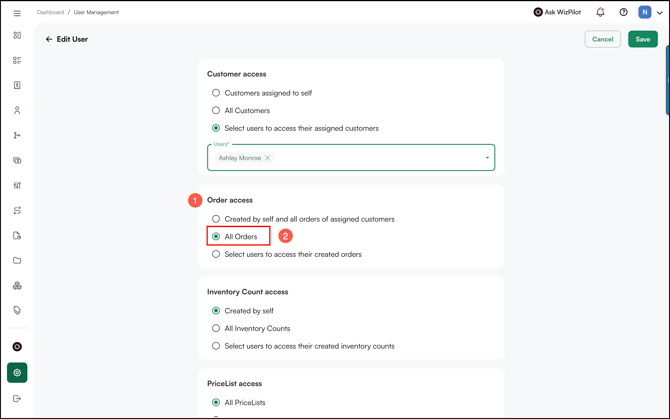
- Click Save.
This is how we set up Ashley's access under User Management.
- Go to Settings > User Management, then open the Users tab.
- Find Ashley and click the Edit icon in her row.
- Under Customer Access, select Select users to access their assigned customers.
- Choose Mike from the list.
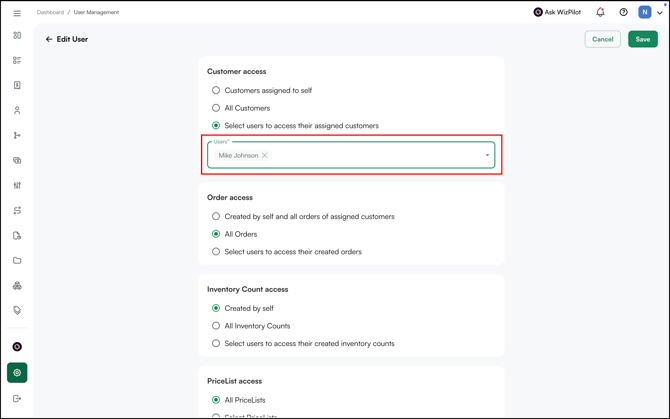
- Under Order Access, select All Orders.
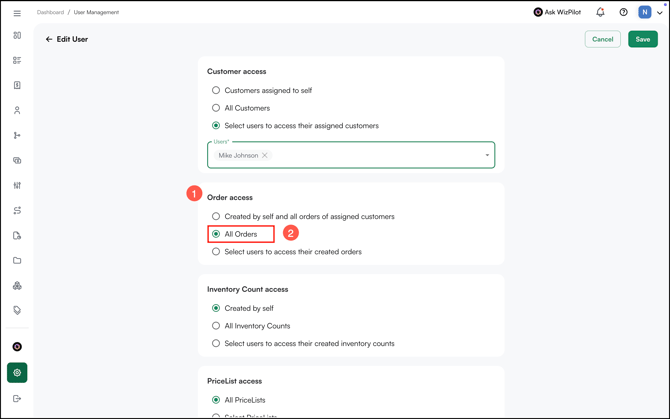
- Click Save.
Note: You can also choose Select users to access their created orders and select your partner (In our example, Ashley). This shows orders your partner placed, but not orders placed on your shared customers by someone else, such as your office team or a buyer ordering online.
D. Principal with Sub Reps
Use this when one person leads a group of reps. The leader (the principal) sees every account in the group. Each rep under them (a sub rep) sees only their own customers.
How it works: Each sub rep’s customers stay assigned to that sub rep. You set each sub rep to see only their own customers and orders, then give the principal access to all of their accounts on top.
Example: Say David leads a group, and Ana and Tom are reps who work under him.
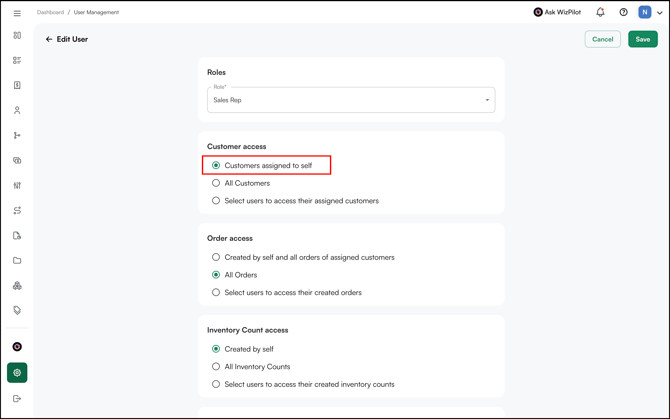
First, set up each sub rep so they see only their own customers. Do this for Ana, then again for Tom:
For each sub rep:
- Go to Settings > User Management, then select the Users tab.
- Edit the sub rep.
- Under Customer Access, select Customers assigned to self.
- Click Save.
For the principal:
- Go to Settings > User Management, then select the Users tab.
- Edit the principal.
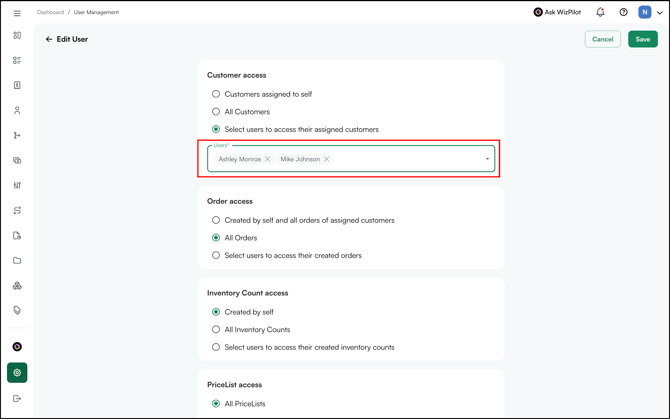
- Under Customer Access, select Select users to access their assigned customers.
- Choose all of his sub reps from the list (here, Ashley and Mike).
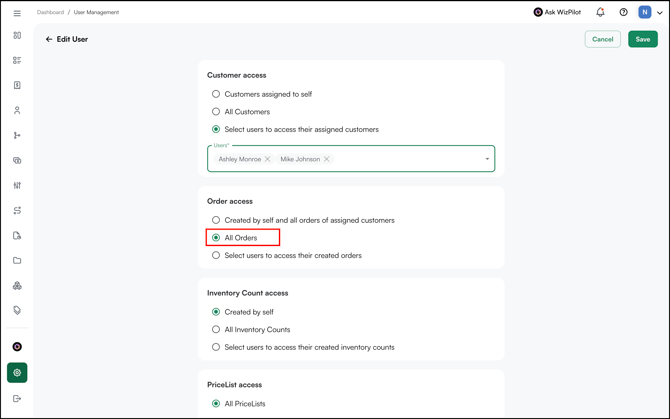
- Under Order Access, select All Orders.
- Click Save.
The principal now sees their own customers and all of their sub reps' customers and orders. Sub reps can't see each other's customers.
Note: Customers must be assigned to the sub rep, in your ERP or in WizCommerce, for this to work. If a customer is assigned to the principal, the sub rep won't see it.
E. Assistants and Inside Sales
Use this for anyone who helps a rep but has no customers of their own, an assistant, an inside sales rep covering calls, or a customer service rep.
How it works: An assistant has no customers of their own. You give them access to the customers of the rep they support.
Example: Say Ashley is an assistant who helps a rep named Mike.
Add Ashley as a user, then give her access to Mike's customers:
- Add Ashley as a user with her own email address.
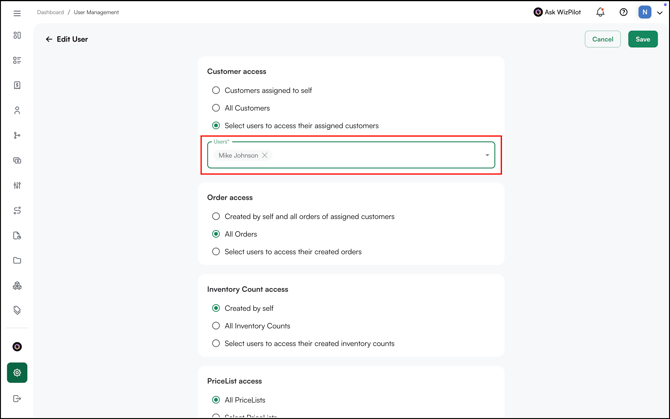
- Under Customer Access, select Select users to access their assigned customers.
- Choose Mike from the list (the rep she supports).
- Under Order Access, select All Orders.
- Click Save.
Ashley can now see all of Mike's customers and their orders, and help place and manage orders for them. She has no customers of her own.
If Ashley supports more than one rep: choose all of them in step 3.
Tip: If someone needs to help any customer in your account, such as a customer service team, select All Customers instead and assign a role that matches what they're allowed to do.
F. When Reps Change or Leave
Team visibility settings don't update on their own when your team changes. Review them whenever you move reps between teams.
| Change | What to do |
|---|---|
| A sub rep moves to a different principal | Edit both principals. Remove the sub rep from the old principal and add them to the new one. |
| A rep leaves | Deactivate the user. When you deactivate, you can move their customers to another rep. Then update any principal or partner who had that rep selected. |
| Customers are reassigned in your ERP | The new assignment comes in with the next sync. Check that the new rep's principal or partner has them selected. |
Note: If a customer's rep is inactive or not set up in WizCommerce, the customer moves to your account's default rep after syncing. See Why did my customer's sales rep change to a default rep after syncing?
G. Trade Shows and Showroom Mode
Showroom Mode is for trade shows, where a rep needs to write an order for anyone who walks up.
Because a user in Showroom Mode only sees their own orders, the team settings above stop applying while it’s on:
- A partner won’t see orders the other partner placed.
- A principal won’t see their sub reps’ orders.
These settings come back once Showroom Mode is turned off for the user.
Tip: To turn Showroom Mode on or off, see How do I enable or disable Showroom Mode in WizCommerce?
H. Check Your Setup
Before your team starts using the app, make sure each person sees what they should.
- Have each person open the app at the same time.
- In Customers, compare how many customers each person sees.
- Open the same customer on each person’s device and compare the orders listed.
- For partners, check that each one can see an order the other placed — for example, that Mike can see an order Ashley placed.
I. Troubleshooting
| Problem | What to check |
|---|---|
| A partner sees fewer customers than expected | Check who the missing customers are assigned to. They may be assigned to a different rep than the one you selected. |
| A partner can't see orders the other partner placed | Set Order Access to All Orders, not a selected user. |
| A sub rep can see another sub rep's customers | Set the sub rep's Customer Access to Customers assigned to self. |
| A principal can't see a new sub rep's customers | Edit the principal and add the new sub rep under Select users to access their assigned customers. |
| The team can't see each other's orders at a trade show | Showroom Mode is on. See section G. |
| Customers moved to a default rep after a sync | The assigned rep is inactive or not set up in WizCommerce. Activate the rep or reassign the customers in your ERP. |
FAQs
1. Can two partners share one login?
A. We recommend separate logins. Each person needs a unique email address, and you can give them the same visibility using the steps in section C. If two people work in the same cart for the same customer at the same time on different devices, the cart may not save correctly.
2. Does "All Orders" mean the user sees every order in our company?
A. No. The user sees all orders for the customers they have access to.
3. Can a customer be assigned to more than one rep?
A. Each customer normally has one primary rep. If your ERP stores more than one rep on a customer, WizCommerce can bring those in through your integration. Reach out to help@wizcommerce.com to set this up.
4. If we reassign customers in our ERP, do we need to change anything in WizCommerce?
A. The customer's new rep comes in with the next sync. Who can see whose customers is set in User Management, so check that the new rep's principal or partner still has them selected.
5. Can a sub rep change who they can see?
A. No. Only admins can change Customer Access and Order Access.
Still need help? Reach out to our support team at help@wizcommerce.com.