
Save and download your finished Silo Editor image from the Saved Images tab in JPG, PNG, or WEBP format, including the option to download with a transparent background.
Platform: WizStudio | Who is this for: Designers & Admins
» Before You Begin
- You must have access to WizStudio.
- The Silo Editor interface works similarly to the Lifestyle Generator edit panel — if you have used that before, the controls will feel familiar.
- Select the PNG (Background removed) option if you want the image with a transparent background.
» Download Your Silo Image
Once you are satisfied with the edited image, download it directly from the Saved Images tab.
- Select the desired image in the Saved Images tab.
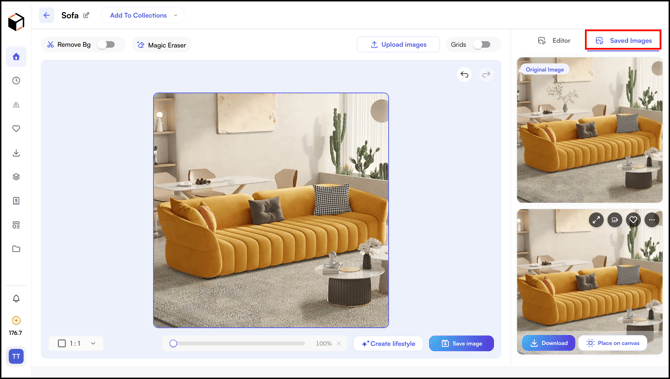
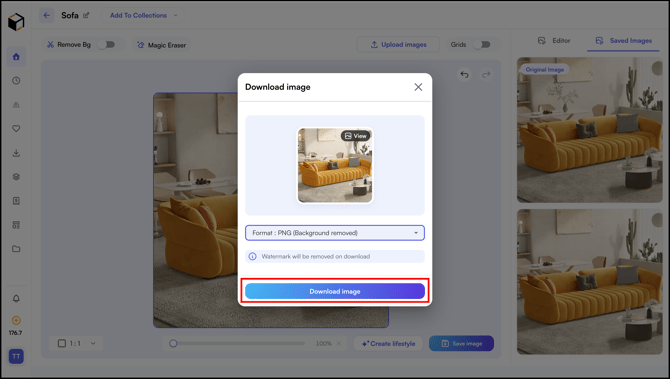
- Click Download to select the format and download the image.
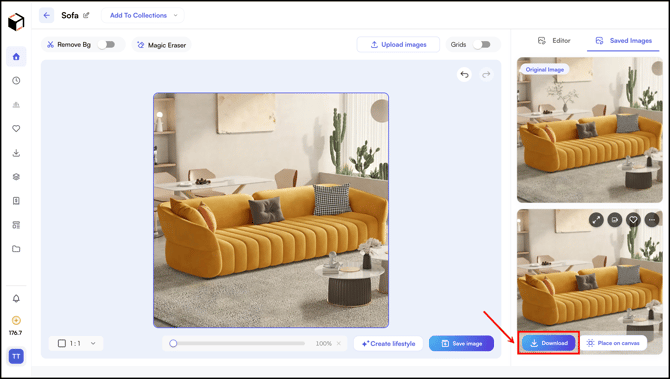
- Select the format (JPG, PNG, or WEBP) from the dropdown.
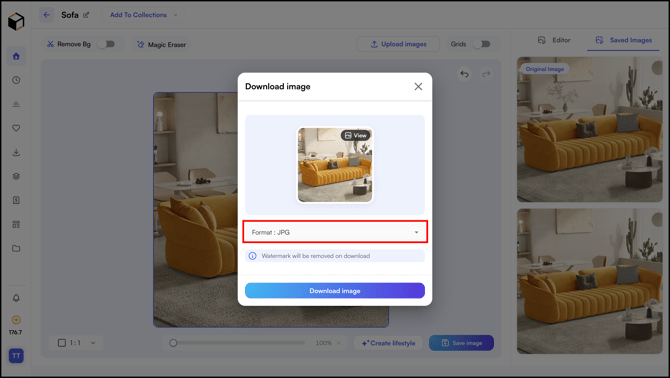
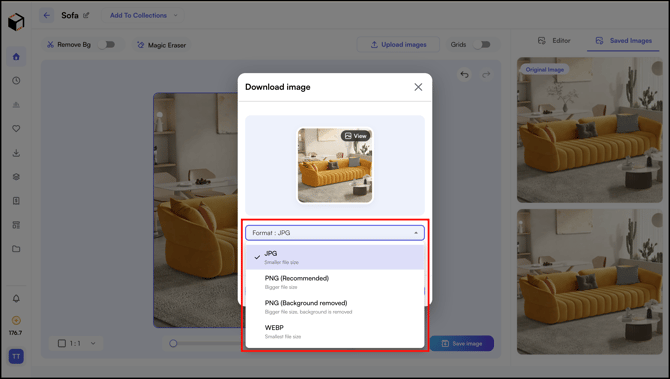
- Select the format;
- JPG: Smaller file size, ideal for quick sharing or web use.
- PNG (Recommended): Bigger file size with high image quality.
- PNG (Background Removed): Bigger file size with a transparent background.
- WEBP: Smallest file size, great for fast-loading web images.
- Select the PNG (Background removed) option if you want the image with a transparent background.
- Click Download Image to download the product image.
Note: Click Lifestyle Generator at the bottom right of the Silo Editor screen to switch modes and keep editing the same image in Lifestyle Generator.
Related Article:
Still need help? Reach out to our support team at help@wizcommerce.com.