
Use Magic Eraser in WizStudio's Silo Editor to clean up product images by removing unwanted props, shadows, or background objects without replacing the entire background.
Platform: WizStudio | Who is this for: Designers & Admins
» Before You Begin
- You must have access to WizStudio.
- Have the product image you want to edit ready to upload.
- The Silo Editor interface works similarly to the Lifestyle Generator edit panel — if you have used that before, the controls will feel familiar.
» Remove Unwanted Elements
Magic Eraser removes unwanted elements from an image, such as props, shadows, or background objects, without replacing the entire background. Use it to clean up specific areas while keeping the rest of the image intact.
- Go to WizStudio → Silo Editor.
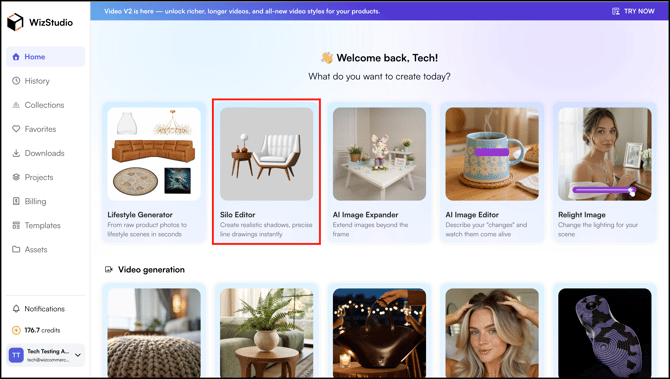
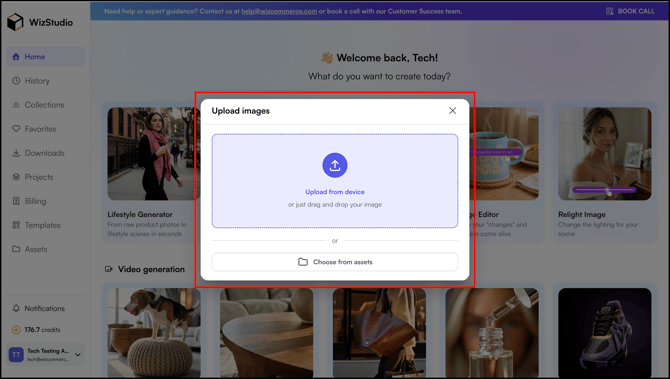
- Upload a product image from device or choose from assets.
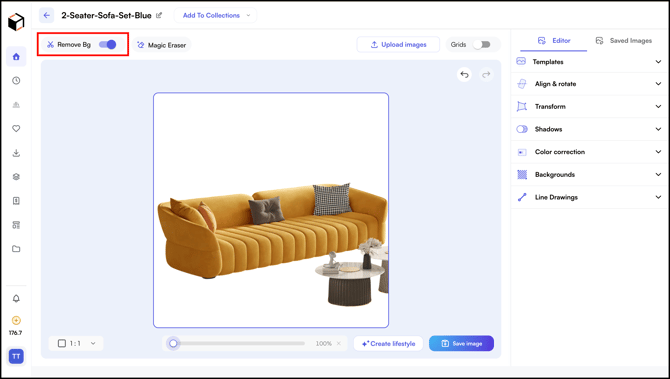
- Toggle on Remove Bg to remove the image background.
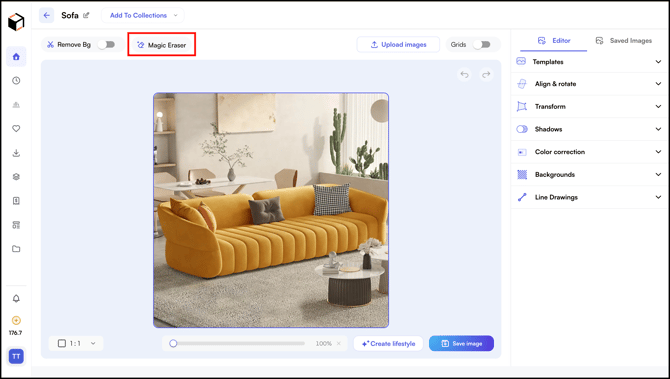
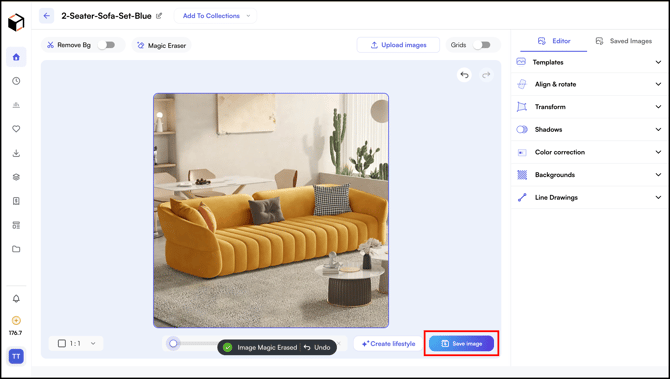
- Click Magic Eraser to remove unwanted elements from the image.
- Adjust the brush size using the slider to match the element you want to remove.
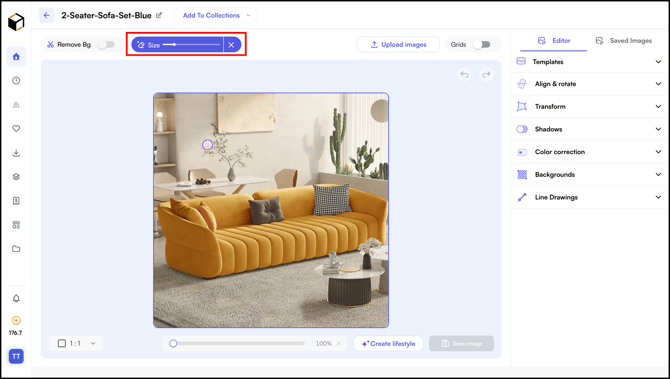
- Carefully trace over the element you want to remove, paying close attention to edges. For example, let's remove the vase from the table.
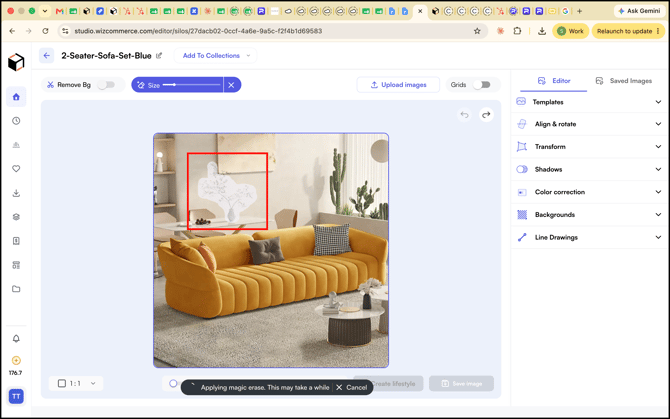
- Release the brush and wait for the result to process.
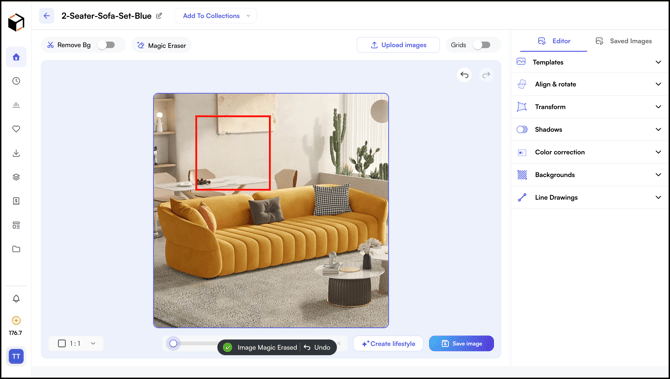
- Click Undo to revert any changes.
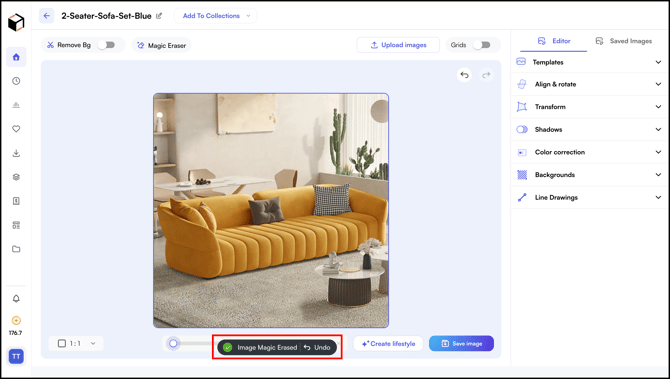
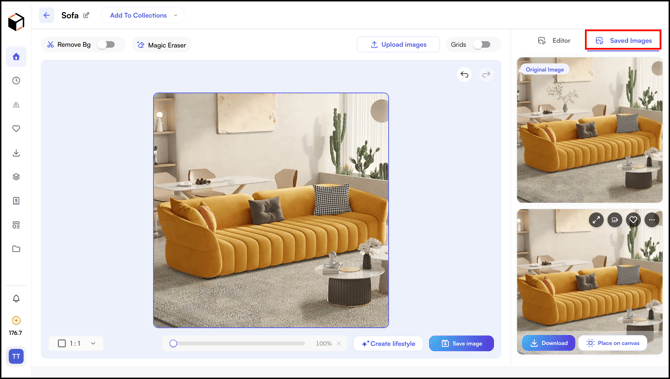
- Click Save Image, the image will appear in the Saved Images tab beside the editor.
- Saved Images: You can see both the original and saved images here.
Note: Click Lifestyle Generator at the bottom right of the Silo Editor screen to switch modes and keep editing the same image in Lifestyle Generator.
» Related Article →
Still need help? Reach out to our support team at help@wizcommerce.com.