
These are two separate things in WizCommerce. Here is how to do each one.
» To Inactivate the User / Sales Rep
- Go to Settings → User Management in WizOrder.
- Find the user / sales rep you want to in-activate.
- Click the Actions column on the far right.
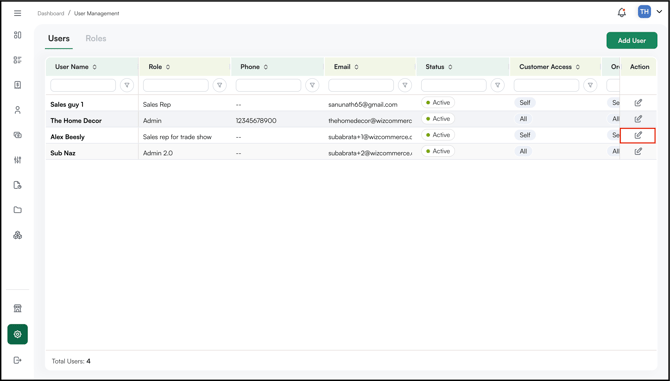
- Set their status to Inactive.
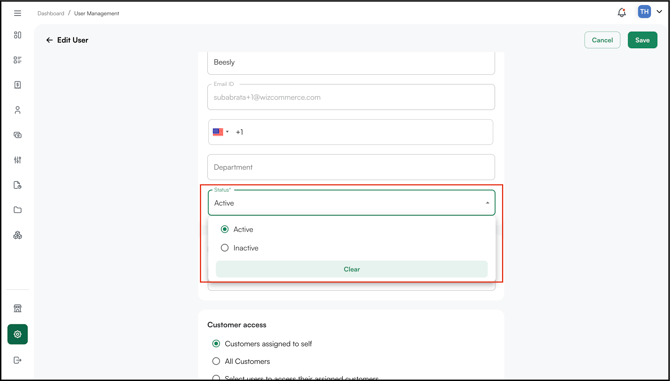
- Select the new user/sales rep with whom you want to merge the data (customers, orders, quotes, etc.) of the user/sales rep you want to inactivate.
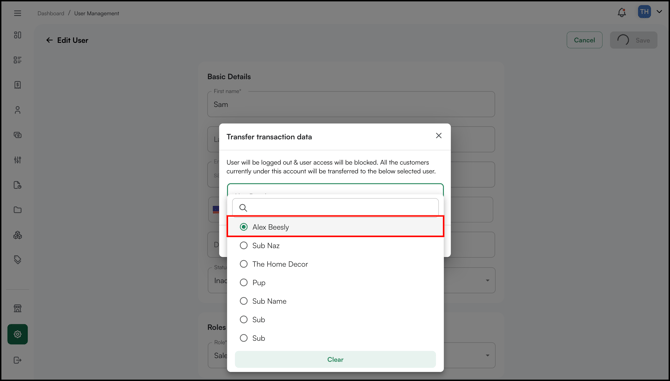
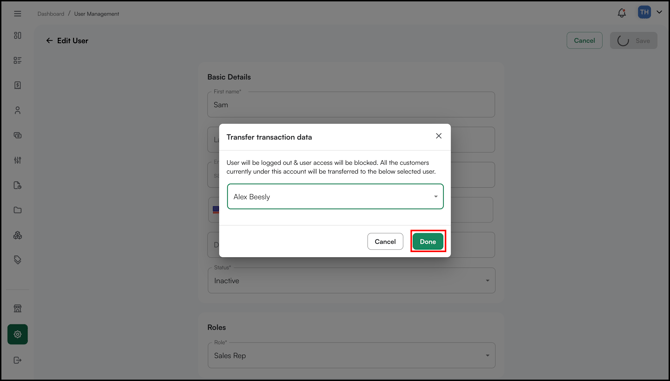
- Click Done.
Note:
-
When inactivating a user/sales rep, the Admin must assign their data (customers, orders, quotes, etc.) to another user/sales rep. If this is not done, the data will no longer be accessible.
- A user with associated orders cannot be deleted. To proceed, the associated orders must be removed or reassigned first. If you want to remove a user without losing their data, we recommend inactivating the user and merging their data with another user instead.
» To change your password
- On the WizOrder login page, click Forget Password?
- Enter the email address linked to the account.
- You will receive an email with a link to reset the password.
- Open the link, enter a new password, confirm it, and save.
Tip: For more on managing users and roles, see User Management in the WizCommerce Help Centre.
Note: If you have access to multiple company accounts (multi-tenant), the same password works for all of them, and you only need to reset it once.
» Didn't receive the password reset email?
Check your Spam, Junk, and (if you use Gmail) Promotions tab. Also, search your mailbox for the sender address rather than scrolling through folders manually.
Next, confirm the email address you are watching is the same one registered on your WizCommerce account — resets are sent to the account's registered address, which is sometimes different from the inbox you are checking.
If it still hasn't arrived, contact our support team — help@wizcommerce.com — support can confirm the email was triggered and, if needed, set a temporary password to get you back in.
» A few things worth knowing
- Inactivating a user does not delete their account or historical data.
- Inactivated users can be reactivated at any time.
- If the inactivated user works across multiple companies (multi-tenant), your company will no longer appear in their Switch Company list. Once you reactivate them, they can switch to your company again. See How do I switch between company accounts on WizCommerce?
Still need help? Reach out to our support team at help@wizcommerce.com.