
This article explains how to onboard a new sales rep, transfer customers to a different rep, and control who can see an inactivated rep's orders; ensuring a smooth transition with no customers or orders left behind.
Platform: WizOrder | Who is this for: Admins
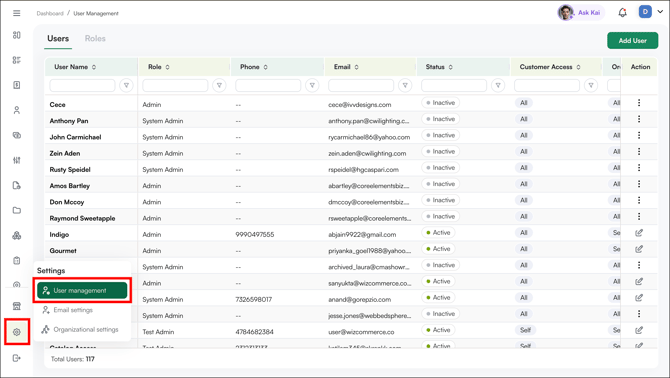
To Get There: Settings > User Management
Table of Contents
| Topics | Sections |
| A | Onboard a New Sales Rep |
| B | Transfer or Reassign Customers |
| C | Order Visibility After a Rep Changeover |
| D | ERP-Specific Notes (Rep-Code Mapping) |
| E | FAQs |
Before You Begin
- Ensure you have access to Organizational Settings.
- Make sure the role you plan to assign already exists under the Roles tab. If it doesn't, create it first (see Manage Users and Roles).
- If your WizCommerce account is connected to an ERP (e.g., NetSuite, QuickBooks), sales rep and customer assignments are usually driven by an ERP rep/territory code. Plan to coordinate the mapping with WizCommerce so new and changed reps sync correctly.
A. Onboard a New Sales Rep
Onboarding a rep has four parts: create the user, set their access, map them to your ERP rep code (if integrated), and confirm their customers sync.
1. Create the user
- Go to Settings → Org Settings → User Management and select the Users tab.
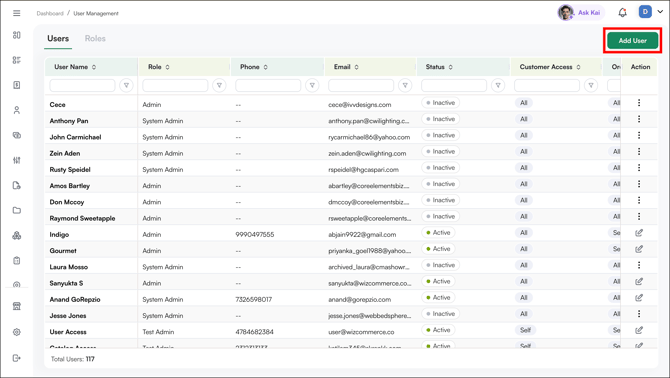
- Click Add User.
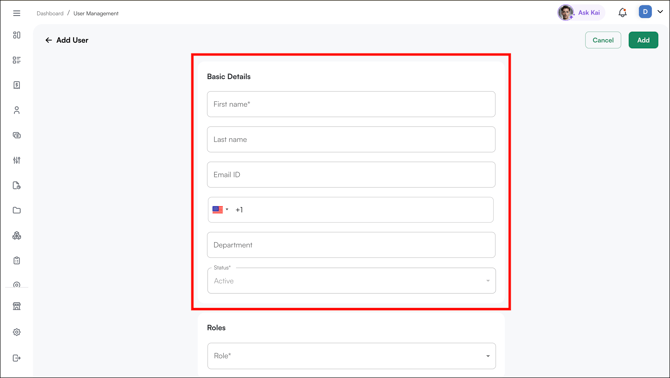
- Fill in the details: First Name (required), Last Name, Email ID (used to log in), Phone Number (include country code), Department, and Status (Active by default).
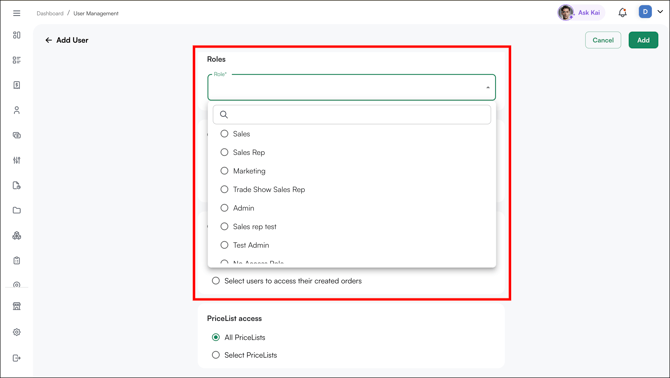
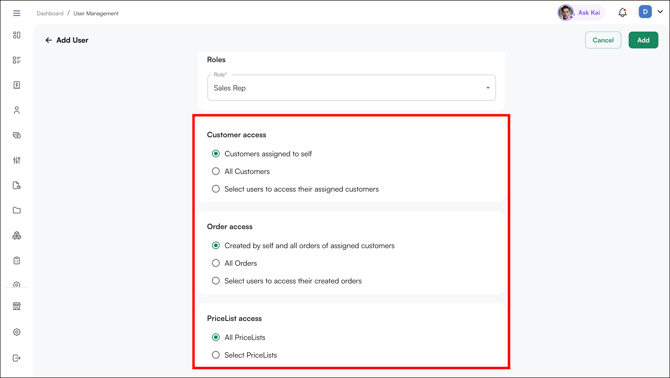
- Under Roles, choose the role that matches what this rep should see and do.
2. Set their access
- Customer Access: Customers assigned to self (only their own customers), All Customers, or Select users to access their assigned customers.
- Order Access: controls which orders they can see and manage (see Section C).
- Pricelist Access: All Pricelists or Select Pricelists.
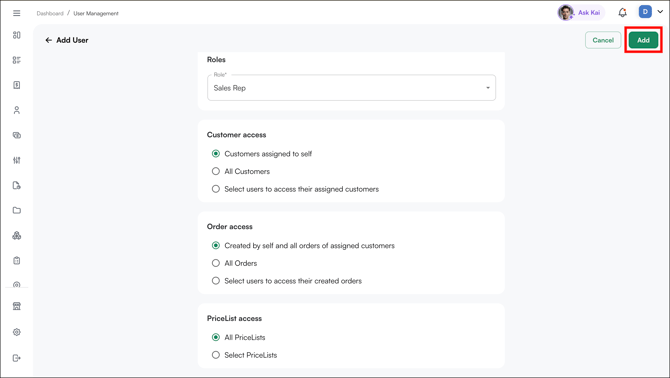
Click Add to create the user.
3. Map the rep to your ERP rep code (integrated accounts)
When your account is connected to an ERP, customers are matched to reps using an ERP rep/territory code, not the rep's name. WizCommerce maintains this mapping on the integration layer. A user you create directly in WizCommerce isn't automatically known to that mapping, so until it's added, that rep's customers may show under your default rep.
To avoid this, after creating the user, send WizCommerce support the new rep's login email and their ERP rep/territory code so the mapping is added and their customers are synced.
4. Confirm the sync
After the mapping is in place, confirm the rep can see their assigned customers and orders. If some customers still show under the default rep, those customers are likely missing a rep code in the ERP.
B. Transfer or Reassign Customers
Use this when a rep leaves, a territory is reshuffled, or customers need to move to a different rep.
If the outgoing rep is leaving the platform: Inactivate them and reassign their data in the same step. See How to inactivate a user/sales rep or change password in WizOrder. During inactivation you select the rep to take over the outgoing rep's customers, orders, and quotes.
If the outgoing rep stays but their customers move: reassign the affected customers to the new rep.
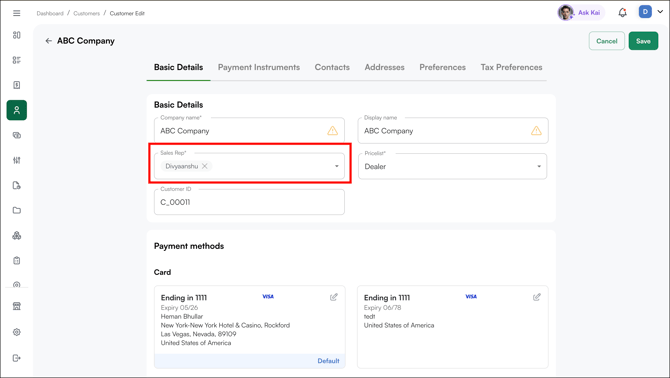
- One or a few customers: An admin can change the assigned rep on each customer record. Go to Customer → All Customers → Select a Customer → Edit → Change Sales Rep → Save.
- For bulk customers: Use a customer-to-rep assignment import to reassign in bulk.
For ERP-integrated accounts: Because rep assignment flows from the ERP, make the reassignment in your ERP (and/or update the WizCommerce mapping with support), then re-sync so the change holds. If you donot follow this step during the next sync the said customers of the old rep will be assigned with the default sales rep instead of the new one.
C. Order Visibility After a Rep Changeover
A common question after a changeover is why the new rep can see that orders exist but can't open the previous rep's orders. This is controlled by the user's Order Access setting.
A user's Order Access can be set to one of:
| Order Access setting | What the rep can see |
|---|---|
| Created by self and all orders of assigned customers | Orders they created, plus orders for customers assigned to them |
| All orders | Every order in WizCommerce, regardless of rep ("All Order Access") |
| Select users to access their created orders | Orders they created, plus orders created by the specific users you choose |
So after a takeover, the new rep sees the previous rep's orders when either the customers were reassigned to them (Section B), or their Order Access is set to All orders. Grant All orders when a rep genuinely needs full visibility; otherwise reassigning the customers keeps visibility scoped correctly.
Notes:
- Orders still in draft follow the same rule, a draft created by another rep won't appear for the new rep until the customer is associated to them.
- Showroom Mode access settings override User Management settings while a showroom/trade-show session is active.
D. ERP-Specific Notes (Rep-Code Mapping)
Rep-code mapping works differently across ERP accounts. Whenever you perform a rep change and have an ERP set up, please reach out to our support team at help@wizcommerce.com with the new rep's details (name, email) and the old rep's details so the team can map the data correctly. Make sure a default rep is always set so customers without a code do not go unassigned.
FAQs
1. I created a new rep - why are their customers showing under the default rep?
A. On ERP-integrated accounts, customers are matched to reps by an ERP rep/territory code. A user created directly in WizCommerce isn't automatically linked to that code, so their customers stay with the default rep until the mapping is added. Send an email to help@wizcommerce.com with the new rep's login email and ERP rep code, then re-sync.
2. Why can't my new rep see the previous rep's orders after a takeover?
A. Order visibility follows the Order Access setting. Either reassign the previous rep's customers to the new rep, or set the new rep's Order Access to All orders. See Section C.
3. A rep left. How do I move everything to their replacement?
A. Inactivate the outgoing rep and select the replacement to take over their customers, orders, and quotes in the same step. See the inactivation article.
Still need help? Reach out to our support team at help@wizcommerce.com.