
The QuickBooks Desktop (QBD) integration keeps customers, inventory, orders, invoices, and payments in sync between QuickBooks Desktop and WizCommerce automatically, so your sales team always works with the latest data, and your QBD file stays updated without manual re-entry.
This article explains how the connection works, what data flows in which direction, how to keep things in sync day to day, and what to do when something looks off.
Platform: WizCommerce (with QuickBooks Desktop) | Who is this for: Admins
Table of Contents
| Sections | Topics |
| A | How the Connection Works |
| B | What Data Syncs Between QBD and WizCommerce |
| C | Sync Timing and the WizSync Button |
| D | Troubleshooting and Common Issues |
| E | FAQ |
Before You Begin
Because QuickBooks Desktop runs on a computer in your office, the integration uses the QuickBooks Web Connector to relay data between QBD and WizCommerce. Before starting, make sure the following is in place:
- Your QBD edition (Pro, Premier, or Enterprise) is confirmed as supported by WizCommerce team.
- The computer that hosts QBD will stay powered on and online during business hours. The QuickBooks file you want to integrate with must be open on that machine.
- The QuickBooks Web Connector is installed (it ships with QBD).
- Your sales rep codes in QBD are mapped to sales rep email addresses in WizCommerce. For example, sales rep code 028 in QBD maps to
richard@yourcompany.comin WizCommerce. WizCommerce team will help with this mapping.
Note: If your ERP is not active 24/7, scheduled syncs may fail and data in WizCommerce may not be up to date. This can cause temporary discrepancies in your reports. The data will update automatically once the next sync runs successfully.
A. How the Connection Works
WizCommerce team will share a .qwc configuration file and a password. Install the file in the QuickBooks Web Connector on the QBD host machine, enter the password, and run a first sync. The Web Connector then relays data between QBD and WizCommerce on an ongoing basis.
The Web Connector must stay open and the QBD file must remain open for syncs to run. If the Web Connector is closed, the machine is asleep, or QBD is closed, orders, customers, and inventory updates queue until the connection is restored.
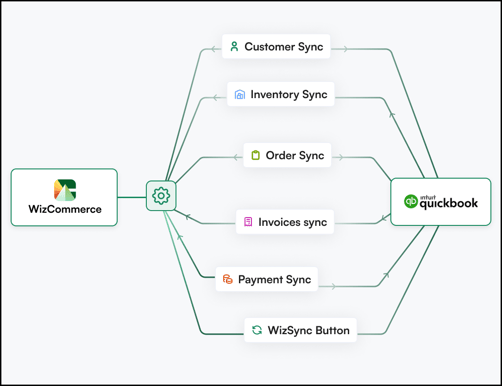
B. What Data Syncs Between QBD and WizCommerce
The integration between QBD and WizCommerce keeps your data in sync across both platforms. Below is a quick overview of the entities that sync, the direction of the data flow, and what each covers.
|
Entity |
Direction |
What's covered |
|
Customers |
Both ways |
Name, primary contact, billing address, shipping addresses, sales rep, customer type, payment terms. New and updated customers sync both ways. |
|
Products |
QBD → WC |
Products are pulled from QBD's ItemInventory and ItemAssembly lists. |
|
Inventory |
QBD → WC |
Quantity On Hand and Quantity On Order are pulled from QBD. WizCommerce does not push inventory changes back. (Inventory gets updated automatically during next sync cycle) |
|
Orders |
Both ways |
Orders confirmed in WizCommerce push to QBD in real time. Orders created in QBD pull into WizCommerce. |
|
Invoices |
QBD → WC |
Invoices linked to synced orders are pulled into WizCommerce for display and payment status. Shipment details are pulled from QBD invoice data. Invoices can't be created from WizCommerce. |
|
Payments |
Both ways |
Payments collected in WizCommerce (via WizPay) push to QBD. Payments recorded in QBD sync back to WizCommerce. |
A few defaults worth knowing:
- Customers and orders pushed to QBD are non-taxable by default (tax code is set to
NaN). - Orders pushed to QBD are tagged with the class
Wizcommerce. - Sales reps that don't exist in QBD default to "Admin" when a WizCommerce customer is pushed.
- Payment terms default to Net 30 if no match exists between the two systems.
- Customer type defaults to Wholesale if no match exists.
-
Price levels and pricelists are not synced through the customer sync. QuickBooks Desktop has two types of pricing: price levels and price rules.
-
Price levels can be pulled into WizCommerce automatically.
-
Price rules cannot be pulled, because QuickBooks does not allow it. To bring these in, use the import module in WizCommerce
-
C. Sync Timing and the WizSync Button
Sync timing depends on the direction of data flow:
-
WizCommerce → QBD (push): real-time. Orders and payments confirmed in WizCommerce push to QBD instantly.
-
QBD → WizCommerce (pull): incremental schedule. Customers, orders, inventory, and invoices are pulled in at set intervals.
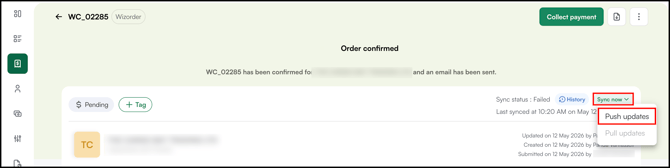
For on-demand sync, click Sync Now → Push Updates in WizCommerce to refresh customers and orders manually, useful when you need the latest data without waiting for the next scheduled sync.
If you need a manual refresh of inventory or invoices, contact WizCommerce or email help@wizcommerce.com.
D. Troubleshooting and Common Issues
» My QBD connection or Web Connector is inactive, orders aren't pushing.
Typical errors: "QBD Connection Error (0x80040408): Could not start QuickBooks", "The QuickBooks Desktop connection for EndUser end_usr_** is not active"*, "Request timed out".
What to do:
- Confirm the QBD host machine is powered on and signed in.
- Confirm the QuickBooks file is open.
- Confirm the Web Connector is running and isn't blocked by a pop-up. Dismiss any pop-ups visible in QBD.
- Restart QBD if the issue persists. Then in QBD, go to File > App Management > Update Web Services and let the Web Connector run in the background. Click Hide to keep it running — do not click Exit, which would terminate the background process.
See the published FAQs
-
What should I do if my QuickBooks Desktop integration is inactive and orders are not being pushed?
-
My QuickBooks Web Connector is stuck and not syncing — how do I fix it?
» An order failed because a SKU doesn't exist in QBD
Typical error: "QBD Request Error (3140): There is an invalid reference to QuickBooks Item '<SKU>' in the SalesOrder line."
Add the missing SKU as an item in QBD, then push the order again. See the published FAQ
» An order failed because the customer can't be created in QBD
If an order fails because the customer could not be created in QBD, the error message will help you identify the cause. The table below covers the most common errors and the steps to resolve them.
|
Error |
What to do |
|
QBD Request Error (3100): The name 'ABCD' of the list element is already in use. |
The customer already exists in QBD with the same name. To fix this, either:
|
|
QBD Request Error (3120): Object '...' specified in the request cannot be found. |
The customer was deleted in QBD. Confirm whether to recreate as new. If yes, push the customer again, then push the order. |
|
QBD Request Error (3000): The given object ID '' in the field 'list id' is invalid. |
Push the customer again. Once it syncs successfully, push the order. |
» A new customer added in QBD isn't showing in WizCommerce
Confirm the customer is saved and active in QBD. Click WizSync in WizCommerce to trigger an immediate refresh, or wait for the next incremental sync. If it still doesn't appear, contact help@wizcommerce.com with the QBD customer name.
» A new product or SKU added in QBD isn't showing
See the published FAQ I added products in QuickBooks but they haven't appeared in WizCommerce yet — how do I get them synced?.
» A reactivated customer in QBD isn't appearing in WizCommerce
See the published FAQ We reactivated a customer in QuickBooks — will they automatically show up in WizCommerce after the next sync?.
» Stock quantities in WizCommerce look wrong
QBD inventory pulls Quantity On Hand and Quantity On Order. The number in WizCommerce reflects the most recent sync, not real time. For high-demand SKUs, wait for the next sync or request a manual inventory refresh from support team.
Also confirm Inventory Tracking is enabled for the product - see the published FAQ How do I stop a product from showing as available when its quantity is 0?.
» A customer's address or phone doesn't match between QBD and WizCommerce
For QBD, billing address and primary contact details follow the master record in QBD, update the record in QBD first, then sync. State codes (for example, Georgia) are automatically converted to two-letter codes (GA) when pushed to QBD.
FAQs
1. Do I need to keep the QBD computer on all day?
A. Yes. The Web Connector relays data between QBD and WizCommerce, so the host machine and Web Connector must stay running for syncs to complete. If the machine is off or asleep, syncs will stop. Anything created while the connection was down stays in WizCommerce and has to be pushed manually once the connection is restored, either by the admin team or with help from WizCommerce support.WizCommerce support team.
2. Can I edit customer addresses directly in WizCommerce?
A. You can, and the change will push to QBD. But because QBD is generally the master for customer details, the cleanest practice is to make customer detail changes in QBD and let the integration carry them through.
3. Can I create an invoice in WizCommerce?
A. No. Invoices are created in QBD. WizCommerce pulls them in for display and to calculate payment status against synced orders.
4. What happens to orders placed in WizCommerce when QBD is offline?
A. Nothing is lost. Orders and customers created while QBD is offline stay safely in WizCommerce. They won't move to QBD on their own once the connection is back, the admin team or the WizCommerce support team will need to send them over manually.
Still need help? Reach out to our support team at help@wizcommerce.com.